
How to Listen to and Download Call Recordings
Every recorded call keeps its audio on the call record. Learn where the Recording player sits, how to play, slow down or mute a recording, how to save the audio file, and why some calls have no recording at all.
Also searched as: How to Listen to and Download Call Recordings, Where recordings live, Open Calls and choose the right tab, Open the call you want to hear, Play the recording, Change the speed, mute, or download the file, Do the same for a WhatsApp call, When there is no recording, Listen, Download, Call, Recordings
When ChatDaddy records a call, the audio is attached to that call in your Calls page. Open the call and a Recording player appears, so you can listen back to what was said, scrub to the part you need, and save the file to your computer. It is the quickest way to check an order detail, hand a conversation over to a colleague, or settle a dispute about what was agreed.
This is useful for anyone who reviews calls after the fact — support leads doing quality checks, sales managers coaching a team, and agents who need to confirm something a customer said.
🎙️ A recording only exists if the call was recorded in the first place. Calls placed and answered in the ChatDaddy browser tab are captured; a call that happened somewhere else, or one that never connected, shows “No recording available” instead of a player. Nothing you can do afterwards will create the audio.
Where recordings live
Recordings are not a separate page. They sit inside the detail panel of each call, on the Calls page in the left-hand navigation. That page has two tabs, and both work the same way:
- Calls History — voice calls made through ChatDaddy Calling.
- WhatsApp Log History — WhatsApp Business voice calls. This tab needs a WhatsApp Business API channel connected; without one it stays greyed out and offers you a Connect WABA button instead.
Step-by-step
Step 1 — Open Calls and choose the right tab
Click the phone icon in the left navigation to open Calls History. Pick Calls History for a normal voice call, or WhatsApp Log History for a WhatsApp call. Each tab keeps its own list, its own filters and its own totals, so a call only ever appears under one of them.
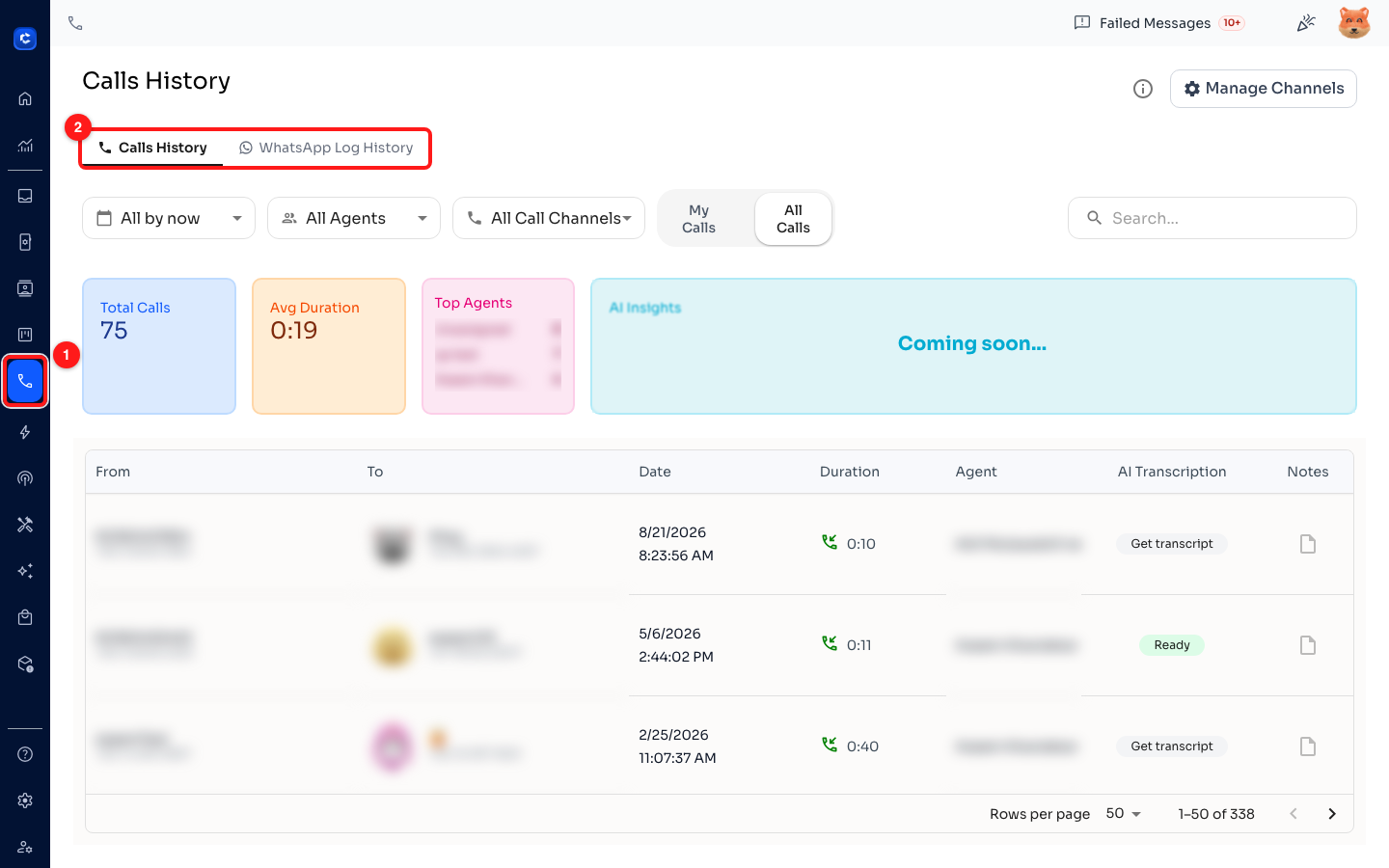
Step 1 — the Calls entry in the navigation (1) and the two history tabs (2).
Step 2 — Open the call you want to hear
Find the call in the table and click anywhere on its row. The Duration column is the fastest way to spot a call worth opening: a call showing 0:00 never connected, so it has nothing to play. Use the date, agent and search filters above the table to narrow a long list first.
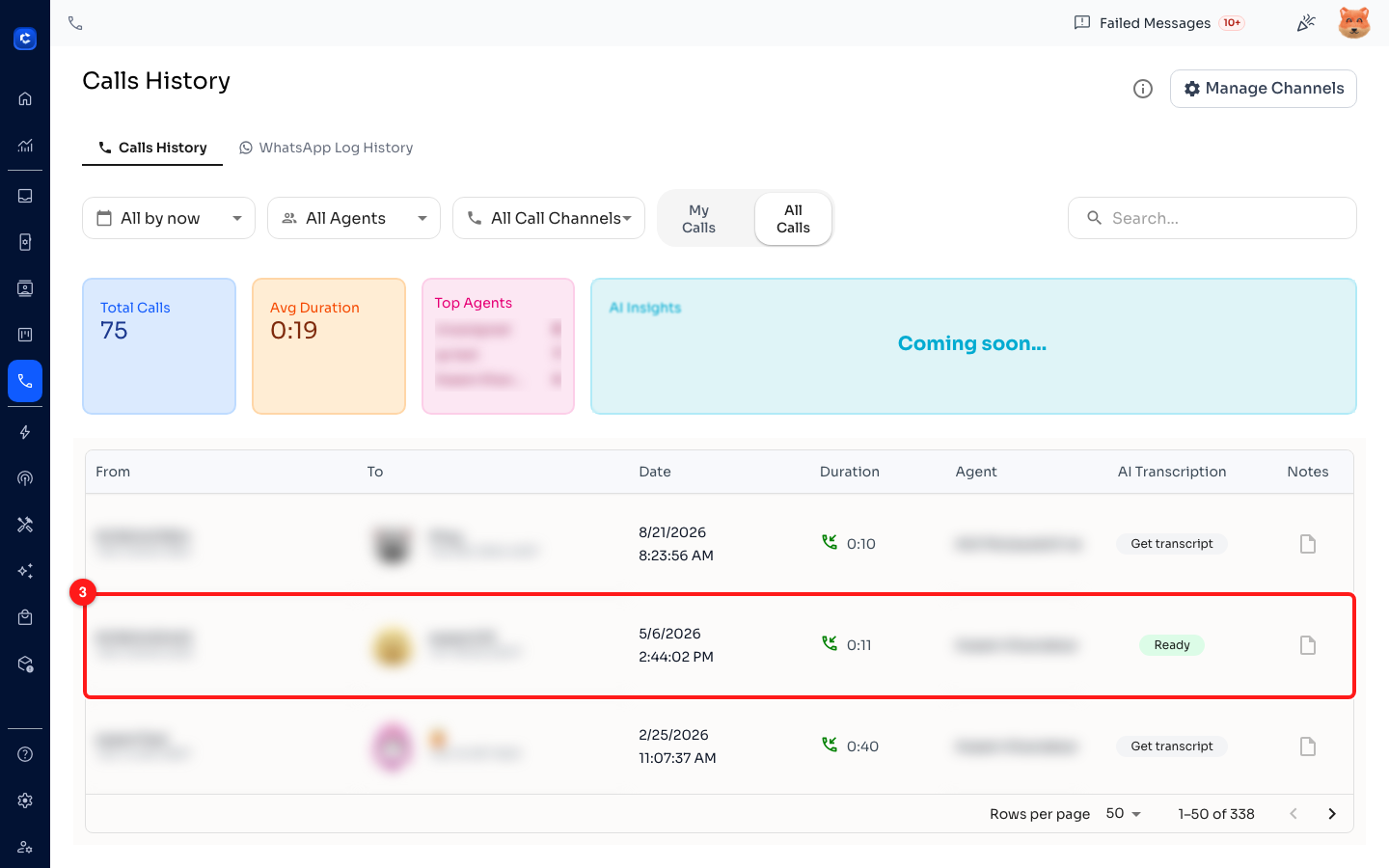
Step 2 — click the row of the call you want (3).
Step 3 — Play the recording
The call panel opens with a Recording section. Press the blue play button to start listening. The bar next to it is a scrubber — drag it to jump to any moment in the call. The time on the left is where you are, the time on the right is how long the whole recording is.
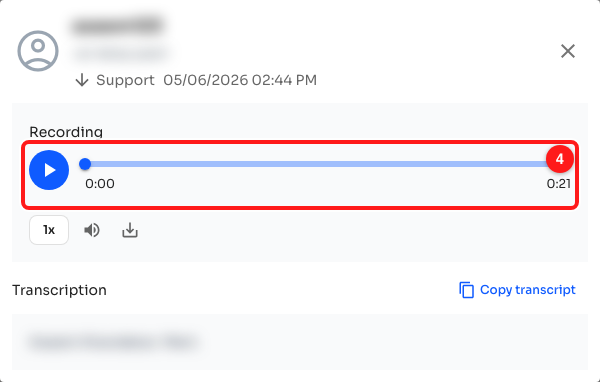
Step 3 — the Recording player (4): play button on the left, scrubber across the middle, elapsed time and total length underneath.
🔈 Nothing plays until you press play, so opening a call is always safe — you will never start audio out loud by accident while a customer is on the line.
Step 4 — Change the speed, mute, or download the file
Three small controls sit under the scrubber:
- 1x — the playback speed. Each click steps to the next setting: 1x → 1.5x → 2x, then back to 1x. Handy for skimming a long call.
- Speaker — mutes and unmutes the playback. The call keeps running while muted, so the scrubber carries on moving.
- Download — saves the audio to your computer.
The download starts straight away, with no dialog and no confirmation. Voice calls save as an .mp3 file; WhatsApp call recordings save as a .webm file, which plays in any modern browser and in players such as VLC.
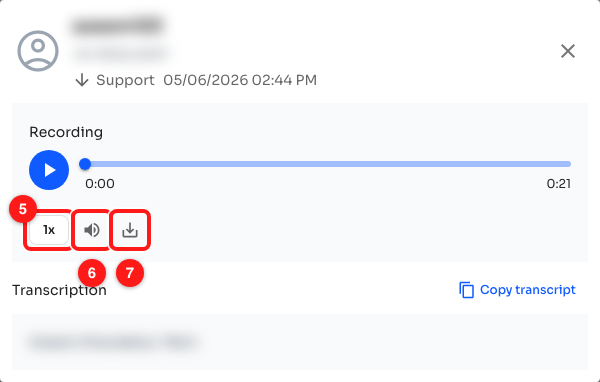
Step 4 — playback speed (5), mute (6) and download (7).
Step 5 — Do the same for a WhatsApp call
On the WhatsApp Log History tab the player is identical. The panel adds a little more context around it: Started, Ended, Duration and Agent at the top, the call status as a coloured chip, and a Timeline at the bottom listing when the call was initiated and when it ended.
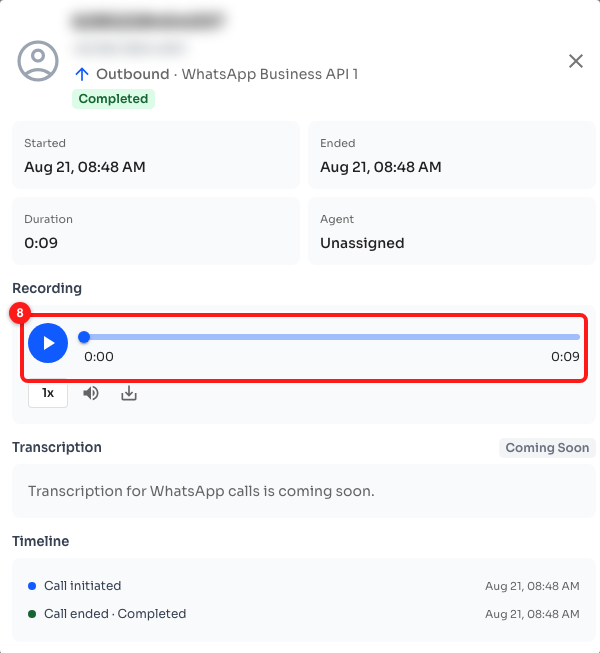
Step 5 — the same Recording player on a WhatsApp call (8).
💬 Transcription for WhatsApp calls is marked Coming Soon and shows no text yet. Voice calls on the Calls History tab can be transcribed today — open the call and use Get transcript, or the AI Transcription column in the table.
When there is no recording
Instead of a player you may see a short message in the Recording section. Each one means something different:
- “No recording available. Recordings are captured for calls made through this browser.” Nothing was recorded for this call. Most often the call was placed from a different device or a different browser, or it never connected.
- “Recording is being processed…” with a spinner — the audio exists but is still being prepared. Give it a minute and reopen the call.
- “Recording processing failed.” — the upload did not complete and the audio cannot be recovered for that call.
- No Recording section at all on a voice call — the same thing as the first message: that call has no audio attached. The Transcription section will say “Call recording not available.”
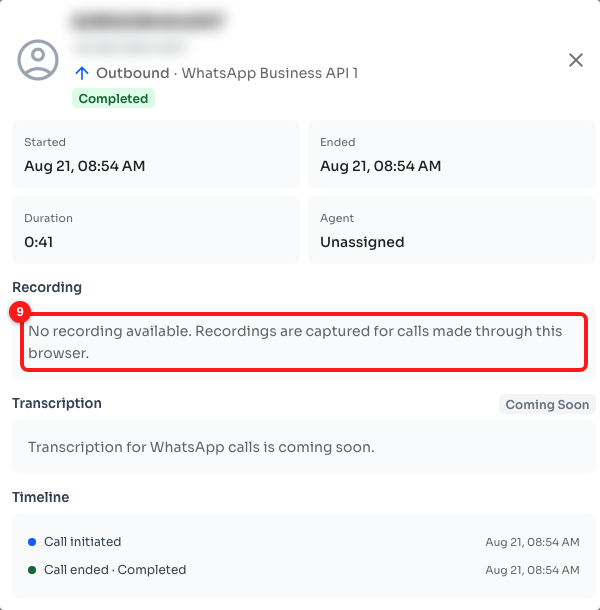
A WhatsApp call that was never recorded (9) — the player is replaced by an explanation.
Frequently asked questions
Why do some of my calls have recordings and others do not?
Recording happens in the browser tab that handled the call. If the call was placed or answered in ChatDaddy on this computer, there is audio. If a teammate took it elsewhere, if the tab was closed mid-call, or if the call rang out without being answered, there is nothing to record. A duration of 0:00 in the table is the giveaway.
Can I get a recording back after it says “processing failed”?
No. That message means the audio never finished uploading, so there is no file to recover. If it keeps happening on your team, contact ChatDaddy support with the date and time of a couple of affected calls.
Where does the downloaded file go?
To your browser's normal downloads folder, with no save dialog. Voice calls arrive as callRecording.mp3 and WhatsApp calls as waba-recording.webm, so rename the file after saving if you are keeping several.
Can I share a recording with someone outside my team?
Download it and share the file yourself. There is no share link, and anyone who needs to listen inside ChatDaddy needs access to your team. Remember that a call recording is customer data — check what your own privacy policy and local law allow before you pass it on.
Is there a way to see only the calls that have a recording?
Not as a filter today. The closest thing is the Duration column — sort or scan for calls longer than 0:00, since a call that never connected can never have audio. On narrow screens the call list switches to cards and the player appears on the card itself, which makes recorded calls easy to spot.
Does playing or downloading a recording cost credits?
No. Listening to and downloading recordings is free. Transcribing a voice call with Get transcript is a separate AI action.