
How to Search Messages Inside the Inbox
The Inbox search box looks for people, not for what was written. Learn how to search message text across every chat, how to search inside one conversation, how to jump straight to a match, and why some older messages are not found until you load them.
Also searched as: How to Search Messages Inside the Inbox, Search the chat list for a person, Switch to searching message text, Read the message results, Open a result at the matching message, Search inside one conversation, Jump to a message, Search, Messages, Inside, Inbox
There are two different searches in the Inbox, and knowing which one you are using saves a lot of scrolling. The box above the chat list finds people — a contact name or a phone number. Finding the words inside a conversation is a separate step, either across all of your chats at once or inside the one chat you have open.
This is the quickest way to answer questions like “which customer asked about the delivery address?” or “where in this long chat did we agree the price?”
🔎 Typing in the chat-list box does not search message text. To search what was actually written, click Search Messages Instead? underneath the chat list, or open a chat and use the magnifier in its header.
Step-by-step
Step 1 — Search the chat list for a person
Open the Inbox and type into the Search box at the top of the chat list. ChatDaddy matches the contacts you already have chats with, then any other contacts in your list. If you type a full phone number or email address that has no conversation yet, it offers to start one.
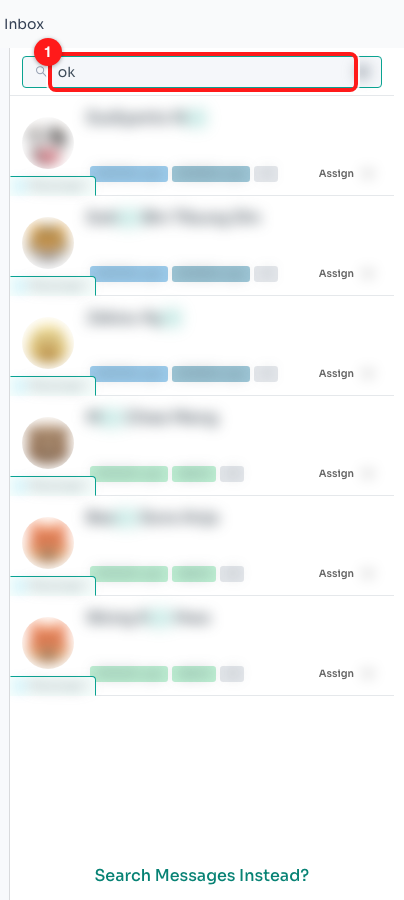
Step 1 — the Search box above the chat list (1). Contact details are blurred here; on your screen you will see the real names.
ℹ️ Press Esc or click the × in the box to clear the search and get your full chat list back.
Step 2 — Switch to searching message text
Once ChatDaddy has run out of chats and contacts to match, a Search Messages Instead? link appears at the bottom of the list. Click it and the same words are searched against the text of your messages.
If nothing matched a person at all you will see “Sorry! We couldn’t find the chat you searched for.” with the same link directly underneath it — that is normal, and it is exactly the moment to use it.
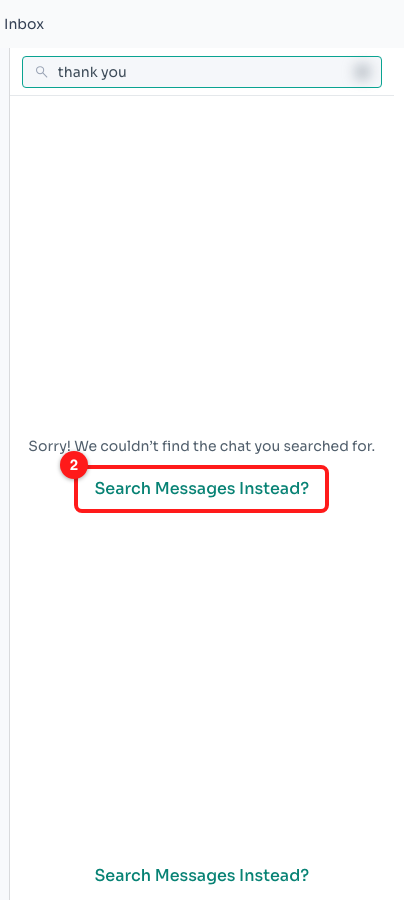
Step 2 — no contact is called “thank you”, so ChatDaddy offers to search message text instead (2).
💡 You only have to click it once. Message search stays switched on while you keep editing the same search — it turns itself off when you clear the box.
Step 3 — Read the message results
Matching chats are added to the list. Each row shows the conversation the match was found in, a line of the matching message, and the date of that message — so a result from last March sits in the list with last March’s date, not with the date of the chat’s newest message.
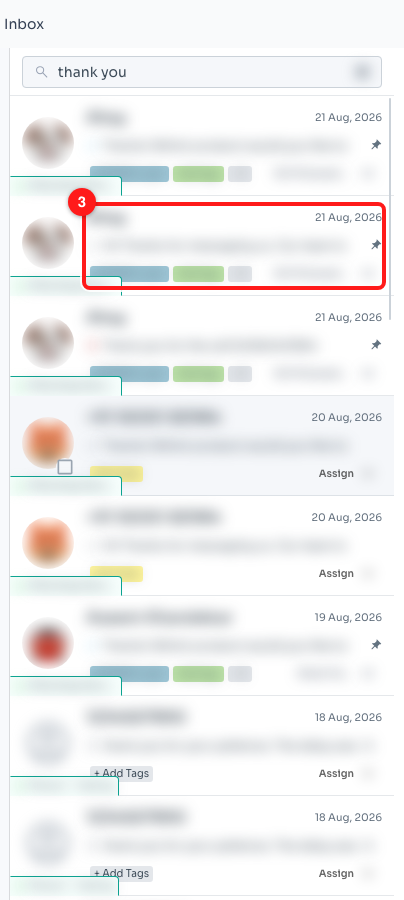
Step 3 — one result per matching conversation, dated by the message that matched (3).
If the words are nowhere in your messages either, the list reads “Sorry, we couldn’t find anything in messages either.” Try a shorter or more distinctive phrase — search looks for the words as they were typed, so a spelling difference is enough to miss a match.
Step 4 — Open a result at the matching message
Click a result and the conversation opens at that message, not at the newest one — you land in the middle of the history with the surrounding messages around it for context.
A green Latest Message button sits in the bottom-right corner while you are parked back there. Click it to return to the live end of the conversation, ready to reply.
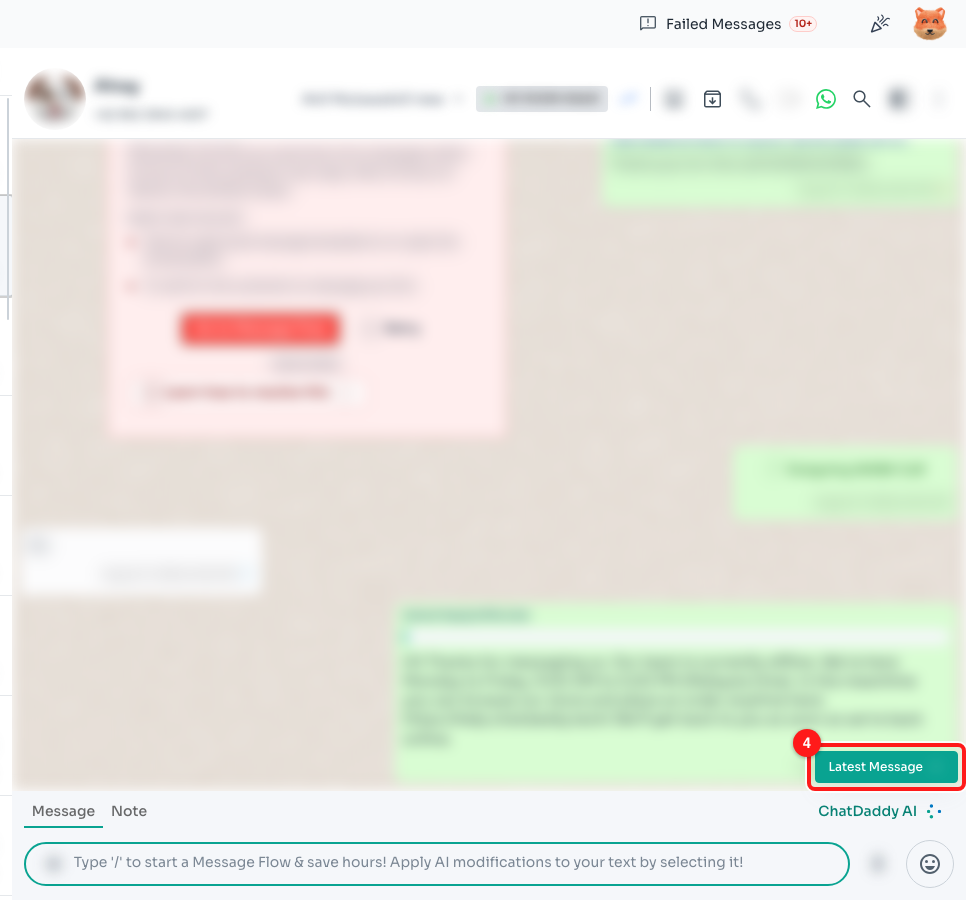
Step 4 — the conversation opened at the search hit; Latest Message takes you back to the present (4). The messages are blurred for privacy.
Step 5 — Search inside one conversation
When you already know who said it and only need to find where, open the chat and click the magnifier in the chat header. A Search Messages panel opens down the right-hand side, and it only ever searches this one conversation.
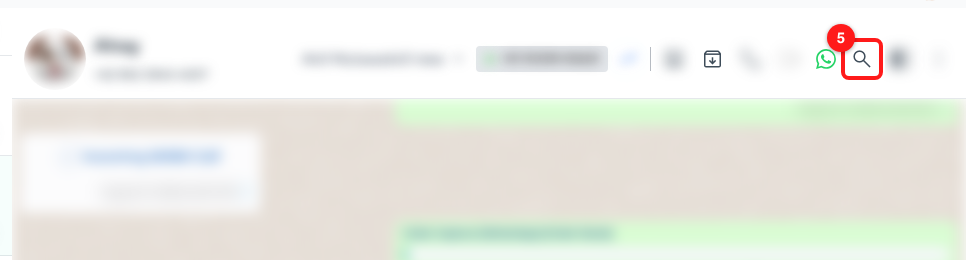
Step 5 — the magnifier in the chat header (5). It turns green while the panel is open.
Before you type anything the panel prompts “Search for messages with …” and the contact’s name, so you can see at a glance whose history you are about to search.

The panel’s own search box (6) — type here, not in the chat-list box on the left.
Step 6 — Jump to a message
Results appear as you type, each one showing the date and time of the message and the text that matched. If there is nothing to show, the panel says No Messages Found.
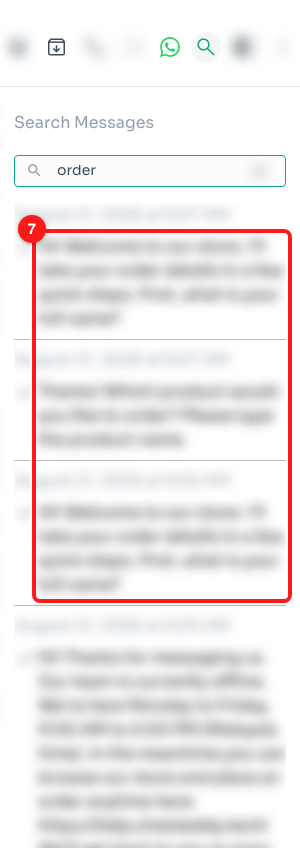
Step 6 — every message in this chat containing the word, with its date (7).
Click a result and the conversation scrolls to that message and flashes it for a couple of seconds so you can pick it out, then leaves you there to read around it.
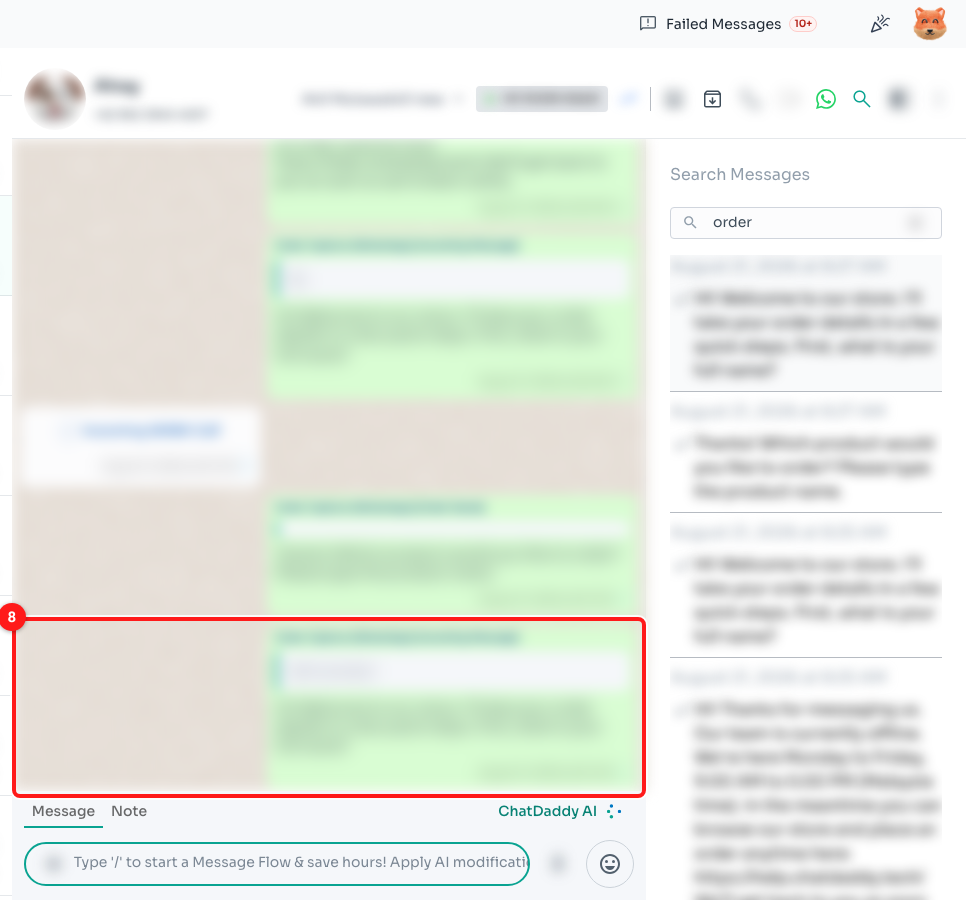
The message you clicked, scrolled into view and briefly highlighted (8).
ℹ️ The panel closes on its own when you move to another chat, so each conversation starts with a clean search.
Troubleshooting
Search finds the person but not the words they wrote.
You are still on the chat search. The box above the chat list only matches contact names, phone numbers and email addresses. Click Search Messages Instead? at the bottom of the list to search message text with the same words, or open the chat and use the magnifier in its header.
I know an old message exists, but search never finds it.
Only the messages ChatDaddy has actually stored can be searched. On a personal WhatsApp channel connected by QR code, anything from before you connected stays on your phone until you pull it across.
Open the chat and scroll to the very top of the conversation. Where it says “Use WhatsApp on your phone to see older messages.”, click it and ChatDaddy loads the next batch from your phone — keep your phone online with WhatsApp open while it runs. Repeat until you reach the start of the history. Once those messages are in ChatDaddy they are searchable like any other.
Results only come from one channel.
Message search obeys the channel filter you have applied to the Inbox. If you have narrowed the list to a single channel, only that channel’s messages are searched. Clear the channel filter first to search across all of them.
I cannot see the magnifier in the chat header.
Message search is permission-controlled, and the icon is hidden for team members who do not have it. Ask your team owner or an admin to give your role access to message search, or contact ChatDaddy support and we will switch it on for your team.