
How to Start From a Template in the Template Library
The Template Library is a catalogue of ready-made message flows built by ChatDaddy and by other teams. Learn how to open it, browse by goal, language and industry, preview a template before you commit, and turn one into a working flow in your own account.
Also searched as: How to Start From a Template in the Template Library, Open the Template Library, Pick a goal, or skip straight to the full catalogue, Browse and search the catalogue, Narrow it down by language and industry, Preview the template before you take it, Use the template, Start, Template, Library
Building a message flow from an empty canvas takes time, and most of the things teams automate — an auto-reply, a lead qualifier, an out-of-hours handover — have been built many times before. The Template Library is a catalogue of finished flows you can copy into your own account and edit, instead of starting from scratch.
It is useful the moment you open Message Flows for the first time, and just as useful later on when you want a proven structure for something new. Everyone on your team can use it — there is no plan or permission gate.
⚡ A template you import arrives with all of its triggers switched off. Nothing is sent to anyone until you open the Trigger node and turn Enabled on yourself, so you can import freely and read the flow before it can do anything.
Step-by-step
Step 1 — Open the Template Library
Go to Automation → Message Flows. In the top-right corner of the list, click the ⋮ button next to Resubmit All Templates, then choose Template Library.
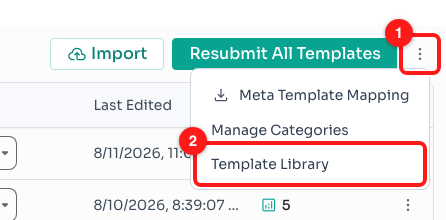
Step 1 — the ⋮ menu at the top right of the flows list (1) holds the Template Library entry (2).
ℹ️ The same picker opens from Create New Message Flow, and from Explore Templates on the Message Flow analytics page. If you have no flows yet, the empty state offers it to you directly.
Step 2 — Pick a goal, or skip straight to the full catalogue
The library opens on Choose your goal. The Most Popular row lists five common jobs — Auto-reply customers, Assign chats to team, Handle property inquiries, Support education and Send promotions. Clicking one filters the catalogue down to templates that do that job. If you would rather see everything, click Show All Template on the right.
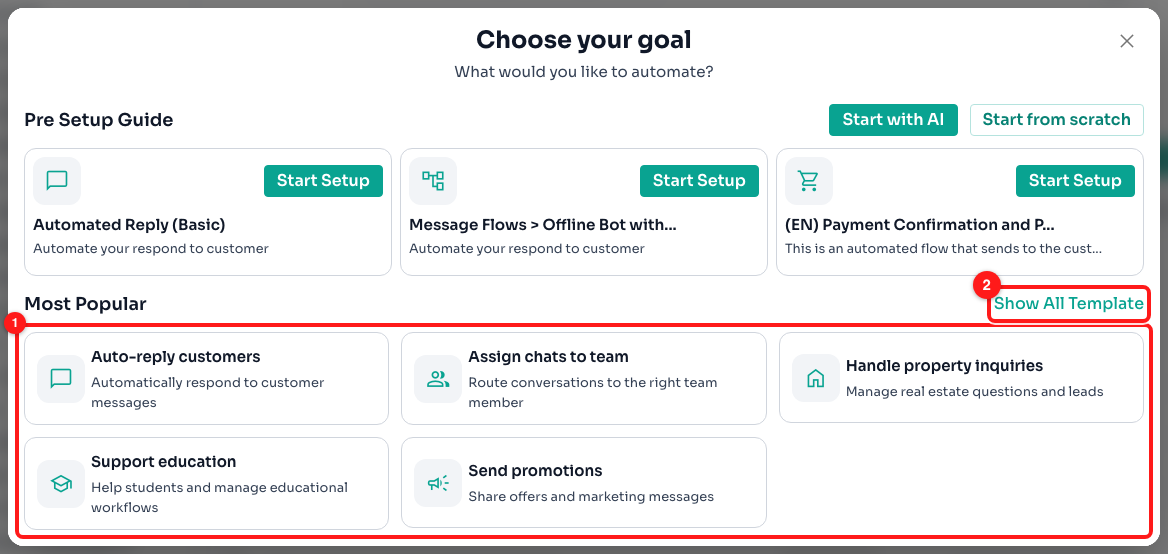
Step 2 — the five goal cards (1), or Show All Template to browse the whole catalogue (2).
Two other routes sit on this screen if a template is not what you want:
- Start with AI — describe what you need and let ChatDaddy draft the flow for you.
- Start from scratch — go straight to an empty canvas.
- Pre Setup Guide — three guided starters at the top of the screen, each with its own Start Setup button, for the most basic set-ups such as Automated Reply (Basic).
Step 3 — Browse and search the catalogue
The catalogue is titled Choose a Template. Each card shows the template name, a short description, a preview of the first message it sends, how many teams have installed it, and its star rating. A rating of -- simply means nobody has rated it yet.
Type into Search template to search by name, and use the dropdown on the right to reorder the list — High Rating (the default), Most Popular (most installs), Favourites or New.
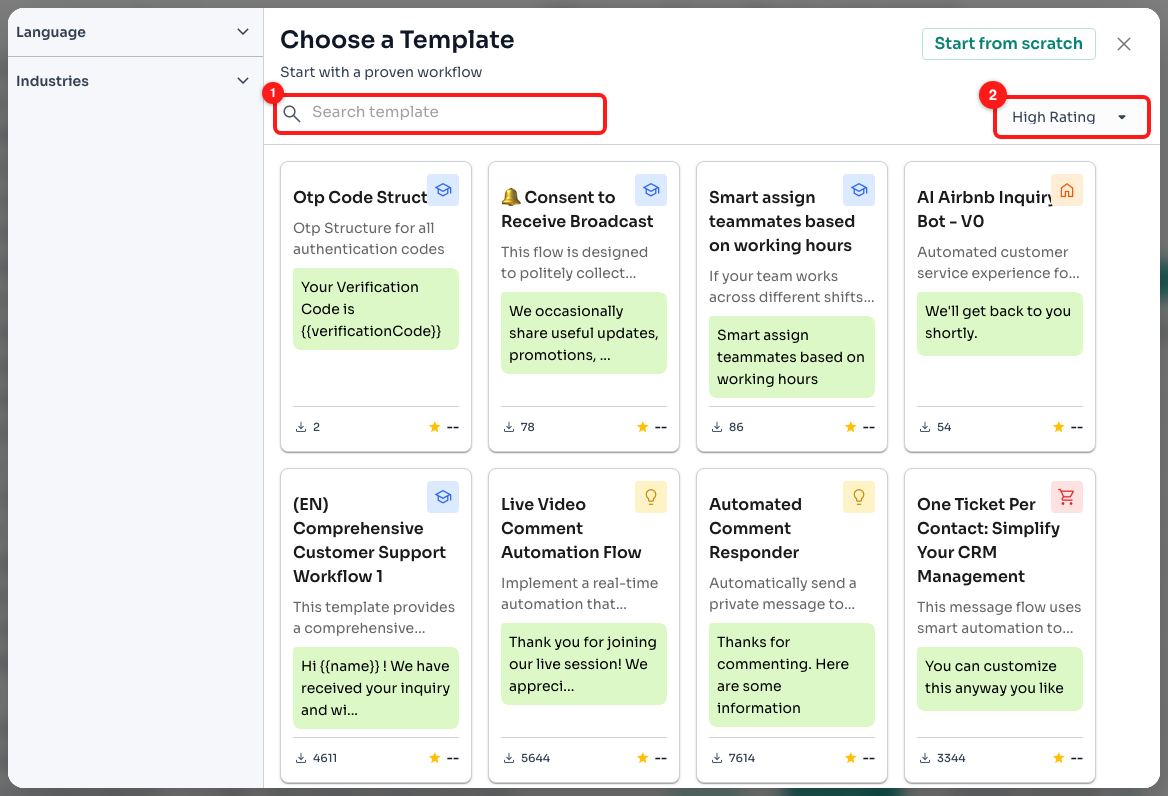
Step 3 — the Search template box (1) and the sort dropdown, showing High Rating by default (2).
Step 4 — Narrow it down by language and industry
The rail on the left of the dialog has two filters. Hover over one to open it.
- Language — English, 中文(简体), 中文(繁體), Bahasa Melayu, Bahasa Indonesia, Español and Português. This filters on the language the template’s messages are actually written in, so you are not left translating a flow after you import it.
- Industries — Education & E-Learning, Retail & E-commerce, Professional Service, Beauty, Medical & Fitness, Property, Technology & Software, Government & Community, and Others.
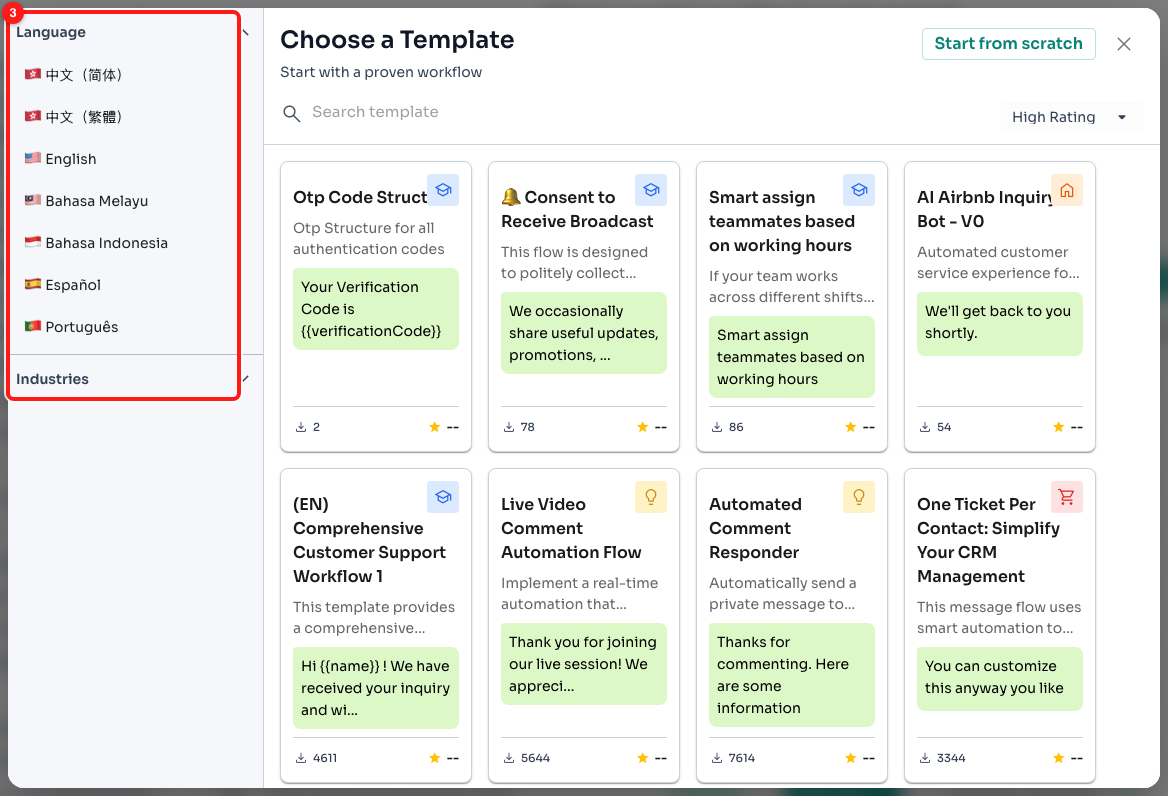
Step 4 — the Language and Industries filters on the left of the dialog (3).
💡 On a narrow screen the rail is replaced by two Language and Industries dropdowns above the cards. The filters do the same thing either way.
Step 5 — Preview the template before you take it
Click any card to open its detail view. You get the whole flow drawn out on a read-only canvas, so you can follow the trigger, the conditions and every message before you commit — and on the right, a phone mock-up showing what the conversation looks like to your customer. Underneath sit the industry tag, the full description, the install count and the rating.
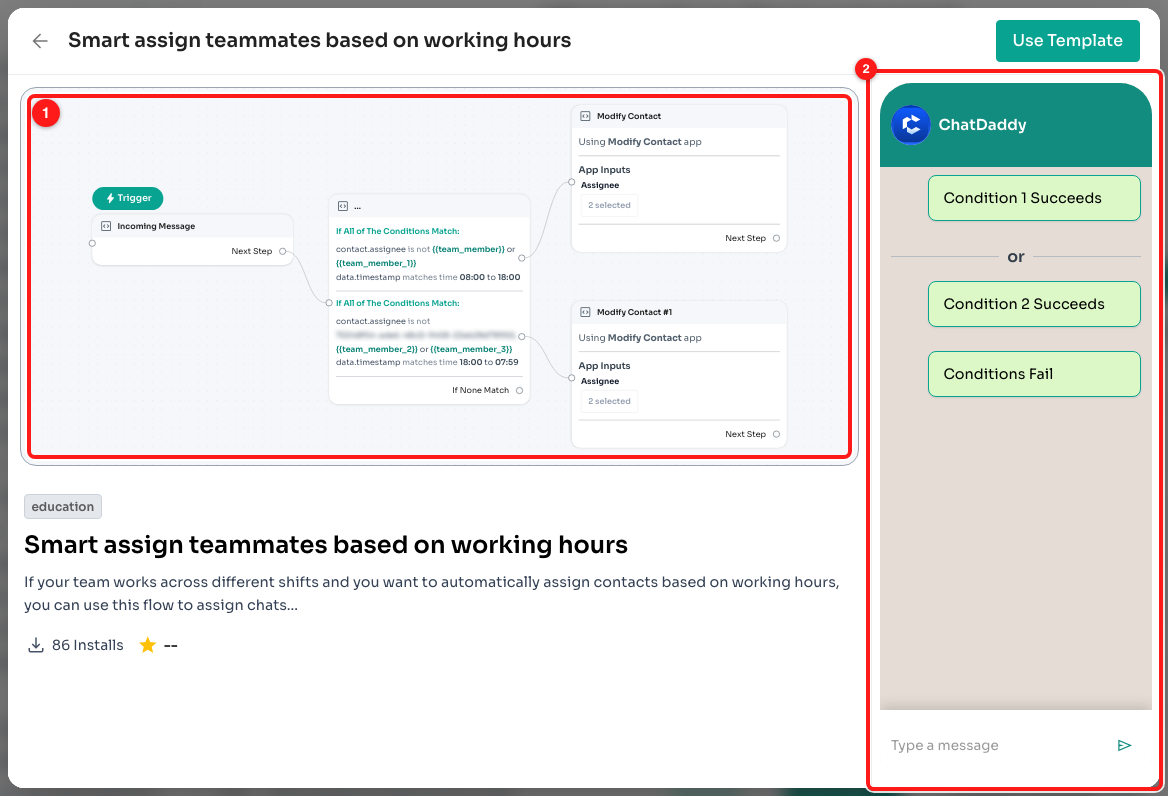
Step 5 — the flow laid out on a read-only canvas (1) and the customer’s view of the conversation (2).
You cannot move or edit anything here — this view is for reading. Use the back arrow at the top left to return to the catalogue and look at another one.
Step 6 — Use the template
When you have found the right one, click Use Template. ChatDaddy copies the template into your account as a brand-new message flow and opens it in the builder straight away, ready to edit. The original template is untouched, and nothing is deducted from your credits.

Step 6 — the back arrow returns you to the catalogue (1); Use Template imports it into your account (2).
The new flow keeps the template’s name and description, so rename it to something you will recognise. Then work through it before switching anything on:
- Replace the sample message text with your own wording.
- Open the Trigger node and set Channel under Target Audience to the channel you want the flow to send from — the template arrives pointing at whatever its author used.
- Still in the Trigger node, switch Enabled on. Until you do, the flow will not run for anybody.
Frequently asked questions
I clicked Use Template and nothing seems to have happened.
ChatDaddy does not show a confirmation message — it takes you straight into the flow builder with the imported flow open. If you are looking at a canvas with nodes on it, the import worked. The flow is also now in your Message Flows list under the template’s name.
I imported a template but it never runs.
Every trigger in an imported template is switched off deliberately, so a half-configured flow cannot start messaging your customers. Open the flow, click the Trigger node, and turn the Enabled switch on. To find flows in this state, open the filter on the Message Flows list and set Active Status to Inactive — that lists every flow with no enabled trigger.
Does using a template cost anything?
No. Browsing and importing templates is free, and it does not use credits. You are only charged as usual for the messages the flow sends once you switch it on.
Where does the flow send from after I import it?
The template carries over the channel setting from the team that published it, which will not match your account. Open the Trigger node, find Channel under Target Audience — “One or more channels to send from” — and pick your own channel before enabling the flow.
Can I edit a template after importing it?
Yes, completely. The import creates an ordinary message flow that belongs to you — every node, message, condition and trigger can be changed, added to or deleted like any flow you built yourself. Changing it has no effect on the original template or on anyone else who imported it.
Some templates are in a language I do not use.
Anyone can publish to the library, so it holds templates in several languages. Use the Language filter on the left of the dialog to show only the ones written in the language you want, rather than importing one and rewriting every message.
Is there a full page for the catalogue instead of a pop-up?
Yes — the Template Market tab under Automation shows the same catalogue as a full page, with the same search, sorting and Language and Industries filters. It is easier to browse when you are comparing several templates.
Can I publish my own flow as a template?
Yes, but only team admins can. Open the flow in the builder and choose Publish Flow to Template Market from its menu. Once published, anyone using ChatDaddy can find and install your flow, so remove anything private from the message text first.
A template’s rating shows “--”.
That template has not been rated yet. It is not a fault, and it does not mean the template is broken. The install count next to the rating is a better guide — a template installed by thousands of teams is a safe place to start.