
How to Use Platform Health Dashboard in ChatDaddy
When something feels slow or a message will not send, the status page tells you in one glance whether the problem is on our side. Learn where it lives, what each service row means, and where to look when the trouble is on WhatsApp's side instead.
Also searched as: How to Use Platform Health Dashboard in ChatDaddy, What it tells you, Open the status page, Read the headline first, Check the service you actually use, Read the row, When ChatDaddy tells you first, Platform, Health, Dashboard, ChatDaddy
Sometimes the app feels slow, a broadcast sits still, or a message will not go out — and the first thing you want to know is simply “is it me, or is it them?” The ChatDaddy status page answers that in one glance. It is a public page, so it keeps working even if you cannot sign in.
🔗 The status page lives at status.chatdaddy.tech — outside the app, on its own. Bookmark it now, while everything is fine. It is the one page worth having to hand on the day you cannot open ChatDaddy.
What it tells you
The top of the page is the headline verdict for the whole platform. When everything is healthy it reads “All services are running as expected.”, with an As of … timestamp underneath in GMT so you can see how fresh the reading is. Back to App in the top right takes you straight back to ChatDaddy.
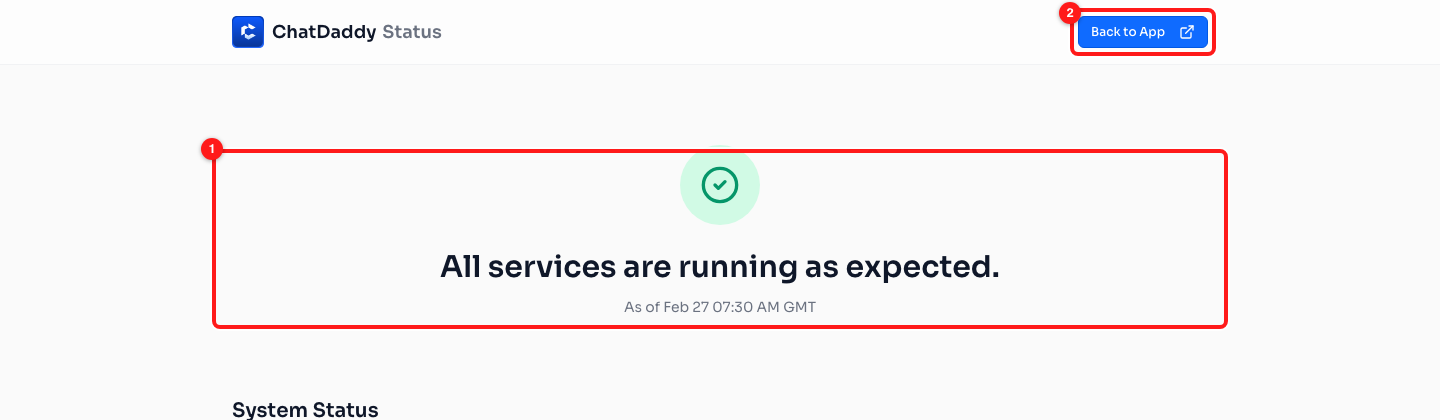
The overall verdict and the time it was taken (1). Back to App (2) returns you to the dashboard.
Step-by-step
Step 1 — Open the status page
Go to status.chatdaddy.tech in any browser. You do not need to be signed in, and it does not matter which team you are on — the page reports the platform, not your account. If you saw the New: Platform Health Dashboard announcement inside ChatDaddy, its View Status Page button opens this same page in a new tab.
Step 2 — Read the headline first
If the headline says everything is running as expected, the platform is healthy and whatever you are seeing is worth reporting to support. If it says otherwise, the detail is in the list below it. Always check the As of time — that is when the reading was taken.
Step 3 — Check the service you actually use
Under System Status → Current Status by Service each part of ChatDaddy is listed on its own row, so an issue with one thing does not read as an issue with everything. The services covered are Workflows, Messaging, Billing & Usage, Integrations, Reports, Login, Data Export, Broadcasts, Contacts, Workspace, Voice and Notifications.
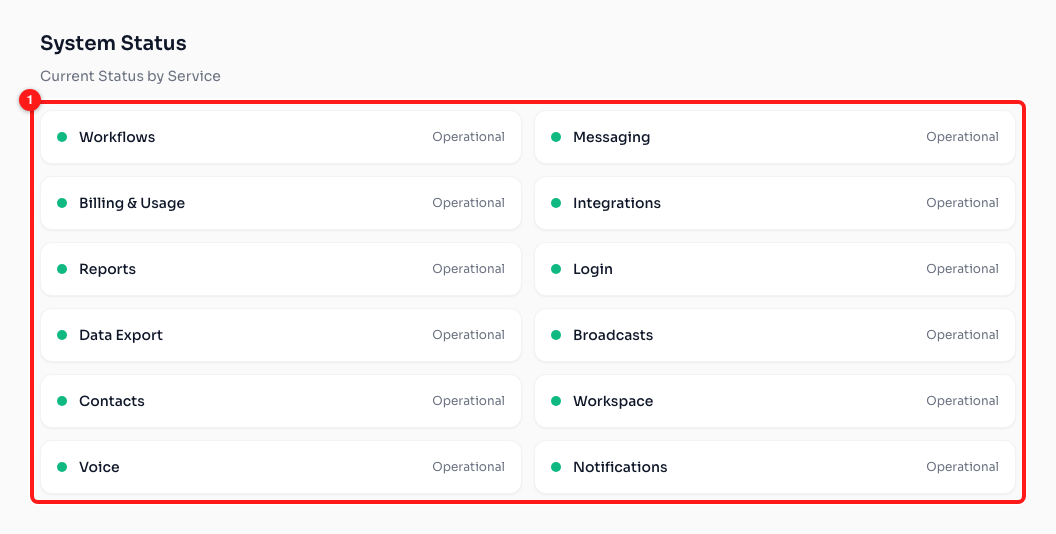
Every part of ChatDaddy gets its own row (1), so you can tell a Broadcasts problem from a Login problem.
Match the row to what you were doing when it went wrong. A broadcast that will not send is Broadcasts and Messaging; a report that will not load is Reports; an automation that did not fire is Workflows; a CSV that will not download is Data Export.
Step 4 — Read the row
Each row carries a coloured dot and a word. Operational with a green dot is the healthy state and means we are seeing no problem with that service. Anything else is a service we already know about — you do not need to report it, and you do not need to change anything in your account.
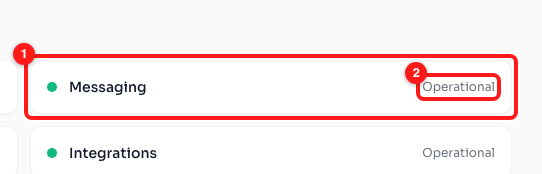
One service row (1): the name on the left, the current state on the right (2).
When ChatDaddy tells you first
You do not always have to go looking. If we know about a problem in advance — for example storage filling up before it starts affecting uploads — ChatDaddy shows a notice inside the app. It names what is affected, what still works, and what you can do, and its Status updates button opens the status page.
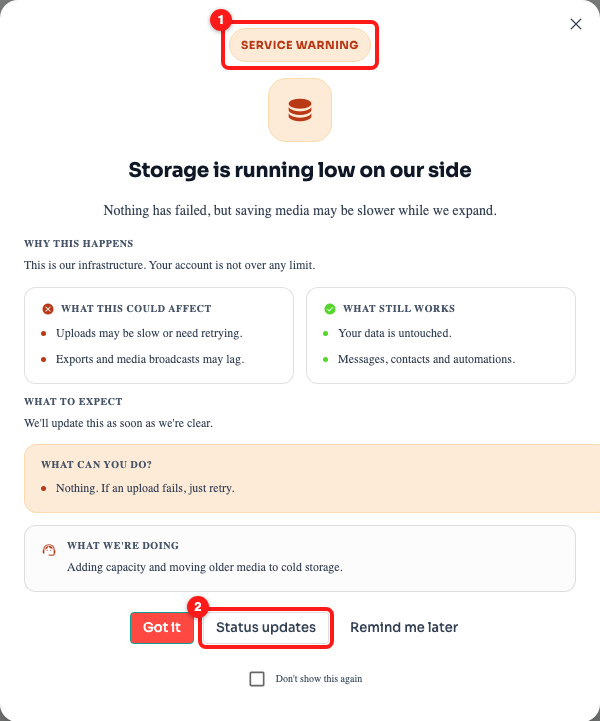
The in-app service notice. The badge (1) tells you how serious it is; Status updates (2) opens the status page.
- Service notice — nothing has failed. We are telling you early.
- Service warning — nothing has failed yet, but something may be slower than usual.
- Service degraded — something is failing right now. This one cannot be dismissed, because you need to know before you rely on the affected feature.
The first two can be closed with Got it, put off with Remind me later, or silenced with Don't show this again.
📱 The status page covers ChatDaddy's own services. If WhatsApp itself is having trouble, that will not show here — check Meta's own page at metastatus.com/whatsapp-business-api instead. When a send fails because of Meta, ChatDaddy already tells you so and points you there in the error message.
Frequently asked questions
Everything says Operational, but ChatDaddy is still not working for me.
Then it is probably local to you rather than platform-wide. Try a hard refresh, another browser, or another network first. If it persists, raise a support ticket and say that the status page was clear at the time — that saves a round trip and helps us find it faster.
Do I need to be signed in to see it?
No. That is the point of a separate page — it stays reachable even when you cannot sign in to ChatDaddy, which is exactly when you need it most.
My messages are failing. Is this the right page?
Check the Messaging row here first. If it is Operational, the problem is more likely on WhatsApp's side or specific to the message — check metastatus.com/whatsapp-business-api, and read the error card on the failed message in the Inbox, which explains that particular failure.
Why does the timestamp say GMT?
So that everyone reads the same time regardless of where they are. Convert it to your own timezone when you compare it against when your problem started.
I dismissed the in-app notice. How do I get it back?
Open the status page directly at status.chatdaddy.tech — it always shows the current state, whether or not you dismissed the notice. A Service degraded notice cannot be dismissed in the first place.