
ChatDaddy Mobile App: Connecting & Managing Channels
Channels are the messaging accounts (WhatsApp, Messenger, and more) connected to your team. This guide shows how to view them, manage a channel, and connect…
Channels are the messaging accounts (WhatsApp, Messenger, and more) connected to your team. This guide shows how to view them, manage a channel, and connect a new one. Open it from Settings → Manage Channels. (In each screenshot, the red box shows where to tap.)
Step 1 — View your channels
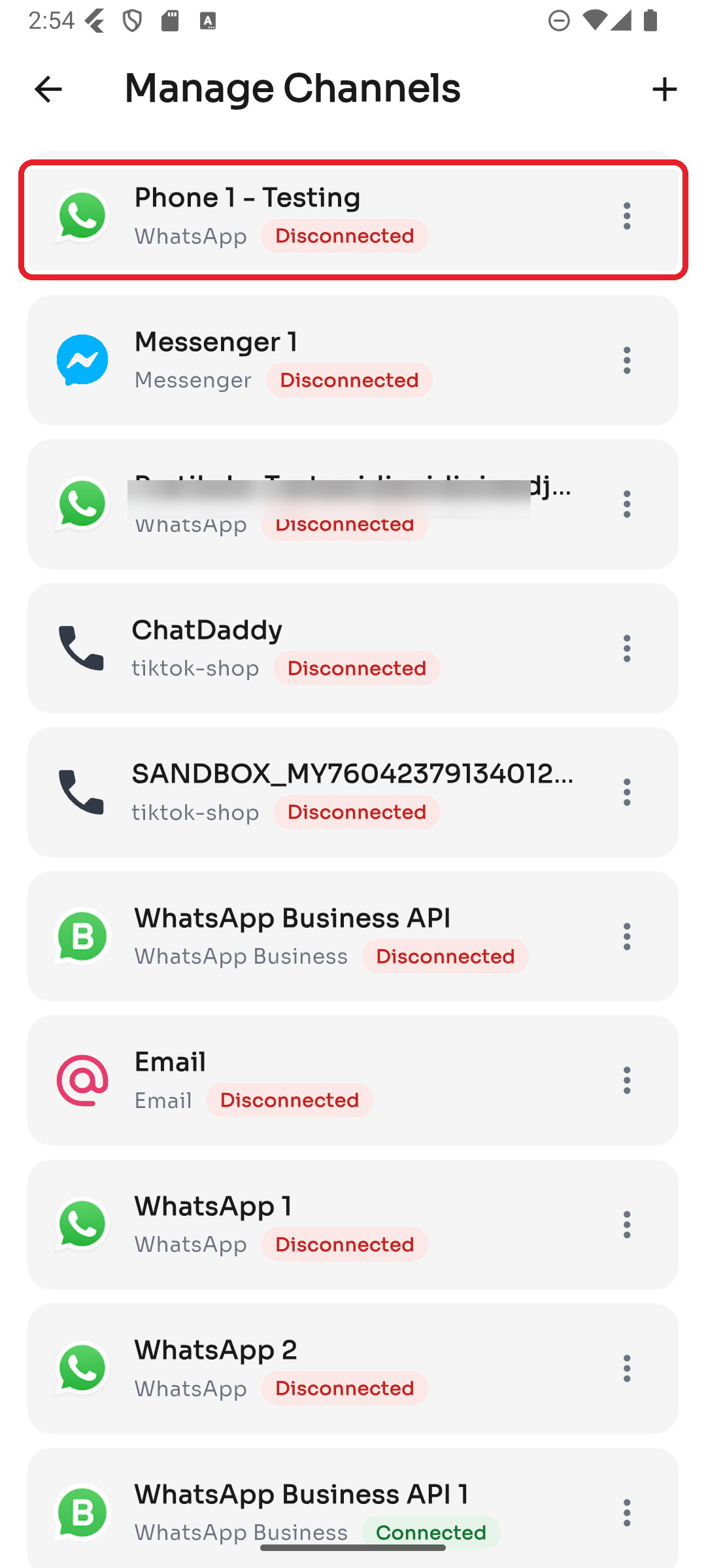
Manage Channels lists every channel on your team, each with its platform and a status badge — Connected, Connecting, or Disconnected.
Step 2 — Manage a channel
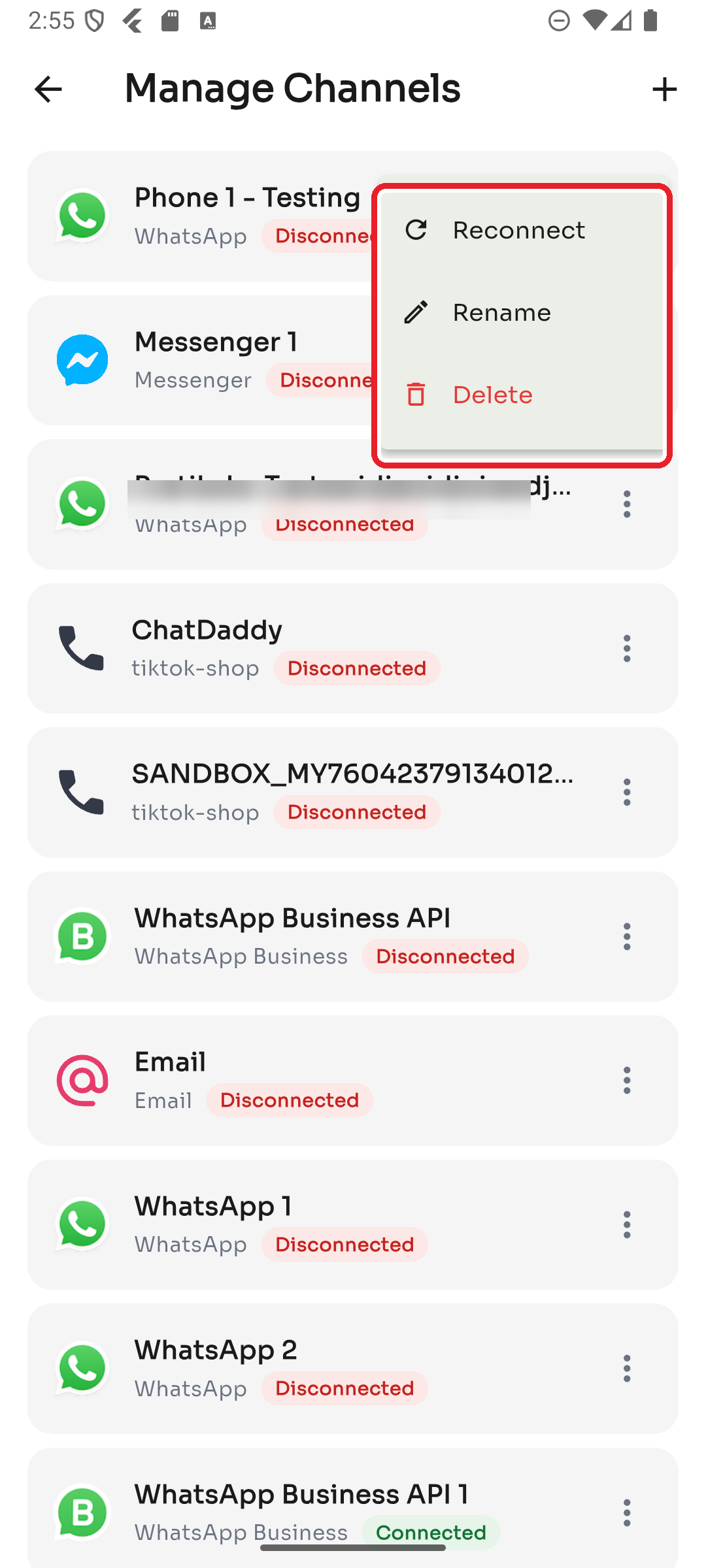
Tap the ⋮ menu on any channel to:
- Reconnect — bring a disconnected channel back online
- Rename — give the channel a friendlier name
- Delete — remove the channel from your team
Note: Deleting a channel removes it from your team. Existing chats stay, but you won't be able to send or receive new messages on that channel.
Step 3 — Add a channel
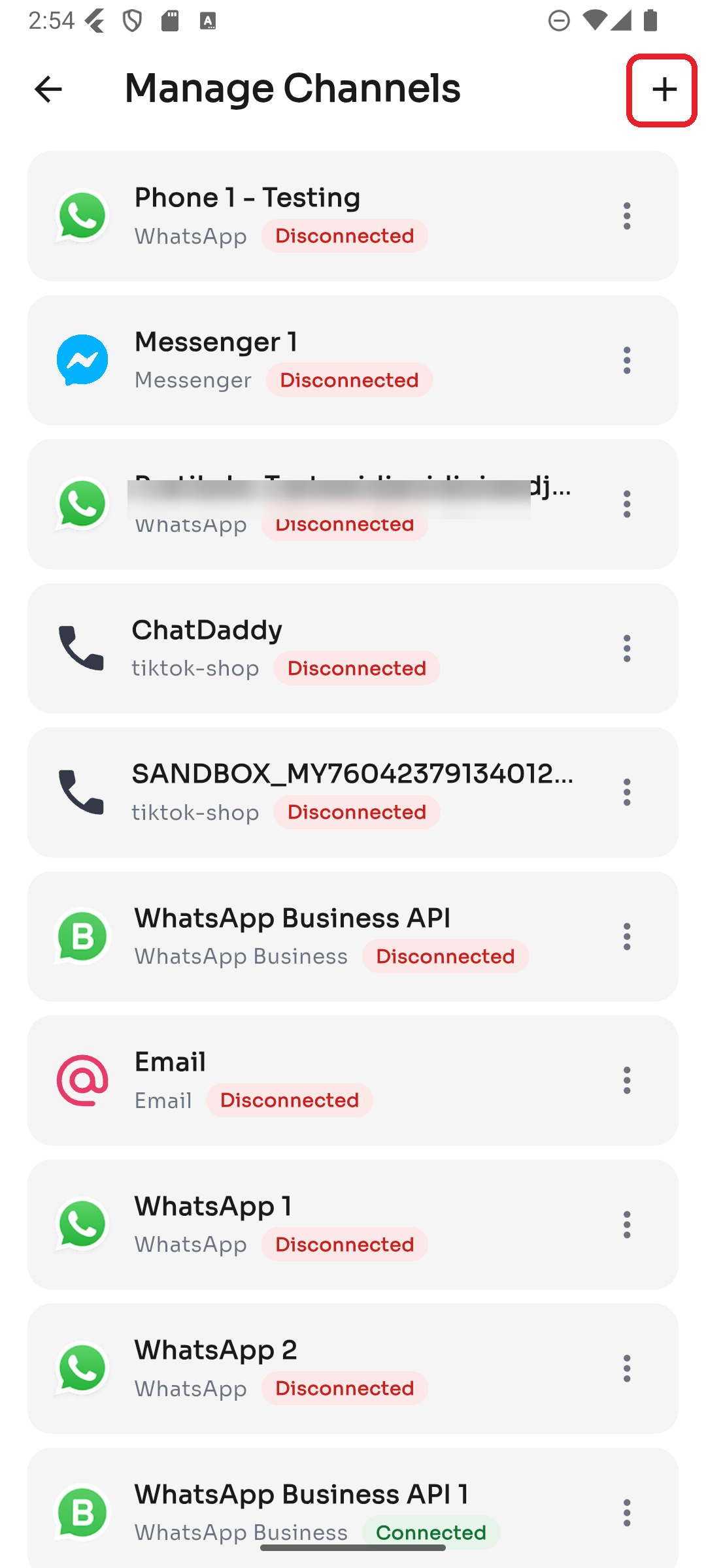
To connect a new channel, tap the ➕ in the top-right corner of Manage Channels.
Step 4 — Choose a platform
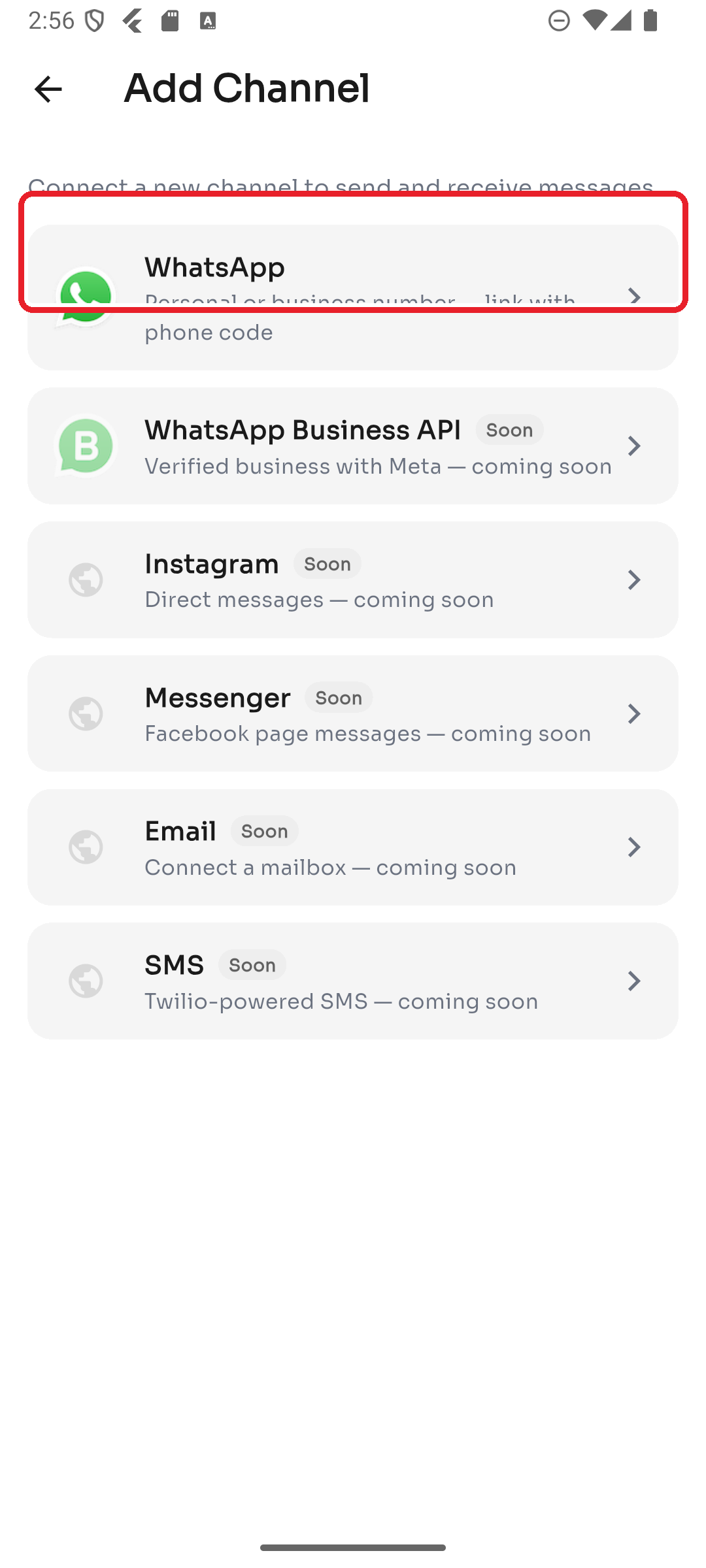
Pick the platform you want to connect. WhatsApp is available now; other platforms (WhatsApp Business API, Instagram, Messenger, Email, SMS) are marked Soon.
Step 5 — Connect WhatsApp
Select your country code, enter the WhatsApp number you want to link, and tap Continue.
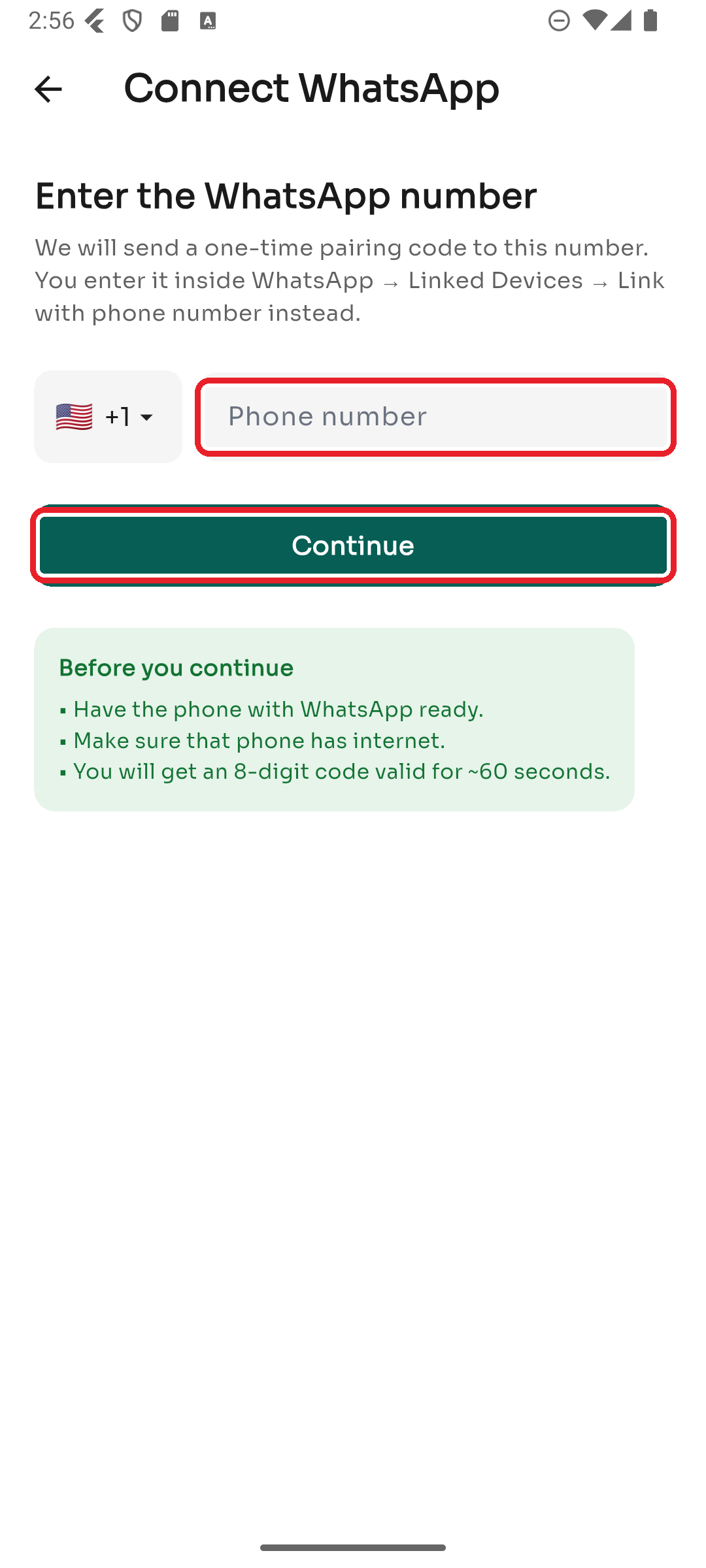
ChatDaddy then sends a one-time 8-digit pairing code (valid for about 60 seconds). On the phone that has WhatsApp:
- Open WhatsApp → Settings → Linked Devices → Link with phone number instead.
- Enter the 8-digit code shown in ChatDaddy. Once accepted, the channel connects and appears in your Manage Channels list. (Prefer scanning? The connect screen also offers a QR code option — open WhatsApp → Linked Devices → Link a device and scan it.)
Before you start: have the phone with WhatsApp ready and on the internet — the pairing code expires quickly.