
ChatDaddy Mobile App: How to Use the Inbox
The Chats tab is your home base — every conversation from every connected channel, in one place. This guide walks you through it step by step. (In each…
The Chats tab is your home base — every conversation from every connected channel, in one place. This guide walks you through it step by step. (In each screenshot, the red box shows where to tap.)
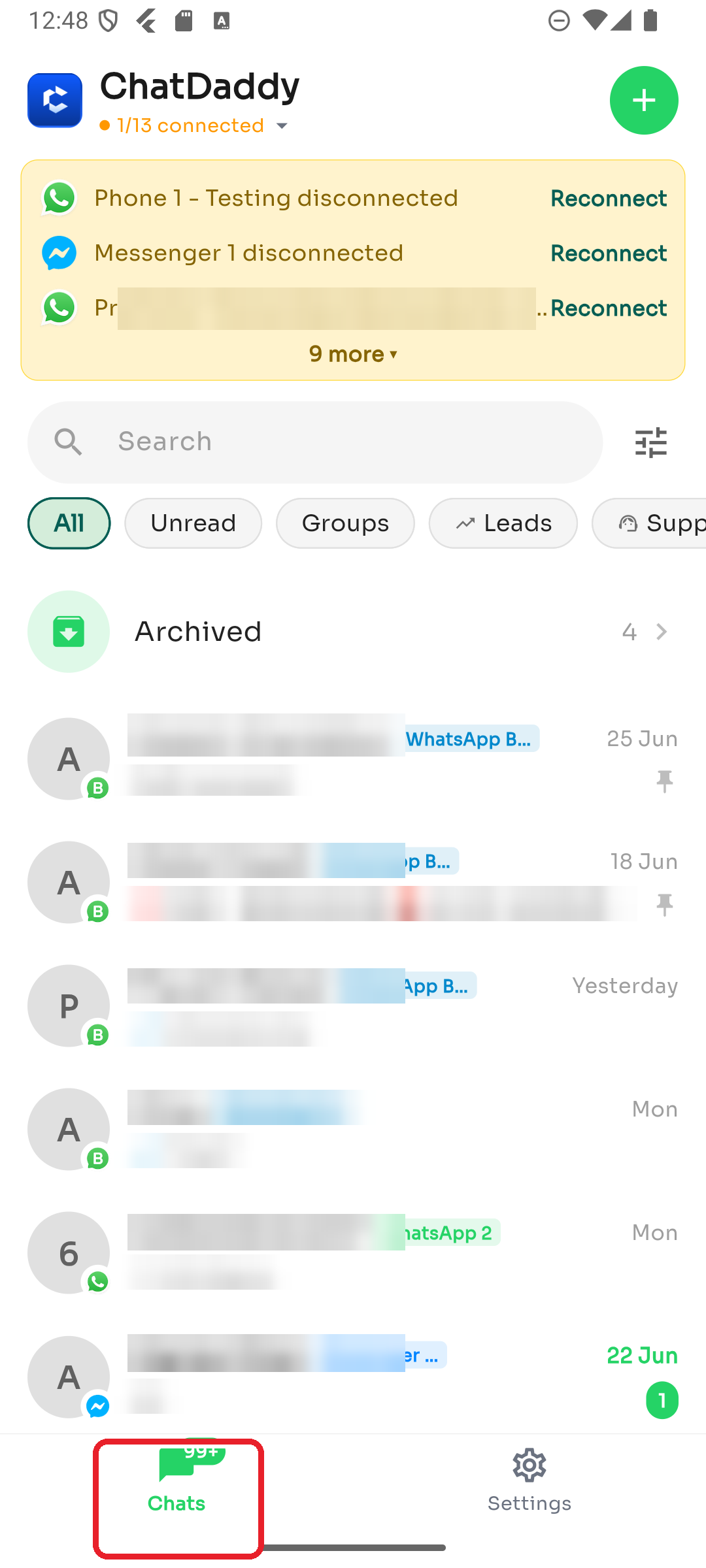
Step 1 — Open the Chats tab
When you open the app you land on Chats (the left tab in the bottom bar). This is your unified inbox, with the most recent conversations at the top.
Step 2 — Switch channels
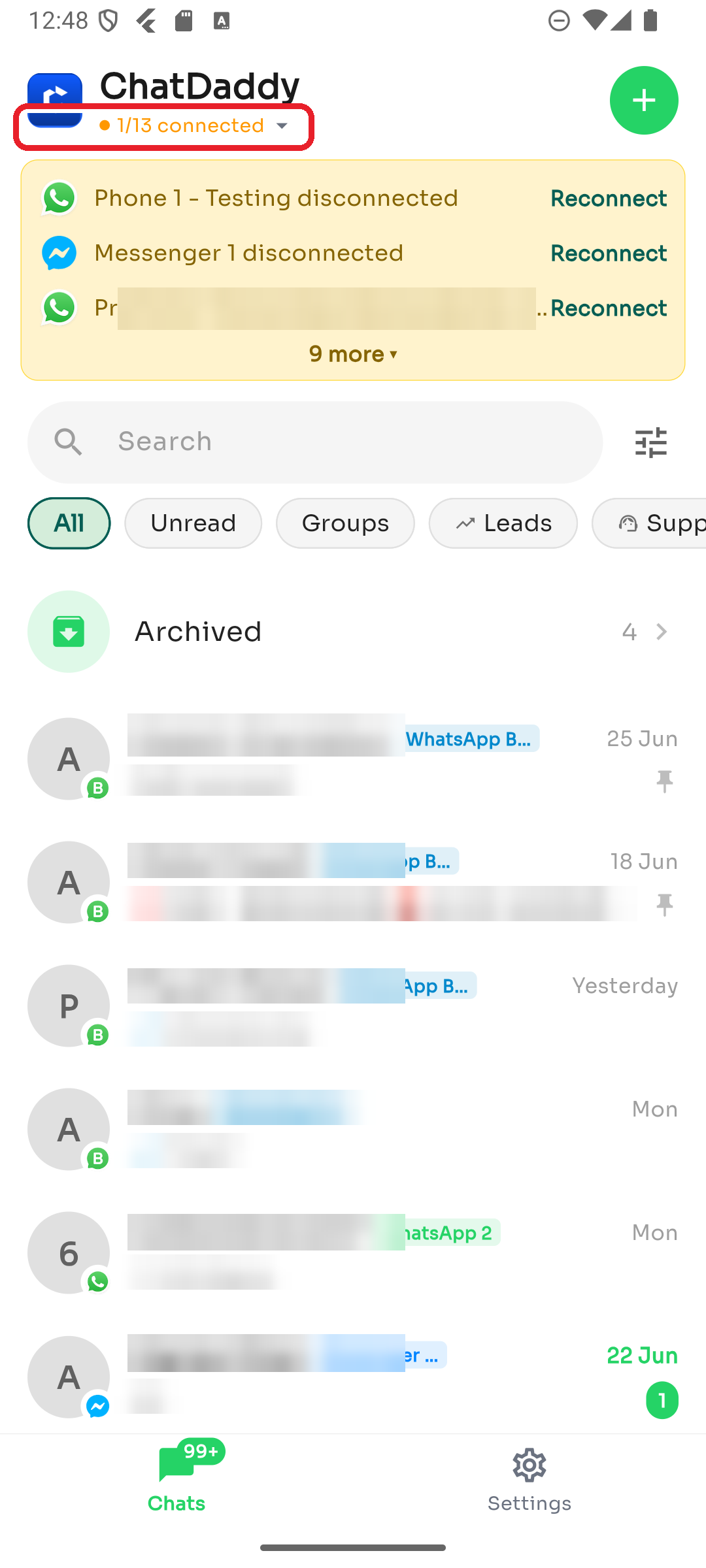
Tap the connection status under "ChatDaddy" (e.g. "1/13 connected") to open the Channels panel.
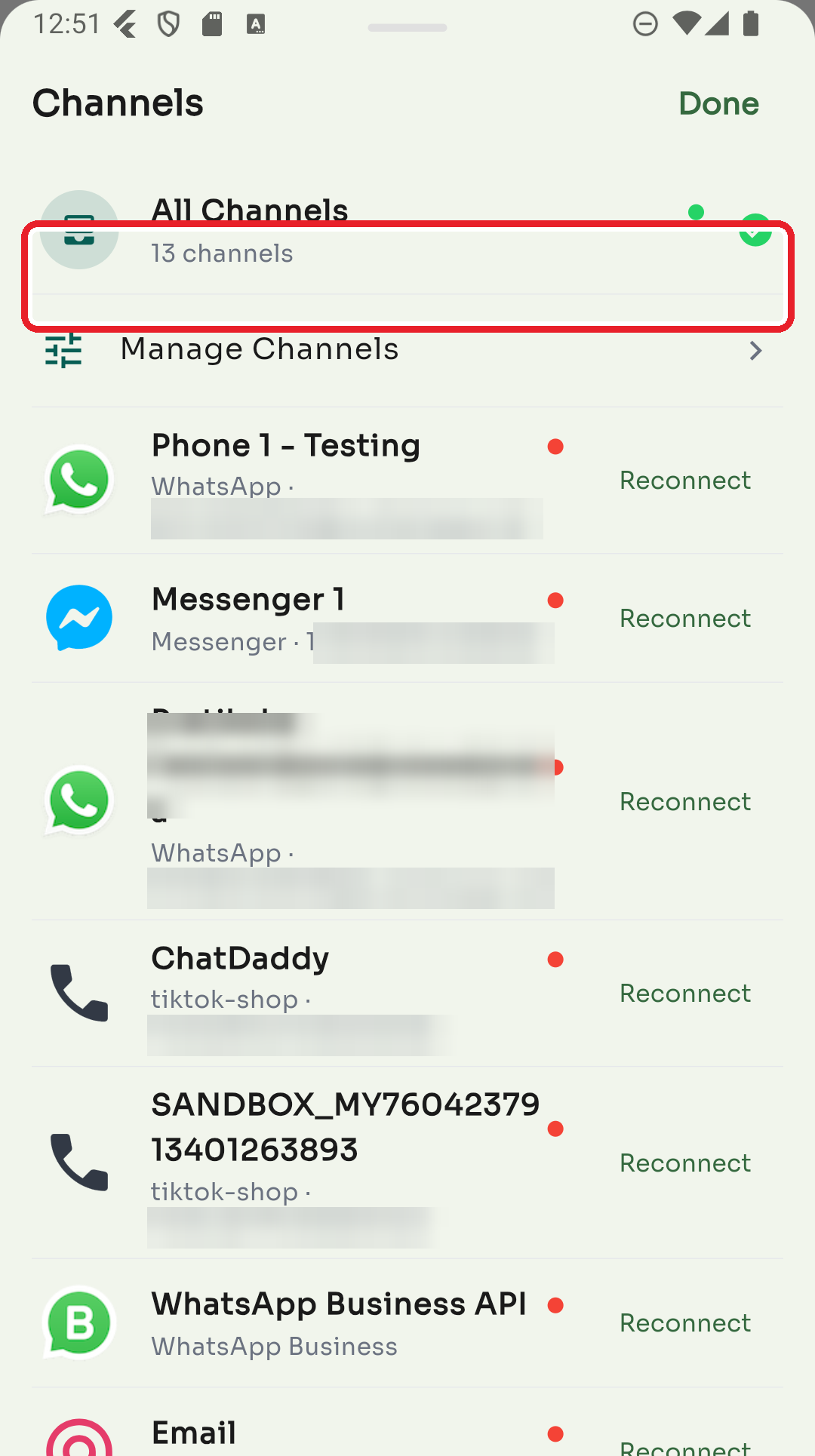
Choose All Channels to see everything at once, or tap a single channel to view only its chats. Disconnected channels show a Reconnect button. Tap Done when finished.
Step 3 — Search
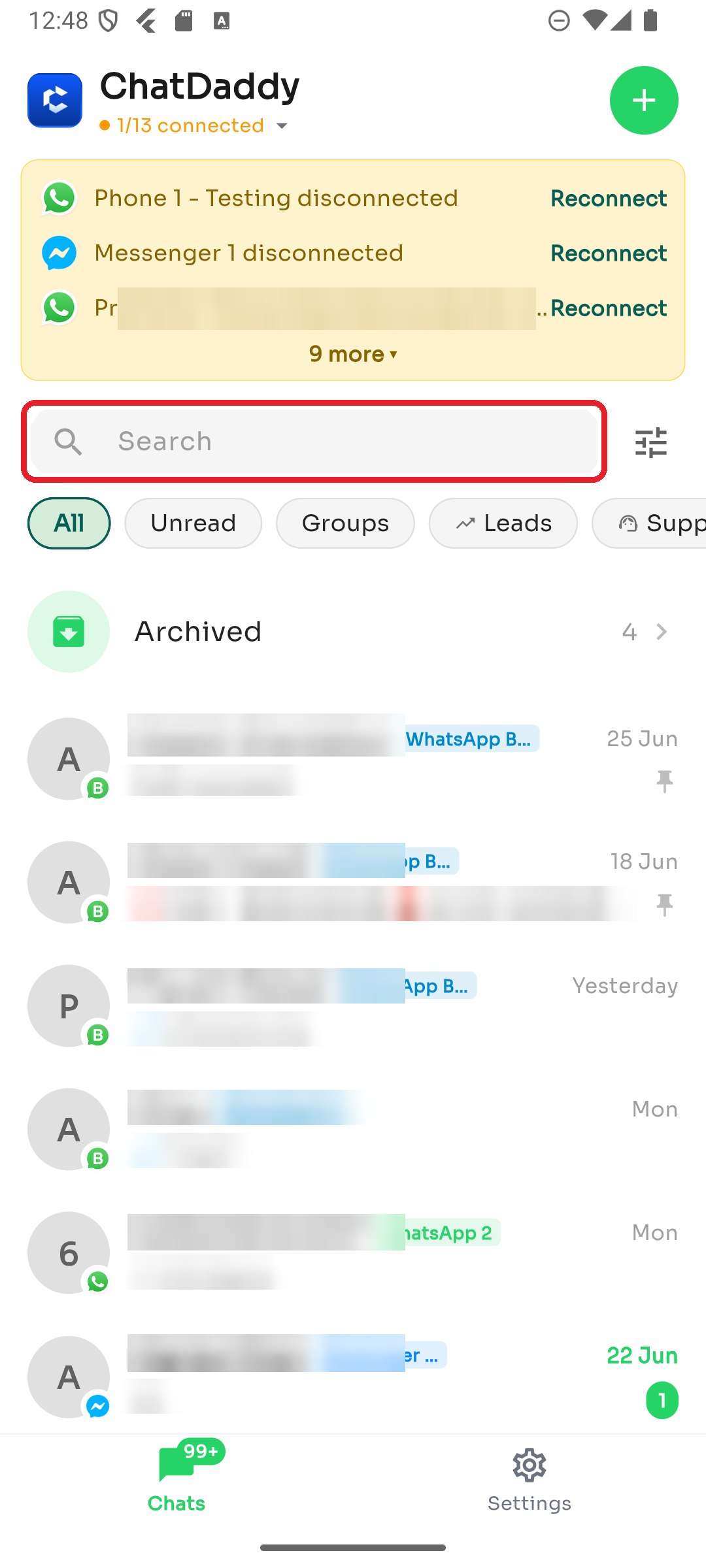
Tap the Search bar and start typing to find a chat by contact name, number, or message text.
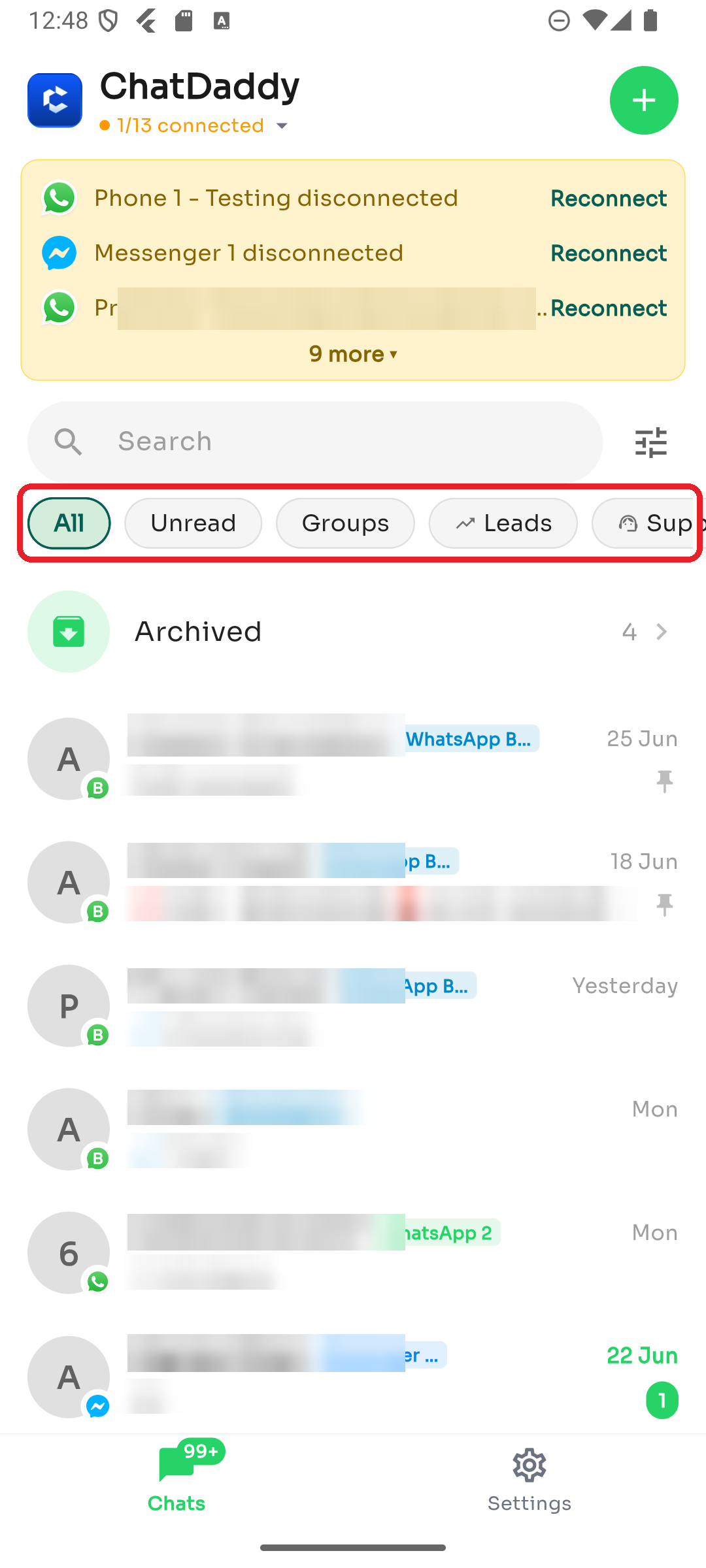
Step 4 — Use quick filters
Tap a chip below the search bar to instantly narrow the list — All, Unread, Groups, Leads, Support, and more.
Step 5 — Advanced filters
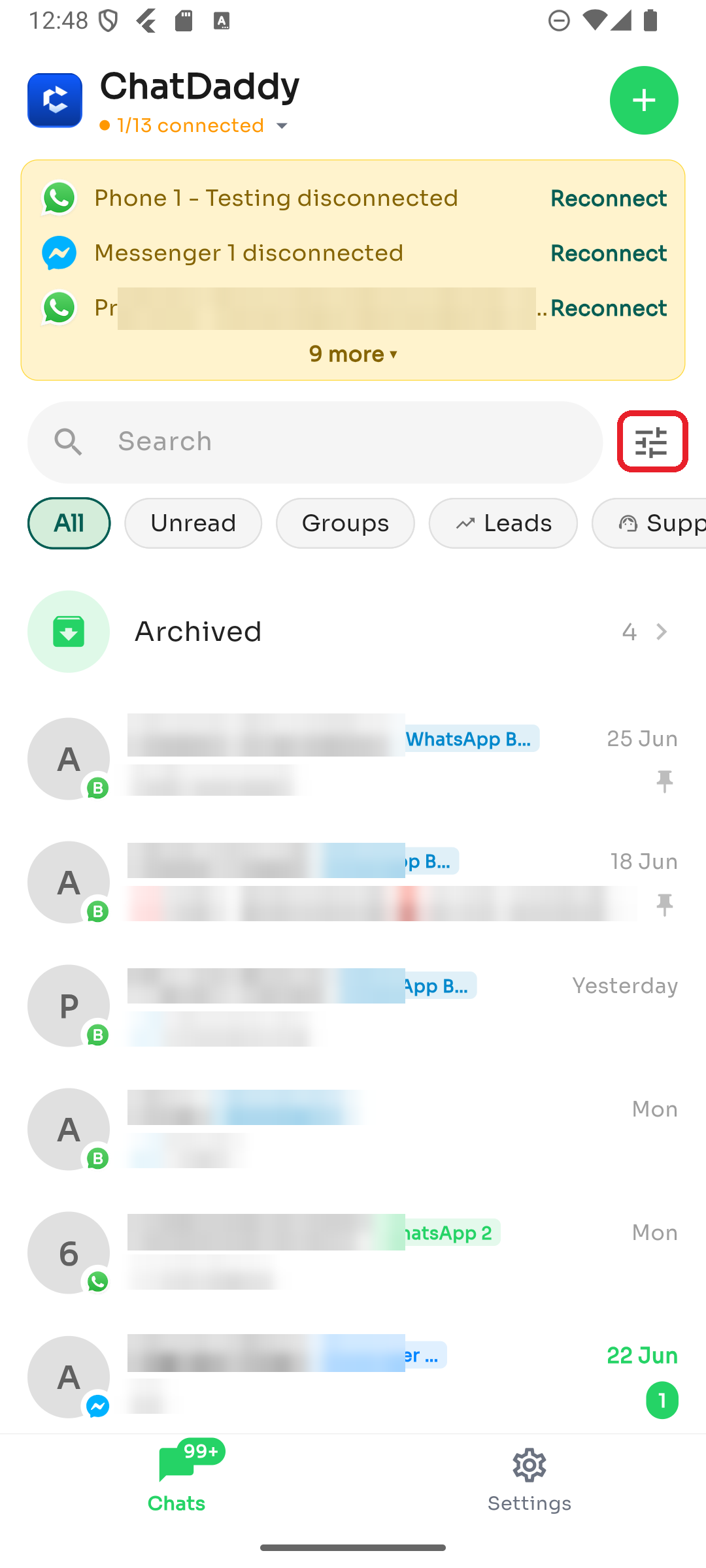
For more control, tap the filter icon to the right of the search bar.
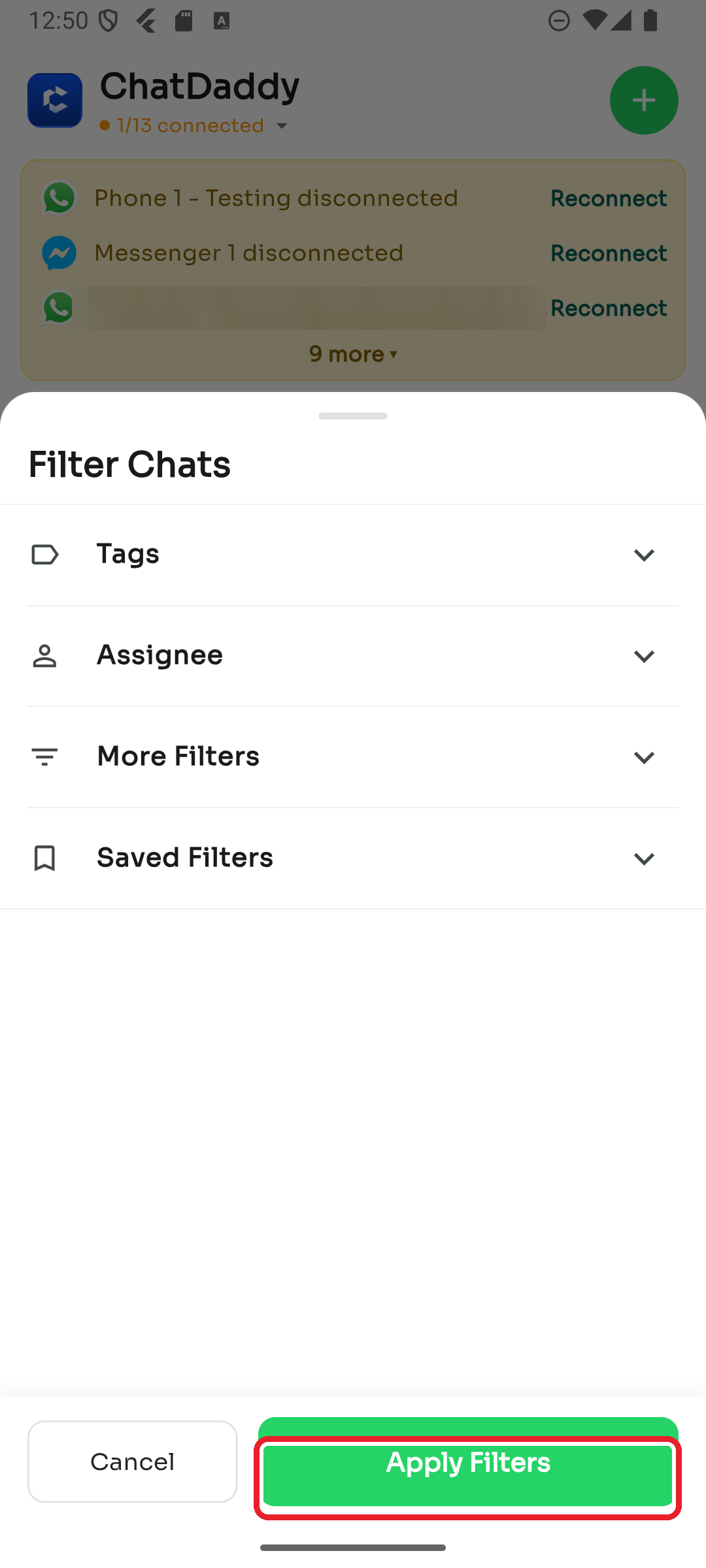
Filter by Tags, Assignee, More Filters, or Saved Filters, then tap Apply Filters.
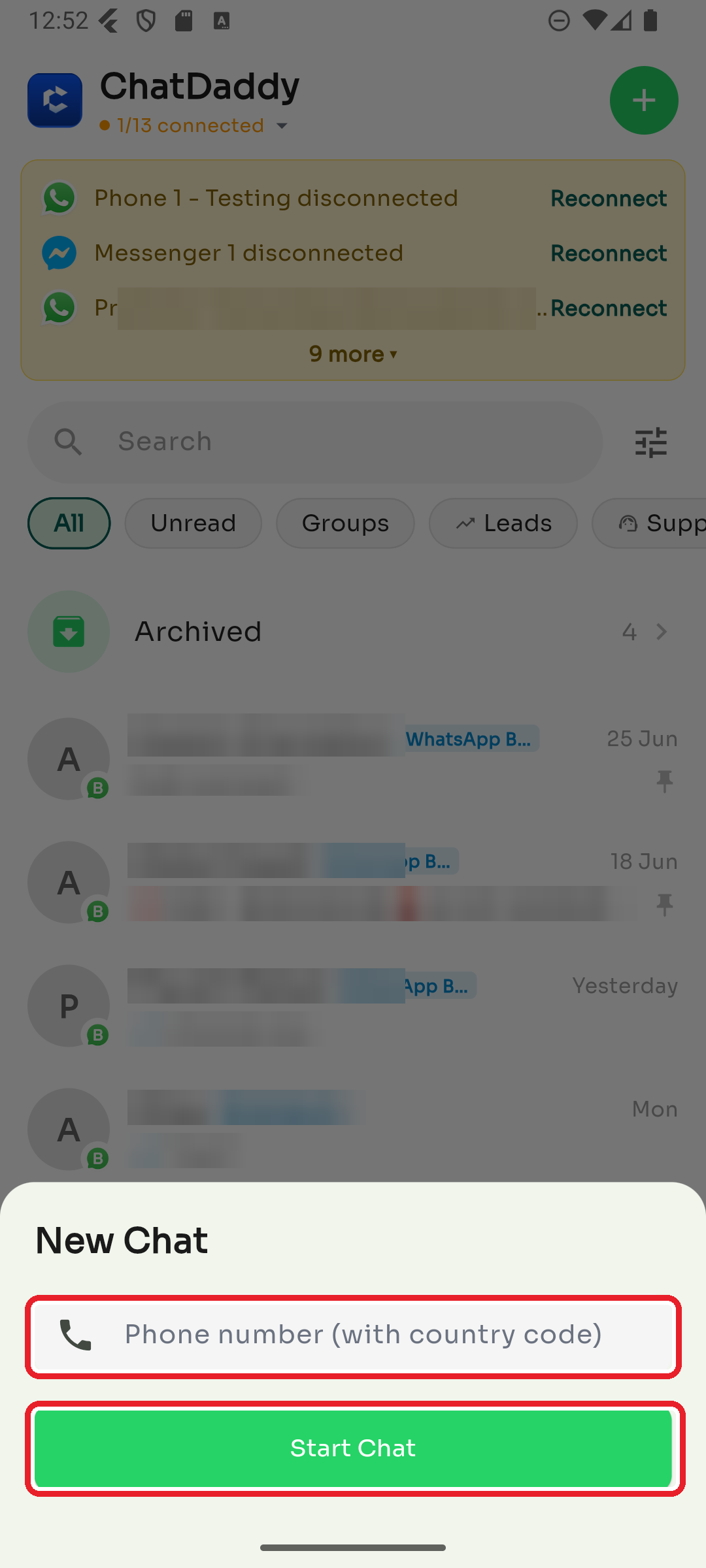
Step 6 — Start a new chat
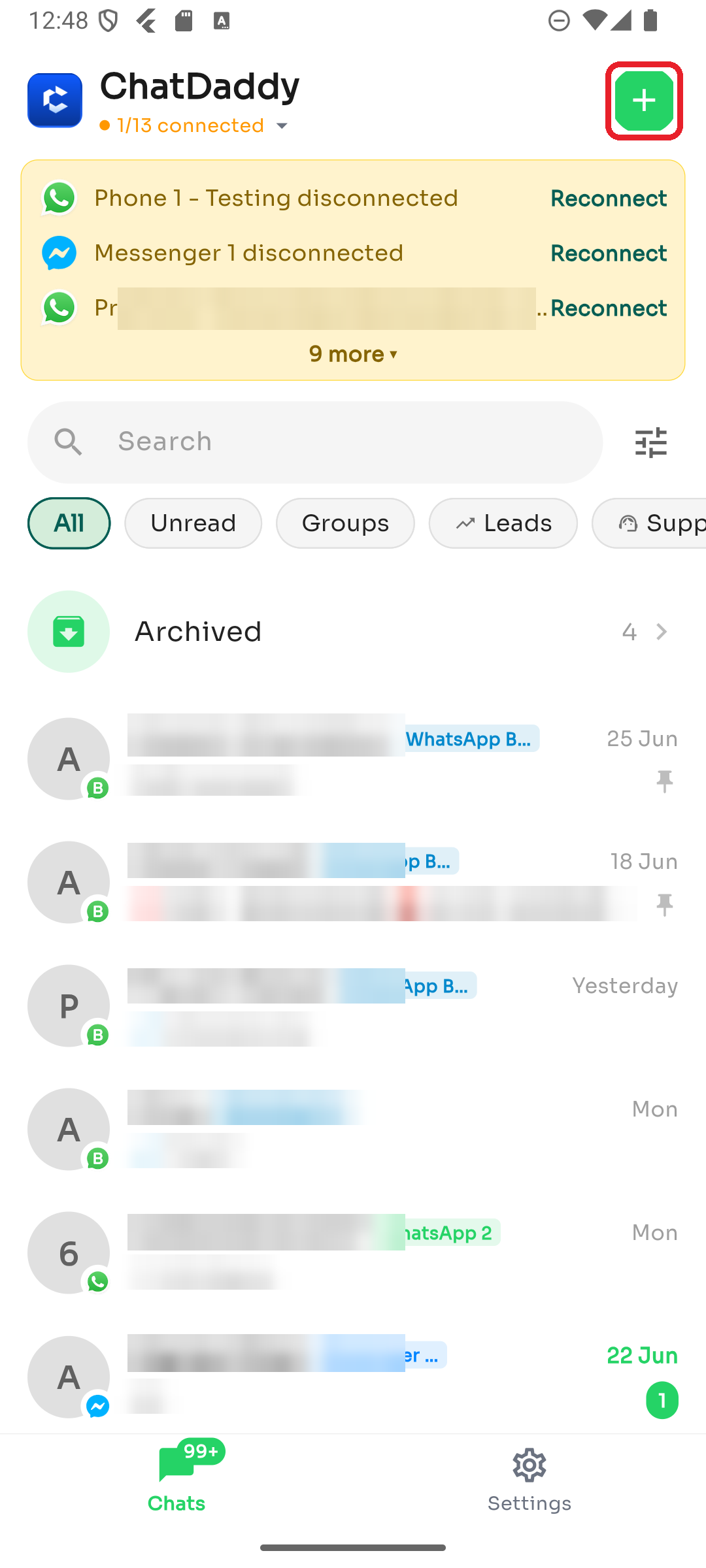
Tap the ➕ button in the top-right corner.
Enter the contact's phone number with country code, then tap Start Chat.
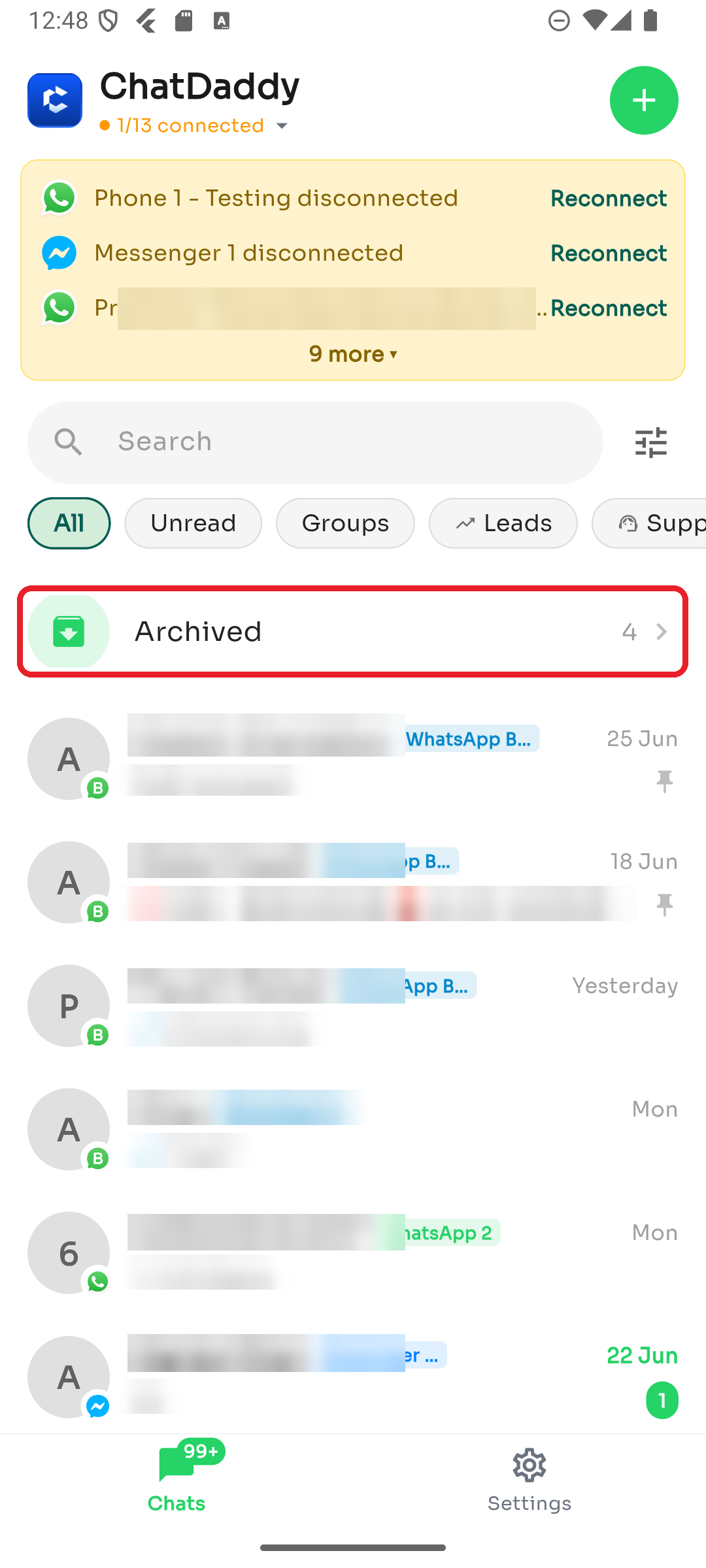
Step 7 — Open archived chats
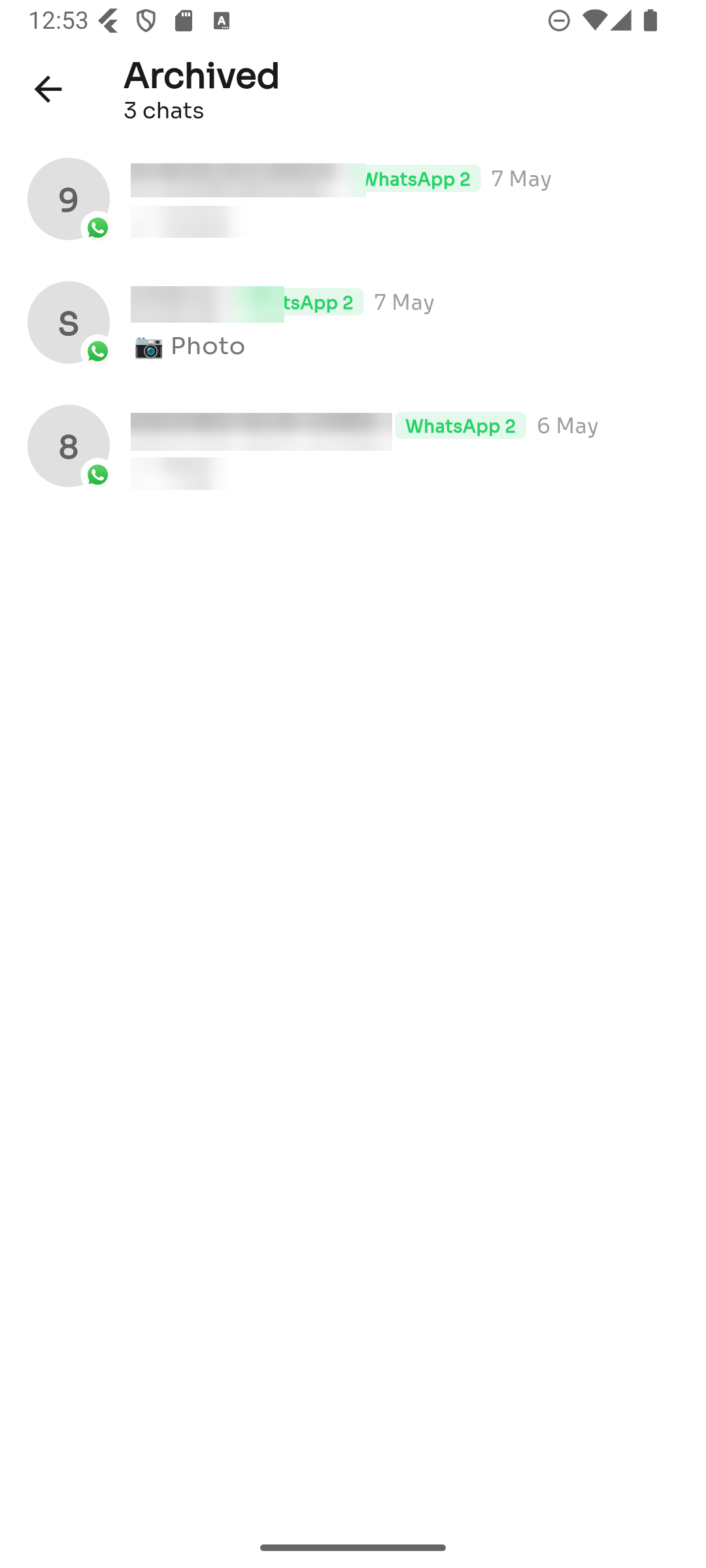
Archiving hides a conversation without deleting it. Tap Archived near the top of the inbox to see them.
Tap any archived chat to open it, or long-press it to unarchive.
To archive a chat: long-press it in the main inbox and choose Archive.