
ChatDaddy Mobile App: How to Send Messages
This guide covers replying inside a conversation — text, photos, files, voice notes, scheduled messages, and internal notes. *(In each screenshot, the red box shows where to tap.)*
This guide covers replying inside a conversation — text, photos, files, voice notes, scheduled messages, and internal notes. (In each screenshot, the red box shows where to tap.)
Step 1 — Open a conversation
Tap any chat in your inbox to open it. Messages appear in the middle, with the message box at the bottom.
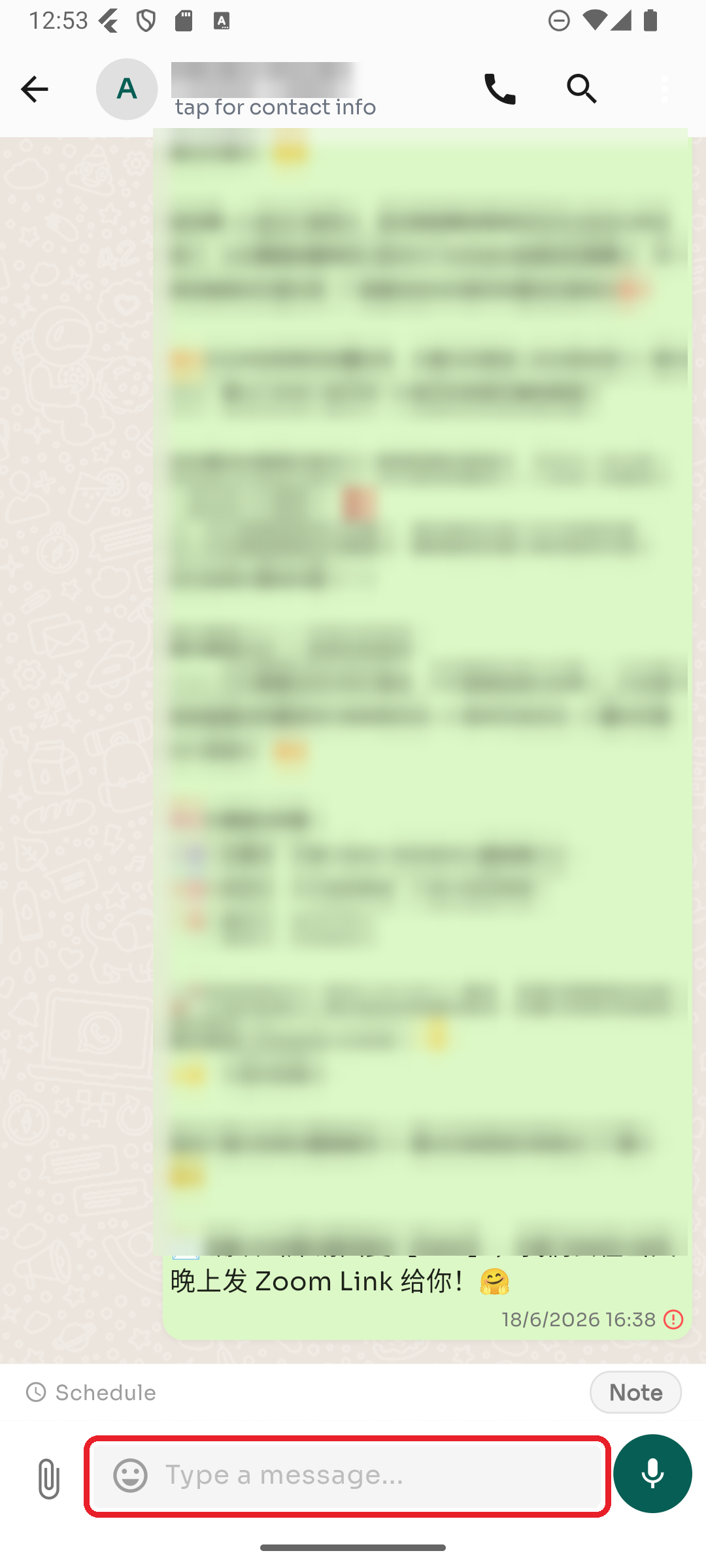
Step 2 — Send a text message
Tap the "Type a message…" box, type your message, and tap the Send button on the right.
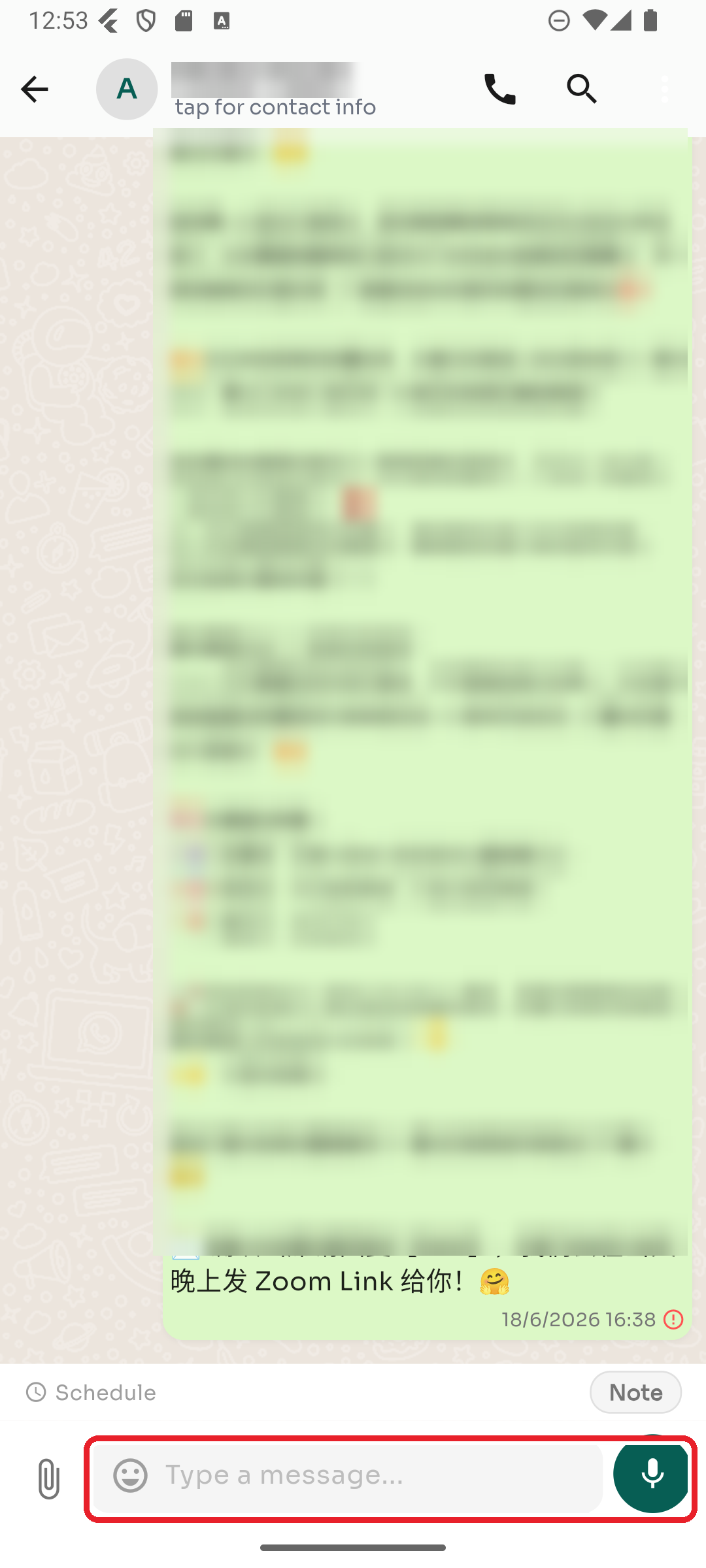
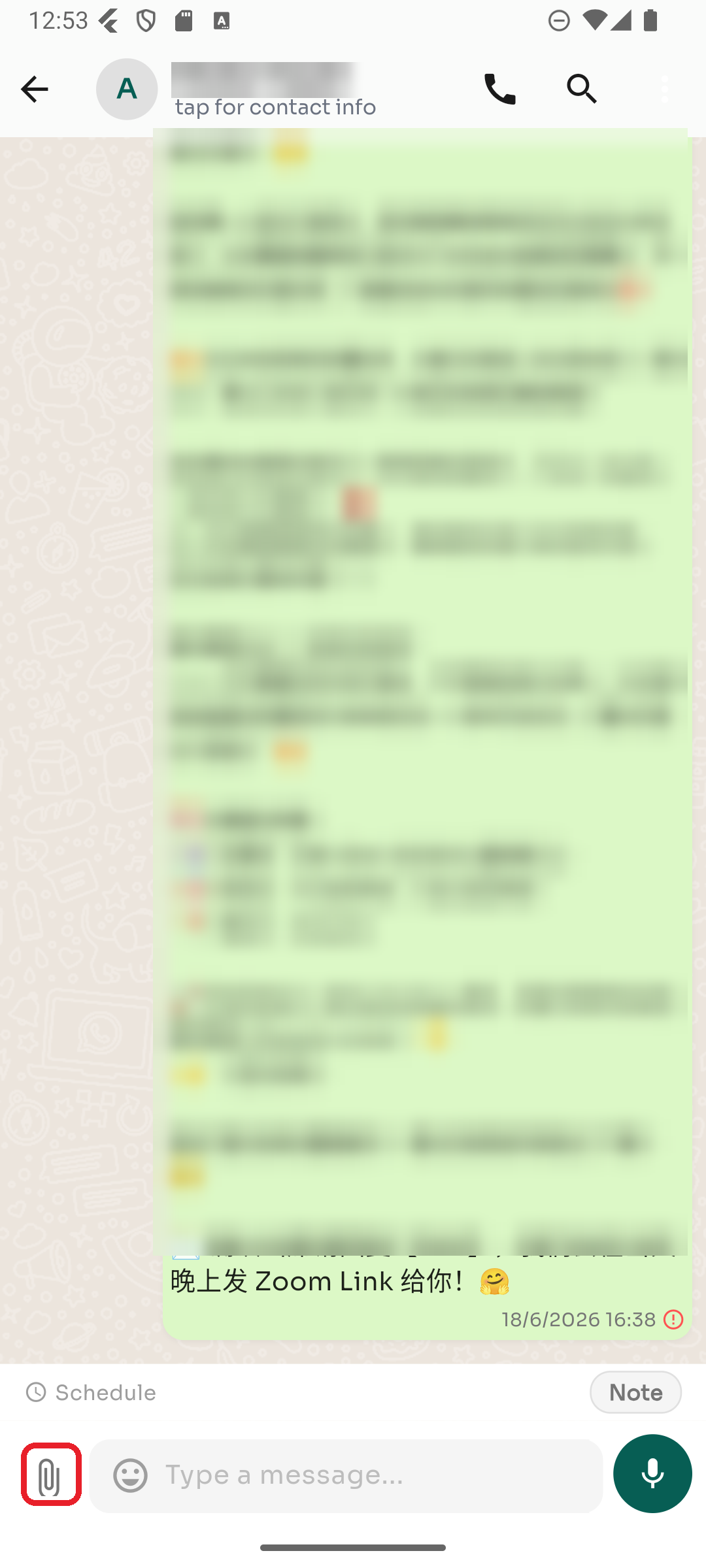
Step 3 — Send a photo, file, or more
Tap the 📎 paperclip icon to the left of the message box.
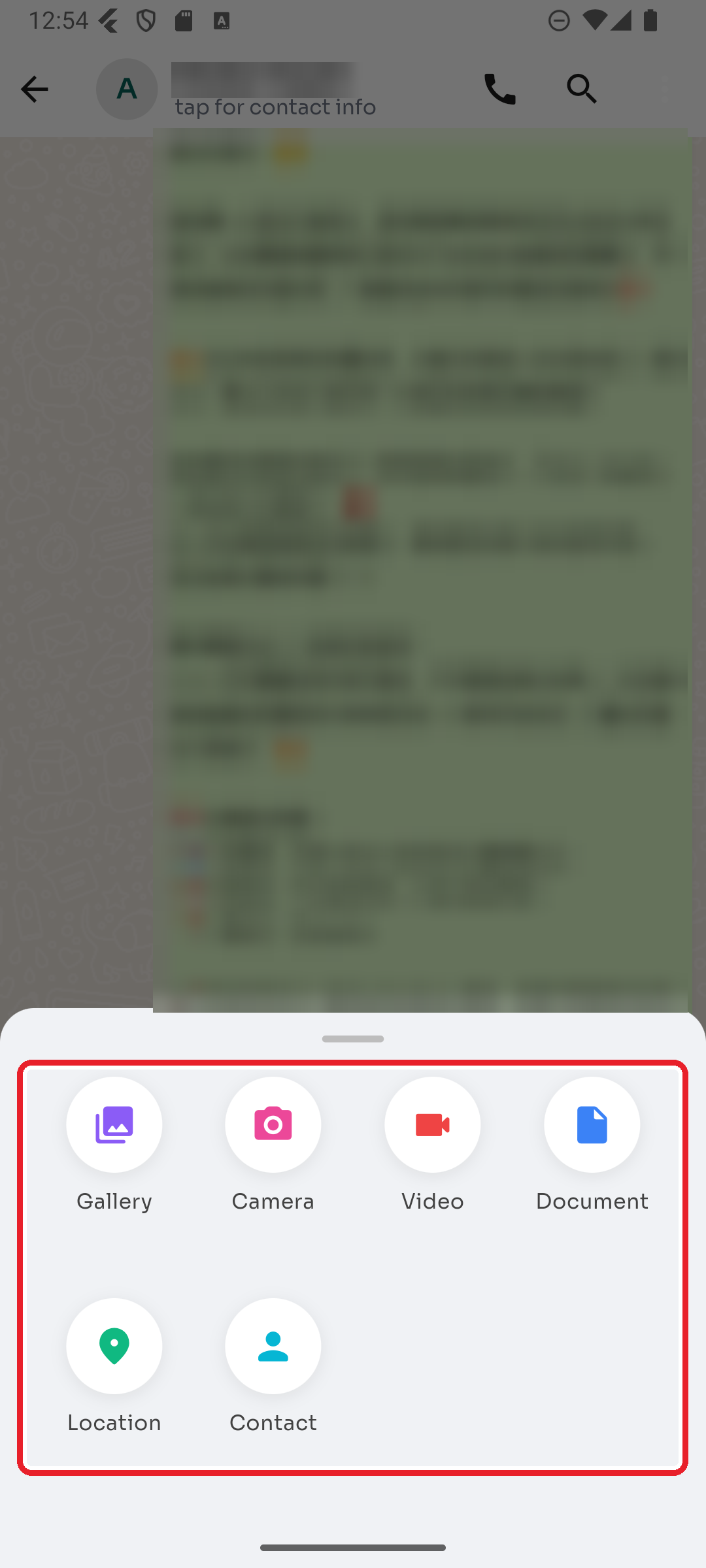
Then choose what to send — Gallery, Camera, Video, Document, Location, or Contact.
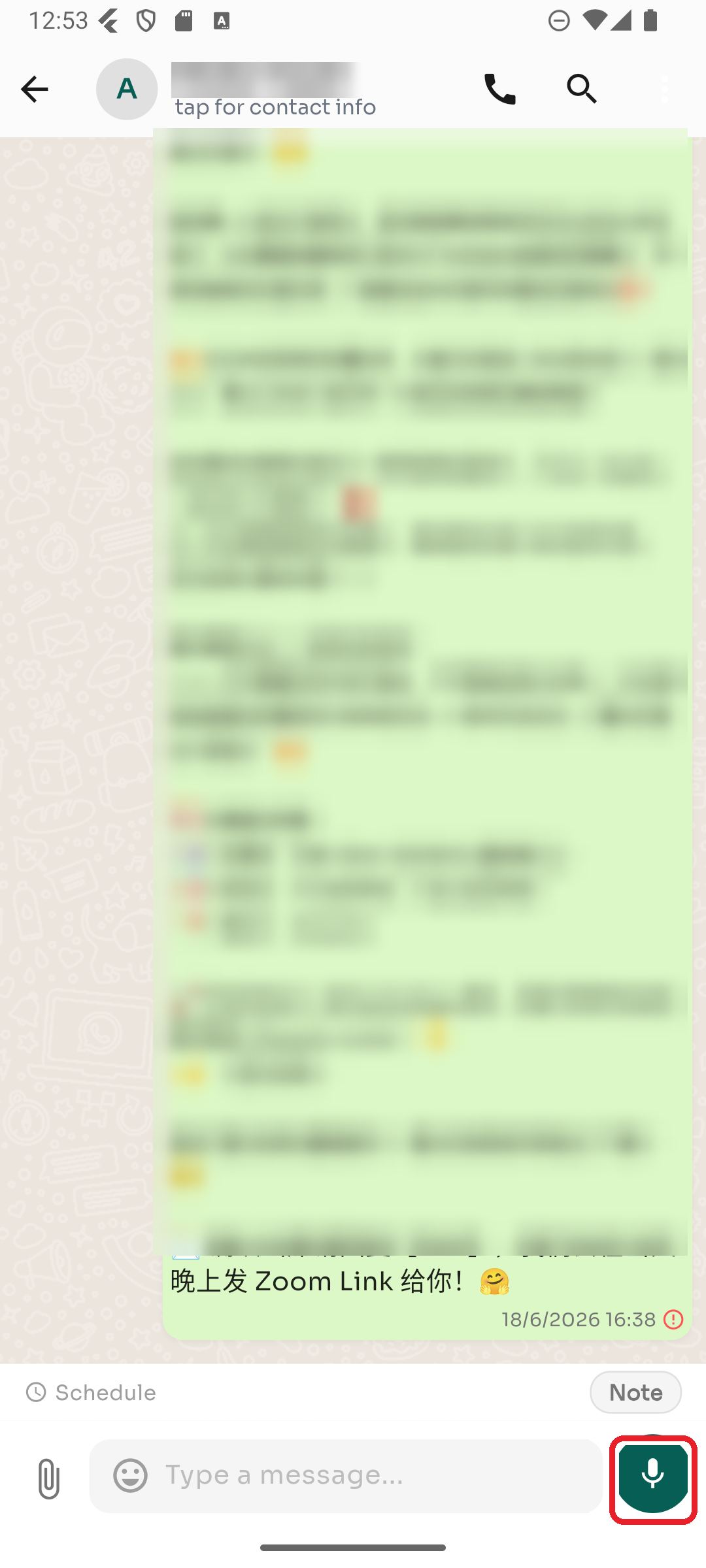
Step 4 — Send a voice message
When the message box is empty, the right-hand button is a 🎤 microphone. Press and hold to record, then release to send. Slide away while holding to cancel.
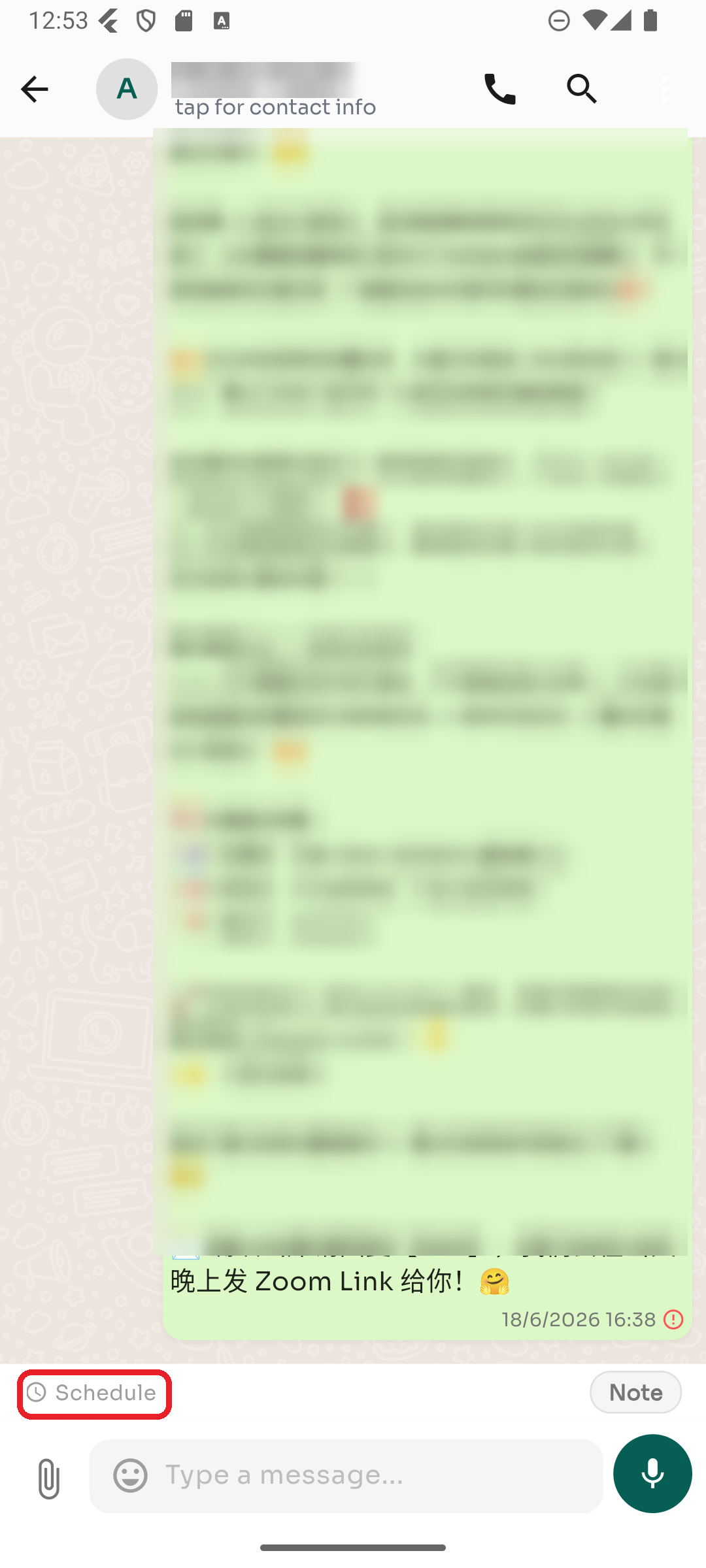
Step 5 — Schedule a message
Tap Schedule above the message box to send a message at a later time. Pick the date and time, type your message, and it sends automatically.
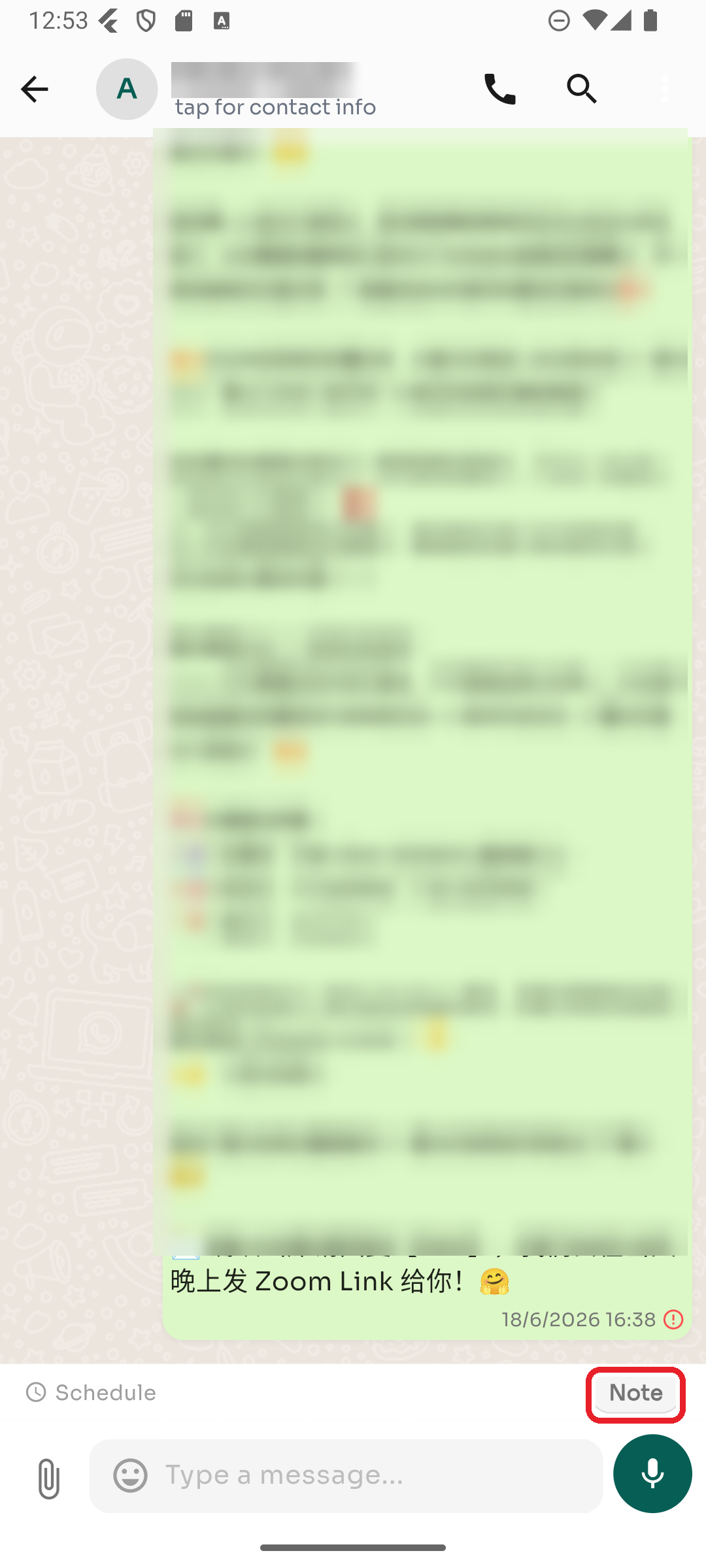
Step 6 — Add an internal note
Tap the Note button to switch to note mode. Notes are private to your team — the customer never sees them. Tap Note again to switch back to normal messaging.
Tips & good to know
- Long-press any message for actions like reply, copy, delete, and emoji reactions.
- Typing
/opens the automations list — see the Automations guide. - Message ticks: one check = sent, double check = delivered, blue double check = read. A clock icon means scheduled or still sending.