
ChatDaddy Mobile App: How to Send an Automation (Flow)
Automations — called Flows in ChatDaddy — let you send a pre-built message or workflow to a contact in just a couple of taps, without typing anything…
Automations — called Flows in ChatDaddy — let you send a pre-built message or workflow to a contact in just a couple of taps, without typing anything. They're great for welcome messages, follow-ups, catalogs, and approved WhatsApp templates.
Follow the steps below to send one from inside a chat. (In each screenshot, the red box shows where to tap.)
Before you start: Flows are created and managed by your team on the ChatDaddy dashboard. Any flow your team has set up appears automatically in the app.
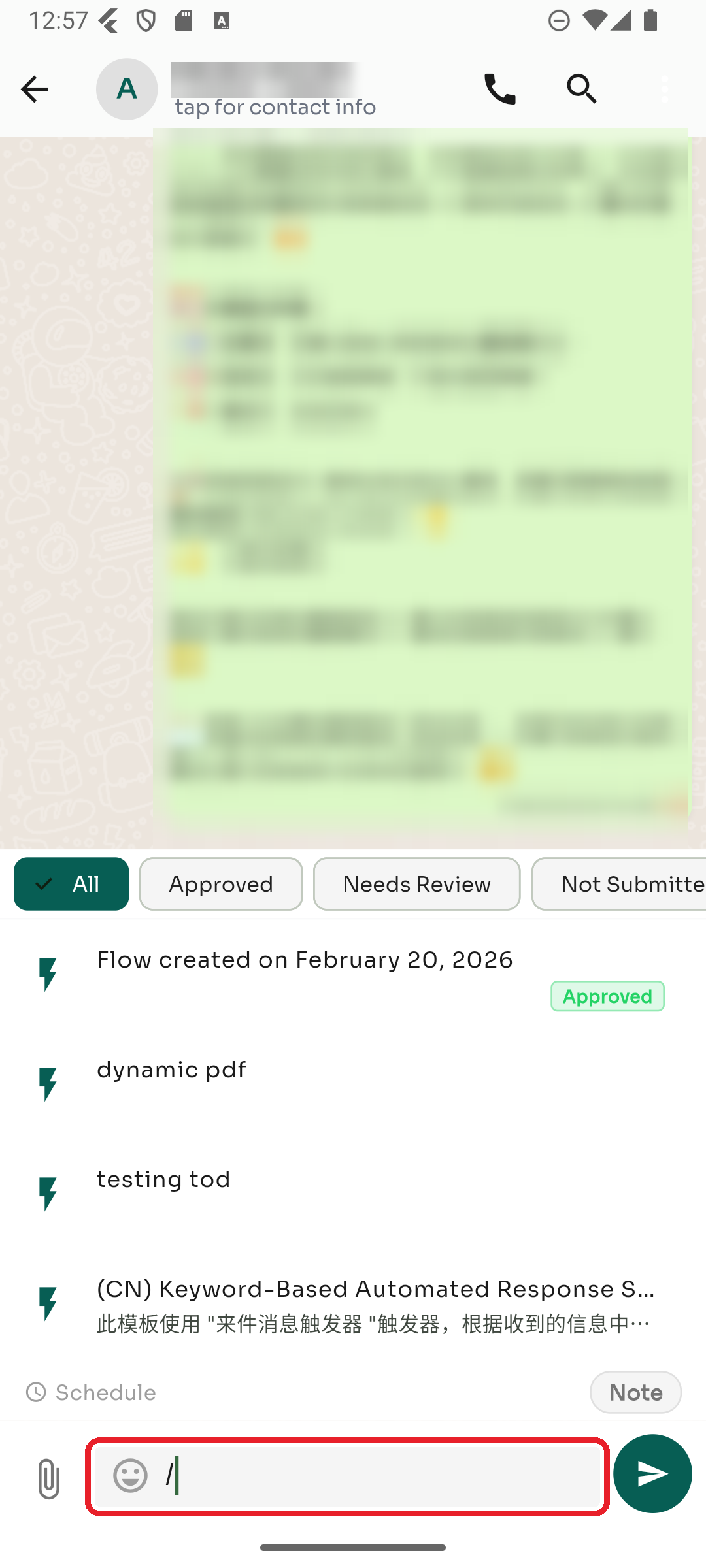
Step 1 — Open a chat and type /
Open a conversation, tap the message box ("Type a message…"), and type a forward slash /. The automations panel opens above the keyboard, listing every flow available to your team.
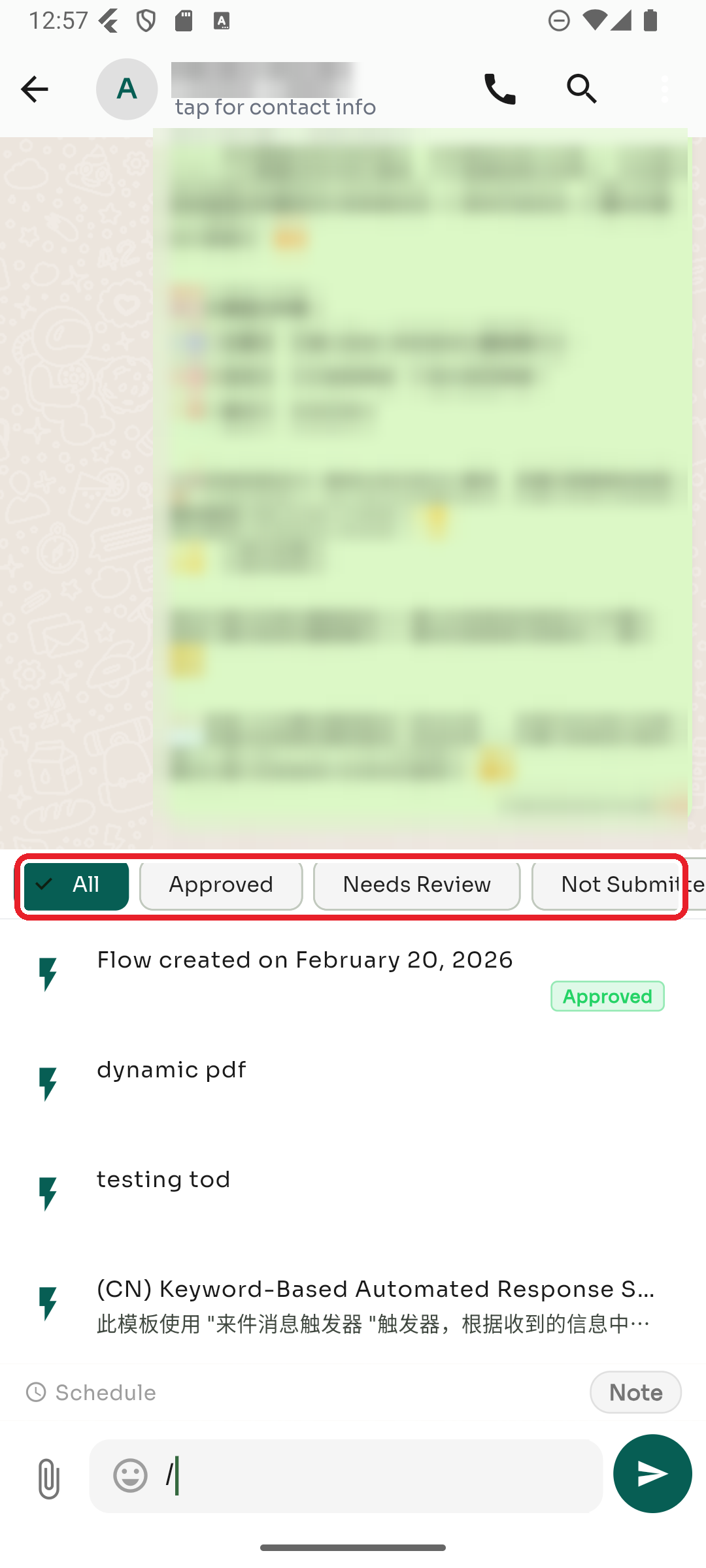
Step 2 — Filter the list (optional)
Use the status filters at the top — All, Approved, Needs Review, or Not Submitted — to narrow the list. You can also keep typing after the / to search by flow name.
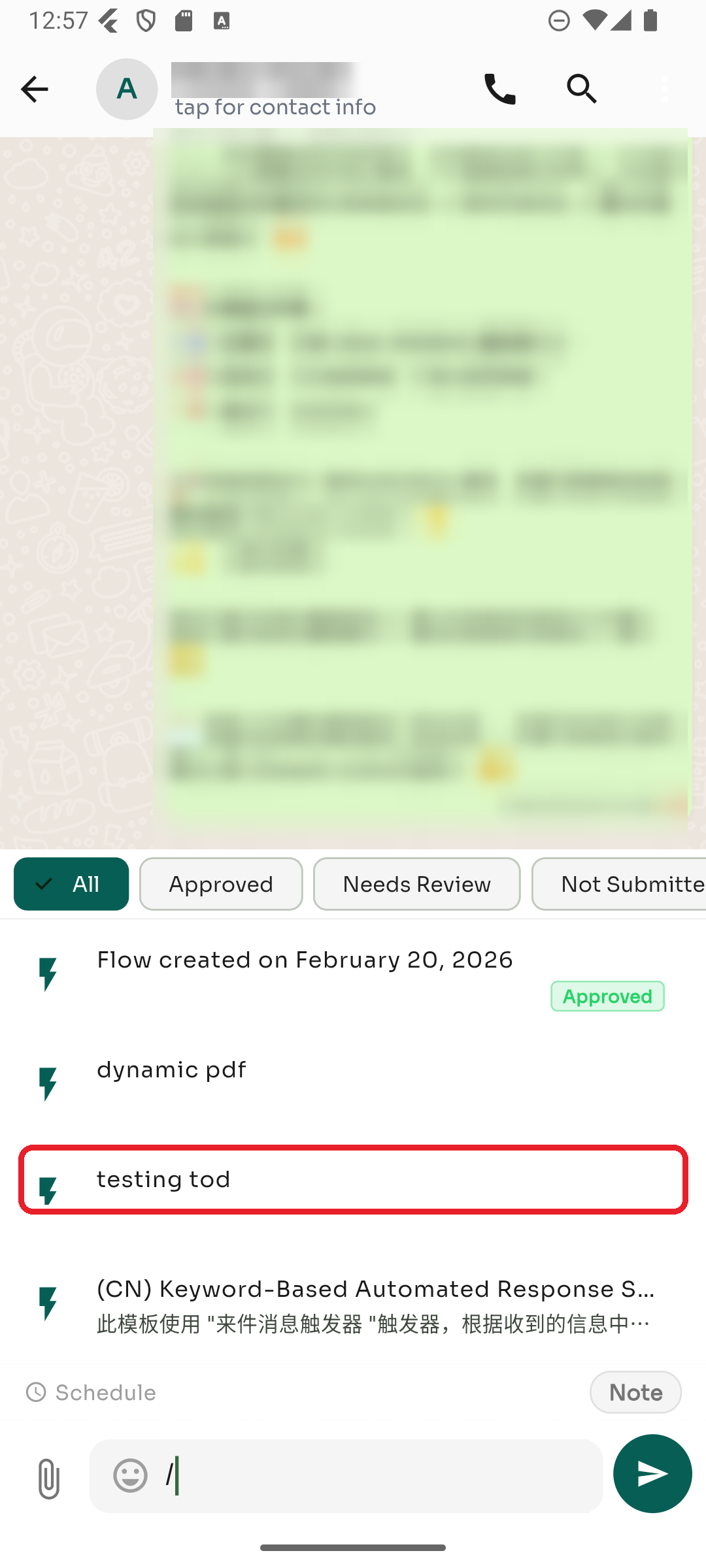
Step 3 — Tap the flow you want
Each flow shows a ⚡ icon, its name, and (for WhatsApp templates) a status badge. Tap the one you want to send.
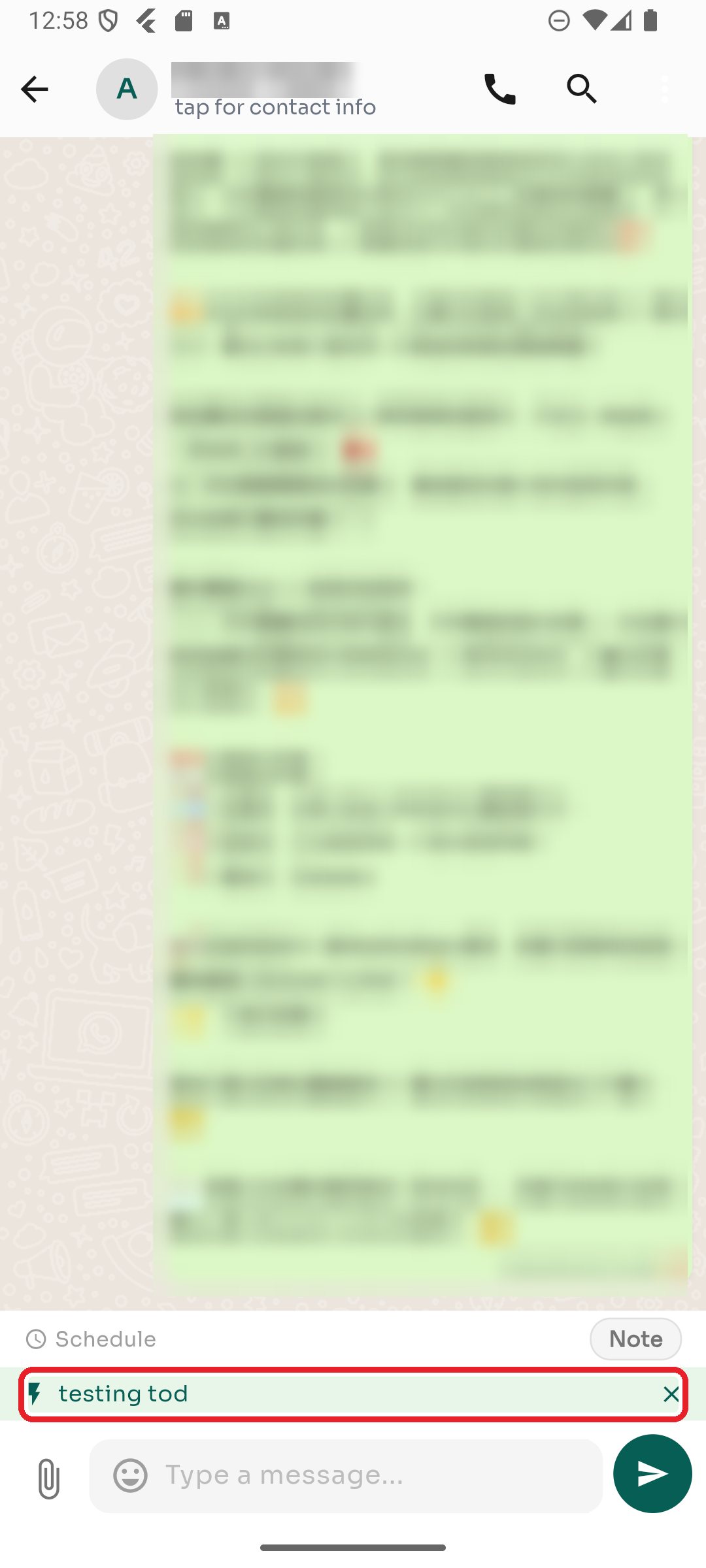
Step 4 — Check the green flow chip
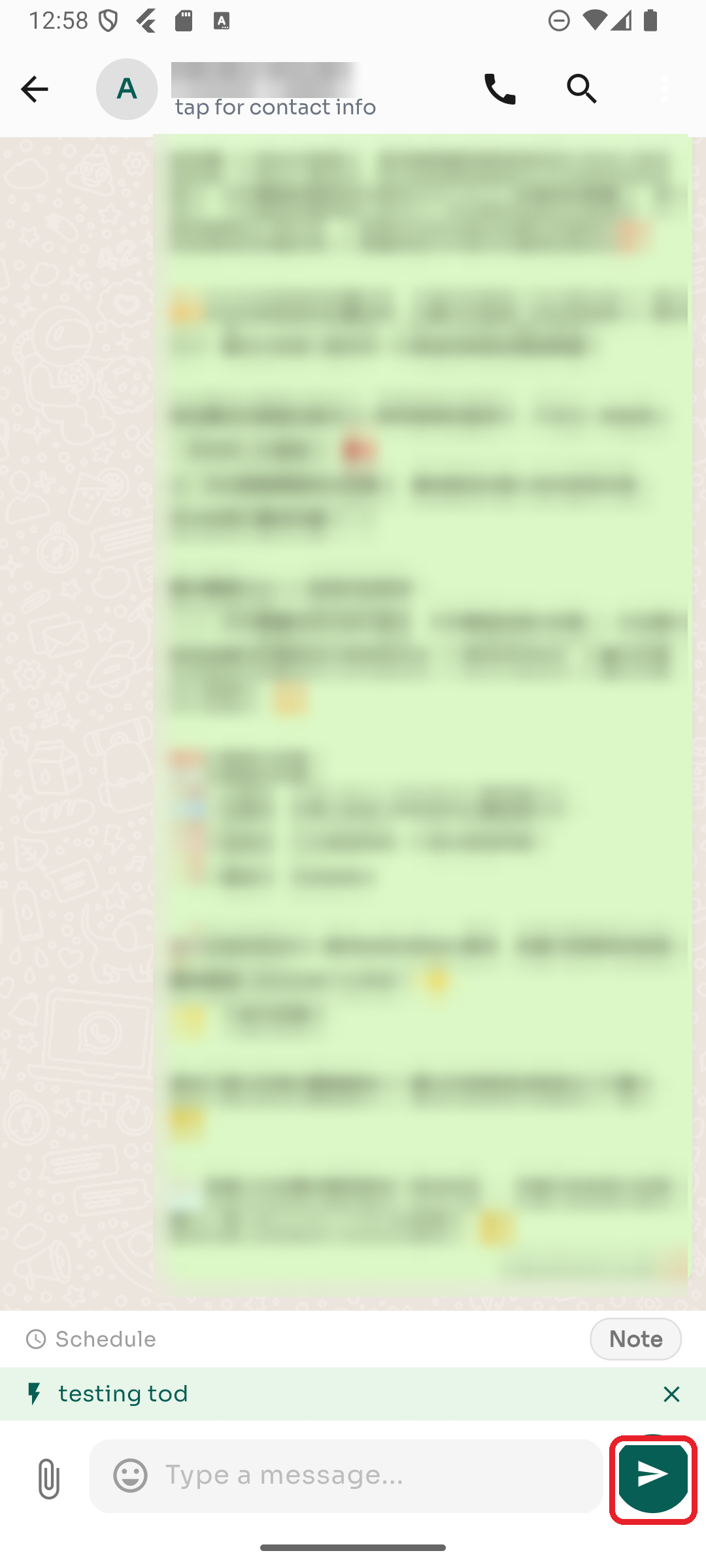
The flow attaches to the message box as a green chip showing its name, and the text field clears — the flow sends its own full message. To pick a different one, tap the ✕ on the chip.
Step 5 — Tap Send
Tap the Send button. ChatDaddy fires the automation to the contact, and the message appears in the conversation. 🎉
Tips & good to know
- No flows showing? Your team hasn't created any yet, or none match your filter. Try the All filter or ask your admin to build one on the dashboard.
- Status badges apply to WhatsApp template flows. Approved means it's cleared by WhatsApp and ready to send.
- Typing cancels automation mode. If you start typing a normal message after selecting a flow, the chip is removed.