
How to Edit a Contact's Details (Mobile App)
Update a contact's name, phone number and email from the Contact Info screen in the ChatDaddy mobile app — with the required-field rules and how to discard changes.
Updated Jul 19, 2026
Also searched as: edit contact, update contact, mobile app contact, change phone number, edit email, contact info, mobile CRM, edit details, save contact, update details
You can update a contact's saved name, phone number, and email right from their Contact Info screen. (In each screenshot, the red box shows where to tap.)
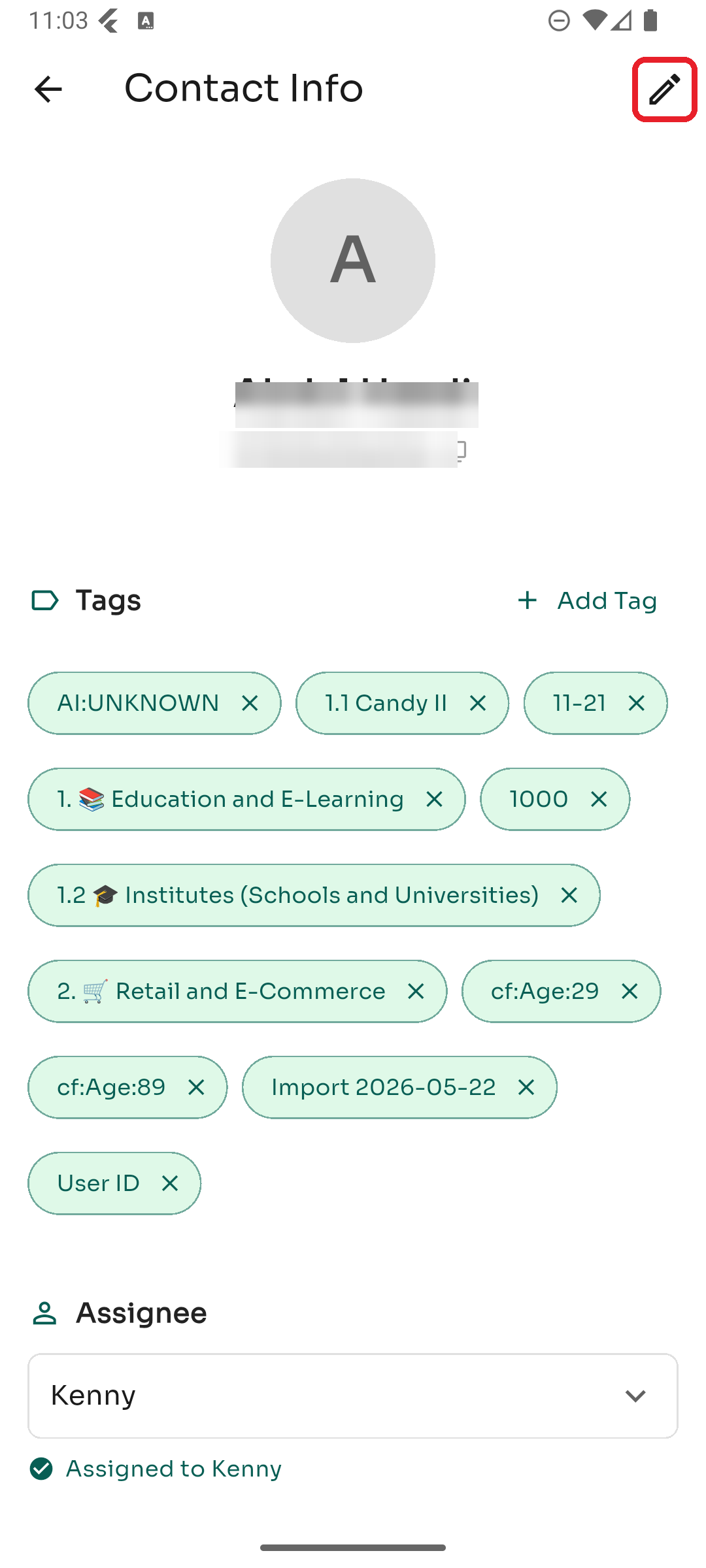
Step 1 — Open Contact Info, then tap Edit
Open the conversation, tap the contact's name at the top to open Contact Info, then tap the ✏️ pencil icon in the top-right corner.
Step 2 — Update the details and Save
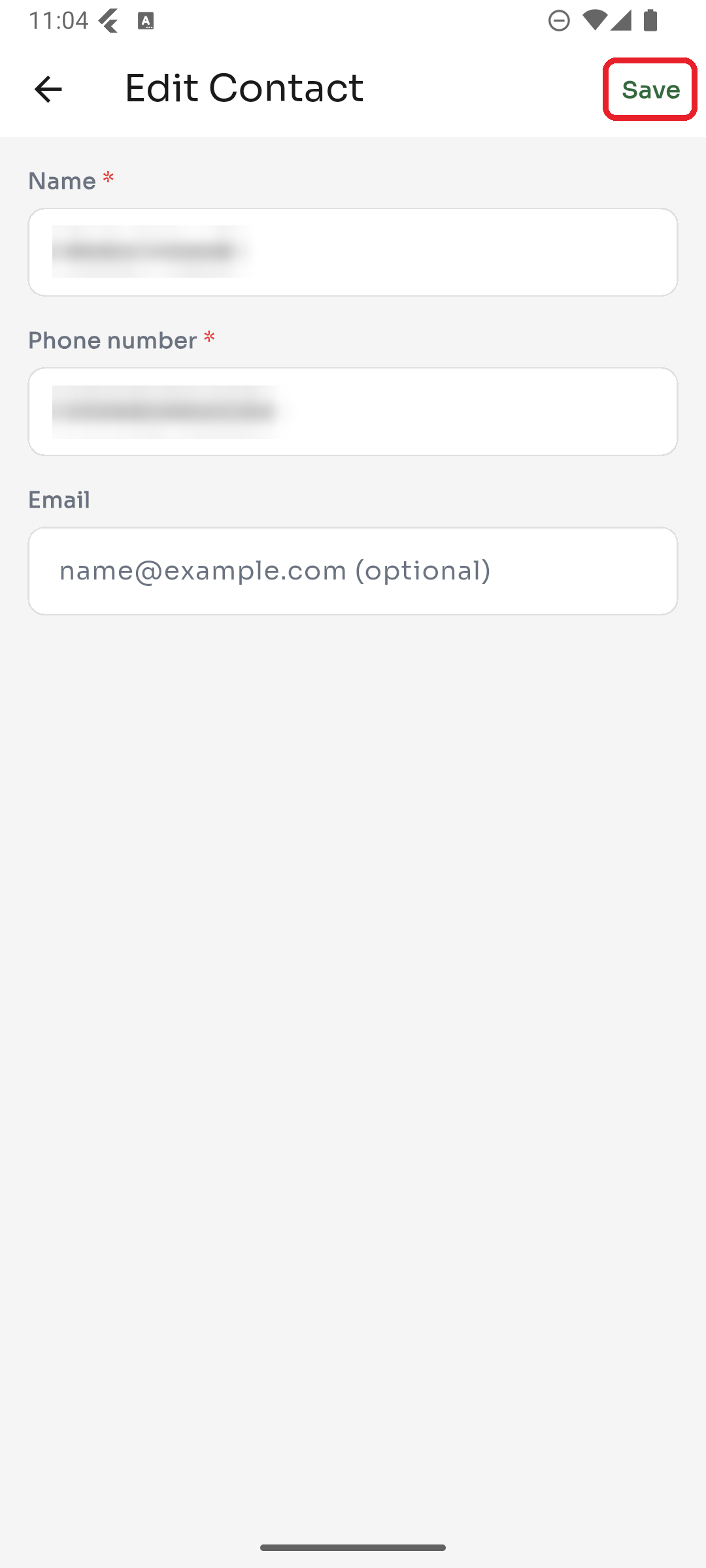
On the Edit Contact screen you can change:
- Name (required)
- Phone number (required)
- Email (optional) Make your changes, then tap Save in the top-right corner.
Good to know
- Name and Phone number can't be left blank — you'll see "Name is required" or "Phone number is required" if they are.
- If you enter an email, it has to be a valid address (e.g.
name@example.com). - On success you'll see "Contact updated". To discard changes, just tap the back arrow instead of Save.
Was this article helpful?