ChatDaddy Mobile App: Settings & Your Profile
The Settings tab (bottom-right) is where you manage your profile, privacy, channels, notifications, team, and account. This guide walks through it. (In each…
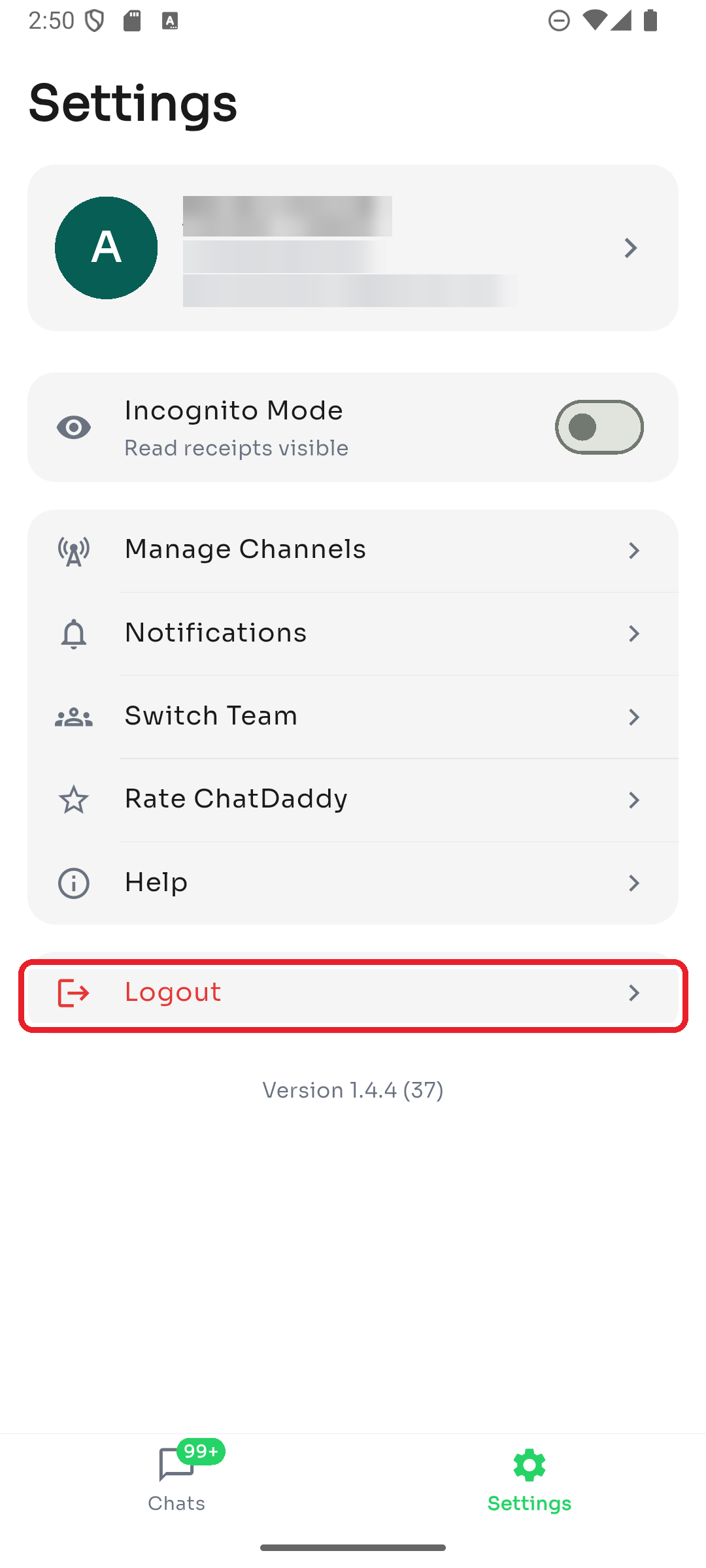
The Settings tab (bottom-right) is where you manage your profile, privacy, channels, notifications, team, and account. This guide walks through it. (In each screenshot, the red box shows where to tap.)
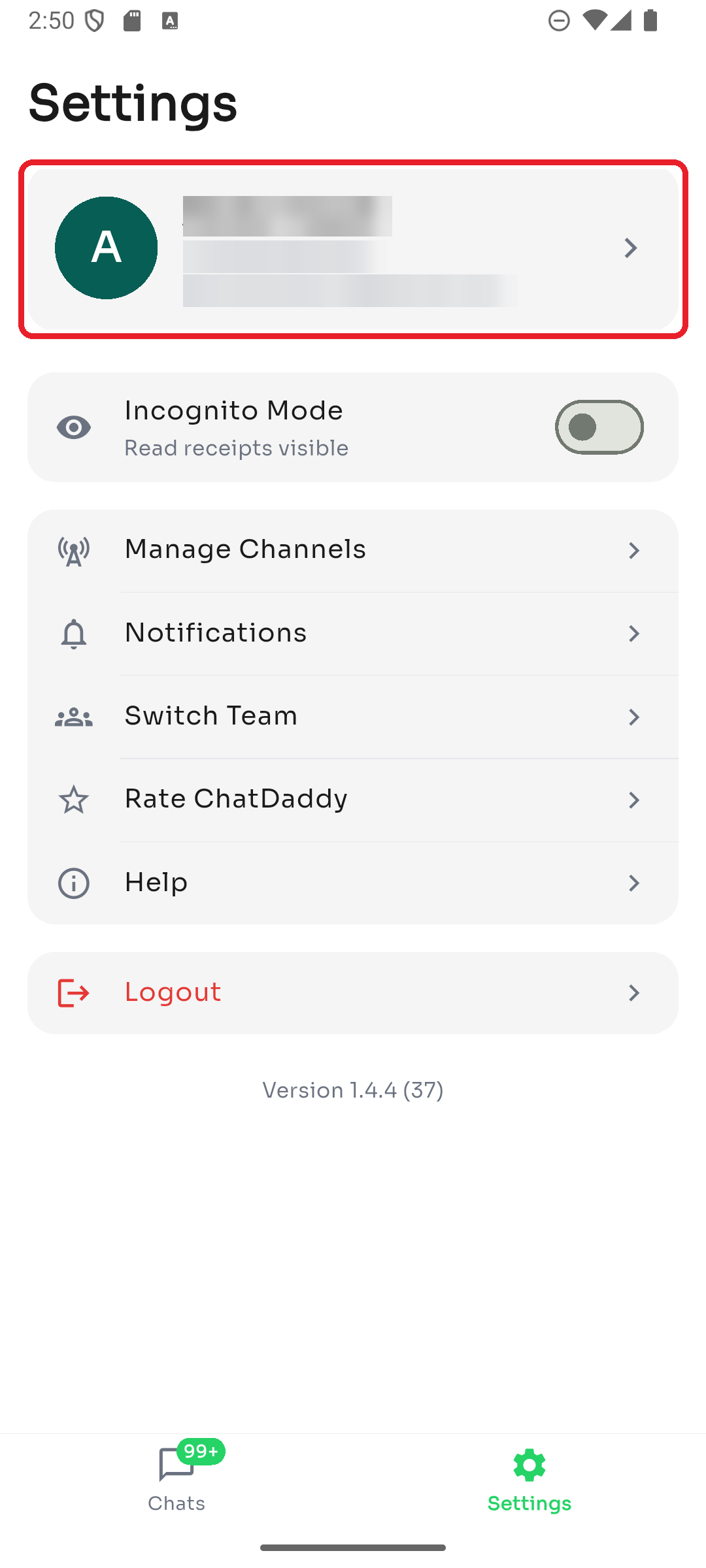
Step 1 — Your profile
At the top of Settings you'll see your profile card — your name, phone number, and email. Tap it to view your account details.
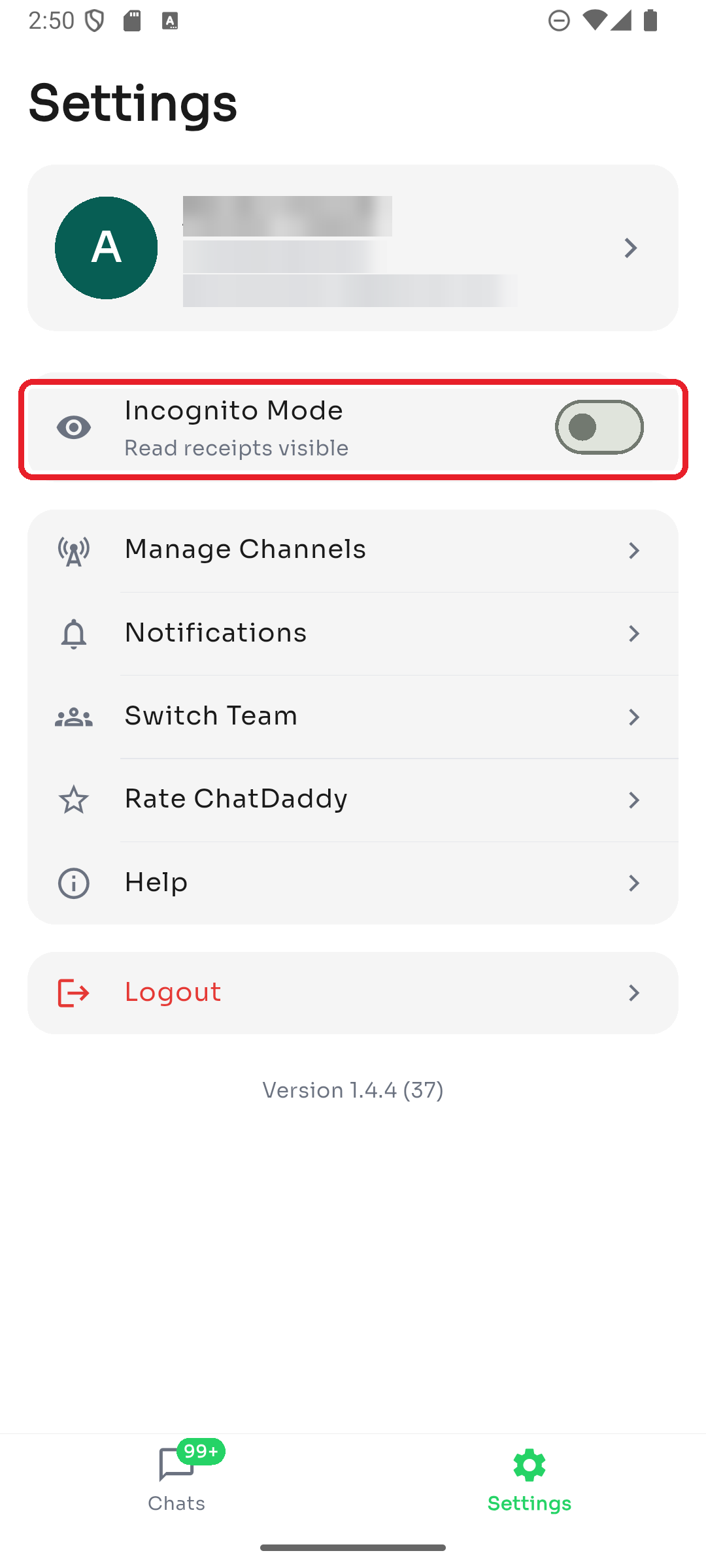
Step 2 — Incognito Mode
Turn on Incognito Mode to hide read receipts — contacts won't see when you've read their messages. The subtitle tells you the current state ("Read receipts visible" or "Read receipts hidden").
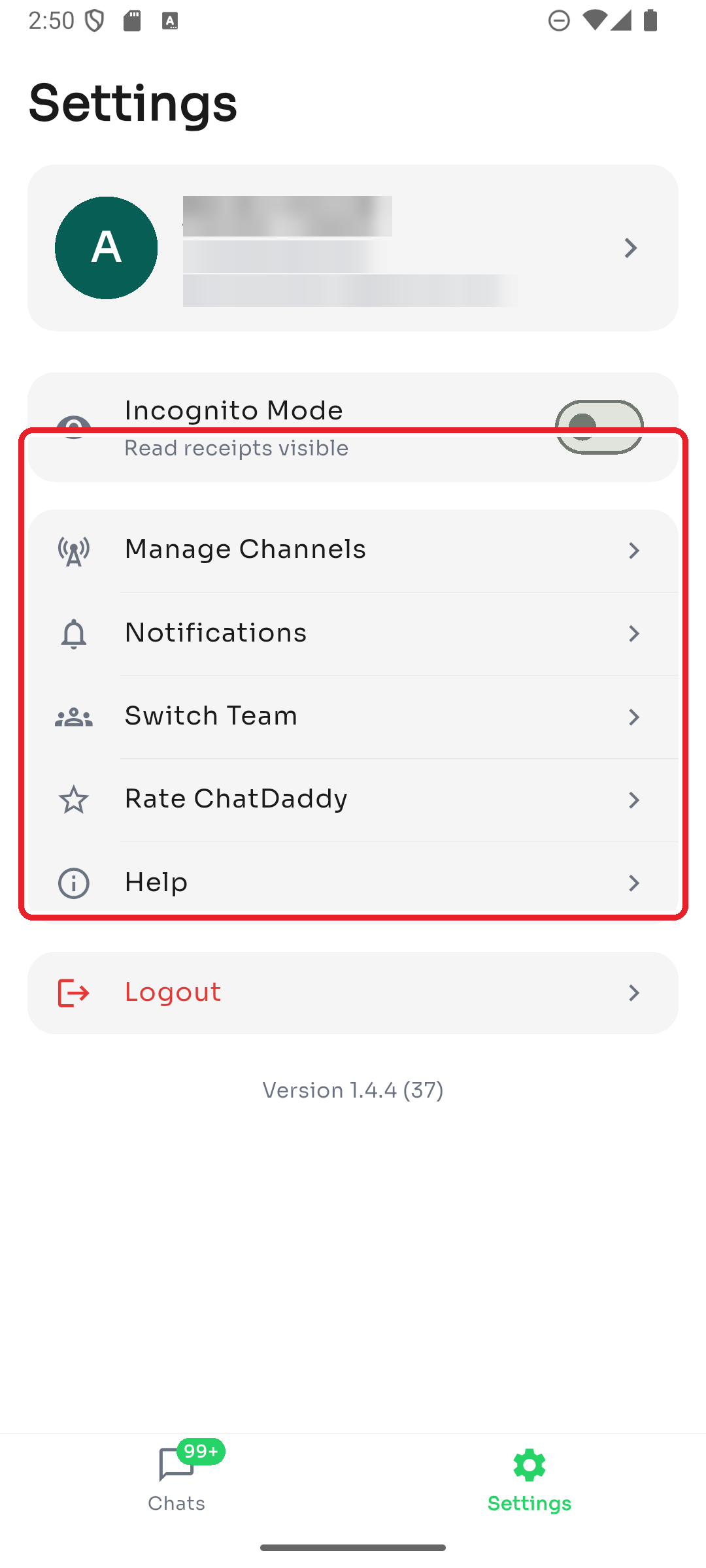
Step 3 — The settings menu
The menu below gives you quick access to:
- Manage Channels — add, reconnect, rename, or remove channels
- Notifications — control push notifications, sounds, and quiet hours
- Switch Team — move between the teams you belong to
- Rate ChatDaddy — leave a rating
- Help — open the ChatDaddy help center
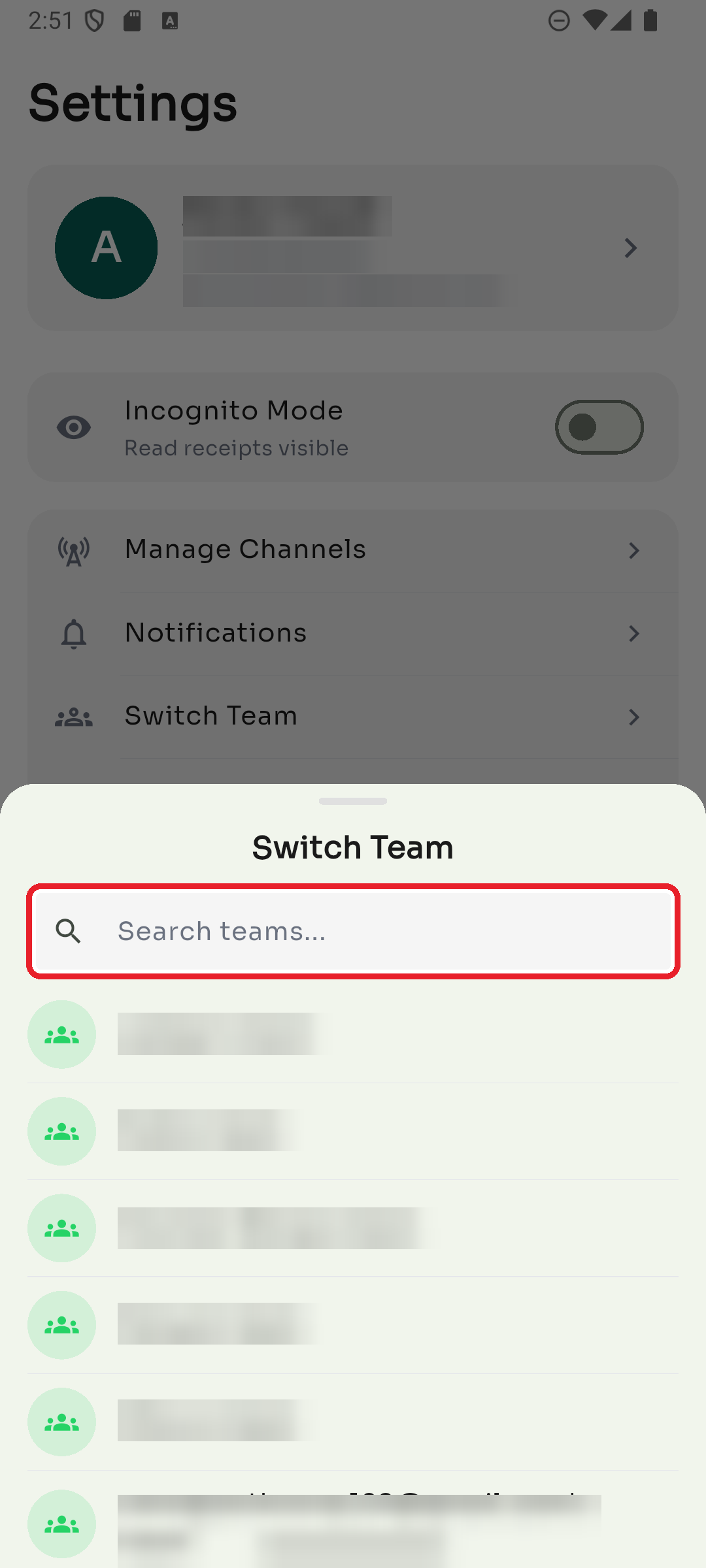
Step 4 — Switch team
Tap Switch Team to move between workspaces. Search for a team or tap one in the list to switch to it — the app reloads with that team's chats.
Step 5 — Log out
Tap Logout at the bottom to sign out of the app. You'll return to the login screen. The app version number is shown just below.