
ChatDaddy Mobile App: Notifications
Control which push notifications you receive, mute specific channels, and set sounds and quiet hours. Open it from Settings → Notifications. (In each…
Updated Jul 10, 2026
Control which push notifications you receive, mute specific channels, and set sounds and quiet hours. Open it from Settings → Notifications. (In each screenshot, the red box shows where to tap.)
Step 1 — Choose notification types
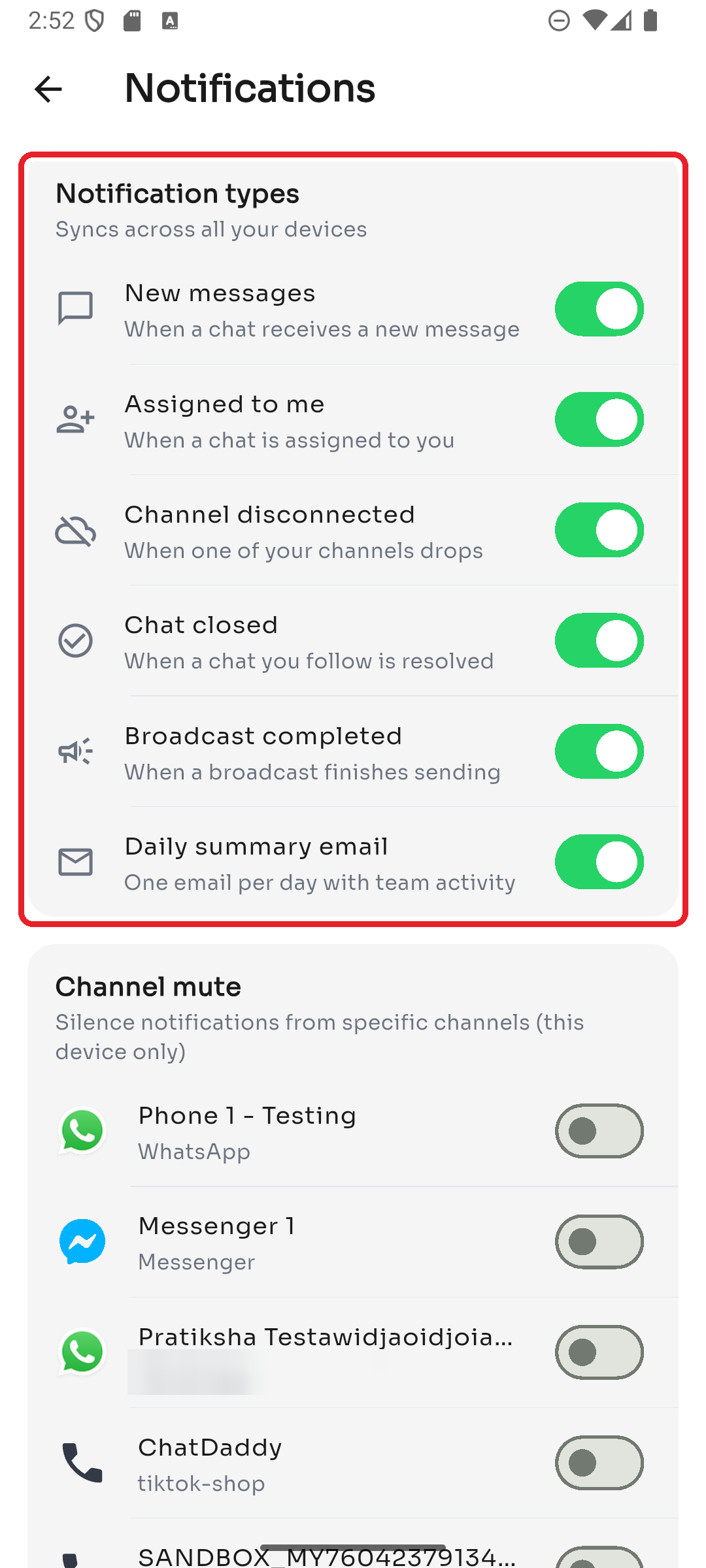
The Notification types section controls what you get alerted about. These sync across all your devices. Toggle each one on or off:
- New messages — when a chat receives a new message
- Assigned to me — when a chat is assigned to you
- Channel disconnected — when one of your channels drops
- Chat closed — when a chat you follow is resolved
- Broadcast completed — when a broadcast finishes sending
- Daily summary email — one email per day with team activity
Step 2 — Mute a specific channel
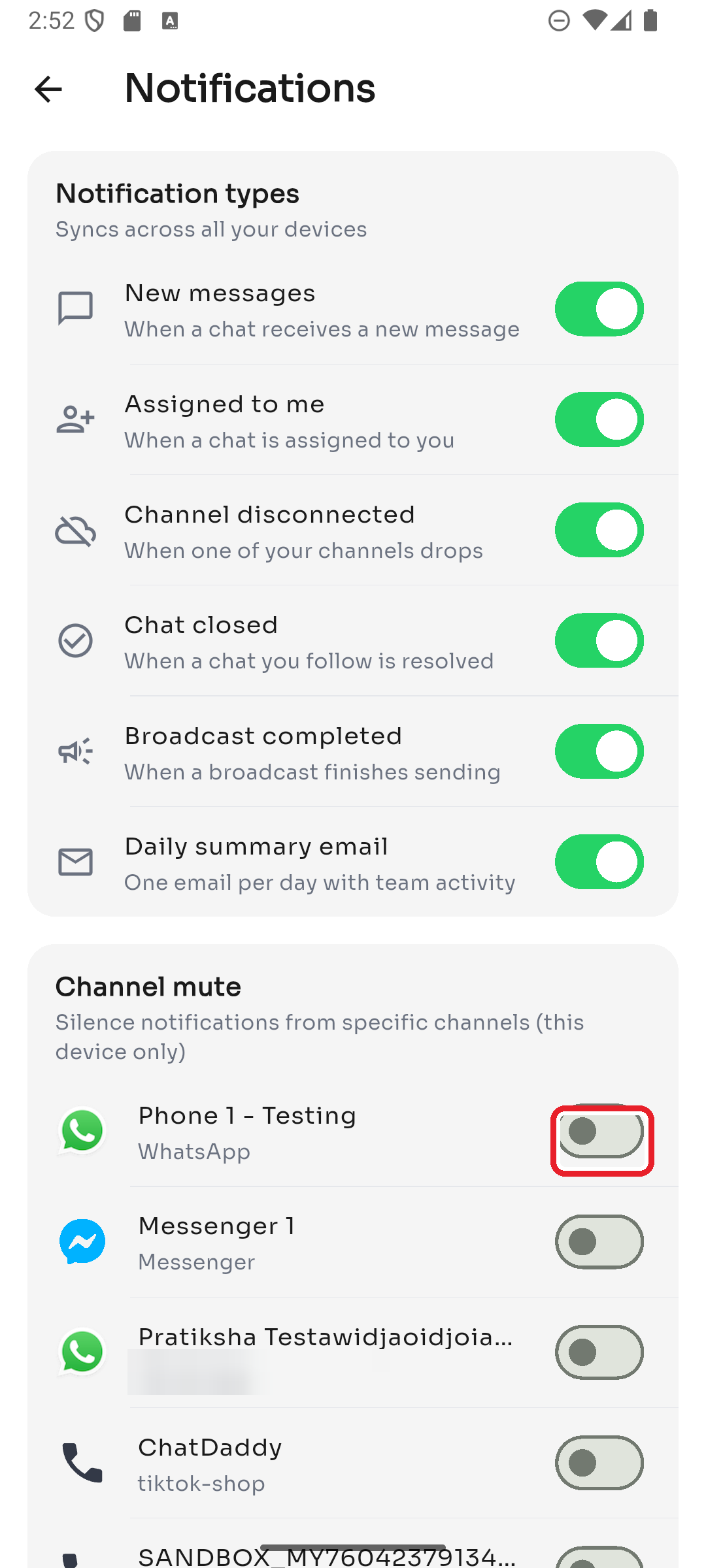
Under Channel mute, switch off notifications from any individual channel. This setting applies to this device only.
Step 3 — Sound & quiet hours
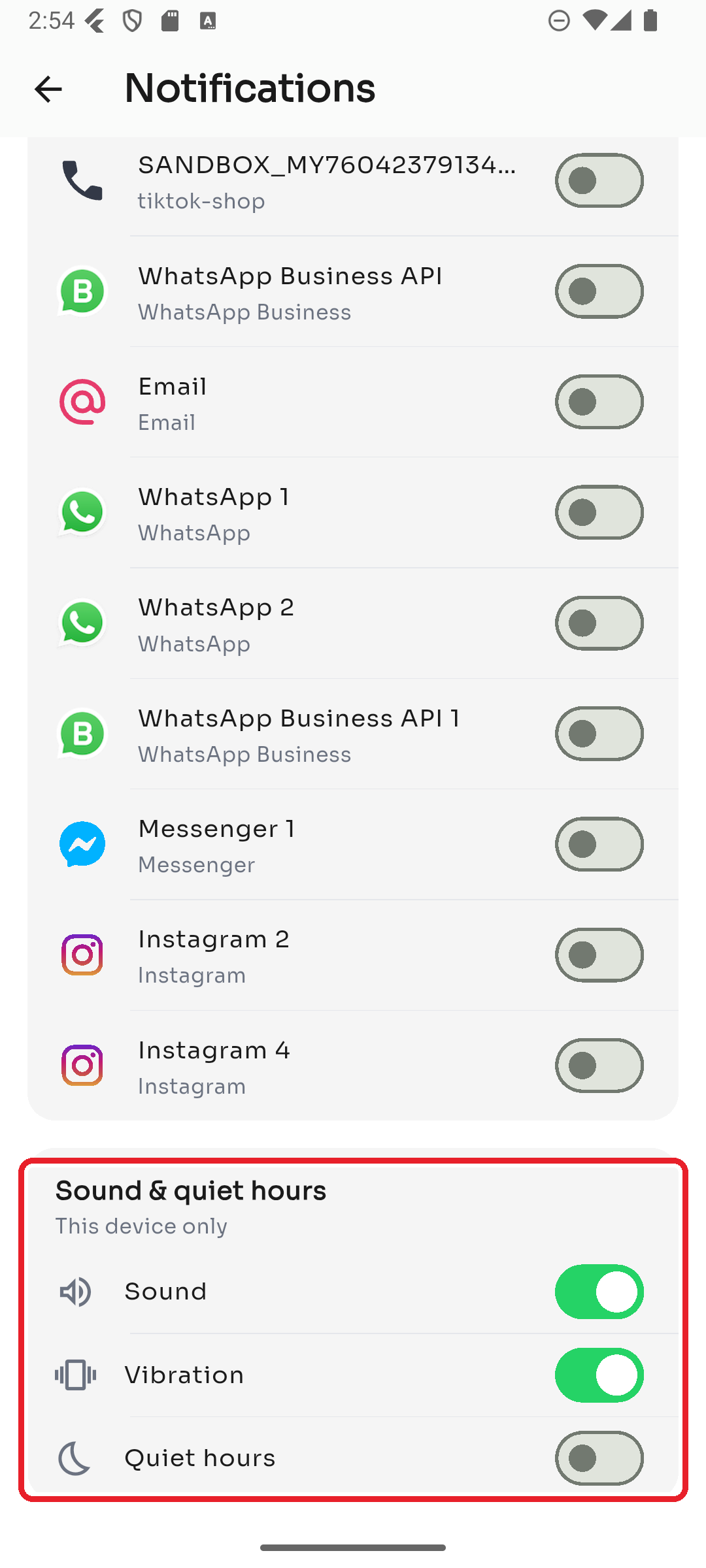
The Sound & quiet hours section (also this device only) lets you control:
- Sound — play a sound for notifications
- Vibration — vibrate on notifications
- Quiet hours — silence notifications during a time range you set (tap to choose a start and end time)
Was this article helpful?