
Moving your WhatsApp Business App (Coexistence) from another service provider to ChatDaddy
Keep your number, your phone app and every chat. Disconnect your current provider inside the WhatsApp Business app, then connect ChatDaddy. Full step-by-step guide with screenshots.
Also searched as: Moving your WhatsApp Business App (Coexistence) from another service provider to ChatDaddy, At a glance, What stays the same, What ChatDaddy brings over automatically, What you'll need to set up again, What doesn't work with Coexistence, Why can't my current provider just "transfer" my number to ChatDaddy?, Are the steps different for my provider?, Before you start: checklist, Step 1: Ask your current provider to remove their billing, Step 2: Export what you want to keep from your current provider, Step 3: Update the WhatsApp Business app on your phone, Step 4: Disconnect your current provider in the WhatsApp Business app, Step 5: Connect your WhatsApp Business app to ChatDaddy, Step 6: Let your chats and contacts come in
💡 Short answer: You keep your phone number, your WhatsApp Business app and all the chats on your phone. You disconnect your current provider inside the app, then connect ChatDaddy. The switch itself takes a few minutes, and your phone keeps working the whole time.
This guide is for businesses that use the WhatsApp Business app on their phone together with another service provider (Meta calls this "Coexistence") and want to move to ChatDaddy. The steps are the same whichever provider you use today.
Already using the WhatsApp API without the phone app? See our other guide, Switching from the WhatsApp API to Coexistence.
At a glance
What stays the same
- ✅ Your WhatsApp number
- ✅ Your WhatsApp Business app on your phone. Keep using it as normal.
- ✅ Every chat on your phone. Nothing is deleted.
- ✅ Your business name and profile that customers see
What ChatDaddy brings over automatically
- ✅ Your WhatsApp contacts
- ✅ Your recent chat history: up to the last 6 months. Meta decides how much is sent, and sometimes it's less.
What you'll need to set up again
- ⚠️ Message templates: submit them again in ChatDaddy for Meta to approve
- ⚠️ Anything you saved only in your current provider: tags, labels, notes, automations, broadcast history and custom fields. Export these before you switch (see Step 2).
- ⚠️ Linked devices: WhatsApp Web and desktop get logged out. Just link them again.
What doesn't work with Coexistence
- ❌ Group chats don't appear in ChatDaddy. They stay on your phone.
- ❌ Calls can't be made from ChatDaddy. Use the app on your phone for calls.
Why can't my current provider just "transfer" my number to ChatDaddy?
Because Meta doesn't offer a direct transfer here. For your setup, the switch is: disconnect, then reconnect.
- Meta has a direct transfer tool, but it only works between Meta's billing partners (called "Solution Partners"). These are providers that pay Meta for your messages and bill you.
- ChatDaddy connects to WhatsApp as a Meta Tech Provider. You pay Meta directly for your WhatsApp message charges, with your own card.
- So you move by disconnecting your current provider in your WhatsApp Business app and connecting ChatDaddy. This is the normal way to change providers when you use the WhatsApp Business app, and it's quick.
Are the steps different for my provider?
No. The steps are the same whichever provider you use today.
- ✅ You disconnect inside your WhatsApp Business app (Step 4), not in your provider's system. So it works the same for any provider, such as SleekFlow, respond.io or 360dialog.
- ✅ Connecting to ChatDaddy (Step 5) is also the same for everyone.
- ⚠️ Only two things depend on your provider: Billing (Step 1): some providers pay Meta for your messages and then bill you. Others let you pay Meta directly. Only the first kind need to remove their billing before you switch. Exporting your data (Step 2): every provider has its own export screen. Check their help center, or ask their support team for a CSV export of your contacts.
- 💡 Cancelling your plan with your old provider is separate from this switch. Check your contract for any notice period.
Before you start: checklist
Tick these off first. It makes the switch smooth.
- ☐ Your phone has the WhatsApp Business app, updated to the latest version from the App Store or Google Play (version 2.24.17 or newer).
- ☐ Your Facebook login is an admin of your business on Meta (Meta Business Suite / Business Manager). You'll sign in with it during setup.
- ☐ Your current provider's billing is removed. If you pay your provider for your WhatsApp message charges, ask them to remove their billing from your WhatsApp account. Meta warns the switch can fail if the old provider's billing is still attached.
- ☐ Your data is exported from your current provider: contacts (with tags and labels) and anything else you want to keep. See Step 2.
- ☐ You have a copy of your message templates. Screenshots or copied text are fine.
- ☐ A payment card is ready to add to your WhatsApp account on Meta after connecting.
- ☐ Pop-ups are allowed in your browser for ChatDaddy. The Facebook sign-in opens in a pop-up.
- ☐ You've picked a quiet time. Your current provider's automations stop the moment you disconnect, and ChatDaddy takes over once you connect.
Step-by-step
Step 1: Ask your current provider to remove their billing
Only needed if you pay your provider for your WhatsApp message charges.
- Contact your provider and ask them to remove their billing (credit line) from your WhatsApp Business account.
- Wait for them to confirm before moving on.
💡 Not sure? If your Meta message charges show up on your provider's invoice, this step applies to you. If you already pay Meta directly with your own card, skip this step.
Step 2: Export what you want to keep from your current provider
ChatDaddy brings over your WhatsApp contacts and chats, but not your provider's own data.
Export or note down:
- Contacts with their tags, labels and custom fields (as a CSV file). You can import these into ChatDaddy later (Step 9).
- Message templates you use
- Automations and chatbots, so you can rebuild them in ChatDaddy
- Quick replies and saved messages
Step 3: Update the WhatsApp Business app on your phone
- Open the App Store (iPhone) or Google Play (Android).
- Search WhatsApp Business and tap Update if you see it.
Step 4: Disconnect your current provider in the WhatsApp Business app
- Open the WhatsApp Business app on your phone.
- Go to Settings.
- Tap Account.
- Tap Business Platform.
- Tap Disconnect Account and confirm.
✅ Your phone keeps working normally. You can still send and receive messages.
⚠️ Your old provider stops receiving your messages from this point. Go straight to Step 5.
Step 5: Connect your WhatsApp Business app to ChatDaddy
💡 Tip: Keep your phone unlocked, with the WhatsApp Business app open, while you do this.
5.1 Log in to ChatDaddy on your computer and open Channels from the left menu. Click + Add Channel (1) in the top right.
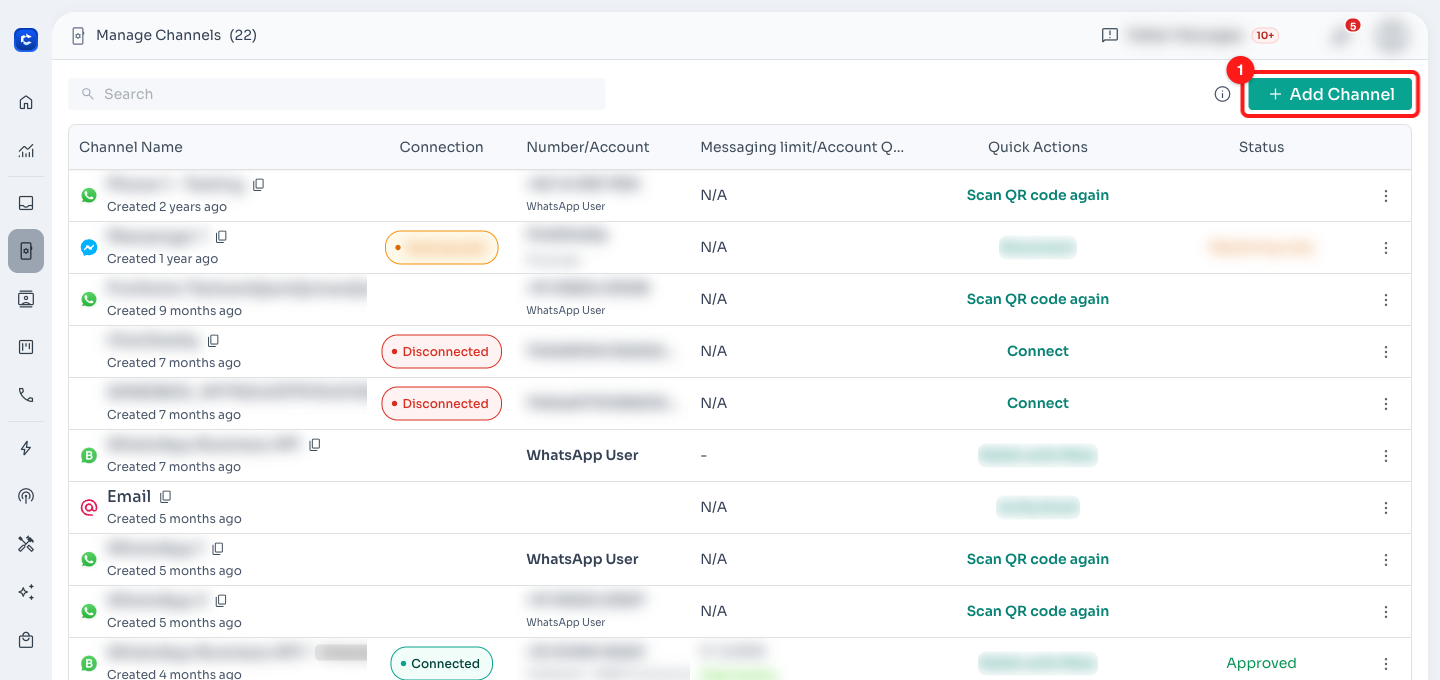
Channels → + Add Channel
5.2 In the Connect Channel window, click WhatsApp Business API (WABA) Meta Partner (1).
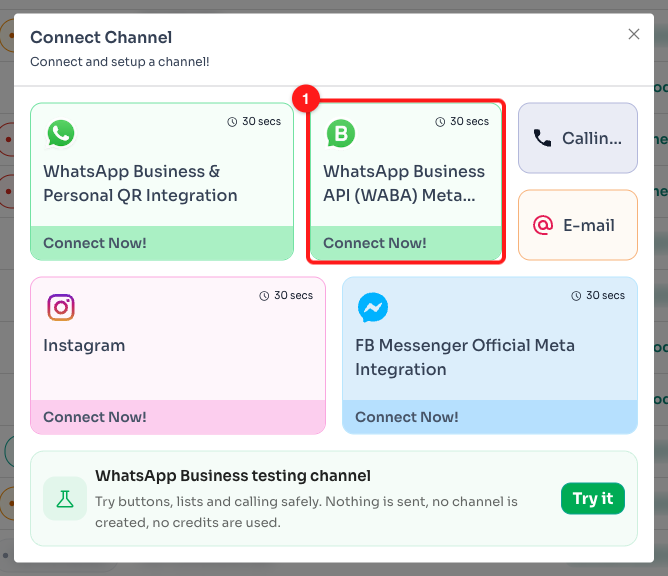
Choose the WhatsApp Business API (WABA) Meta Partner card
5.3 Read the short overview, tick I've acknowledged this before we can connect (1), then click Continue to Connect (2).
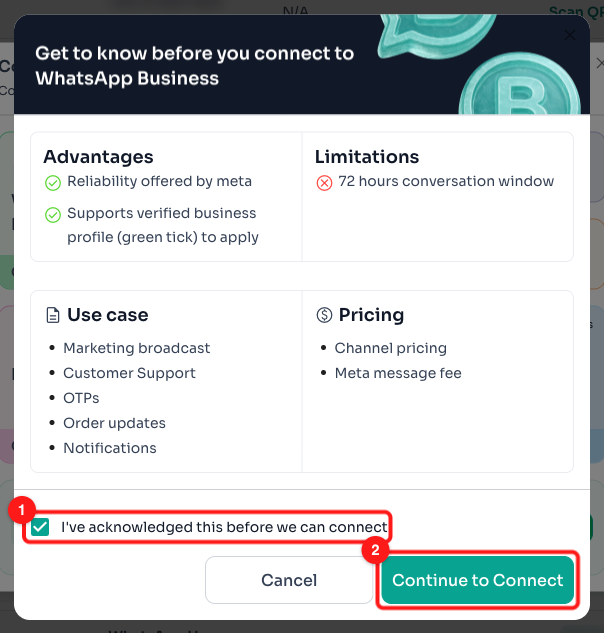
Tick the acknowledgement, then Continue to Connect
ℹ️ This screen lists a "72 hours conversation window". Under Meta's current pricing, the window for free-form replies is 24 hours after the customer's last message (see "After the switch" below).
5.4 Select Connect WhatsApp Business App (Co-existence) (1), then click Get Started (2).
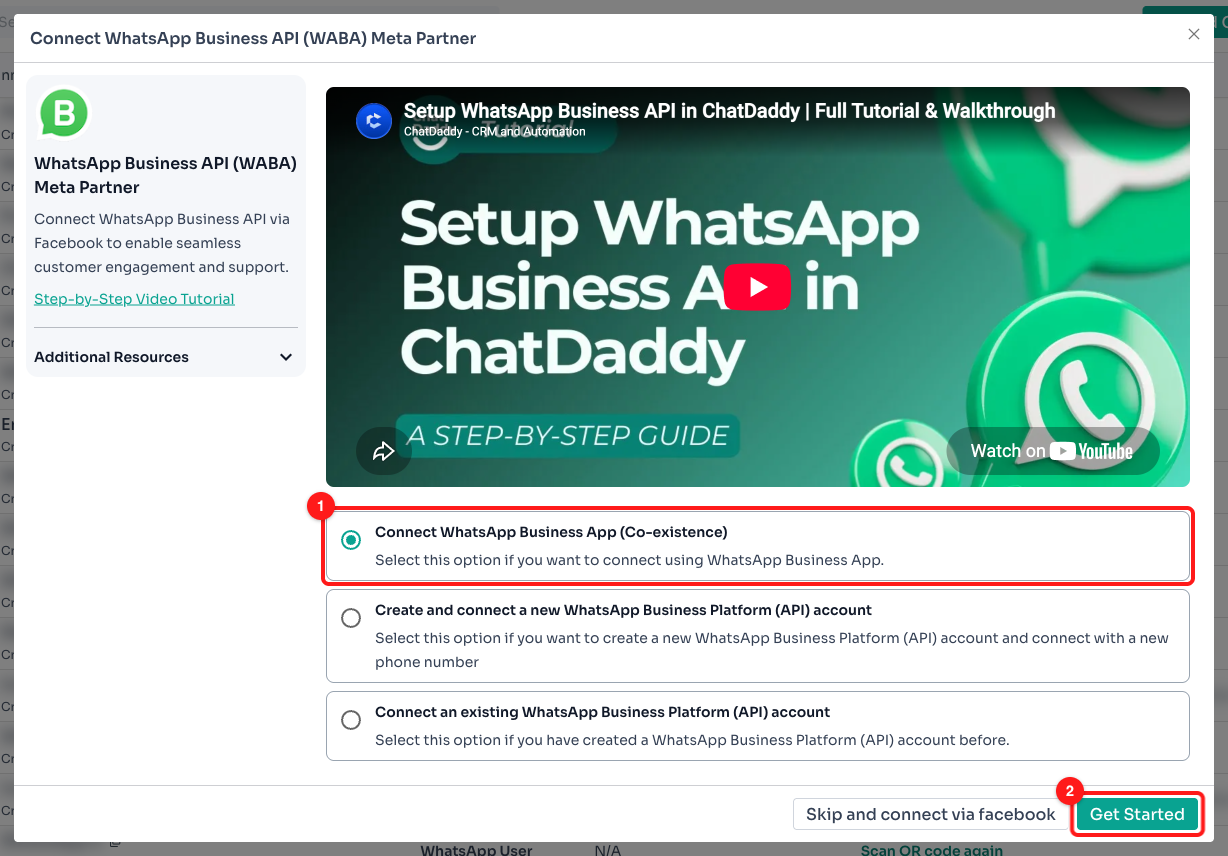
Pick the Co-existence option, then Get Started
5.5 Read Before you connect (1), then click Connect With Facebook (2). A Facebook window opens.
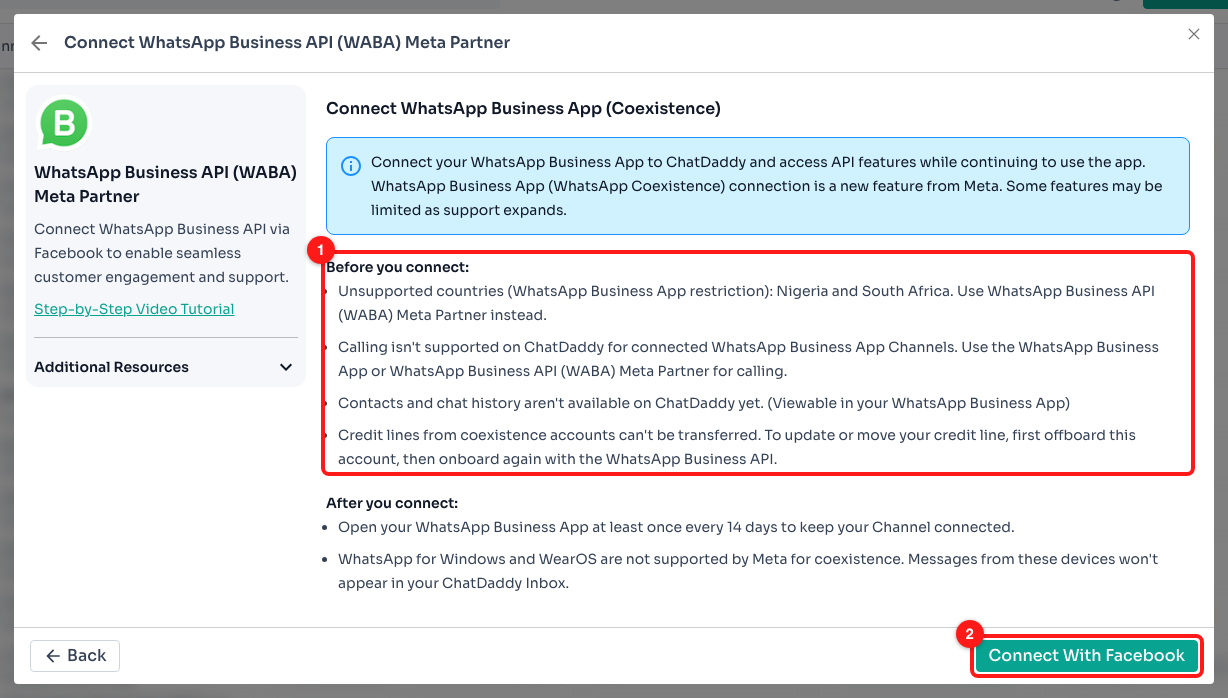
Check the notes, then Connect With Facebook
5.6 In the Facebook window, follow these steps:
- Sign in with your Facebook account (the one that is an admin of your business).
- Choose your business, or create one if asked, and fill in your business details.
- Enter the phone number of your WhatsApp Business app.
- A QR code appears on your computer. Follow the prompts in the WhatsApp Business app on your phone to scan it.
- When asked whether to share your chat history, choose to share it. This is how your past chats reach ChatDaddy.
- Finish the steps. You'll return to ChatDaddy with your channel connected. 🎉
⚠️ Nothing happens when you click Connect With Facebook? Your browser is blocking pop-ups. Allow pop-ups for ChatDaddy and click it again.
Step 6: Let your chats and contacts come in
- ChatDaddy starts bringing in your contacts and recent chats automatically.
- This usually takes a few minutes to a few hours, depending on how many chats you have.
- Messages that arrived during the switch are on your phone, so they're included too.
⚠️ Please don't disconnect or reconnect during the first day. WhatsApp only sends your chat history once, right after you connect. Reconnecting doesn't bring more history back.
ℹ️ Photos, videos and files are only brought in for about the last 14 days. Older ones stay on your phone.
Step 7: Add your payment card on Meta
This pays for messages you send from ChatDaddy, billed by Meta directly.
- Go to Meta Business Suite, then Settings, then Billing & payments.
- Find the WhatsApp Business account you just connected.
- Add a payment method.
Step 8: Set up your templates again
In ChatDaddy, WhatsApp templates are built as Message Flows. Go to Automation → Message Flows.
- Click + Create New Message Flow (1) to create each template again, then submit it to Meta.
- Already have message flows in ChatDaddy? Click Resubmit All Templates (2) to send them to Meta for your new channel. This takes about 30–45 minutes.
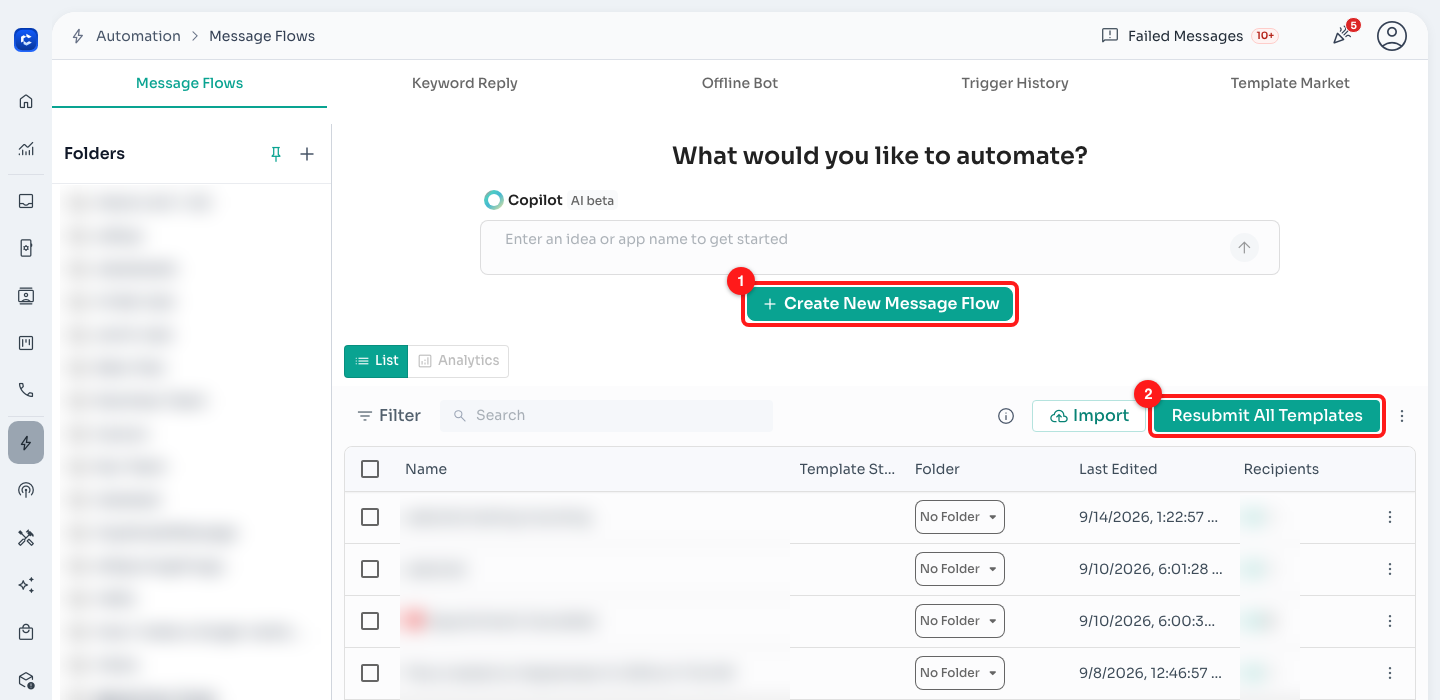
Automation → Message Flows
Meta usually reviews templates within a few minutes, and at most 24 hours. See also How to Submit a Template for Approval.
Step 9: Finish setting up
Import your contacts from your old provider's CSV export so you keep their tags and details:
- Open Contacts from the left menu.
- Click the ⋮ menu (1) next to Export, then click Import (2).
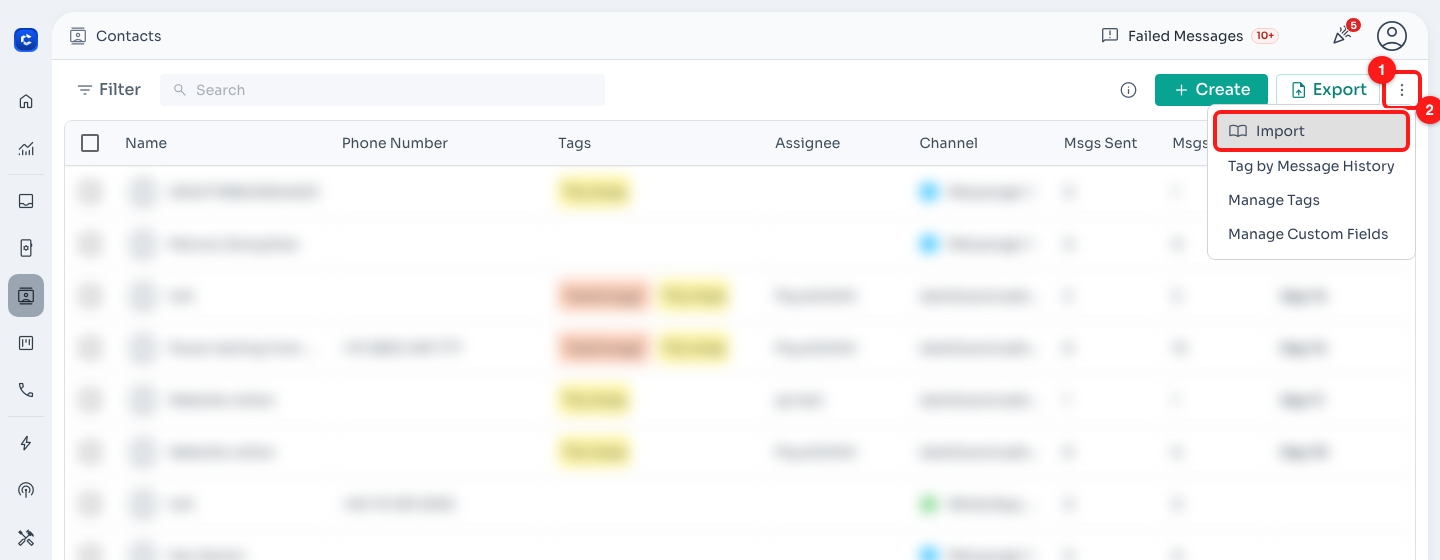
Contacts → ⋮ → Import
- In Import Contacts, download the WhatsApp Contacts template (1) and copy your exported data into its columns.
- Click Click to Upload (2), or drag and drop your CSV file.
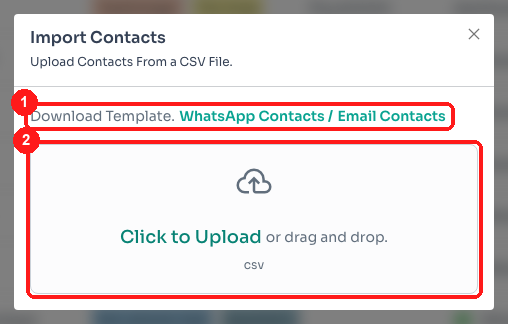
Download the template, then upload your CSV
Then:
- Rebuild your automations and chatbots in ChatDaddy (Automation → Message Flows).
- Link WhatsApp Web or desktop again if you use them.
- Invite your team to ChatDaddy.
You're all done! 🎉
After the switch: good to know
- 📱 Open the WhatsApp Business app at least once every 14 days. If you don't, Meta disconnects it from ChatDaddy.
- 💬 Messages you send from your phone are free. Messages sent from ChatDaddy follow Meta's WhatsApp pricing and are charged by Meta to your card.
- ⏱️ From ChatDaddy, you can reply freely for 24 hours after a customer's last message. After that, use an approved template. There's no such limit when you reply from the phone.
- 📢 Broadcast lists in the phone app become read-only. Use ChatDaddy broadcasts instead.
- 🔕 Some features are switched off for 1-to-1 chats: disappearing messages, view-once photos and live location.
- ⚠️ Changing your number, or setting up WhatsApp again on a new phone, disconnects ChatDaddy. Reconnect with Step 5 afterwards.
- 💻 WhatsApp for Windows and WearOS (smartwatch) aren't supported with this setup. Messages sent from them won't show up in ChatDaddy.
Common questions
Will my customers notice anything?
No. Same number, same business name and profile. The switch is invisible to them.
Will I lose my chats?
No. Everything stays on your phone. ChatDaddy also brings in up to the last 6 months, as explained in Step 6.
Can I use my current provider and ChatDaddy at the same time?
No. Your WhatsApp Business app connects to one provider at a time, so disconnect your current provider first.
What happens to messages that arrive while I'm switching?
They arrive on your phone as normal, and they're included when ChatDaddy brings in your chats.
Will my approved templates move over?
No. Submit them again in ChatDaddy (Step 8). Meta usually approves them quickly.
Something went wrong during setup. What should I do?
Don't keep disconnecting and reconnecting. Contact the ChatDaddy support team and we'll help you finish. See also Troubleshooting WhatsApp Coexistence Signup.
Need help at any step? Reach out to the ChatDaddy support team. We're happy to walk you through it on a call. 😊