
Switching from the WhatsApp API to Coexistence
Your number is on the WhatsApp API only and you want to use the WhatsApp Business app on your phone and ChatDaddy at the same time. Here is the full switch, step by step: remove the number from the API, set up the app, connect it to ChatDaddy, then add billing and resubmit your templates.
Also searched as: Switching from the WhatsApp API to Coexistence, Why isn't it a direct switch?, Before you decide: good to know, Steps, Step 1: Remove your number from the WhatsApp API, Step 2: Set up the WhatsApp Business app, Step 3: Connect to ChatDaddy, Step 4: Add your payment card on Meta, Step 5: Set up your templates again, After the switch: good to know, Switching, WhatsApp, Coexistence
✅ Short answer: yes, you can switch, but not directly. Your number has to be removed from the WhatsApp API first, then set up in the WhatsApp Business app on your phone, and then connected to ChatDaddy.
This guide is for businesses whose number is on the WhatsApp API only (no WhatsApp Business app on the phone) and who want to use Coexistence: the WhatsApp Business app on the phone and ChatDaddy at the same time.
Moving from another provider and already using the WhatsApp Business app? See our other guide, Moving your WhatsApp Business App (Coexistence) from another service provider to ChatDaddy.
Why isn't it a direct switch?
- Coexistence only works for numbers that are active on the WhatsApp Business app.
- A number that's only on the API can't be connected this way. If you try, you'll see a "Number not found" message.
- So the number first needs to move from the API to the WhatsApp Business app.
Before you decide: good to know
- ❌ Chats from your API period won't be on your phone, and they can't be brought into the new connection. If you used ChatDaddy's API, those old chats stay visible in ChatDaddy. If you used another provider, export anything you need from them first.
- ⚠️ Message templates need to be submitted again for Meta to approve.
- ⚠️ Sending speed is limited to 20 messages per second, which is lower than the API.
- ⚠️ If your number has the blue verified badge, talk to us first. It may not carry over.
- ⚠️ Your automations stop from the moment you remove the number until you connect again. Pick a quiet time.
- ❌ Group chats and calls aren't available in ChatDaddy with Coexistence. Use the phone app for those.
💡 Our advice: if you send large broadcasts or rely on the blue badge, staying on the API is usually the better choice. Coexistence is best when you mainly chat 1-to-1 and want to keep using the phone app. Not sure? Talk to us and we'll help you decide.
Steps
There are five steps. Steps 1, 2 and 4 happen outside ChatDaddy (on Meta and on your phone); steps 3 and 5 happen in ChatDaddy. Each red box in the screenshots shows exactly where to click.
Step 1: Remove your number from the WhatsApp API
- Go to Meta Business Suite, then WhatsApp Manager, then Phone numbers. You can also open it directly: business.facebook.com/latest/whatsapp_manager/phone_numbers.
- Find the number you want to switch and click the bin icon (Delete) on its row.
- Confirm the deletion. Only an admin of the business can do this.
⚠️ If you've sent paid messages recently, Meta may make you wait 30 days after your last paid message before you can delete the number.
💡 If your number is on ChatDaddy's API today, contact our support team and we'll help with this step.
Step 2: Set up the WhatsApp Business app
- Install WhatsApp Business from the App Store (iPhone) or Google Play (Android).
- Open the app and register your number. Enter the 6-digit code WhatsApp sends you by SMS.
- Set up your business profile (business name, category, and so on).
Step 3: Connect to ChatDaddy
3.1 In ChatDaddy, open Channels from the left menu and click Add Channel in the top right.
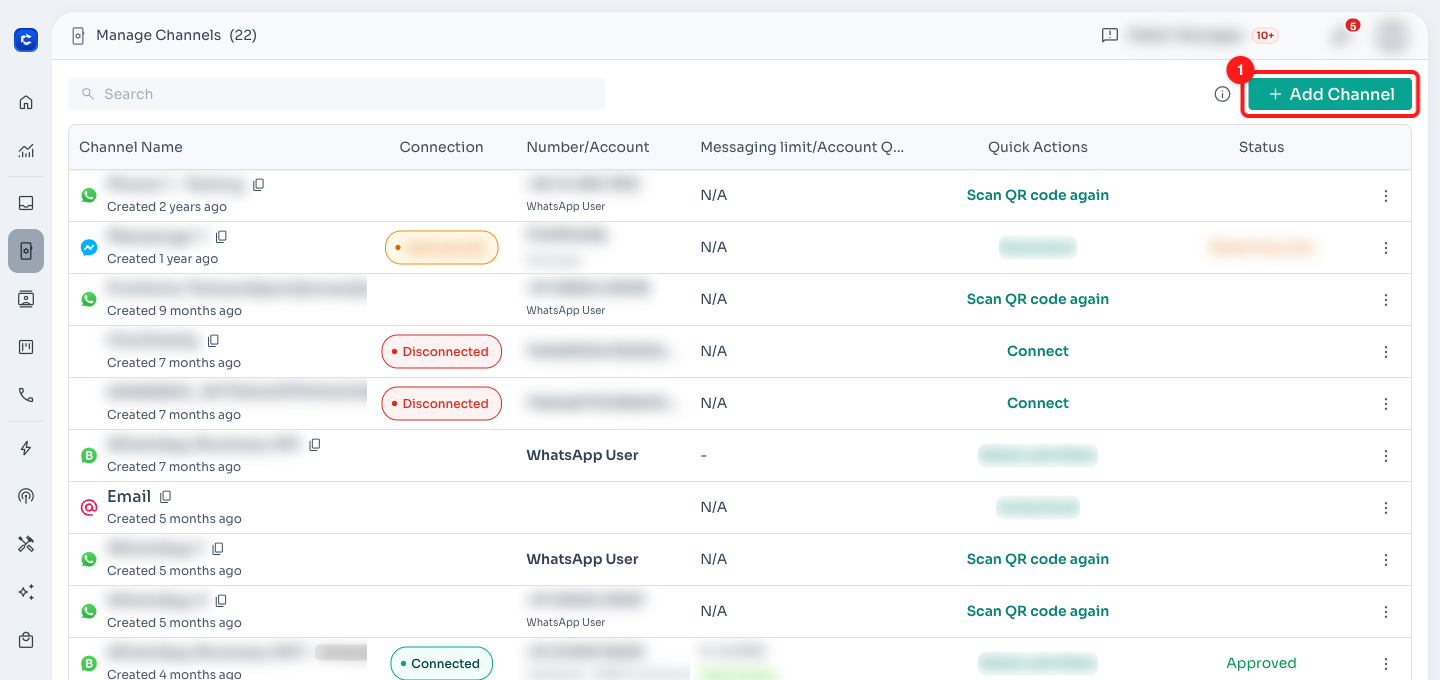
Step 3.1: Channels page. Click Add Channel (1).
3.2 In the Connect Channel window, choose WhatsApp Business API (WABA) Meta Partner and click Connect Now!
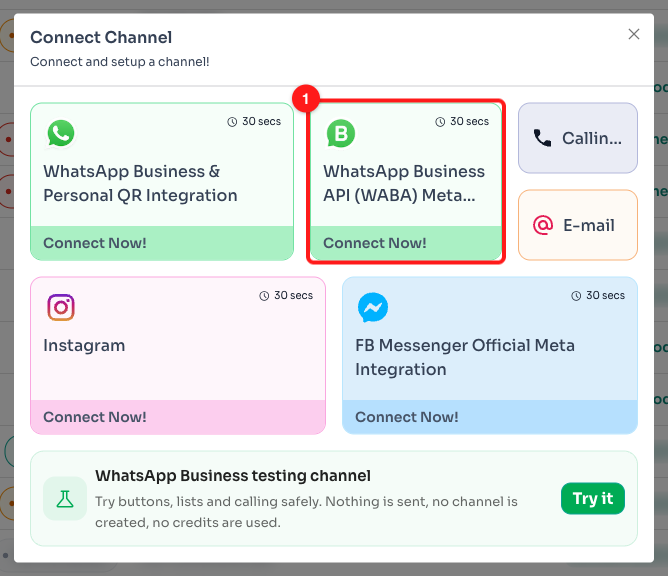
Step 3.2: Pick the WhatsApp Business API (WABA) Meta Partner card (1).
3.3 A summary window opens. Tick I've acknowledged this before we can connect, then click Continue to Connect.
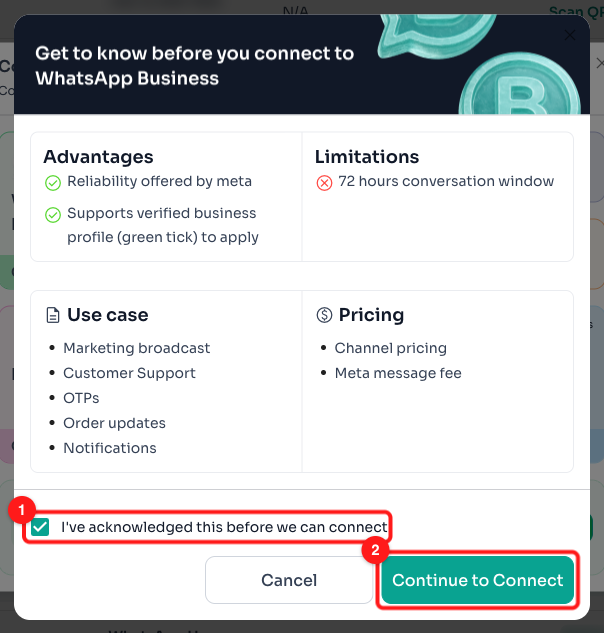
Step 3.3: Tick the acknowledgement (1), then Continue to Connect (2).
ℹ️ This window still lists a "72 hours conversation window". The current rule is 24 hours after a customer's last message (see After the switch below).
3.4 Select Connect WhatsApp Business App (Co-existence), then click Get Started.
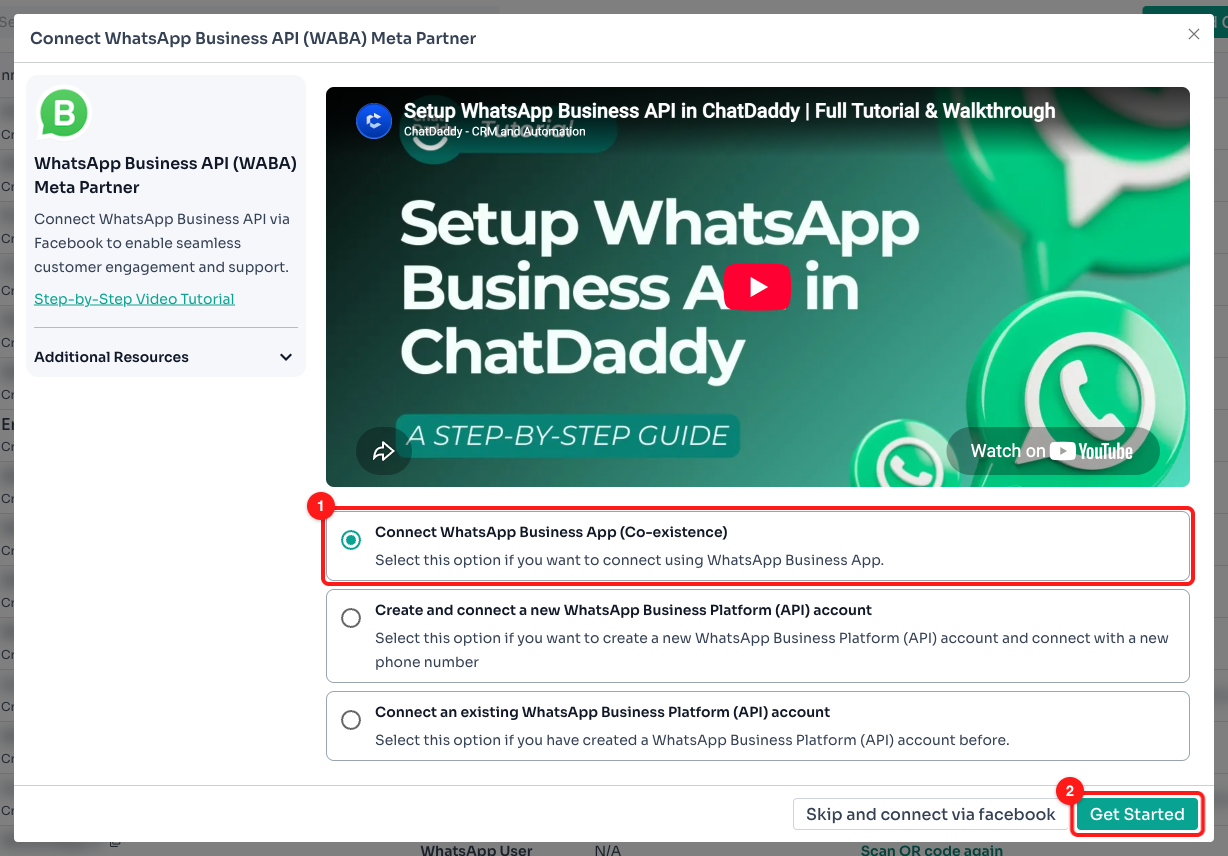
Step 3.4: Choose the Co-existence option (1), then Get Started (2).
3.5 Read the Before you connect and After you connect notes, then click Connect With Facebook.
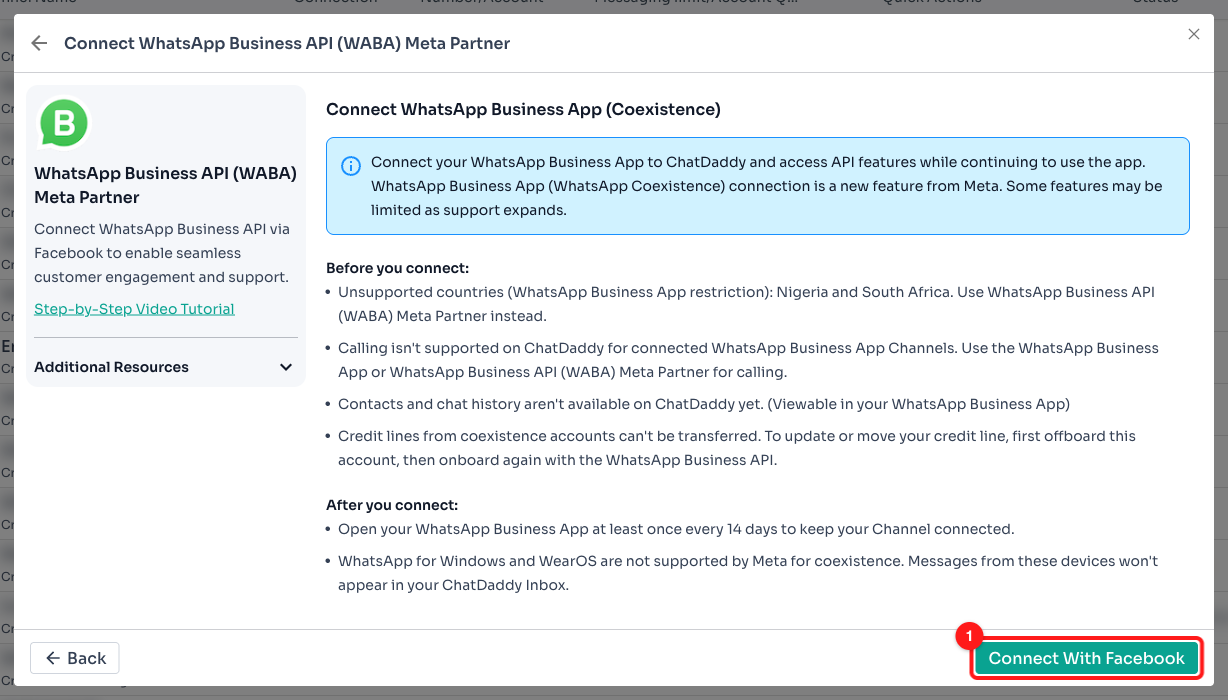
Step 3.5: The Coexistence checklist. Click Connect With Facebook (1).
3.6 A Facebook window opens. Finish the connection there:
- Sign in with the Facebook account that manages your business.
- Choose your business (business portfolio).
- Enter the phone number you registered on the WhatsApp Business app in Step 2.
- A QR code appears on your computer. On your phone, open the WhatsApp Business app and scan it (follow the prompt the app shows you).
- Finish the remaining steps. Your channel is now connected and appears on the Channels page. 🎉
💡 Allow pop-ups in your browser. The Facebook sign-in opens in a pop-up. If nothing happens when you click Connect With Facebook, your browser blocked it.
🌍 Coexistence isn't available for numbers in Nigeria and South Africa (a WhatsApp Business app restriction). WhatsApp for Windows and WearOS are not supported for Coexistence, so messages sent from those devices won't appear in your ChatDaddy Inbox.
Step 4: Add your payment card on Meta
- Go to Meta Business Suite, then Settings, then Billing & payments.
- Click Add payment method and add a card for your WhatsApp Business account.
This pays for messages you send from ChatDaddy, billed by Meta directly.
Step 5: Set up your templates again
Your templates were approved for the old API number, so they need to be submitted again for the new connection. The quickest way is to resubmit them all at once:
- In ChatDaddy, go to Automation → Message Flows.
- Click Resubmit All Templates on the toolbar.
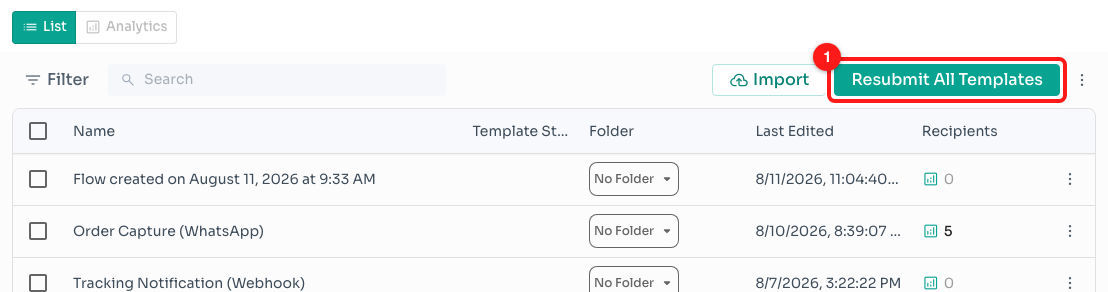
Step 5: Automation → Message Flows. Click Resubmit All Templates (1).
- Tick your new Coexistence channel on the left (2). You can also pick specific message flows on the right (3). Leave both empty to resubmit everything.
- Click Resubmit.
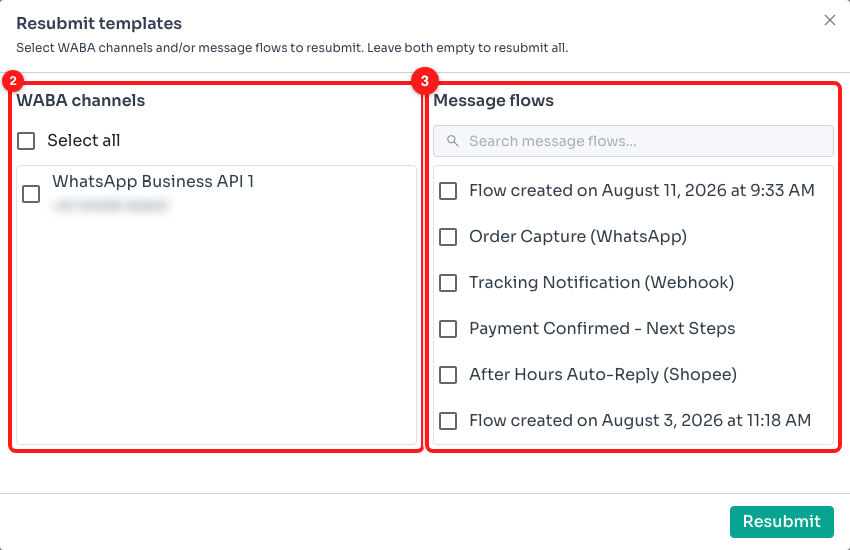
Step 5: Choose the channel (2) and, if you want, specific flows (3), then Resubmit.
Meta usually reviews templates within a few minutes, and at most 24 hours. Want to redo only one template? Open the flow, click the three-dots menu in the top right and submit it for approval from there.
After the switch: good to know
- 📱 Open the WhatsApp Business app at least once every 14 days. If you don't, Meta disconnects it from ChatDaddy.
- 💬 Messages you send from your phone are free. Messages sent from ChatDaddy are charged by Meta to your card.
- ⏱️ From ChatDaddy, you can reply freely for 24 hours after a customer's last message. After that, use an approved template.
😊 Need help at any step? Reach out to the ChatDaddy support team. We're happy to walk you through it on a call.