
The ChatDaddy Sign-in Page: Use-Case Stories Beside the Form
The sign-in page now shows short WhatsApp use-case stories next to the form. Learn what the panel is, how to pause it or step through the stories, how it follows your language, and what changes on a phone.
Also searched as: The ChatDaddy Sign-in Page: Use-Case Stories Beside the Form, What the stories panel shows, Open the sign-in page, Pause the stories or step through them, Choose your language, See the stories in your language, Sign in on a phone, Troubleshooting and FAQ, ChatDaddy, Sign-in, Page, Use-Case, Stories, Beside, Form
The ChatDaddy sign-in page used to be a form on a plain background. It now has a panel beside the form that shows how businesses run customer conversations on WhatsApp. This guide is for anyone who signs in to ChatDaddy on a computer and wants to know what the panel is and how to control it.
🔐 Signing in works exactly as before. You enter your phone number and password (or use Login with Google) in the same form. The stories panel is for reading only. Nothing in it changes your account or signs you in.
What the stories panel shows
The panel is headed Conversations that connect and takes turns through four use cases:
- mi.com (Xiaomi): consumer technology. Product enquiries, order updates and after-sales care.
- BYD: automotive, business to business. Distributor orders, dealer coordination and customer service across Brazil and Mexico.
- Agoda: travel and hospitality. Booking notifications, hotel coordination and guest support.
- Booking.com: the guest journey. Reservation details, pre-arrival enquiries and hotel support.
Each story has a short headline, a description, three use-case tags and a sample WhatsApp message card. The card is marked Example. The stories describe ways to use WhatsApp. They are not customer quotes or performance claims.
Step-by-step
Step 1 — Open the sign-in page
Go to app.chatdaddy.tech/login. The sign-in form is on the left, the same as before. The stories panel fills the right-hand side of the screen.
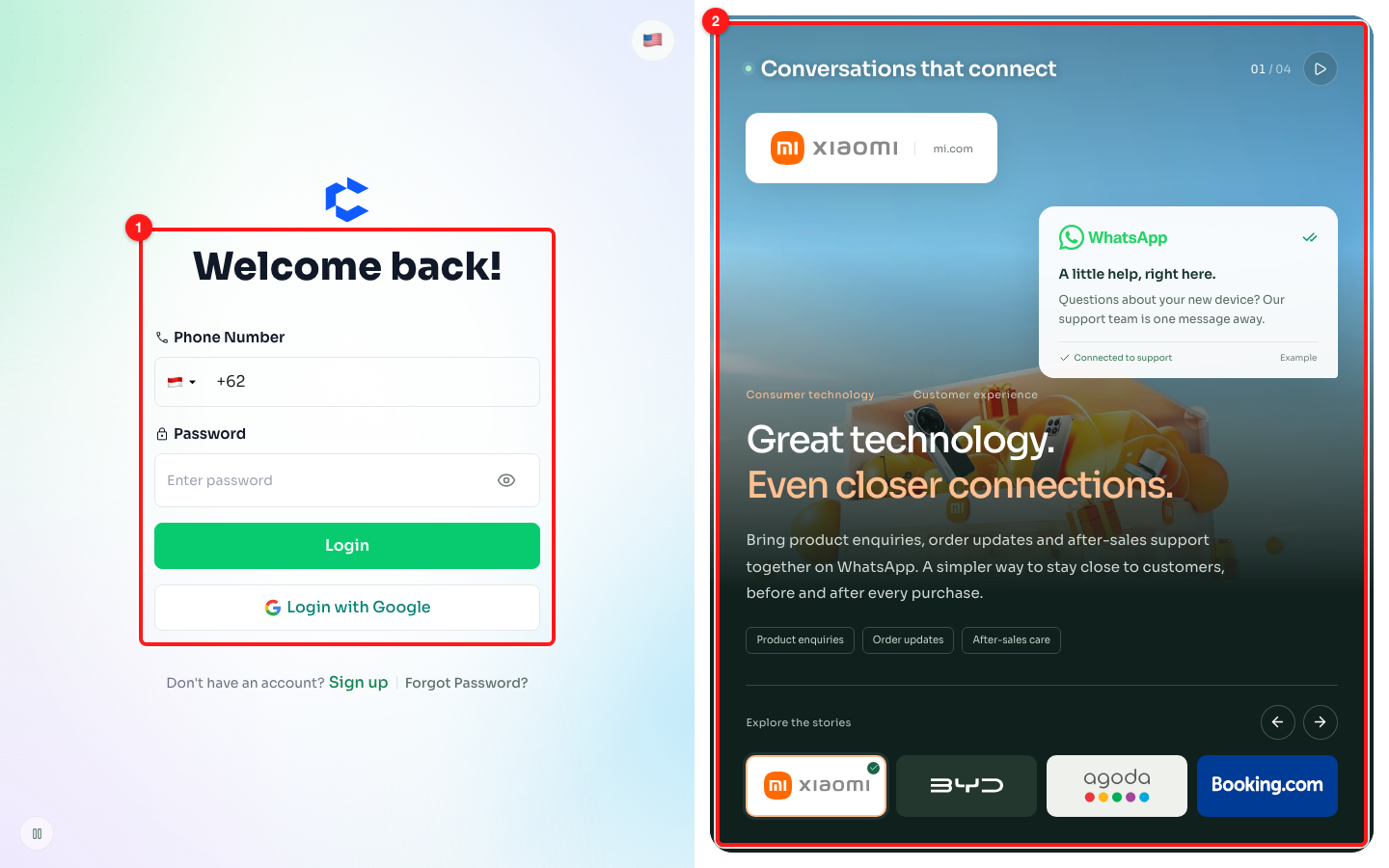
Step 1 — the sign-in form you use as usual (1) and the new stories panel beside it (2).
Step 2 — Pause the stories or step through them
The stories change on their own every few seconds. You can control them in three places:
- Counter and Pause / Play (top right of the panel): the counter shows which story you are on, for example 03 / 04. Click the pause button to hold the current story, then click play to start again.
- Arrows (next to Explore the stories): go to the previous or next story.
- Brand tiles (along the bottom): click a logo to go straight to that story. A tick marks the story you are on.
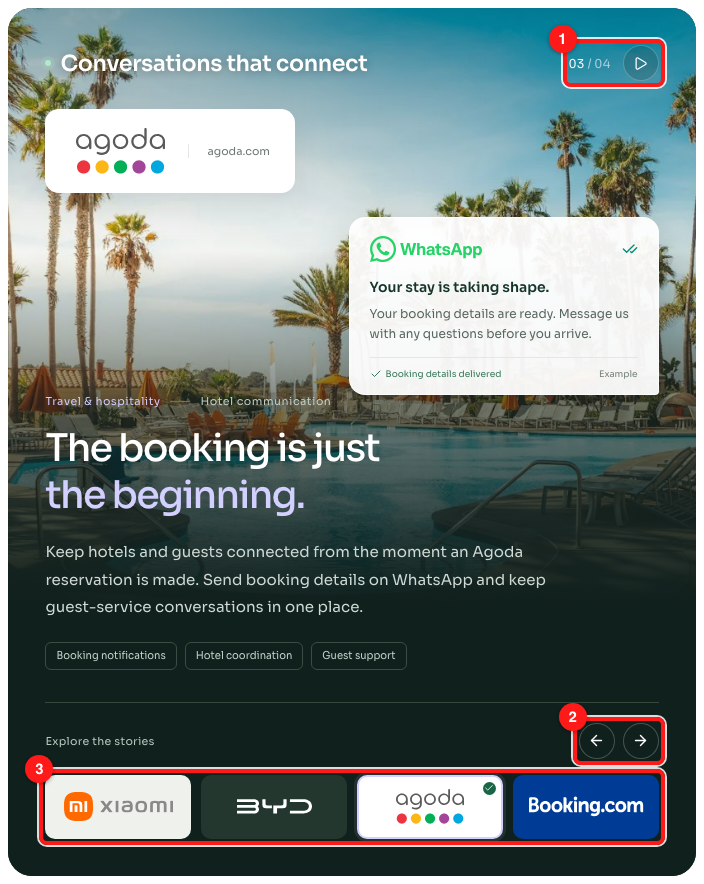
Step 2 — the counter and Pause / Play button (1), the previous and next arrows (2), and the brand tiles (3). Here the Agoda story is selected and the panel is paused.
⏸️ When you pick a story with an arrow or a tile, the panel stays on it and stops turning. Click play to start it again. It also holds still while your mouse is over the panel.
You can use the keyboard too. Press Tab to move into the panel, then use the left and right arrow keys to change stories. Home goes to the first story and End goes to the last.
Step 3 — Choose your language
Click the flag button in the top right corner of the form side. Then choose a language from Choose your language. The form switches to that language straight away.
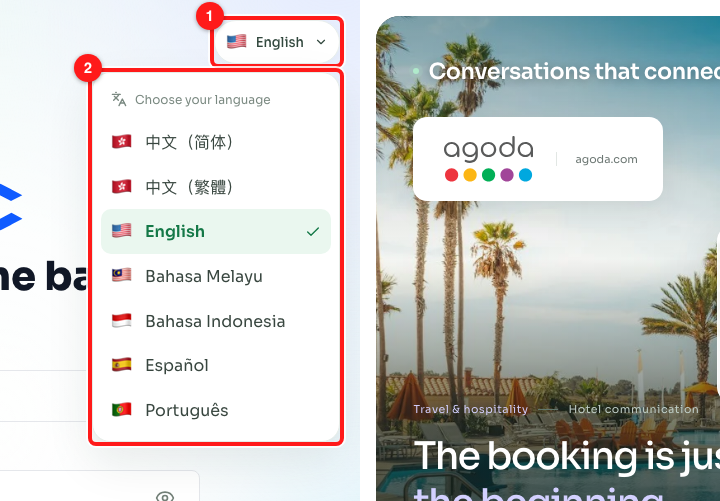
Step 3 — the language button (1) and the language list (2).
Step 4 — See the stories in your language
The stories follow the page language when it is English, 中文(繁體) (Traditional Chinese) or 中文(简体) (Simplified Chinese). The heading, headline, description, tags and sample message are all translated. If you choose Bahasa Melayu, Bahasa Indonesia, Español or Português, the form is translated but the stories stay in English.
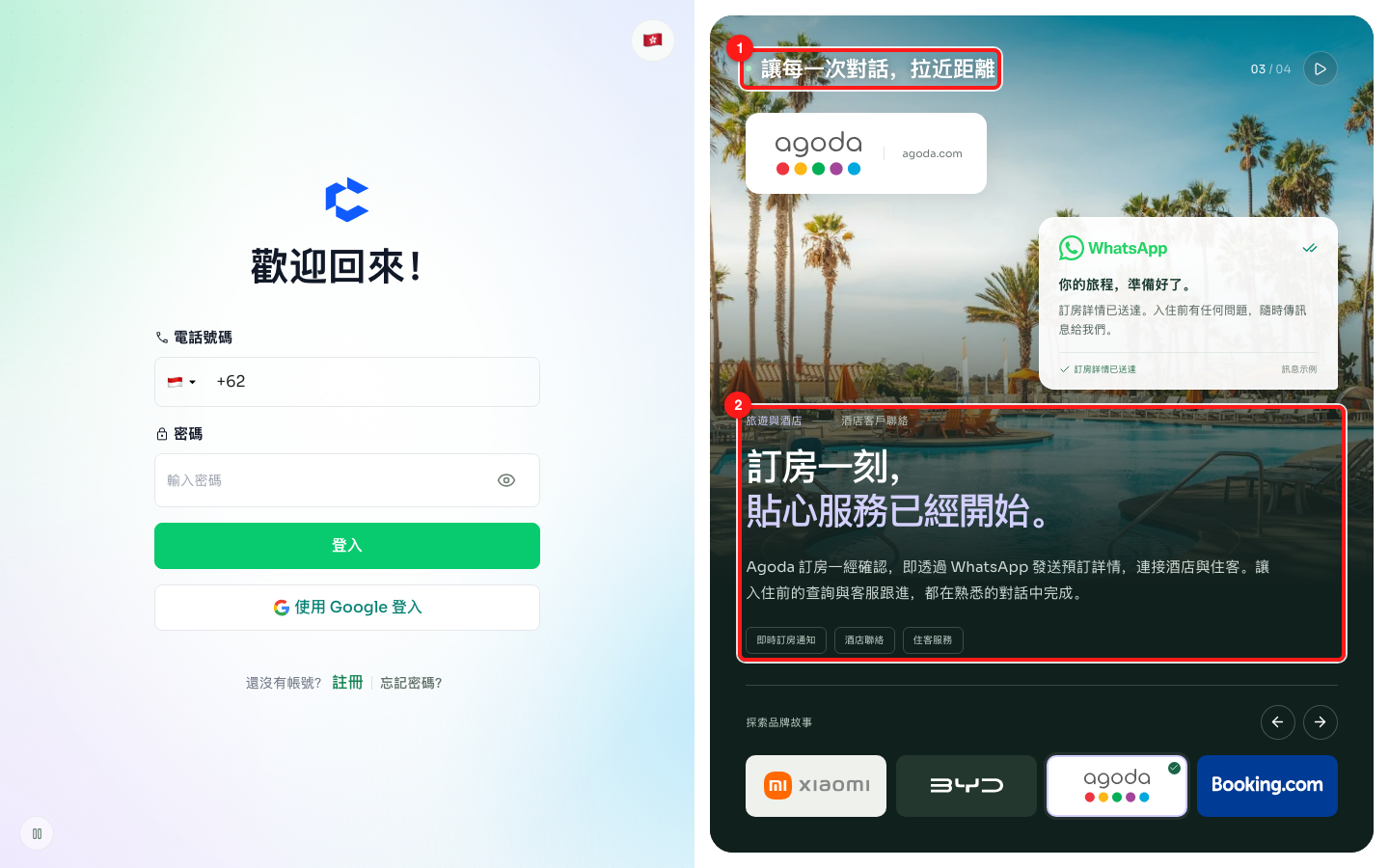
Step 4 — with Traditional Chinese selected, the panel heading (1) and the story (2) are shown in Chinese, along with the form.
Step 5 — Sign in on a phone
On a phone or any narrow window, the stories panel is hidden and the sign-in form comes first, over a softly moving background. To stop the background moving, use the small pause button in the corner.
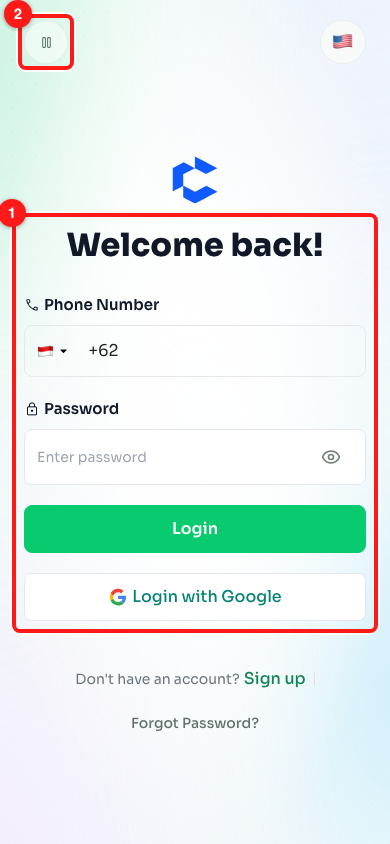
Step 5 — on a phone the form comes first (1), and the pause button (2) stops the background animation.
Troubleshooting and FAQ
I cannot see the stories panel.
The panel only appears when the window is wide enough for two columns, which is about 900 pixels or wider. Make your browser window wider or zoom out. On a phone you will only see the sign-in form. This is intentional.
The stories do not change on their own.
The panel stops turning while it is paused, while your mouse is over it, while you are using the keyboard inside it, and while the browser tab is in the background. It also stays still if your device is set to reduce motion. In that case the pause button is greyed out, but you can still use the arrows and brand tiles.
Are these brands ChatDaddy customers?
The panel shows examples of how businesses in these industries can use WhatsApp. It does not quote customers or claim any results. The sample message in each story is marked "Example".
The stories are in English but I picked another language.
The stories are written in English, Traditional Chinese and Simplified Chinese. For any other language, the sign-in form is translated and the stories stay in English.
Did anything change about how I sign in?
No. The phone number and password fields, Login with Google, Sign up and Forgot Password all work as before.