
Understanding Server Error Messages and Service Notices
When something breaks on ChatDaddy's side you now get a card that says what happened, what it affected, what still works and what to do next. Learn how to read it, what the automatic retry does, and what a service notice means.
Also searched as: Understanding Server Error Messages and Service Notices, Check the code and who is at fault, Read what was affected and what still works, Let the automatic retry run, or retry yourself, Copy the technical details if you contact support, On a timeout, ask for less data, Service notices: when we tell you before it breaks, Understanding, Server, Error, Messages, Service, Notices
Sometimes a screen in ChatDaddy fails to load because of a problem on our servers, not on your side. Instead of a bare line like “Server error (500). Please try again later.”, ChatDaddy now shows a card that explains what happened, tells you whether anything was lost, and retries for you.
This article is for anyone who has hit one of these cards and wants to know whether to wait, retry, or contact support.
🛡️ The one thing to know: a server error never deletes anything. Your messages, contacts, flows and settings are untouched, and incoming messages keep arriving while the screen in front of you is broken.
When you will see this
The card replaces whatever you were trying to look at — a dashboard, a contact list, a chat panel — whenever the request behind it fails with a server-side error. You do not have to do anything to bring it up, and it disappears on its own once the request succeeds.
ℹ️ This is different from a WhatsApp send error, which appears on a single message and carries a Meta error number. Those have their own cards and their own fixes.
Step-by-step
Step 1 — Check the code and who is at fault
Two small labels sit at the top of the card. The first is the error code, and the second says Not your fault — it is there because this kind of failure is never caused by anything you did or by your plan. Under the icon, the title says in plain words what went wrong, with the screen you were on written underneath it.
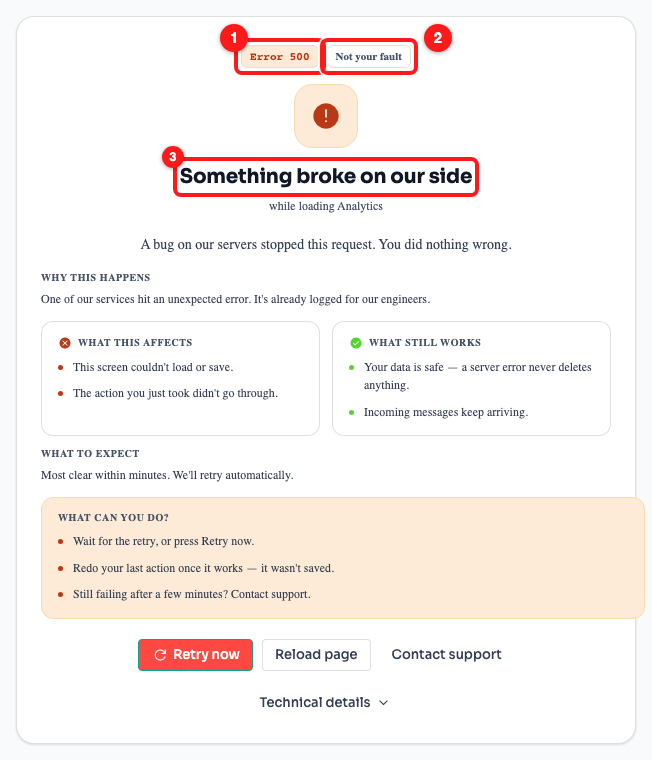
Step 1 — the error code (1), the “Not your fault” label (2), and the plain-language title with the screen name underneath (3).
There are four of these cards, and which one you get depends on how the request failed:
- Error 500 — “Something broke on our side.” A bug hit one of our services. It is already logged for our engineers.
- Error 502 — “We couldn't reach our server.” A service is restarting, which is common right after a release. These usually last seconds, not minutes.
- Error 503 — “This service is temporarily unavailable.” The service is overloaded or briefly down for maintenance. Other parts of the dashboard still work.
- Error 504 — “The server took too long to answer.” Your request asked for too much at once, so we stopped waiting. Nothing was half-saved.
Step 2 — Read what was affected and what still works
The two panels in the middle answer the questions that actually matter: what this cost you, and what you have kept. The left panel lists what failed. The right panel is the reassurance — your data is safe, and messages keep coming in.
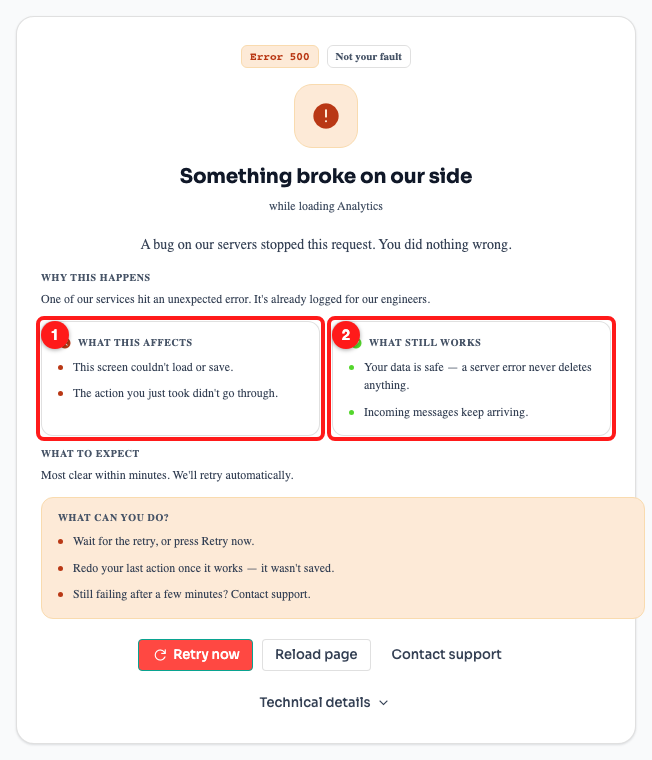
Step 2 — “What this affects” lists what failed (1); “What still works” confirms what is untouched (2).
📝 On a 500, the action you took did not go through and was not saved. Once the screen loads again, redo it.
Step 3 — Let the automatic retry run, or retry yourself
ChatDaddy retries the failed request for you. The line under the buttons counts down to the next attempt and tells you which attempt it is. There are three attempts in total, spaced further apart each time — after about 8 seconds, then 16, then 32.
You do not have to wait for the countdown. Retry now runs the request immediately, and Reload page reloads the whole screen, which is the better choice if the page never finished loading in the first place.
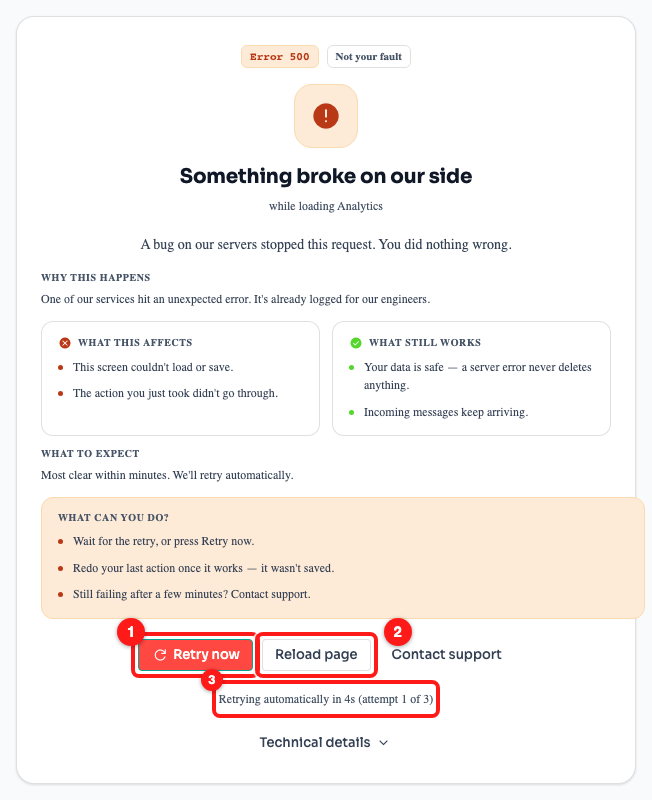
Step 3 — “Retry now” runs it immediately (1), “Reload page” reloads the screen (2), and the countdown shows the next automatic attempt (3).
⏱️ After the third attempt the line changes to “Automatic retries stopped. The service is still not responding.” At that point the problem is not going to clear by itself — use Contact support.
Step 4 — Copy the technical details if you contact support
The Technical details toggle at the bottom is collapsed by default, because you should not need it. Open it and you get the four things support will ask for anyway: the status code, the screen, the exact time the error happened and the page you were on. Copy details puts all four on your clipboard.
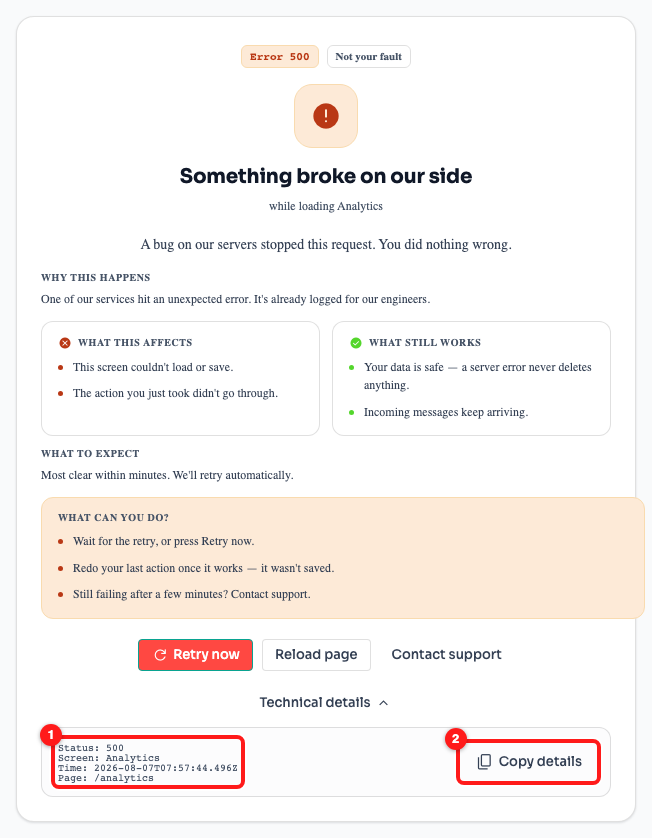
Step 4 — the diagnostics block (1) and the “Copy details” button (2). Paste this into your support ticket.
Step 5 — On a timeout, ask for less data
The 504 card is the one you can usually fix yourself. A timeout means the request asked for too much at once — a very wide date range, or a very long list. Retrying often works, but narrowing what you asked for is the reliable fix, and the card says so.
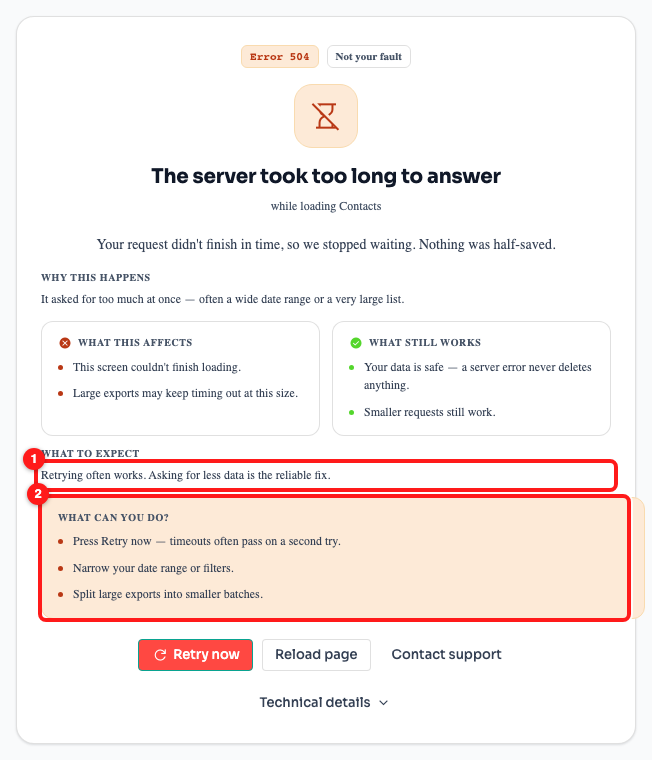
Step 5 — on a 504, “What to expect” names the real fix (1) and “What can you do?” spells it out (2).
- Shorten the date range on a dashboard or report.
- Add a filter so the list you are loading is smaller.
- Split a large export into smaller batches.
Service notices: when we tell you before it breaks
The cards above appear after a request has failed. A service notice is the opposite — a dialog that appears when we know our infrastructure is under strain, while everything you use is still working. It opens on its own, over whatever page you are on.
The label at the top tells you how serious it is, and the two panels tell you what could be affected against what is definitely fine. At the bottom, Got it closes the notice for this session, Status updates opens our status page, and Remind me later closes it but lets it come back.
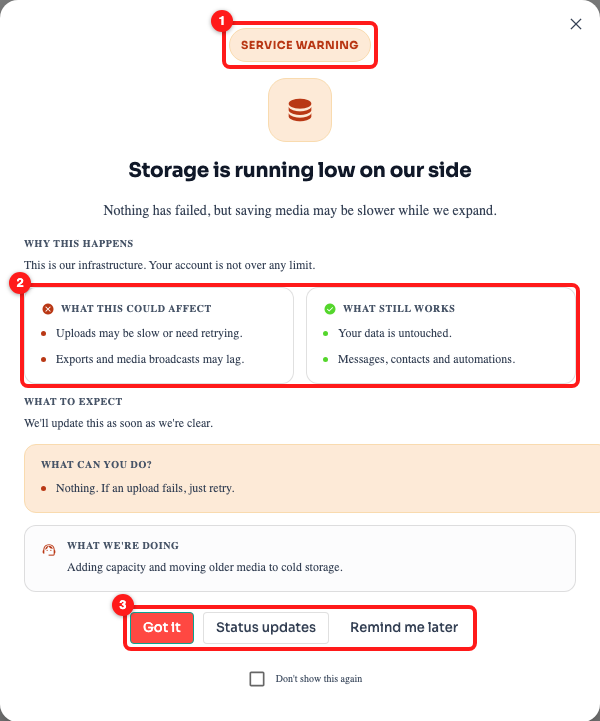
The severity label (1), what could be affected against what still works (2), and the three ways to close the notice (3).
- Service notice — nothing is affected yet. We are telling you early.
- Service warning — nothing has failed, but some things may be slower while we expand capacity.
- Service degraded — something is failing right now. This one cannot be closed, because a notice you clicked away could not explain why your uploads were failing.
💾 A storage notice is about our infrastructure, not your plan. There is nothing to upgrade, buy or delete on your side — and we never remove your data to make room. When we run out of space we stop accepting new files instead.
Frequently asked questions
Did I lose the message, contact or flow I was working on?
No. A server error never deletes anything. What it does mean is that the action you just took was not saved — so once the screen loads again, do it once more.
Are my customers still able to message me while I see this?
Yes. Incoming messages keep arriving and are stored as normal. The failure is on the screen you are looking at, not on your channels.
The card keeps coming back every time I retry. What now?
Wait out the three automatic attempts. If the card is still there afterwards, the service has not recovered on its own — open Technical details, use Copy details, and send that to support with a note about what you were doing.
Why does one screen fail while the rest of ChatDaddy works fine?
Different screens are served by different services, so one can be unavailable while the others are healthy. This is why the 503 card says other parts of the dashboard still work.
I got a service notice but everything seems normal. Should I do anything?
No. A notice or a warning means we spotted a problem on our side and are fixing it before it can reach you. Close it with Got it, or tick “Don't show this again” if you would rather not be told about that particular incident again.
Is this the same as a WhatsApp error on a message?
No. A WhatsApp send error appears on the individual message that failed and carries a Meta error number, and the fix is usually something on the WhatsApp side — an approved template, a re-opened conversation window. The cards in this article are about ChatDaddy's own servers.