
Understanding WhatsApp Limitation Cards — Why a Message Can't Be Shown, Sent, or Approved
ChatDaddy now explains every WhatsApp API limitation in-app: why an incoming message can't be shown, why your draft won't send, and why an authentication template was rejected — with the exact workaround for each.
Also searched as: WhatsApp limitation card, message can't be shown, unsupported message WhatsApp API, why can't I send this message, WhatsApp poll not showing, View Once not supported, authentication template rejected, OTP template rejected reason, WhatsApp API send restriction, template only badge, not supported badge, WhatsApp Cloud API limitations, message not delivered ChatDaddy, WABA send limits, live location not supported
Some things WhatsApp simply will not do over the Business API — and when you hit one, ChatDaddy now tells you which rule you hit, why it exists, and what to do instead. This guide walks through the three moments you will see one of these explanations. Every limitation described here comes from Meta's WhatsApp Cloud API, not from ChatDaddy. None of them can be turned on in your settings — but almost all of them have a workaround, and the in-app card always names it.
The three moments you will see a limitation
- A customer's message arrives, but the Inbox can't show it — e.g. a poll, a View Once photo, a live location.
- Your WhatsApp Business API channel refuses to send your draft — e.g. four reply buttons, a voice note, a list with an attachment.
- Your authentication (OTP) template is rejected — e.g. it contains a link, an emoji, or an over-long parameter. Each one is explained by the same card, so once you can read one you can read all of them.
Scenario 1 — A customer's message can't be shown in the Inbox
**When it happens: **a customer sends something from their phone that the WhatsApp Cloud API does not forward to business platforms. The message exists on their phone and in the WhatsApp Business app — it just never reaches ChatDaddy.
Step 1 — Look for the quiet one-liner in the conversation
Instead of an empty or broken bubble, the chat shows a short italic line naming exactly what came through. It stays inline so a busy conversation doesn't turn into a wall of warnings.
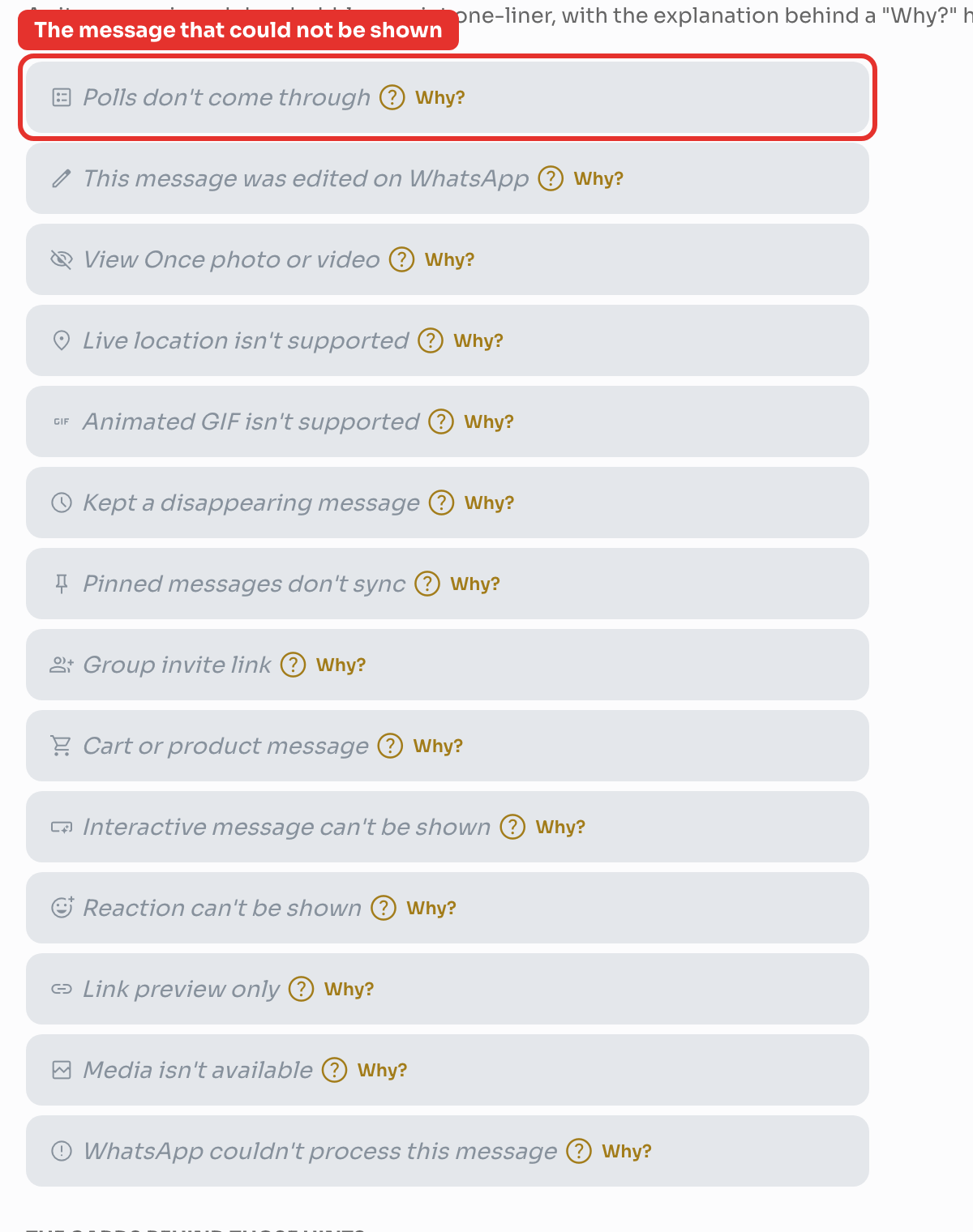
Step 2 — Click “Why?” for the full explanation
The Why? hint sits at the end of the line. Clicking it opens the card with the full explanation.

Step 3 — Read the four parts of the card
Every card in ChatDaddy — for incoming messages, sending limits and template rejections alike — answers the same four questions in the same order:
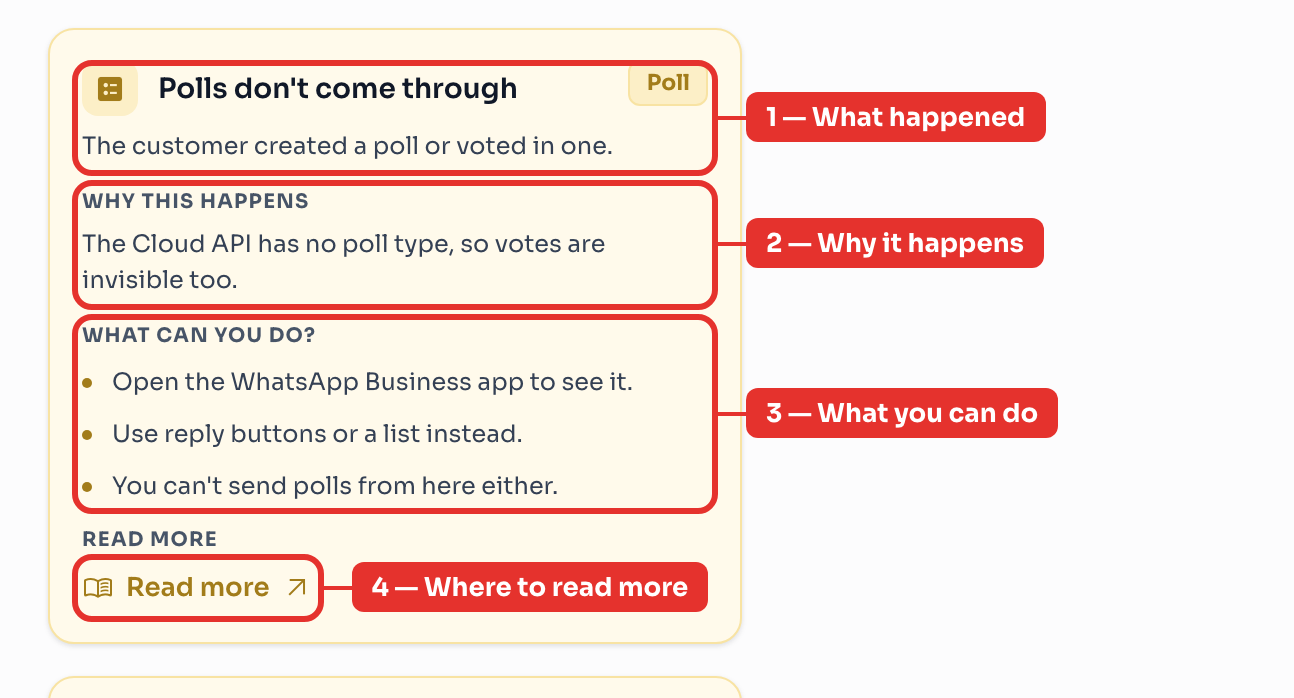
- What happened — the title and one-line summary of what WhatsApp sent.
- Why it happens — the underlying Meta rule, in plain language.
- What you can do — the workaround, most specific option first.
- Where to read more — a link straight to Meta's official documentation.
All 14 situations you may see in the Inbox
These 14 cards cover 19 different message types that Meta reports as unsupported.
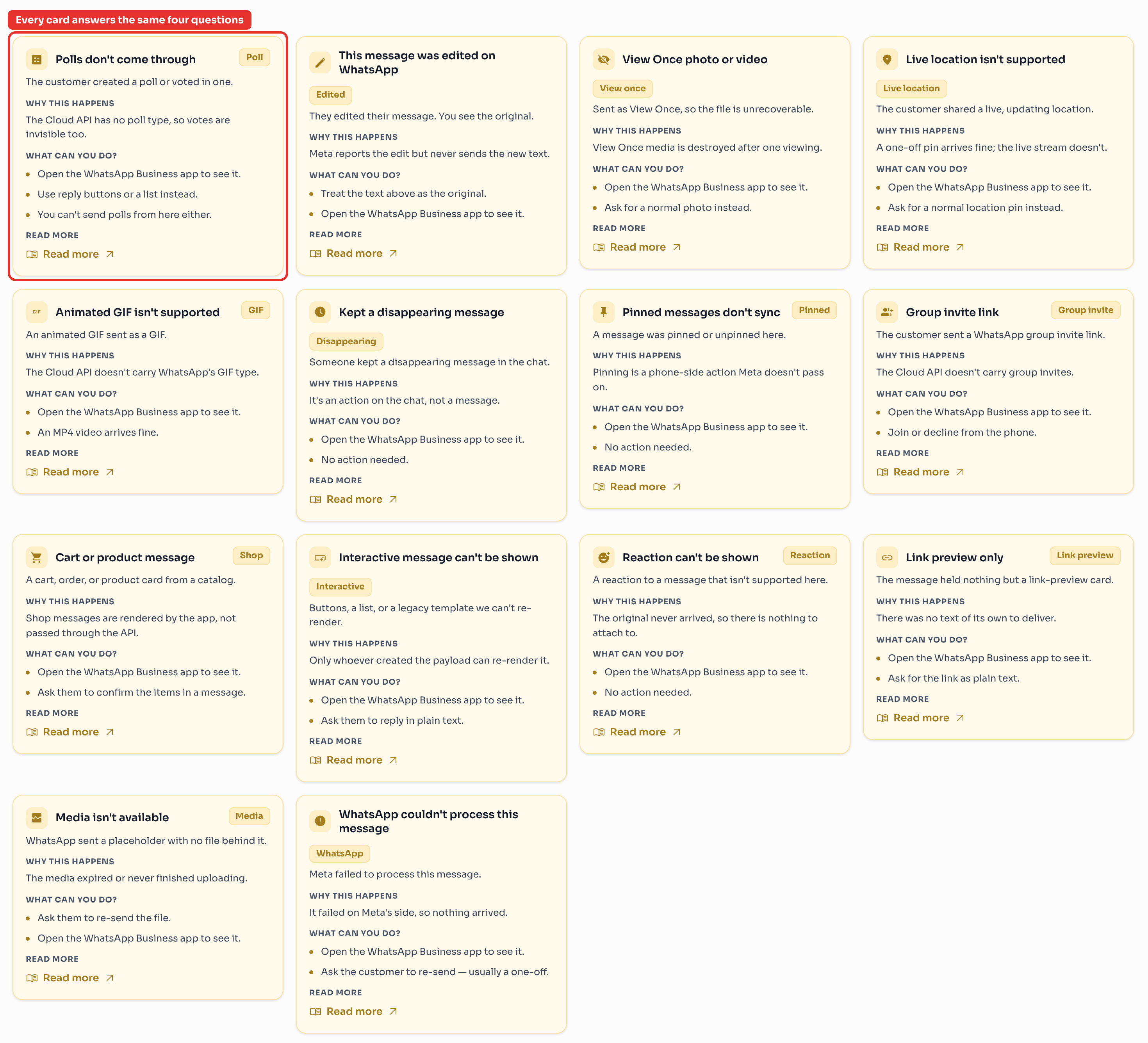
| What you see in the chat | Why it happens | What you can do |
|---|---|---|
| Polls don't come through | The Cloud API has no poll type, so votes are invisible too | Open the WhatsApp Business app to see it; ask with reply buttons or a list instead |
| This message was edited on WhatsApp | Meta reports the edit but never sends the new text | Treat the text shown as the original; check the phone for the edit |
| View Once photo or video | View Once media is destroyed after one viewing | Ask the customer for a normal photo instead |
| Live location isn't supported | A one-off pin arrives fine; the live stream doesn't | Ask for a normal location pin instead |
| Animated GIF isn't supported | The Cloud API doesn't carry WhatsApp's GIF type | An MP4 video arrives fine — ask for that |
| Kept a disappearing message | It's an action on the chat, not a message | No action needed |
| Pinned messages don't sync | Pinning is a phone-side action Meta doesn't pass on | No action needed |
| Group invite link | The Cloud API doesn't carry group invites | Join or decline from the phone |
| Cart or product message | Shop messages are rendered by the app, not passed through the API | Ask the customer to confirm the items in a message |
| Interactive message can't be shown | Only whoever created the payload can re-render it | Ask them to reply in plain text |
| Reaction can't be shown | The original never arrived, so there is nothing to attach to | No action needed |
| Link preview only | The message held nothing but a link-preview card | Ask for the link as plain text |
| Media isn't available | The media expired or never finished uploading | Ask the customer to re-send the file |
| WhatsApp couldn't process this message | It failed on Meta's side, so nothing arrived | Ask the customer to re-send — usually a one-off |
Almost every one of these is still readable in the WhatsApp Business app on the phone connected to the channel. That is the one reliable way to see the original.
Scenario 2 — Your WABA channel refuses to send the message
**When it happens: **while composing in the Inbox, building a message flow, or testing a draft in the WhatsApp sandbox. ChatDaddy checks the draft against Meta's rules before sending, so you find out while you can still fix it — not after a silent failure.
Step 4 — Check the badge first
Every send restriction carries one of three badges. The badge tells you whether the message can ever be sent, and it is the fastest way to know what to do next.
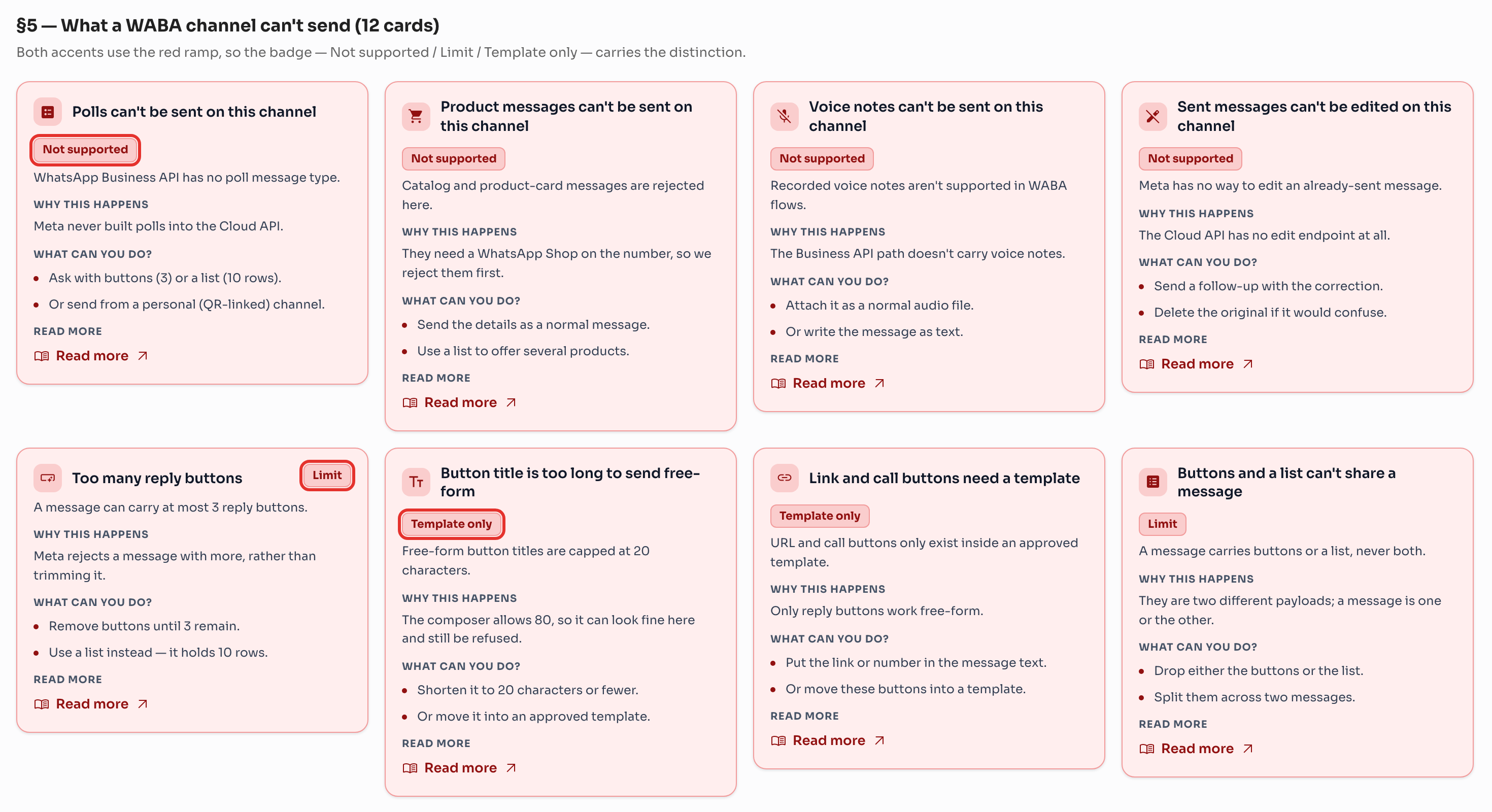
| Badge | What it means | What to do |
|---|---|---|
| Not supported | WhatsApp Business API has no such feature — it will never send | Use the alternative named in the card, or send from a personal (QR-linked) channel |
| Limit | Your draft breaks a size or structure rule | Edit the draft to fit the limit, then send again |
| Template only | Free-form messages can't carry this | Move it into an approved template, or reword the message |
Step 5 — Apply the fix from the card
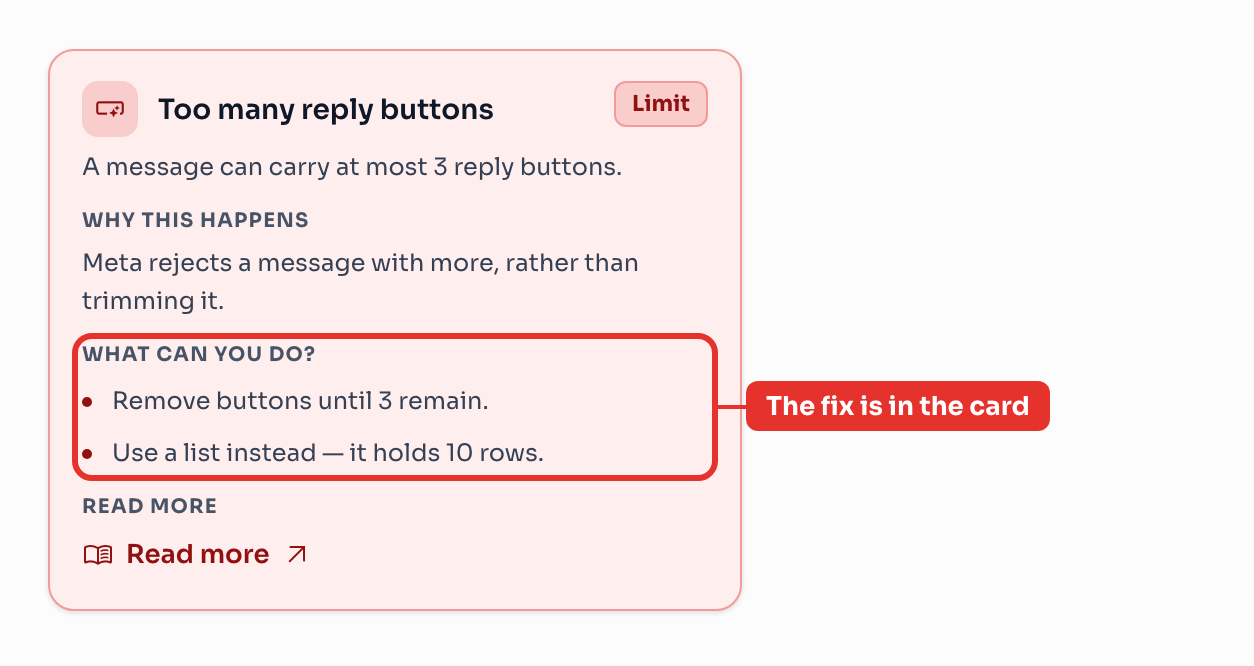
You never have to look the rule up. The card states the exact limit and the two quickest ways to get within it.
Step 6 — When a draft breaks several rules at once
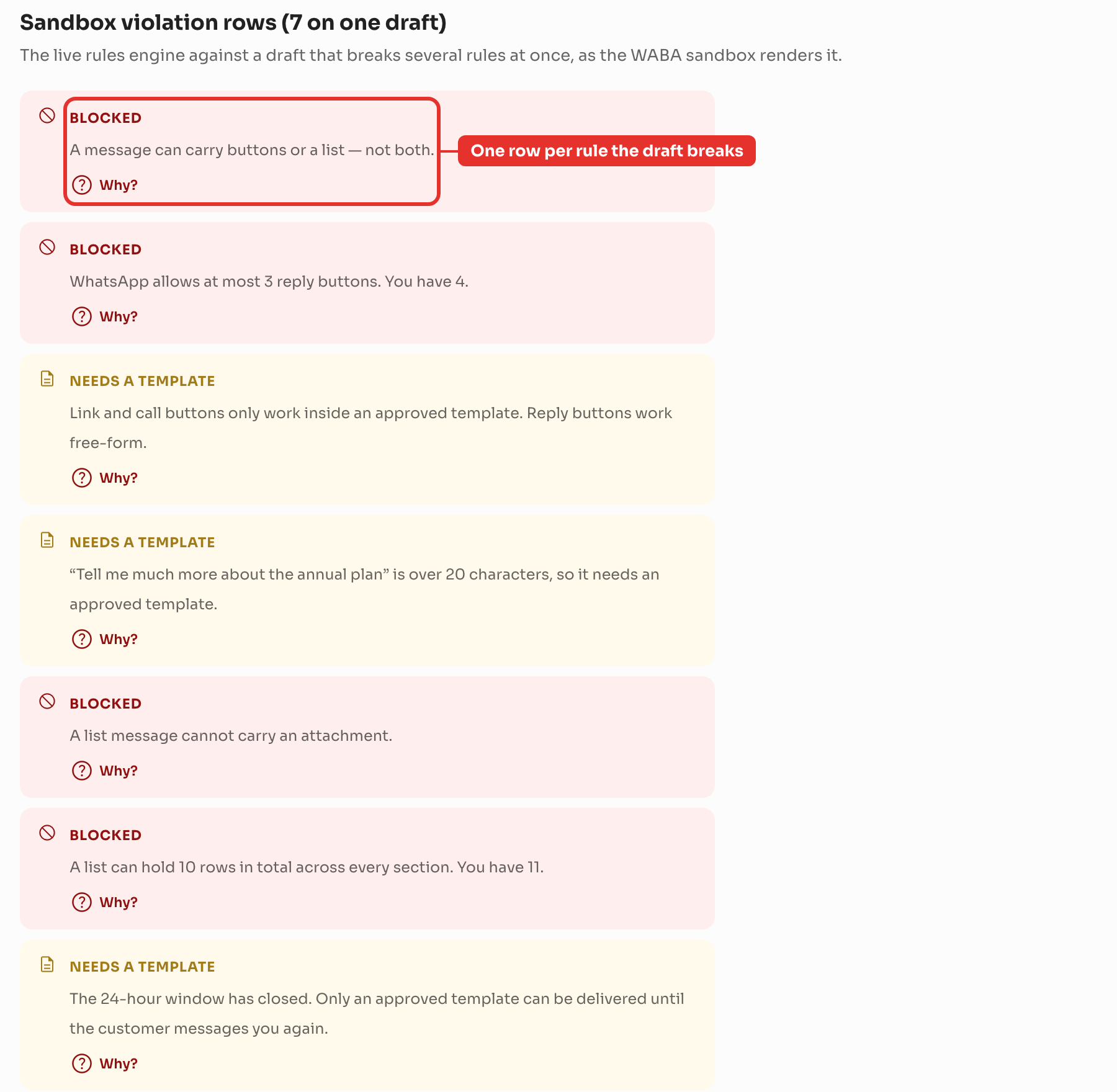
In the WhatsApp sandbox, each broken rule gets its own row, so you can fix them in one pass instead of discovering them one at a time. Each row has its own Why? hint.
All 12 send restrictions
| What you're trying to send | Badge | The rule | What to do instead |
|---|---|---|---|
| A poll | Not supported | WhatsApp Business API has no poll message type | Ask with reply buttons (max 3) or a list (max 10 rows), or send from a personal channel |
| A product or catalog card | Not supported | These need a WhatsApp Shop on the number | Send the details as a normal message, or use a list to offer several products |
| A recorded voice note | Not supported | The Business API path doesn't carry voice notes | Attach it as a normal audio file, or write the message as text |
| An edit to a sent message | Not supported | The Cloud API has no edit endpoint at all | Send a follow-up with the correction, or delete the original |
| More than 3 reply buttons | Limit | A message can carry at most 3 reply buttons | Remove buttons until 3 remain, or use a list instead (10 rows) |
| A button title over 20 characters | Template only | Free-form button titles are capped at 20 characters (the composer allows 80) | Shorten it to 20 characters, or move it into an approved template |
| A link or call button | Template only | URL and call buttons only exist inside an approved template | Put the link or number in the message text, or use a template |
| Buttons and a list in one message | Limit | A message carries buttons or a list, never both | Drop one of them, or split them across two messages |
| An attachment on a list message | Limit | Meta's list payload has no media header | Send the file as a separate message |
| More than 10 list rows | Limit | A list holds 10 rows in total, across every section | Remove rows until 10 remain, or split the rest into a second list |
| A free-form message after 24 hours | Template only | Free-form only works within 24 hours of the customer's last reply | Send an approved template — their reply re-opens the 24-hour window |
| A call from a coexistence number | Not supported | Calling needs a full Business API number | Call from a full Business API number, or migrate the number off coexistence |
Scenario 3 — Your authentication (OTP) template is rejected
**When it happens: **when you submit a template that delivers a passcode. Meta holds authentication templates to much stricter rules than marketing or utility ones, because passcode messages are a prime phishing target.
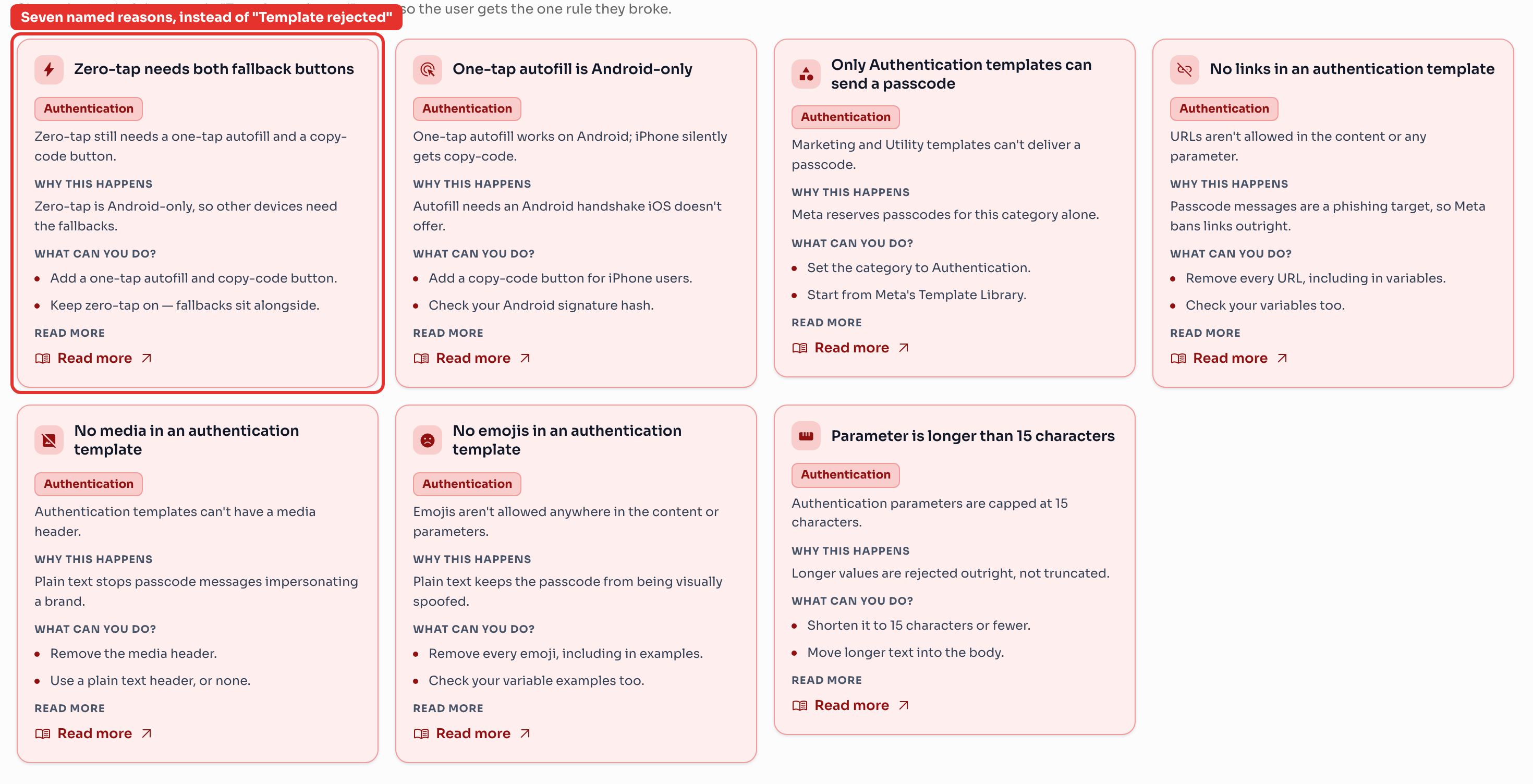
Step 7 — Read the named reason, not “Template rejected”
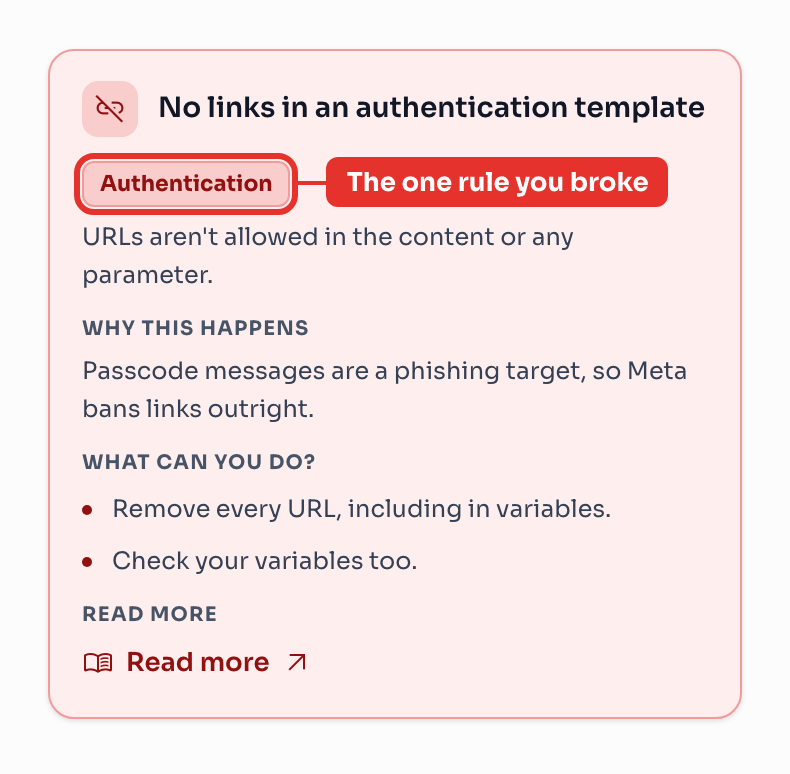
Instead of a generic rejection, ChatDaddy shows the one rule you broke — with the reasoning behind it and the exact fix.
All 7 authentication template rules
| Rejection reason | Why Meta enforces it | How to fix it |
|---|---|---|
| Zero-tap needs both fallback buttons | Zero-tap is Android-only, so other devices need the fallbacks | Add a one-tap autofill and a copy-code button — keep zero-tap on, the fallbacks sit alongside |
| One-tap autofill is Android-only | Autofill needs an Android handshake iOS doesn't offer | Add a copy-code button for iPhone users, and check your Android signature hash |
| Only Authentication templates can send a passcode | Meta reserves passcodes for this category alone | Set the category to Authentication, or start from Meta's Template Library |
| No links in an authentication template | Passcode messages are a phishing target, so Meta bans links outright | Remove every URL — including inside variables |
| No media in an authentication template | Plain text stops passcode messages impersonating a brand | Remove the media header; use a plain text header, or none |
| No emojis in an authentication template | Plain text keeps the passcode from being visually spoofed | Remove every emoji, including in your variable examples |
| Parameter is longer than 15 characters | Longer values are rejected outright, not truncated | Shorten it to 15 characters or fewer, or move the longer text into the body |
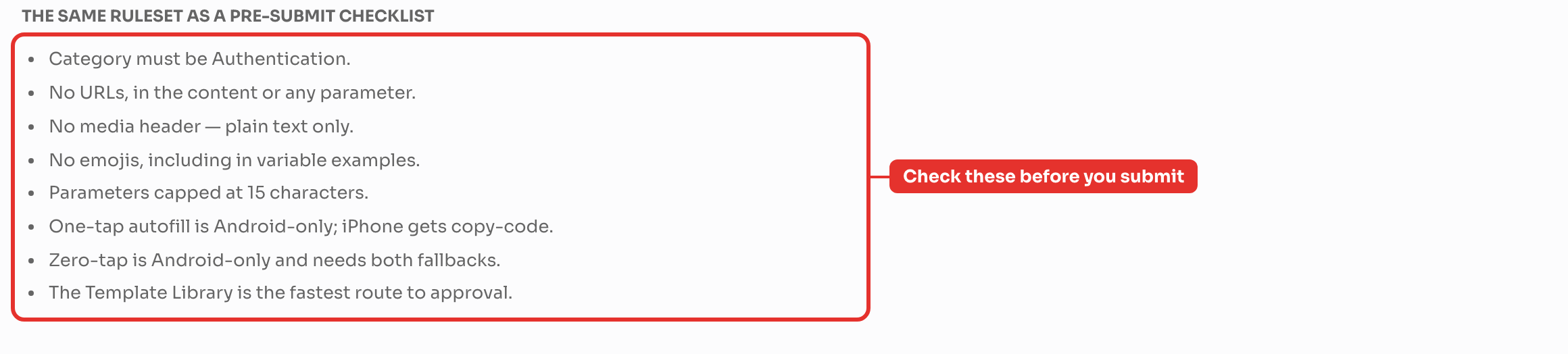
Step 8 — Run the pre-submit checklist
The same ruleset, as a checklist. Running through it before you submit is the fastest way to avoid a rejection round-trip.
Frequently asked questions
Is the message lost for good? For incoming messages, the content never reached ChatDaddy — but it is still on the customer's phone and in the WhatsApp Business app connected to your channel. Open the app on that phone to read it.
Will trying again help? It depends on the badge.
- Not supported — no. Retrying sends the same rejected payload.
- Limit — yes, once you have edited the draft to fit the limit.
- Template only — yes, once the content is in an approved template.
Why can my personal (QR-linked) channel do things my WABA channel can't? They use two different transports. A personal or business QR-linked channel talks to WhatsApp the way the phone app does, so it can send polls and voice notes. A WhatsApp Business API channel goes through Meta's Cloud API, which supports a smaller set of message types but unlocks broadcasts, templates and higher volumes.
Can ChatDaddy lift any of these limits? No. Every rule on this page is enforced by Meta's WhatsApp Cloud API before the message reaches or leaves ChatDaddy. What ChatDaddy can do — and now does — is catch the rule early and tell you which workaround applies.
The 24-hour window keeps closing. What can I do? Only an approved template can be delivered once 24 hours have passed since the customer's last reply. As soon as they reply to the template, the 24-hour window re-opens and free-form messages work again.
Read more on Meta's documentation
- Unsupported incoming message payloads
- WhatsApp Cloud API error codes
- Messages reference (buttons, lists, media)
- Authentication template rules
- Message template guidelines