
Understanding WhatsApp Send Error Cards in the Inbox
When WhatsApp refuses a message, ChatDaddy now shows a card that explains what went wrong, why it happened and what to do next — instead of a raw Meta error code. Learn how to read the card and what the most common errors mean.
Also searched as: Understanding WhatsApp Send Error Cards in the Inbox, How to read the card, The errors you are most likely to see, Outside the 24-hour window, Sending limit reached, Billing issue on your Meta account, Number not registered, Other cards you may meet, Understanding, WhatsApp, Send, Error, Cards, Inbox
WhatsApp does not accept every message. When Meta refuses one, the failure used to surface as a bare number — something like (#131047) — which told you nothing useful. Now you get a card that says what happened in plain language, why, and what to do about it.
🛡️ Every card follows the same four parts: what went wrong, why this happens, what can you do, and a link to the full guide. The Meta error code is still there in the corner for support, but you should not need it.
How to read the card
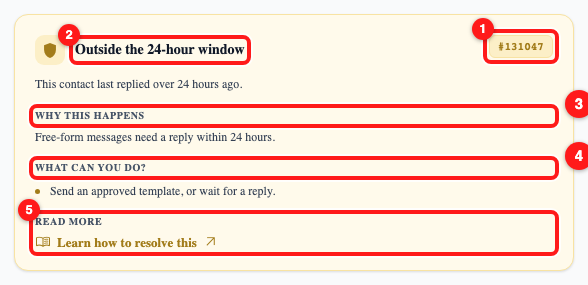
The five parts of every send-error card: the Meta code (1), the plain-language title (2), why it happened (3), what to do (4), and the link to the full article (5).
- The Meta error code, in the top-right corner. You can ignore it day to day — it is there so support can match your problem to Meta's own documentation.
- The title and one-line summary — what actually went wrong, written for a person. "Outside the 24-hour window — this contact last replied over 24 hours ago."
- Why this happens — the cause, in one sentence. This is the part that stops the same error surprising you next week.
- What can you do — the concrete next steps, as a short list. Usually one or two actions, and they are specific: send an approved template, clear a balance, pause a broadcast.
- Learn how to resolve this — opens the full guide for that particular error.
The errors you are most likely to see
Outside the 24-hour window
The most common one by far. WhatsApp only lets you send a free-form message within 24 hours of the customer's last reply. After that the window closes and you need an approved template to reopen the conversation — or you wait for them to write to you again. This is Meta's rule, not ChatDaddy's.
Sending limit reached
Meta has throttled your number because too many of your messages were flagged as spam. The card tells you what actually helps: improve template quality, pause broadcasts, and message only contacts who engage. The limit lifts by itself as your quality rating recovers — there is no button to appeal it.
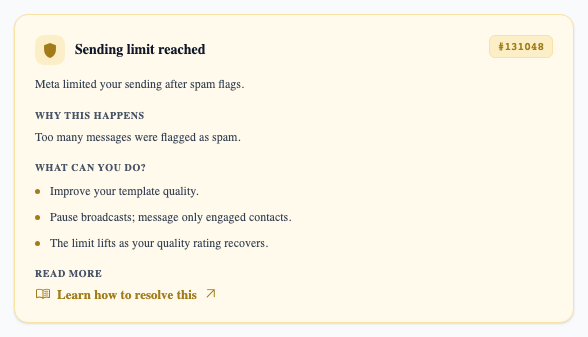
"Sending limit reached" — the steps are about recovering your quality rating, because the limit lifts on its own.
Billing issue on your Meta account
Nothing to do with your ChatDaddy subscription — this is Meta's own billing. An unpaid balance or a payment method that was never set up will block sending entirely. Clear it in Meta Business Manager → Billing, then relink your channel in ChatDaddy and try again.
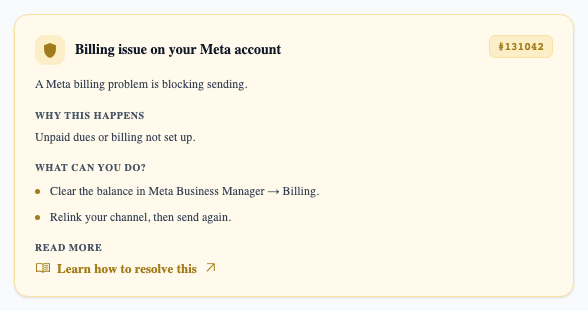
A Meta billing problem blocks sending until the balance is cleared in Business Manager.
Number not registered
The number is no longer registered with WhatsApp, so nothing can be sent from it until the channel is reconnected.
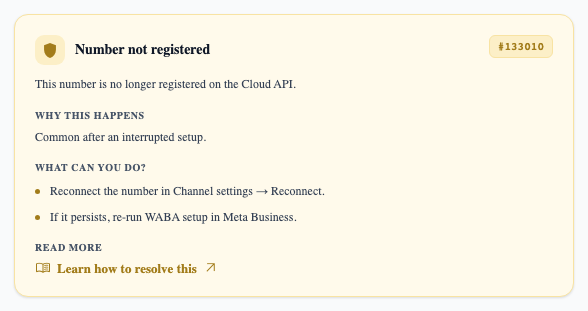
Reconnect the channel to resume messaging.
Other cards you may meet
- Message delivery blocked — Meta has restricted this conversation under its ecosystem policy.
- Couldn't send media / Couldn't download media — the attachment itself was rejected or could not be fetched.
- Temporary Meta server issue — Meta's side, not yours. Try again shortly.
- Recipient temporarily unavailable — the contact's WhatsApp could not be reached right now.
- WhatsApp account locked — the account has been restricted by Meta.
- Approved template required — you are outside the window, so only a template will send.
- Recipient not on WhatsApp — the number has no WhatsApp account.
💡 An error code with no hand-written card still gets the same layout — ChatDaddy shows Meta's own description and solution text in the same four-part shape, with a link to Meta's error-code reference. So the card never falls back to a bare number.
Frequently asked questions
Was my message sent or not?
Not sent. A send-error card means WhatsApp rejected the message — nothing was delivered to the customer, and they saw nothing.
Should I just keep retrying?
Only for the errors that say so — the temporary Meta server issues and "recipient temporarily unavailable". For the 24-hour window, billing and sending-limit errors, retrying changes nothing: the cause has to be fixed first. That is what the "What can you do" list is for.
Do I need the error code?
Only if you contact support, and only to save time. Quote the code in the corner of the card along with the chat and roughly when it happened.
Why do errors mention Meta rather than ChatDaddy?
Because most send failures are decided by Meta — messaging windows, quality ratings, sending limits and billing all sit on their side. ChatDaddy reports what Meta returned and translates it into something actionable.