
WhatsApp Verification Guide: The Types of Meta Verification
Blue tick, business verification and the green tick are three different things. Here is what each one is, which of them your number can actually get, and the exact steps to apply — with screenshots.
Also searched as: WhatsApp verification, green tick, blue tick, Official Business Account, Meta Verified, Meta business verification, WhatsApp Business API, display name, two-step verification, WhatsApp Manager
“How do we get verified on WhatsApp?” is one question with four different answers, because “verification” means four separate things at Meta — and only two of them put a badge next to your name in a chat.
This guide walks through all of them end to end: what each type is, which ones your number is even eligible for, and the exact click-by-click steps to apply. Follow the track that matches the WhatsApp you are actually using.
🧭 Short version. Verifying your phone number activates the account. Verifying your business with documents unlocks features but adds no badge. The Official Business Account badge (what everyone calls the “green tick”) is free, merit-based and only for numbers on the WhatsApp Business API. Meta Verified is a paid monthly subscription and only for numbers on the regular WhatsApp Business App.
Part 1 · What “verified” actually means on WhatsApp
There are four distinct layers. They are often confused with each other, and quotes for “blue tick services” usually mix them up.
| Layer | What it is | Badge in chat? | Cost |
|---|---|---|---|
| 1. Phone number verification | Meta texts or calls a 6-digit code to the number. Entering it proves you own the number and activates the account. | No | Free |
| 2. Meta Business verification | Meta checks your legal business documents inside Meta Business Manager (legal name, address, registration). | No | Free |
| 3. Official Business Account (OBA) | Meta confirms you are an authentic, notable brand. This is the badge people call the “green tick”. | Yes | Free to apply |
| 4. Meta Verified | A paid monthly subscription that adds a verified badge plus impersonation protection and support. WhatsApp Business App only. | Yes | Paid, per number, per month |
🎨 About the colour. The Official Business Account badge is still widely called the “green tick”, but Meta’s own WhatsApp Manager now describes it as a blue checkmark next to the name. So both an OBA and a Meta Verified subscription can look like a blue check to your customer. What separates them is how you get one: OBA is earned on the API and free; Meta Verified is bought on the app and monthly.
Do you need a badge at all?
No. A badge is a trust signal, not a switch that turns messaging on.
Without any badge you can still send approved template messages, run chatbots and automations, handle conversations in a shared team inbox, broadcast, and use every other part of the WhatsApp Business Platform. Sales and support keep running while an application is pending — or forever, if a number never qualifies.
Part 2 · Step 0 — work out which WhatsApp you are on
This is the step everyone skips, and it decides everything else. The verification you can get depends on the channel type, not on how much you are willing to pay.
How to check inside ChatDaddy
- Open Channels from the left navigation.
- Look at the Connection column of your WhatsApp channel. A channel connected as WhatsApp Business API (WABA) is on the API. A channel connected by scanning a QR code is the regular WhatsApp Business App.
- Still unsure? Click + Add Channel — the dialog names both connection types, and the one your existing channel was created with is the one that applies to you.
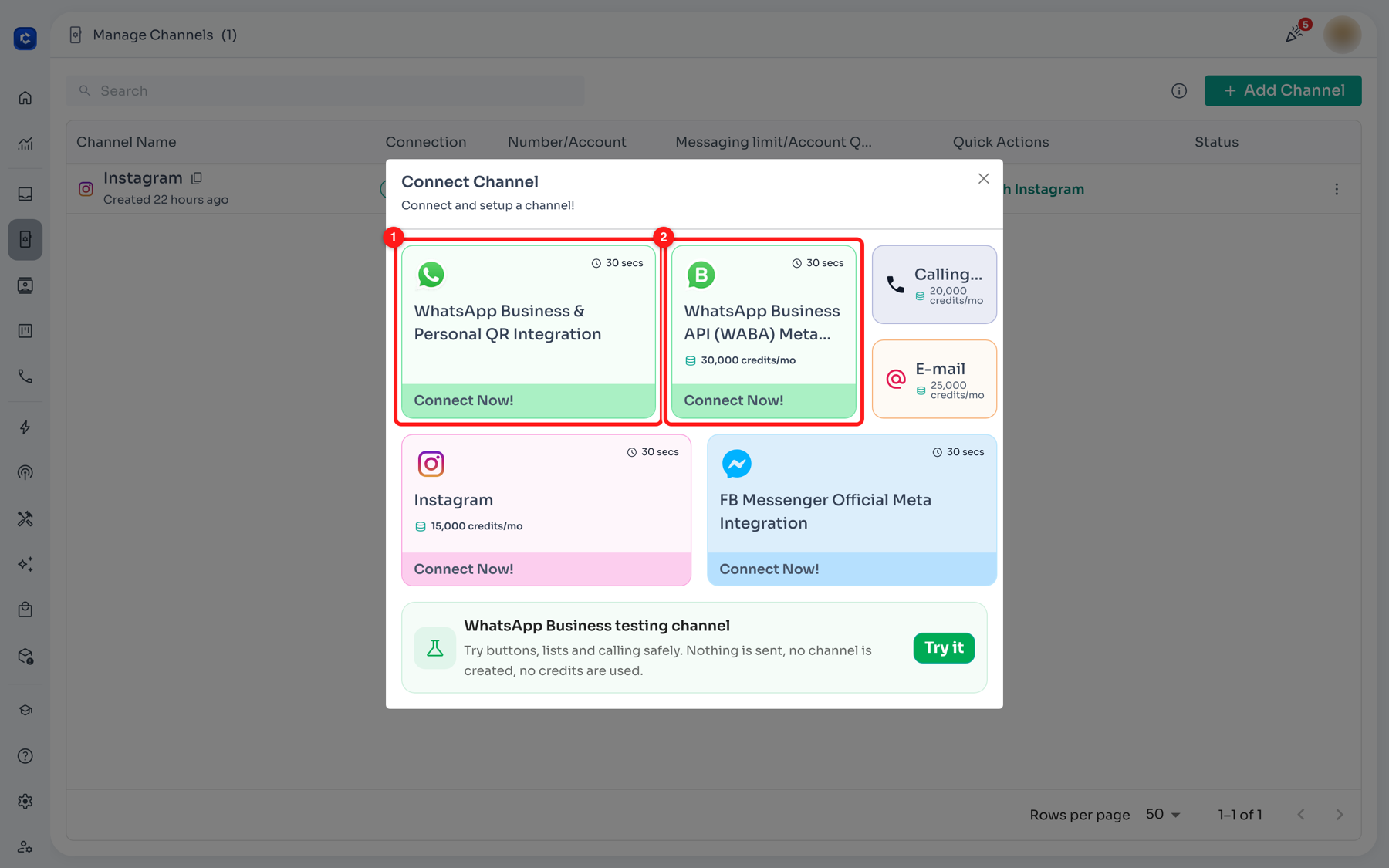
The Connect Channel dialog in ChatDaddy. (1) WhatsApp Business & Personal QR Integration — the regular app, so the Meta Verified track. (2) WhatsApp Business API (WABA) — the API track, where business verification and the Official Business Account badge live.
| If your number is on… | You can get… | You cannot get… |
|---|---|---|
| The regular WhatsApp Business App (free app / QR connection) | Meta Verified — the paid subscription badge | Official Business Account (green tick) |
| The WhatsApp Business API (WABA, connected through a provider such as ChatDaddy) | Meta Business verification, then the Official Business Account badge | Meta Verified (it is tied to the app-only setup) |
⚠️ Moving a number to the API removes a Meta Verified badge. The subscription is tied to the WhatsApp Business App. If you pay for the blue tick today and onboard that same number to the API tomorrow, the badge is removed automatically. Decide the track first.
Part 3 · Track A — Meta Verified (the paid badge) on the WhatsApp Business App
If the number stays on the regular WhatsApp Business App, the badge is not earned — it is subscribed to, directly with Meta, per number, per month.
Before you start: eligibility
Meta is still rolling this subscription out market by market, so check all of these before you promise a customer a badge:
- The account holder is 18 or older.
- The business profile has a name and a profile picture set.
- The number is on the regular WhatsApp Business App — not the API.
- The business is in a launched market. India, Indonesia, Brazil and Colombia were among the first; the list keeps expanding.
- The number has sent a message from the app recently (an active, real account).
- There is no conflicting Meta Verified subscription already on the number.
The steps
- Open the WhatsApp Business App on the phone that holds the number.
- Go to Settings (the ⚙️ icon), then open your business profile / account settings.
- Tap Meta Verified. If you do not see the entry at all, your market or your account is not eligible yet — there is no form to fill in, the option simply is not offered.
- Choose a plan. Swipe through the tiers and read what each one adds — the verified badge is in every tier; the higher tiers add protected accounts, verified channels and more linked devices.
- Tap Get [plan name] and complete payment through the app store billing on that phone.
- Wait for Meta’s review. Meta confirms the business details on the profile; the badge appears next to your name in chats once it passes.
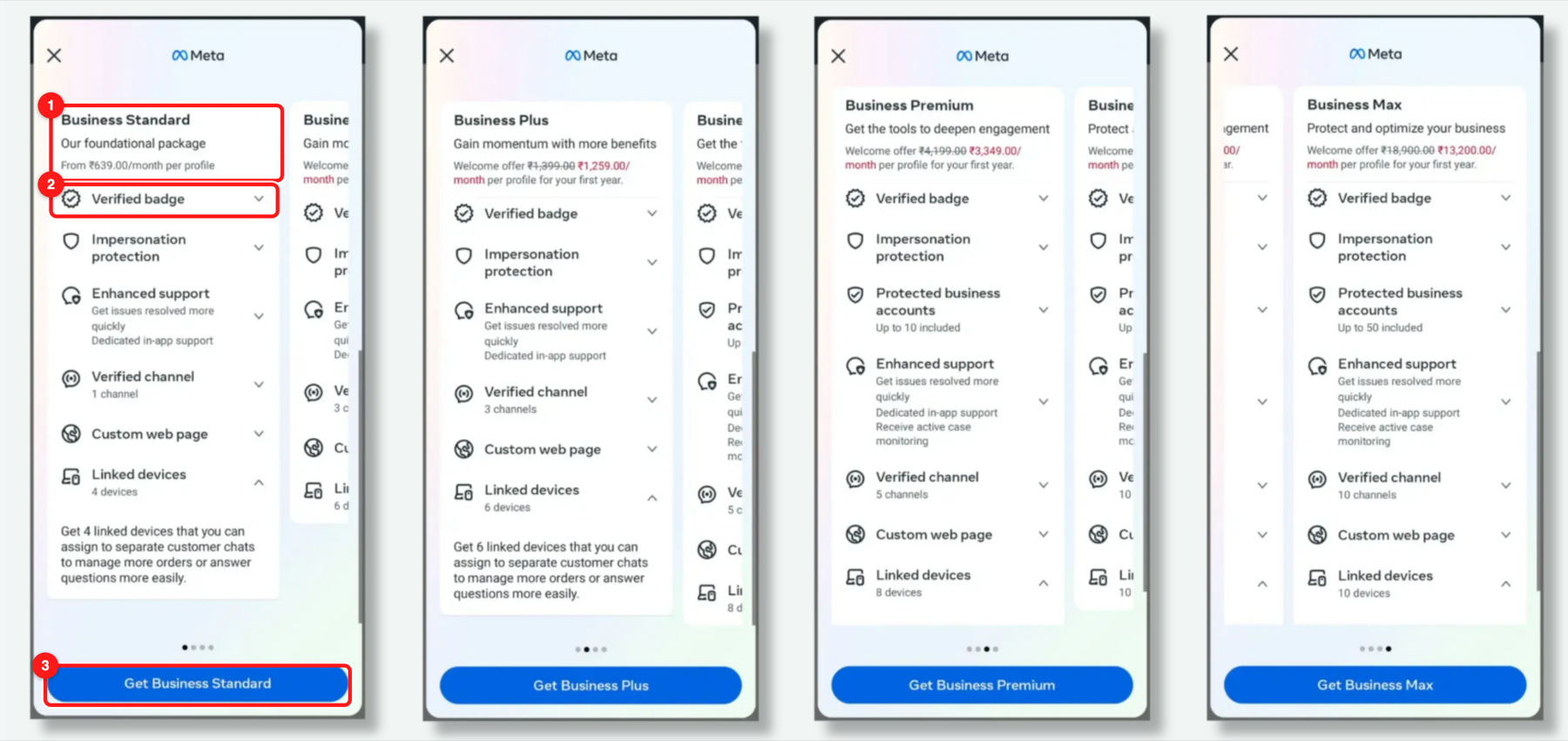
The Meta Verified subscription screen inside the WhatsApp Business App. (1) The plan name and its monthly price — this varies by market. (2) Verified badge — included in every tier. (3) The subscribe button for the plan you are viewing.
What the tiers include
The names are the same everywhere; the price is not. Meta prices per market and runs introductory offers, so always read the price in your own app rather than a figure from a blog.
| Tier | What it adds | Indicative USD price |
|---|---|---|
| Business Standard | Verified badge, impersonation protection, enhanced in-app support, 1 verified channel, up to 4 linked devices | ≈ $14.99 / month |
| Business Plus | Everything in Standard, plus up to 3 verified channels and 6 linked devices | ≈ $49.99 / month |
| Business Premium | Everything in Plus, plus up to 10 protected business accounts, 5 verified channels and 8 linked devices | ≈ $149.99 / month |
| Business Max | Everything in Premium, plus up to 50 protected accounts, 10 verified channels and 10 linked devices | ≈ $499.99 / month |
💰 Prices in the screenshot above are the Indian rupee rates with a welcome offer applied — a good illustration of why the USD column is only indicative. Meta can change rates at any time; the Meta Business Help Center has the current ones.
Part 4 · Track B — the WhatsApp Business API and its three account states
Every business on the API starts in the same place. The state changes as Meta confirms more about who you are — not as you pay for more. The badge only appears at the last stage.
| State | What it means | Badge | How your name shows | Cost |
|---|---|---|---|---|
| Standard account | The default the moment a WABA number connects. | None | Your raw number, unless the contact has saved you | Free |
| Meta Business verified | Your legal business documents have been matched in Meta Business Manager. This is the prerequisite for everything below. | None | Your business display name can go live (separate 1–2 day review) | Free |
| Official Business Account | Meta accepted that you are an authentic, notable brand. | Verified checkmark, shown to every contact | Verified business name, even to people who never saved your number | Free to apply |
🔁 Order matters. Meta reviews the business portfolio first and the badge second. Applying for the badge before your business is verified is the most common reason an application stalls with no explanation.
Part 5 · Phase 1 — verify your business in Meta Business Manager
This phase adds no badge. Do it anyway: it is what unlocks higher messaging limits, the approved display name, and eligibility to even apply for the Official Business Account badge.
Step 1 — Open your business settings and read your own details back
- Go to business.facebook.com/settings and pick the business portfolio that owns your WhatsApp account.
- Open Business info in the left menu.
- Check Business details against your registration paperwork — legal business name, address, business phone and website. Meta matches these against public records, so an abbreviation or an old address is enough to hold the review up.
- Check Business verification status at the bottom of the same panel. It reads Unverified, Pending or Verified.
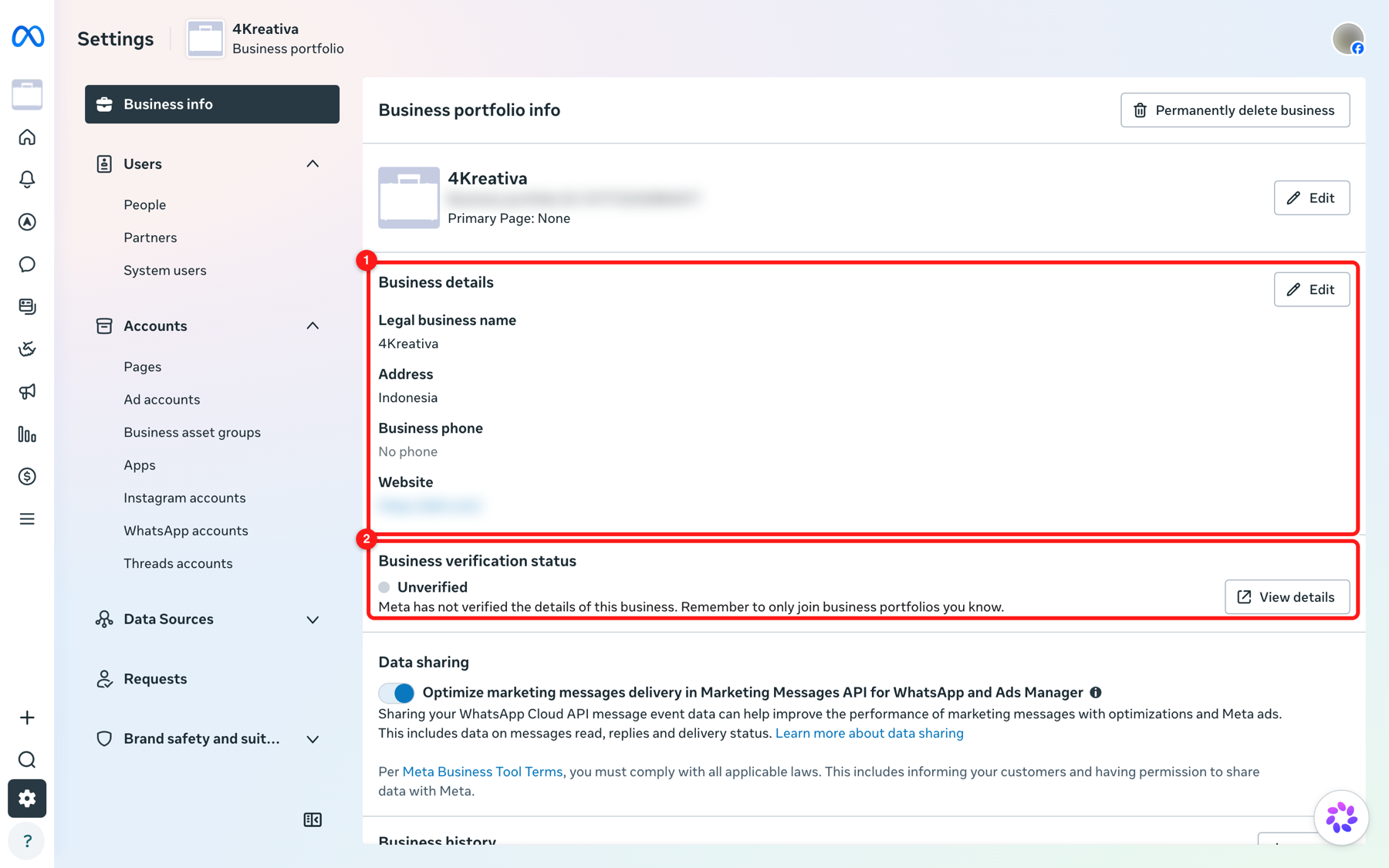
Meta Business settings → Business info. (1) Business details — legal name, address, phone and website must match your registration documents exactly. (2) Business verification status — this is the number you are trying to move to “Verified”.
Step 2 — Start the verification
- In the left menu, open Security Center.
- Find the Business Verification card and set Select your verification use case to Setting up a WhatsApp Business account.
- Click Start verification and follow the wizard: confirm the business details, then upload a document that proves them.
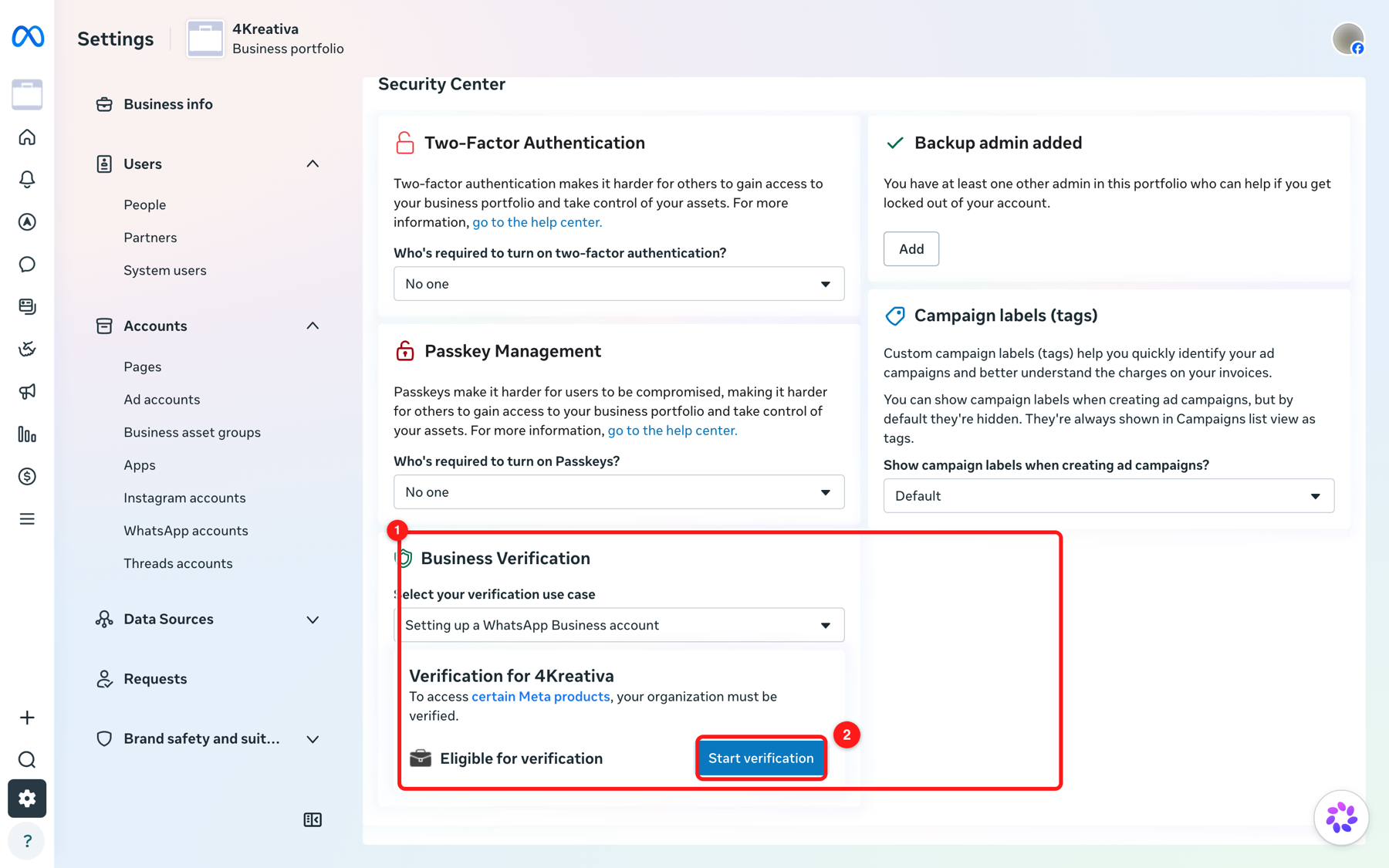
Meta Business settings → Security Center. (1) The Business Verification card, with the use case set to “Setting up a WhatsApp Business account”. (2) Start verification begins the document review.
Step 3 — Send documents that actually match
Meta wants two things proven: that the business legally exists, and that the address and phone you entered belong to it. Documents that typically work:
- Legal existence — certificate of incorporation, business registration or licence, or a tax registration document.
- Address or phone — a recent utility bill, bank statement or phone bill in the business name.
Three rules save most rejections:
- The name on the document must match the legal business name field character for character — not a trading name, not an abbreviation.
- The document must be recent (utility and bank documents are usually expected to be within the last 90 days) and unedited — upload the full page, all four corners visible.
- The website and business email should be on your own domain wherever possible. A free webmail address with no matching website weakens the application.
Step 4 — Turn on two-factor authentication for the portfolio
- Still in Security Center, find Two-Factor Authentication.
- Set Who’s required to turn on two-factor authentication to Everyone (or at least to the admins). This is separate from the two-step verification PIN on the phone number itself, which you will set in Phase 2.
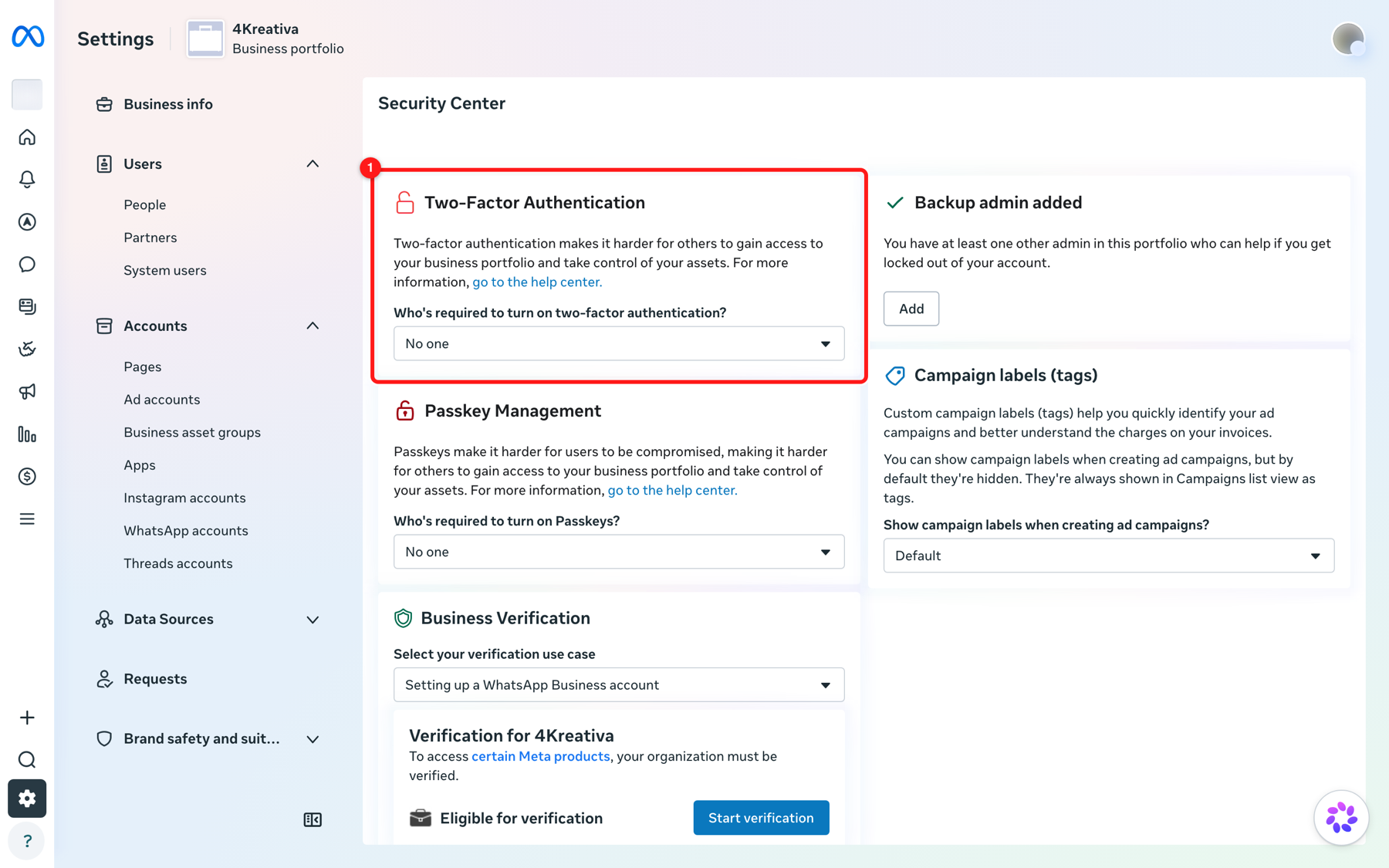
Meta Business settings → Security Center. (1) Two-Factor Authentication protects the business portfolio itself. Meta weighs account security when it reviews a badge application.
Step 5 — Watch the status
- Open WhatsApp Manager and stay on Overview.
- The Business Status panel on the right shows your conversation allowance, how many phone numbers are added, and a Verify your business shortcut while verification is still outstanding.
- When the review finishes, Meta emails the portfolio admins and the status flips to Verified in Business info.
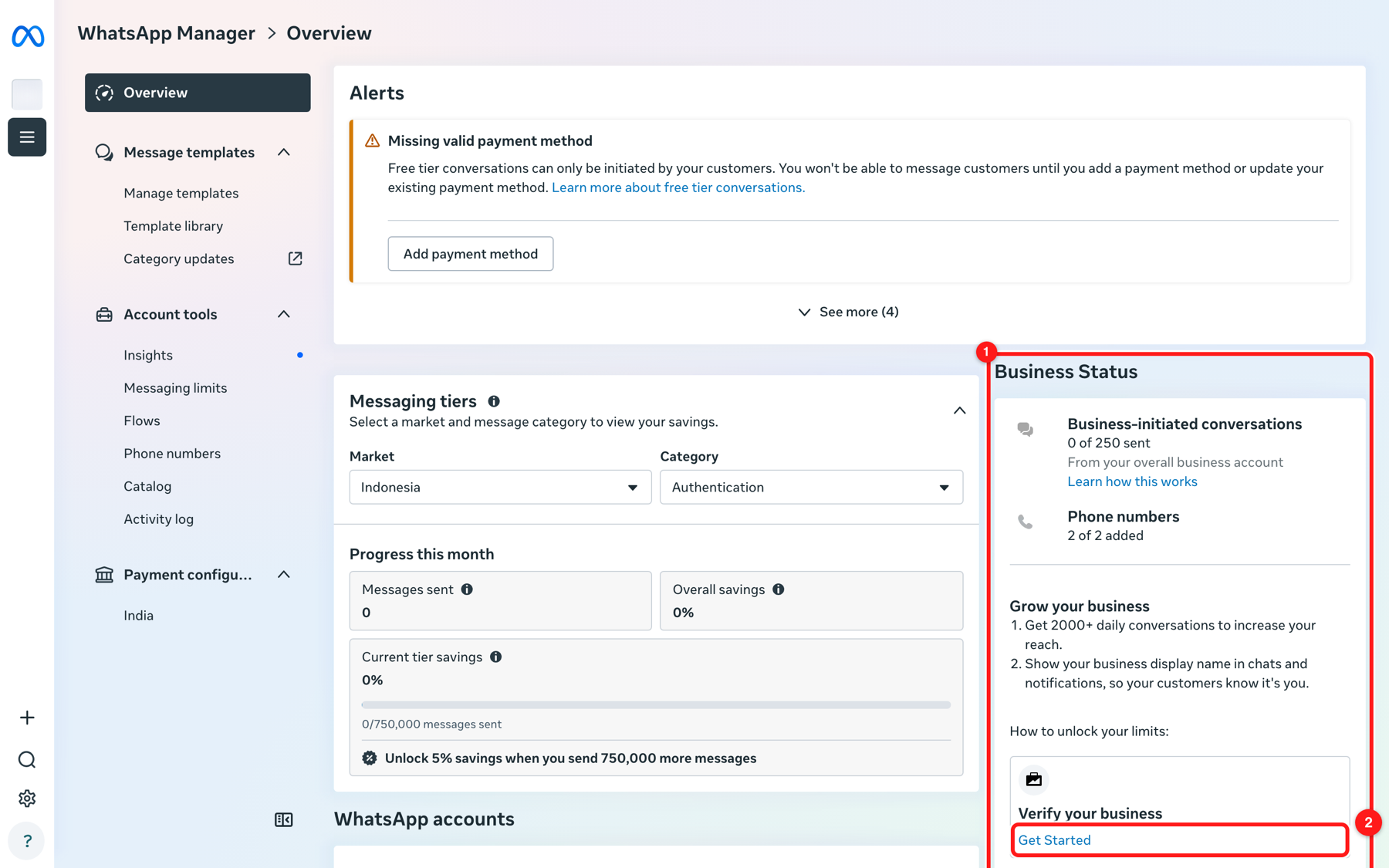
WhatsApp Manager → Overview. (1) The Business Status panel — messaging allowance, phone numbers and what is still blocking your limits. (2) “Verify your business → Get Started” is the same flow as the Security Center card.
⏱️ How long it takes. Business verification usually completes in 1–5 business days. If Meta needs a clearer document it will say so and the clock restarts, so it is worth getting the upload right the first time.
Part 6 · Phase 2 — apply for the Official Business Account badge
Only start this once Business verification status reads Verified. Everything here happens in WhatsApp Manager → Account tools → Phone numbers.
Step 1 — Check the number’s status and quality first
- Open Account tools → Phone numbers.
- Read the Status and Quality rating columns for the number you want badged. Status must be connected and the number verified — a number sitting at Pending or Unverified cannot be submitted.
- Quality rating must be High (green). A medium or low rating means recent recipients blocked or reported you, and an application submitted in that state is very likely to be refused.
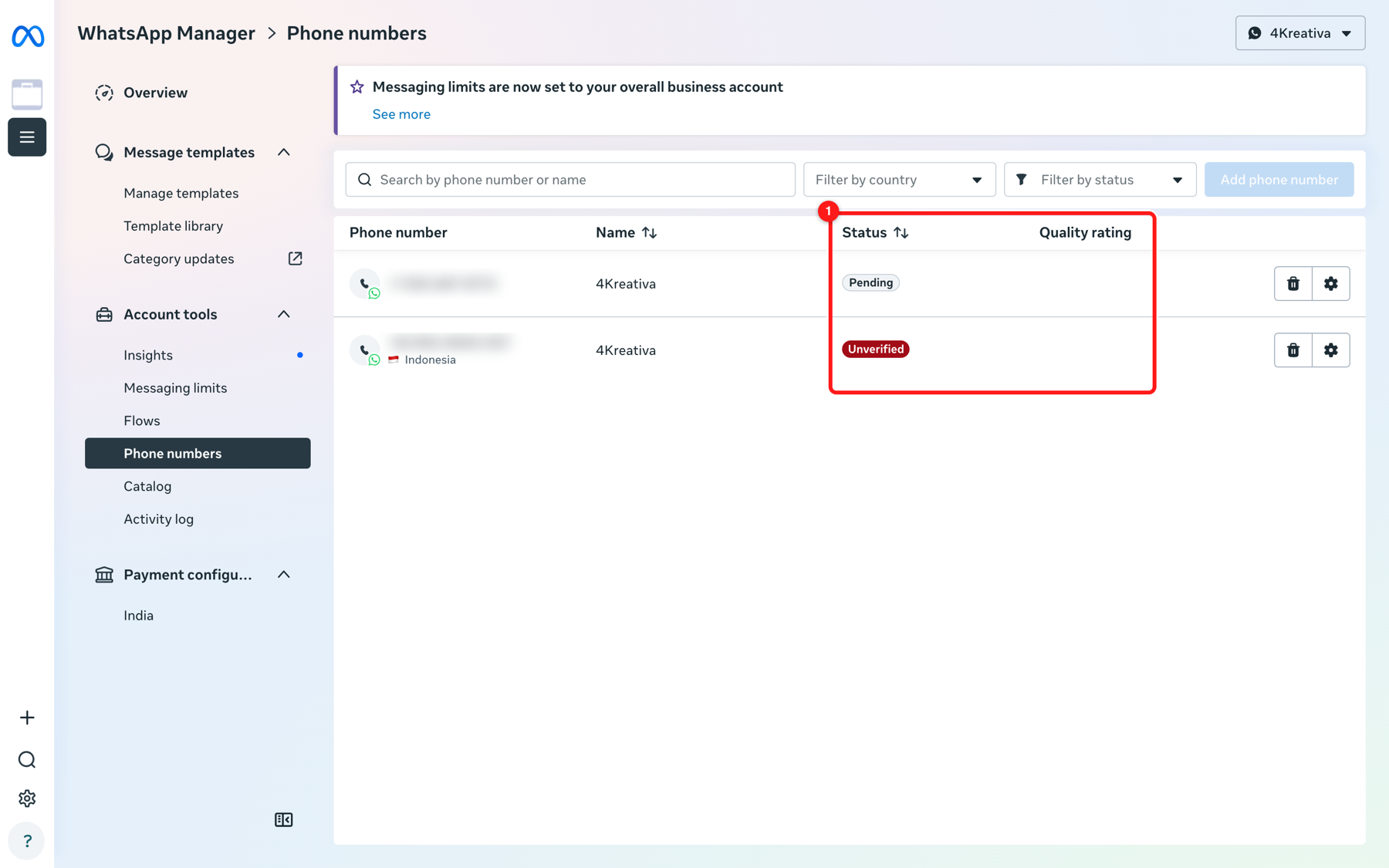
WhatsApp Manager → Phone numbers. (1) Status and Quality rating. Fix anything that is not “Connected” and “High” before you apply — this is the first thing the review looks at.
Step 2 — Turn on two-step verification for the number
- Click the number to open its detail panel, then open the Two-step verification tab.
- Click Turn on and set a 6-digit PIN. Store it somewhere your team can find it — WhatsApp asks for this PIN whenever the number is registered again, including during a provider migration.
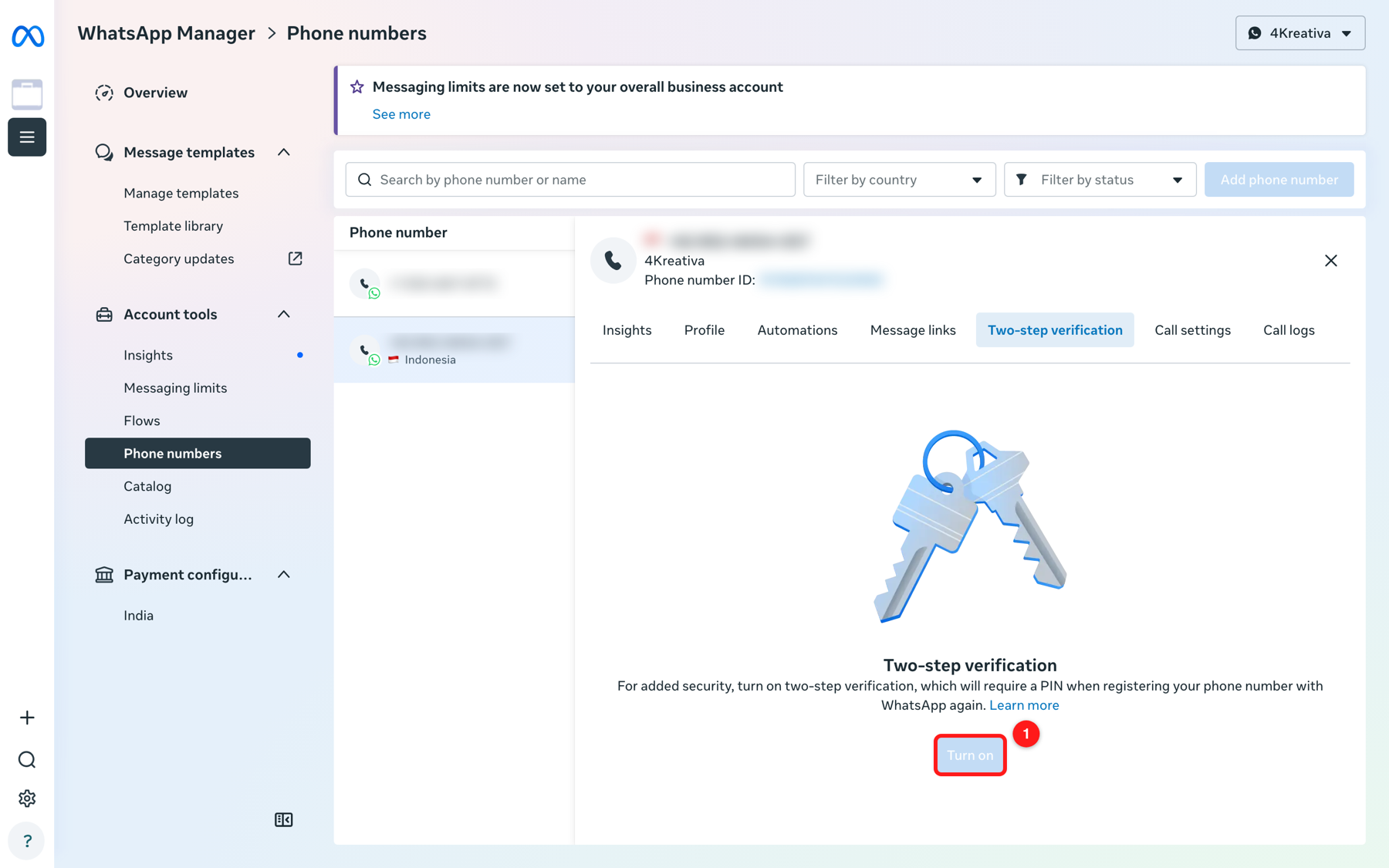
The Two-step verification tab on the phone number. (1) Turn on — a required item on the green tick checklist, and the thing that protects your number from being re-registered elsewhere.
Step 3 — Get the display name right
- Open the Profile tab on the same number.
- Check the Display name. It must follow Meta’s display name guidelines: it should be your real brand name, closely related to your business, and free of generic words, promotional text, punctuation tricks or URLs.
- If it needs changing, click Edit and submit it — a display name change goes through its own 1–2 day review.
✏️ Get the name right before you apply, not after. Once a number holds the Official Business Account badge, changing the display name puts the badge back under review and can revoke it.
Step 4 — Submit the badge request
- Scroll to Official business account in the same Profile tab.
- Click Submit request.
- Attach your notability evidence when prompted (see below), then submit.
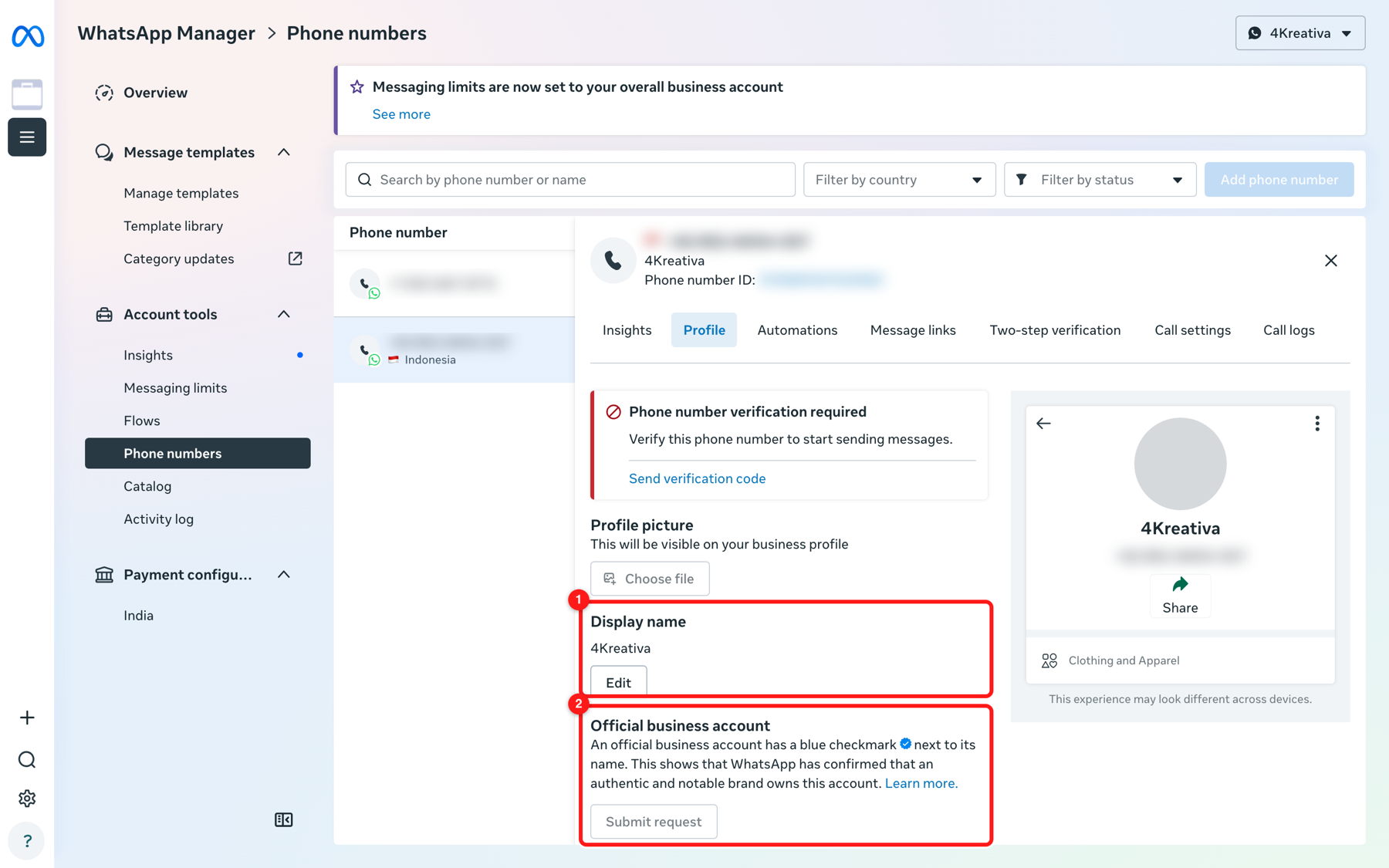
WhatsApp Manager → Phone numbers → Profile. (1) Display name — fix this first; changing it later risks the badge. (2) Official business account → Submit request is the actual green tick application.
Step 5 — What counts as notability evidence
This is the part that decides most applications. Meta is asking: is this brand recognised by people other than itself?
- Counts: news articles about your business in established outlets, industry press, trade publications, independent reviews and editorial coverage. Links from the last 12 months carry the most weight. Three to five strong links beat twenty weak ones.
- Does not count: paid placements, sponsored posts, press releases you issued, your own blog or website, your social media profiles, directory listings, and anything marked advertisement or promoted.
- Submit links in the language of the market you operate in — local coverage in a local outlet is stronger than a passing mention in a global one.
Step 6 — What happens next
- Meta reviews the request; a decision typically arrives within a few days, but it can take longer in busy periods.
- If it is approved, the checkmark appears next to your verified business name for every contact — including people who have never saved your number.
- If it is rejected, you can usually reapply after 30 days. Use that month to improve the thing that was weak — normally notability or account quality — rather than resubmitting the same evidence.
Part 7 · The full Official Business Account checklist
Meta Verified and OBA are graded on completely different criteria: one is a subscription you buy, the other is merit assessed by a human. These seven items are what strengthens an OBA application.
| # | Requirement | Why it matters |
|---|---|---|
| 1 | On the WhatsApp Business API | Connected through a provider such as ChatDaddy. The regular WhatsApp Business App does not qualify. |
| 2 | Verified Meta Business Manager | Phase 1 above. Nothing proceeds until this reads Verified. |
| 3 | Two-step verification enabled | On the specific number that is applying. |
| 4 | Approved display name | Follows Meta’s naming guidelines and matches the brand customers recognise. |
| 5 | Brand notability | Credible third-party coverage. Paid, self-published and social content does not count. |
| 6 | At least 30 days on the platform | Meta wants real sending history before it badges a number. |
| 7 | Quality rating: High | Frequent blocks or reports disqualify an application outright. |
📈 Being in messaging tier 2 or above (1,000+ business-initiated conversations per day) is not a hard rule, but it is a strong signal that the number is a real, working business line. Tier is raised automatically by sending good-quality volume — see the guide on growing your messaging limit.
Part 8 · Industries that do not qualify
Meta restricts verification for businesses in certain regulated or prohibited categories, regardless of how good the documentation is. These are rejected on category grounds:
- Restricted goods — weapons, firearms, ammunition or explosives.
- Adult content — adult products, entertainment or services.
- Gambling — online casinos, sports betting and lotteries.
- Regulated substances — tobacco, alcohol and illicit drugs.
- Cryptocurrency — virtual currency exchanges and trading platforms.
- Pharmaceuticals and drugs — prescription medication and recreational drugs.
- Anything that breaches policy — any business that violates Meta’s Commerce, Business or WhatsApp policies.
🚫 Unsure which category you fall into? Read the Meta Commerce Policies and the WhatsApp Business Messaging Policy before applying. A rejection on eligibility grounds can lock you out of resubmitting for 30 days.
Part 9 · Keeping the badge once you have it
- It survives a provider change. Moving your WABA number between providers keeps the badge — it belongs to the number and the WhatsApp Business account, not to the software you send from.
- It does not survive leaving the API. Migrating the number back to the regular WhatsApp Business App removes it.
- Changing the display name puts it back under review. Treat a badged number’s display name as frozen unless you have a real reason to change it.
- Quality still matters afterwards. A sustained drop in quality rating, or repeated policy violations, can get a badge removed as well as messaging limits reduced.
- Losing a badge does not stop your messaging. Templates, automations and the inbox all keep working; you lose the checkmark and the verified name display, not the channel.
Frequently asked questions
Is the “blue tick” a different badge from the “green tick”?
Yes — they are different products, even though they can look similar in a chat today.
The green tick is the Official Business Account: free, merit-based, applied for from inside WhatsApp Manager, and only for numbers on the WhatsApp Business API. Meta’s own interface now describes it as a blue checkmark, which is where much of the confusion comes from.
The blue tick people are usually quoted a price for is Meta Verified: a paid monthly subscription, bought inside the WhatsApp Business App, only for numbers that are not on the API.
We are on the API. Can we just buy Meta Verified instead of applying for the green tick?
No. Meta Verified for WhatsApp is sold for numbers on the regular WhatsApp Business App. A number already onboarded to the API is not offered the subscription, and a number that carries the subscription loses it when it is onboarded to the API.
How long does the whole process take?
Business verification is typically 1–5 business days. A display name review is typically 1–2 days. The Official Business Account decision usually lands within a few days of submission but can take longer.
The realistic blocker is not review time — it is the 30-day platform history and the notability evidence. Plan for weeks, not hours.
Our application was rejected. What now?
You can normally reapply after 30 days. Before you do, fix the likely cause:
-
Quality rating below High → reduce blocks and reports, review who you are messaging and how often, then let the rating recover.
-
Weak notability → collect genuine third-party coverage. This is the most common cause and the slowest to fix.
-
Document mismatch → correct the legal business name, address or website in Business info so it matches your paperwork exactly, and re-run business verification first.
Can we send messages while we wait?
Yes. Templates, chatbots, broadcasts, the shared inbox and every other feature keep working normally throughout. A pending application changes nothing about your ability to message.
Does the badge appear for customers who have not saved our number?
That is exactly what it is for. Without a badge, a contact who has not saved you sees your raw phone number. With an Official Business Account, they see your verified business name and the checkmark.
Who applies — us, or ChatDaddy?
Business verification and the badge application are both submitted from your own Meta Business Manager, because they are checks on your business, not on your messaging provider. ChatDaddy connects the number and can point you at the right screens, but the documents and the notability evidence have to come from you.
Related guides
- Keep an Eye on Your WhatsApp Account Quality — how the quality rating is calculated and how to recover one that has dropped.
- How to Grow Your WhatsApp Messaging Limit with the AI Tier Assistant — moving up the messaging tiers.
- Best Practices to avoid a Template Message rejection — keeping quality high while you send.
🔗 External references: Meta Business Help Center · WhatsApp Help Center · WhatsApp Business Messaging Policy