
Why a Message Flow Run Failed
When a step of a message flow could not be sent, the flow's recipient list marks it Failed in red. Learn how to read the reason card behind it, what “scheduled in the past”, “loop detected” and a missing contact email actually mean, and how to fix each one.
Also searched as: Why a Message Flow Run Failed, Open the flow's recipient list, Find the failures, Hover the red Failed to read the reason, Match the reason to the fix, See everyone who failed at the same step, Take the list away with you, Message, Flow, Failed
A message flow does not tell you when one of its steps could not be sent — it records it. Every flow keeps a list of the contacts it ran for, and any step that failed for a contact is marked Failed in red on that person's row.
This article is about the reason behind that red label: where to find it, what each of the common reasons means, and what to change so it does not happen again. It is worth reading if you send anything automated and have noticed people dropping out of a flow partway through.
🔎 Every failure carries its own explanation — hover the red Failed label to see it. The small tag in the top-right corner of the card tells you who refused the message: a number such as #131047 means WhatsApp (Meta) rejected it, while a Flow tag means ChatDaddy stopped the step itself. The two need very different fixes.
Step-by-step
Step 1 — Open the flow's recipient list
Go to Automation → Message Flows. The Recipients column on the right of each row shows how many contacts that flow has run for. Click the number (or the small chart icon beside it) to open the list — clicking anywhere else in the row opens the flow in the builder instead.
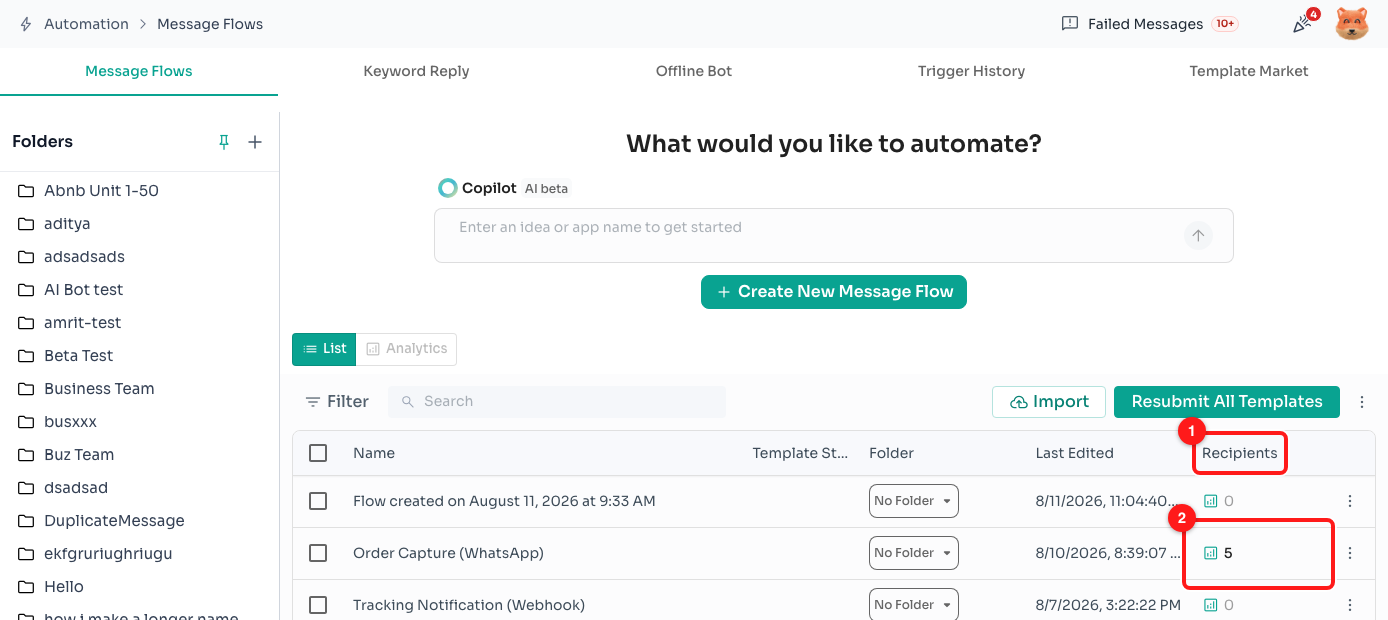
Step 1 — the Recipients column (1) and the count that opens a flow's recipient list (2).
Step 2 — Find the failures
The first four columns say who the flow ran for, who or what started it, whether it is still working through its steps, and when it began. After those there is one column for every step in the flow, named exactly as the step is named in the builder. Reading down a step's column shows you what happened to that step for everybody.
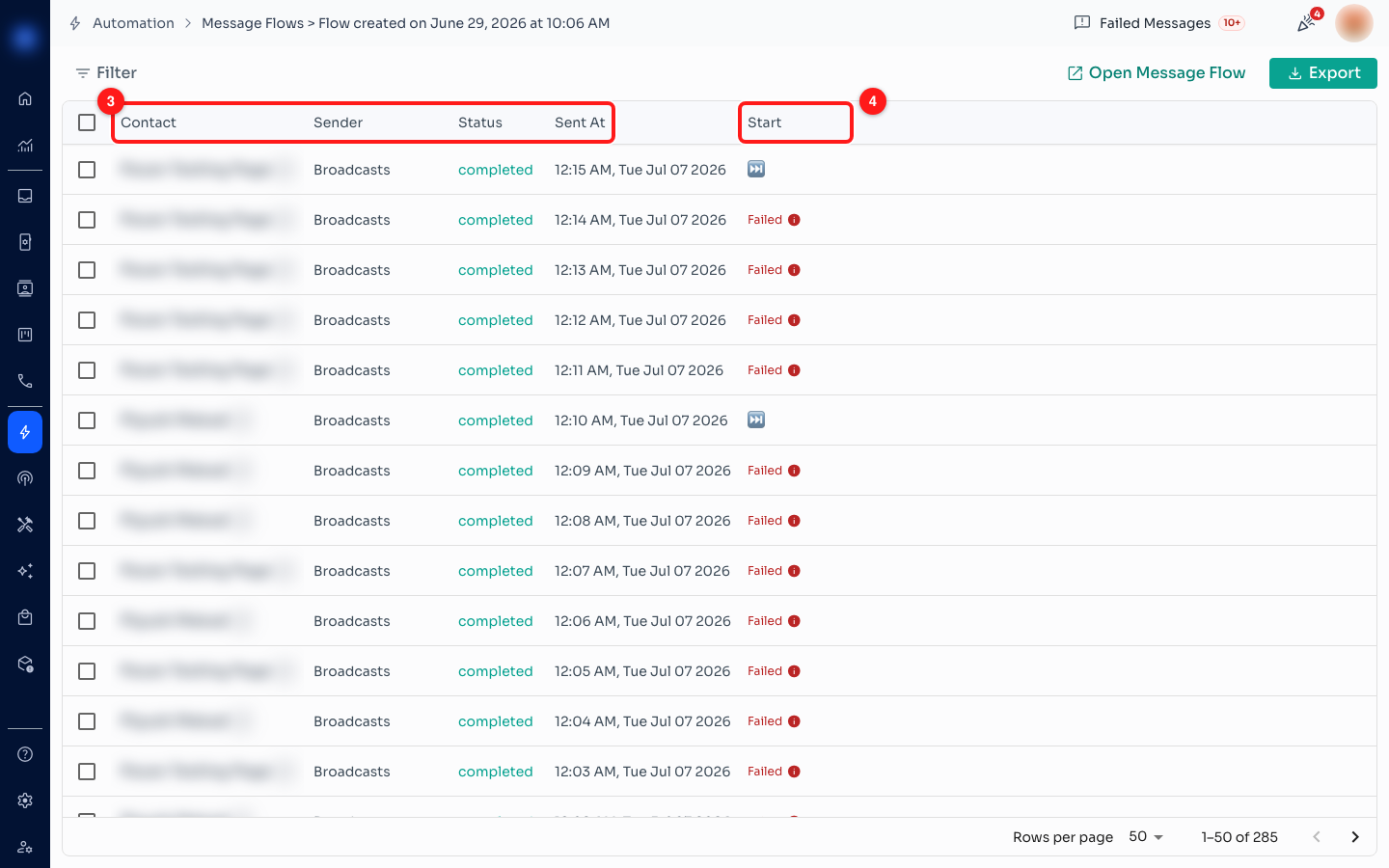
Step 2 — the contact and timing columns (3), then one column per step of the flow (4). Failures show as a red “Failed” with an information icon.
- Failed in red — the step could not be sent to that contact. This is what the rest of this article is about.
- ⏭️ — the step was skipped, not failed: the same message went to the same number less than a minute earlier.
- ✅ and 📦 — the step was sent, and delivered to the contact's device.
- Empty — the flow never reached this step for that contact, usually because an earlier step is still waiting on a reply.
Step 3 — Hover the red Failed to read the reason
Hovering a Failed label opens a card headed Message failed. Why this happens is the reason the message was refused, in plain language, and What can you do? lists the next steps for that particular reason.
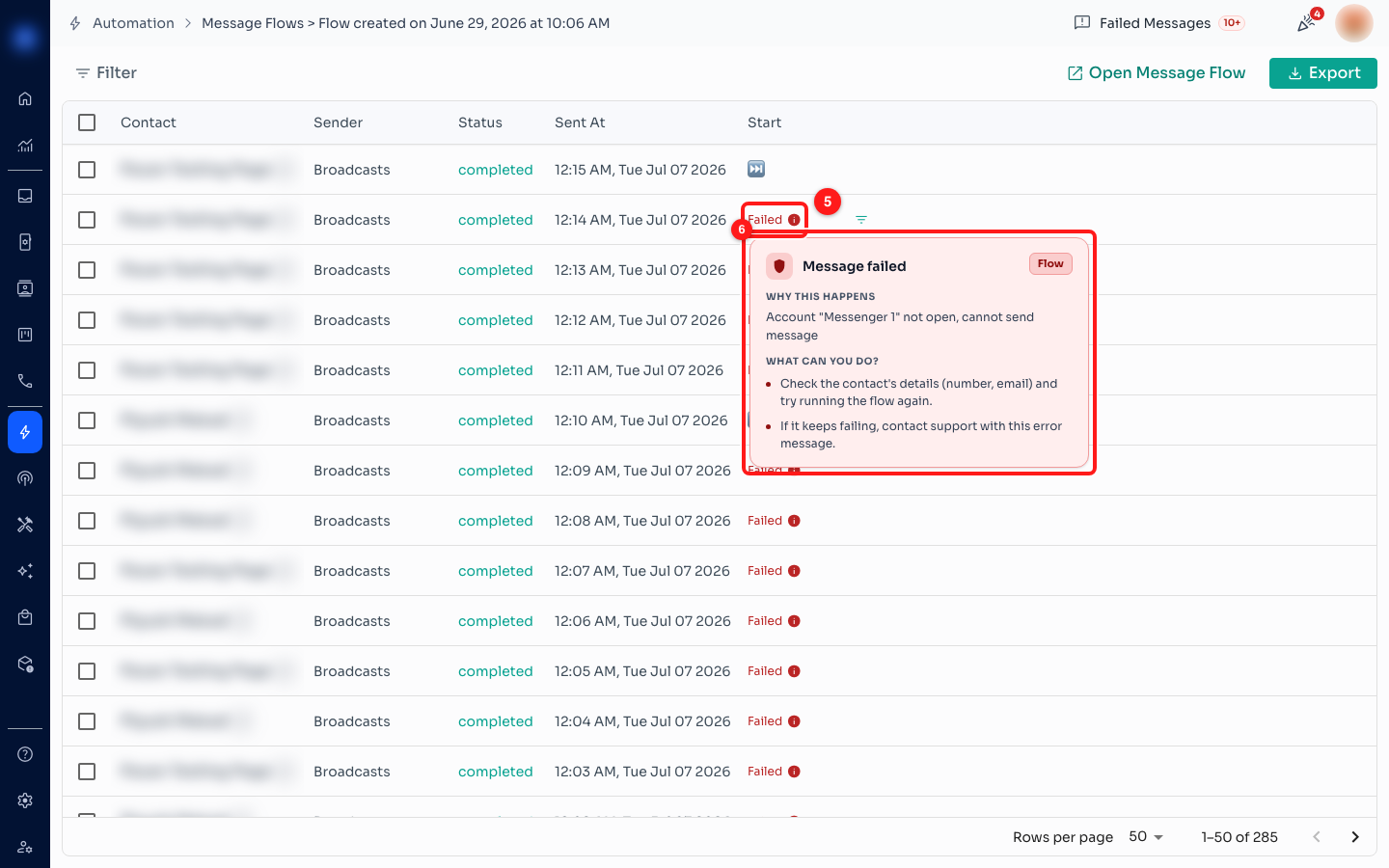
Step 3 — hover the red Failed label (5) and ChatDaddy explains the failure and what to do about it (6).
🏷️ Check the tag in the corner of the card first. Flow means the step never left ChatDaddy — something about the flow or the contact stopped it, and the fix is in your flow. A #number means the message reached WhatsApp and Meta refused it; look that code up in our Meta error articles instead.
Step 4 — Match the reason to the fix
These are the flow-side reasons you are most likely to see, and what each one is really telling you.
“This step's send time had already passed, so it was skipped.” The step was set to go out at a moment that was already in the past by the time the contact reached it — usually a delay or a scheduled send pointing at a fixed date, or a flow that sat waiting on a reply for longer than the schedule allowed. Open the flow, re-schedule that step for a future time, and run it again.
“The flow looped back on itself too many times and was stopped.” Two or more steps send the contact round in a circle, so ChatDaddy stopped the run rather than message the person forever. Open the flow and follow the branches out of the failing step until you find the one that leads back to an earlier step, then break that link before running the flow again.
“This contact has no email address, so the email step couldn't run.” The flow reached a step that sends an email, and the contact record has no email on it. Either add an email address to that contact, or add a branch before the step so contacts without an email skip it instead of failing on it.
Anything else — the card shows the message ChatDaddy got back from the channel word for word, such as “Account … not open, cannot send message”, which usually means the channel that flow sends from has lost its connection. Reconnect the channel under Manage Channels, check the contact's number and email, and run the flow again. If the same message keeps coming back, send it to support exactly as it appears on the card.
Step 5 — See everyone who failed at the same step
One failure is rarely the whole story. Hover a Failed cell and a small filter icon appears at the right-hand edge of it.
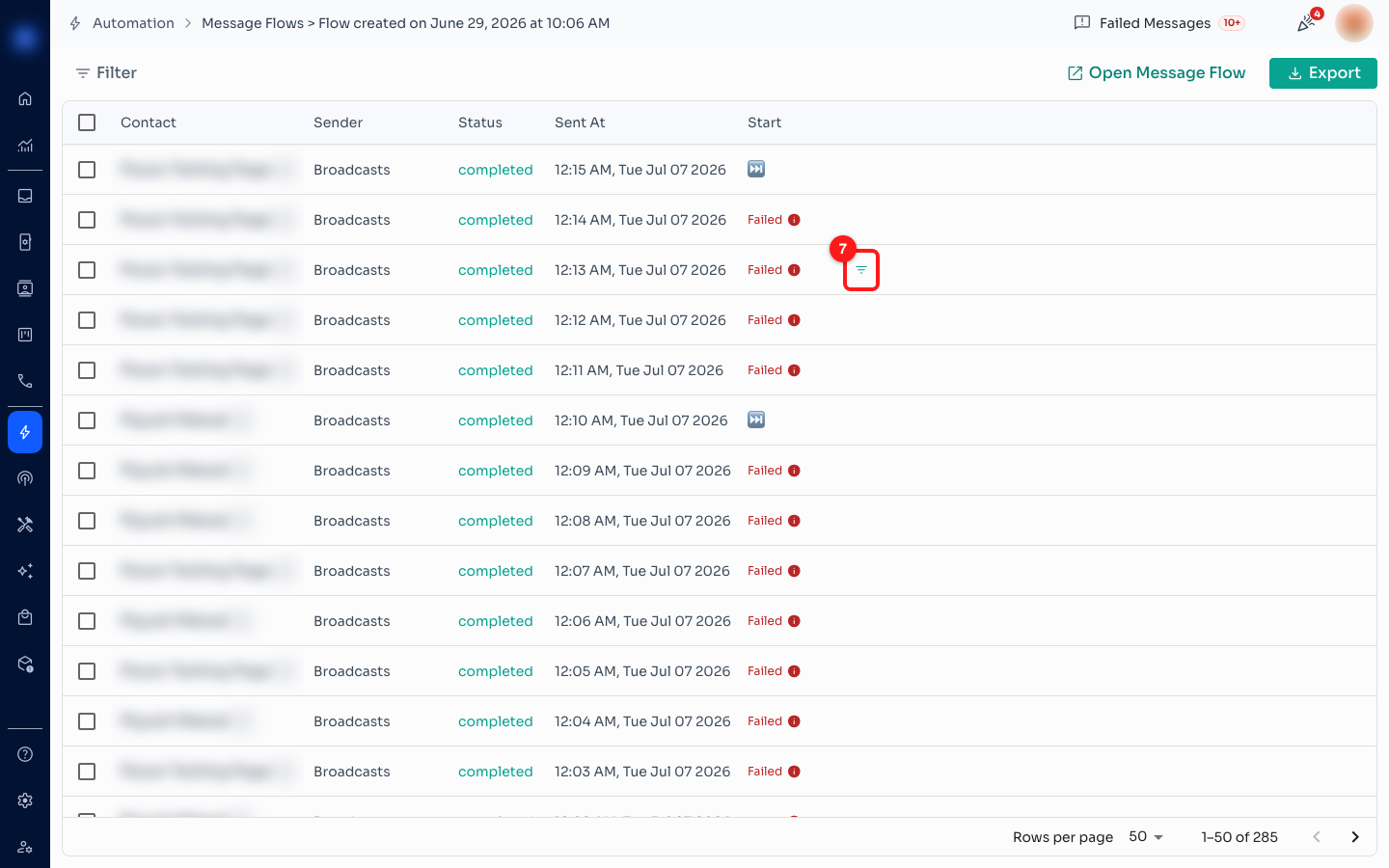
Step 5 — hovering a cell reveals the filter icon (7).
Click it and the list narrows to every contact whose run failed at that step. A chip appears above the table naming the filter — “
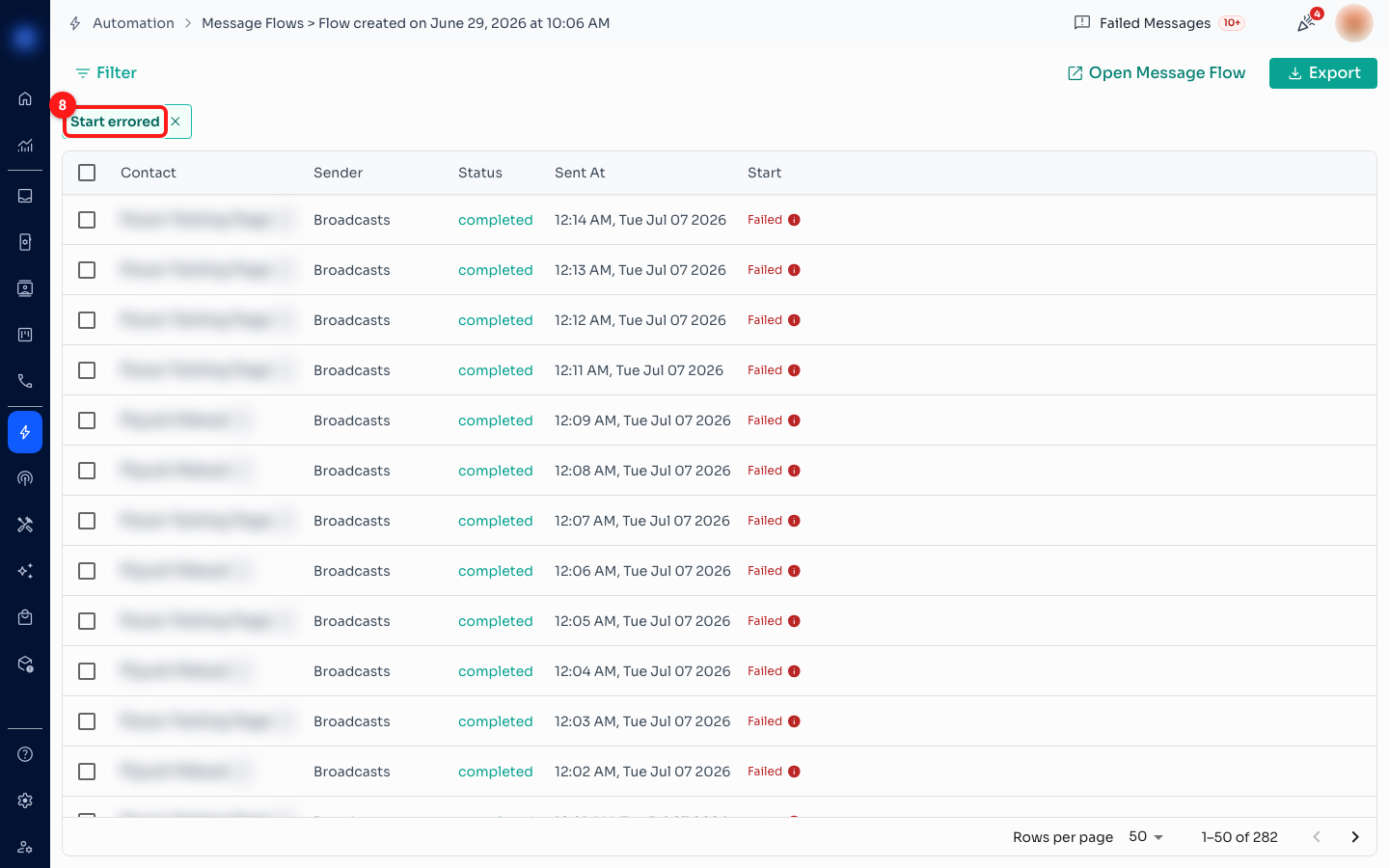
Step 5 — the filter chip naming the step you filtered on (8). Every row shown now failed at that step.
Step 6 — Take the list away with you
Export downloads the list as a CSV: each contact's name, phone number and channel, when the flow started for them, and a column per step. Use it to hand a list of affected people to whoever is going to follow up by hand.
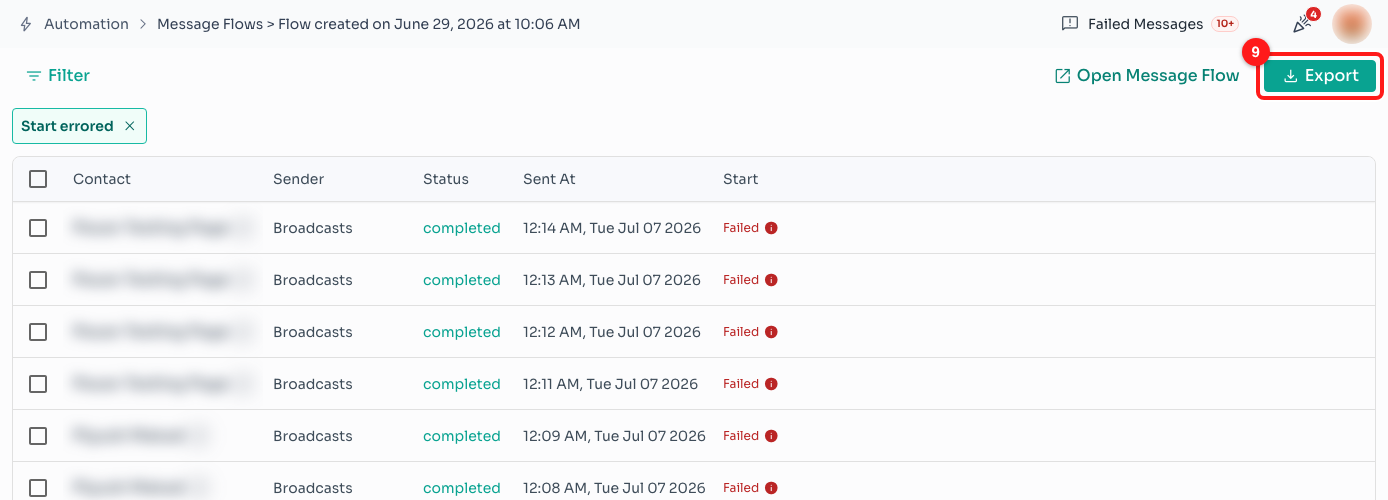
Step 6 — Export (9) downloads the rows currently shown, filter included.
📄 The CSV records what each contact did — sent, clicked, replied — so the cells for failed steps come out blank. Keep the reason itself from the card on screen; it is not in the file.
Troubleshooting
The card shows a number like #131047 instead of a Flow tag.
That failure came from WhatsApp, not from your flow. The number is Meta's error code, and the card explains that specific code and what to do about it. The most common one by far is #131047, which means the contact last messaged you more than 24 hours ago, so only an approved template can be sent. See the related articles below for the individual codes.
Everybody failed at the same step.
That points at the step, not at your contacts. Filter on that step (Step 5), then hover a few of the failures — if they all give the same reason, fix that one thing in the flow and run it again. A whole column of failures right after you edited a flow usually means the edit itself is the cause.
A step shows ⏭️ and I want to know if that counts as a failure.
It does not. ⏭️ means the step was skipped because the identical message went to that same number less than a minute earlier — a safety net that stops a contact being messaged twice when two flows fire together. Nothing needs fixing.
Nothing says Failed, but contacts still stop partway through the flow.
An empty cell is not a failure — it means the flow never got that far. Look at the last step that does have something in it: if it asks a question or offers buttons, the flow is simply waiting for a reply that has not come. Only a red Failed means a step was actually refused.
I have fixed the cause — how do I retry the failed contacts?
This list is a record of what already happened, so there is no retry button on it. Fix what the card pointed at, then run the flow for those contacts again the way it was started in the first place — a broadcast, a trigger, or starting the flow from the Inbox. Export the filtered list first (Step 6) so you know exactly who to re-run it for.
The reason mentions an account or channel that is “not open”.
The channel the flow sends from has lost its connection, so every step that tried to send through it failed. Go to Manage Channels, reconnect the channel, and run the flow again. Failures like this usually arrive in a block, all at the same time of day.