
Why Message Headers and Footers Need a WhatsApp Business API Channel
Every Message step in a message flow has a Header and a Footer field above and below the body. Learn what they are for, the 60-character limit on each, why they may be locked with a padlock, and which channels actually deliver them.
Also searched as: Why Message Headers and Footers Need a WhatsApp Business API Channel, Where the fields live, Open a message flow, Add or open a Message step, Write your header, Write your footer, Check how the step reads, Save the flow, The 60-character limit, If the fields are locked, Message, Headers, Footers, Need, WhatsApp
Every Message step in a message flow has three text fields, not one: a Header above the message body and a Footer below it. A header is a short title line — “Your order has shipped” — and a footer is a small print line, usually an opt-out note or your business name.
They are worth using when you want a message to look like a proper notification rather than a plain chat message. Anyone who can edit a message flow can fill them in.
🔒 Headers and footers are an official WhatsApp Business API (WABA) feature. The fields themselves say so: “Only for Official WABA channels.” If your team has no WABA channel connected, both fields are locked behind a padlock — and if a flow runs on a channel that is not WABA, anything you type in them is saved but never delivered.
Where the fields live
They are part of the step editor panel that slides in when you click a Message step on the flow canvas — Header at the very top, then Body, then Footer. There is nothing to expand or switch on. The same two fields also appear on an Email step, underneath its Subject field.
Step-by-step
Step 1 — Open a message flow
Go to Automation → Message Flows. Open the flow you want to edit, or click + Create New Message Flow to start a fresh one.
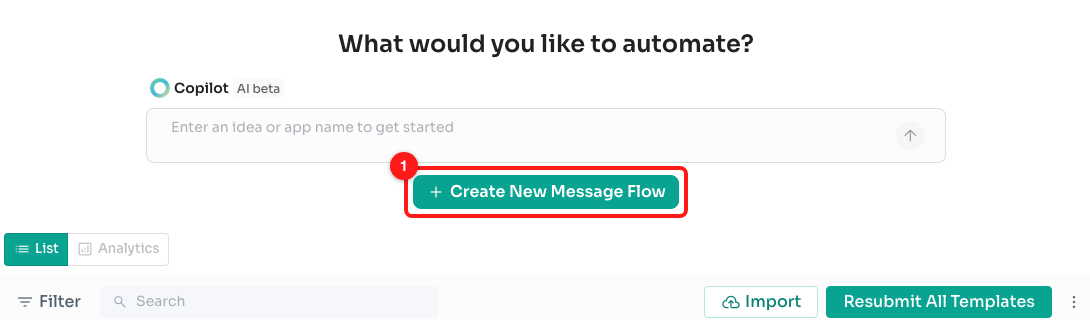
Step 1 — Create New Message Flow on the Message Flows page (1). To edit an existing flow, click its name in the list below instead.
Step 2 — Add or open a Message step
On a brand-new flow the canvas offers a Choose Starting Step card — click Message. In a flow you already have, just click the Message step you want to change.
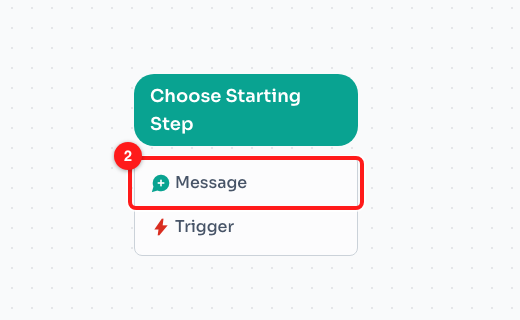
Step 2 — Message on the Choose Starting Step card (2).
Step 3 — Write your header
The step editor panel opens on the left. Header is the first field, labelled “Header • Only for Official WABA channels”. Type your title line — keep it short, because the counter under the box stops you at 60 characters.
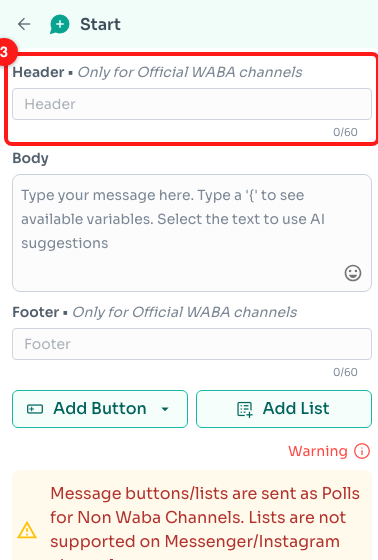
Step 3 — the Header field sits above the Body, with its own character counter (3).
💡 Header and Footer are plain text boxes. They do not offer the
{variable picker or the AI suggestions you get in the Body, so use them for wording that stays the same on every send.
Step 4 — Write your footer
Scroll past the Body box to Footer. It works exactly the same way and has the same 60-character ceiling. This is the usual place for “Reply STOP to stop receiving these updates.”
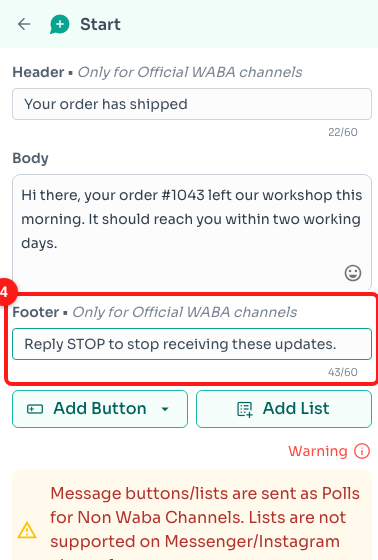
Step 4 — the Footer field, below the Body (4).
Step 5 — Check how the step reads
The step on the canvas updates as you type, so you can see the finished shape without sending anything: the header in bold at the top, the body in the middle, and the footer in lighter grey underneath. Leave a field empty and that line simply does not appear.
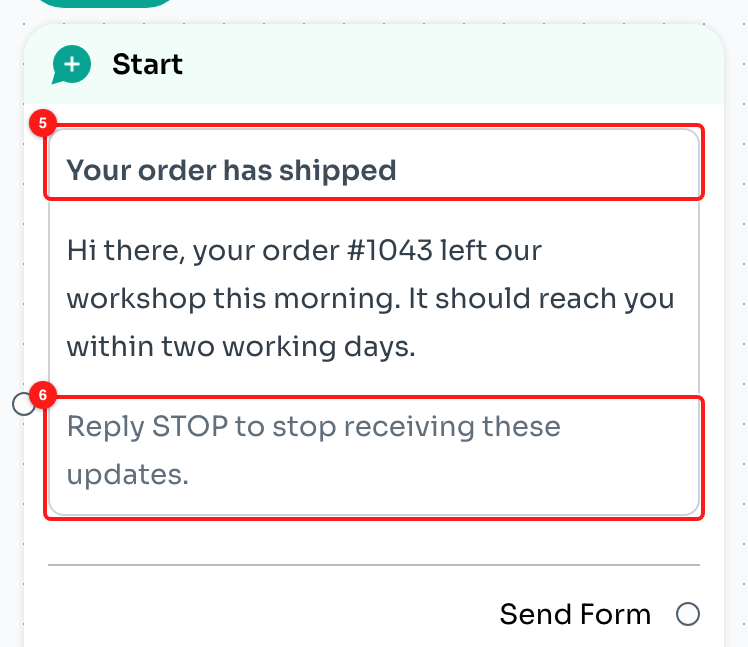
Step 5 — the header (5) and the footer (6) as they appear on the step itself.
Step 6 — Save the flow
Click Save at the top right of the canvas. Until you do, the header and footer exist only in your browser.
The 60-character limit
Each field counts up to 60 characters and no further. The counter under the box shows where you are — 22/60 while you type, 60/60 once you are at the ceiling, at which point extra typing is ignored. Spaces and punctuation count.
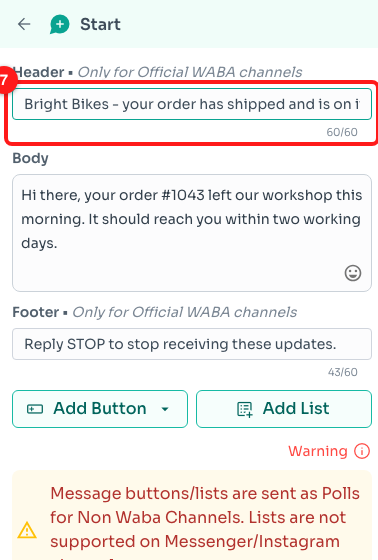
A header pasted in at 67 characters is cut to 60, and the counter reads 60/60 (7).
If your wording will not fit, move the detail into the Body, which has no such limit, and keep the header as a label.
If the fields are locked
When your team has no WhatsApp Business API channel connected, a small padlock appears next to the Header and Footer labels and the boxes themselves are dimmed, so you cannot type in them. Hovering either one shows a card titled Official WABA feature explaining that “Message headers and footers are only sent on official WhatsApp Business API channels.”
The card has one button — Connect WABA · 2 steps →. Clicking it, the padlock, or the dimmed field itself takes you to your Channels page with the Connect Channel dialog already open. Once a WABA channel is connected, the padlocks disappear and both fields become editable everywhere in the builder.
⚠️ Unlocking is decided per team, not per flow. As soon as any WABA channel exists on your team, the fields unlock on every flow — including flows that run on a personal WhatsApp, Messenger or Instagram channel, where the header and footer will not be delivered. Check which channel a flow sends on before you rely on them.
Frequently asked questions
I filled in a header but the customer did not receive it.
Check the channel the flow ran on. Headers and footers are delivered only on official WhatsApp Business API channels; on any other channel the recipient sees the body of the message on its own. Nothing is lost — the text stays saved on the step and will be used if the flow later runs on a WABA channel.
Can I put an image, document or video in the header?
Not from these fields — Header is a plain text box. To send media with the step, use the Image, Video, Audio, Sticker or Document buttons in the "Add" section further down the same panel.
Can I use a contact variable such as a first name in the header?
The Header and Footer boxes do not offer the variable picker that the Body has, so they are best kept as fixed wording. If you need the message to name the contact, put the variable in the Body instead.
Is this the same as the header on an approved WhatsApp template?
No. These fields are part of the flow step you are building. A template message has its own header defined when the template is submitted to Meta for approval, and it is edited on the template rather than in the flow builder.
Why do I see red warnings about buttons and lists just below the Footer?
Those warnings are about a different set of features on the same step. Buttons and lists behave differently off WABA — buttons and lists are sent as polls on non-WABA channels, lists are not supported on Messenger or Instagram, and URL and phone number buttons are WABA-only. They appear whether or not you use a header.
Do headers and footers cost extra?
No. They are part of the message the step already sends and are not charged separately.