
How to Find New Features: What's New, the Badge and Announcements
ChatDaddy ships changes every week. Learn where to find them: the What's New icon in the top bar, its unread count, the hover preview, the full update history and the announcements ChatDaddy sends your team.
Also searched as: How to Find New Features: What's New, the Badge and Announcements, Find the What's New icon in the top bar, Hover the icon for a quick preview, Click the icon to open the What's New window, Open an update to read the whole thing, Hover the sidebar to see where else the window goes, Check Notifications for announcements to your team, The pop-up that opens by itself, Find, Features, What's, Badge, Announcements
ChatDaddy changes most weeks — new features, improvements and fixes. Everything we ship is collected in one place so you never have to guess what moved: the What's New icon in the top bar of the dashboard.
This article is for anyone who wants to keep up with the product, and for anyone who has seen a red number next to that icon and wondered what it is counting.
🎉 Look for the party-popper icon at the top right of the dashboard, between the help icon and your profile picture. Hover it for a quick preview, click it for the full window.
Step-by-step
Step 1 — Find the What's New icon in the top bar
The icon sits in the top bar on every page, so you can reach it from the Inbox, from Flows, from anywhere. When there is something you have not seen yet, a red number appears on it and the icon gives a few small pulses. The number is how many updates are in the latest release — it shows 9+ if there are more than nine.
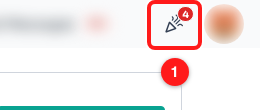
Step 1 — the What's New icon with its unread count (1). The count here says four updates are waiting.
ℹ️ The pulse only plays while something is unread, and it stops after a few beats. A still icon with no number means you are up to date.
Step 2 — Hover the icon for a quick preview
Rest your pointer on the icon for a moment and a preview opens underneath it, listing every update in the release with its picture and title. It is built for scanning — no descriptions, just what changed.
Hover a row and it tells you what clicking it will do. Try it takes you straight to that feature in the app. Learn more appears instead when there is nowhere to send you — usually a change to a channel type your team does not use — and opens the write-up instead. At the bottom, See all updates opens the full window.
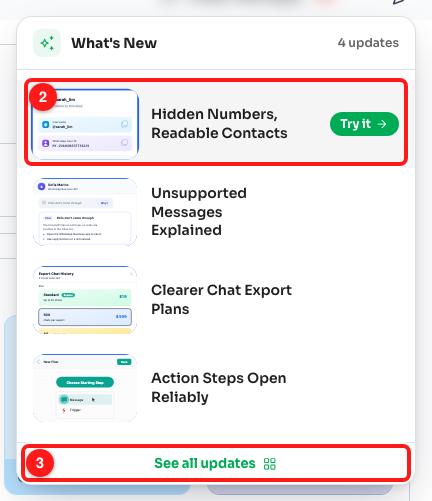
Step 2 — each row is one update; hovering shows Try it or Learn more (2). "See all updates" at the bottom opens the full window (3).
👀 Holding the hover for a second or two counts as having looked at the release, so the red number clears on its own. A pointer that merely crosses the top bar does not.
Step 3 — Click the icon to open the What's New window
Clicking the icon opens the What's new window on the Updates tab: the full release history, newest first, grouped by the day it shipped. This is not only the release you have just been shown — it is everything ChatDaddy has published.
The strip on the left of the list filters by period. All shows the whole history with a total next to it, and under it are the months of the current year with a count each. Click a month to narrow the list, click it again (or click All) to widen it back out. If a month has nothing in it you will see "Nothing shipped in this period".
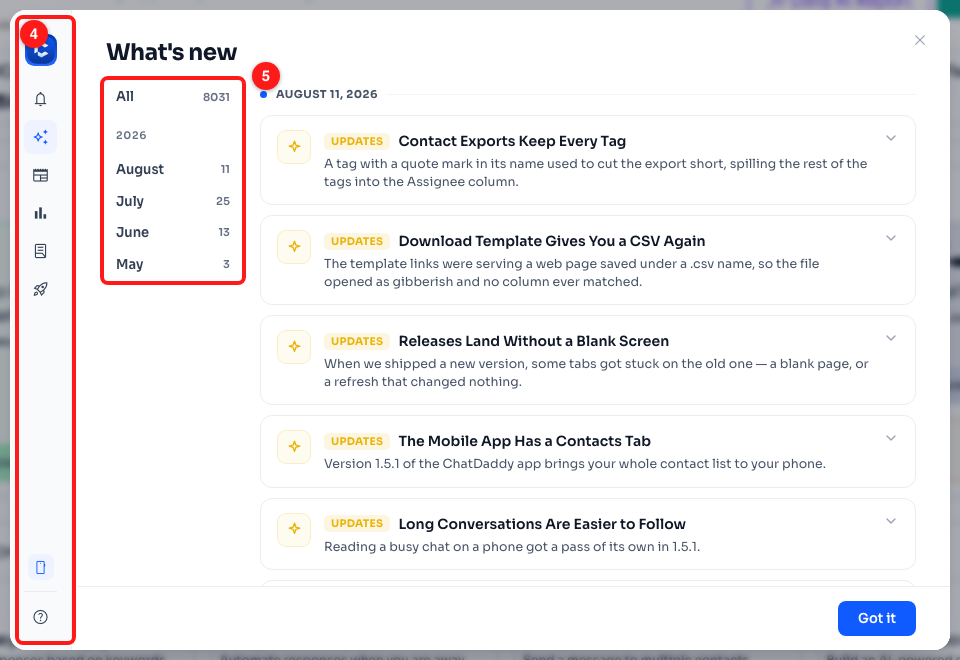
Step 3 — the sidebar of sections (4) and the period filter (5). The list on the right is grouped by release date.
Long lists load in pages — a Load more button at the bottom tells you how many entries are still to come. Got it at the bottom right closes the window.
Step 4 — Open an update to read the whole thing
Each entry shows a coloured tag (New, Improved or Fixed), its title and a one-line summary. Click anywhere on the entry to expand it. Most updates carry an illustration of the change plus the full description, and some add a Learn how it works link to the help centre article, or a button that takes you straight to the feature.
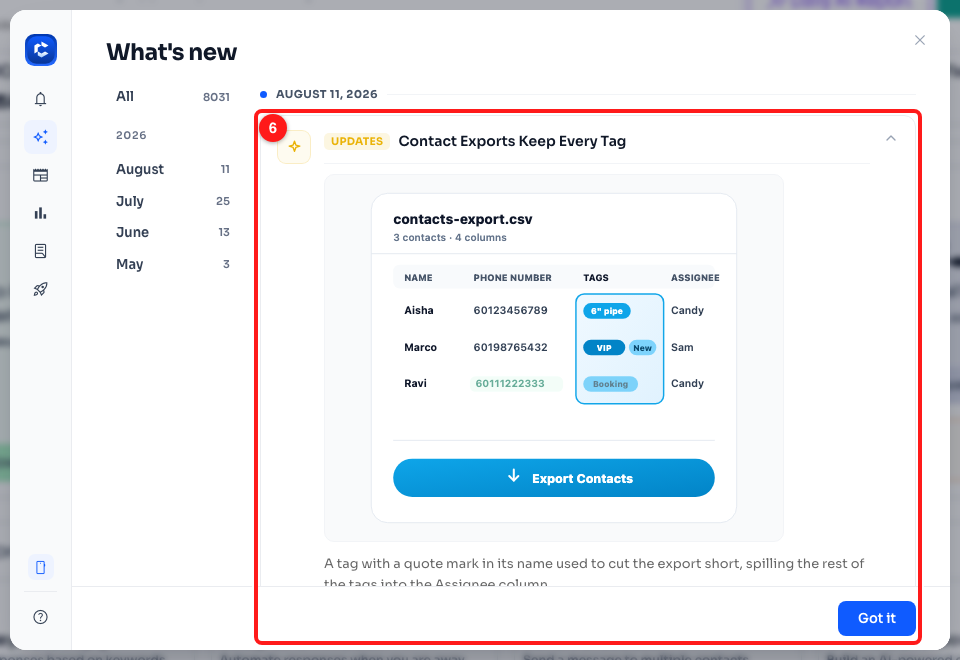
Step 4 — an expanded update with its illustration and full description (6). Click the entry again to collapse it.
Step 5 — Hover the sidebar to see where else the window goes
The narrow strip of icons on the left is a menu. Move your pointer over it and it widens to show the labels:
- Notifications — announcements ChatDaddy has sent your team, with a count of the unread ones.
- Updates — the release history you are already looking at. A small dot marks a release you have not opened.
- News — platform news from WhatsApp, Instagram and Facebook that may affect your messaging.
- Usage — what your team has spent its credits on.
- Reports — downloadable credit and billing reports.
- Get started — your onboarding checklist, with how many steps are done.
Below the menu there is a card for downloading the ChatDaddy mobile app, and Help centre at the very bottom, which opens this help site in a new tab. The line under the ChatDaddy name is the app version you are running — handy to quote if you ever report a problem.
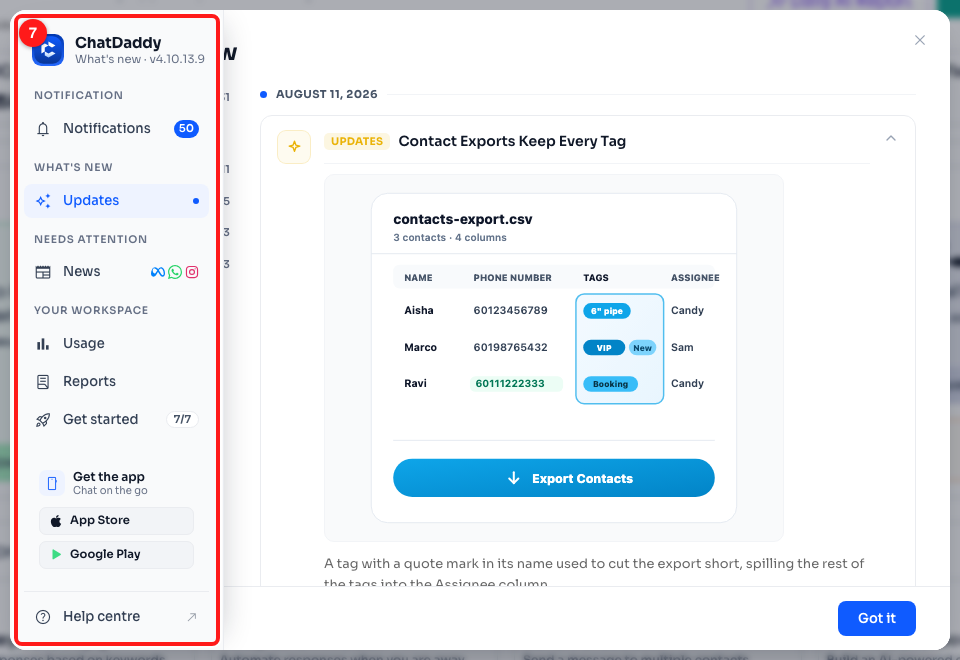
Step 5 — the sidebar expanded on hover (7), with an unread count on Notifications and a dot on Updates.
📱 On a phone or tablet the sidebar stays as icons rather than widening, so a stray tap cannot cover the screen. Tapping an icon still switches section.
Step 6 — Check Notifications for announcements to your team
Product updates are one thing; announcements are another. Notifications holds the messages ChatDaddy sends your team directly — maintenance windows, service incidents, WhatsApp pricing changes and similar. They are listed newest first, and a blue dot marks the ones you have not read. Click a row to read it in place.
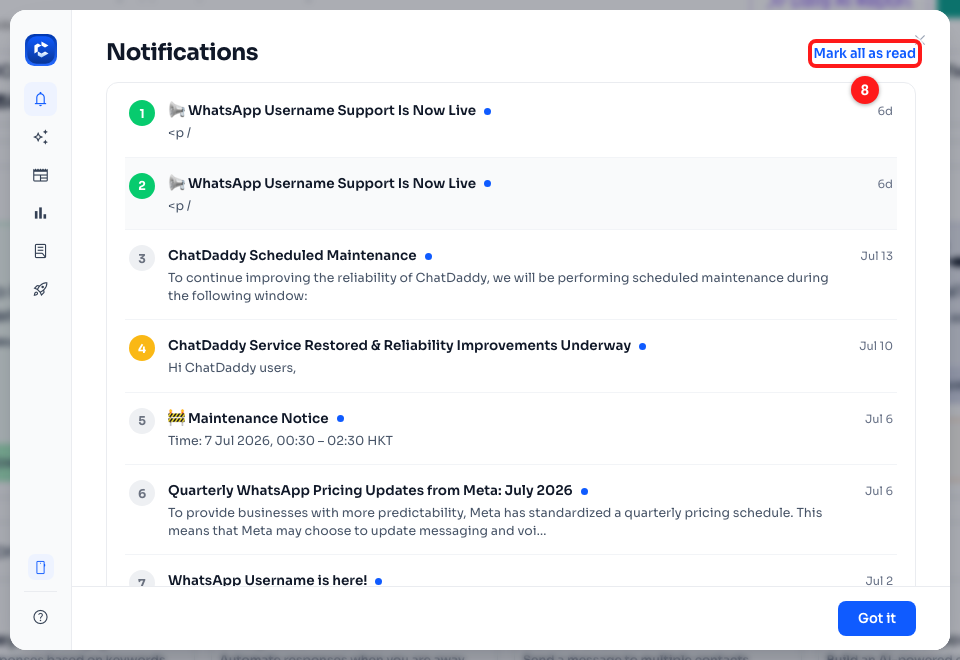
Step 6 — announcements with unread dots, and "Mark all as read" in the top right (8).
Mark all as read clears the unread dots and the count on the sidebar. It only appears while something is unread.
The pop-up that opens by itself
After a release you may find a What's New pop-up opening on its own about a minute after you start using ChatDaddy. It shows the first few updates in the release and offers See what's new, which opens the full window, and Maybe later, which just closes it.
It is deliberately quiet about it:
- It opens once per release, per team — not on every page load, refresh or new tab.
- It waits until you have been in the app for a while, and it never interrupts another dialog that is already on screen.
- It skips teams that signed up in the last few days, who are still learning the basics.
- If you have already opened the release yourself, it does not appear at all.
👍 Closing it with Maybe later loses nothing. The same release stays on the What's New icon until you open it.
Frequently asked questions
The red number came back after I had already read everything.
Two things can do that. Either ChatDaddy has published a new release since you last looked — which is the point of the number — or you have opened ChatDaddy in a different browser, a private window or on another computer. Whether you have seen a release is remembered in the browser you read it in, so a fresh browser starts you at unread again.
The number will not go away.
Hover the icon and hold the pointer there for a couple of seconds, or open the window and read the release. If the count survives that, your browser is most likely blocking site storage (common in private mode or under a strict company policy), so nothing can be remembered between page loads.
Nothing happens when I hover the icon.
The preview is a pointer feature. On a touchscreen there is no hover, so tap the icon instead — that opens the full window, which has the same updates and more detail.
It says "Showing this release — the full update history could not be reached."
The window pulls the archive from ChatDaddy's update service. If that request fails — usually a network or firewall problem on the way out — you still get the release built into the app you are running, but not the older history. Close the window and open it again once your connection is steady.
An update says "Learn more" instead of taking me to the feature.
That update has nowhere useful to send you: either it changed something that has no page of its own, or it applies to a channel type your team has not connected — WhatsApp Business API features, for example, are only offered to teams with a WhatsApp Business API channel. "Learn more" opens the write-up instead.
Where do I ask for a feature that is not there?
Open the What's New window, hover the sidebar and choose Help centre, or use the Help page in ChatDaddy to reach support. Feature requests go to the product team directly.