Getting Started: Onboarding & Logging In (Mobile App)
The first time you open the ChatDaddy app: a short welcome tour, then signing in with your phone number and password (or Google). How to skip the tour and where to create an account.
Also searched as: getting started, onboarding, first time setup, mobile app login, sign in mobile, welcome tour, phone login, create free account, app setup, new user
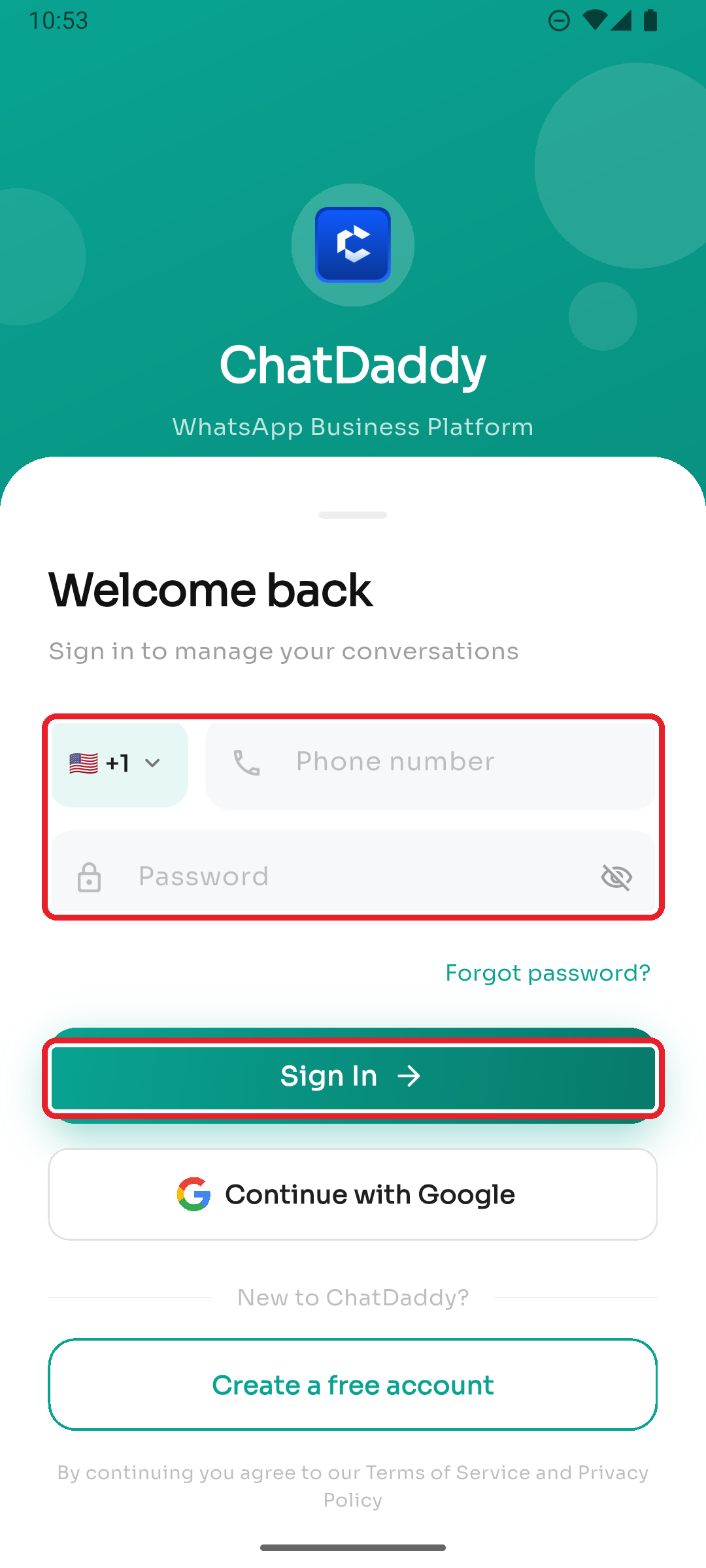
The first time you open the ChatDaddy app, a short intro walks you through what it does, then you sign in. (In each screenshot, the red box shows where to tap.)
Step 1 — Welcome tour
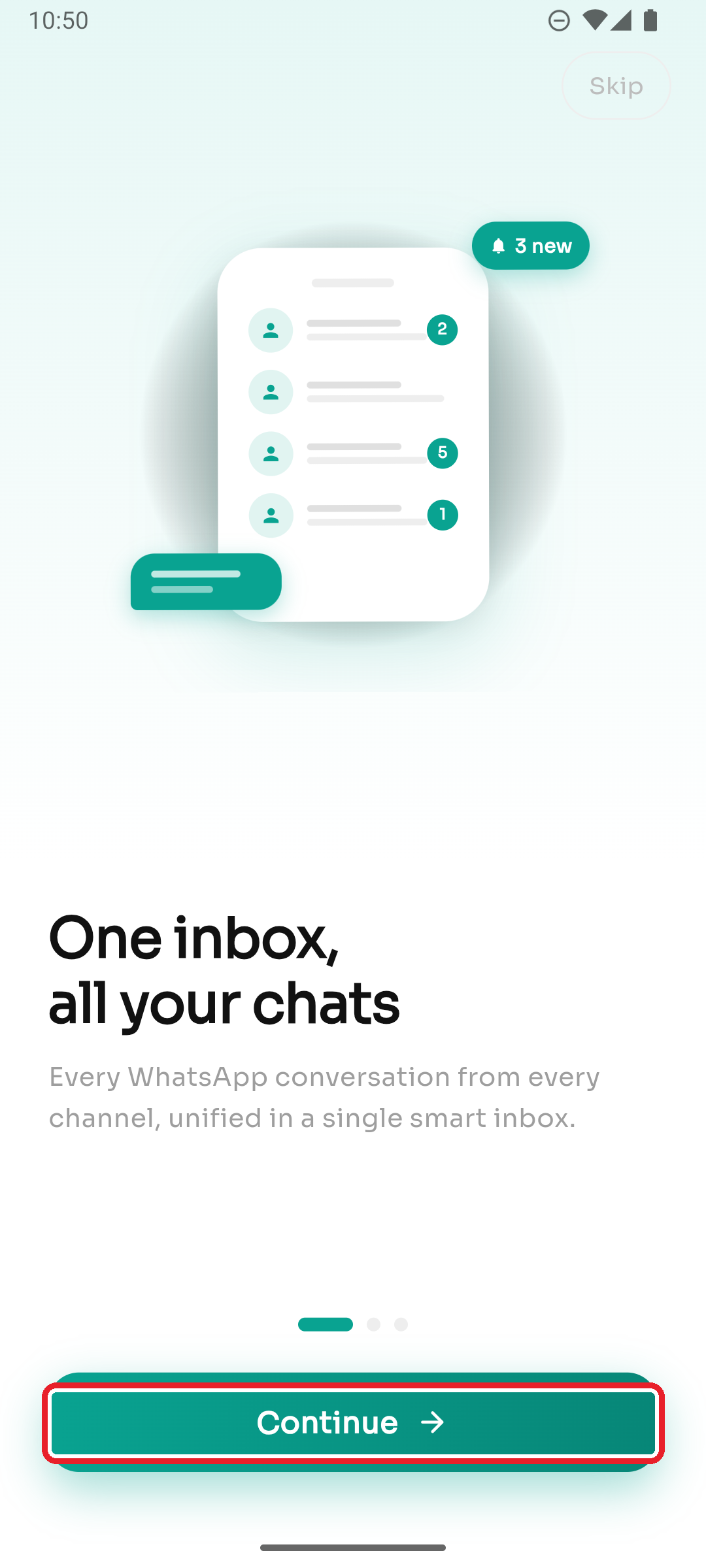
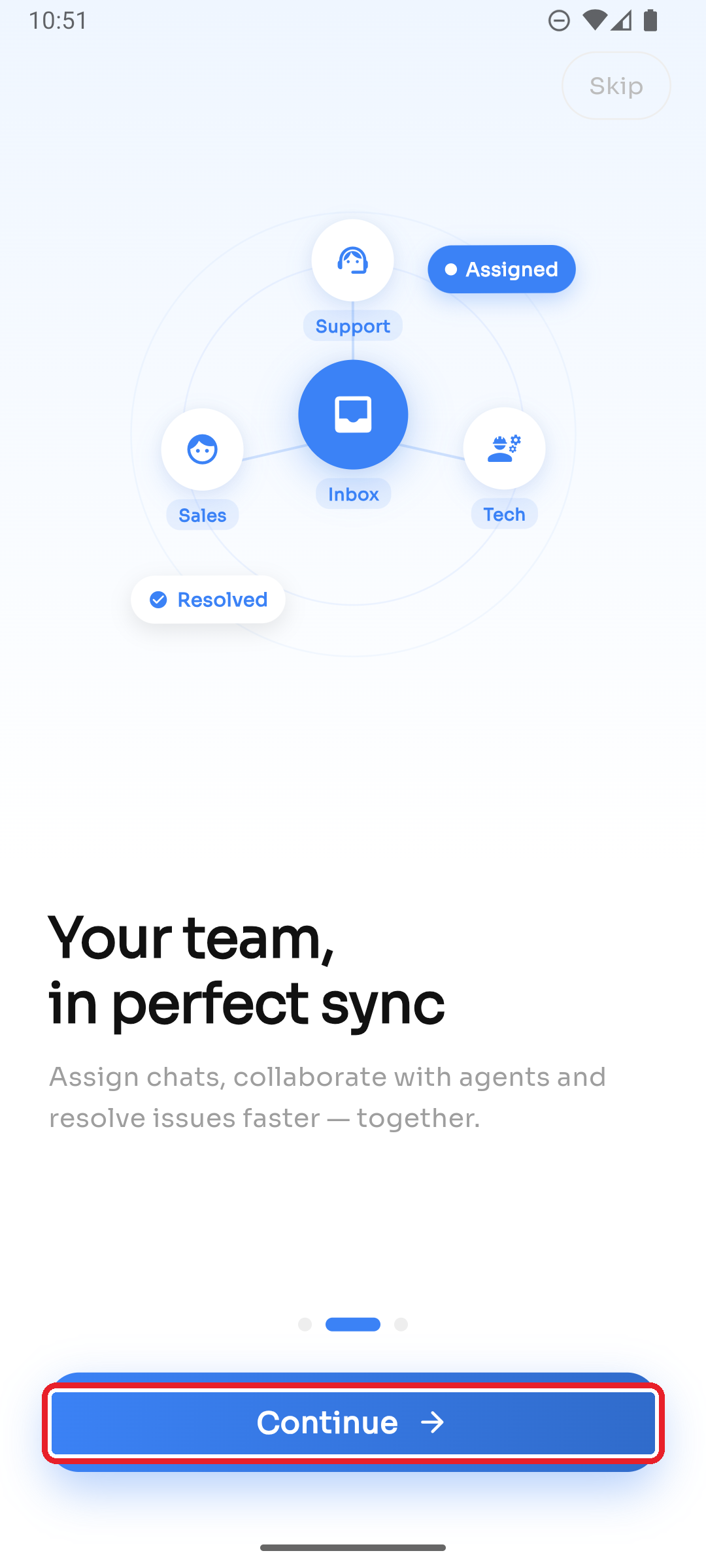
On first launch you'll see a three-screen intro:
- One inbox, all your chats — tap Continue.
- Your team, in perfect sync — tap Continue.
- Automate everything — tap Get Started.
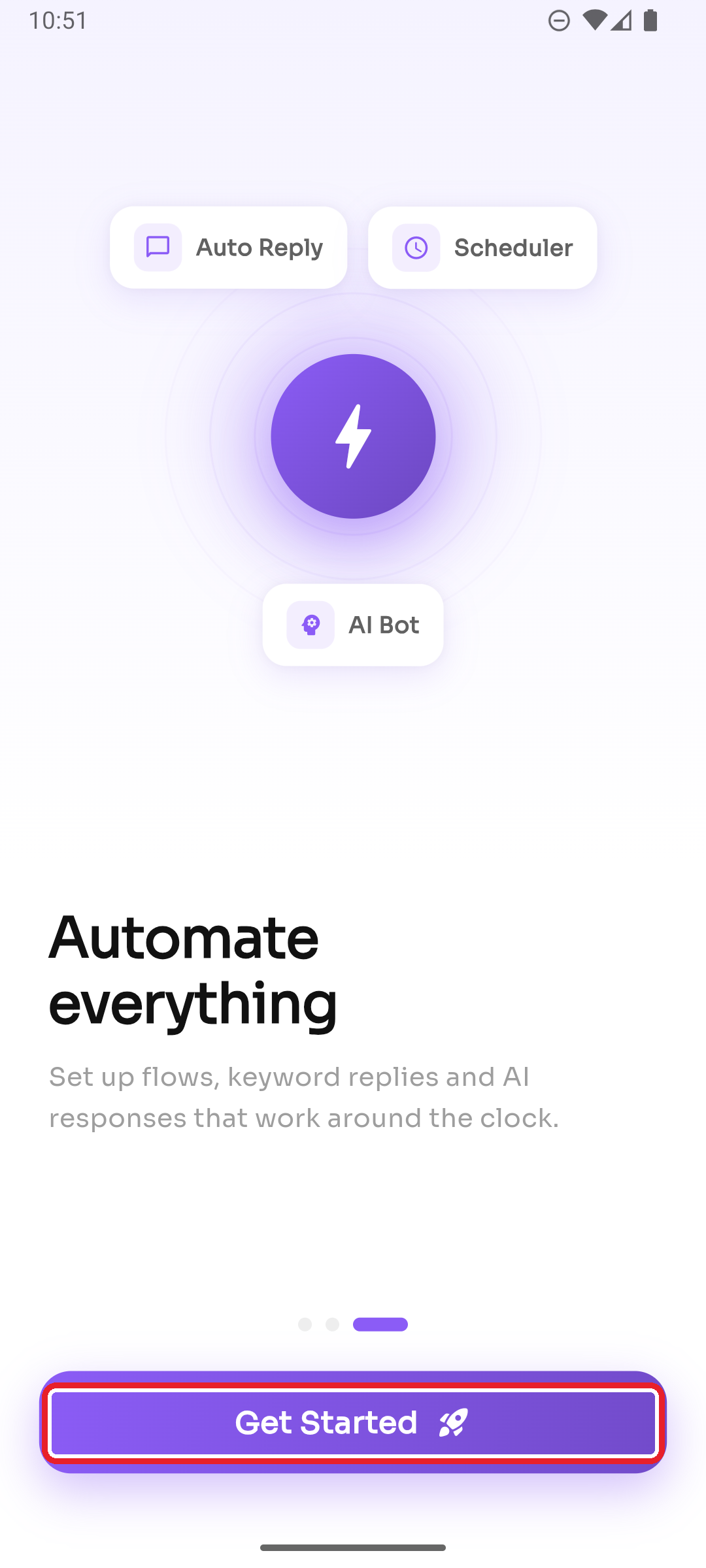
You can tap Skip in the top corner at any time to jump straight to sign-in.
Step 2 — Sign in
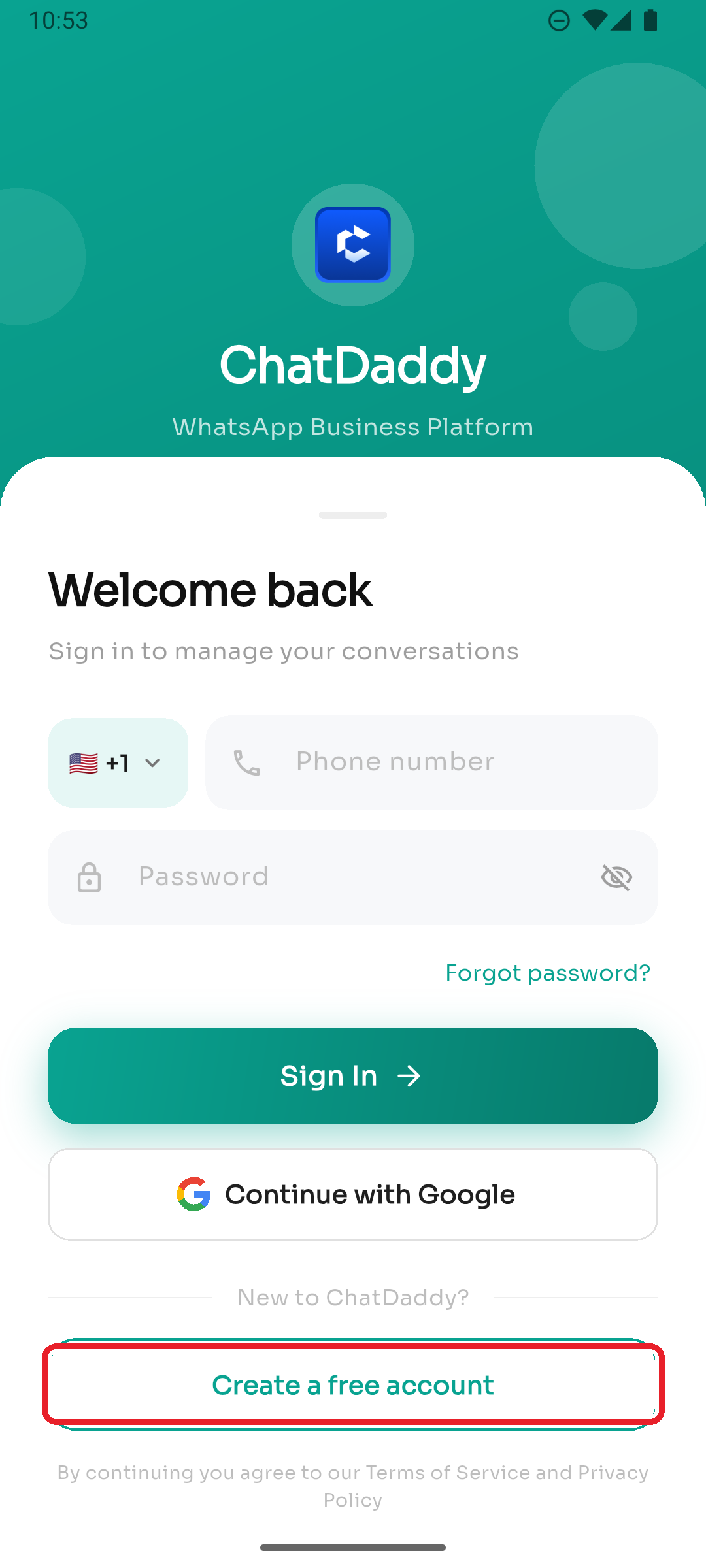
On the Welcome back screen, select your country code, enter your phone number and password, then tap Sign In. (Tap the eye icon to check your password, or Forgot password? to reset it.)
Prefer Google?
You can also tap Continue with Google to sign in with a Google account in one tap — see How to Sign In or Sign Up with Google.
New to ChatDaddy?
Tap Create a free account to sign up (this opens the sign-up page in your browser).