
How to Load Older Messages Into a Chat
A conversation opens at its newest message and loads the rest as you scroll up. Learn how to reach the older messages, how to tell when you have hit the start of what ChatDaddy holds, why some history is not there at all, and how to get back to the present afterwards.
Also searched as: How to Load Older Messages Into a Chat, Open the conversation, Scroll up to load the next batch, Recognise the start of the history, Get back to the newest message, Load, Older, Messages, Chat
When you open a chat in the Inbox, ChatDaddy shows you the newest messages first. The rest of the conversation is not missing — it loads a batch at a time as you scroll upwards, in the same way WhatsApp does on your phone.
This article covers how to get back through a long conversation, how to recognise the point where the history runs out, and what it means when the messages you are looking for never appear.
⚠️ ChatDaddy can only show you messages it has stored, and it starts storing from the moment the channel was connected. Conversations that happened before you connected the channel are not in ChatDaddy, and no amount of scrolling will bring them in.
Step-by-step
Step 1 — Open the conversation
Go to the Inbox and click the chat you want in the list on the left. It opens in the message pane on the right, scrolled to the most recent message so you can reply straight away.
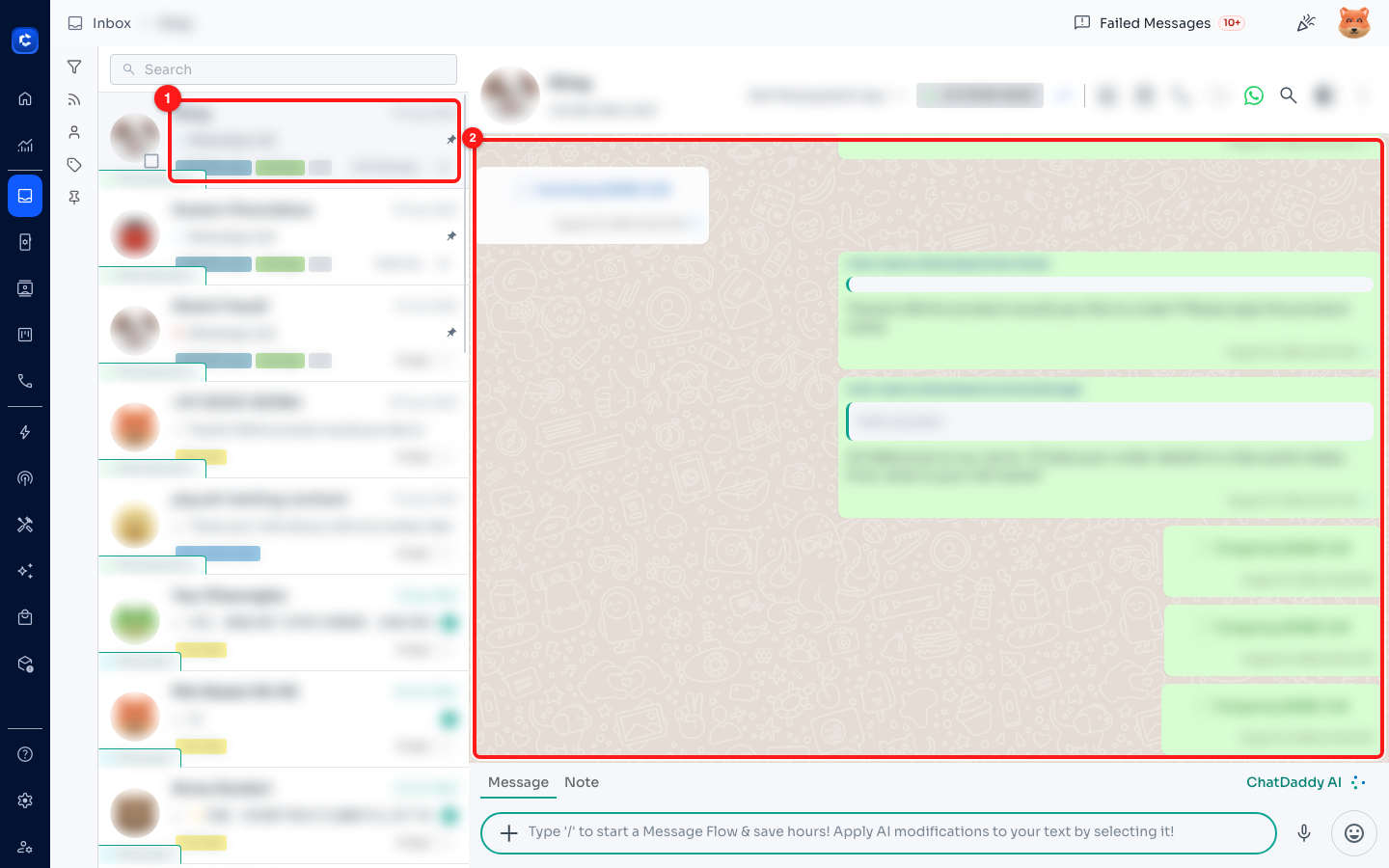
Step 1 — pick the conversation in the chat list (1) and it opens in the message pane (2). Customer details are blurred here; on your screen you will see the real names and messages.
Step 2 — Scroll up to load the next batch
Scroll upwards inside the message pane. ChatDaddy fetches the next 15 messages each time you reach the top, and a thin green progress bar runs across the top of the conversation while that batch is on its way.
Wait for the bar to disappear before scrolling again — the older messages are inserted above what you are reading, so the conversation grows upwards and your place in it does not move.
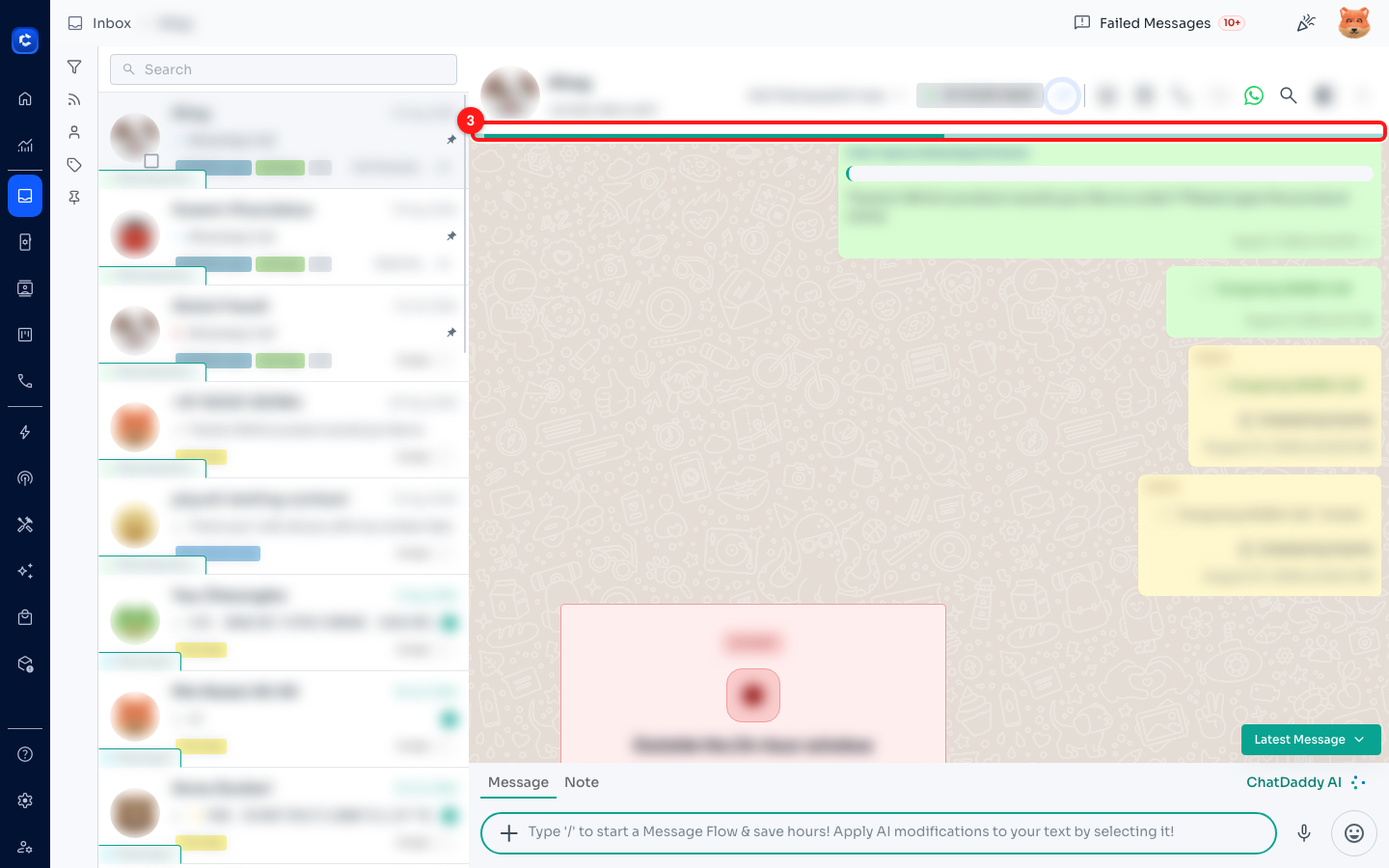
Step 2 — the green progress bar (3) across the top of the conversation while the next batch of messages is fetched.
💡 For a conversation that goes back months this is a lot of scrolling. If you know roughly what was said, it is far quicker to use the magnifier in the chat header to search that conversation and jump straight to the message.
Step 3 — Recognise the start of the history
Keep going and eventually the pane stops growing: the oldest message ChatDaddy holds for this chat sits at the top with nothing above it, and no more progress bars appear. That is the beginning of the stored history, not a loading failure.
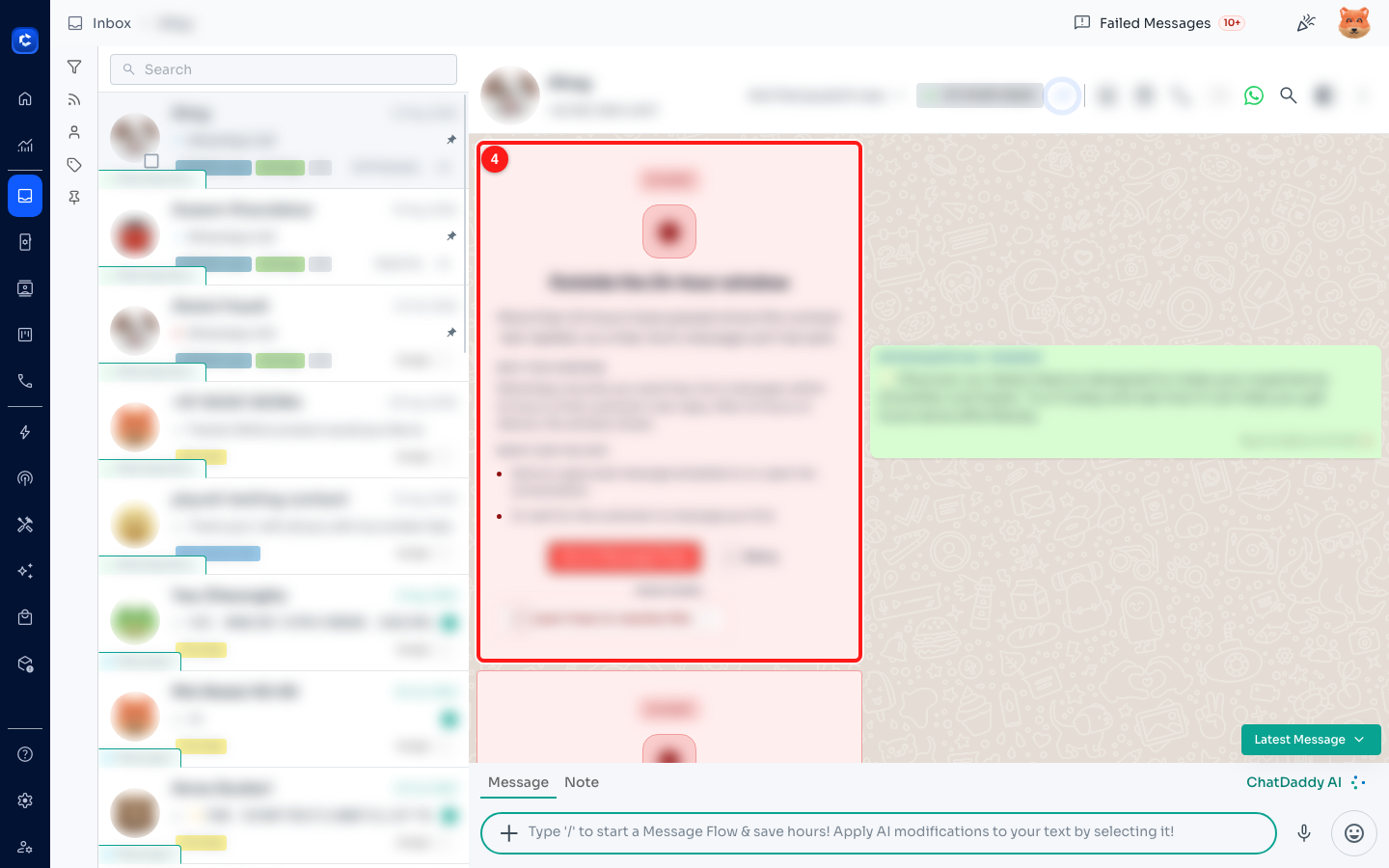
Step 3 — the oldest message ChatDaddy has for this conversation (4). Nothing loads above it because there is nothing more stored.
On a WhatsApp channel connected by QR code — and on TikTok — you get an explicit marker instead. A grey line appears at the top of the conversation reading “Use WhatsApp on your phone to see older messages.” That line is the boundary: everything above it is still on the phone that the channel is linked to, and you can read it there in the WhatsApp app.
ℹ️ You will not see that line on a WhatsApp Business API, Messenger, Instagram, SMS or Email channel. Those channels have no phone for ChatDaddy to reach into, so the stored history is all there is.
Step 4 — Get back to the newest message
Once you have scrolled a fair way back, a green Latest Message button appears in the bottom-right corner of the conversation. Click it to jump straight to the live end of the chat, ready to reply — much faster than scrolling all the way down again.
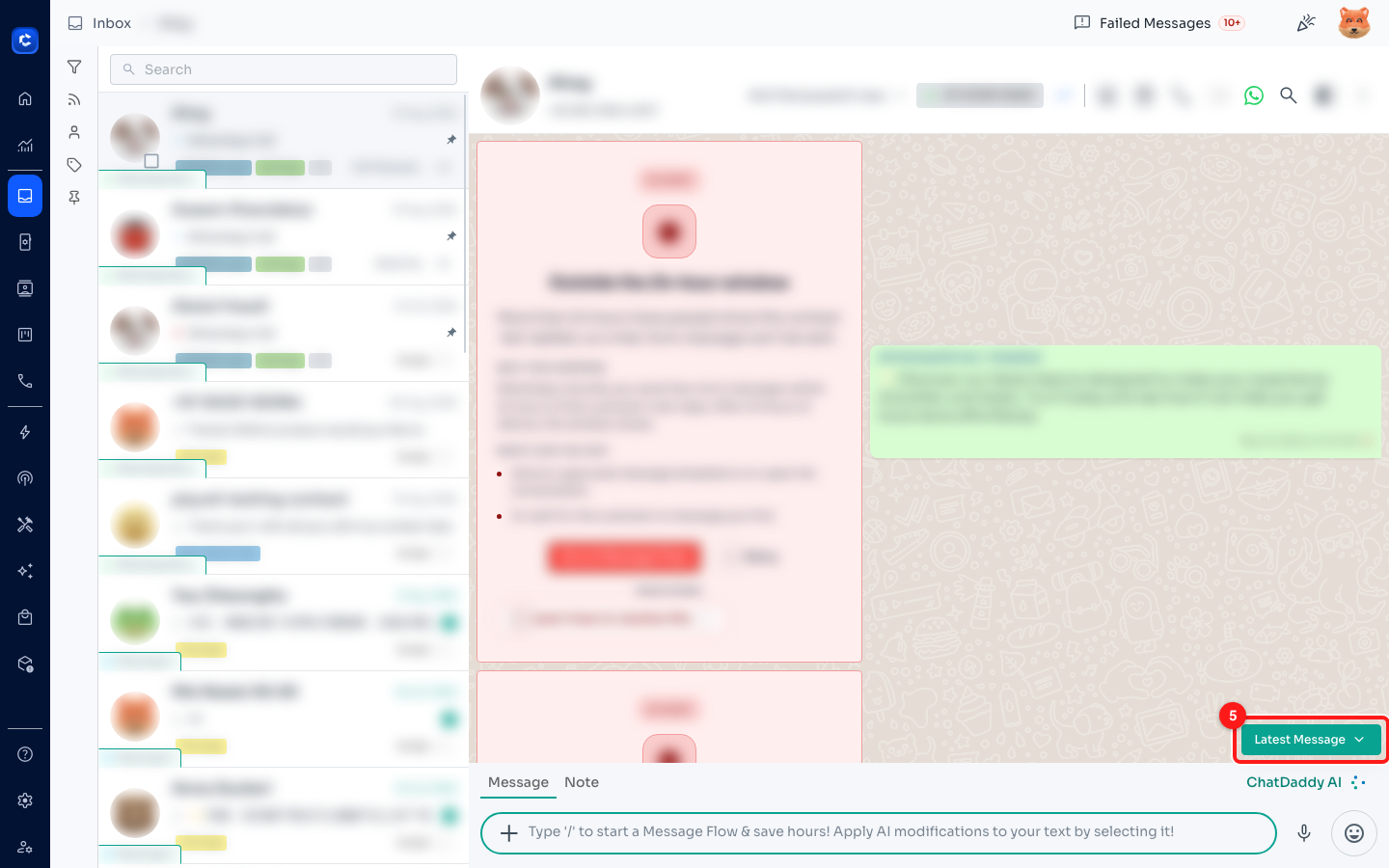
Step 4 — the Latest Message button (5) returns you to the present.
📌 Messages you load stay loaded only while you are in that chat. Switch to another conversation and come back, and it opens at the newest message again — you will need to scroll back up.
Troubleshooting
I scrolled to the very top and the messages I need are still not there.
Those messages are almost certainly from before the channel was connected to ChatDaddy, so they were never stored here.
On a WhatsApp channel connected by QR code, open WhatsApp on the linked phone and read them there. Reconnecting or rescanning the QR code does not backfill them.
On a WhatsApp Business API channel, Meta does not hand over conversations from before you connected, so there is nothing for ChatDaddy to fetch. Export the history from wherever those chats were being handled before, if you still need it.
The conversation looks emptier than it should.
Check whether a filter is narrowing what the pane shows. If you have opened the chat from a filtered view — unread only, failed messages, or an activity view — you are looking at a subset, not the whole conversation. Clear the filter and open the chat again.
Scheduled messages can also be hidden. When they are, a grey line in the conversation tells you how many, for example “3 scheduled messages hidden”.
Loading stops with “Failed to Load Messages”.
This is a network or connection problem rather than a problem with the chat. Click Try Again on the message and the same batch is requested again.
If it keeps failing, check your own internet connection first, then check the channel is still connected under Channels — a channel that has dropped out cannot serve message history.
“Loading Messages From Phone…” is taking a long time.
This only happens on a QR-linked WhatsApp channel, where ChatDaddy has to ask your phone for the messages. ChatDaddy shows the same three tips while it waits:
• Make sure your phone is connected to the internet.
• If it is taking longer than 10 seconds, open WhatsApp on your phone.
• If it is taking longer than 30 seconds, close WhatsApp on your phone from multitasking and reopen it.
A phone that is asleep, out of battery-saver reach or off the network is the usual cause.
Older attachments will not open even though the message is there.
Message text and media are stored separately, and media is kept for a shorter period. An old message can therefore load perfectly while its image, video or PDF no longer opens. There is a separate article on this — see Related articles below.