
How to Open Help Articles Inside the App (the (i) Button)
A small (i) button now sits in the header of Contacts, Broadcasts, Message Flows, Channels, Orders, CRM and more. Click it and the matching help article opens in a panel beside your work — nothing navigates away, and nothing you were half-way through is lost.
Also searched as: How to Open Help Articles Inside the App (the (i) Button), Find the (i) button in the page header, Click it and read the article in place, Go deeper: full article, or ask Caven AI, Close the panel and carry on, The same button, a different answer on every page, Where else you will find it, Tips, Open, Help, Articles, Inside, Button
Until now, looking something up meant leaving ChatDaddy: open a new tab, find the help centre, search, read, come back and hope your half-finished broadcast was still there. That round trip is gone. Every main page now carries a small (i) button in its header, and clicking it opens the article for that page in a panel on the right — over your work, not instead of it.
ℹ️ The (i) button never navigates. The page underneath keeps its state — a draft message, a flow mid-edit, a filtered list — so you can read the answer and go straight back to what you were doing.
Before you start
- Nothing to switch on. The button is already there for every teammate, on every plan that has the page in question.
- Hovering it shows the tooltip Learn More — on some screens it is more specific, such as Learn about CRM boards on the CRM board header.
- The panel is the help centre embedded in the app, so it always shows the current version of an article.
Step-by-step
Step 1 — Find the (i) button in the page header
Open any main page — Contacts is a good place to start. Look along the toolbar row that holds Filter, the search box and the page's buttons: the (i) sits just to the left of the primary action, in this case + Create. It is a circled lower-case i, drawn in grey so it never competes with the buttons around it.
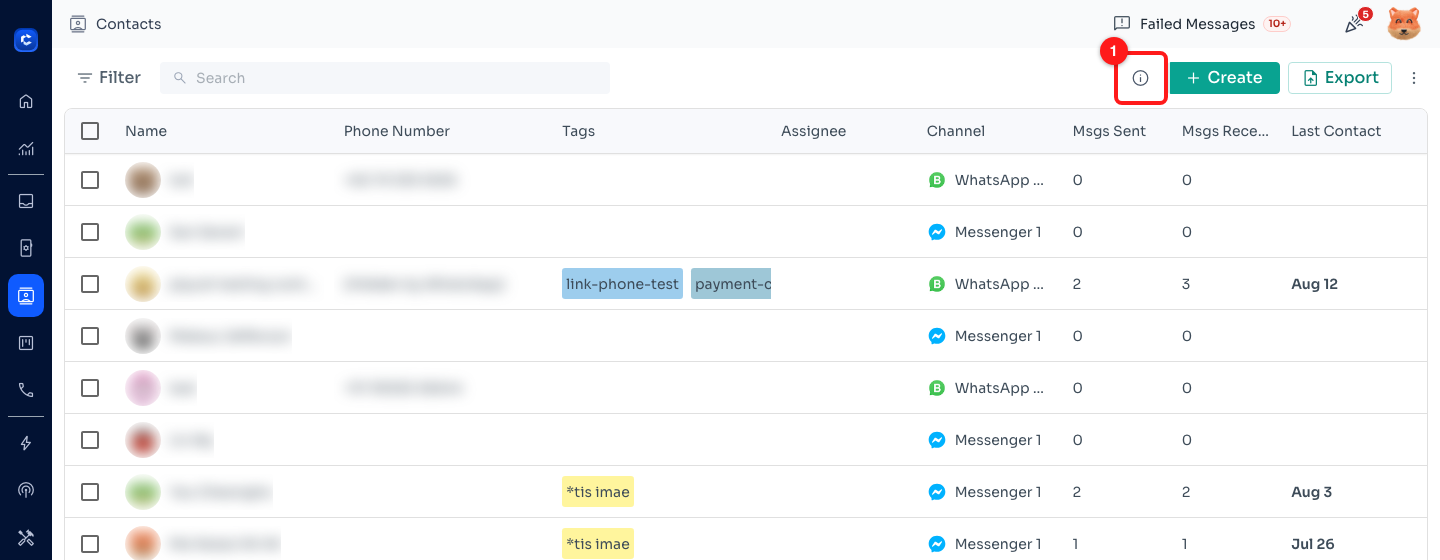
Step 1 — the (i) button (1) in the Contacts header, next to + Create. Contact names and phone numbers are blurred in these screenshots.
Step 2 — Click it and read the article in place
Click the (i). A panel headed ChatDaddy Help slides in on the right and loads the article that belongs to this page — from Contacts, that is Contacts Video Walkthrough, with its category shown above the title. The list behind it is untouched: same filters, same scroll position, same selection.
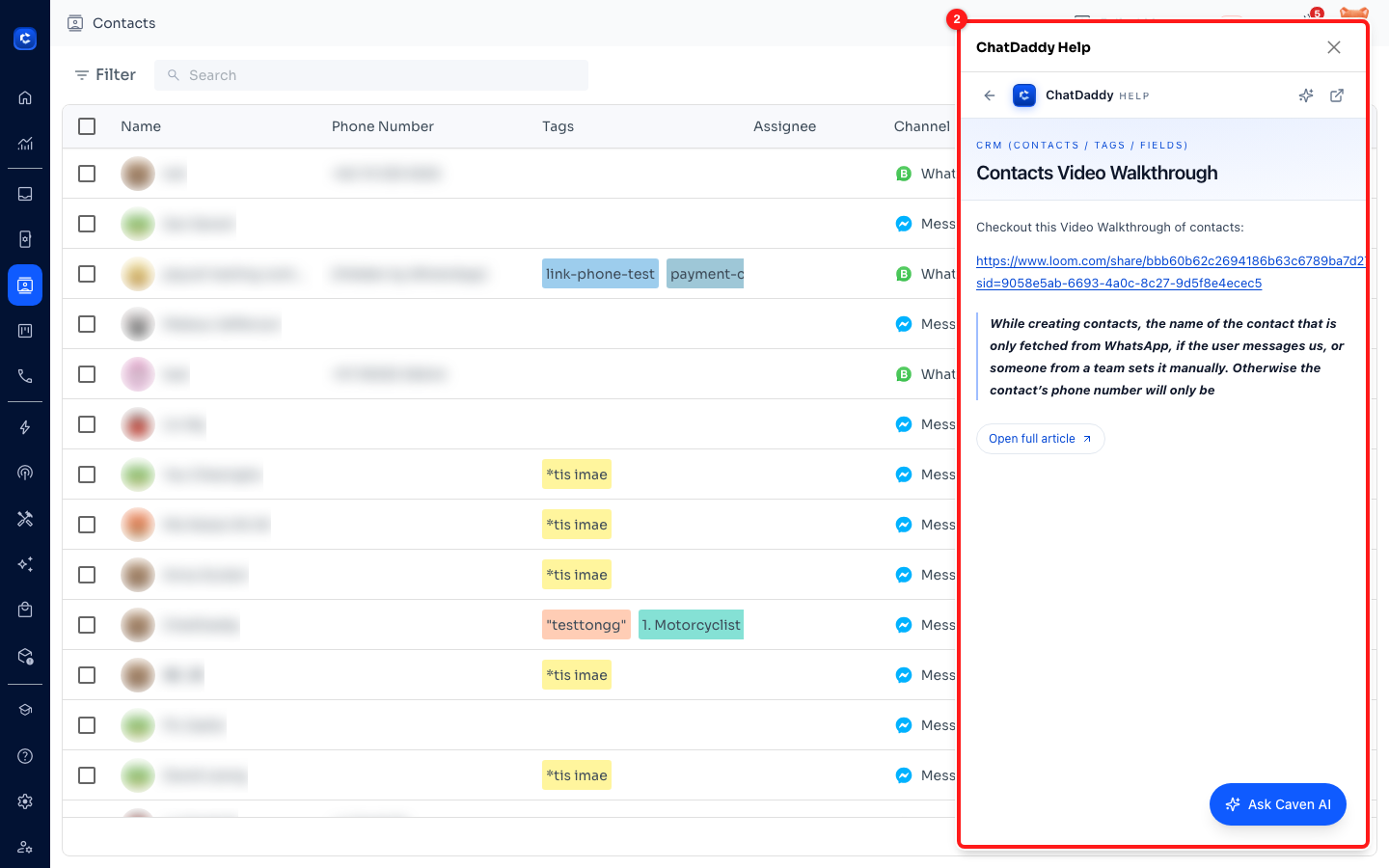
Step 2 — the help panel (2) opens over the right-hand side of the page, with the Contacts article already loaded.
Step 3 — Go deeper: full article, or ask Caven AI
The panel is a working help centre, not a static card. Three controls are worth knowing:
- Open full article — opens the same article on the full help centre, useful when it is long or you want it side by side with the app.
- Ask Caven AI — describe the problem in your own words and get an answer drawn from the same help articles, instead of picking through a list.
- The back arrow at the top left leaves the article and shows the help home, where you can search or browse every category.
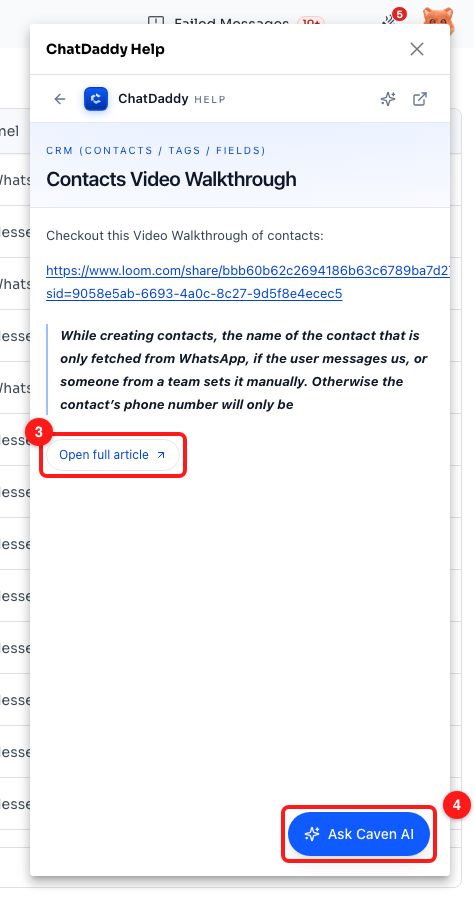
Step 3 — Open full article (3) and the Ask Caven AI button (4) inside the panel; the back arrow at the top left returns to the help home.
Step 4 — Close the panel and carry on
Click the ✕ in the panel header — or press Esc, or click anywhere on the page behind it. The panel closes and you are exactly where you were. Nothing was submitted, nothing was reloaded.
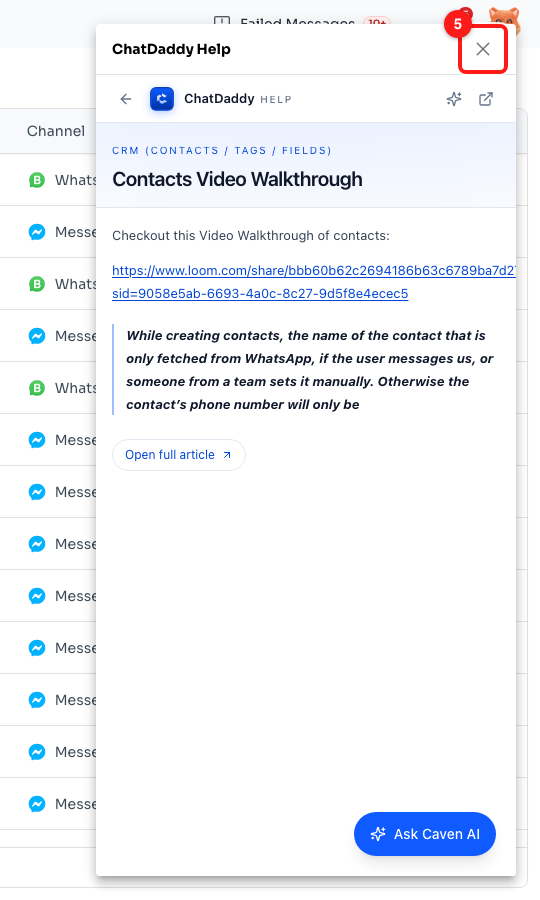
Step 4 — the close button (5) in the panel header. Esc and a click outside the panel do the same thing.
Step 5 — The same button, a different answer on every page
The (i) is context-aware: it opens the article for the page you are on, not a generic help index. Open Channels and click the (i) in its header, and the panel loads How to Reconnect a Channel on ChatDaddy — the question that page actually produces.
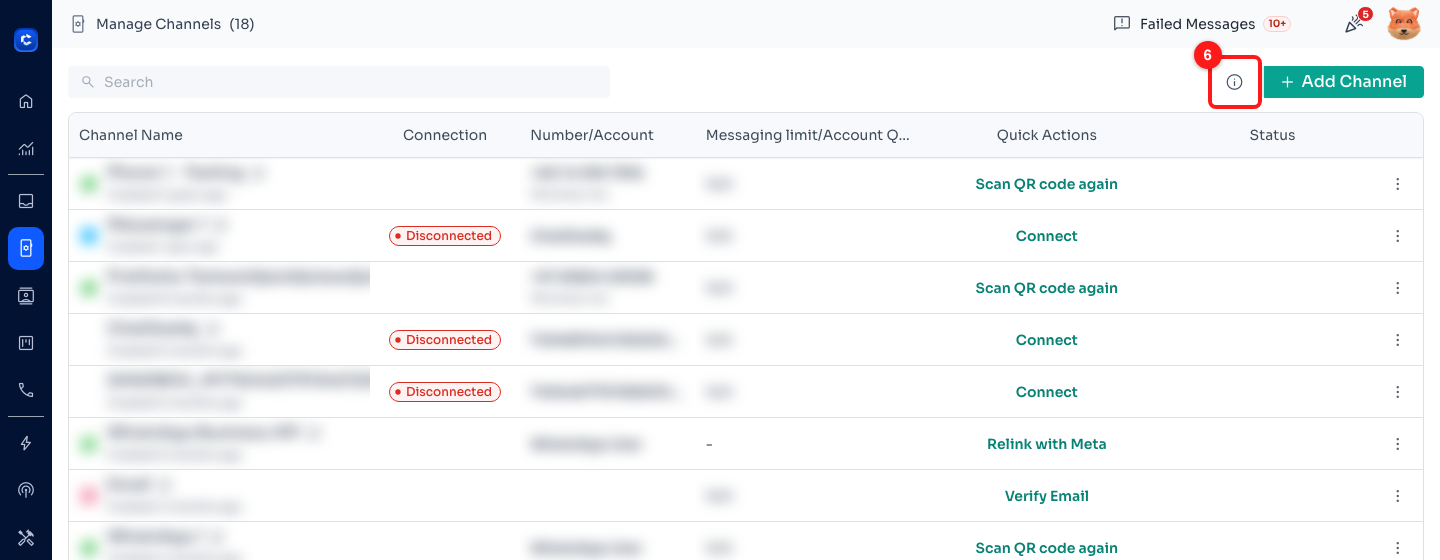
Step 5 — the same (i) button (6) on the Channels page, beside + Add Channel. Channel names and numbers are blurred here.
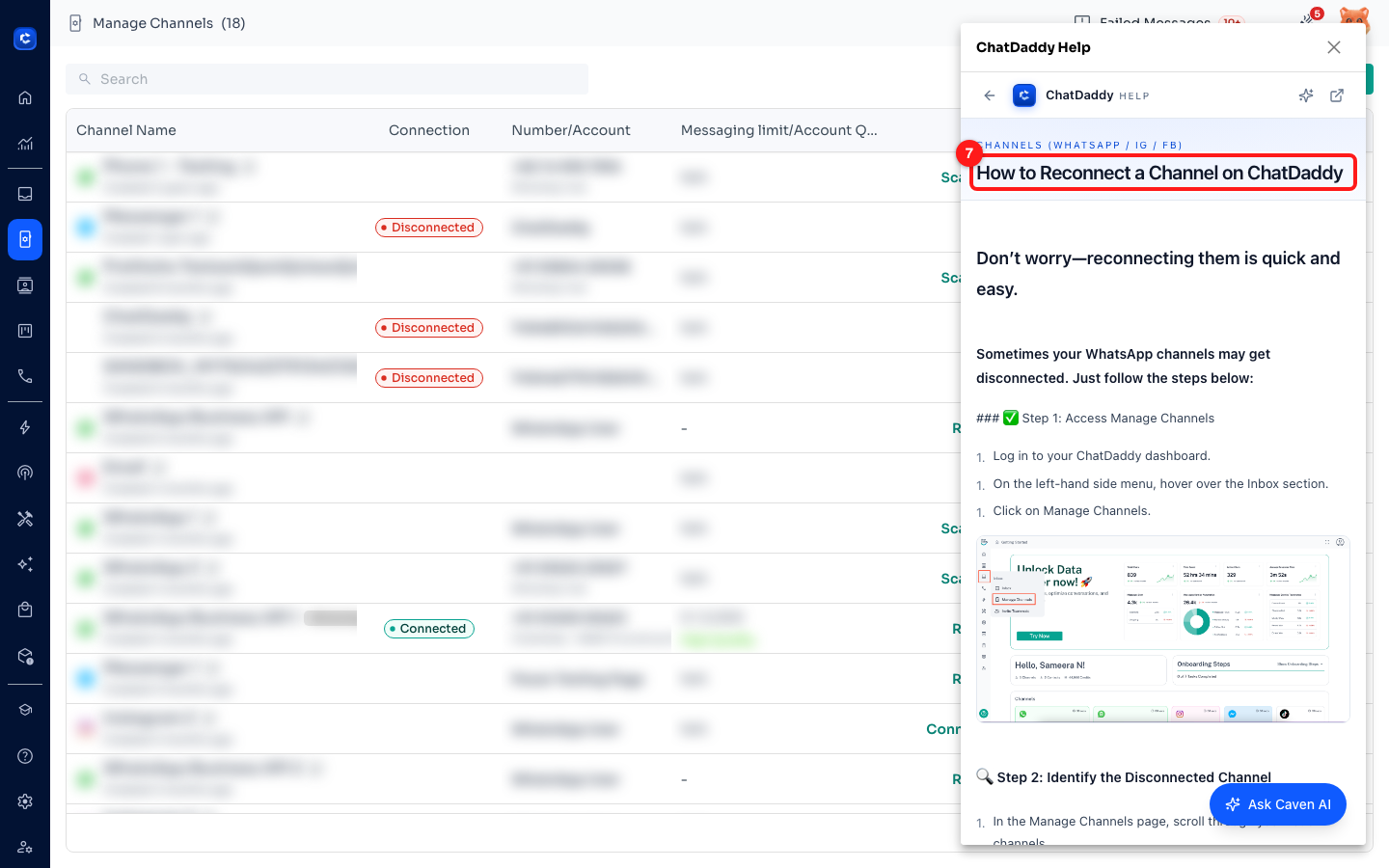
Step 5 — from Channels the panel opens a different article (7): How to Reconnect a Channel on ChatDaddy.
Step 6 — Where else you will find it
The same button sits in the header of most working pages. A few examples:
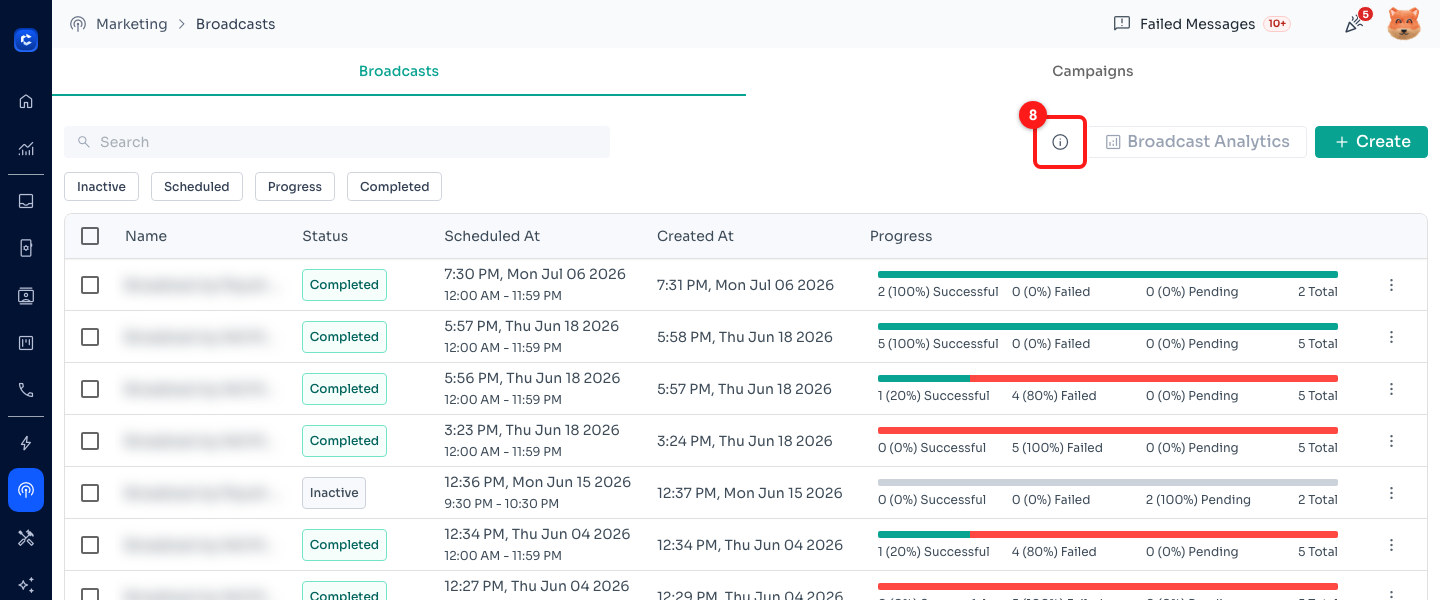
Broadcasts — the (i) (8) beside Broadcast Analytics and + Create opens the broadcast guide. Broadcast names are blurred here.
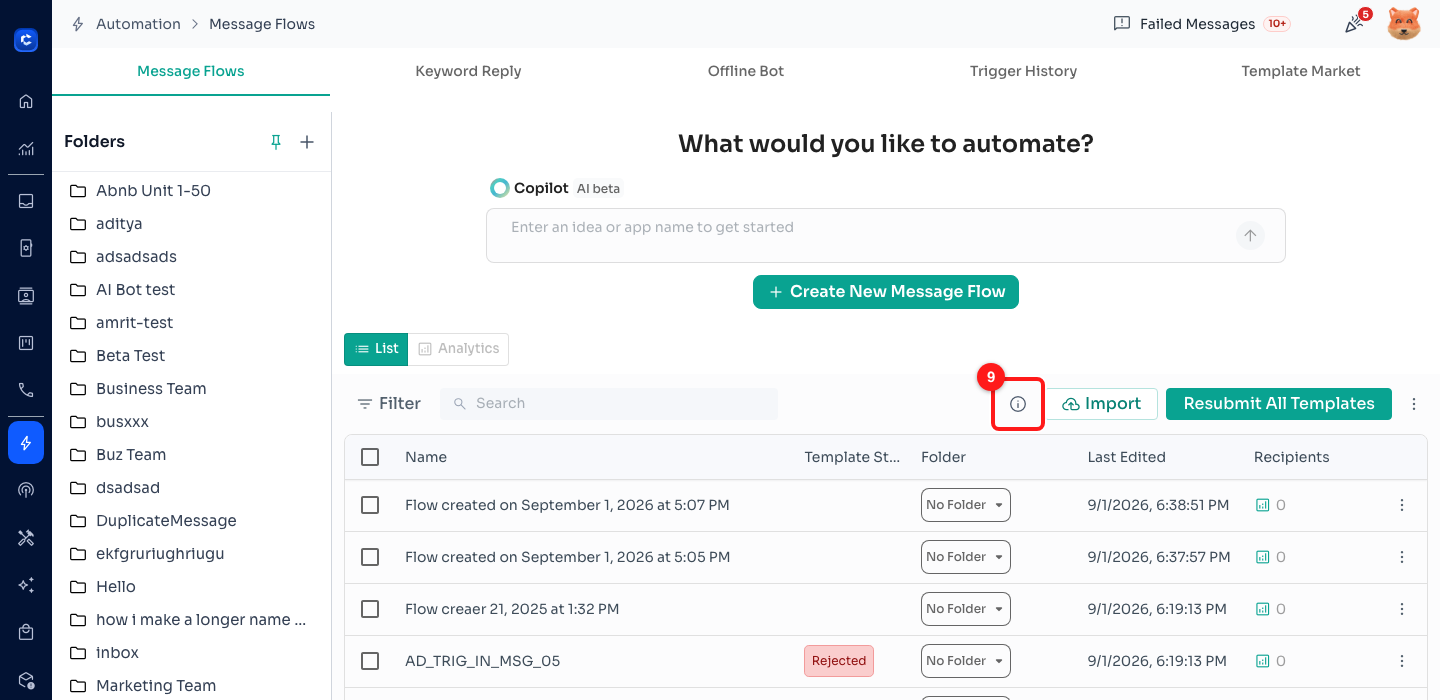
Message Flows — the (i) (9) on the flow list toolbar, next to Import.
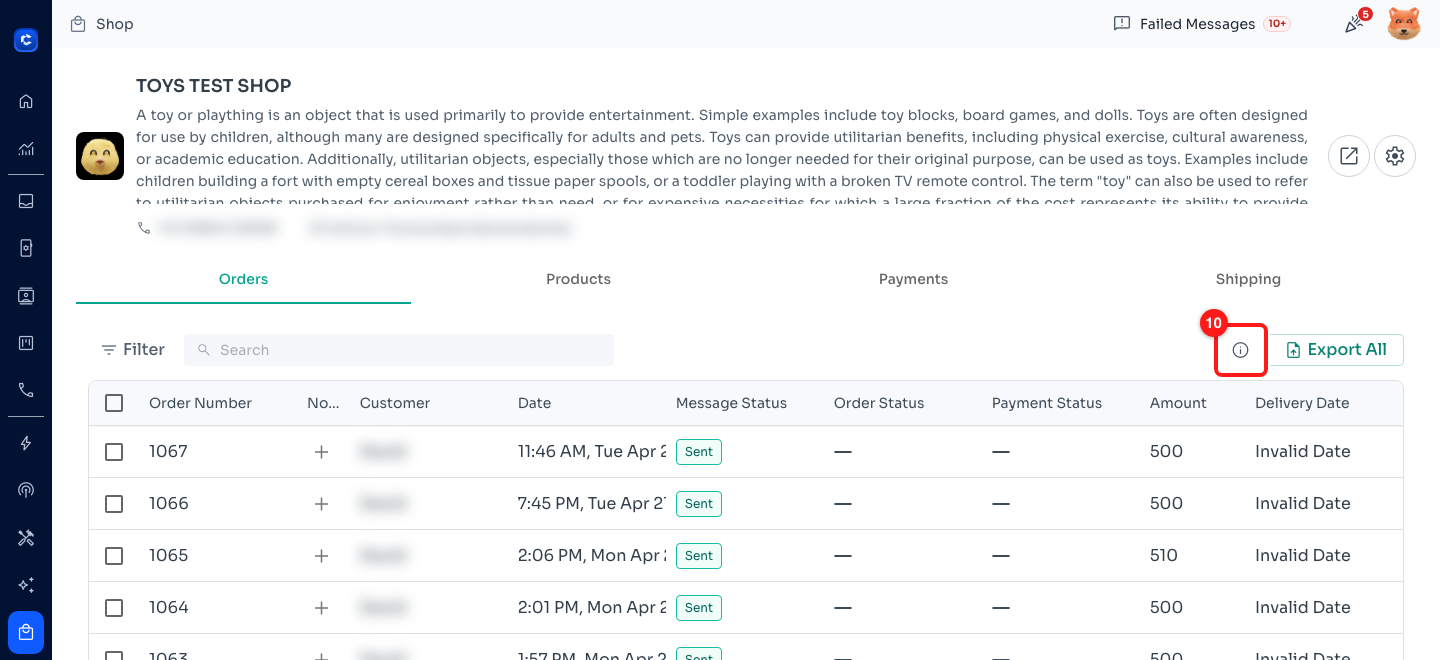
Shop → Orders — the (i) (10) beside Export All. Customer names are blurred here.
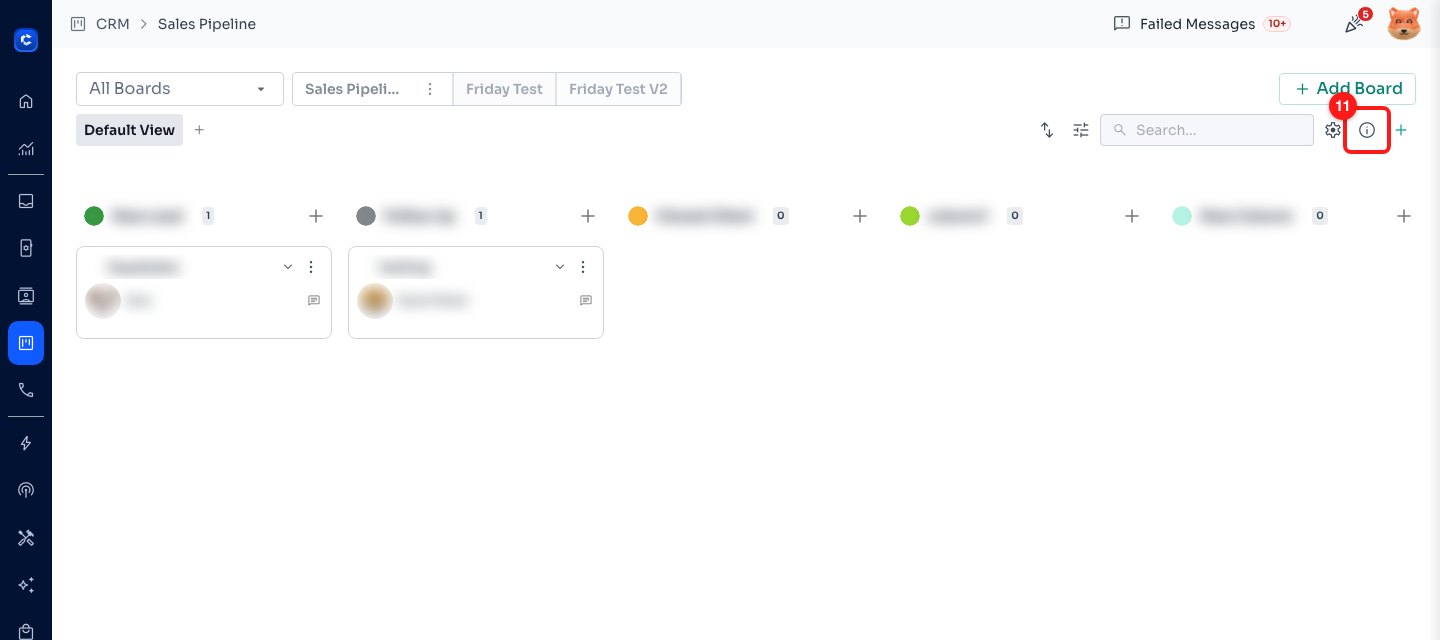
CRM — the (i) (11) on the board header, between the board settings gear and + . Ticket titles, contacts and column names are blurred here.
It is also on Keyword Reply, Offline Bot, Products, Forms, Calls and Phone Numbers, Team Members, API Tokens, Custom Fields, Coupon Campaigns, the App Store, the Inbox toolbar, the Analytics dashboard, the AI Chatbot list — and inside many dialogs and the Flow Builder's node editors, where the button explains the one node you are editing rather than the whole page.
Tips
- The panel follows your app theme. Switch ChatDaddy to dark mode and the help panel opens dark too.
- If you want the article and the app side by side, use Open full article (or the open-in-new-tab icon in the panel header) instead of resizing your window.
- Reading in the panel does not interrupt anything running in the background — messages still arrive and broadcasts keep sending while it is open.
- When you need more than one article, the Help page in the left sidebar (the question-mark icon) gives you the whole help centre with search, Caven AI and quick-start guides by role.
Frequently asked questions
Will I lose what I was working on?
No. The panel opens on top of the page you are on — it does not navigate, reload or submit anything. Drafts, filters, selections and half-built flows are all still there when you close it.
The panel opened on the help home instead of an article.
That happens when the article for a screen has moved or been renamed: rather than showing an error, the panel falls back to the browsable help home so you can search for it. Use the search box at the top, or Ask Caven AI, and let the support team know which page it was so the link can be corrected.
The panel is blank or will not load.
The help centre is embedded in a frame, so a browser extension that blocks embedded content — an ad blocker or a strict privacy setting — can stop it rendering. Allow help.chatdaddy.tech in the extension, or read the same article at help.chatdaddy.tech directly.
I cannot find an (i) on the page I am on.
Not every screen has one yet — deeper sub-pages and some settings tabs are still being covered. Use the Help page in the left sidebar in the meantime; it searches every article in the help centre.
Does clicking it cost credits or notify anyone?
No. Opening the help panel is free and private to you. It does not send a support ticket — use Submit a support ticket in the panel, or the Help page, when you want a person.