
How to Organise Message Flows Into Folders
Once you have more than a handful of message flows, the list gets hard to read. Folders let you group flows by campaign, team or channel, then show one group at a time. Learn how to create a folder, put flows in it one at a time or in bulk, and rename or delete folders later.
Also searched as: How to Organise Message Flows Into Folders, Where to find it, Find the Folders sidebar, Create a folder, Put one flow in a folder, Move several flows at once, Show one folder at a time, Rename or delete a folder, Organise, Message, Flows, Folders
The Message Flows page keeps every automation your team has ever built in one long list. Folders are a way of grouping those flows — by campaign, by brand, by the team that owns them — so you can show one group at a time instead of scrolling past everything.
Folders are for tidiness only. Putting a flow in a folder does not change what it does, when it runs, or who it messages, and anyone on your team can see every folder.
📁 A flow can be in one folder at a time, and a folder name can be up to 16 characters. Flows you have not filed anywhere stay in the list and show No Folder in the Folder column — nothing is hidden just because you have started using folders.
Where to find it
Go to Automation → Message Flows. The Folders sidebar runs down the left of the page, and every row in the list has a Folder column you can click.
ℹ️ The sidebar only appears on the List view. If you have switched the page to Analytics, switch back to List first. It is also hidden while you have no flows at all — create your first flow and it appears.
Step-by-step
Step 1 — Find the Folders sidebar
The sidebar lists every folder your team has, sorted alphabetically. Two buttons sit in its header: a pin that keeps the sidebar open, and a + that creates a new folder.
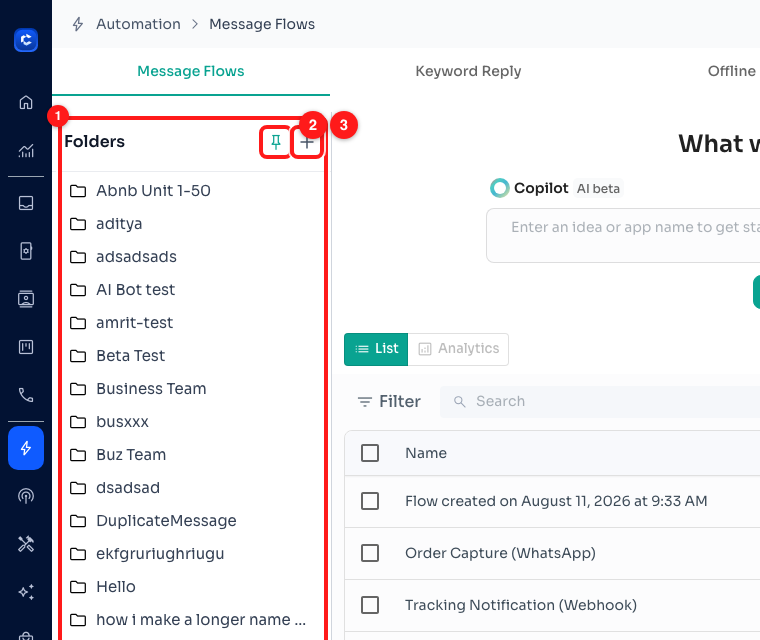
Step 1 — the Folders sidebar (1), the pin (2) and the + button (3).
The pin controls how the sidebar behaves. Pinned, it stays open and takes up the left of the page. Unpinned, it shrinks to a narrow strip and slides open when you move your mouse over it, which gives the flow list more room. On a small screen it starts unpinned.
Step 2 — Create a folder
Click the + in the sidebar header. Type a name in Folder Name and click Create. The folder appears in the sidebar straight away, empty.
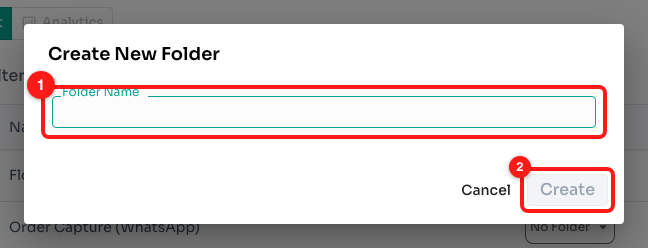
Step 2 — the Create New Folder dialog: the name field (1) and the Create button (2).
✏️ Names are capped at 16 characters, so short and specific works best — Black Friday, Onboarding, Shopee. The Create button stays greyed out until you have typed something.
Step 3 — Put one flow in a folder
Every row in the flow list has a Folder column. A flow that has not been filed shows a plain No Folder button; a flow that has been filed shows its folder name on a green button.
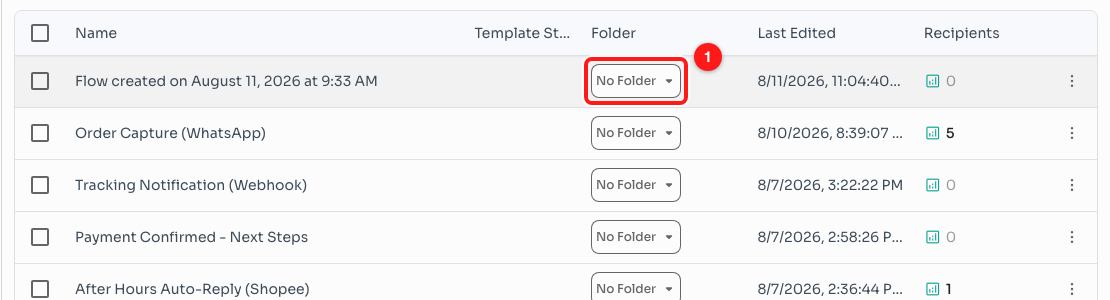
Step 3 — the Folder column on a single row (1). This flow is not in any folder yet.
Click that button and pick a folder from the list. There is a search box at the top for teams with a lot of folders. The change saves as soon as you click — there is no separate Save button.
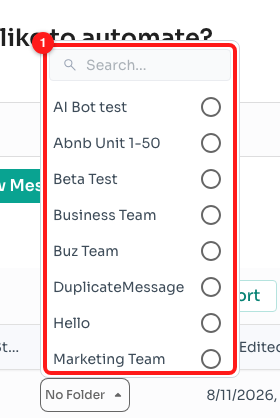
Step 3 — the folder picker (1), with a search box above the folder names.
💡 Typing a name that does not exist yet offers to create it from this same list, so you do not have to go back to the sidebar. You need to type at least three characters before the option appears.
To take a flow out of a folder, open the same picker and click the folder it is already in. That clears the selection and the button goes back to No Folder.
Step 4 — Move several flows at once
Filing flows one by one is slow if you are tidying up an old list. Tick the checkbox on each flow you want to move — a “N Selected” count appears above the list, next to Export, Change Category and Delete.
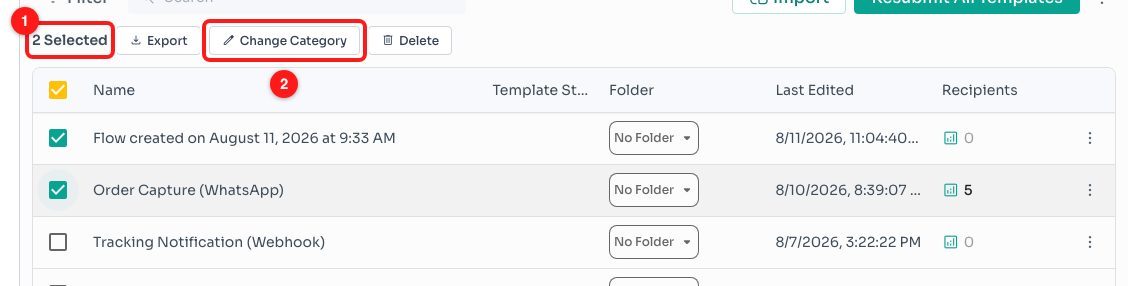
Step 4 — the selected count (1) and the Change Category button (2).
Click Change Category, then click the folder you want. Every flow you ticked moves into that folder at once.
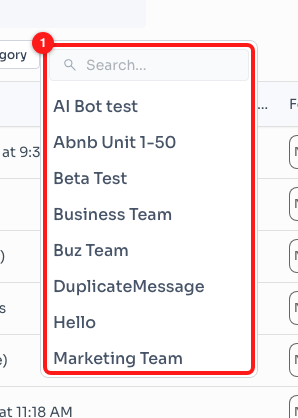
Step 4 — clicking a folder here (1) moves every selected flow into it immediately.
⚠️ There is no confirmation step. The moment you click a folder in this list, every ticked flow is moved. Check the count first if you are not sure what is selected.
Step 5 — Show one folder at a time
Click a folder in the sidebar and the list narrows to just that folder's flows. The folder highlights, a badge shows how many flows are in it, and a tag with the folder name appears above the list.
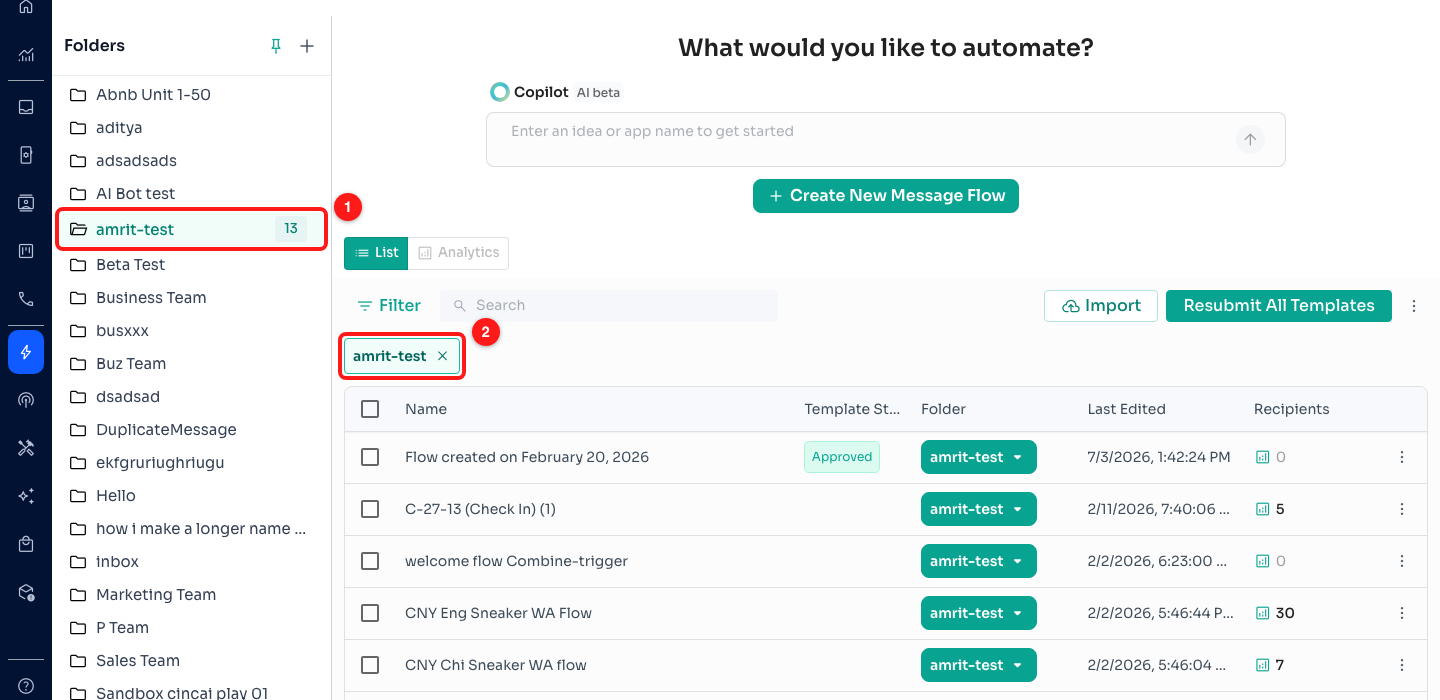
Step 5 — the selected folder with its count (1), and the filter tag above the list (2).
To go back to all your flows, click the × on that tag. The count badge only shows on the folder you have selected, so it is normal for the other folders to show no number.
ℹ️ Picking a folder here is the same setting as Folder inside the Filter panel — choose one in either place and both update. That also means a folder you picked and forgot about will keep the list looking short.
Step 6 — Rename or delete a folder
Open the ⋮ menu at the right of the flow-list toolbar and choose Manage Categories.
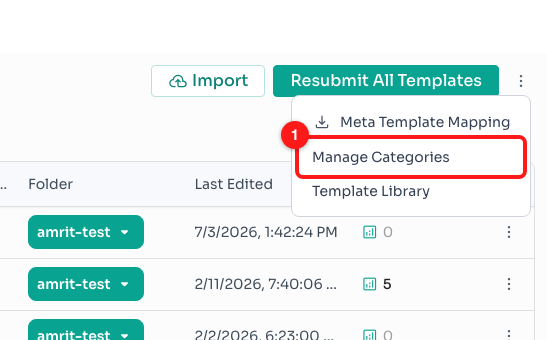
Step 6 — Manage Categories in the toolbar's ⋮ menu (1).
The Folders window lists every folder with a pencil next to its name and a checkbox on the right. Click the pencil to rename a folder in place — the new name applies everywhere the folder is used.
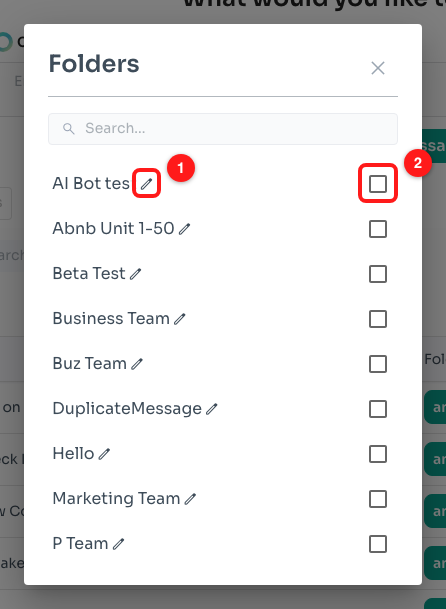
Step 6 — the rename pencil (1) and the selection checkbox (2).
To delete folders, tick the ones you no longer need and click Delete Selected. ChatDaddy asks you to confirm before anything is removed.
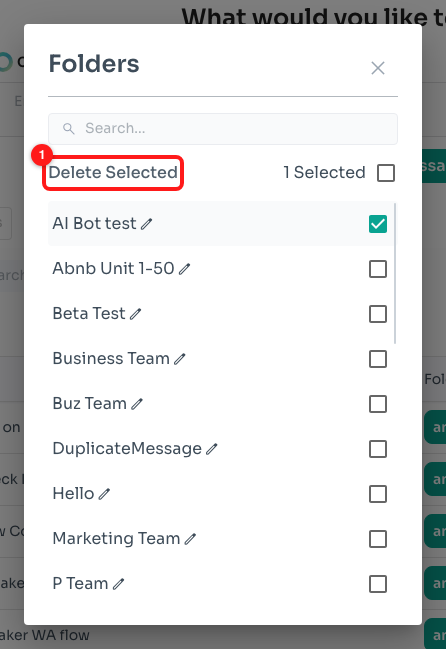
Step 6 — Delete Selected appears once you tick at least one folder (1).
✅ Deleting a folder does not delete the flows inside it. They go back to No Folder and carry on running exactly as before.
Frequently asked questions
Can one flow be in two folders?
No. A flow belongs to a single folder at a time. Choosing a new folder for a flow moves it out of the old one.
Are folders shared with the rest of my team?
Yes. Folders belong to the workspace, not to you, so everyone on the team sees the same folders and the same flows inside them.
Does a folder change when or how a flow runs?
No. Folders are only for organising the list. Triggers, schedules, recipients and approval status are untouched by moving a flow between folders.
I deleted a folder — where did my flows go?
They are still in the list, now showing No Folder in the Folder column. Clear any folder filter (the × on the tag above the list) and they will be there. Deleting a folder never deletes flows.
The list looks almost empty and I do not know why.
You probably still have a folder selected. Look for the folder-name tag just above the list and click its × to clear it. The highlighted row in the Folders sidebar tells you the same thing.
I cannot see the Folders sidebar.
Three things hide it. You may be on the Analytics view — switch back to List. The sidebar may be unpinned, in which case it is the narrow strip on the left and opens when you hover over it. Or you have no flows yet, and it appears once you create your first one.
My folder name got cut off.
Folder names are limited to 16 characters, and long names are shortened with an … in the sidebar and on the row buttons. Hover over the name to see it in full, or rename it to something shorter in Manage Categories.