
How to Read and Manage the Channels Page
Manage Channels is the one screen that shows every channel you have connected, whether each one is actually working, and the quickest fix when one drops. Learn what each column means, what the per-channel actions do, and where a channel's settings live.
Also searched as: How to Read and Manage the Channels Page, What each column tells you, The Quick Action changes with the channel type, The per-channel menu, Finding a channel, Read, Manage, Channels, Page
Everything you have connected to ChatDaddy — WhatsApp numbers, WhatsApp Business API, Messenger pages, Instagram accounts, e-mail, calling — lives on one screen: Manage Channels. It is also the first place to look when messages stop arriving, because a channel that has quietly dropped shows up here immediately.
📍 Open it from the left sidebar. The heading shows how many channels you have — Manage Channels (17) — and the count includes disconnected ones.
What each column tells you
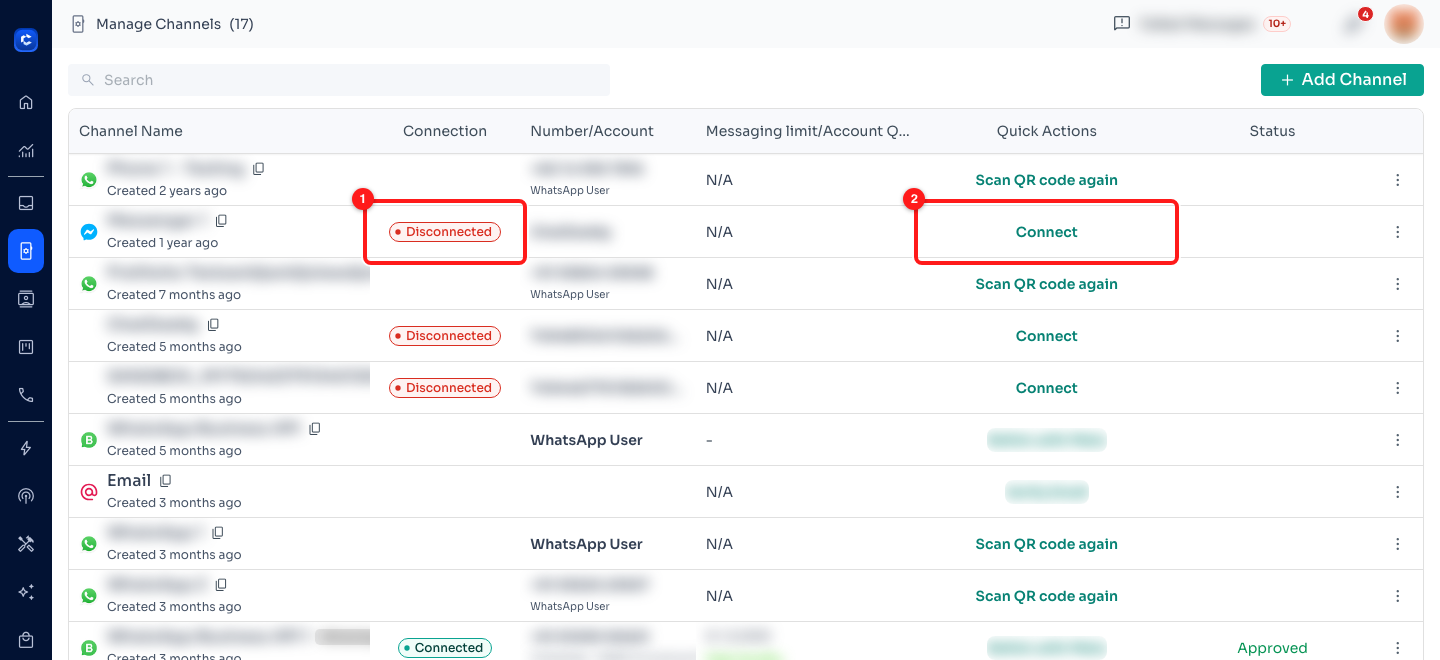
The Connection column flags a channel that has dropped (1), and the Quick Actions column offers the fix for that channel type (2).
- Channel Name — the nickname you gave the channel, its type icon, and how long ago it was created. The copy icon next to the name copies its Channel ID, which support may ask for.
- Connection — the health of the channel. A red Disconnected chip means it is not live: no new messages in, nothing going out. A green Connected chip means it is working. A blank cell means this channel type does not report a live connection state.
- Number/Account — the phone number, page or account the channel is attached to, plus what kind of WhatsApp account it is (for example WhatsApp User).
- Messaging limit / Account Quality — for WhatsApp Business API channels only: how many messages you have used against your current limit (for example 0 / 2,000) and Meta's quality rating for that number, such as High Quality.
- Quick Actions — the one action that channel most likely needs; see below.
- Status — the review state where one applies, such as Approved for a WhatsApp Business API number.
The Quick Action changes with the channel type
ChatDaddy shows the action that actually applies rather than a generic button, so what you see depends on the channel:
- Scan QR code again — a WhatsApp channel connected by QR code. WhatsApp ends these sessions periodically; scanning again from the phone restores it.
- Connect — a Messenger or Instagram channel that has dropped. Click it to re-authorise with Meta.
- Relink with Meta — a WhatsApp Business API or Messenger channel whose Meta permissions need refreshing.
- Connect with Instagram — an Instagram channel awaiting its Instagram login.
- Verify Email — an e-mail channel whose sender address has not been confirmed yet.
⚠️ While a channel shows Disconnected, your automations for it are paused too — flows will not run and replies will not send. Reconnecting is the fix; nothing is lost in the meantime, but nothing moves either.
The per-channel menu
The three-dot button at the end of a row opens that channel's own menu.
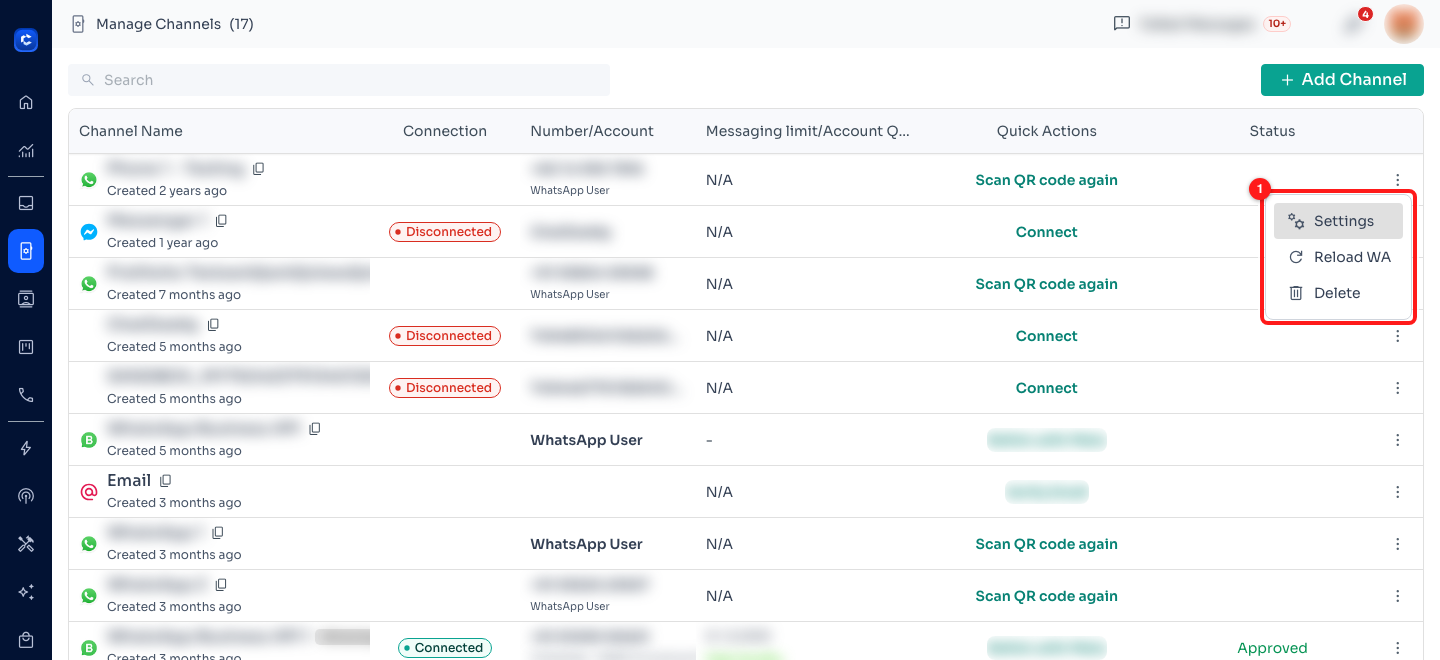
The row menu (1): Settings, Reload WA and Delete.
- Settings — opens Manage Channel Settings for that channel: message sync and history, auto-assign rules, automation and AI, privacy and data control, advanced settings, and a Danger Zone.
- Reload WA — logs the WhatsApp channel out and reconnects it, keeping the same channel. You will need to scan the QR code again afterwards. Useful when a channel is behaving oddly but is not fully disconnected.
- Delete — removes the channel from ChatDaddy. Treat this as permanent.
Finding a channel
- Use the Search box at the top to filter by channel name.
- The list paginates at the bottom — Rows per page and the range (1–17 of 17) tell you whether you are seeing everything.
- + Add Channel at the top right opens the Connect Channel dialog, where each channel type shows its monthly credit cost before you commit.
Frequently asked questions
A channel says Disconnected but WhatsApp works fine on my phone.
That is normal — the phone keeps working; it is the link between WhatsApp and ChatDaddy that has ended. Use Scan QR code again and scan from the phone that owns the number.
Why does one channel show a messaging limit and another does not?
Messaging limits and quality ratings are set by Meta and apply to WhatsApp Business API numbers only. QR-connected WhatsApp channels show N/A.
What is the Channel ID for?
It identifies the channel in our systems. Support may ask for it when investigating an issue — copy it with the icon next to the channel name, or from the channel's Settings.
My channel keeps disconnecting.
Repeated drops usually point at the phone rather than ChatDaddy — battery optimisation closing WhatsApp, an unstable connection, or the same number linked on too many devices. See the related troubleshooting article.