
How to Test a Message Flow Before It Goes Live
The message flow builder has three ways to check your work before a customer ever sees it: Preview Flow walks through the conversation on a phone mock-up, Demo Preview lays the whole flow out for a walkthrough, and Test sends the real thing to a phone number you choose.
Also searched as: How to Test a Message Flow Before It Goes Live, Which one to use, Find the three controls, Open Preview Flow and choose where to start, Work through the conversation, See the whole flow with Demo Preview, Send a real test with Test, What a test does not prove, Test, Message, Flow, Before, Goes, Live
A message flow is easy to get almost right — a button that leads nowhere, a delay that is longer than you meant, a step that never gets reached. The flow builder gives you three ways to catch that before a customer does.
This is worth doing every time you build or change a flow, and it takes about a minute. All three controls sit together at the top right of the flow canvas.
📲 Preview Flow and Demo Preview are safe — they only draw the conversation on your screen. Test is not a simulation: it really runs the flow and really sends the messages to the number you type, from the channel you pick. Send it to your own phone.
Which one to use
- Preview Flow — play the conversation as a customer would see it, tapping your own buttons and typing your own replies. Best for checking the wording and the branching.
- Demo Preview — shrinks every step and animates the connections so the whole flow fits on screen. Best for reading the shape of a big flow, or showing it to a colleague.
- Test — sends the flow for real to one phone number. Best as the final check, once the preview looks right.
ℹ️ All three save your flow first, so what you preview or test is the saved version — not an edit you have made but not saved.
Step-by-step
Step 1 — Find the three controls
Go to Automation → Message Flows and click a flow to open it in the builder. The controls sit in the bar at the top right of the canvas, to the right of Save and Share. Hover any of them to see its name.
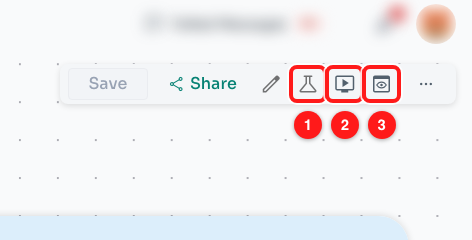
Step 1 — Test (1), Demo Preview (2) and Preview Flow (3) in the flow builder's top bar.
Step 2 — Open Preview Flow and choose where to start
Click Preview Flow. A phone-shaped panel slides in on the right. If the flow has triggers, the panel asks which one to start from — Preview From Trigger followed by the trigger's name — and a flow with a starting message offers Preview From Starting Message. Click the one you want to test. A flow that has only a starting message begins on its own.
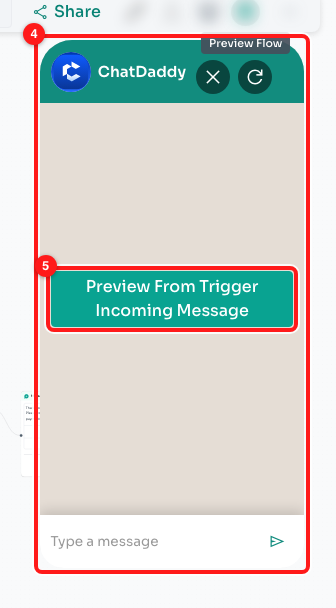
Step 2 — the preview panel (4) and the button that chooses where the preview starts (5).
Step 3 — Work through the conversation
The panel behaves like a WhatsApp chat, one step at a time, exactly as the customer would receive it. Tap the buttons and list options you have built to follow that branch. When a step asks for a reply, the box at the bottom becomes typeable — type anything and the flow carries on from there.
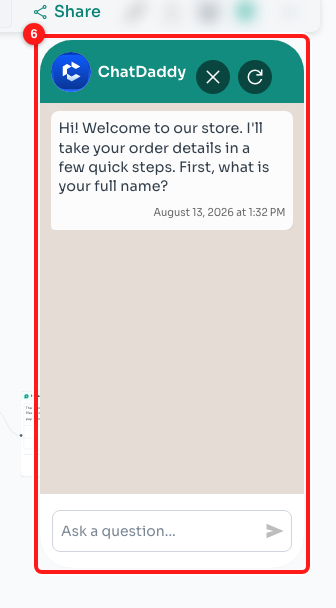
Step 3 — the first message of the flow, with the reply box ready because this step asks the customer a question (6).
Steps that are not messages appear as grey notes instead of being carried out:
- A wait shows the delay it would have paused for, rather than making you wait.
- Add Tags shows the tags the step would apply. No contact is tagged.
- Webhook Urls: and Notify Users show what would be called or notified. Nothing is sent.
- Send Form shows the form the step would send.
- Triggers followed by a flow name means the step hands over to another flow.
- A condition becomes a set of buttons — Condition 1 Succeeds, Conditions Fail — so you can choose a branch and see where it leads.
As the preview moves along, the canvas behind it scrolls to centre the step you have just reached, so you can see where you are in the flow. Use the refresh icon at the top of the panel to start the conversation again from the beginning, and the X to close it.
Step 4 — See the whole flow with Demo Preview
Click Demo Preview. Every step shrinks to a compact card, the connections between them turn green and animate in the direction the conversation travels, and the canvas zooms out so the whole flow fits. Hover any step to expand it back to full size and read it.
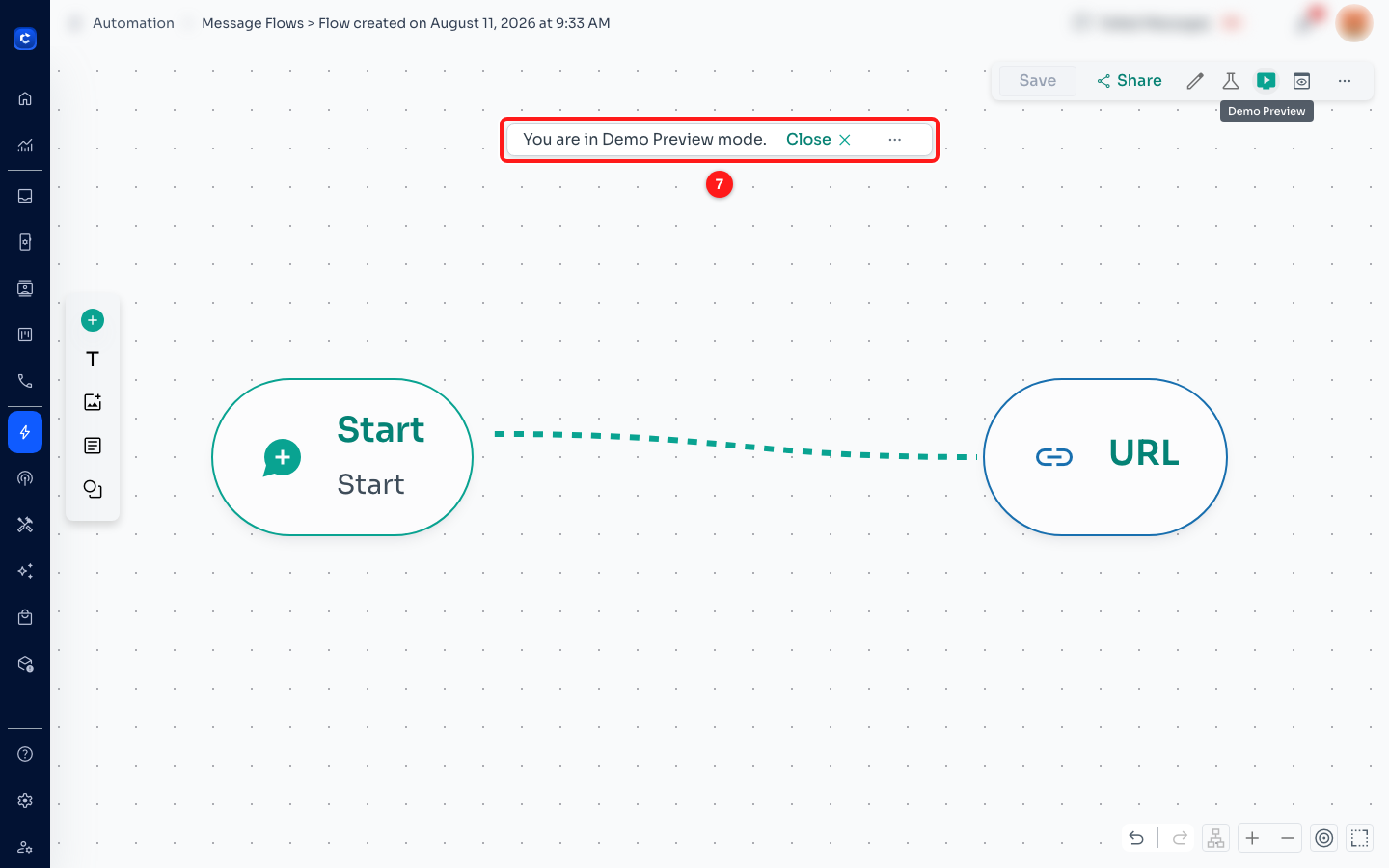
Step 4 — the banner that confirms you are in Demo Preview mode (7). Click the X on the banner to leave it.
💡 You cannot drag or rearrange steps while Demo Preview is on — it is a viewing mode. Close the banner to get back to editing.
Step 5 — Send a real test with Test
When the preview looks right, click Test. The Send Test Message to dialog opens with two things to set.
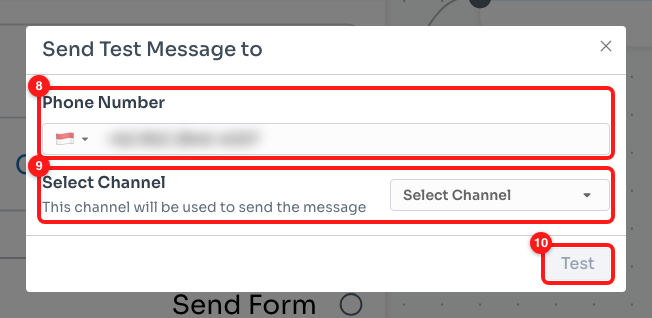
Step 5 — the phone number the test will go to (8), the channel it will be sent from (9) and the Test button (10).
- Phone Number — where the test goes. ChatDaddy fills in the number on your own account, which is usually what you want. Include the country code.
- Select Channel — which of your connected channels sends it. The message arrives from that number, so pick the one your customers actually message.
Click Test and the flow runs for that number exactly as it would for a customer: the messages are real, they arrive on the phone, and any step that tags, notifies or calls a webhook really does it. Check your phone, then go back and fix anything that came out wrong.
What a test does not prove
A test starts the flow directly, so it tells you the messages are right. It does not tell you the flow will start on its own:
- Your trigger is not exercised. A test skips straight to the messages, so a trigger that is set up wrongly will still look fine in a test. To check a trigger, make the real thing happen — send yourself a message, add a contact, move a ticket.
- Conditions that read a contact's details are checked against whoever you sent the test to. Test with a contact who matches the audience you are aiming at, or the flow will take the wrong branch.
- A test does not queue the flow for anyone else. Nobody but the number you typed receives anything.
Troubleshooting
The Test button is greyed out.
Test is unavailable for flows that contain a trigger step. Those flows are meant to be started by the trigger rather than fired at one number, so ChatDaddy disables the button rather than starting them halfway. Preview Flow still works — use it to check the wording, and test the trigger by making the real event happen.
Nothing happens when I click Test or Preview Flow.
Look for a red strip along the bottom of the control bar. If the flow has an error in it, ChatDaddy will not save, preview or test it until the error is cleared. Fix what the strip describes and try again.
The preview says “Preview Unavailable — No Starting Message or Triggers”.
The preview needs somewhere to begin. That message means the flow has neither a starting message nor a trigger, so there is no first step to play. Set a starting message on the flow, or add a trigger, and open the preview again.
The preview panel is blurred and asks about zoom.
The preview only renders correctly at 100% browser zoom. Reset the zoom (Ctrl + 0, or ⌘ + 0 on a Mac) and the panel will clear.
The Test button inside the dialog will not click.
It stays disabled until both fields are valid: a complete phone number with its country code, and a channel selected. If the number is rejected you will see Invalid Phone Number when you try.
The test message never arrived.
Check the channel you picked is still connected, and that the number you sent to can receive messages on that channel — a WhatsApp test cannot reach a number that is not on WhatsApp. If the flow starts with a step that waits, the first message may simply not be due yet.
The preview looked right but the real flow behaved differently.
The preview plays your flow with no real contact behind it, so anything that depends on the contact — conditions on their details, tags they already have, variables filled from their profile — can resolve differently in real life. Follow a preview with a real test to a phone you can check.