
Who Received a Message Flow (and How to Stop It)
Every message flow keeps a list of the contacts it ran for, showing how far each person got, step by step. Learn how to open that list, read the step columns, filter it, export it, and cancel a flow that is still running.
Also searched as: Who Received a Message Flow (and How to Stop It), Open the Recipients list for a flow, Read the list, Follow each person through the flow, step by step, Filter the list, Stop a flow that is still running, Export the list or jump back to the flow, Received, Message, Flow, Stop
Once a message flow starts running, ChatDaddy records every contact it ran for and how far each of them got. That record is the Recipients list, and it is the quickest way to answer “did this actually reach anyone?”, “who replied?” and “can I stop it before it sends any more?”
It is worth knowing if you send anything automated — order confirmations, follow-ups, reminders — and especially if you have just switched a flow on and want to check it is behaving before it reaches your whole audience.
🛑 To stop a flow that is still running for someone, tick their row and choose Cancel Selected. This cancels the remaining steps for those contacts only — it does not switch the flow off, and it cannot un-send a message that has already gone out.
Step-by-step
Step 1 — Open the Recipients list for a flow
Go to Automation → Message Flows. The right-hand Recipients column shows how many contacts each flow has run for. Click the number (or the small chart icon next to it) to open that flow's list.
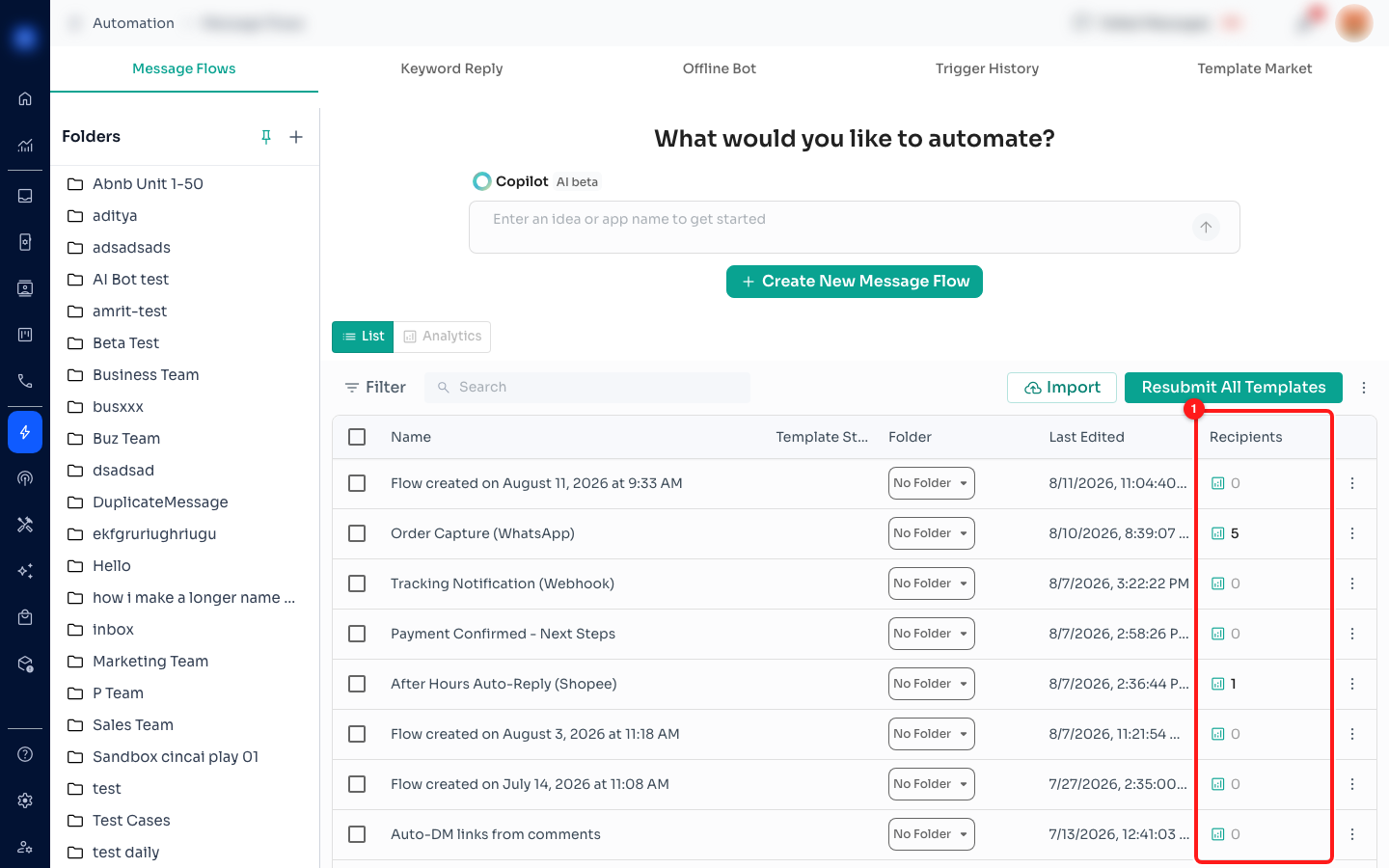
Step 1 — the Recipients column on the Message Flows list (1). Click the count to open the list.
💡 Click the count itself, not the rest of the row — clicking anywhere else in the row opens the flow in the builder instead. A flow showing 0 has not run for anyone yet, so there is nothing to open.
Step 2 — Read the list
The first few columns tell you who and when:
- Contact — the person the flow ran for. Click the name to open their chat in the Inbox.
- Sender — the team member or channel the run was started by.
- Status — whether the flow is still working through its steps for this contact (running) or has reached the end (completed).
- Sent At — when the flow started for that contact.
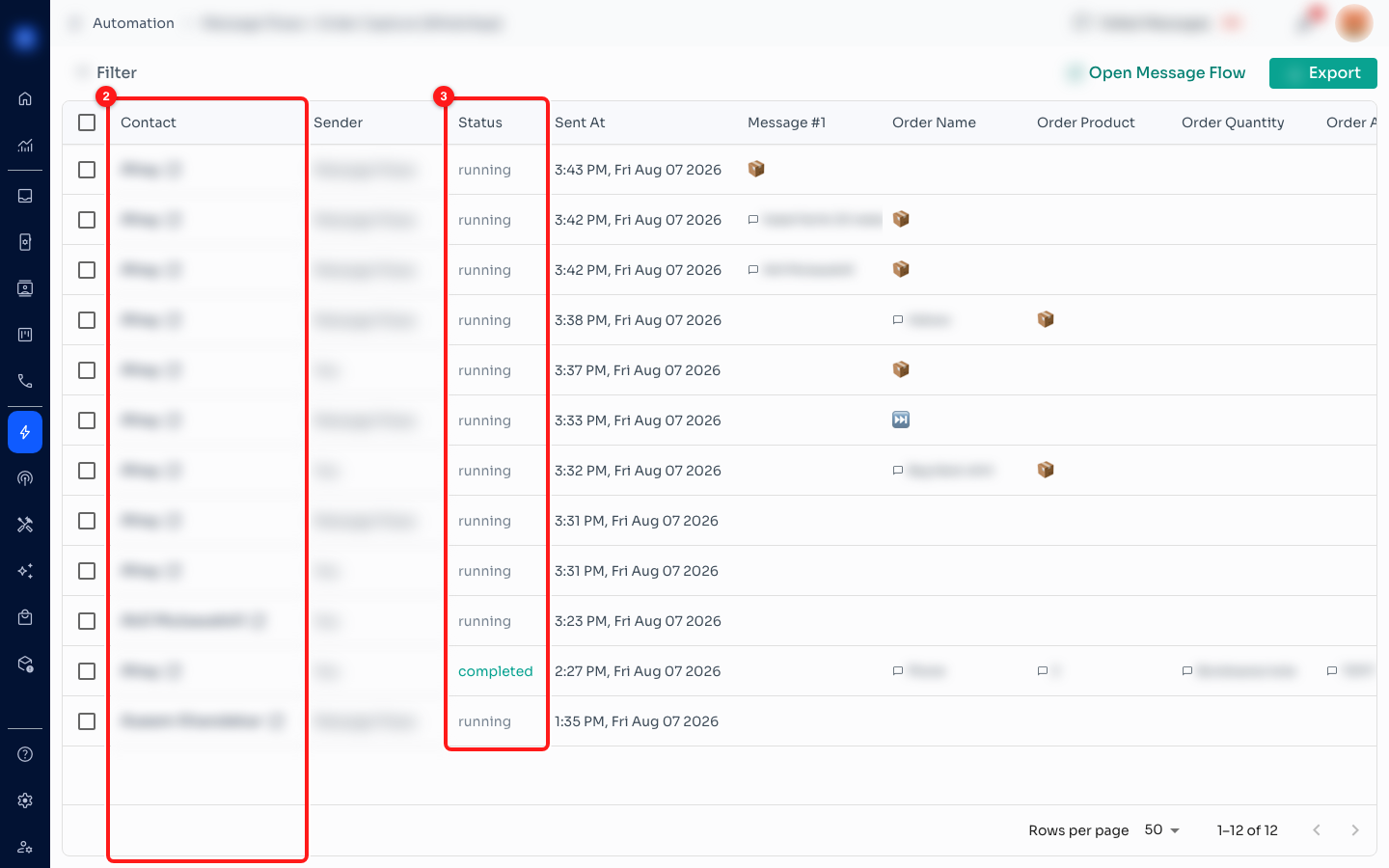
Step 2 — the Contact column (2) and the Status column (3), which tells you whether a flow is still running for that person.
Step 3 — Follow each person through the flow, step by step
After Sent At there is one column for every step in your flow, named exactly as the step is named in the builder. Reading across a row shows you how far that contact got and where they stopped.
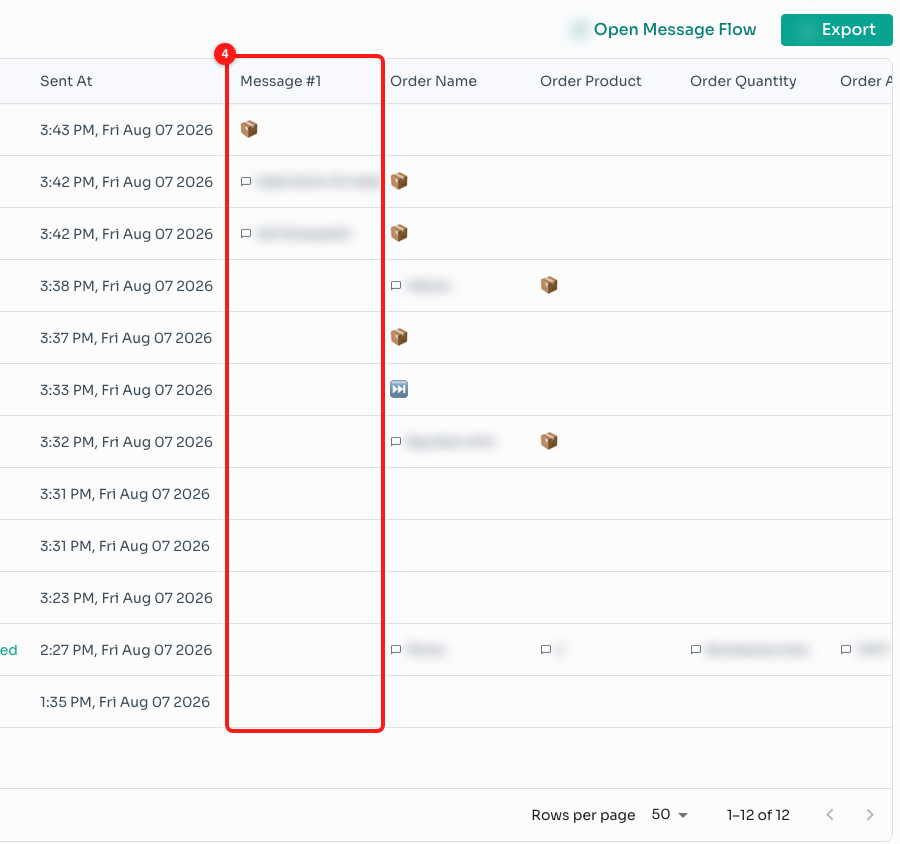
Step 3 — one column per step of the flow (4). An empty cell means that step never reached this contact.
- ✅ — the step was sent.
- 📦 — the message was delivered to the contact's device.
- ⏭️ — the step was skipped because the same message went to the same number less than a minute earlier.
- Failed (in red) — the step could not be sent. Hover it to see why and what to do about it.
- A button name — the contact tapped that button or list option.
- A short piece of text — the contact typed a reply at that step.
- Empty — the flow never got this far for that contact.
Hover any cell to see exactly what happened and when. Hovering also reveals a small filter icon: click it to show only the people with that same result — handy for pulling up everyone who clicked one particular button.
Step 4 — Filter the list
Click Filter at the top left. You get one section per step of the flow, each with an Interaction dropdown:
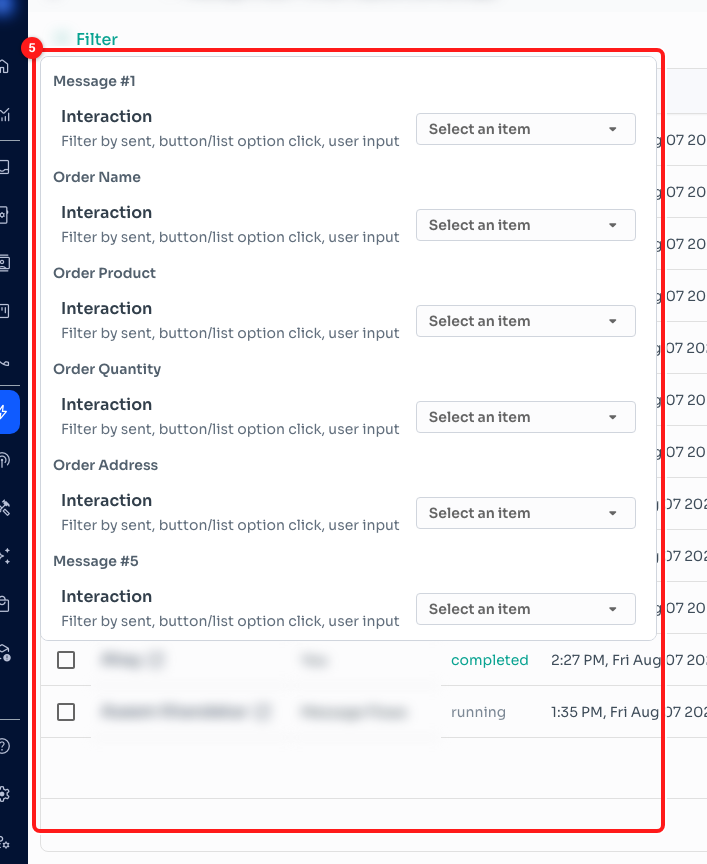
Step 4 — the Filter panel has a section for every step in the flow (5).
- Was Sent — everyone the step went out to.
- Button/List Click — everyone who tapped a button or list option at that step. Choosing this adds a Select Button dropdown so you can pick one button, or Any Button. It only appears on steps that actually have buttons.
- Input Received — everyone who typed a reply at that step. It only appears on steps that ask for input.
Step 5 — Stop a flow that is still running
Tick the rows for the contacts you want to stop. A bar appears above the list showing how many you have selected, with three actions.

Step 5 — the selection bar (6) and Cancel Selected (7), which stops the remaining steps for the contacts you ticked.
- Cancel Selected — stops the flow's remaining steps for those contacts. Use this the moment you spot a flow going out with the wrong message.
- Tag these Contacts — adds a tag to everyone you ticked, so you can follow up in the Inbox or build an audience from them.
- Export Selected — downloads just the rows you ticked as a CSV.
⚠️ Cancel Selected only works on rows you have ticked individually. Tick the specific people you want to stop rather than selecting the whole list at once. Cancelling stops what has not been sent yet — messages already delivered stay delivered.
Step 6 — Export the list or jump back to the flow
Export downloads the whole list as a CSV — the contact's name, phone number and channel, when the flow started, and a column per step showing what each person did. Open Message Flow takes you straight back to the flow in the builder to fix whatever the list has just shown you.
Step 6 — Open Message Flow (8) and Export (9) sit at the top right.
Troubleshooting
The Recipients count is 0 for a flow I have switched on.
The count is the number of contacts the flow has actually run for, not the number it could reach. A flow that is enabled but whose trigger has not fired yet stays at 0. Check the flow's trigger before assuming the flow is broken.
Clicking the Recipients count opened the flow editor instead.
The click landed on the row rather than on the count. Only the number and the small chart icon beside it open the Recipients list — the rest of the row opens the flow in the builder.
Everyone stops at the same step.
Read down that step's column. If it is full of Failed, hover one to see the reason — a message that Meta rejected, a contact with no email address for an email step, or a step scheduled for a time that had already passed. If the column is simply empty, the step before it is probably waiting on a reply that never came.
A row says “Failed” but I do not understand the reason.
Hover the red Failed label. ChatDaddy shows a short card with what went wrong and what to do next, and for WhatsApp send errors it links to the article for that specific error code.
I cancelled a contact but they still received a message.
Cancelling stops the steps that have not run yet. Anything already sent when you cancelled is on its way and cannot be recalled. If a flow is going out wrongly to everyone, switch the flow off in the builder as well — cancelling rows only affects the contacts you ticked.
The Export button is greyed out.
There is nothing to export — the flow has not run for anyone in this list yet. The button says “No data to export” when you hover it.
A step shows ⏭️ instead of being sent.
That step was skipped because the same message was sent to that same number less than a minute earlier. It is a safety net that stops a contact being messaged twice over by two flows firing together.