
How to Use the WhatsApp Business Testing Channel (Practise WABA Safely)
The WhatsApp Business testing channel is a fully simulated WABA inbox — practise reply buttons, lists, the 24-hour window, notes and calls with a fictional customer. Nothing is sent, nothing is charged.
Also searched as: WhatsApp testing channel, WABA sandbox, practise WhatsApp Business API, test WhatsApp channel free, simulated WhatsApp inbox, try WhatsApp Business API, WhatsApp demo channel, test reply buttons and lists, 24-hour window practice, WhatsApp calling test, train teammates WhatsApp, WhatsApp Business testing channel, safe WABA practice, no real messages sent
The testing channel is a fully simulated WhatsApp Business API inbox. Nothing is sent, no channel is created, no call is placed, and no credits are used — it is a completely safe place to practise.
What is the WhatsApp Business testing channel?
The WhatsApp Business API (WABA) has strict rules that normally stay invisible until a message fails against a real customer: a message can carry at most 3 reply buttons, button titles are limited to 20 characters, a message can carry buttons or a list but not both, free-form messages stop delivering once the 24-hour customer service window closes, and polls aren’t supported at all.
The testing channel lets you learn these rules by trying them, in a simulated chat with a fictional Test Customer. It is laid out exactly like the real ChatDaddy Inbox — chat list, conversation, compose bar and contact panel — so what you practise here is what you’ll use once your real channel is connected.
What it’s for
- Preview what a WhatsApp Business API channel feels like before connecting (or paying for) one.
- Practise interactive messages — reply buttons and list messages — and see how they land on the customer’s side.
- Understand the 24-hour messaging window and what happens when it closes.
- Try internal notes that only your team can see.
- Walk through the WhatsApp calling flow (permission → ringing → live) without dialling anyone.
- Train new teammates safely — mistakes here cost nothing and reach no one.
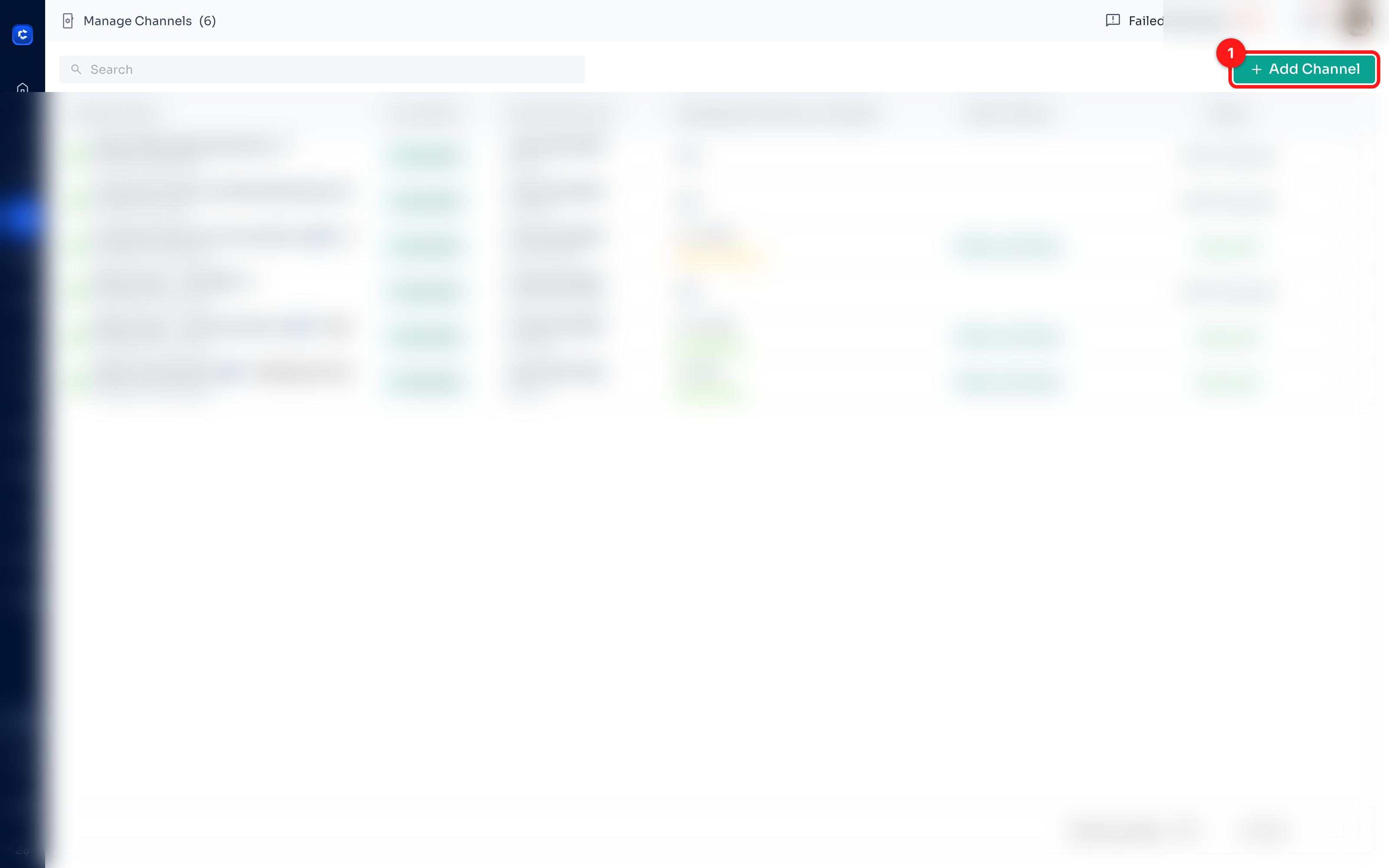
Step 1 — Open Channels and click “+ Add Channel”
Go to the Channels page from the left navigation bar, then click the green + Add Channel button in the top-right corner.
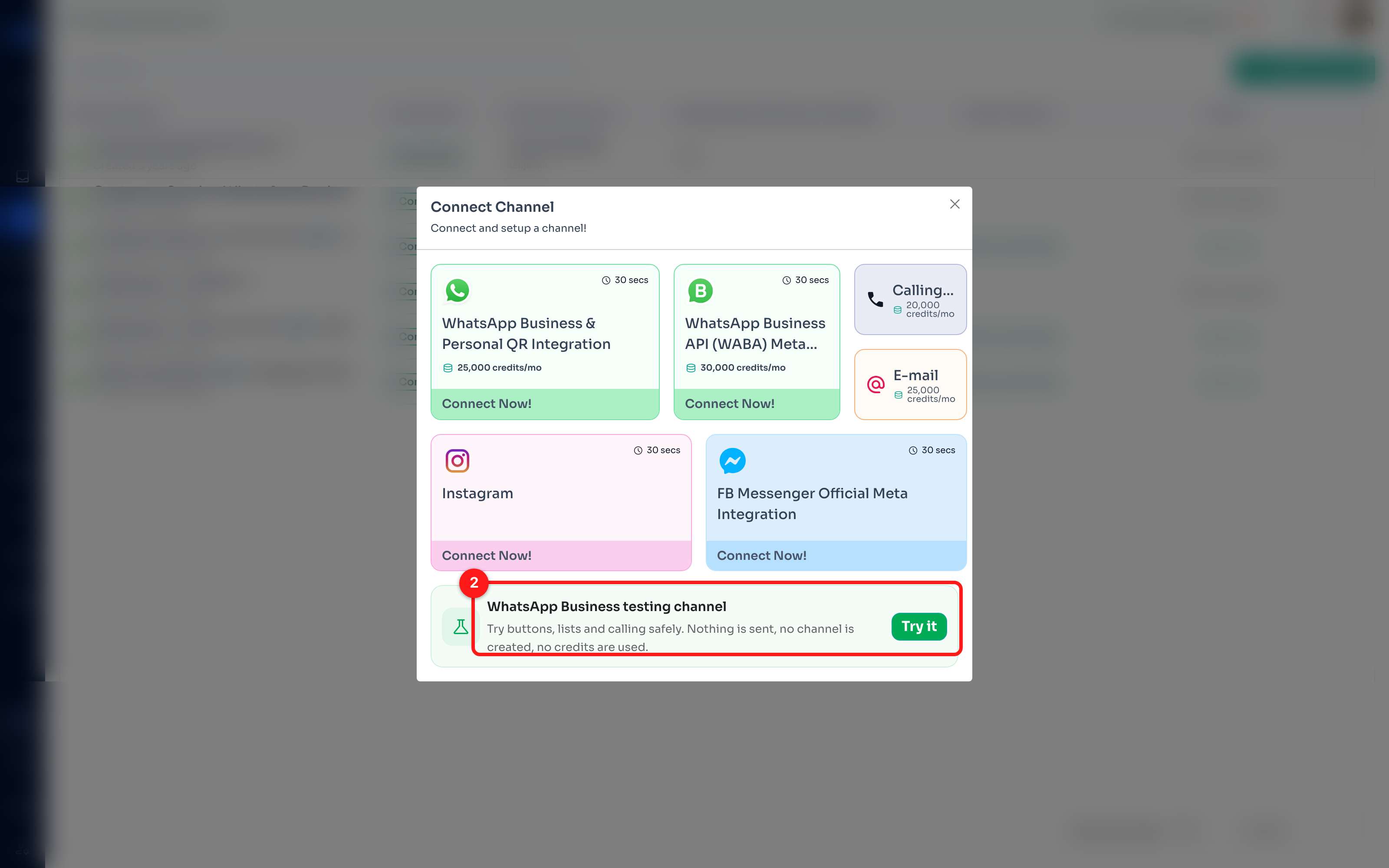
Step 2 — Choose “WhatsApp Business testing channel” and click “Try it”
In the Connect Channel dialog, look below the real channel options for the card that says WhatsApp Business testing channel — “Try buttons, lists and calling safely. Nothing is sent, no channel is created, no credits are used.” Click Try it.
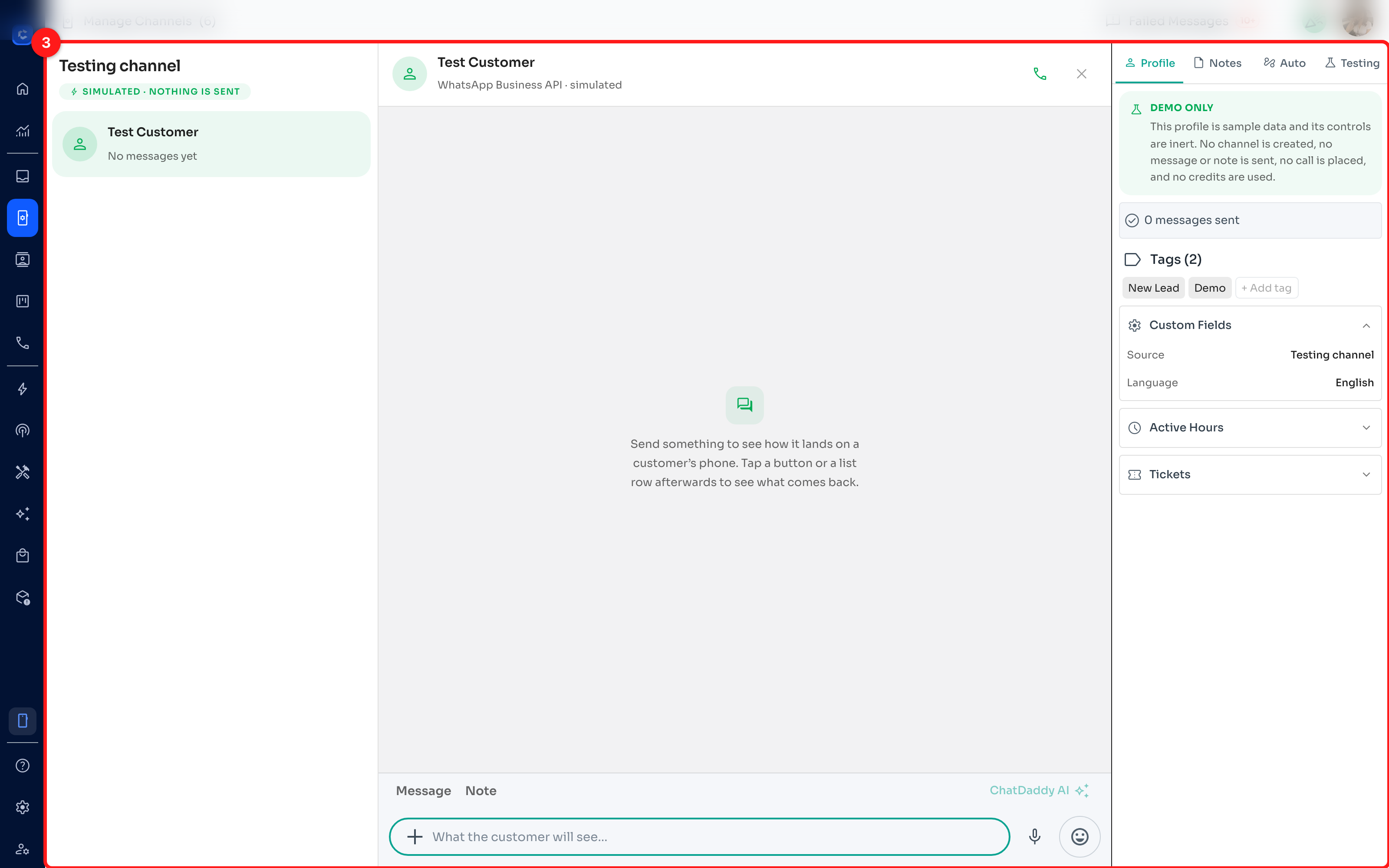
Step 3 — Meet the simulated inbox
The testing channel opens as a full inbox with three columns, exactly like the real one:
- **Left — **the chat list, with one simulated conversation (
Test Customer) and a “SIMULATED · NOTHING IS SENT” banner. - **Middle — **the conversation and the compose bar, with Message and Note tabs.
- **Right — **the contact panel with Profile · Notes · Auto · Testing tabs. The DEMO ONLY card reminds you that the profile is sample data.
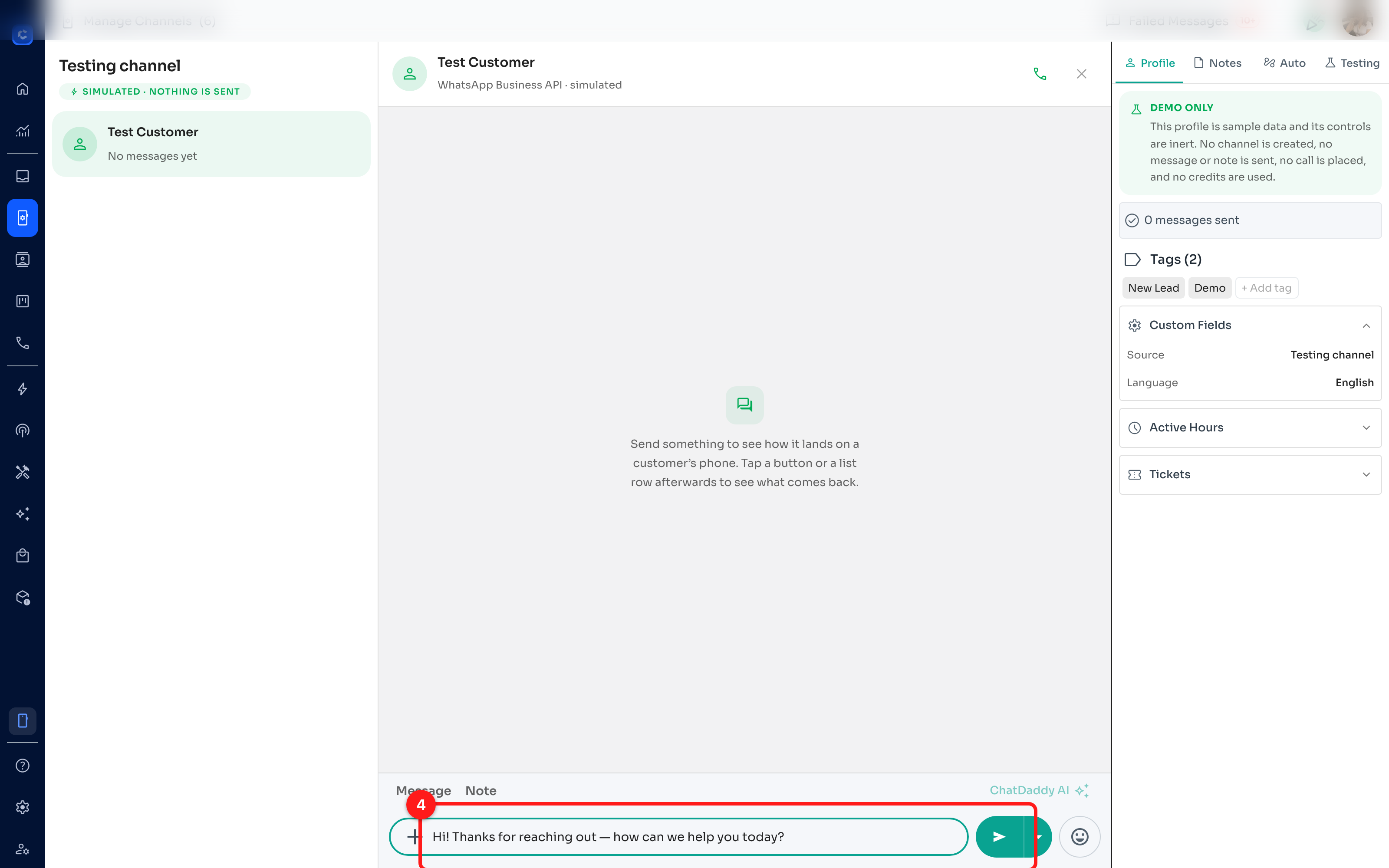
Step 4 — Send your first message
Type anything in the compose bar (placeholder: “What the customer will see…”) and press the green Send button. The message appears in the conversation just as it would on WhatsApp — but nothing actually leaves the screen.
Step 5 — Open the “+” menu to add buttons or a list
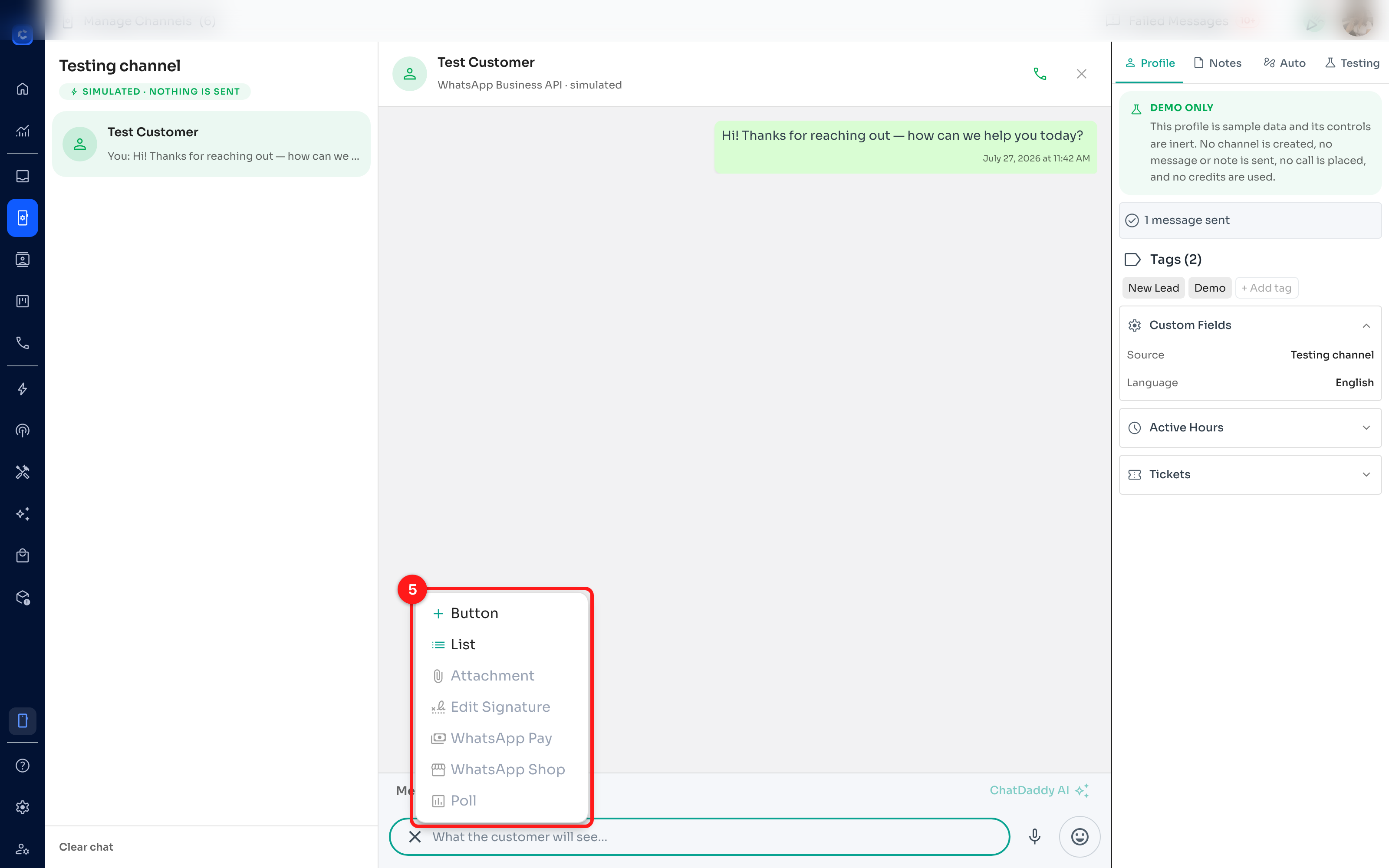
Click the + inside the compose bar. Button and List are fully working. The greyed-out items (Attachment, Edit Signature, WhatsApp Pay, WhatsApp Shop, Poll) are drawn for completeness — hover them to see why each is demo-only. Note that WABA doesn’t support polls at all.
Step 6 — Attach a reply button and send
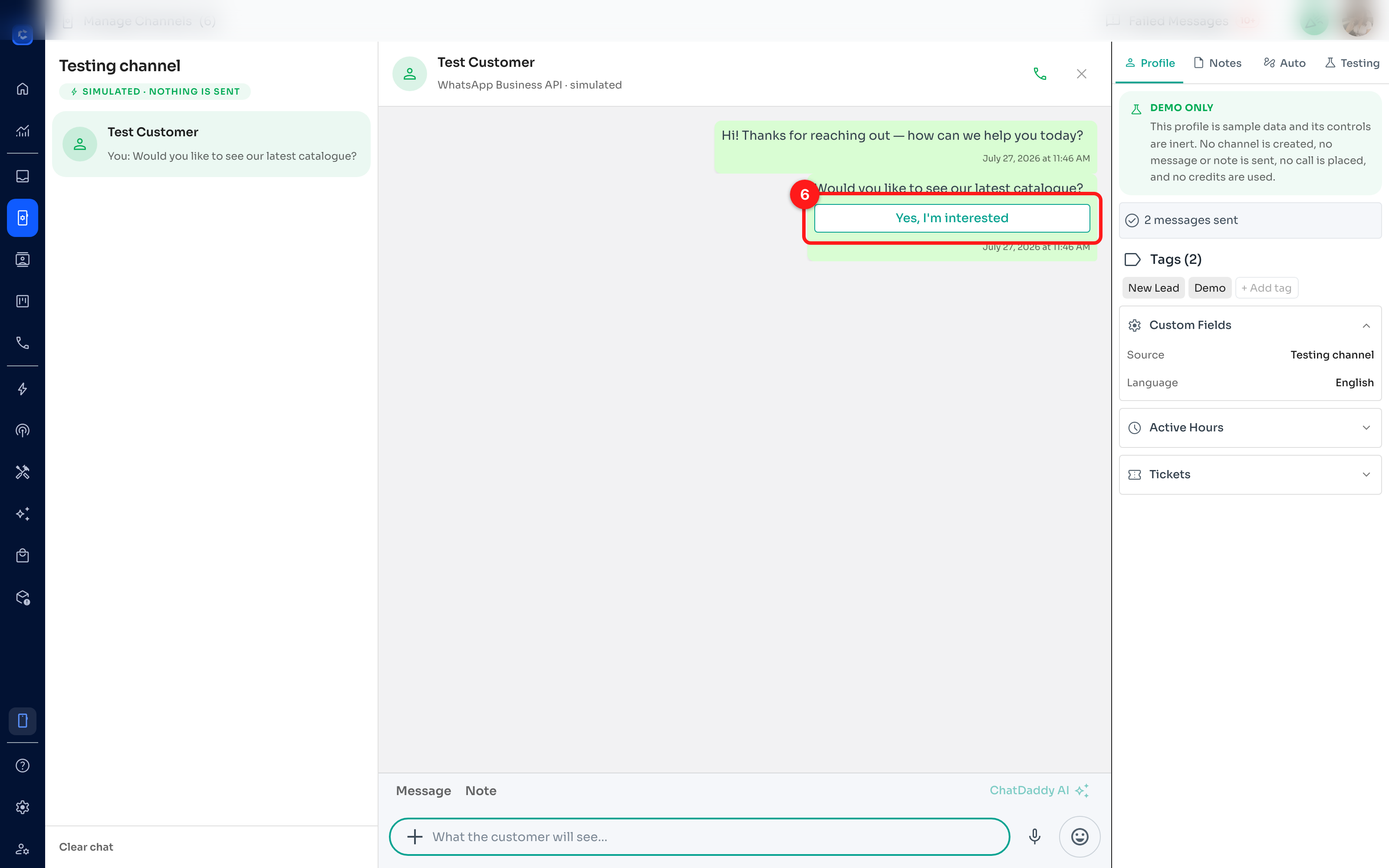
Choose Button, type a title (e.g. “Yes, I’m interested”) and click Add Button. Then write your message text and send. The rules here are the real WABA rules: at most 3 reply buttons per message, titles up to 20 characters, emojis are stripped from button titles, and a message can carry buttons or a list — never both.
Step 7 — Tap the button to simulate the customer’s reply
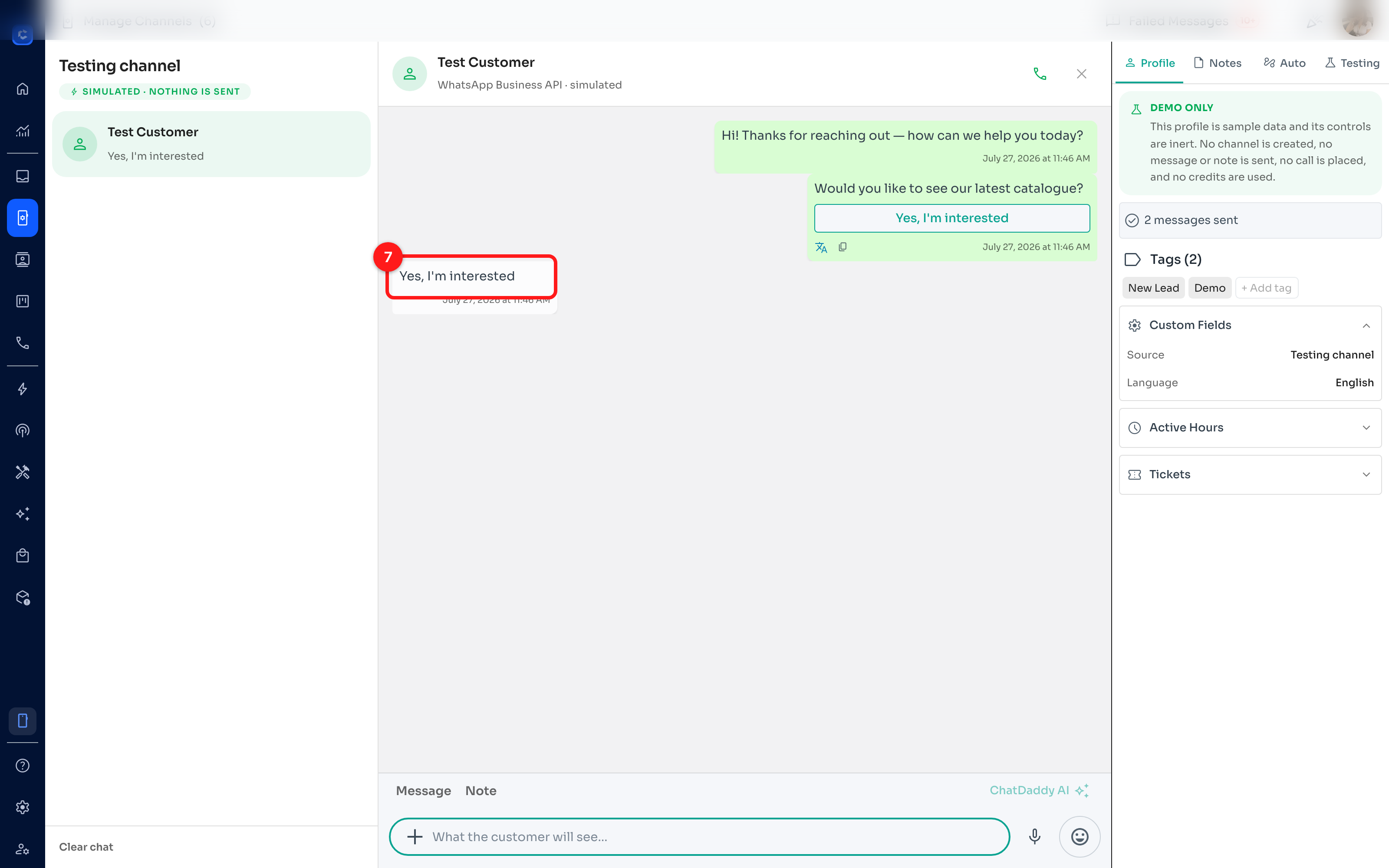
Click the button inside your sent message. Two things happen, and both are real WhatsApp behaviour: the customer’s tap arrives as an ordinary text message carrying the button’s title, and — because the customer just messaged you — the 24-hour window reopens. List messages work the same way: tap a list row to see the selection come back.
Step 8 — Add an internal note
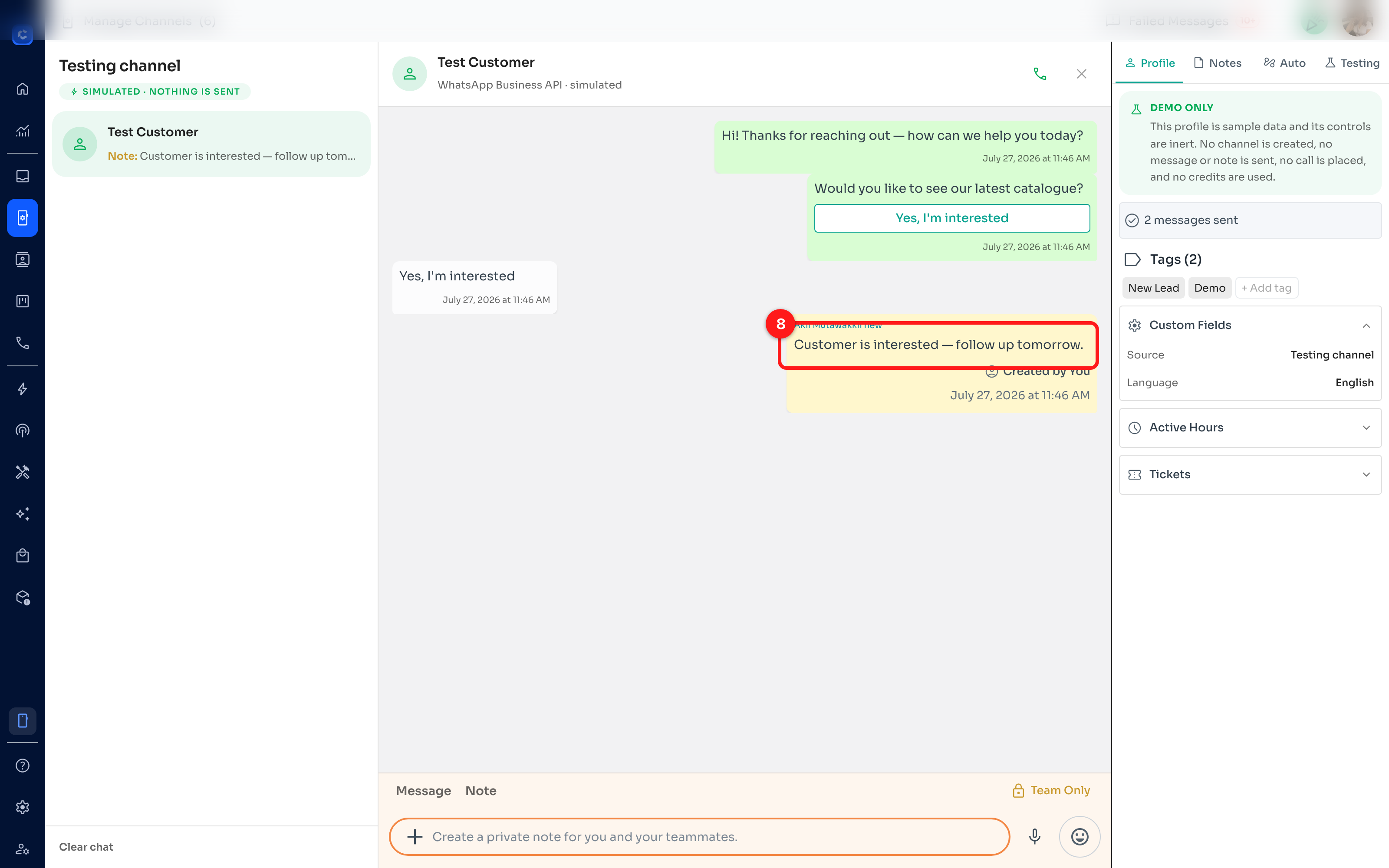
Switch the compose bar to the Note tab, write something for your team and add it. Notes render on a yellow background with “Created by You” — they are visible to your team only and never reach WhatsApp, which is why they always work, even when the 24-hour window is closed.
Step 9 — Use the Testing tab to try the 24-hour window
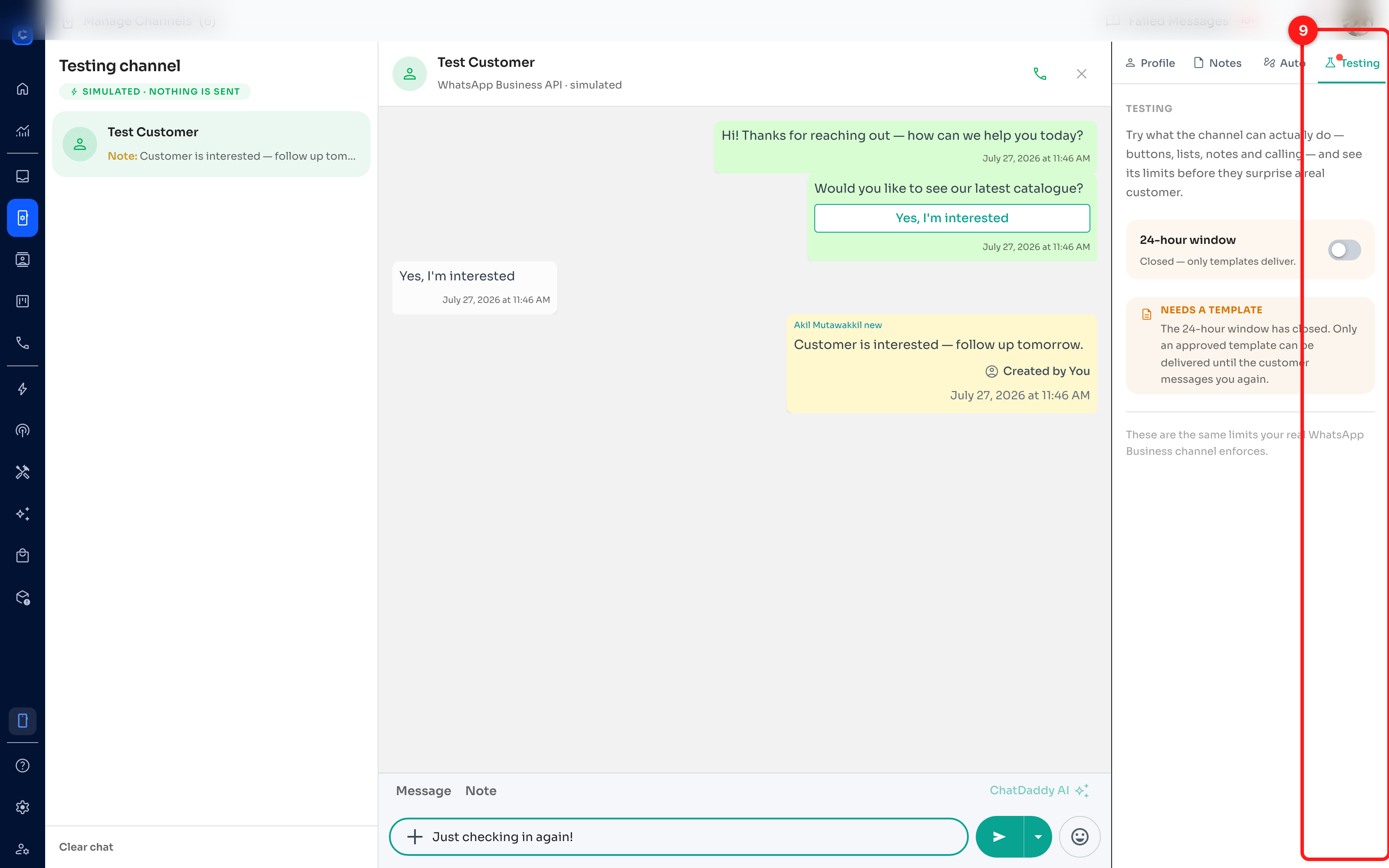
Open the Testing tab in the right-hand panel and switch 24-hour window off. With a draft in the compose bar you’ll immediately see a NEEDS A TEMPLATE warning — “The 24-hour window has closed. Only an approved template can be delivered until the customer messages you again.” — and Send is blocked. A red dot on the Testing tab makes sure a blocked Send is never unexplained. These are the same limits your real WhatsApp Business channel enforces.
Step 10 — Walk through a WhatsApp call
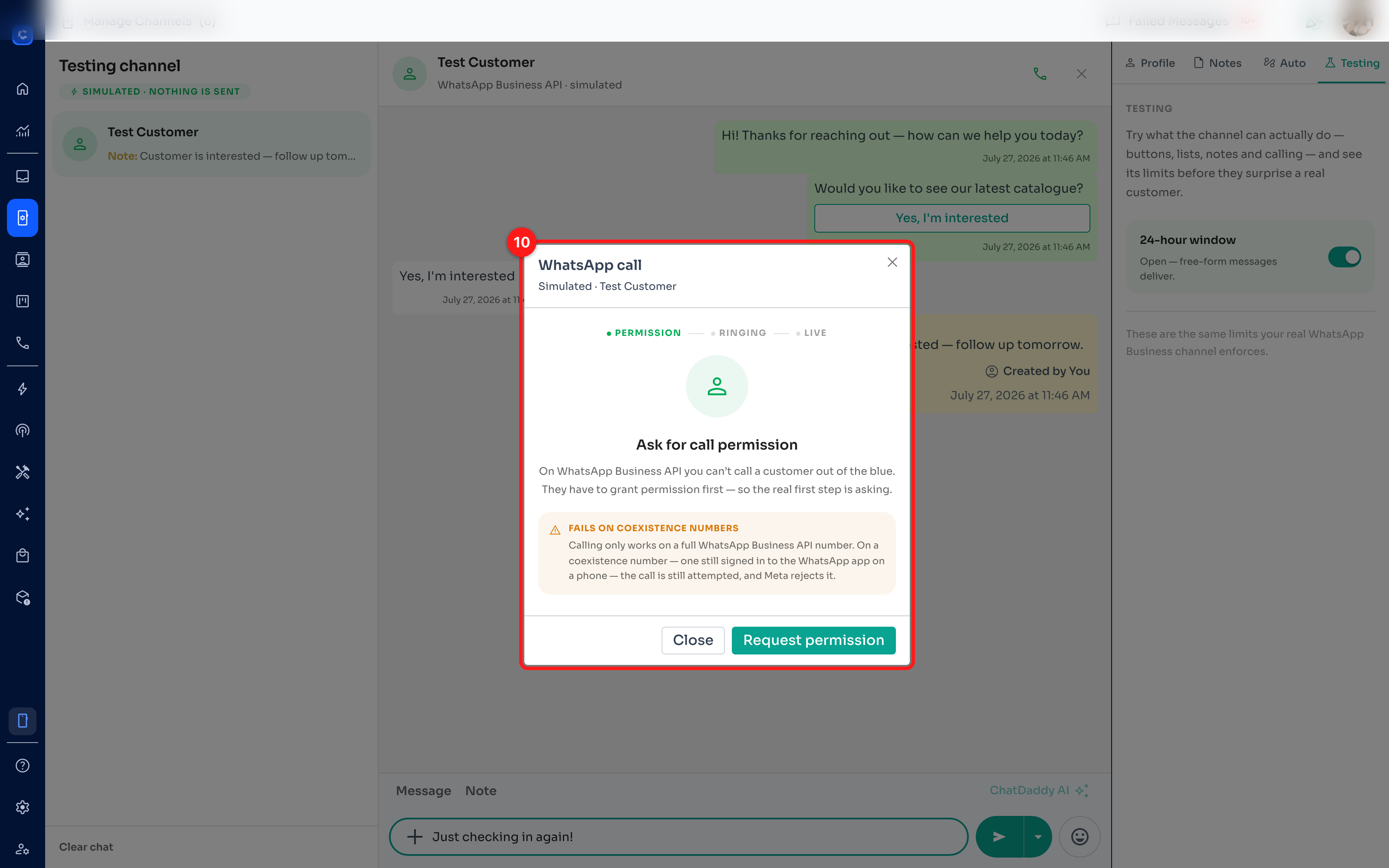
Click the green phone icon in the chat header to open the call walkthrough. It steps through the real calling flow — Permission → Ringing → Live — starting with “Ask for call permission”: on WhatsApp Business API you can’t call a customer out of the blue; they have to grant permission first. Click through the steps to see how permission, ringing, connection and the call log behave. No call is ever placed.
Good to know
- Clear chat (bottom of the chat list) resets the conversation so you can start over.
- Everything in the simulator is sample data — the Test Customer, tags and custom fields are not real contacts.
- When you close the testing channel you may be asked for quick feedback — answering is optional.
- Ready for the real thing? Open the same Connect Channel dialog and pick WhatsApp Business API (WABA) Meta Integration to connect your real number.