
What the Pinned ChatDaddy Chat in Your Inbox Is
A verified ChatDaddy conversation sits pinned above your chat list. Here is what it posts, why you cannot reply to it, why it is not a customer conversation, and how to archive it if you would rather not see it.
Also searched as: What the Pinned ChatDaddy Chat in Your Inbox Is, Who sees it, Find the chat at the top of your Inbox, Read the welcome the first time you open it, Read the updates, Open a feature straight from its update, Archive it if you would rather not see it, Good to know, Pinned, ChatDaddy, Chat, Inbox
At the very top of your Inbox chat list there is a conversation called ChatDaddy, with a blue verified tick and a pin. It is where we post release notes and product announcements, so news about ChatDaddy arrives in the same place you already work instead of in an email you never open.
It looks like an ordinary chat on purpose, but it is not one. Nobody is on the other end, no customer is attached to it, and it never counts towards your conversation volume or your credits.
💬 The chat is read-only. There is no message box, because only ChatDaddy can post in it. If you need to reach our team, use the support options in the app instead — replying here is not possible.
Who sees it
The pinned chat appears for anyone whose role lets them open chats — that is, a teammate with access to all chats or to their assigned chats. A teammate with neither will not see the row at all, and that is expected rather than a fault.
Two other things make it disappear temporarily, both by design:
- It is hidden while you are searching. As soon as you type in the Inbox search box the row drops out of the list, so it never takes up space in your results. Clear the search and it comes back.
- It is hidden once you archive it, and shows up under the Archived filter instead — exactly like archiving a real chat.
Step-by-step
Step 1 — Find the chat at the top of your Inbox
Open the Inbox. The ChatDaddy row sits above every other conversation and stays there as you scroll. You will see the blue verified tick next to the name, a pin icon, the date of the most recent update, a one-line preview reading “New: …”, and a green badge counting the updates you have not read yet.
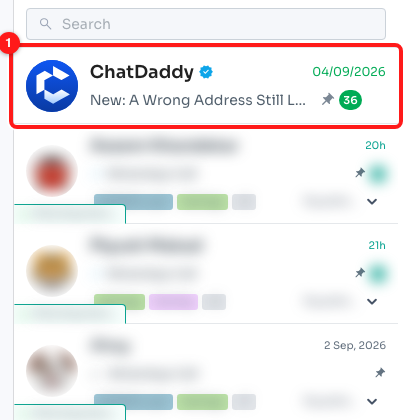
Step 1 — the pinned ChatDaddy row (1), always above the rest of the chat list.
Step 2 — Read the welcome the first time you open it
The first time anyone on your team opens the chat, a short welcome panel explains what it is for. Click Continue to dismiss it and go straight to the updates.
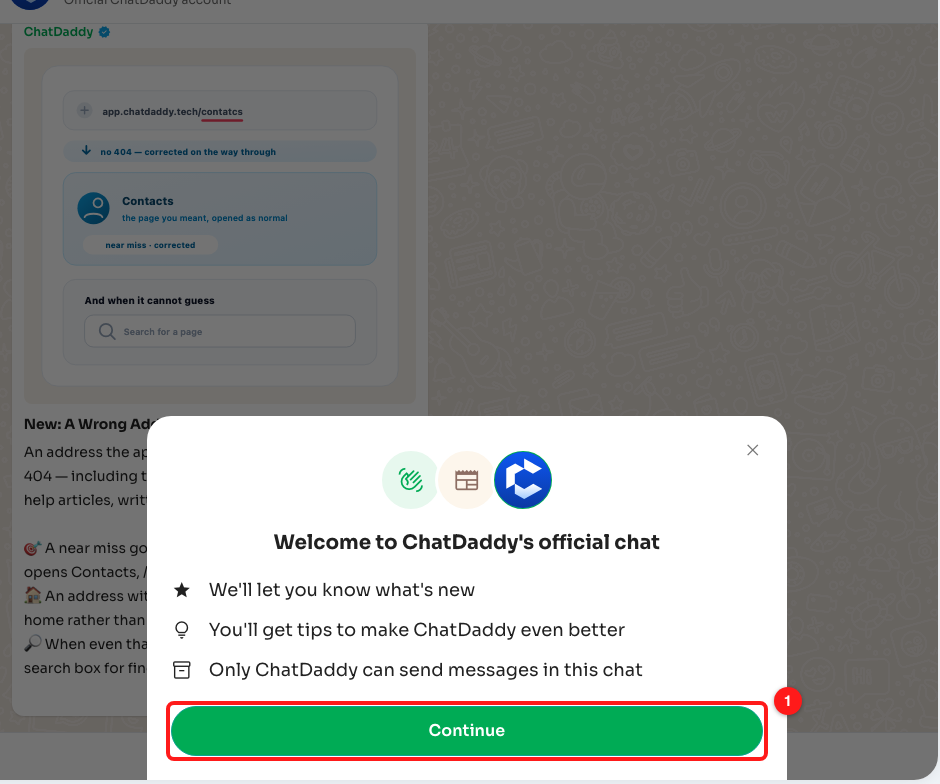
Step 2 — the one-time welcome; Continue (1) takes you into the chat.
ℹ️ You may meet this as a pop-up on the Inbox instead, with a See what's new button. It is the same welcome — whichever version you see first is the only one you get, and it does not come back.
Step 3 — Read the updates
The chat opens like any conversation, with the newest update at the bottom and day dividers between them. The header confirms what you are looking at, and the footer explains why there is nowhere to type.
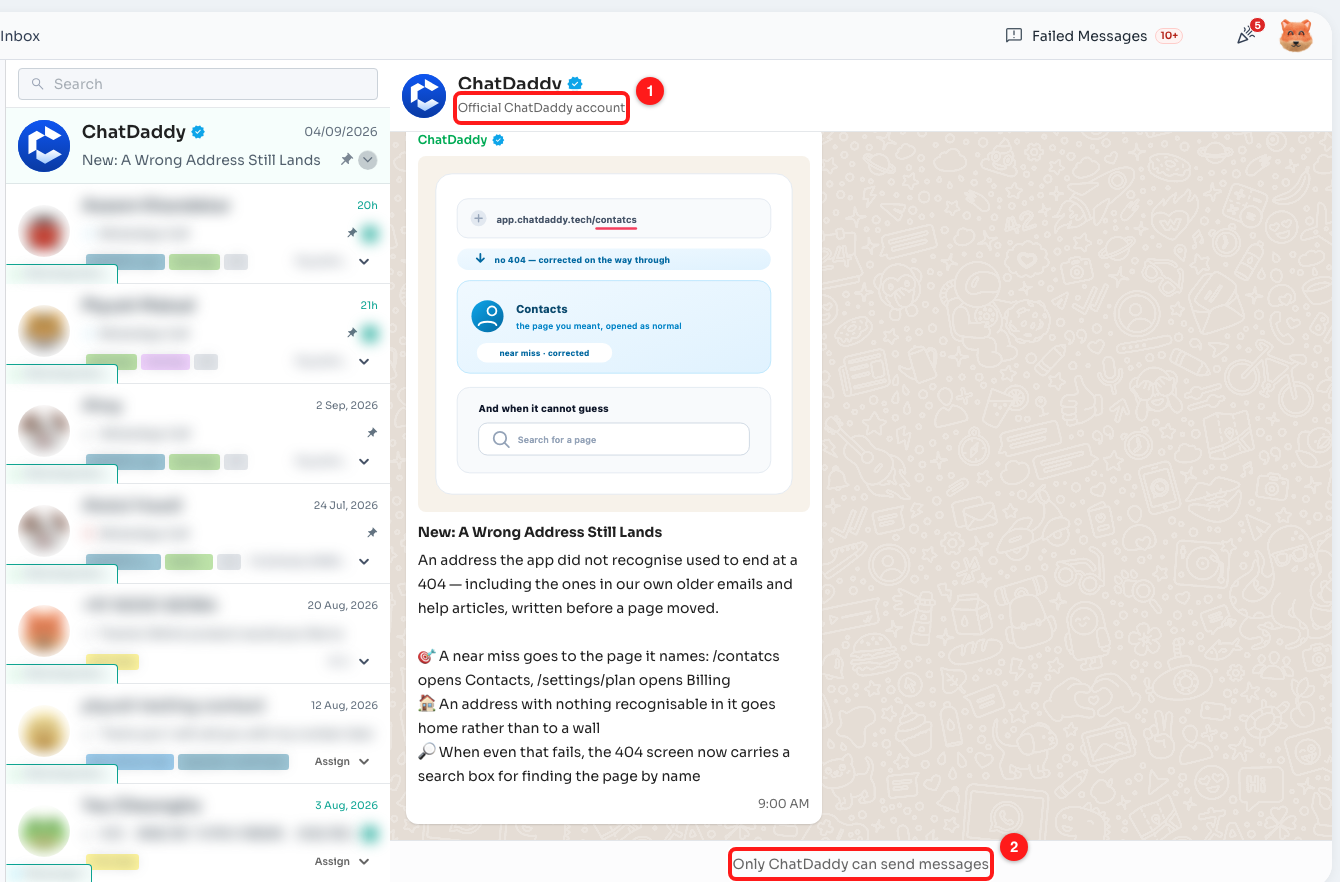
Step 3 — the header names it as the official ChatDaddy account (1); the footer where a message box would normally be says only ChatDaddy can post (2).
Opening the chat marks everything in it as read, so the green badge on the row clears.
Step 4 — Open a feature straight from its update
Each update is a card: a picture, a bold New: … headline, a short summary of what changed, and often a green button that jumps you to the feature in ChatDaddy. Some cards also carry a Learn more link, which opens the help article for that feature.
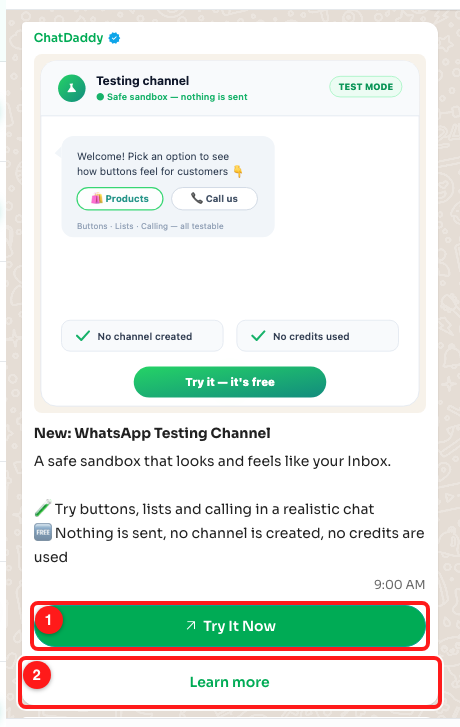
Step 4 — the green button takes you to the feature (1); Learn more opens its help article (2).
Step 5 — Archive it if you would rather not see it
Hover the ChatDaddy row and a small ⌄ button appears on the right; right-clicking the row does the same thing. It opens a single option, Archive chat.
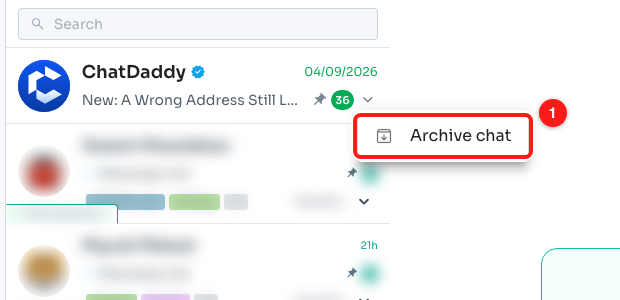
Step 5 — Archive chat (1) is the only item in the row menu.
Archiving moves the chat out of your main list and into Archived, and closes it if you had it open. To bring it back, switch to the Archived view, open the same menu and choose Unarchive chat.
Good to know
💻 Whether you have read the chat, whether you have seen the welcome, and whether you have archived it are all remembered in the browser you are using, per team. Sign in on a different computer or browser and the chat may show as unread again, or the welcome may appear a second time. Nothing is lost — it is only the read marker that does not travel.
The updates themselves are the same ones behind the What's New announcements in the app, so the two will always agree. Older updates are rotated out over time; when that happens the chat can show as unread again even though you have read everything currently in it.
Frequently asked questions
Can I reply to the ChatDaddy chat?
No. There is no message box — the footer reads “Only ChatDaddy can send messages”. It is a one-way feed of product news. To reach a human, use the support options in the app rather than this chat.
Is this a real WhatsApp conversation? Does it use my credits?
No on both counts. Nothing is sent or received over WhatsApp, no contact is created, no channel is involved and no credits are used. The chat is built into the dashboard and simply displayed in the style of a conversation.
The green unread badge came back after I read everything.
That happens in two normal situations: you opened ChatDaddy in a different browser or on a different computer, where the read marker is not stored; or the oldest updates have been rotated out since you last looked, which resets the count. Opening the chat clears it again.
One of my teammates cannot see the pinned chat.
Check their role. The row only shows for teammates who can open chats — those with access to all chats, or to the chats assigned to them. It is also hidden while a search is typed in the Inbox, and hidden if that person has archived it, in which case it is under the Archived filter.
I archived it. How do I get it back?
Switch the Inbox to the Archived view, find the ChatDaddy row there, open its menu with the ⌄ button or a right-click, and choose Unarchive chat. It returns to the top of your main chat list.
Does archiving it hide it for the whole team?
No. Archiving affects only your own view, in the browser you did it in. Your teammates keep seeing the chat as normal.