
WhatsApp User ID (BSUID): Customers Who Hide Their Phone Number
WhatsApp now lets people message you with a username while keeping their phone number private. Here's what a WhatsApp User ID (BSUID) is, when a customer is 'hidden', how to reply, how to ask for their number in one tap, and how to link a number they gave you yourself.
Also searched as: WhatsApp User ID, BSUID, business-scoped user ID, hidden phone number, WhatsApp username, request phone number, privacy, no phone number contact, username only, customer privacy, WhatsApp LID, masked number, reply without number, stable identifier, WhatsApp privacy rollout
**In short: **WhatsApp now lets people use a username and keep their phone number private. When such a customer messages your WhatsApp Business API channel, WhatsApp identifies them with a WhatsApp User ID (technically a Business-Scoped User ID, or
BSUID) instead of a phone number. The chat still arrives, you can still reply — and you can ask for their number with one tap.
What is a WhatsApp User ID (BSUID)?
A WhatsApp User ID is a stable code Meta gives you to identify one person to your business. It looks like a country prefix followed by digits:
MY.1504606537736229
US.ENT.11815799212886844830
- It is business-scoped. The same person has a different User ID for every business portfolio. Yours only works on your own WhatsApp Business API channels.
- It is stable. It does not change if the customer renames themselves or changes their username.
- It is a valid send address. A phone number and a WhatsApp User ID are the only two things WhatsApp accepts. A username can never be messaged directly — it is display-only.
- It is not a secret. It is safe to quote in a support ticket or an internal note.
Every WhatsApp Business API contact now has a User ID behind the scenes. The only question is whether the phone number comes with it.
When is a customer "hidden"?
A customer only hides behind their User ID in one specific case:
| Case | Who | What you see |
|---|---|---|
| ✅ Normal (most customers) | No WhatsApp username | Phone number visible, everything as usual |
| ✅ Normal | Has a username, but already messaged this business number recently, or has shared their phone once | Phone number visible |
| 🔒 Hidden (the new case) | Has a username and is brand-new to this business number — typically a new lead from an ad or a shared link | No phone number. The chat arrives identified by the WhatsApp User ID only |
This is checked per business number. The same person can be hidden on a WABA line they have never used, and fully visible on one they have chatted with before. Most new leads still show a phone number simply because most people have not created a WhatsApp username yet. Adoption will grow over time — which is why this matters.
Step-by-step: working with a hidden-number customer
Step 1 — Spot the chat in your Inbox
You do not have to do anything to receive these chats. When a hidden-number customer writes in, ChatDaddy creates the chat and the contact automatically, just like any other customer. In the chat list they appear under their username or their WhatsApp profile name. If they have neither, you see a fallback label built from the last digits of their User ID, so two nameless customers never look identical:
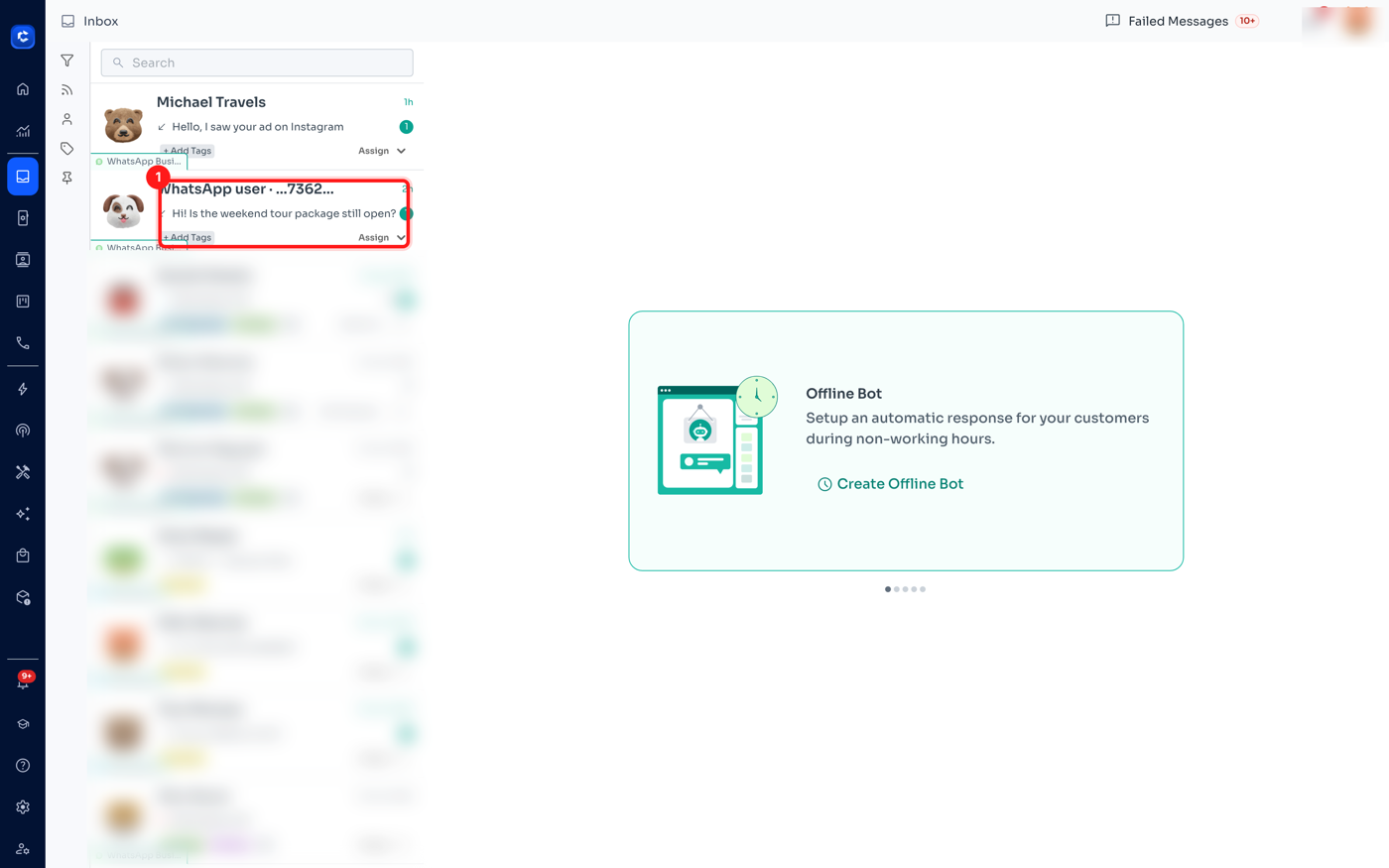
Best habit: rename them as soon as they write in. Give them a proper name and they become searchable by it everywhere, like any other contact — you cannot search for them by phone number, because there is not one.
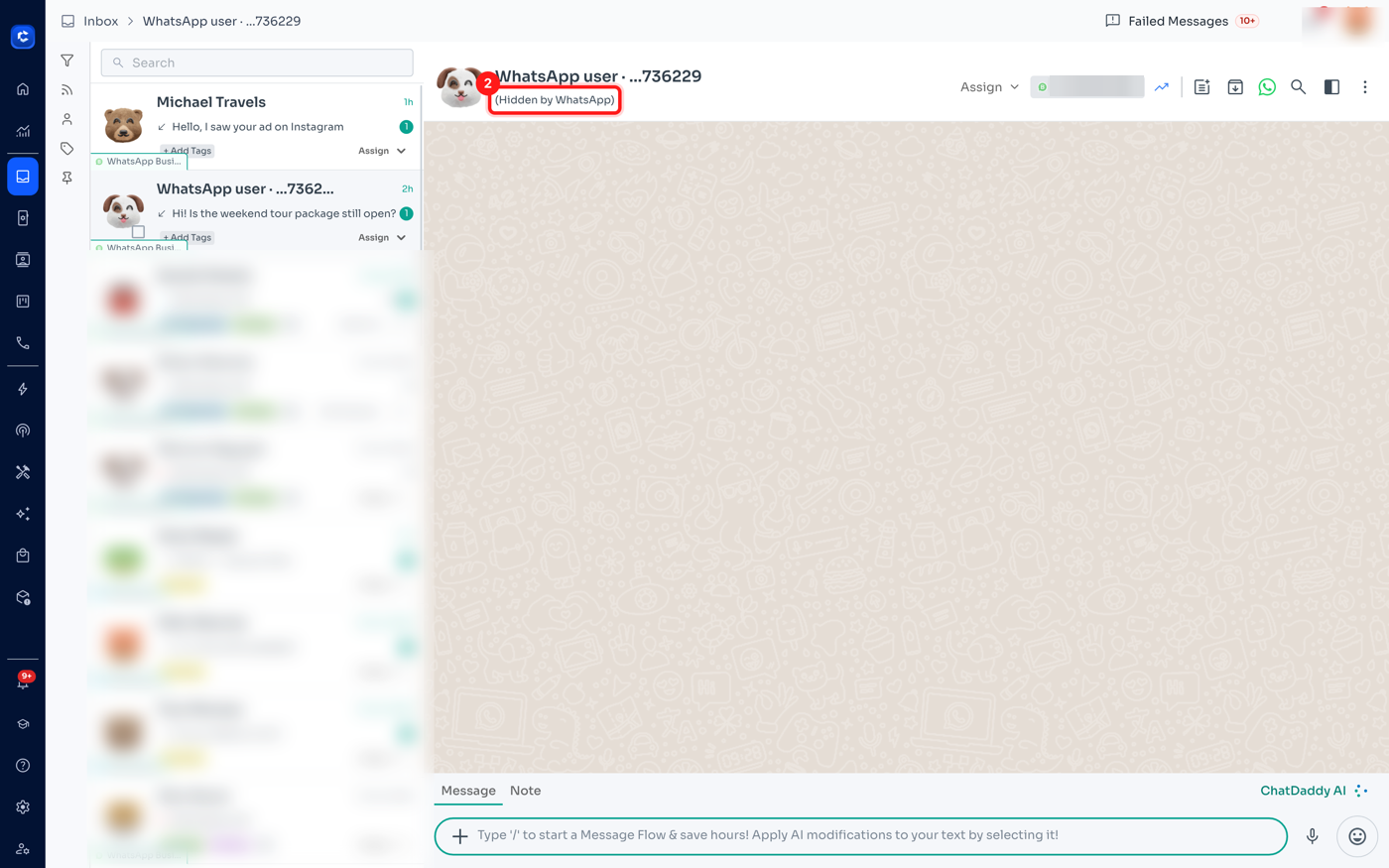
Step 2 — Open the chat: the phone shows "(Hidden by WhatsApp)"
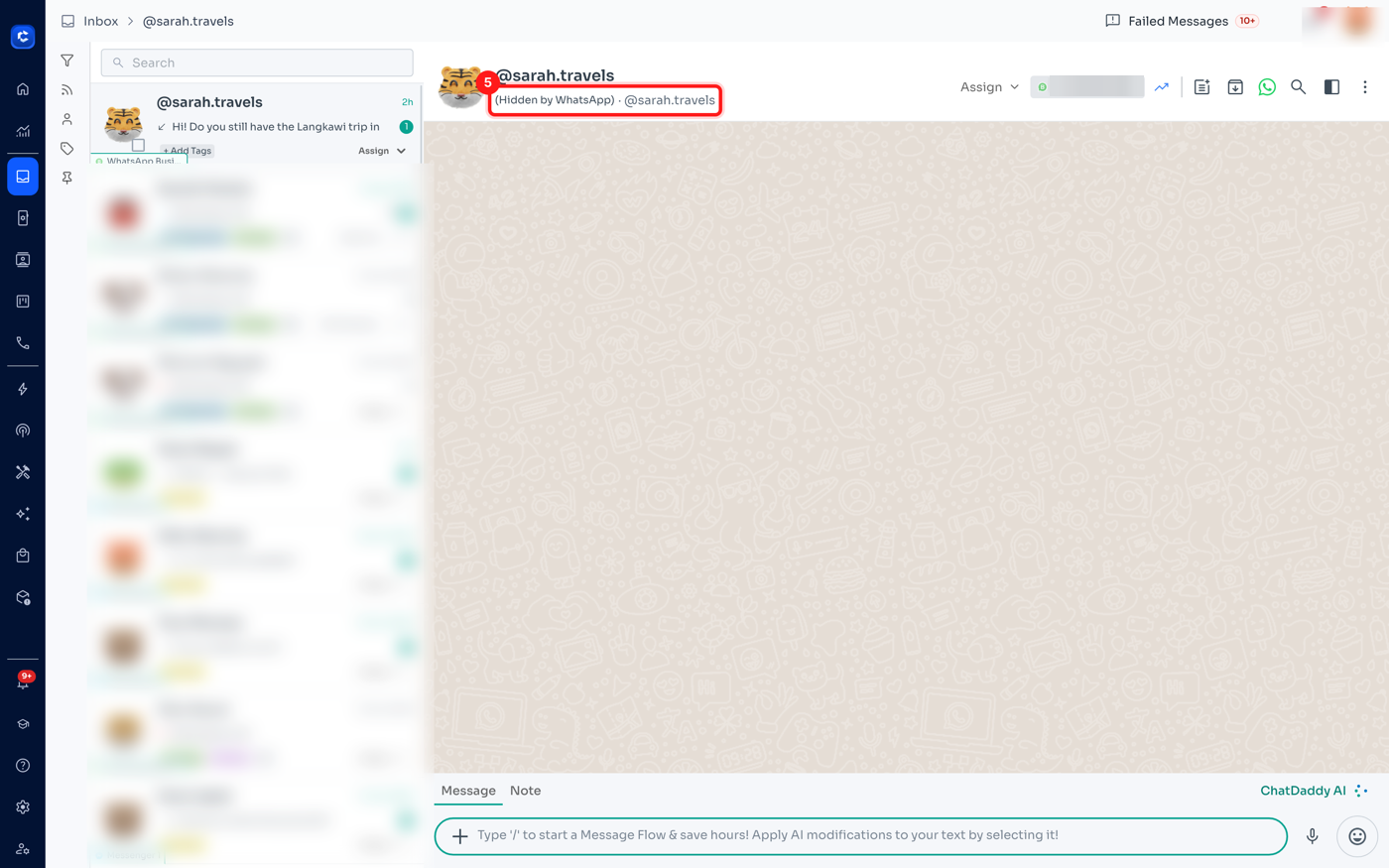
Open the conversation. Everything works normally — replying, media, quick replies, assignment, tags, notes, delivery and read ticks. The one difference is in the header, where the phone number would normally sit:
Step 3 — Find them on the Contacts page
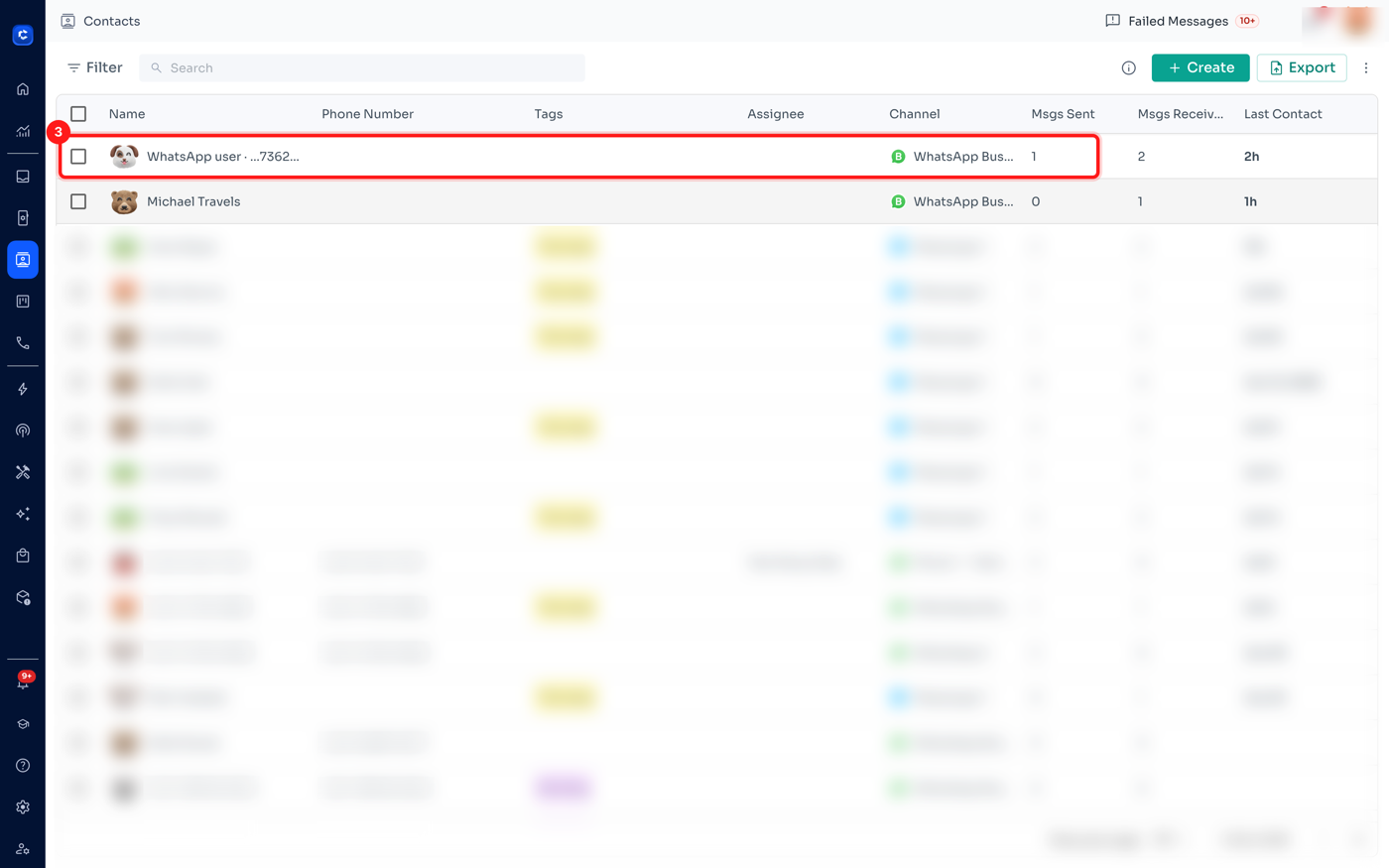
Hidden-number customers also appear in Contacts, in audience lists, in tag filters and in segments — everywhere a normal contact appears. Their Phone Number column is simply empty, because there is no number to show.
Step 4 — Read their WhatsApp User ID
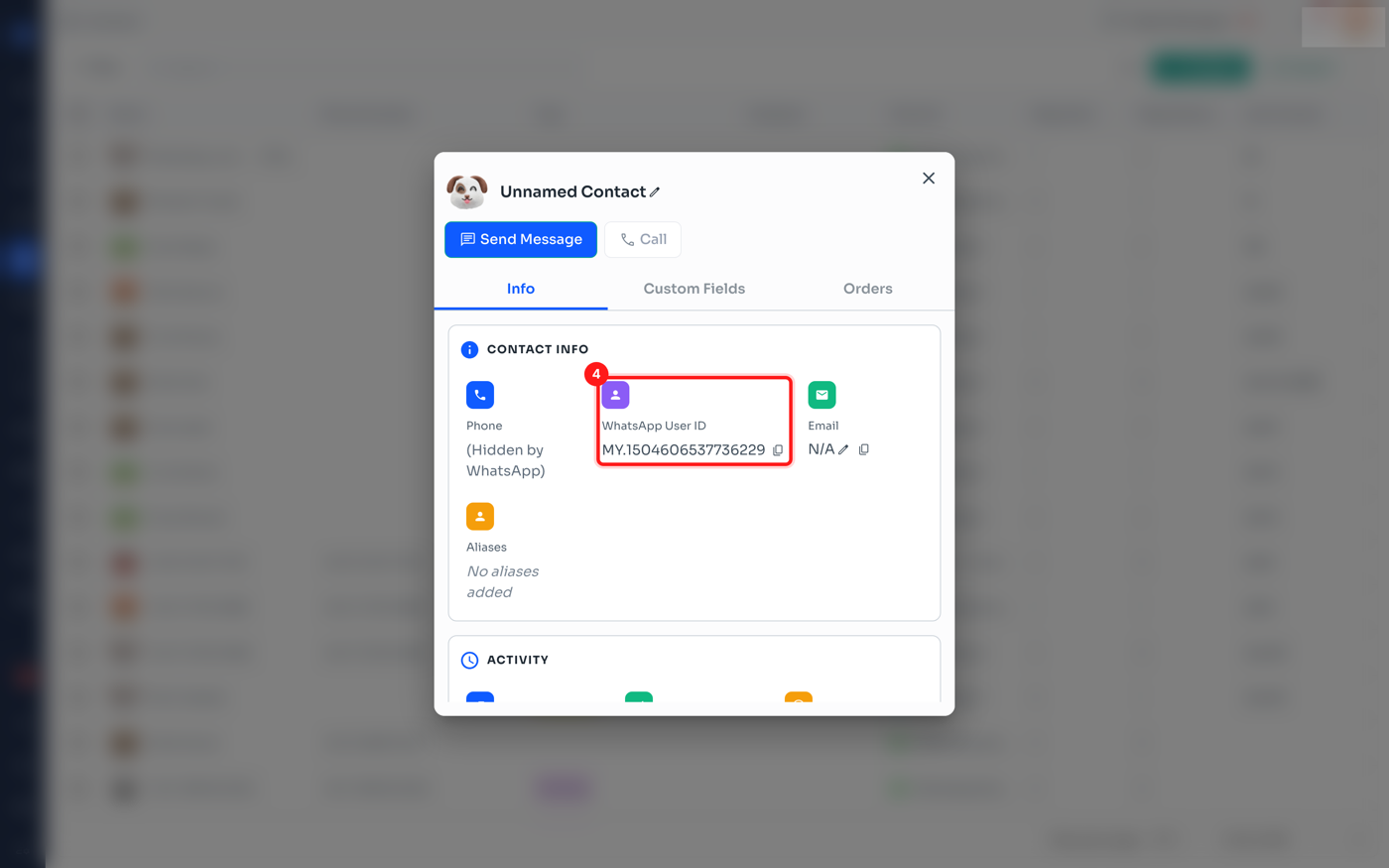
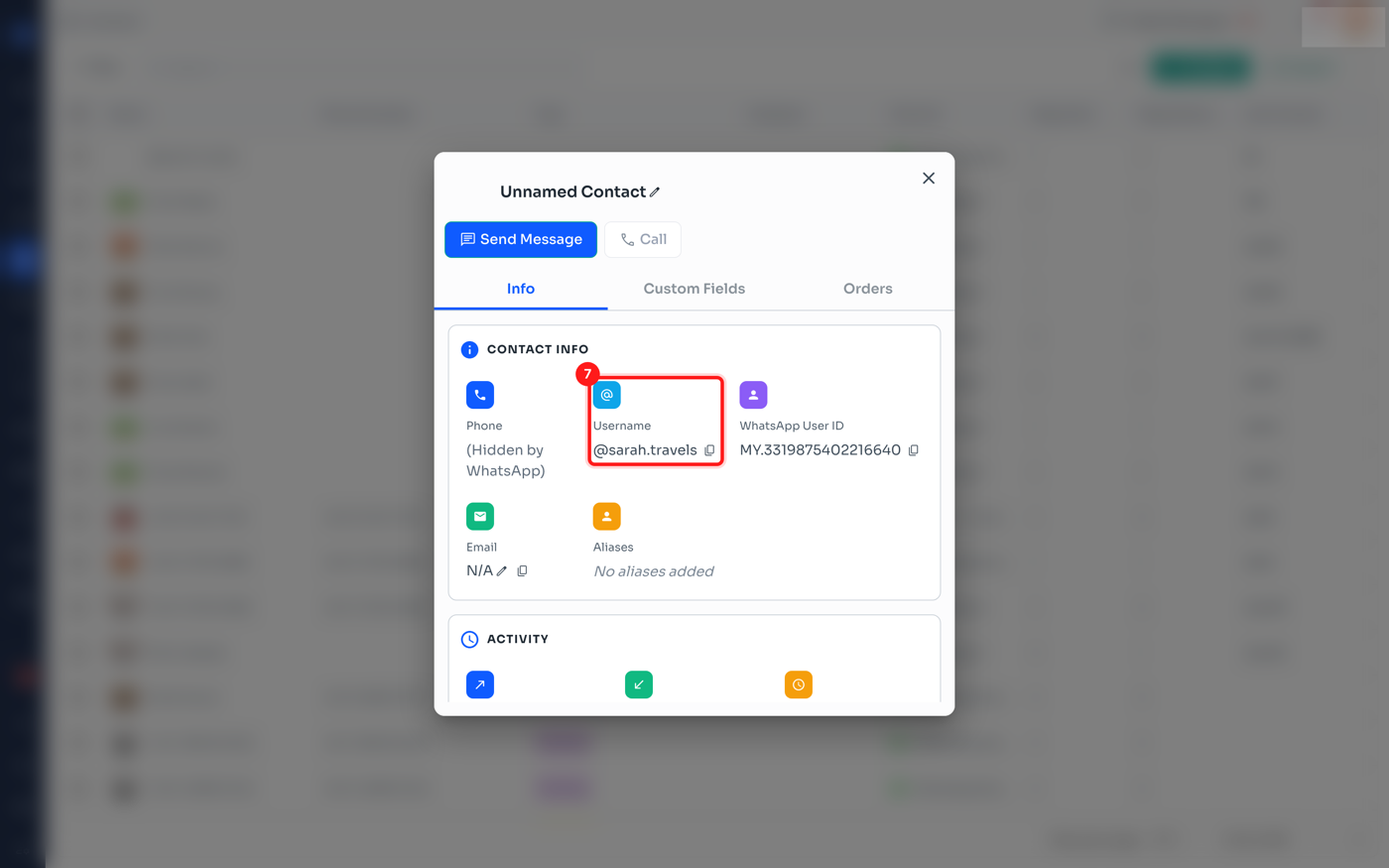
Click the contact to open their details. Under Contact Info you will find a WhatsApp User ID field with the full ID and a copy button — handy when you need to reference the customer in a support ticket or an internal note.
You cannot add a hidden-number customer manually. The Add Contact form requires a phone number, because a contact you create yourself is one you intend to message first — and starting a conversation always needs a phone number. A User ID only exists after the customer has messaged you. This is a WhatsApp rule, not a ChatDaddy limitation. Invite them to message you first instead — via a click-to-WhatsApp ad, a QR code, or a wa.me link.
How the WhatsApp username works
The username is the handle a customer picks for themselves on WhatsApp, like @sarah.travels. It is the friendly, human-readable half of the story — the WhatsApp User ID is the machine half. ChatDaddy stores the username and shows it wherever it helps you recognise who you are talking to.
The one rule to remember: a username is display-only identity. You can read it, show it and search it — but you can never send a message to a username. Only a phone number or a WhatsApp User ID works as a send address, and there is no way to look one up from a username. Where the username shows up, and which name wins:
- If you have renamed the contact yourself, your name always wins in the chat list and contact list.
- For a hidden-number customer, the @username is used as the chat title — ahead of their WhatsApp profile name, because it is the most recognisable thing available.
- For a customer whose number you can see, their WhatsApp profile name is used as the title, and the @username still appears in the chat header and contact details.
- The username can change at any time; the WhatsApp User ID never does. So use the User ID, not the username, whenever you need a permanent reference.
Step 5 — See the username on the chat
Open the conversation. The username appears as the chat title, and again in the header line right next to the hidden-number label:
Step 6 — Search the Inbox by username
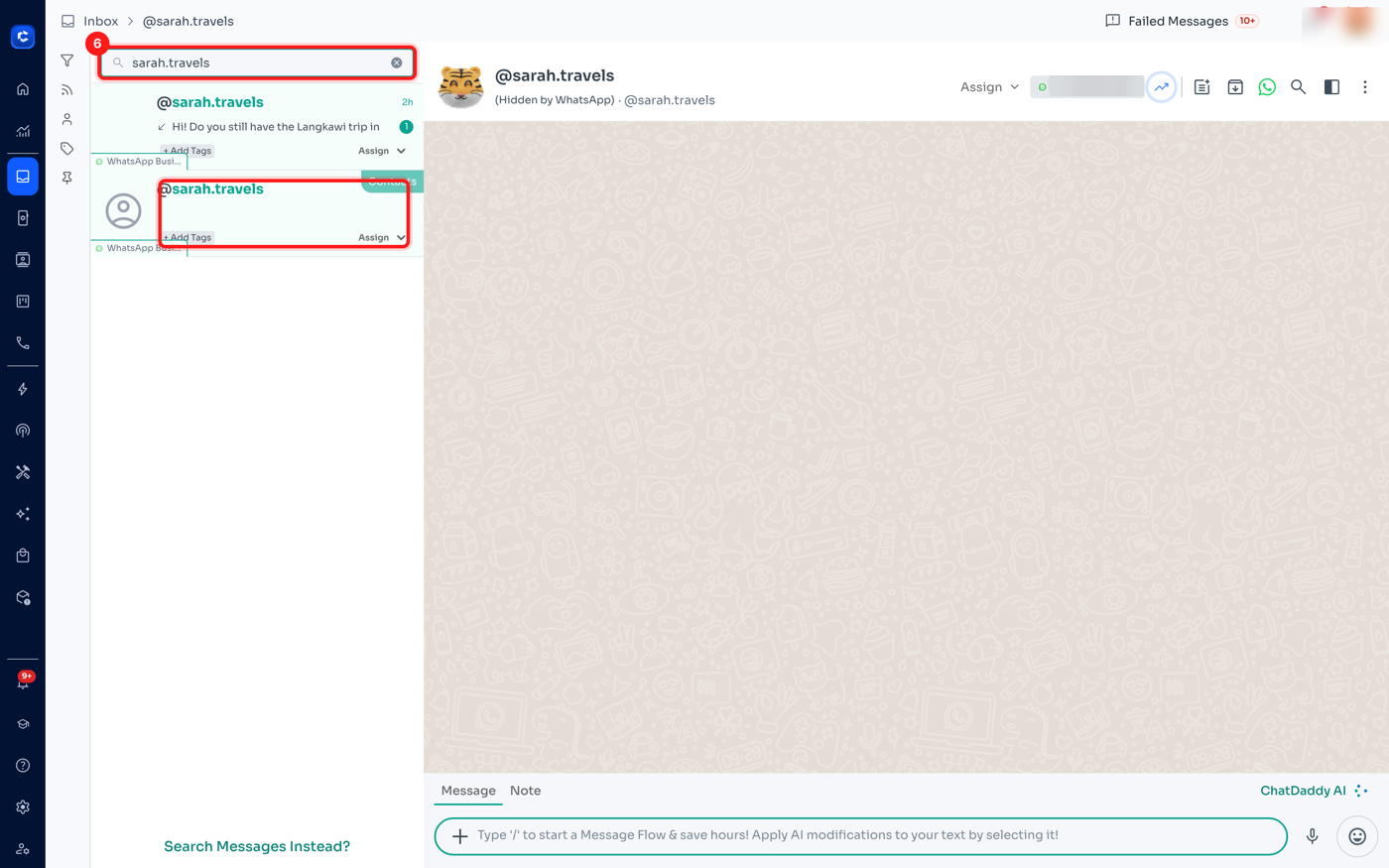
You can find a customer by typing their username into the Inbox search box — with or without the leading @. This is the quickest way back to a hidden-number customer, since searching by phone number is not an option for them.
Step 7 — Check the username in contact details
Open the contact and you will see the Username field next to the WhatsApp User ID, each with its own copy button — the handle you show a colleague, and the ID you quote in a ticket:
Getting their phone number: the "Request Phone Number" button
You do not have to live without the number. WhatsApp provides a special button type that asks the customer to share it — one tap, no typing, no typos.
This is not a normal reply button. Renaming an ordinary button to "Request Phone Number" does nothing — only the special button type makes WhatsApp show its native share screen.
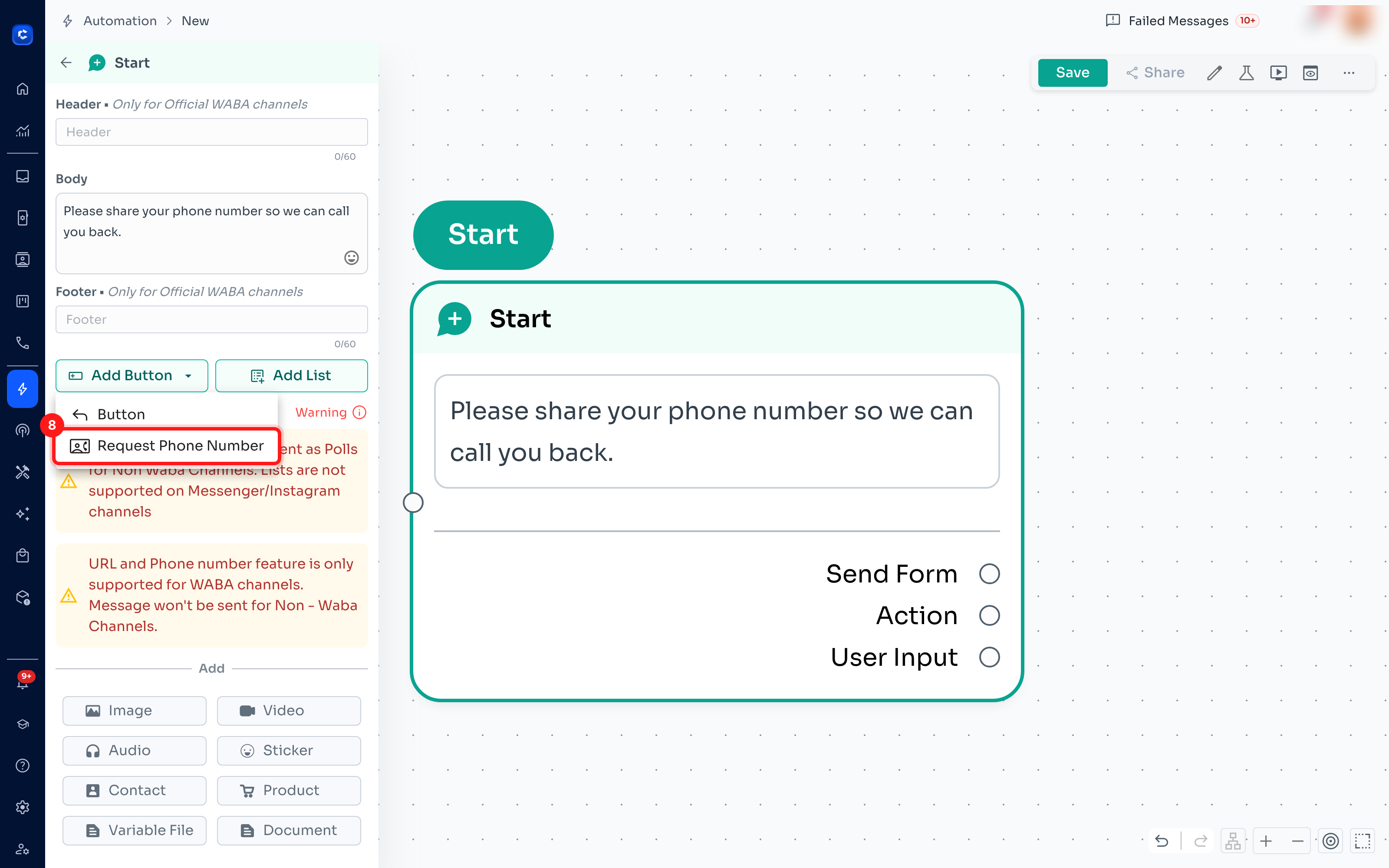
Step 8 — Add the button in Flow Builder
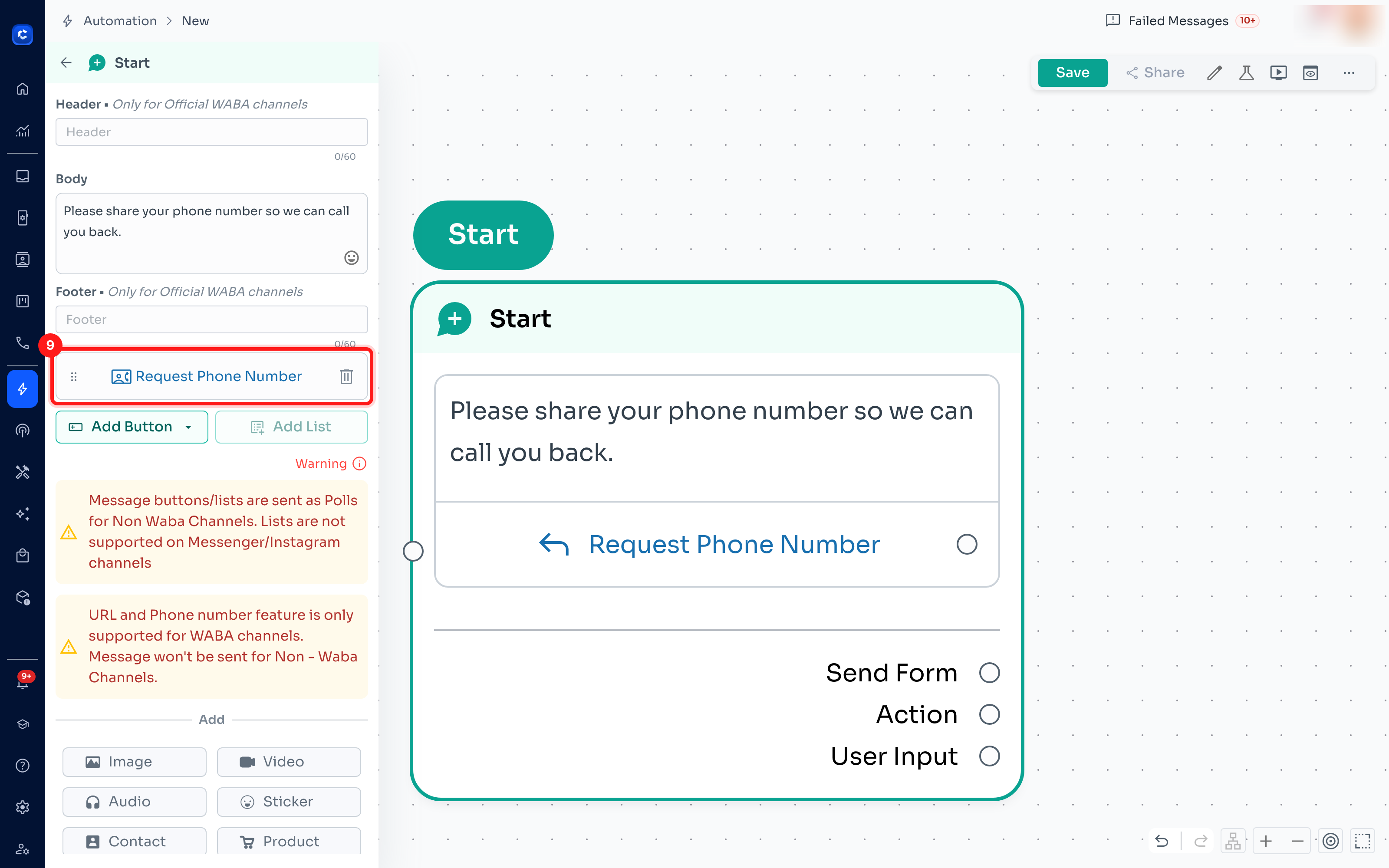
Go to Automation → Message Flows, open (or create) a flow, and click into a Message step to open its editor. Click the Add Button dropdown and choose Request Phone Number:
Step 9 — Check the button, then submit for approval
The button is added to your message. A few things behave differently from a normal button:
- The label is fixed by WhatsApp — you cannot rename it.
- Only one per message.
- It cannot chain a next step in the flow — the customer's answer arrives as a shared-contact message, not as a button click.
- It always needs template approval before it can be used outside the 24-hour window, like URL and phone-call buttons.
- WhatsApp Business API channels only — it is not supported on non-WABA channels.
What happens when the customer taps it
- You send the message carrying the Request Phone Number button — via an approved template, or inside the 24-hour window.
- The customer taps it. WhatsApp shows them their own number and asks them to confirm — one tap, verified, no typos.
- The number arrives in the chat as a "Shared phone number" message and is saved to the contact automatically.
- ChatDaddy re-keys the chat to the phone number — the conversation history moves with it, with no duplicate chat.
- From then on they behave like any normal contact: broadcasts, automations and exports all work.
Sharing is always the customer's choice — they can decline.
Step 10 — The customer receives the request
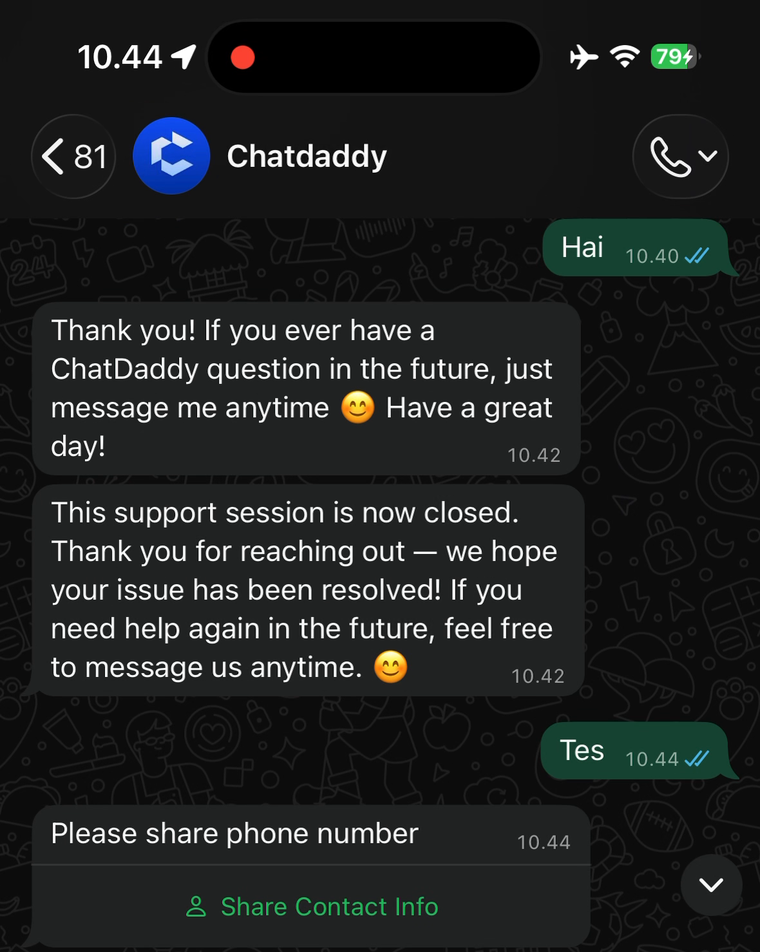
Here is the same moment from the customer's side, on their own phone. Your message arrives with a single tappable Share Contact Info button underneath it — no typing, no form, no risk of a typo.
Step 11 — They tap it and confirm what to send
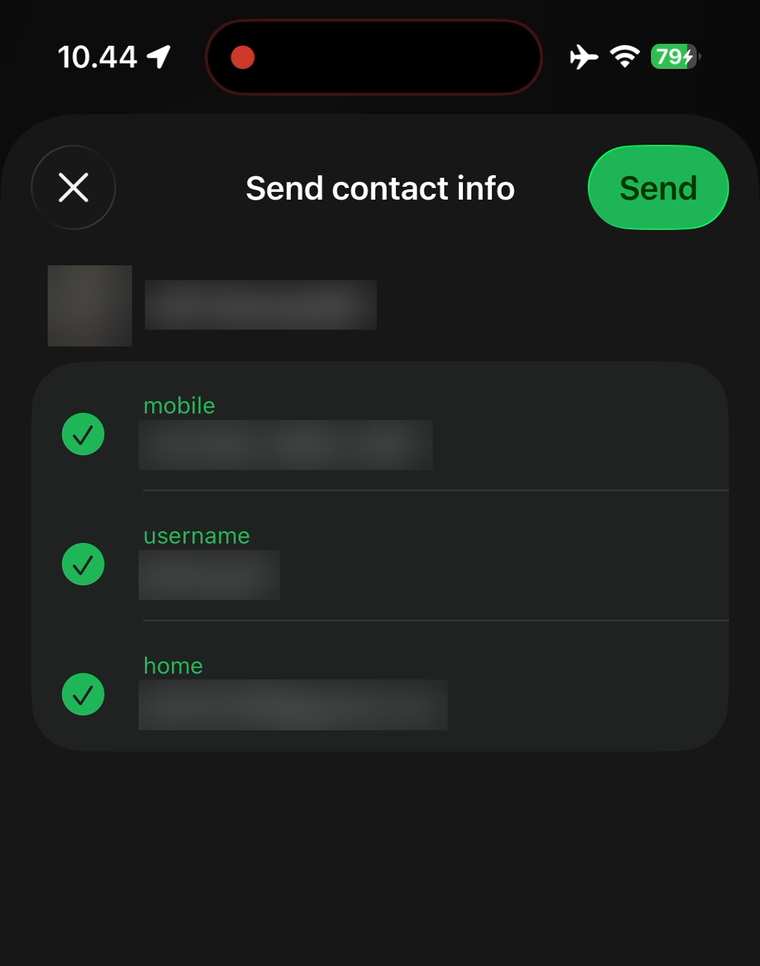
Tapping the button opens WhatsApp's own Send contact info sheet, pre-filled from the customer's WhatsApp account. This screen belongs to WhatsApp — ChatDaddy never sees it, and the customer can close it without sending anything.
Step 12 — The number arrives in your chat
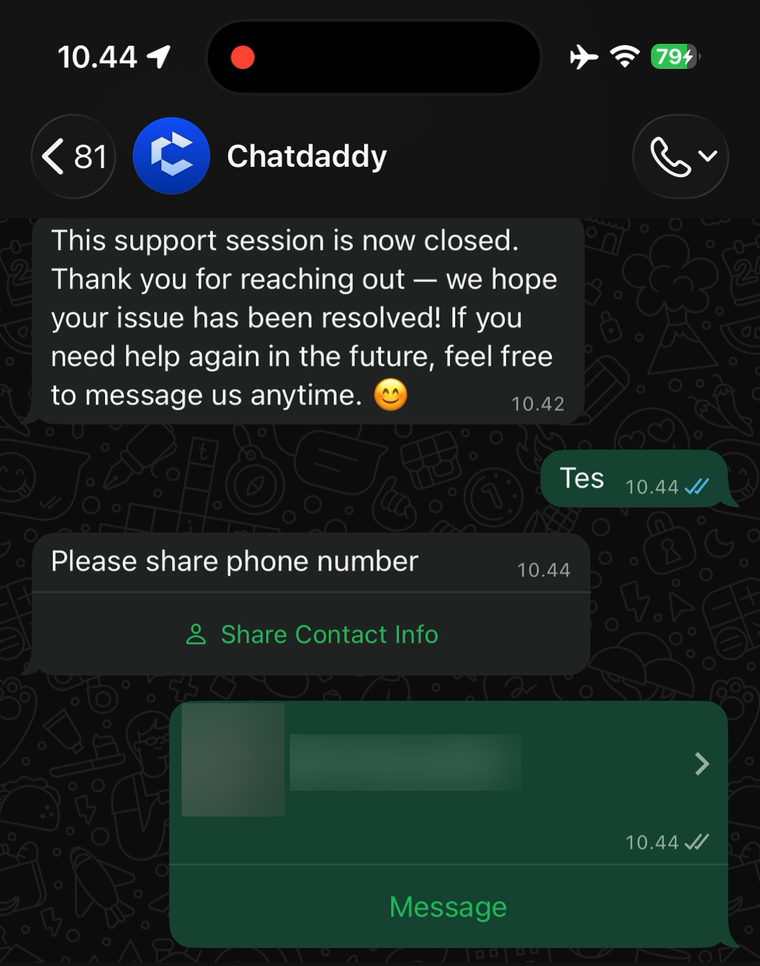
Once they tap Send, the shared contact lands in the conversation as a shared-contact message. ChatDaddy saves the number to the contact and re-keys the chat to it, so the whole history stays in one place with no duplicate chat.
What ChatDaddy actually receives
The confirmation sheet on the customer's phone can list more than a number — a username and an email address are visible there too. Only two of those things ever reach your business:
- The phone number — from this moment on it becomes the customer's primary identifier across the whole system. The chat, the contact record, broadcasts, exports and automations all key off it.
- Their WhatsApp profile name — the display name on their own WhatsApp account. Nothing else is passed on. The username and the WhatsApp User ID were already received and stored from the customer's very first message — ChatDaddy has been keeping both from the beginning — so the phone number is genuinely the only new piece of information the request unlocks. Email addresses, and every other entry on the customer's own contact card, stay on their phone.
The order it happens in: WhatsApp User ID + username from the very first message → phone number added the moment the customer shares it → the phone number becomes the primary identifier from then on.
Which WhatsApp apps can show the button
The button is drawn by WhatsApp itself, not by ChatDaddy — and today only the mobile app knows how to draw it.
- ✅ WhatsApp on mobile (iOS and Android) — the request renders normally and the customer can tap Share Contact Info.
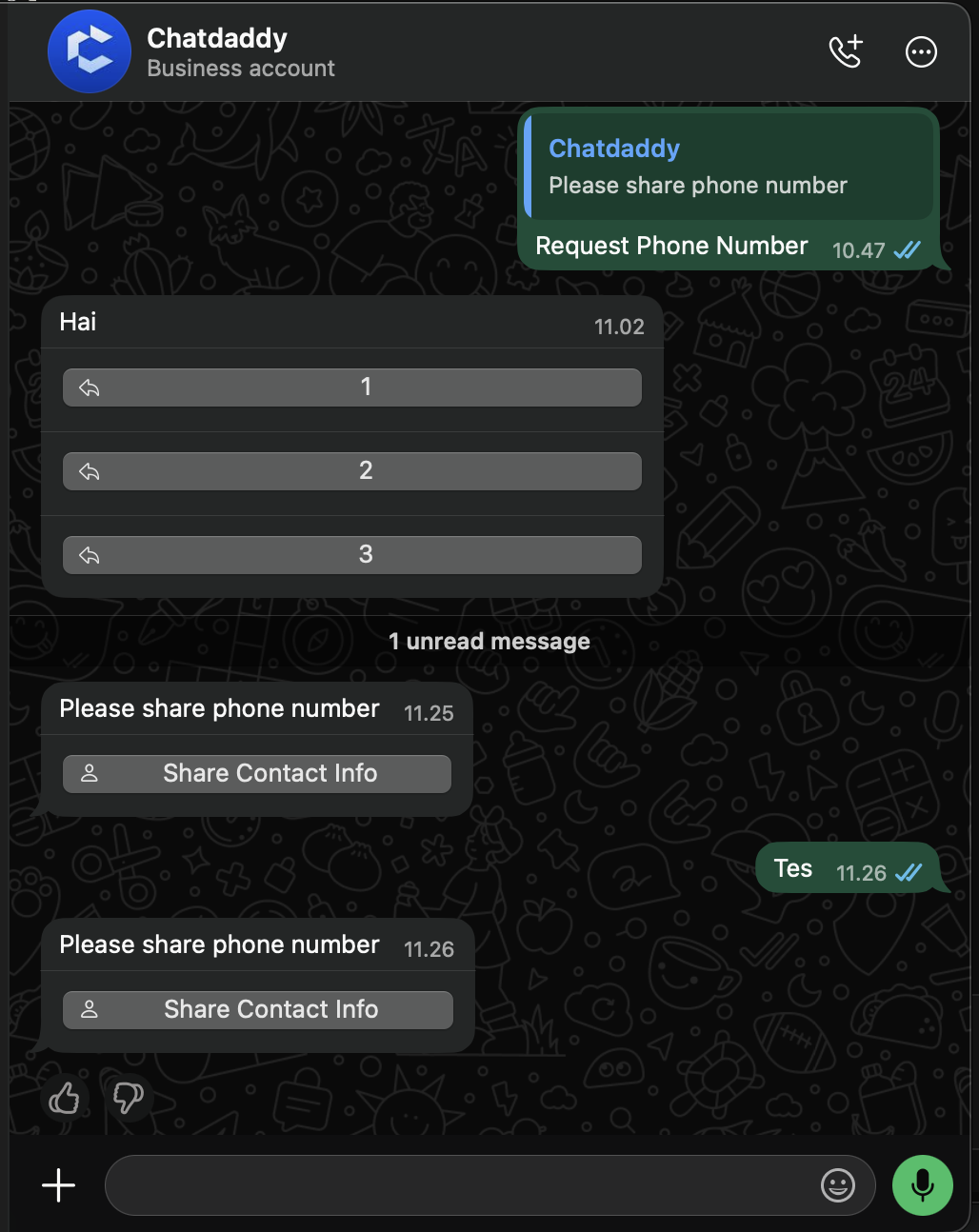
- ❌ WhatsApp Web and WhatsApp Desktop — the message cannot be rendered at all. The customer only sees “This message couldn't load. Open the message on your phone to view it.” or “Waiting for this message. Check your phone.”
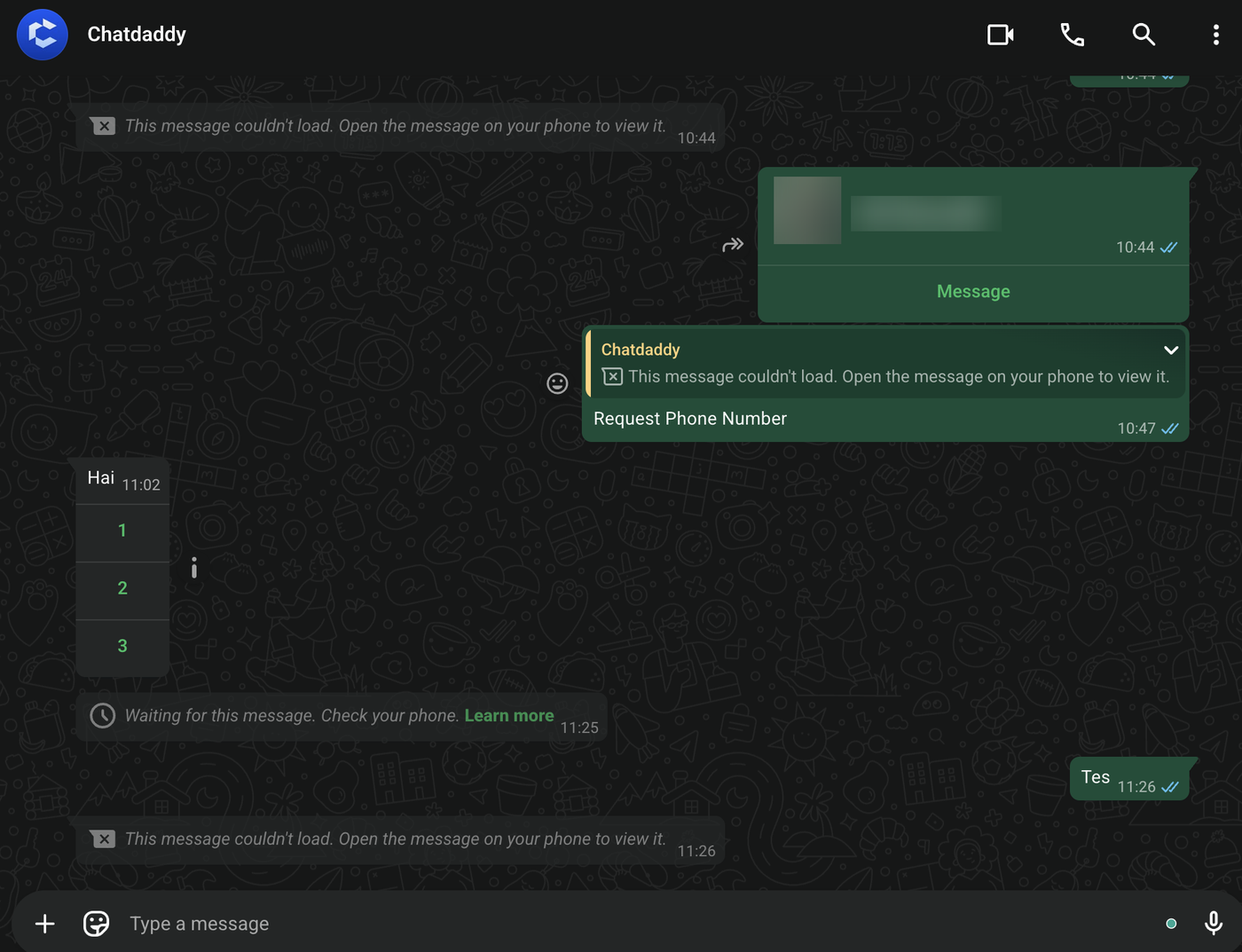
If a customer tells you the message will not open, nothing is wrong with your template. Ask them to open the same chat on their phone and tap the button there — the shared number then flows back to you as normal.
Non-WABA channels cannot send the request
The Request Phone Number button is a WhatsApp Business API feature. If a flow that uses it runs on a QR-linked (non-API) WhatsApp channel, the message cannot be delivered — the chat shows "templateMessage" message not supported instead, and the customer never receives anything to tap.
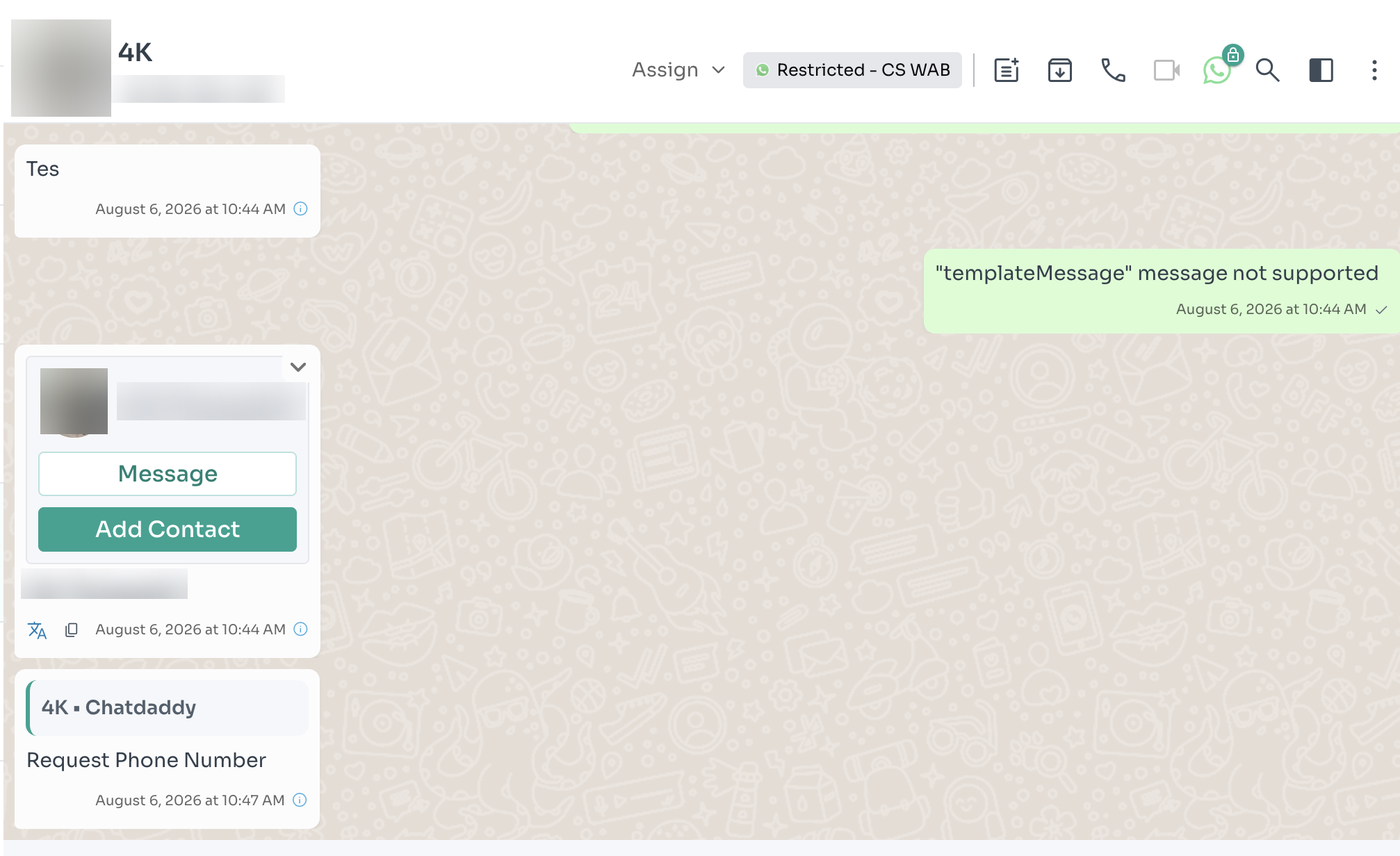
Check the channel before you publish. Only WhatsApp Business API channels can send the Request Phone Number button — on any other channel you will need to ask for the number in plain text instead.
Getting their phone number: linking it manually
The Request Phone Number button is the cleanest route, but it is not the only one. Very often a customer simply tells you their number another way — on a call, typed into the chat, or on a form you sent them. In that case you do not have to wait for them to tap anything. You can link the number to the chat yourself, and ChatDaddy performs the same merge.
This is a one-way change. Once you link a number, the hidden chat is merged into it and it cannot be undone — so read the number back to the customer before you confirm. Unlike the Request Phone Number button, a number you type in yourself has not been verified by WhatsApp.
Step 13 — Click "Link number" in the chat header
Open the hidden-number conversation. Next to the (Hidden by WhatsApp) label in the header you will see a Link number button. Click it to open the dialog.
The button only appears when all three of these are true: the customer is genuinely hidden behind a WhatsApp User ID, the conversation is on a WhatsApp Business API channel, and your role has permission to edit contacts. If you cannot see it, check those three first.

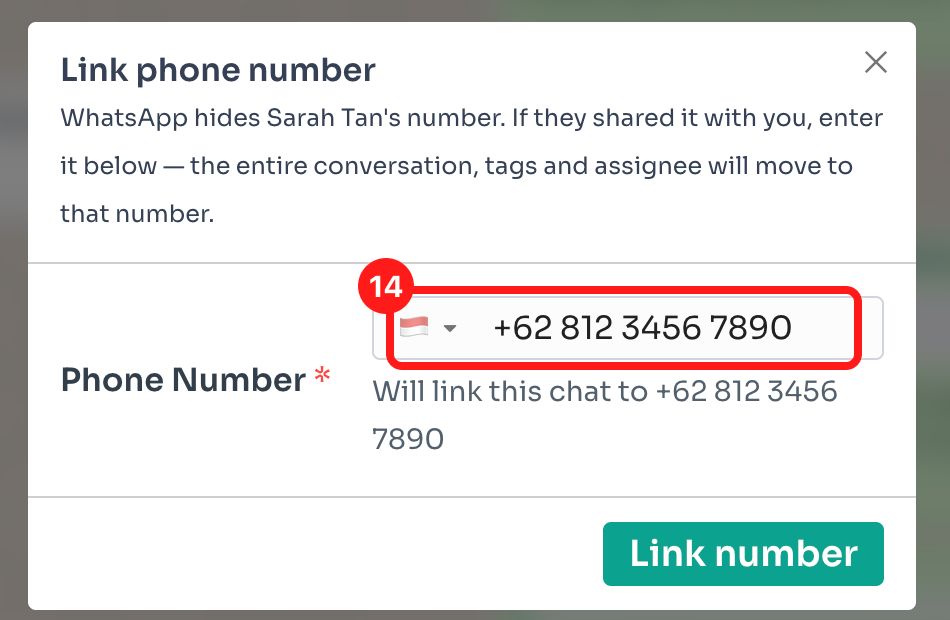
Step 14 — Enter the number they gave you
Pick the country and type the number. ChatDaddy validates it as you type: an unusable number shows Invalid Phone Number and keeps the button disabled, while a valid one shows a Will link this chat to … line so you can read the full international number back before committing.
Step 15 — Confirm the merge
Click Link number and a confirmation appears, spelling out the number the chat will be merged into and warning that it cannot be undone. This is the last point at which you can back out — check the digits once more, then confirm.
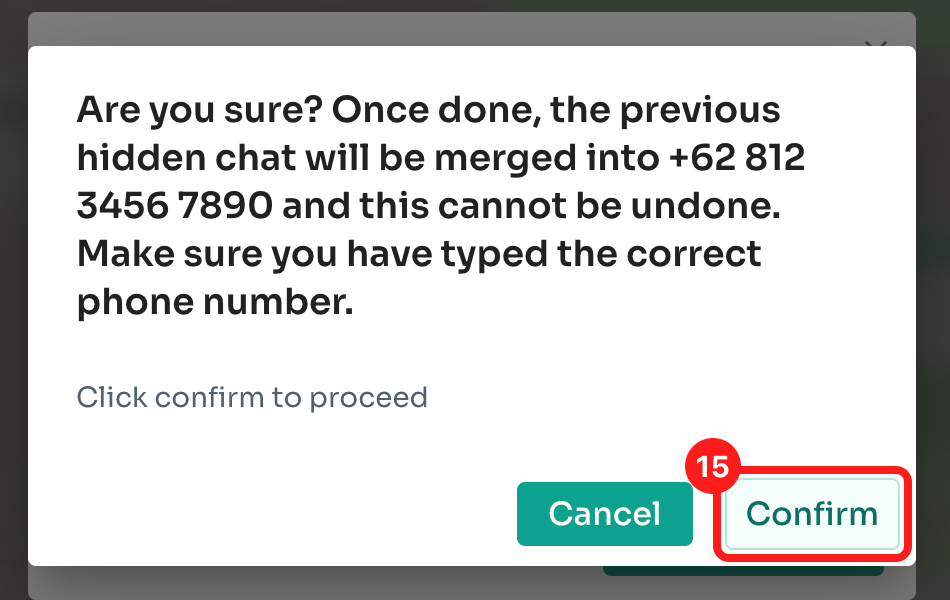
After it completes you land in the phone-number chat. The whole conversation history, the tags and the assignee come with it, exactly as they would if the customer had tapped Request Phone Number themselves — and there is no leftover duplicate of the hidden chat.
Which route should you use? If you can ask the customer to tap the button, do that — WhatsApp confirms the number for them and it arrives verified. Use manual linking when they have already given you the number another way, or when they cannot see the button (for example, they are on WhatsApp Web).
Steps 16 & 17 — Broadcasting to hidden-number customers
Hidden-number customers can absolutely receive broadcasts — as long as you pick them by segment rather than by phone list.
- ✅ Step 16 — Use Condition (tags, segments, filters). If a hidden-number customer matches the filter, they are included like anyone else, and delivery and read tracking work normally.
- ❌ Step 17 — Import Contacts (CSV) cannot include them. Imports are phone-number based, and these customers do not have one on file.
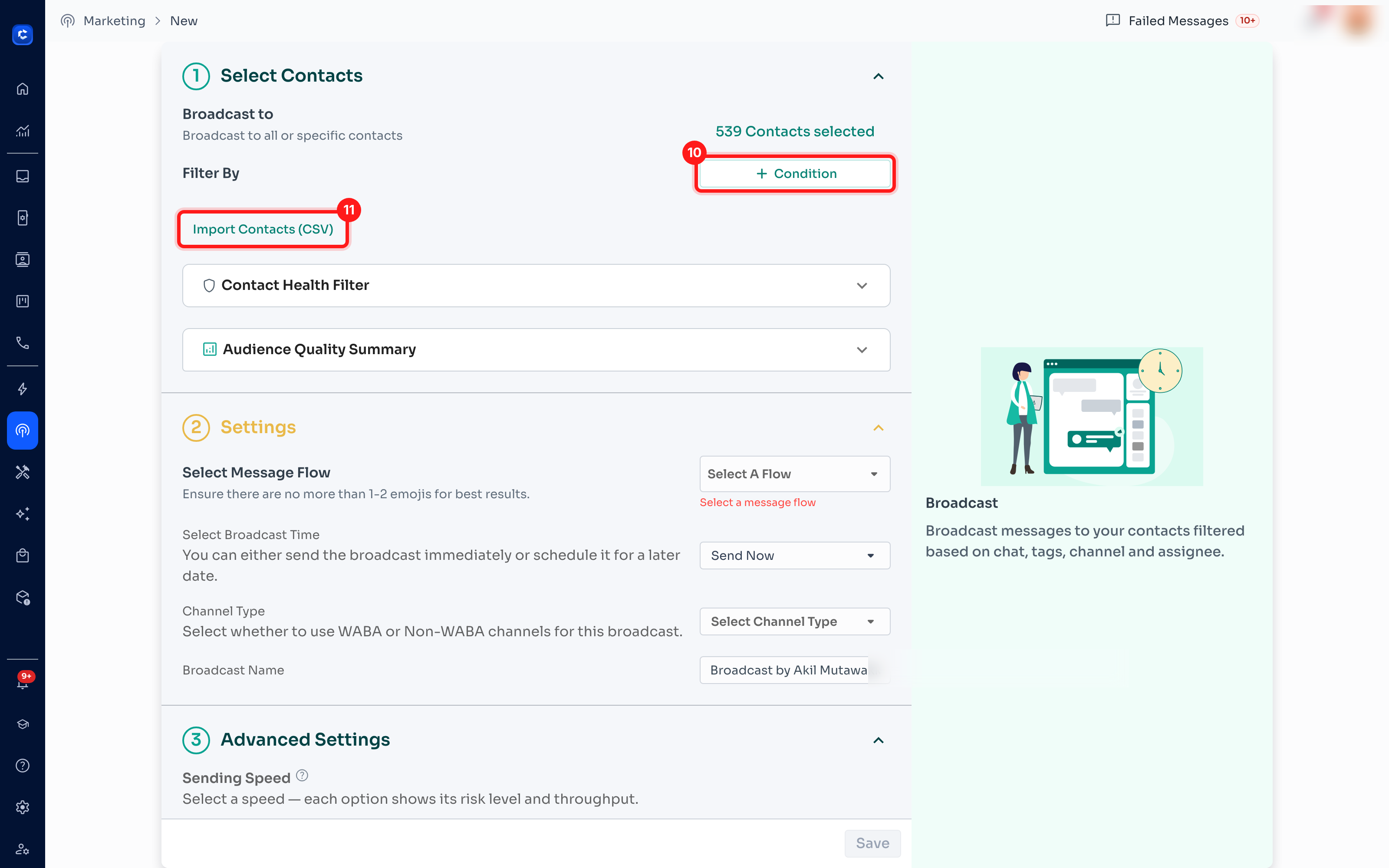
Send from the channel they messaged. A WhatsApp User ID only works for the business portfolio it was issued to. If your broadcast uses several channels, make sure the WhatsApp Business API channel the customer originally wrote to is one of them.
What works, and what needs the phone number first
| Works normally with a hidden-number customer | Needs the phone number first |
|---|---|
| Two-way chat, media, quick replies, delivery and read ticks | Calling — there is no number to dial |
| Bots and message flows triggered by their messages | Importing via CSV or phone lists |
| Tags, assignment, notes, CRM tickets | Authentication (OTP) templates — WhatsApp refuses these for hidden users (error 131062). Marketing and Utility templates are fine |
| Finding them by username or by a name you set | Messaging them from a different business portfolio — a User ID only works where it was issued |
| Broadcasts selected by tag, segment or filter | Starting the conversation yourself — they must message you first |
FAQ
Can I message a hidden-number customer first? No. They must message you first. After that you can reply freely, and use approved templates outside the 24-hour window like any other customer.
Can I message a username directly? No. WhatsApp only accepts a phone number or a WhatsApp User ID as the send address. The username is display-only identity — it can never be used to send or receive messages, and there is no way to look up a User ID from a username.
What if the customer changes their username? Their chat and history are unaffected — the WhatsApp User ID stays stable, so the conversation stays in one place. Only the displayed handle changes. This is why you should reference the User ID, not the username, in tickets and notes.
Will I lose the conversation when the number gets added later? No. The history stays together and moves onto their phone number automatically — whether the customer shared it by tapping Request Phone Number, or you linked it yourself from the chat header. You do not end up with two chats.
The customer told me their number — can I add it myself? Yes. Open their chat and click Link number in the header, next to the (Hidden by WhatsApp) label. Type the number they gave you and confirm, and the conversation, tags and assignee move onto that number — the same merge that happens when a customer taps Request Phone Number. Two things to keep in mind: it cannot be undone, so read the number back before you confirm; and a number you type in yourself has not been verified by WhatsApp, unlike one the customer shares by tapping the button.
Is this only for new leads? The User ID now exists for every WhatsApp Business API contact — ChatDaddy stores it quietly for all of them. The hidden-phone experience only happens for username users who are new to your number.
Why do most new leads still show a phone number? Because most customers have not created a WhatsApp username yet. No username means the phone number is always visible.
Does this affect my QR-linked (non-API) WhatsApp channel? Messages still arrive there; the phone number is simply hidden in the display. The full experience described above — the username and WhatsApp User ID fields and the Request Phone Number button — applies to WhatsApp Business API channels.
Why is this happening at all? It is WhatsApp's privacy roll-out: users can increasingly hide their number from businesses. ChatDaddy is built for it, so you keep every enquiry either way.
The customer says the Request Phone Number message will not open They are almost certainly on WhatsApp Web or WhatsApp Desktop, which cannot render the button — it shows as “This message couldn't load” or “Waiting for this message”. Your template is fine. Ask them to open the same chat on their phone and tap the button there.
Why do we only get the phone number and not the email address? Because WhatsApp only forwards the phone number and the customer's WhatsApp profile name to the business. Anything else on their contact card — email, other numbers — stays on their device. The username and WhatsApp User ID are not new either: ChatDaddy already received and stored both from their first message.
Can I send the Request Phone Number button from a QR-linked channel?
No. It is a WhatsApp Business API feature only. On a non-API channel the send fails with "templateMessage" message not supported and the customer sees nothing.
Screenshots use demo data — all names, usernames, numbers and IDs shown are fictional, and real customer details have been blurred.