
Extensions That Interfere With the Dashboard
Page translators, ad blockers and other add-ons can rewrite a ChatDaddy page while it is still drawing, which stops the screen halfway and shows a "browser extension is interfering" card. Learn which add-ons do this, how to confirm it in a private window, and how to allow ChatDaddy instead of turning the extension off.
Also searched as: Extensions That Interfere With the Dashboard, Which add-ons cause this, Check which card you are looking at, Read what it affected, Work through the three fixes on the card, Press Reload page after each change, Turning off page translation for this site, Confirming it with a private window, Allowing ChatDaddy instead of turning the extension off, Finding which extension it is, The card that looks like this one, Extensions, Interfere, Dashboard
Sometimes a ChatDaddy screen stops partway and you get a card headed “A browser extension is interfering with this page”, with a yellow Browser extension badge above it. It means something installed in your browser — a page translator, an ad blocker, a dark-mode add-on — edited the page while ChatDaddy was still drawing it, so the app was left with nothing to finish.
This guide is for anyone who keeps landing on that card, and for whoever looks after the computers in your office. The fix is in the browser rather than in ChatDaddy, and it usually takes under a minute.
🟡 Nothing was lost. Your chats, contacts, flows and settings are untouched and messages keep arriving in your Inbox while this card is on screen — only this one screen stopped. It will keep happening on that screen until the add-on stops rewriting the page, so reloading on its own is rarely enough.
Which add-ons cause this
Anything that changes a page after the browser has loaded it can cause it. The usual culprits are:
- Page translators — the browser's own “Translate this page” prompt, or a translation extension. This is by far the most common cause, because it rewrites every piece of text on the page, including text ChatDaddy is about to update.
- Ad blockers and privacy blockers — they remove elements from the page and block scripts from loading.
- Script blockers — add-ons that stop scripts running until you allow each one.
- Appearance add-ons — dark-mode, custom-font and custom-stylesheet extensions that restyle or re-wrap the page.
- Writing helpers, coupon finders and price trackers — anything that injects its own buttons or panels into pages you are typing in.
- Company web filters — security or “web protection” plug-ins installed by your IT team, which work the same way as an ad blocker.
Extensions that only read pages — password managers filling a login box, note clippers, screenshot tools — are usually harmless. If you are unsure, the private-window test further down settles it.
Step-by-step
Step 1 — Check which card you are looking at
ChatDaddy shows a different card for each kind of problem, and they all sit on the same white page, so read the badge before you do anything. This one has a yellow Browser extension badge, a jigsaw-piece icon, and the heading “A browser extension is interfering with this page”. Under Why this happens it says that translators and ad blockers edit the page directly, leaving the app nothing to update.
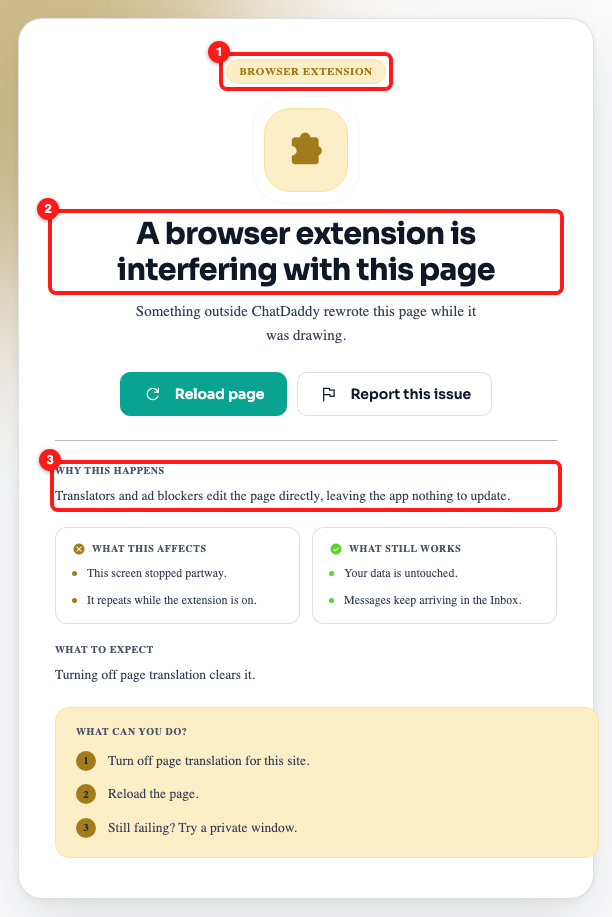
Step 1 — the Browser extension badge (1), the heading (2) and the Why this happens line (3) together identify this card.
Step 2 — Read what it affected
The two panels in the middle answer the question everyone has first. What this affects is honest about the damage: this screen stopped partway, and it will repeat while the add-on is on. What still works is the reassurance: your data is untouched and messages keep arriving in the Inbox. You do not need to ask a customer to send anything again.
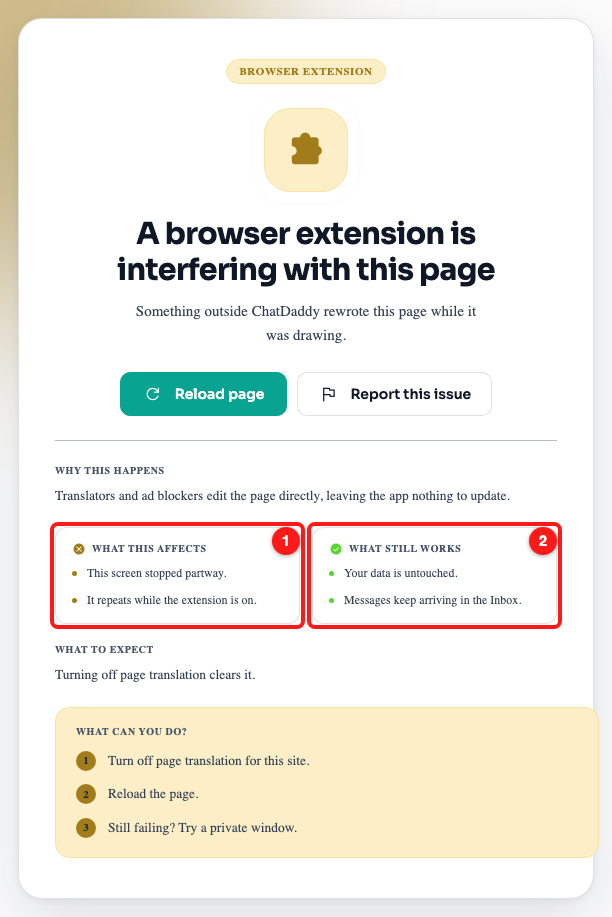
Step 2 — What this affects (1) and What still works (2).
Step 3 — Work through the three fixes on the card
The numbered list under What can you do? is in order of what fixes this most often: turn off page translation for this site, reload the page, and if it is still failing, try a private window. Above it, What to expect tells you what success looks like — turning off page translation clears it. Each of those three is explained in its own section below.
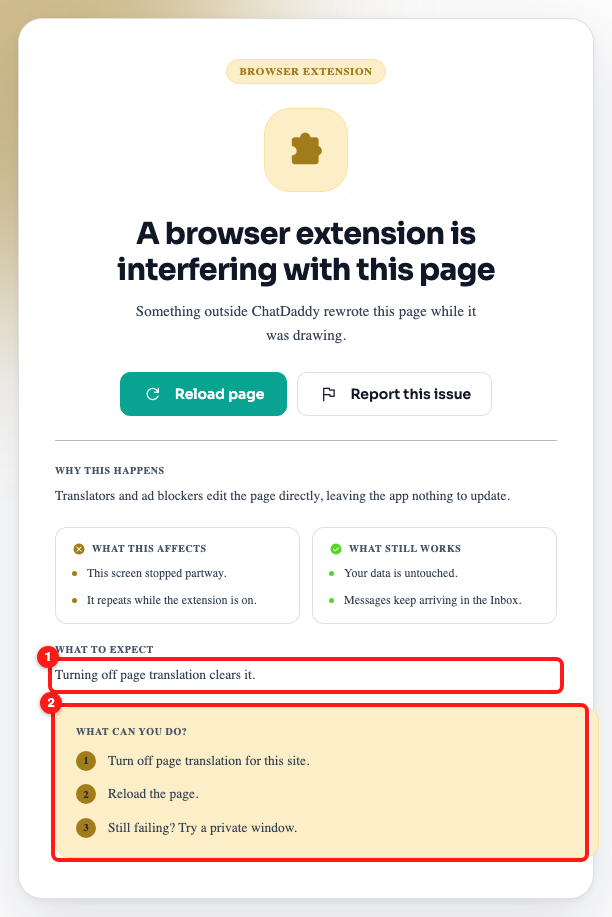
Step 3 — What to expect (1) and the three numbered fixes under What can you do? (2).
Step 4 — Press Reload page after each change
Reload page loads the screen again from scratch — do this after every change you make in the browser, so you know which change worked. Report this issue opens a short form and sends us the details of what failed; use it once you have ruled the extensions out and the card is still coming back.
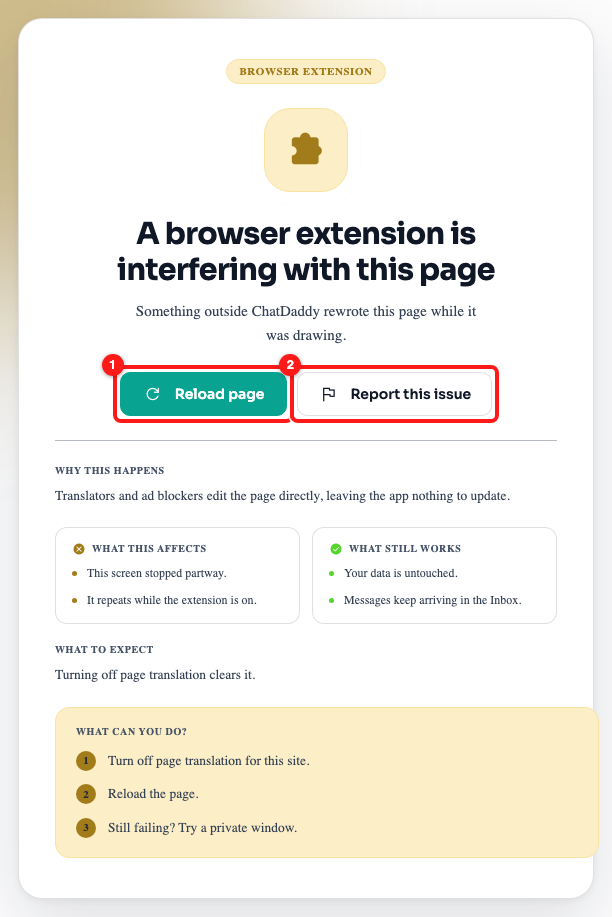
Step 4 — Reload page (1) and Report this issue (2).
Turning off page translation for this site
Browsers offer to translate a page when they think it is not in your language, and once you accept, that browser keeps translating that site every visit. Turning it off for ChatDaddy only affects ChatDaddy — every other site you translate carries on as before.
- Chrome and Edge — look for the small translate icon in the address bar. Open it, then choose the option that never translates this site. You can also do it from the browser's settings, under Languages, by turning off the offer to translate pages.
- Safari — the translate button sits in the address bar when a page has been translated. Open it and choose to show the original.
- Firefox — open the translations icon in the address bar and choose never to translate this site.
- A translation extension — open the extension's own settings and exclude
app.chatdaddy.tech, or switch it from translating automatically to translating only when you ask.
ℹ️ Wording moves around between browser versions, so treat the names above as a guide rather than exact labels. If you cannot find the setting, the private-window test below tells you whether translation is the cause before you go hunting.
ChatDaddy already speaks several languages, so you rarely need the browser to translate it. Change the language inside the app instead — that is translated properly and does not fight the page.
Confirming it with a private window
A private window (Incognito in Chrome, InPrivate in Edge, Private Browsing in Safari and Firefox) starts with extensions switched off, which makes it the quickest way to prove whether an add-on is the cause.
- Open a private window — Ctrl + Shift + N on Windows, Cmd + Shift + N on a Mac (Ctrl/Cmd + Shift + P in Firefox).
- Go to
app.chatdaddy.techand sign in. The private window does not share your normal sign-in, so you will need to log in again there. - Open the same screen that was failing.
- It works in the private window — an extension in your normal window is the cause. Carry on to the next section.
- It fails there too — extensions are not the cause. Take a note of what you were doing and press Report this issue on the card so we can look at it.
⚠️ Some browsers let an extension run in private windows if you have allowed it. If the private window fails the same way, check whether the add-on you suspect is one of those before you rule extensions out.
Allowing ChatDaddy instead of turning the extension off
You do not have to give up your ad blocker. Almost every blocker has a per-site switch, so you can leave it on everywhere else and simply let ChatDaddy through.
- Open the ChatDaddy dashboard in your normal window.
- Click the extension's icon in the browser toolbar. If it is hidden, open the extensions (jigsaw-piece) menu first.
- Choose the option that turns it off, pauses it, or trusts the site for this site — the wording differs by extension, but there is nearly always one.
- Reload the page, and open the screen that was failing to check it.
If you are asked for the address to allow, use app.chatdaddy.tech. Some extensions instead let you limit where they run at all: right-click their toolbar icon and set site access to run only when you click them, or only on sites you name.
When the add-on was installed by your company, you may not be able to change it yourself. Send this article to whoever manages the computers and ask them to allow app.chatdaddy.tech.
Finding which extension it is
If the private window works but you have a dozen add-ons and no idea which one to blame, work through them:
- Open your browser's extensions page — in Chrome and Edge it is the jigsaw-piece menu, then Manage extensions.
- Turn them all off, then reload ChatDaddy and confirm the screen loads.
- Turn them back on one at a time, reloading the failing screen after each one.
- The one that brings the card back is the culprit. Leave it off for ChatDaddy, using the per-site switch above, and turn everything else back on.
Start with anything that changes how pages look or what appears on them — translators, blockers and dark-mode add-ons — before you work through the rest.
The card that looks like this one
The card below is a different problem with a different fix. Its badge reads Unexpected error, its heading is “This screen hit an unexpected error”, and it says plainly that a bug on our side stopped the screen loading. That one is ours, not your browser's: there is nothing to turn off, and the useful thing you can do is press Report this issue so it reaches our engineers.
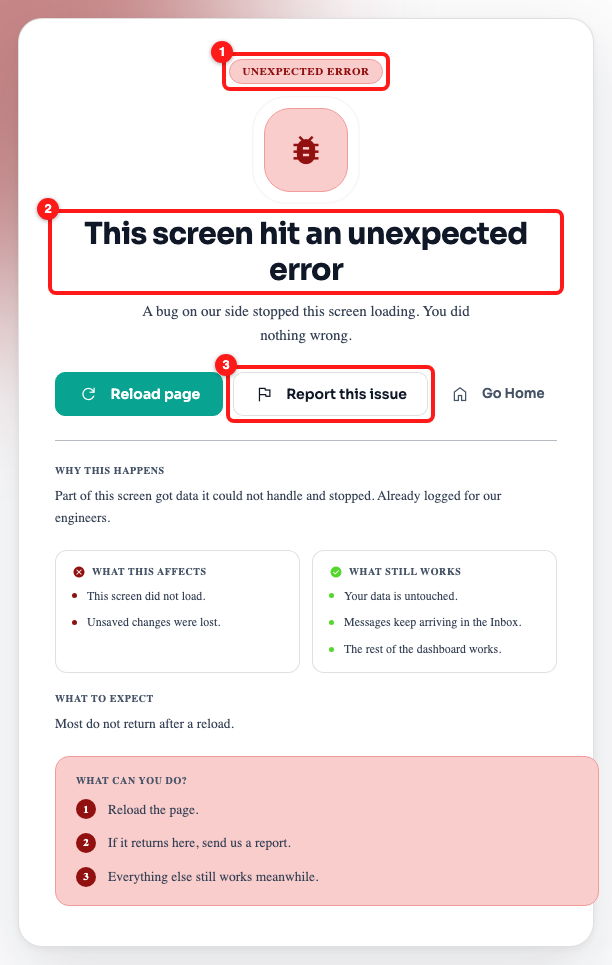
A different card: the Unexpected error badge (1), its heading (2) and the Report this issue button (3).
Frequently asked questions
I never asked for translation — why does the card mention it?
The card names the most common cause rather than diagnosing your particular browser. Browsers also translate on their own once you have accepted the offer on a site, and some are set to translate automatically. If you are certain nothing is translating, treat the card as “an add-on is rewriting this page” and use the private-window test to find out which one.
Is ChatDaddy's own Chrome helper extension the problem?
No. The ChatDaddy Chrome helper is used for connecting certain channels and does not rewrite dashboard pages, so it is not one of the add-ons this card is about. If you want to rule it out anyway, the private-window test covers it along with everything else.
It only breaks on one screen, and the rest of ChatDaddy is fine.
That is normal. An add-on only causes trouble where it actually changes something, so a screen with a lot of live content — the Inbox, for example — fails while quieter pages are untouched. The fix is the same: stop the add-on running on ChatDaddy.
I pressed Reload page and landed straight back on the card.
Reloading alone does not help while the add-on is still on, because it rewrites the page again the moment it loads. Turn off page translation or the extension for this site first, then reload.
Did I lose the message or the changes I was making?
Anything already saved or sent is safe, and incoming messages keep arriving in your Inbox while the screen is stuck. Typing that had not been saved when the screen stopped is gone, so retype it after the screen loads — but do not send a customer the same message twice on the assumption it failed.
Everyone on my team gets this card.
That usually means the same add-on is installed on every computer, which is what happens when IT deploys one centrally. Ask whoever manages the computers to allow app.chatdaddy.tech in it, rather than each person turning it off by hand.
Nothing here helped. What do I send you?
Press Report this issue on the card — the form already carries the details of what failed. Add which browser you use, whether the private window worked, and the list of extensions you have. That is enough for support to take it further.