
Fixing Connection Problems
ChatDaddy shows "This page could not be downloaded" when part of the dashboard never reached your browser. Learn what to try first, how to tell a wifi or office-network problem from a ChatDaddy incident, and why nothing you have already sent is lost.
Also searched as: Fixing Connection Problems, Read the card before you do anything, Press Reload page, Check what is affected while you sort it out, Work through the three suggestions, Send a report if your connection is fine, Is it your connection, or is ChatDaddy down?, When the office network is the problem, The card that looks like this one, Fixing, Connection, Problems
Sometimes a page in ChatDaddy stops before it has drawn anything and you get a card headed “This page could not be downloaded”. It means the browser asked for a piece of the dashboard and that piece never arrived in one piece — almost always because of the connection between your device and us, not because of anything you did.
This article is for anyone who hits that card: on hotel or café wifi, on a mobile connection that keeps dropping, or on an office network where a firewall or VPN sits in the middle.
🛟 Nothing is lost when you see this card. Your data is untouched, and messages are queued until you are back — so do not re-send anything. Only the screen in front of you failed to download.
Step-by-step
Step 1 — Read the card before you do anything
ChatDaddy has more than one full-page error card, and each one has a different fix. Check the small badge above the icon and the title underneath it: the badge reads Connection and the title reads “This page could not be downloaded”. The Why this happens line tells you the same thing in one sentence — the connection dropped mid-load, and a file that arrives cut short cannot run.
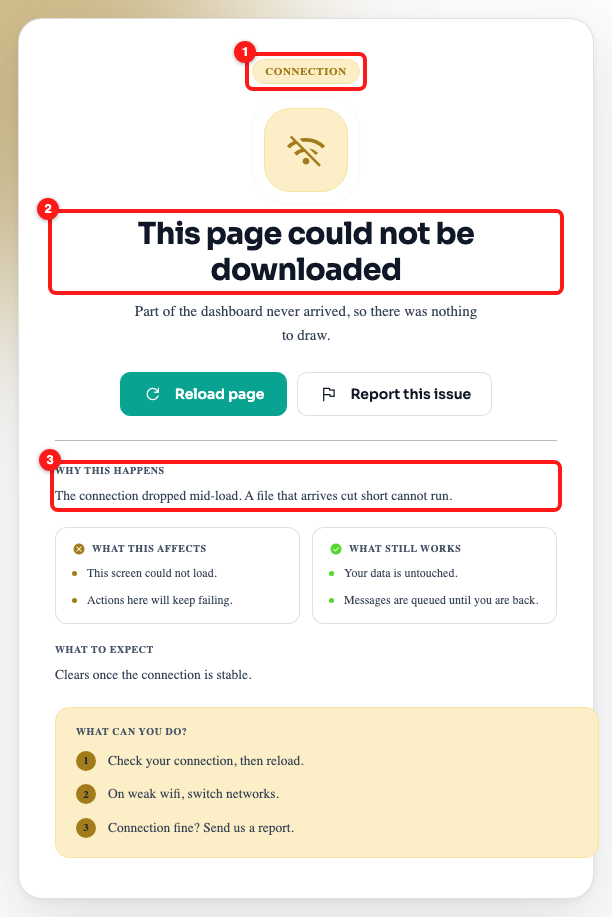
Step 1 — the Connection badge (1), the title (2) and the one-line explanation (3).
Step 2 — Press Reload page
The first button under the summary is Reload page. Most of the time the connection has already recovered by the time you have read the card, and a single reload is the whole fix. The second button, Report this issue, is for later — see Step 5.
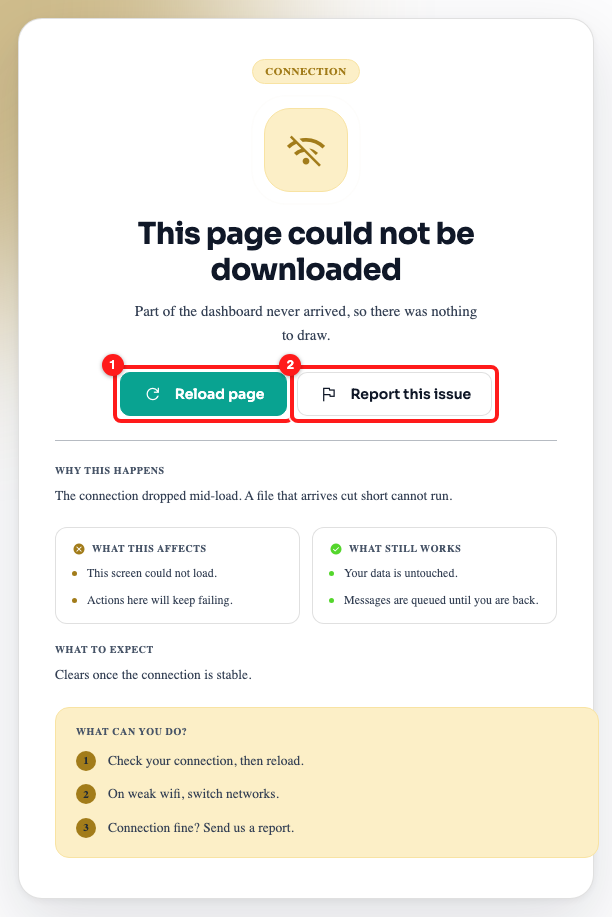
Step 2 — Reload page (1) is the fix to try first. Report this issue (2) comes later.
Step 3 — Check what is affected while you sort it out
The two panels in the middle of the card say exactly how far the problem reaches. What this affects is limited to the screen you are on: it could not load, and buttons on it will keep failing until the page loads properly. What still works is the important half — your data is untouched on our servers, and messages are queued until you are back.
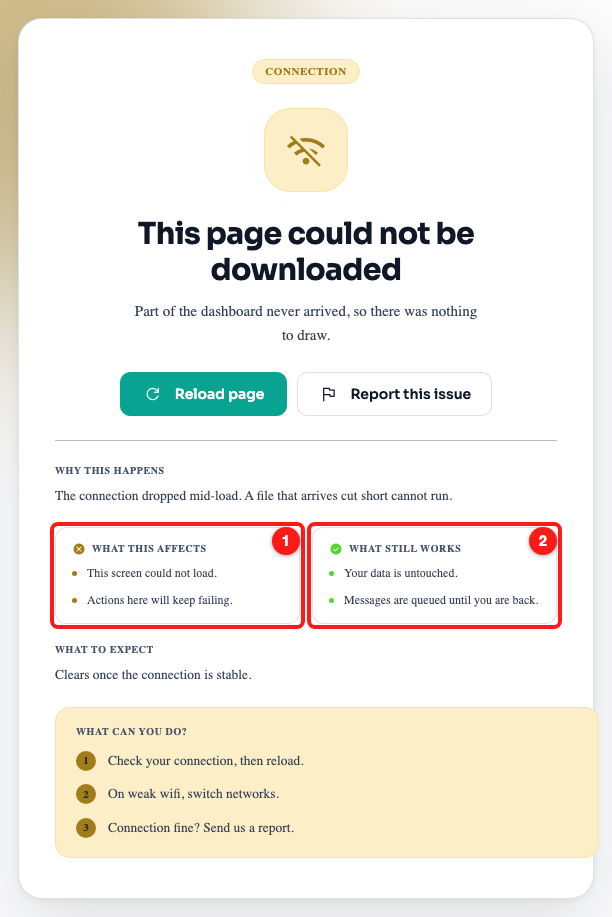
Step 3 — What this affects (1) is only this screen; What still works (2) covers your data and your messages.
Step 4 — Work through the three suggestions
The What can you do? box lists three things to try, in order. Above it, What to expect sets the honest expectation: this clears once the connection is stable, so there is nothing to fix inside ChatDaddy itself.
- Check your connection, then reload. Open any other website in a new tab. If that is slow or fails too, the problem is the connection, not ChatDaddy.
- On weak wifi, switch networks. Move to a stronger signal, or switch to mobile data or a cable. A file that keeps arriving cut short is the classic symptom of a marginal wifi signal.
- Connection fine? Send us a report. If everything else on the internet is fine and ChatDaddy still will not load, we want to know — see the next step.
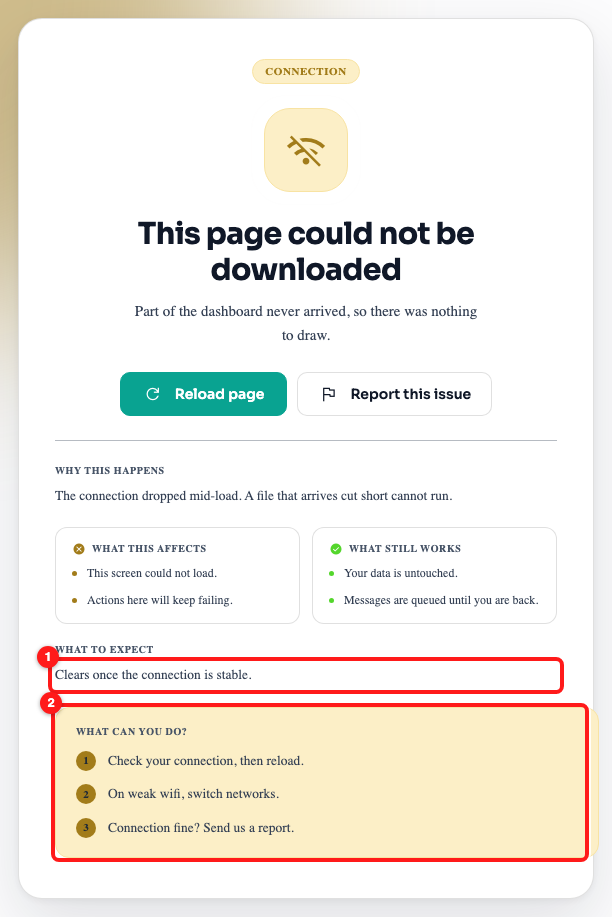
Step 4 — What to expect (1) and the three suggestions to try in order (2).
Step 5 — Send a report if your connection is fine
Press Report this issue to open the bug report form. It already knows which page you were on and which workspace you are in, so you only need to describe what you were doing. That context is what lets our team tell a single flaky wifi from something that is failing for everybody.
Step 5 — Report this issue (2) opens the report form with your page already filled in.
Is it your connection, or is ChatDaddy down?
This particular card is only shown when the request never reached us. If our own servers had answered and something had gone wrong at our end, you would see a different screen — a Server error card with a status code such as 500 or 503, or a service notice. So the card itself is already a clue that the break is between you and us.
To be certain, open status.chatdaddy.tech on any device — it is hosted separately from the dashboard, so it still loads when ChatDaddy does not. If everything there is green and you are still stuck, the problem is local to your network or your device.
When the office network is the problem
Corporate firewalls, VPNs, content filters and hotel or airport "sign in to continue" wifi portals all sit between your browser and us, and any of them can return their own page instead of the file ChatDaddy asked for. The browser then has a file that is not the file it wanted, which is why the page stops.
- On captive wifi (hotels, cafés, airports), finish the sign-in page in a separate tab first, then reload ChatDaddy.
- On a VPN, try turning it off for a moment. If that fixes it, the VPN is filtering us.
- On an office network, ask whoever manages it to allow these addresses:
app.chatdaddy.tech(the dashboard),api.chatdaddy.tech(data, and the live connection your Inbox uses), andchatdaddy-media-store.s3.ap-east-1.amazonaws.com(photos, files and voice notes). - If it works on your phone over mobile data but not on the office wifi, that confirms the network rather than the account.
The card that looks like this one
The card below is a different problem with a different fix, and it is the one people most often mistake for a connection error. Its badge reads Update required, its title is “This tab is running an older version”, and its main button is Get the new version. That one appears when we released an update while your tab was open — your connection is fine and the fix is to take the new version, not to change networks.
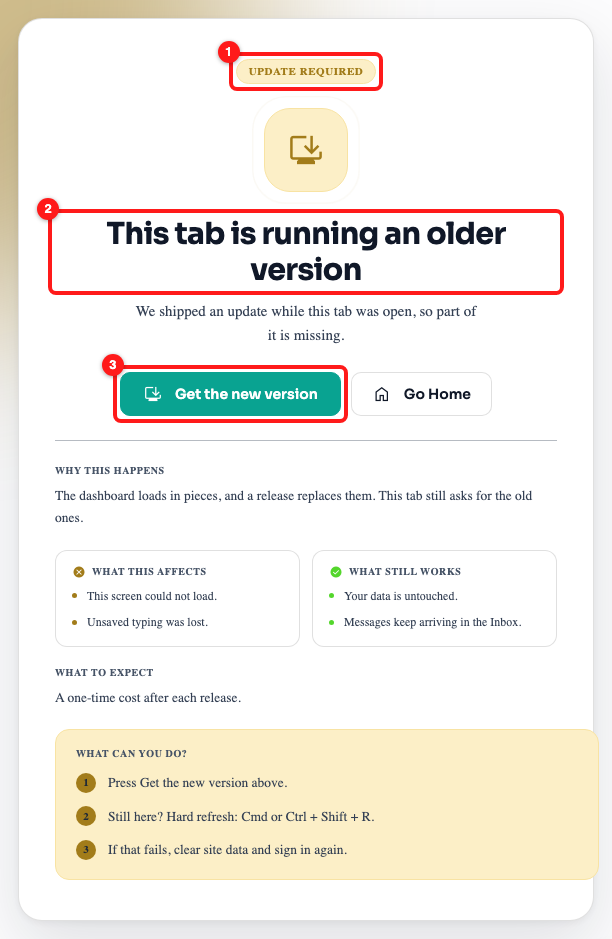
A different card: the Update required badge (1), its title (2) and the Get the new version button (3).
Frequently asked questions
The page reloaded itself a couple of times before showing me this.
That is on purpose. Before showing you anything, ChatDaddy checks whether the screen failed because a new version had just been released — you may see a brief "Checking for a newer version…" spinner. It only tries a few times in a short window; when that does not help, it stops reloading and shows you the card so you can act on it.
I press Reload page and land straight back here.
The file still is not arriving. Switch to a different network (mobile data is the quickest test), then reload again. If it fails on every network you try, check status.chatdaddy.tech and then send a report.
Did I lose messages, or do I need to send them again?
No. Nothing you had already sent is affected, and incoming messages keep arriving on our side while you are stuck — they will be waiting in your Inbox when the page loads. Do not re-send: that is how customers end up with duplicates.
It only happens on one computer.
Try the same page in a private or incognito window on that computer. If it works there, something on the normal profile is interfering — usually an extension or a filtering tool. If it fails there too, the network that computer is on is the likely cause.
It happens every day at the same time.
That usually points at the network rather than at ChatDaddy — a shared office line under load, or a scheduled VPN or filtering policy. Ask whoever manages the network to allow the addresses listed above, and mention the time of day.
My whole workspace sees it at once.
If several colleagues on the same network are stuck at the same moment, treat it as a network problem at your end first — check one person on mobile data. If people on completely different networks are also affected, check status.chatdaddy.tech and send us a report.