
Finding a Page That Moved (the ERROR 404 Screen)
An old bookmark or a pasted link can land on ChatDaddy's ERROR 404 screen. Learn what that screen means, how to get back to where you were, how to reach any page from the navigation bar, and the current addresses for the main pages.
Also searched as: Finding a Page That Moved (the ERROR 404 Screen), Check which error screen you are on, Press Go Back, Open the dashboard and use the navigation bar, If the feature sits inside a section, pick its tab, Save the page again, Short addresses that are not pages, Finding, Page, Moved, ERROR, Screen
Sometimes a link takes you to a green sign that reads ERROR 404 — Whoops... this page is not available. It means the web address you arrived on is not a page in ChatDaddy: usually an old bookmark, or a link that lost its ending when it was pasted into a chat or an email.
This guide is for anyone who has saved ChatDaddy links, been sent one by a teammate, or types addresses in by hand. It shows how to get back to where you were and how to find the page you actually wanted.
🟢 Nothing is broken and nothing is lost. Your chats, contacts, flows and settings are untouched, and messages keep arriving in your Inbox while this screen is on your display. The only thing wrong is the address.
When you will see this
- You opened a bookmark saved before a page was reorganised.
- You clicked a ChatDaddy link that was pasted into WhatsApp, Slack or an email and got cut short.
- You typed the address by hand and used a short name —
/inboxor/settings, for example — that is not the real address of the page. - The link points at one specific item (a flow, a broadcast, a ticket) that has since been deleted.
Step-by-step
Step 1 — Check which error screen you are on
The 404 screen is the green hanging sign with ERROR 404 on it and the line “Whoops... this page is not available.” underneath. Seeing this sign tells you the address is wrong, not that ChatDaddy is down — a page that fails to load looks different and asks you to refresh or report an issue instead.
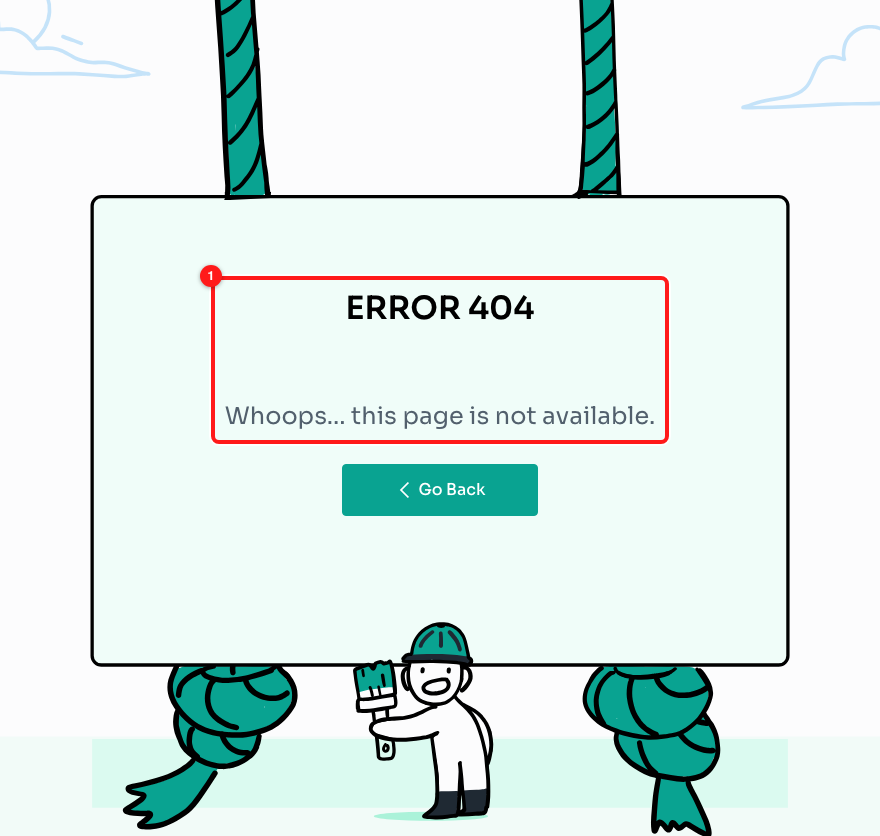
Step 1 — the ERROR 404 heading and the “this page is not available” line (1) are what identify this screen.
Step 2 — Press Go Back
The green Go Back button returns you to the last page you were on in this browser tab. If you were clicking around inside ChatDaddy when you hit the dead link, this is the quickest way out.
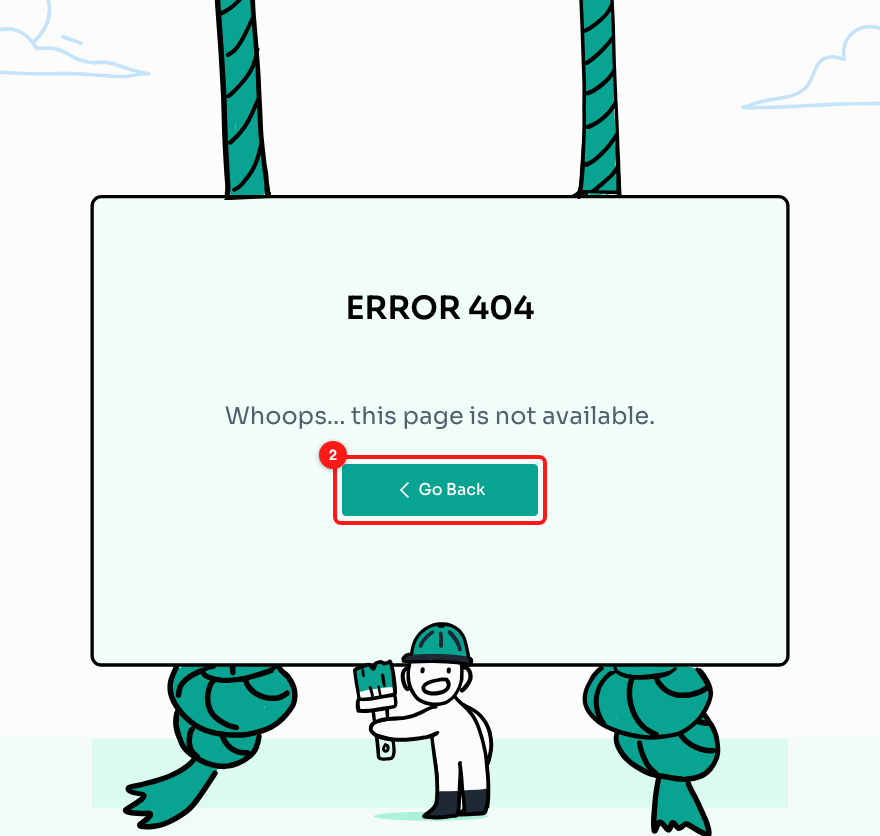
Step 2 — Go Back (2) returns you to the previous page in this tab.
ℹ️ If you opened the link in a brand-new tab or window, there is no previous page behind it, so Go Back has nowhere to go and nothing will happen. Carry on to Step 3.
Step 3 — Open the dashboard and use the navigation bar
Go to app.chatdaddy.tech on its own, without anything after it. You will land on Getting Started. The dark navigation bar runs down the left edge; move your mouse over it and it widens to show the name of every page you can open.
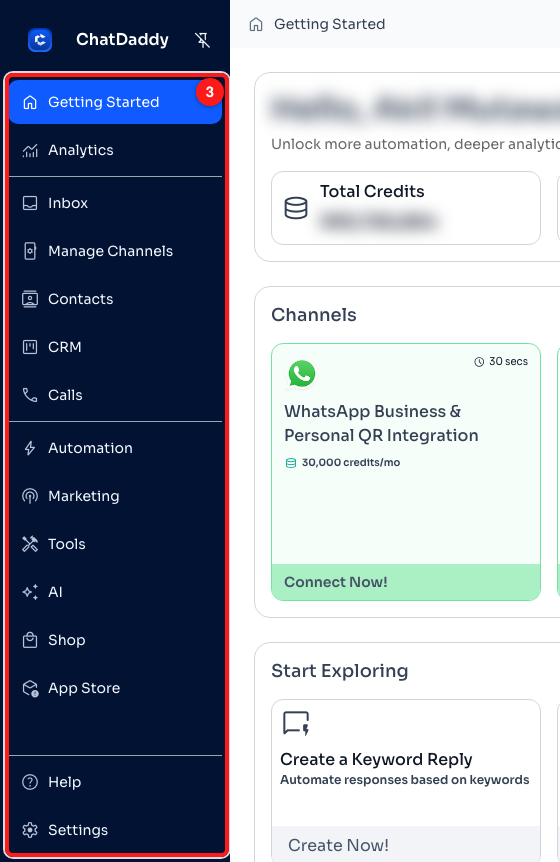
Step 3 — hovering over the navigation bar (3) opens it and reveals the page names.
From top to bottom the bar holds Getting Started, Analytics, Inbox, Manage Channels, Contacts, CRM, Calls, Automation, Marketing, Tools, AI, Shop and App Store, with Help and Settings at the bottom. Clicking any of them takes you straight there — no address typing needed.
Step 4 — If the feature sits inside a section, pick its tab
Several features live inside a section rather than on a page of their own. Open the section from the navigation bar, then choose the feature from the row of tabs across the top. The trail in the top bar — for example Automation › Message Flows — always tells you where you are, so you can see at a glance which section a feature belongs to.

Step 4 — inside Automation, the tab row (4) holds Message Flows, Keyword Reply, Offline Bot, Trigger History and Template Market.
- Automation — Message Flows, Keyword Reply, Offline Bot, Trigger History, Template Market.
- Marketing — Broadcasts, Campaigns.
- Tools — Forms, QR Generator, Widget Builder, Zapier.
- AI — Knowledge Base, AI ChatBot.
- Settings — Personal Profile, Team, Members, Notifications, Billing, Developer. These are listed down the left of the page rather than as tabs along the top.
Step 5 — Save the page again
Once you are on the right page, replace the old bookmark with the address showing in your browser now. That is the address that will keep working, and it saves you the same hunt next time.
Short addresses that are not pages
These are the short names people most often try. None of them is a real page, so each one lands on ERROR 404 — use the address next to it instead.
/inbox→ the Inbox is at/root-inbox/inbox/dashboard→ Analytics is at/analytics/audience→ Contacts is at/contacts/flows→ Message Flows is at/automation/messageFlows/broadcasts→ Broadcasts is at/marketing/broadcasts/settings→ Settings is at/global-settings/billing→ Billing is at/global-settings/billing
The other main pages keep their plain addresses: /getting-started, /channels for Manage Channels, /crm, /calls, /shop, /appstore and /help-support for the Help page.
🔗 Every address above sits after
https://app.chatdaddy.tech. So the Inbox in full ishttps://app.chatdaddy.tech/root-inbox/inbox.
Frequently asked questions
I pressed Go Back and nothing happened.
Go Back steps back through this tab's own history, so it needs a previous page to return to. A link opened in a fresh tab has none. Go to app.chatdaddy.tech instead and pick the page from the navigation bar.
Go Back took me to another ERROR 404 screen.
That happens when the page you came from was itself a dead link — for instance you followed two old bookmarks in a row. Rather than stepping back again, go to app.chatdaddy.tech and start from the navigation bar.
A teammate's link works for them but shows an error for me.
Check what you are seeing. The green ERROR 404 sign means the address is not a page for anybody. Plain text reading “404 not found” with the ChatDaddy navigation still around it means something different: the page exists, but your role does not have the permission it needs. Ask a workspace admin to give your user access to that page.
The link works if I delete the last part of the address.
A link that ends in a long id points at one specific flow, broadcast, contact or ticket. If that item has been deleted — or the link was cut short when it was pasted — the address no longer matches anything. Trim back to the list page and pick the item from the list.
Can I ask a teammate to resend the link?
Yes, and it is the most reliable fix. Ask them to open the page in ChatDaddy and copy the address straight out of their browser, rather than forwarding the message the old link came in. Links get shortened or turned into previews as they are passed along, and that is what removes the ending.
Every page gives me an error, not just this one.
Then the problem is not the address. Try a refresh first, and if the whole dashboard is slow, blank or erroring, follow Slow Performance, Buffering or Blank Pages below.