
How to Change Your WhatsApp Business Display Name
Update the display name on your WhatsApp Business API profile via Meta Business Manager — including the 10-changes-per-30-days limit, 1–2 day approval time, and what happens to your green tick.
Also searched as: change WhatsApp business name, edit display name WABA, WhatsApp API business name, rename WhatsApp business, display name approval, name not approved WhatsApp, update business name Meta, WhatsApp display name rules, change name WhatsApp Manager, business name rejected
Your WhatsApp Business display name is the business name shown on your WhatsApp profile. It's assigned to your phone number when the number is added to your WhatsApp Business Account (WABA) in Meta Business Manager. An accurate display name helps customers recognise your business and builds trust in every conversation.
Note: This guide applies to WhatsApp Business API (WABA) channels connected to ChatDaddy. Numbers on WhatsApp Coexistence manage their name in the WhatsApp Business App instead.
Before you begin
- You can change the display name up to 10 times within a 30-day period. Once the window resets, a new 30-day period begins. If you hit the limit, you'll need to contact Meta support for further changes.
- If you have an Official Business Account (green tick): don't edit the name yourself. Contact Meta's Direct Support and request an OBA display name update (Question Topic: Request an Official Business Account → Request Type: Update OBA Display Name).
- For standard and verified (non-OBA) accounts, follow the steps below.
⚠️ Important: Changing your display name via Meta Business Manager revokes your existing Official Business Account (green tick) approval. You'll need to re-apply afterwards — see WhatsApp Green Tick Application Requirements.
Steps to change your display name
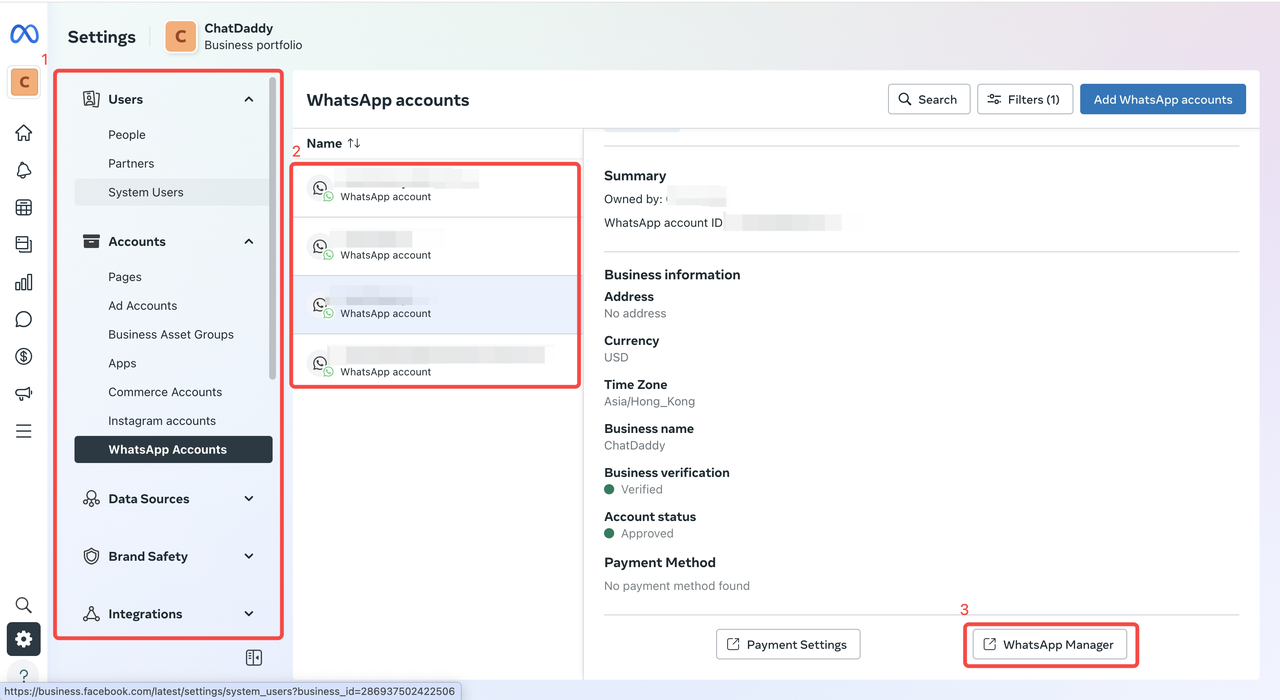
- Go to business.facebook.com, select your business, and open Settings.
- In the side menu, select WhatsApp Accounts.
- Select the WABA whose name you want to change, then click WhatsApp Manager.
 4. Under the Name column, hover over your current display name and click the pencil icon.
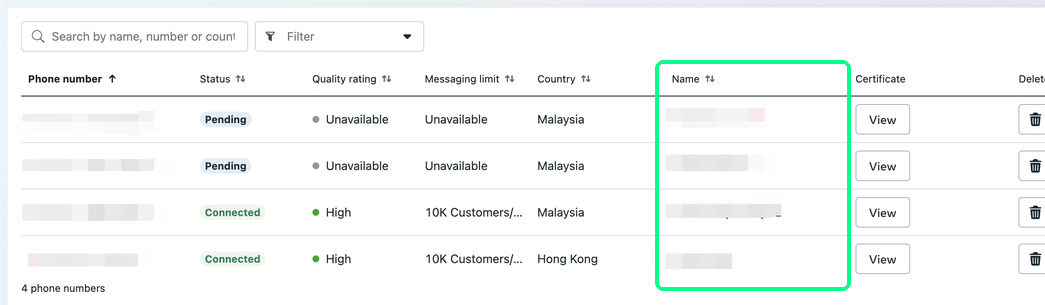 5. Enter the new display name in Edit Display Name, then click Next.
Naming rules: The display name must have a clear relationship with your business and match the branding customers see elsewhere (your website, storefront, social pages). Names that look unrelated to your business are the most common rejection reason.
What happens after you submit
WhatsApp reviews the new name before it goes live. Approval typically takes 1–2 days, and Meta notifies you by email. Once approved, the new display name appears on your number automatically — no action needed in ChatDaddy.
FAQ
My display name was rejected — what now?
If the name is rejected, the certificate status shows Name Not Approved. Pick a name that clearly matches your real business branding and resubmit using the same steps above.
Does changing the name disconnect my ChatDaddy channel?
No. The change happens on Meta's side; your channel stays connected and messages keep flowing.
Related guides
- Keep an Eye on Your WhatsApp Account Quality
- How to Grow Your WhatsApp Messaging Limit with the AI Tier Assistant
- Need help? Submit a support ticket or manage your channels at https://app.chatdaddy.tech