
How to Check a Contact's Active Hours in the Inbox
Read the Active Hours heat map in a contact's Inbox profile panel to see which days and hours they usually reply, then follow up when they are most likely to answer.
Also searched as: How to Check a Contact's Active Hours in the Inbox, Before you start — good to know, Part 1 — Open Active Hours, Open the Inbox, Open a conversation, Open the contact panel, Find the Active Hours section, Part 2 — Read the heat map, Understand the grid, Hover a cell for the exact number, Read the Peak times line, Pin the section so it stays open (optional), If Active Hours looks empty, What to use Active Hours for, Check
🕒 Active Hours turns the last 90 days of a contact's incoming messages into a simple heat map, so you can see the days and hours they are actually online and replying — and stop guessing when to follow up.
This guide walks you through finding, reading and using Active Hours, step by step. It lives in the contact panel on the right-hand side of the Inbox, needs no setup, and works for every channel connected to ChatDaddy.
Before you start — good to know
- Where it lives: Inbox → open a chat → contact panel (right-hand side) → Active Hours.
- What it counts: only the messages the contact sent to you. Your own replies and your teammates' messages are excluded, so the map reflects their habits, not your team's.
- Time range: the last 90 days of that conversation. Anything older is ignored.
- Time zone: hours are shown in your own device's local time, not the contact's. If you and the contact are in different time zones, read the map as "when they reply, in my clock".
- Per contact: the heat map is calculated separately for every conversation.
- No setup required: nothing to switch on. The section appears automatically once the contact has sent you messages.
- Sections open on hover: every section in the contact panel expands when your mouse is over it and closes again when you move away. To make Active Hours stay open, pin it — Step 8 shows how.
Part 1 — Open Active Hours
Step 1 — Open the Inbox
In the left navigation bar, click the Inbox icon. Your conversation list opens in the column on the left.
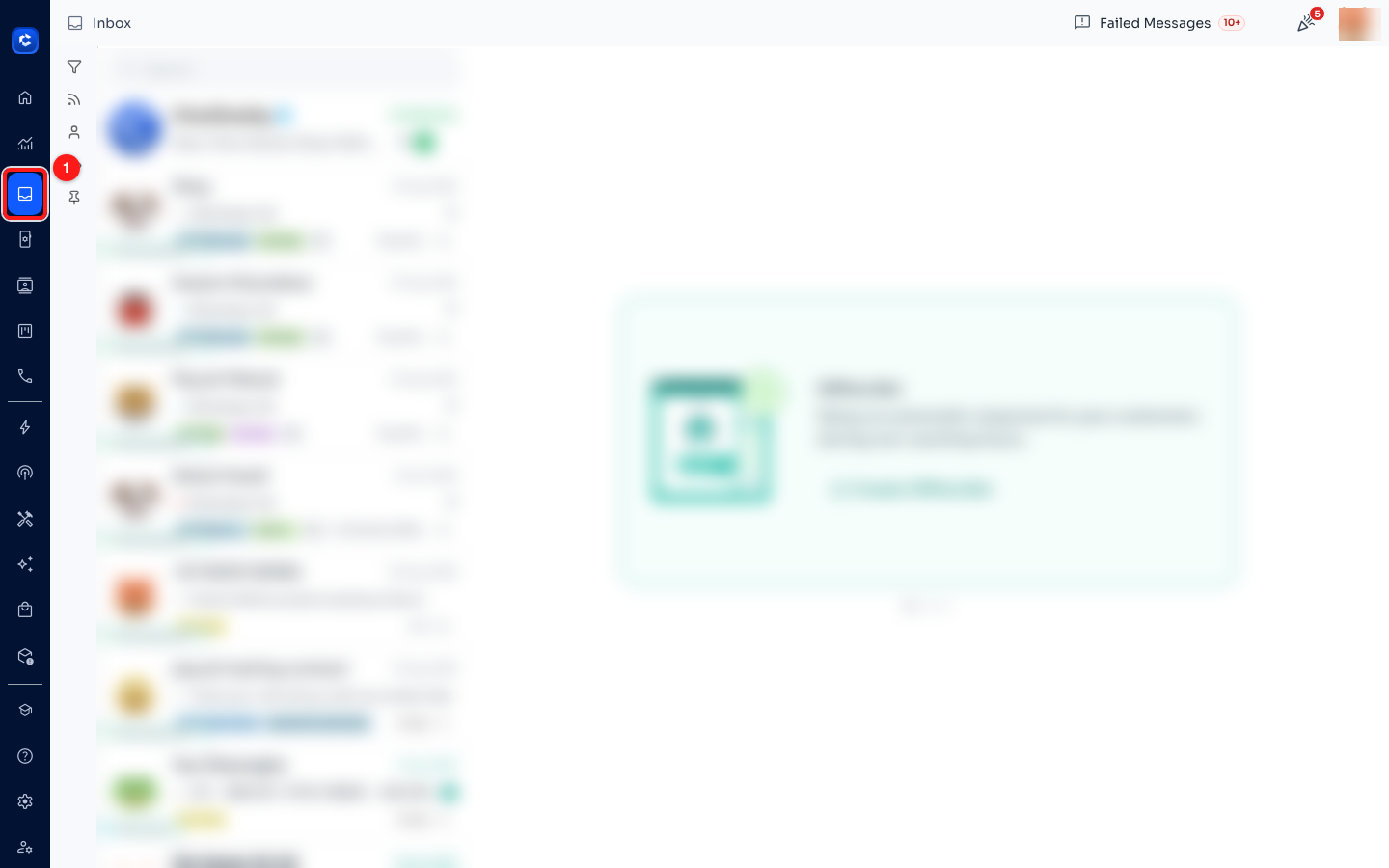
Step 1 — the Inbox icon (1) in the left navigation bar. Contact names, phone numbers and message content are blurred in these screenshots.
Step 2 — Open a conversation
Click the chat of the contact you want to check. The conversation opens in the middle of the screen.
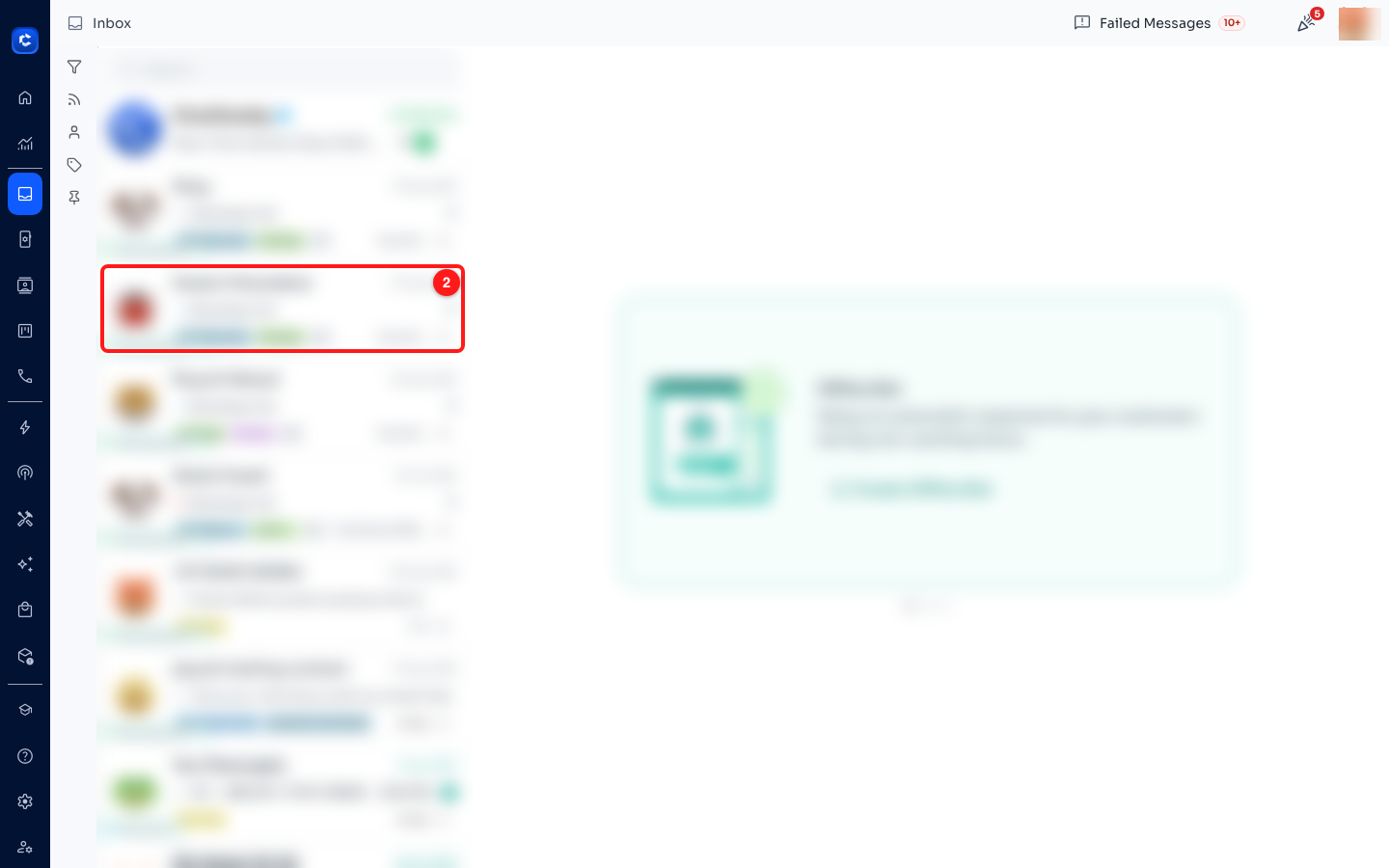
Step 2 — click a chat (2) in the conversation list to open it.
Step 3 — Open the contact panel
In the chat header on the top right, click the contact panel icon to show the panel. ChatDaddy remembers this setting between visits — if the panel is already open on the right, skip straight to Step 4.
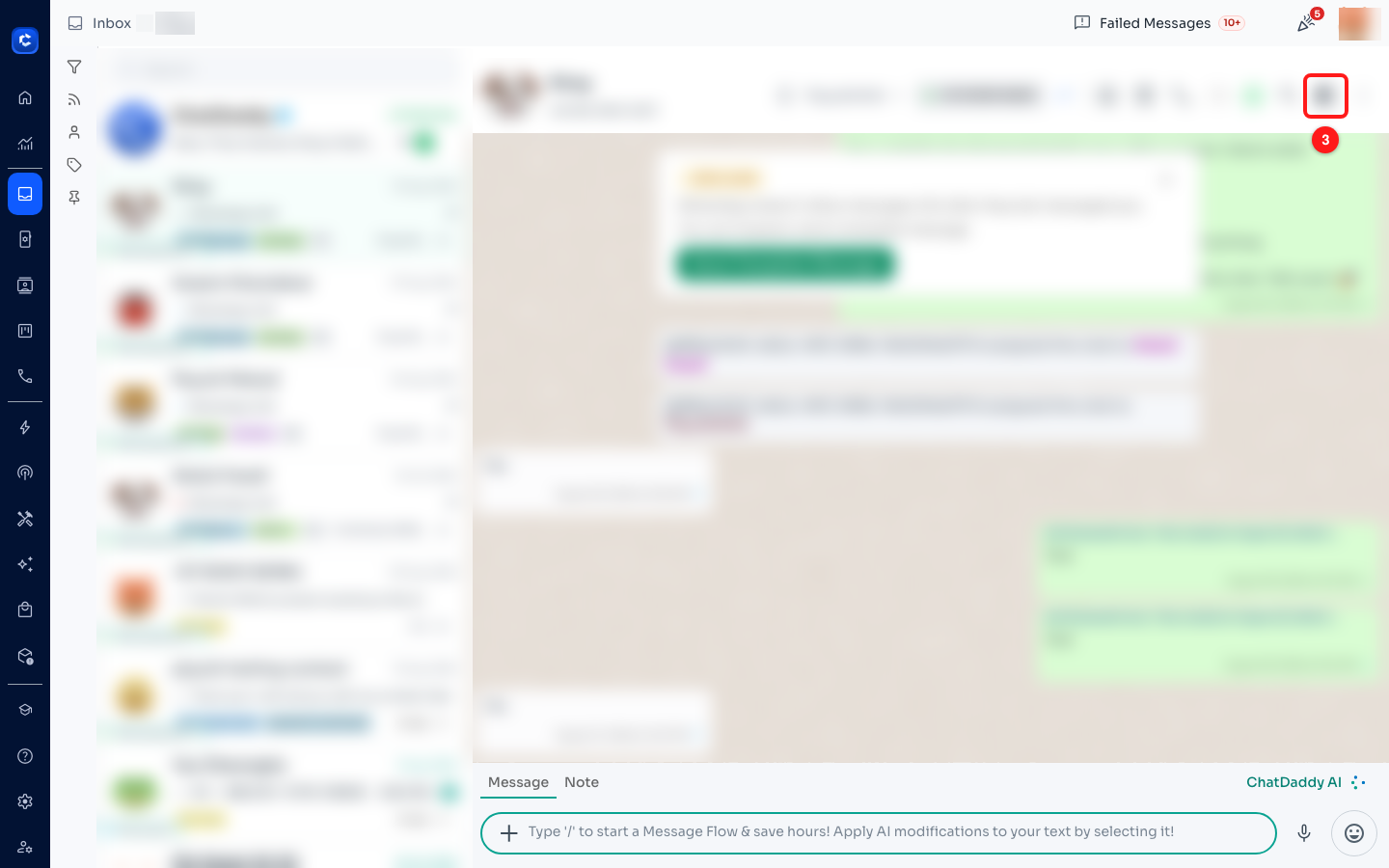
Step 3 — the contact panel toggle (3) in the chat header.
Step 4 — Find the Active Hours section
Make sure the Profile tab is selected, then scroll the contact panel down until you reach Active Hours (clock icon). Move your mouse over it to expand it. Under the title you will see the caption When they typically reply (last 90 days), the heat map, and a Peak times line.
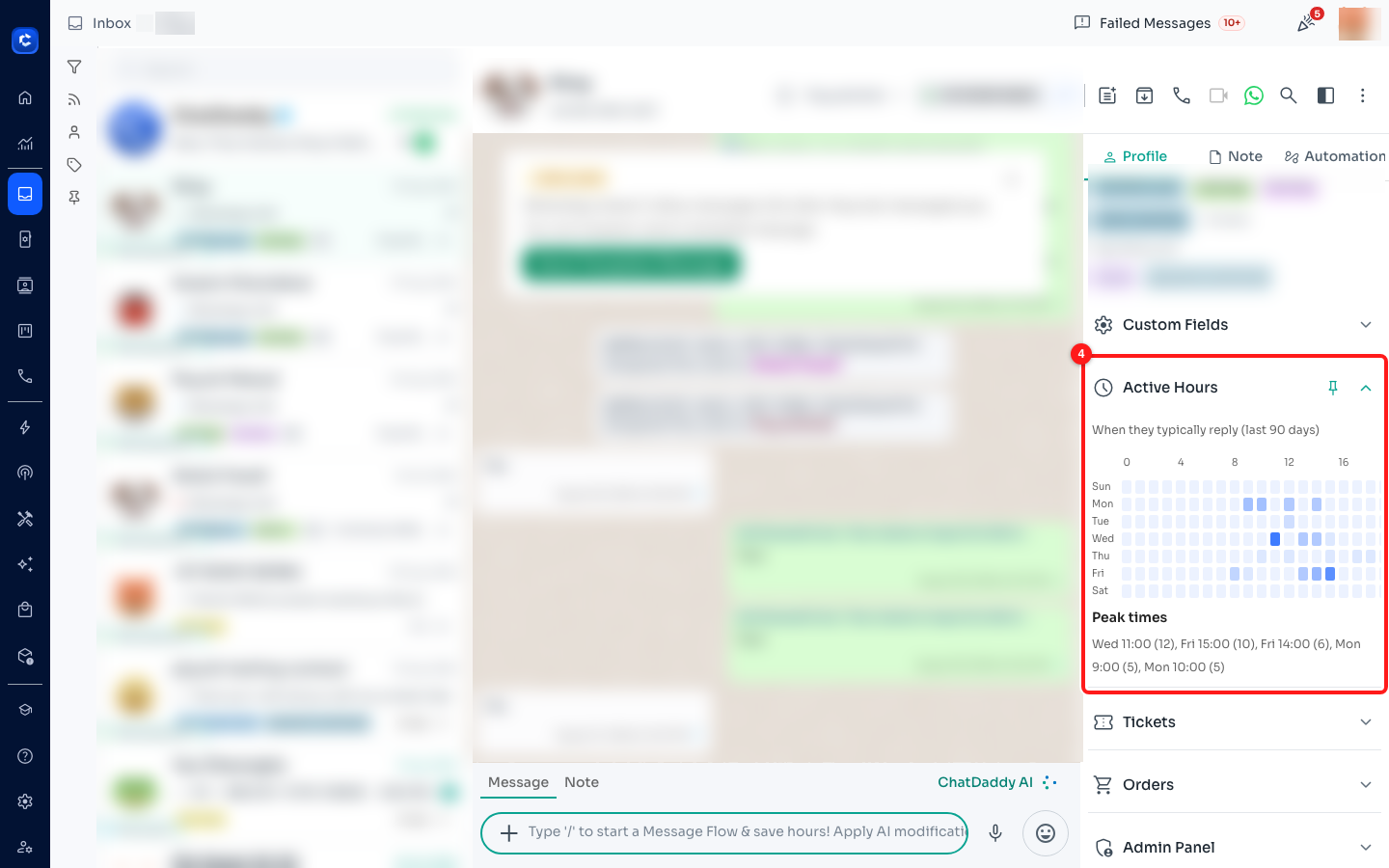
Step 4 — the Active Hours section (4) in the contact panel, expanded to show the heat map and Peak times.
Part 2 — Read the heat map
Step 5 — Understand the grid
The grid has one row for each day of the week and one column for each hour of the day. Three things to look at:
- Rows — days of the week. Seven rows, labelled Sun through Sat.
- Columns — hours of the day. Twenty-four columns on a 24-hour clock, labelled every four hours: 0, 4, 8, 12, 16 and 20. So 16 means 4 PM. On a narrow window the last labels can sit outside the panel — widen the browser to see them all.
- Cells — one per day-and-hour slot. The darker the blue, the more messages the contact sent in that slot. A near-white cell means little or no activity.
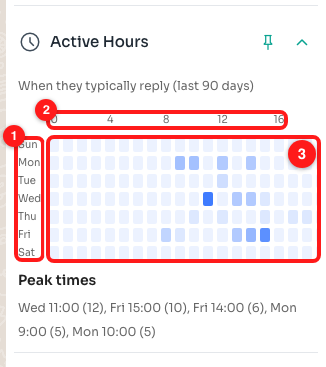
Step 5 — the day rows (1), the hour columns (2) and the cells themselves (3).
🎨 Shading is relative to this contact only. The darkest cell is that contact's own busiest hour, so you cannot compare the shade of one contact's map against another's — compare the numbers instead.
Step 6 — Hover a cell for the exact number
Hover your mouse over any cell to see a tooltip with the exact day, hour and message count — for example Wed 11:00 – 12 messages. That reads as: over the last 90 days, this contact sent you 12 messages between 11:00 and 11:59 on Wednesdays.
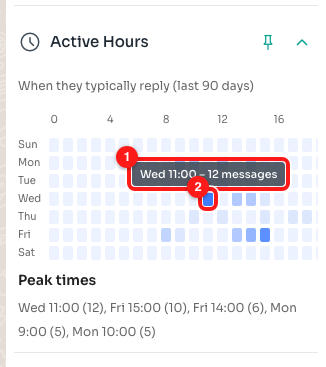
Step 6 — the tooltip (1) showing the day, hour and message count for the cell under the pointer (2).
Step 7 — Read the Peak times line
Below the grid, Peak times lists the contact's five busiest slots, from most to least active, with the message count in brackets — for example Wed 11:00 (12), Fri 15:00 (10), Fri 14:00 (6). This is the fastest answer to "when should I message this person?" — you can read it without interpreting the colours at all.
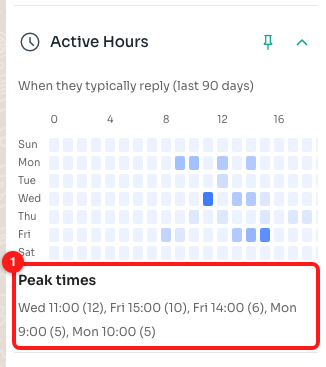
Step 7 — the Peak times line (1) under the heat map.
Step 8 — Pin the section so it stays open (optional)
By default a section only stays open while your mouse is over it. Click the pin icon on the right of the Active Hours title (tooltip: Pin section open) to keep it expanded permanently. The pin turns blue and upright once it is on; click it again to unpin. ChatDaddy remembers this for next time.
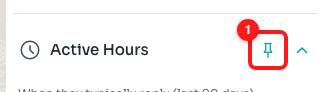
Step 8 — the controls on the Active Hours header (1): the chevron collapses and expands the section, and the pin beside it keeps it open.
📌 Next to the pin, the chevron collapses and expands a pinned section. And if you collapse a section, a drag handle appears in its header — drag it to move Active Hours above or below Tags, Custom Fields, Tickets and the rest.
If Active Hours looks empty
Instead of a heat map you may see "Not enough message data yet. Chat more to see active hours." That is not an error — it simply means there is nothing to plot yet:
- The contact has not sent you any messages in the last 90 days.
- The conversation is brand new, or every message so far was sent by you — outgoing messages are never counted.
- The contact only ever replied more than 90 days ago, so their history has aged out of the window.
While the data is still being gathered you will briefly see Loading active hours… instead. If a section stays blank, collapse and expand it, or reopen the chat — the result is cached per conversation while you stay in the Inbox.
What to use Active Hours for
- Time your follow-ups. Send that chase message inside one of the contact's peak slots rather than whenever you happen to remember.
- Pick a time to call. The hours the contact messages you are usually the hours they are free to talk.
- Spot a time-zone gap. A contact whose whole map sits in your night is almost certainly in another region — worth noting before you judge them as slow to reply.
- Set expectations for your team. If a customer only ever writes on Friday afternoons, nobody needs to chase a reply on Monday morning.
Frequently asked questions
Does it show when the contact read my message?
No. It only counts messages the contact actually sent. Read receipts are not part of this chart.
Why is the total lower than the number of messages in the chat?
Because the map counts incoming messages only, and only from the last 90 days.
Whose time zone are the hours in?
Yours — they follow the clock on the device you are viewing ChatDaddy on, not the contact's own time zone.
Can I change the 90-day window?
Not at the moment. The range is fixed at 90 days.
Does it work on channels other than WhatsApp?
Yes. Any conversation in the Inbox with incoming messages will build a map.
I just received a message and the map has not changed.
The chart is cached per conversation while you stay in the Inbox. Switch to another chat and back, or refresh the page, to recalculate it.