
How to Find a Flow: Search and Filters
The Message Flows list has a search box and a Filter panel with four categories: Triggers, Folder, Approval Status and Active Status. Learn what each one narrows down, what makes a flow count as Active, and why the list reloads when you filter.
Also searched as: How to Find a Flow: Search and Filters, Where to find it, Search for a flow by name, Open the Filter panel, Pick which kind of filter you want, Narrow by trigger, Narrow by folder, Narrow by approval status, Narrow by active status, Check and clear what is applied, Find, Flow, Search, Filters
Once a team has been running automations for a while, the Message Flows list gets long — and the flow you actually want is rarely near the top. The list has a search box for finding a flow by name, and a Filter panel for narrowing it down by trigger, folder, approval status or whether the flow is switched on.
Anyone who can open Message Flows can search and filter. Nothing on this page changes a flow, so it is safe to experiment.
⏳ Approval Status and Active Status are worked out in your browser rather than by the server, so ChatDaddy has to load every one of your flows before the result is final. On a team with hundreds of flows the list stays on its loading bar for a few seconds after you pick one of those two. That is normal — let it finish before you decide a flow is missing.
Where to find it
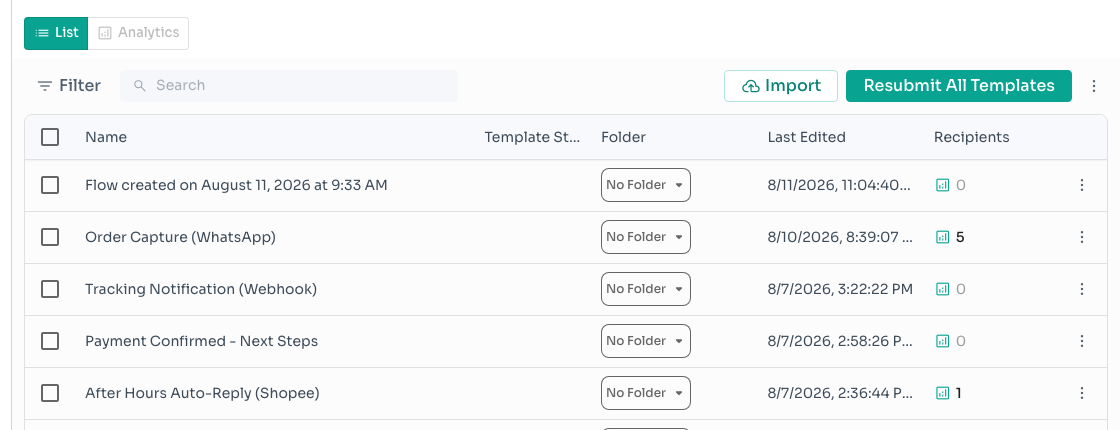
Go to Automation → Message Flows and stay on the List view. The search box and the Filter button sit in the toolbar directly above the table, next to Import and Resubmit All Templates.
Step-by-step
Step 1 — Search for a flow by name
Type any part of the flow's name into the Search box. Matching is not case-sensitive and the text can appear anywhere in the name, so order finds “Order Capture (WhatsApp)” as well as “Order Confirmation Bot (2)”. Results narrow as you type; the small × at the end of the box clears the search.
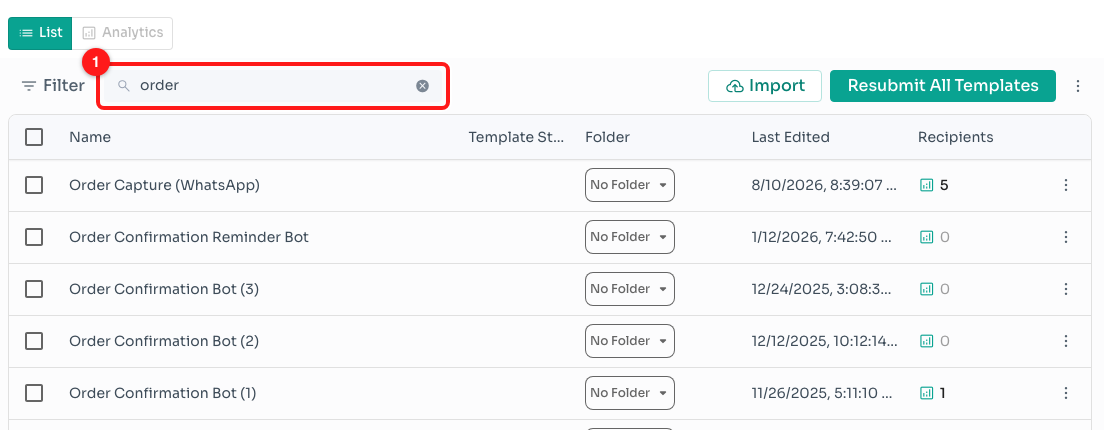
Step 1 — searching for “order” in the Search box (1) leaves only the flows whose name contains it.
🆔 Search looks at the flow name only — not its description, and not the message text inside it. If you have a flow ID rather than a name, paste the whole ID into the same box and the flow will be found by ID instead.
Step 2 — Open the Filter panel
Click Filter to the left of the search box. The button turns green while any filter is applied, so you can always tell at a glance whether the list you are looking at is the full one.
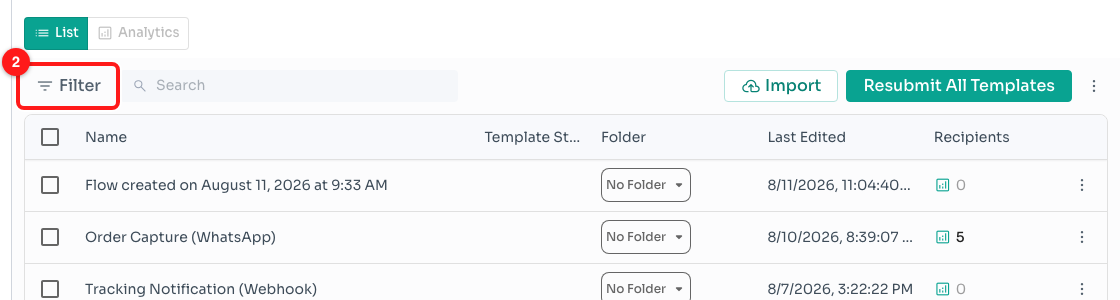
Step 2 — the Filter button sits at the left of the toolbar, above the flow table (2).
Step 3 — Pick which kind of filter you want
The panel has four categories down the left-hand side, and opens with the first one — Triggers — already showing its options. Click any other category to swap the options beside it. You can set several categories in the same visit: they apply together, so a flow has to match all of them to stay in the list.
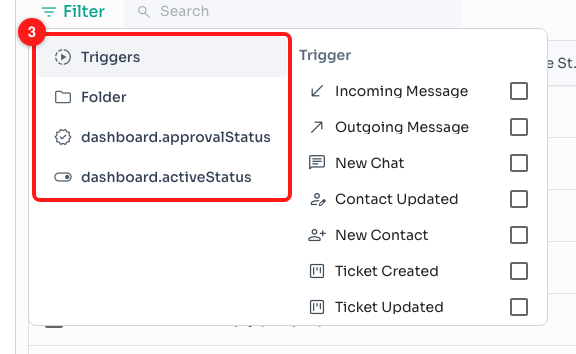
Step 3 — the four filter categories (3): Triggers, Folder, Approval Status and Active Status.
🏷️ The bottom two categories currently show as dashboard.approvalStatus and dashboard.activeStatus instead of their proper names. They are the Approval Status and Active Status filters described below — the labels are a display fault we are fixing, and the filters themselves work normally. Once applied, they name themselves correctly in the row of filter tags under the toolbar.
Step 4 — Narrow by trigger
Triggers lists every trigger you can start a flow with, grouped by kind: the ChatDaddy triggers (Incoming Message, Outgoing Message, New Chat, Contact Updated, New Contact, Ticket Created, Ticket Updated, New Note, Note Resolved), the Broadcast trigger, and one entry for each app you have connected — scroll the list to reach the lower groups. Tick as many as you like: a flow is kept if it uses any of the ticked triggers.
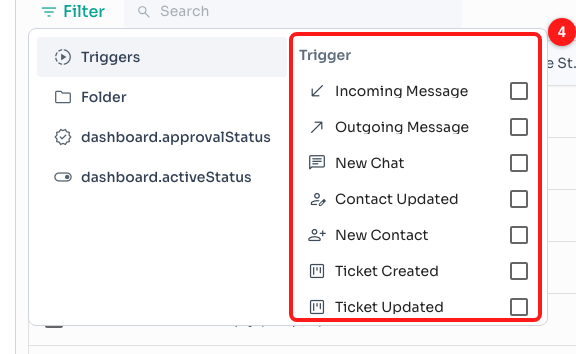
Step 4 — the trigger list with a tick box beside each one (4). Ticking several keeps flows that use any of them.
Step 5 — Narrow by folder
Folder shows the folders you have created and lets you pick one at a time. Its search box helps when you have a lot of them. This is the same filter as the Folders sidebar on the left of the page, so choosing a folder in one place updates the other — you will never end up with the two disagreeing.
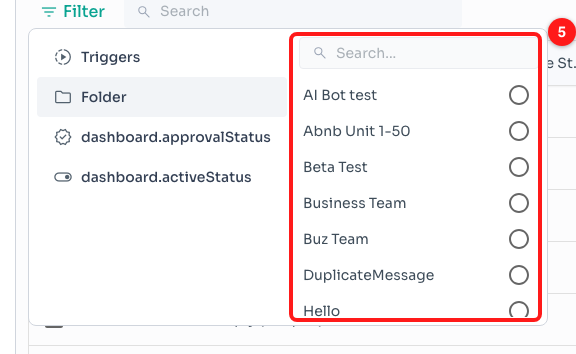
Step 5 — the folder list, one choice at a time, with its own search box (5).
Step 6 — Narrow by approval status
This one is about WhatsApp Business templates: whether the messages in a flow have been approved by Meta. It is the fastest way to find the flows that are holding up a launch. There are four options.
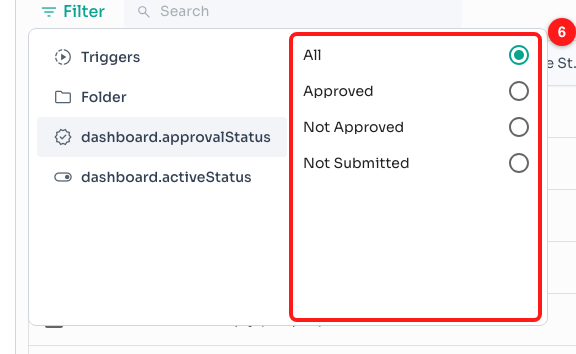
Step 6 — All, Approved, Not Approved and Not Submitted (6).
- All — no filtering on approval. This is the starting position.
- Approved — every channel the flow was submitted on has Meta's approval, and none of the messages have been edited since.
- Not Approved — anything short of that: still waiting on Meta, rejected, edited after approval and not resubmitted, or approved on one channel but not another.
- Not Submitted — the flow has never been sent to Meta for approval at all.
ℹ️ The same statuses appear per flow in the Template Status column of the list. If you only send on channels that do not use templates, every flow will read as Not Submitted — that is expected, not a problem.
Step 7 — Narrow by active status
This separates the flows that are actually running from the ones sitting idle. A flow counts as Active when at least one of its triggers is switched on. Inactive covers flows whose triggers are all switched off — and flows that have no trigger at all, such as a draft you have not finished wiring up.
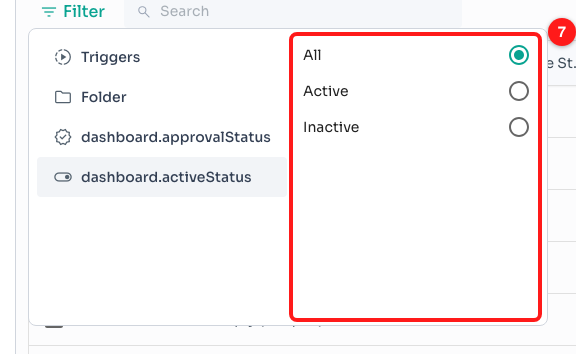
Step 7 — All, Active and Inactive (7).
💡 Filtering by Inactive is a quick spring clean: it lists the half-finished and long-forgotten flows in one go, so you can tidy them into a folder or delete the ones nobody needs.
Step 8 — Check and clear what is applied
Close the panel and every filter you set appears as a tag under the toolbar — Triggers: New Chat, Approval Status: Approved, Active Status: Active, or the folder's name. Each tag has an × that removes just that filter, so you can widen your search one step at a time instead of starting over.
Step 8 — the applied filters shown as tags, each with its own × (8).
To start again from a clean list, remove every tag — the Filter button goes back to grey once nothing is applied.
Troubleshooting
The list keeps loading after I choose an approval or active status.
Those two filters are applied in your browser, which means ChatDaddy has to fetch your whole flow list before it can be sure the result is complete. Until it has, the list shows a loading state. On a large team this takes a few seconds; leave it to finish rather than clicking around, and the numbers will settle.
The results are empty but I know that flow exists.
Filters stack, so the flow has to match every one of them at once — an approval status and a folder and a trigger. Look at the row of tags under the toolbar and remove them one at a time with the × until the flow reappears. A search term left in the box counts too.
Searching finds nothing, but I can see the flow when I scroll.
Search matches the flow name only, and only as plain text. It does not look inside the flow's messages, its description or its notes. Try a shorter fragment of the name — one distinctive word usually works better than the full title, which may differ by a space or a bracket from what you remember.
A flow with no trigger never shows up under Active.
That is correct. Active means at least one switched-on trigger. A flow with no trigger has nothing to switch on, so it is counted as Inactive — as is a flow whose only trigger you have turned off.
I picked a folder in the sidebar and the Filter panel shows it too.
They are the same filter shown in two places, so this is expected — and it is why the list can look short after you have clicked a folder and forgotten about it. The × on the folder tag under the toolbar clears it in both places and brings the whole list back.
A flow shows as Approved but customers get an older message.
Editing a message after Meta approved it does not re-approve it: the previously approved copy keeps going out until you resubmit. Flows in that state are counted as Not Approved by this filter. See Why a flow shows Approved but not the latest below for how to fix it.