
Why a Flow Shows "Approved — but not the latest"
When you edit a WhatsApp Business API message flow after Meta has approved it, ChatDaddy marks it Approved (Stale) — your customers keep receiving the older approved wording until you resubmit. Here is where that badge appears and how to clear it.
Also searched as: Why a Flow Shows "Approved — but not the latest", Where the badge appears, Find the flow in your Message Flows list, Hover the badge to see what changed, Click “Go to flow”, Check which node is out of date, Resubmit the message for approval, Flow, Shows, Approved, latest
Every message a flow sends on a WhatsApp Business API channel has to be approved by Meta first. If you edit that message afterwards, Meta still holds the version it approved — and that older version is what your customers keep receiving until you submit the new one. ChatDaddy makes this visible with an amber Approved (Stale) badge and a card titled “Approved — but not the latest”.
This applies to anyone editing message flows that run on a WhatsApp Business API channel. If your flow only runs on other channels, template approval does not apply and your edits go out as soon as you save.
⚠️ While the badge is showing, your flow is still running — just with the wording Meta approved earlier. Your newest edits do not reach customers until you resubmit the message and Meta approves it again.
Where the badge appears
- In the Message Flows list, in the Template Status column.
- In the flow builder, on the message node that was edited.
- In the Inbox, as a small amber clock icon beside a message that flow already sent — hover it to see the same card and a Go to flow shortcut.
Step-by-step
Step 1 — Find the flow in your Message Flows list
Go to Automation → Message Flows. The Template Status column shows where each flow stands with Meta. A flow you edited after approval reads Approved (Stale) in amber, instead of the usual green Approved.
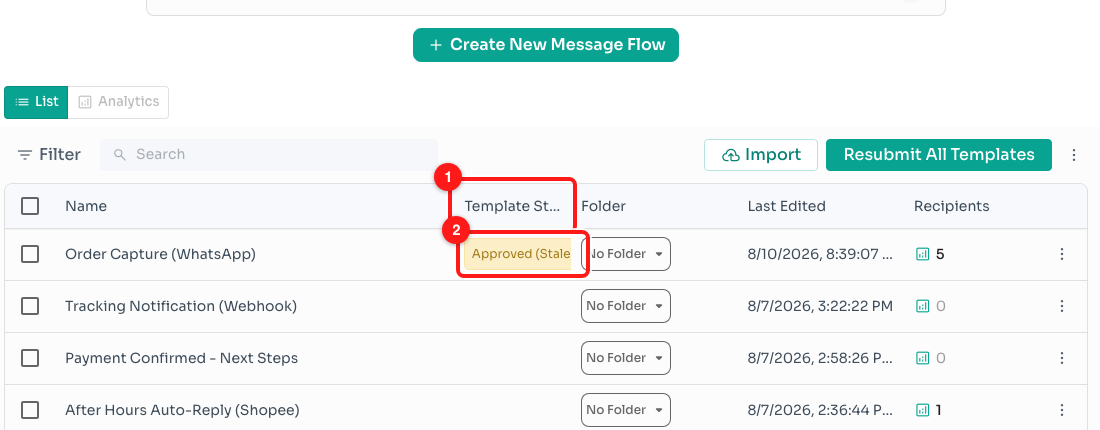
Step 1 — the Template Status column (1) and the amber Approved (Stale) badge on the flow that was edited after approval (2).
Step 2 — Hover the badge to see what changed
Hovering the badge opens a card headed “Approved — but not the latest”. It explains that customers still receive the previously approved version, and gives you the two dates that matter: Last approved (when Meta signed off on the copy still being sent) and Last edited (when someone changed the flow).
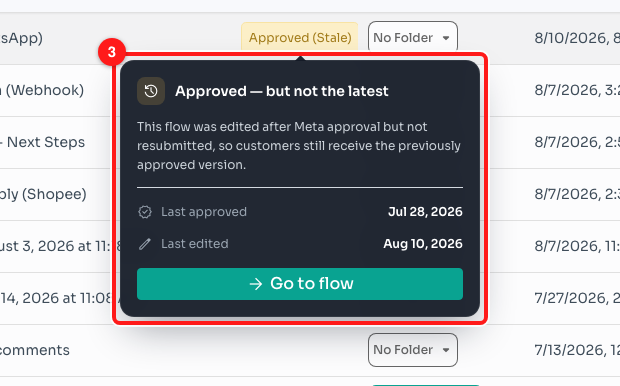
Step 2 — the card names both dates, so you can see how far behind the approved version is (3).
Step 3 — Click “Go to flow”
The green Go to flow button at the bottom of the card opens the flow in the builder with the Submit for Approval window ready, so you do not have to hunt for it in the menu.
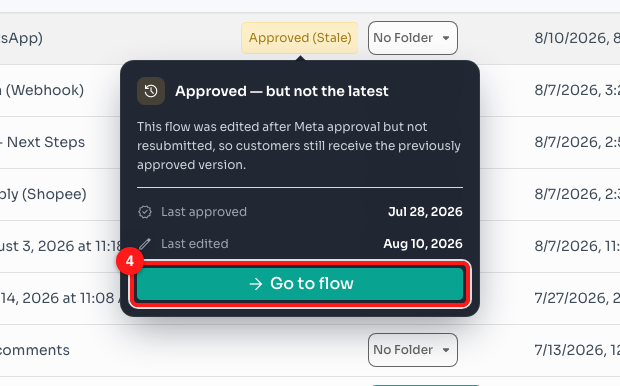
Step 3 — Go to flow takes you straight into the flow that needs resubmitting (4).
Step 4 — Check which node is out of date
Inside the builder, the same Approved (Stale) badge sits on the individual message node that was edited — useful when a long flow has several message nodes and only one of them changed. Hover it for the same explanation, or click the badge to open Submit for Approval directly.
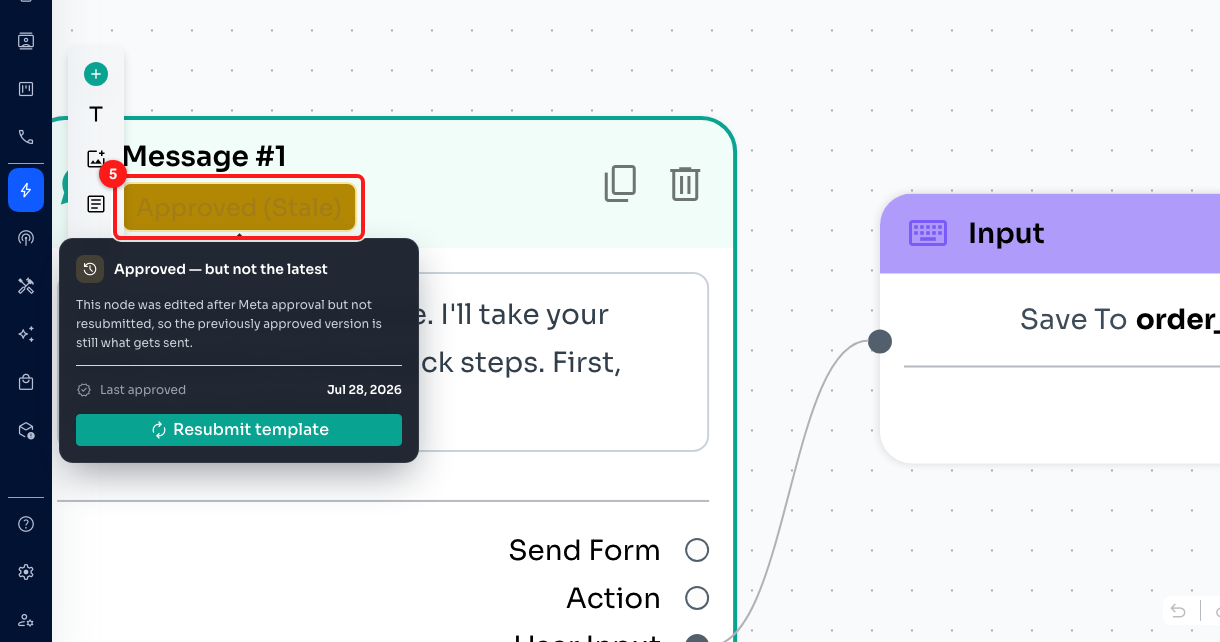
Step 4 — the badge on the message node (5), with its card and a Resubmit template button.
Step 5 — Resubmit the message for approval
In the Submit for Approval window, set the three things Meta needs, then pick the node you are resubmitting:
- Channel — the WhatsApp Business API channel (or channels) the template should be approved for. Each channel is approved separately.
- Language — Meta requires a separate approval per language.
- Category — Utility for transactional, non-promotional messages, Marketing for offers and announcements, Authentication for OTP and identity verification. Choose the one that matches your message, as the wrong category is a common reason for rejection.
On the right, View Status lists every message node with its status per channel. Tick the node you want to resubmit — Submit stays greyed out until at least one channel and one node are selected.
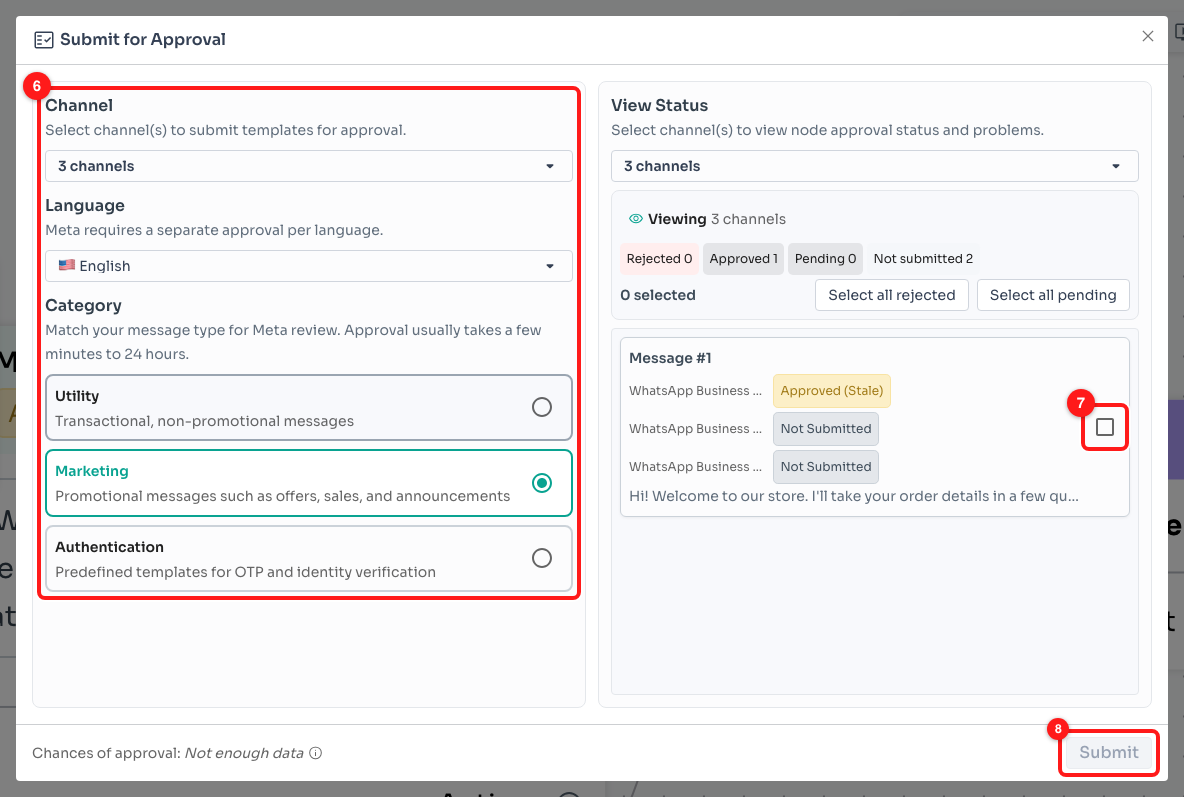
Step 5 — channel, language and category (6), the node tick box in View Status (7), and the Submit button, still disabled here because nothing is ticked (8).
After you submit, the badge changes to Pending. Meta review usually takes anywhere from a few minutes to 24 hours; once it passes, the badge goes back to a plain green Approved and your latest wording is what customers receive.
💡 The bottom of the window shows Chances of approval, worked out from your team’s earlier template approvals. It reads Not enough data until you have submitted a few templates.
Frequently asked questions
Why can’t my edit just go out straight away?
Meta reviews the exact wording of every WhatsApp Business API template before it can be sent. Changing the text creates a version Meta has not seen, so WhatsApp keeps sending the last one it approved. This is a Meta rule, not a ChatDaddy limit.
Does the flow stop working while it says Approved (Stale)?
No. The flow keeps triggering and keeps sending — it just sends the previously approved wording rather than your latest edits.
I only changed one message. Do I have to resubmit the whole flow?
No. Only the nodes edited after approval carry the badge, and in the Submit for Approval window you tick just those nodes before submitting.
How do I find every flow that needs resubmitting?
In the Message Flows list, open Filter and pick the approval-status category — it is the third one, with the tick icon (its label currently shows as the placeholder dashboard.approvalStatus). Set it to Not Approved: that view includes stale flows alongside rejected and pending ones. There is also a Resubmit All Templates button in the list toolbar if you want to push everything through at once — it needs a WhatsApp Business API channel on the team.
The badge is still there after I submitted.
Check the badge again — it should now read Pending, which means Meta has the template and is reviewing it. If it reads Rejected, hover the info icon next to it for Meta’s reason, fix the wording and submit again.
I don’t see Submit for Approval at all.
Template approval needs a WhatsApp Business API channel connected to your team. Without one, the option is locked and clicking it takes you to the WhatsApp Business API connection screen instead.
What is the amber clock icon next to a message in my Inbox?
It marks a message that was sent by a flow which is in this same state — the customer received the approved version, which may differ from what the flow says today. Hover the icon for the explanation and a Go to flow shortcut.