
Mobile App: Finding Your Place in a Long Conversation
Version 1.5.1 of the ChatDaddy app makes a busy chat easier to read: date separators break the thread into days, a “New messages” marker counts what you missed and jumps you to it, and chats fill in with placeholders instead of a blank wait.
Also searched as: Mobile App: Finding Your Place in a Long Conversation, Update the app to version 1.5.1, Use the date separators to place a message in time, Jump to what you missed with the “New messages” marker, Let the chat fill itself in, Read the ticks and reactions, Mobile, Finding, Place, Long, Conversation
Scrolling a long chat on a phone used to mean guessing where yesterday ended and today began, and hunting for the first message you had not read yet. Version 1.5.1 of the ChatDaddy mobile app adds a few markers to the chat screen that answer both questions for you.
Nothing here needs switching on, and nothing changes what your contacts see. If you have the app, you already have it.
📱 This is a mobile app change, in version 1.5.1 and later. The web dashboard is unchanged, so if you work mostly in a browser you will not notice any difference — update the app from the App Store or Google Play to see it.
Step-by-step
ℹ️ The phone pictures below are ChatDaddy's own illustration of the new chat screen, taken from the release note, so that each change can be pointed out on its own. Your app will show your real contacts and messages in the same places.
Step 1 — Update the app to version 1.5.1
These markers arrive with version 1.5.1, released on 11 August 2026. Open the App Store or Google Play and update ChatDaddy if you have not already. You can read the release note in the dashboard too: click the ✨ What's New icon in the top bar and look under August 11, 2026.
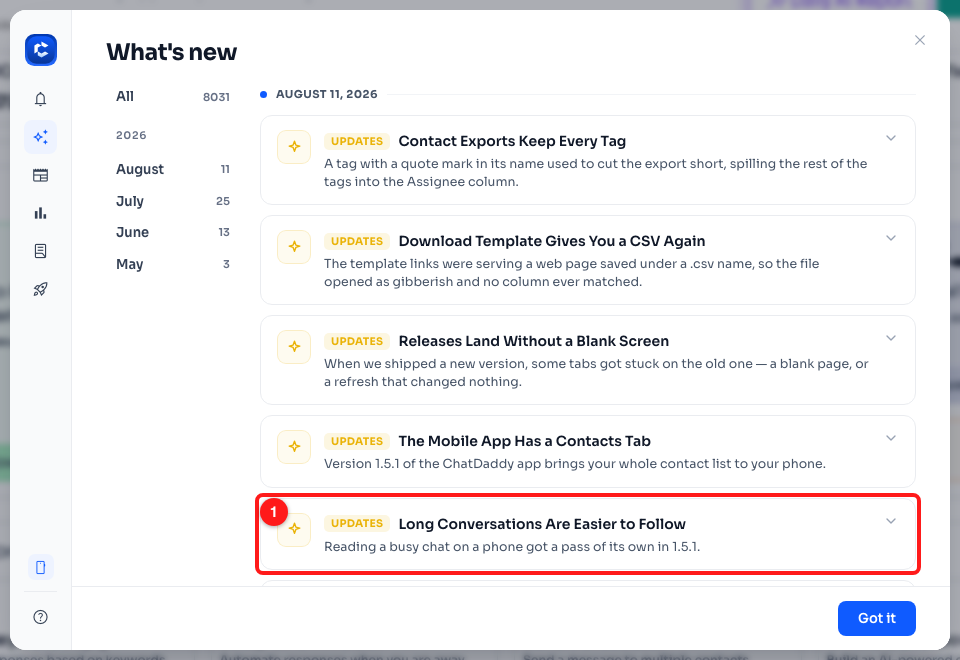
Step 1 — the 1.5.1 release note in the dashboard's What's New window (1).
Step 2 — Use the date separators to place a message in time
The thread is now broken into days, with a small grey label naming the day between one day's messages and the next. Scrolling back through a week of messages, you can see at a glance which day you have reached instead of checking timestamps one message at a time.
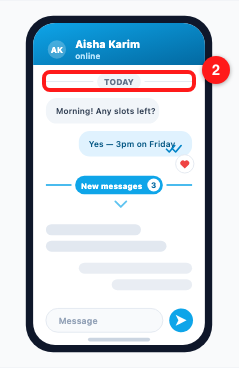
Step 2 — a date separator (2) marks where one day's messages end and the next begin.
Step 3 — Jump to what you missed with the “New messages” marker
When you open a chat with unread messages, a blue New messages line sits exactly where your reading left off, with a count of how many arrived while you were away. The chevron beneath it takes you straight down to that point, so you do not have to scroll for it.
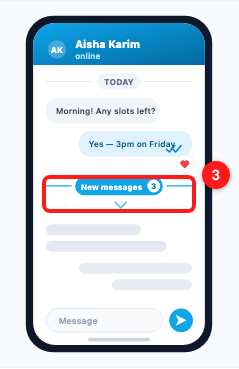
Step 3 — the “New messages” marker with its unread count, and the chevron that jumps you to it (3).
Step 4 — Let the chat fill itself in
While older messages are still being fetched, the app shows soft grey placeholder bars in the shape of the messages to come, instead of a blank screen or a spinner. They tell you the chat is still loading and roughly how much is on its way, and they are replaced by the real messages as those arrive.
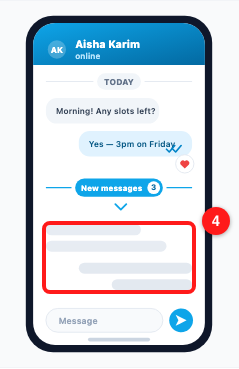
Step 4 — placeholder bars (4) stand in for messages that are still loading.
Step 5 — Read the ticks and reactions
Read receipts and reactions were part of the same pass. Ticks on a message you sent update as it is delivered and read, and an emoji reaction appears on the corner of the message it belongs to — both now animate into place rather than appearing abruptly, so a change is easier to spot as you scroll.
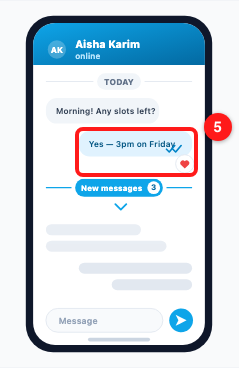
Step 5 — delivery and read ticks on a sent message, with a reaction on its corner (5).
Troubleshooting
I do not see date separators or the “New messages” marker.
Your app is most likely on an older version. These arrived in 1.5.1 — open the App Store or Google Play, update ChatDaddy, then fully close and reopen the app. The web dashboard is not affected by this change at all.
The “New messages” marker never appears in one of my chats.
The marker only shows when there are messages you have not read yet. If you have already opened the chat since those messages arrived, there is nothing unread left to mark, so it is not drawn.
The grey placeholder bars never turn into messages.
The placeholders mean the app is still waiting on the messages. If they stay, the app is not getting a reply from the server — check your connection, then close and reopen the chat. If a whole chat is missing rather than slow to load, see Mobile App: Some of My Chats Are Missing.
The ticks on my messages never turn into read receipts.
Read receipts depend on the other person's settings as well as your own, and they will not update while you have incognito mode switched on. See Mobile App: How to Hide Your Read Receipts (Incognito Mode).
Nothing looks different on the web dashboard.
That is expected. This pass was for the phone app only — the dashboard's Inbox is unchanged. The release note in What's New is simply the record of what shipped in the app.