
Mobile App: Pin and Archive Chats With a Swipe
Version 1.5.1 of the ChatDaddy app lets you sort your chat list with one thumb: swipe a chat right to pin it to the top, swipe it left to archive it, and swipe an archived chat to bring it straight back.
Also searched as: Mobile App: Pin and Archive Chats With a Swipe, Update the ChatDaddy app to version 1.5.1, Swipe right to pin a chat, Swipe left to archive a chat, Find your pinned and archived chats, Doing the same thing on the web dashboard, Mobile, Archive, Chats, Swipe
When your chat list runs to hundreds of conversations, the ones that matter today sink out of sight. Version 1.5.1 of the ChatDaddy mobile app lets you sort the list with your thumb: swipe right to pin a chat to the top, swipe left to archive one you are finished with.
It is for anyone who works out of the app on a phone. Nothing needs switching on, and nothing you do here is visible to your contacts — pinning and archiving only change how the list is ordered for you.
📱 This is a mobile app change, in version 1.5.1 and later. The gestures do not exist in the web dashboard — there you pin and archive from the chat's menu instead, which is covered at the end of this article.
Step-by-step
ℹ️ The phone pictures below are ChatDaddy's own illustration of the chat list, taken from the release note, so that each gesture can be pointed out on its own. Your app will show your real contacts in the same places.
Step 1 — Update the ChatDaddy app to version 1.5.1
The gestures arrive with version 1.5.1. Update ChatDaddy from the App Store or Google Play, then fully close and reopen the app. You can read the release note in the dashboard too: click the ✨ What's New icon in the top bar and look for Pin and Archive Chats With a Swipe.
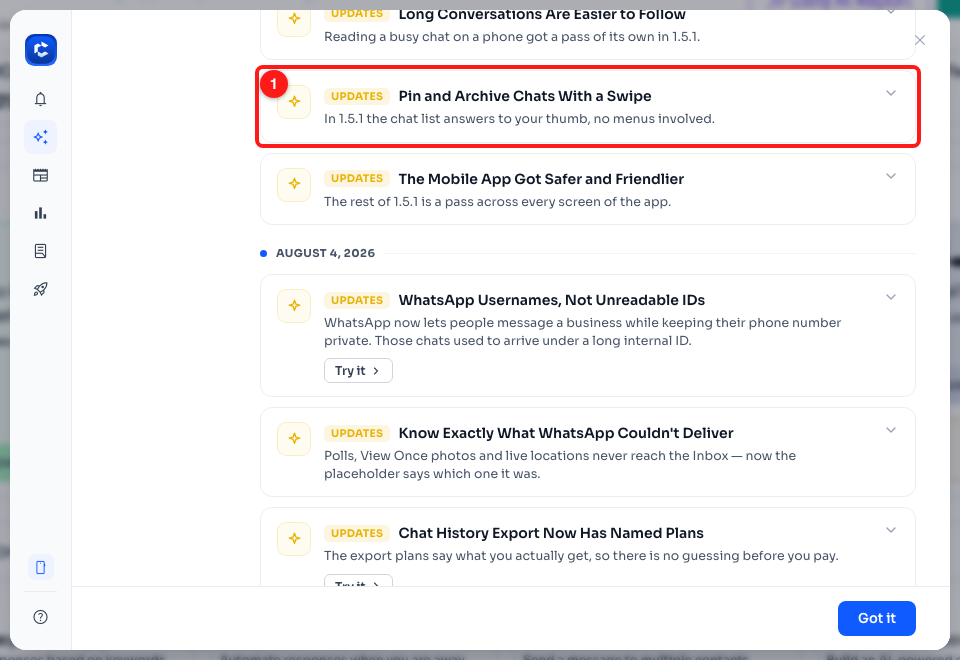
Step 1 — the 1.5.1 release note in the dashboard's What's New window (1).
Step 2 — Swipe right to pin a chat
In the chat list, drag a conversation to the right. An amber Pin action appears underneath it; let go and the chat jumps to a Pinned section at the top of the list, where it stays until you unpin it. Swiping a pinned chat right again unpins it and drops it back into the list in date order.
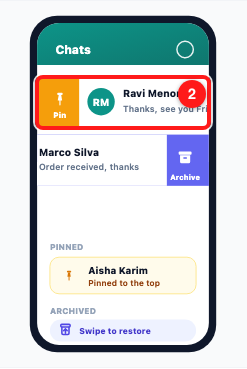
Step 2 — a chat dragged right, revealing the Pin action beneath it (2). From ChatDaddy's illustration of the feature.
Step 3 — Swipe left to archive a chat
Drag a conversation to the left instead and an Archive action appears. Letting go moves the chat out of your main list into Archived. Archiving is not deleting: the conversation and its whole history stay exactly as they were, and a new message from that contact still reaches you.
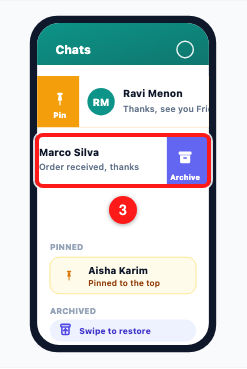
Step 3 — a chat dragged left, revealing the Archive action beneath it (3). From ChatDaddy's illustration of the feature.
Step 4 — Find your pinned and archived chats
Neither group is hidden away on another screen. The chat list gathers them under their own headings — PINNED for the chats you have pinned to the top, ARCHIVED for the ones you have put aside. To bring an archived chat back, swipe it: it returns to the main list where it left off, no menus involved.
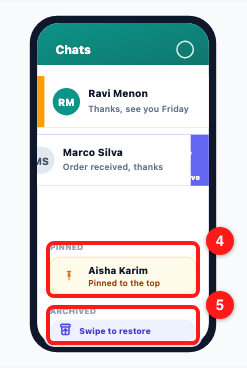
Step 4 — the PINNED section (4) and the ARCHIVED section with its swipe-to-restore row (5). From ChatDaddy's illustration of the feature.
Doing the same thing on the web dashboard
The dashboard has no swipe, but it has the same two actions. In the Inbox, right-click a chat in the list to open its menu and choose Pin Chat or Archive Chat. Once a chat is pinned or archived those entries read Unpin Chat and Unarchive Chat, which is how you undo either one.
For a WhatsApp channel connected by QR code, ChatDaddy can take its archive, mute, pin and unread state from your phone rather than managing it itself. While that is switched on, the dashboard's own Pin Chat and Archive Chat entries are greyed out. The switch is under Channels → the channel's Settings → Privacy & Data Control, labelled Sync archive, mute, pin & unread.
⚠️ That switch can only be changed while the channel is disconnected — ChatDaddy shows “Disconnect channel first to change this setting” otherwise. It also only applies to WhatsApp channels connected by QR code, so other channel types will not show it at all.
Troubleshooting
Swiping does nothing in my chat list.
Your app is most likely on an older version. The gestures arrived in 1.5.1 — update ChatDaddy from the App Store or Google Play, then fully close and reopen the app. Swiping has never worked in the web dashboard; use the chat menu there instead, as described under Doing the same thing on the web dashboard.
I cannot pin a chat that I have archived.
That combination is not allowed — ChatDaddy will tell you “Cannot pin archived chats”. Bring the chat back out of Archived first, then pin it.
Pin Chat and Archive Chat are greyed out in the dashboard.
The channel is set to take those states from your phone. ChatDaddy says so in the tooltip: “To use this, turn off ‘Sync archive, mute, pin & unread’ in Channel Settings > Privacy & Data Control.” Note it can only be changed while the channel is disconnected.
I archived a chat — have I lost the conversation?
No. Archiving only moves the chat out of your main list. The messages, media and history are untouched, the contact is not notified, and a new message from them still arrives as normal. Swipe the archived chat to bring it straight back.
A chat I pinned on my phone is not pinned on the dashboard.
Check the channel's Sync archive, mute, pin & unread setting, under Channels → Settings → Privacy & Data Control. It decides whether pin, archive, mute and unread states are shared with your phone or kept by ChatDaddy on its own — so it is what determines whether the two lists agree.
My pinned chat will not stay at the top.
Pinned chats sit in their own PINNED section above the rest of the list, not inside it. If the chat has dropped back among the ordinary conversations, the pin did not take — swipe it right again and check it lands under that heading.