
Mobile App: Safer Switching, Clearer States and Bigger Buttons
Version 1.5.1 of the ChatDaddy app went over every screen. The team switcher now marks the team you are in, logging out asks first and warns you if a channel will need re-linking, announcements show how many are left, and buttons and empty states are easier to use.
Also searched as: Mobile App: Safer Switching, Clearer States and Bigger Buttons, Update the app to version 1.5.1, Check which team you are in before you act, Log out without losing a channel, Work through announcements, or skip them, Enjoy bigger targets and clearer empty states, Mobile, Safer, Switching, Clearer, States, Bigger, Buttons
Alongside the bigger changes in version 1.5.1, the ChatDaddy mobile app got a pass across every screen — the sort of change you notice when something stops going wrong. The theme is making it harder to do something by accident, and clearer what the app is doing when it is busy or has nothing to show.
Nothing here needs switching on, and nothing changes what your contacts see. If you have the app, you already have it.
📱 This is a mobile app change, in version 1.5.1 and later. The web dashboard is unchanged, so if you work mostly in a browser you will not notice any difference — update the app from the App Store or Google Play to see it.
Step-by-step
ℹ️ The phone pictures below are ChatDaddy's own illustration from the release note, not photographs of a device. It gathers all four changes onto a single screen so each one can be pointed out — in the real app you will meet them in different places, as each step explains.
Step 1 — Update the app to version 1.5.1
These changes arrive with version 1.5.1, released on 11 August 2026. Open the App Store or Google Play and update ChatDaddy if you have not already. You can read the release note in the dashboard too: click the ✨ What's New icon in the top bar and look under August 11, 2026.
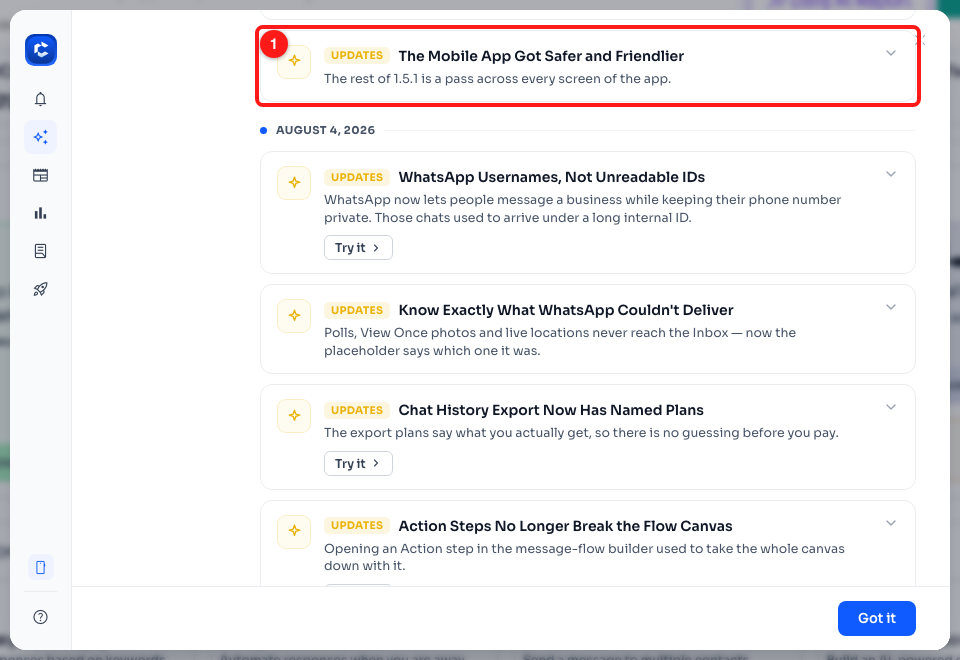
Step 1 — the 1.5.1 release note in the dashboard's What's New window (1).
Step 2 — Check which team you are in before you act
If you belong to more than one team, open Settings and look at Switch Team. Each team now carries its avatar, and the team you are currently working in is marked with a tick — so you can tell at a glance which inbox you are about to reply from. Tap another team to switch to it.
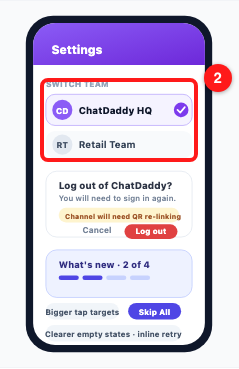
Step 2 — the Switch Team list, with avatars and a tick on the team you are in (2).
Step 3 — Log out without losing a channel
Logging out no longer happens the instant you tap it. The app asks you to confirm first, and reminds you that you will need to sign in again. If one of your channels is connected in a way that would have to be set up again by scanning a QR code, an amber warning — “Channel will need QR re-linking” — appears in the same box, before you commit. Tap Cancel if that is not what you wanted.
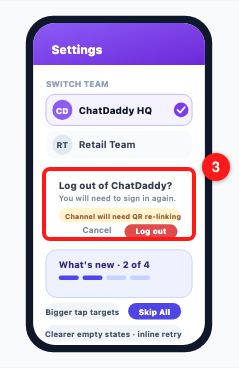
Step 3 — the log-out confirmation (3), with the amber QR re-linking warning inside it and a Cancel button beside Log out.
⚠️ Take that amber warning seriously. Re-linking a channel by QR means getting hold of the phone the channel is connected to and scanning a code — not something you want to discover after logging out on a busy afternoon.
Step 4 — Work through announcements, or skip them
When ChatDaddy has something to tell you, the announcements now say how far through the queue you are — “What's new · 2 of 4”, with a row of dots filling in as you go — so you know whether one more tap ends it or five do. When you have seen enough, Skip All dismisses the rest in one go.
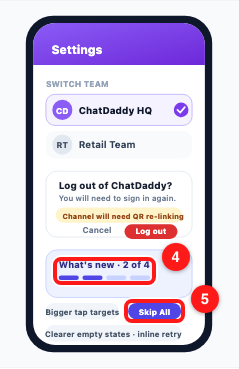
Step 4 — the announcement counter and its progress dots (4), and the Skip All button (5).
Step 5 — Enjoy bigger targets and clearer empty states
The last part of the pass is spread across the whole app rather than sitting in one place. Buttons and tap targets were made bigger, so they are easier to hit with a thumb. Screens with nothing on them now say why they are empty and offer a retry link on the spot, instead of leaving you with a blank page and no way forward. And loading and error states were made consistent, so a busy screen or a failed one looks the same wherever you meet it.
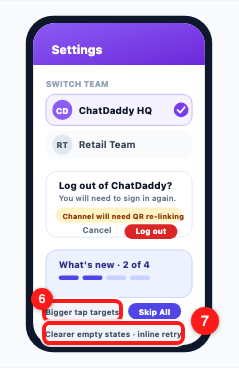
Step 5 — bigger tap targets (6), and clearer empty states with an inline retry (7).
Troubleshooting
I do not see any of these changes.
Your app is most likely on an older version. These arrived in 1.5.1 — open the App Store or Google Play, update ChatDaddy, then fully close and reopen the app. The web dashboard is not affected by this change at all.
No team is ticked in the Switch Team list.
The tick marks the team you are currently working in, so it only appears when the list has loaded and a team is active. Pull the screen to refresh it. For how switching works in general, see Mobile App: How to Switch Between Teams.
I was warned a channel will need QR re-linking. What does that mean?
Some channels stay connected by a link to a physical phone. Logging out can break that link, and restoring it means scanning a QR code again from the device the channel belongs to. The warning is there so you can plan for it rather than be surprised. See Mobile App: How to Reconnect a Disconnected Channel.
I tapped Skip All — can I read those announcements again?
Yes. Skipping only clears them from your phone for now; the announcements themselves are not deleted. See Mobile App: What Are the Pop-Up Announcements? for where they come from, and read any release note in the dashboard under ✨ What's New.
A screen is empty and the retry link does nothing.
An inline retry asks the app to fetch that screen again, so it will not help while the phone is offline or the connection is dropping. Check your connection first, then try again. If you cannot get back in at all, see Mobile App: I Can't Log In.
Nothing looks different on the web dashboard.
That is expected. This pass was for the phone app only — the dashboard is unchanged. The release note in What's New is simply the record of what shipped in the app.