
Mobile App: The Contacts Tab
Version 1.5.1 of the ChatDaddy app puts your whole contact list on your phone: one searchable list covering every channel, a tap to open that person's conversation, and a profile sheet for their details.
Also searched as: Mobile App: The Contacts Tab, Update the ChatDaddy app to version 1.5.1, Open the Contacts tab, Search for the person you want, Tap a contact to open their conversation, Add a contact without leaving your phone, Mobile, Contacts
Until now the ChatDaddy app was built around conversations: if you had not messaged someone recently, finding them on your phone meant scrolling the chat list and hoping. Version 1.5.1 adds a Contacts tab — your team's whole contact list, searchable, with every channel in the one list.
It is for anyone who works out of the app away from a desk. There is nothing to switch on: update the app and the tab is there, showing the same contacts your team sees in the web dashboard.
📱 This is a mobile app feature, in version 1.5.1 and later. The web dashboard already had a Contacts page and is unchanged — if you work mostly in a browser, nothing here is new to you.
Step-by-step
ℹ️ The phone pictures below are ChatDaddy's own illustration of the Contacts screen, taken from the release note, so that each part can be pointed out on its own. Your app will show your real contacts in the same places.
Step 1 — Update the ChatDaddy app to version 1.5.1
The Contacts tab arrives with version 1.5.1. Update ChatDaddy from the App Store or Google Play, then fully close and reopen the app. You can read the release note in the dashboard too: click the ✨ What's New icon in the top bar and look for The Mobile App Has a Contacts Tab.
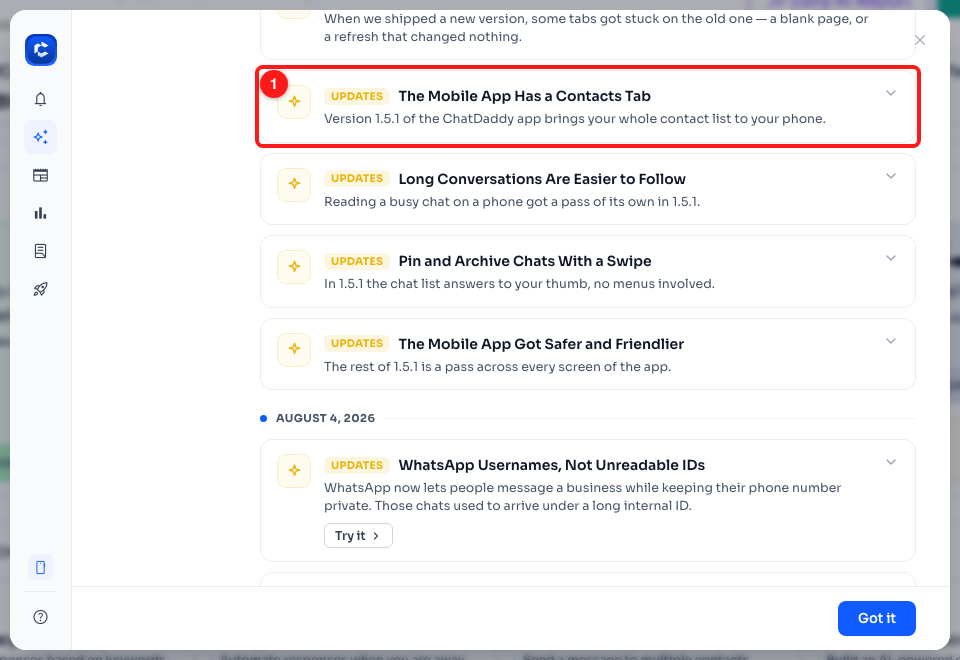
Step 1 — the 1.5.1 release note in the dashboard's What's New window (1).
Step 2 — Open the Contacts tab
Open Contacts in the app. The screen is one continuous list of your team's contacts that keeps loading as you scroll — there are no pages to step through. Contacts from every channel you have connected sit in the same list, so you do not have to know which one you last spoke to someone on.
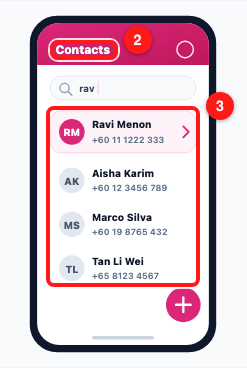
Step 2 — the Contacts tab (2) and the list beneath it, which loads more as you scroll (3). From ChatDaddy's illustration of the feature.
Step 3 — Search for the person you want
Tap the search box at the top and start typing a name or number. The list narrows as you type, so a few letters is usually enough — in the picture, typing rav leaves only Ravi Menon. Clear the box to get the whole list back.
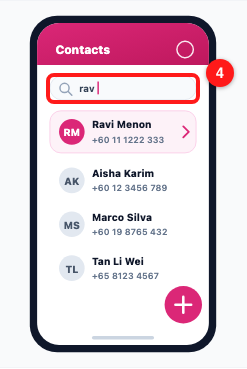
Step 3 — the search box, with part of a name typed in (4). From ChatDaddy's illustration of the feature.
Step 4 — Tap a contact to open their conversation
Tapping a row takes you straight into that person's conversation — you do not have to go back to the inbox and find them again. Each row shows the contact's avatar, their name and their number, so you can tell two similar names apart before you tap.
Each contact also has a profile sheet: their avatar, the details your team keeps on them, and a one-tap copy for those details — handy when you need a number to paste into a call or an email.
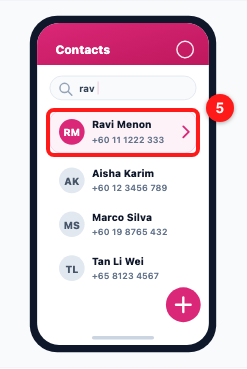
Step 4 — a matching contact row; tapping it opens the conversation (5). From ChatDaddy's illustration of the feature.
Step 5 — Add a contact without leaving your phone
The round + button at the bottom right of the list adds a new contact — name and number, on the spot, without waiting until you are back at a computer. The contact is saved to your team, so it appears in the dashboard as well.
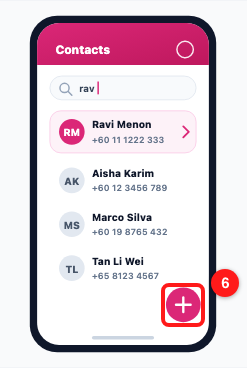
Step 5 — the add-contact button at the bottom of the Contacts tab (6). From ChatDaddy's illustration of the feature.
Troubleshooting
I cannot see a Contacts tab in the app.
Your app is most likely on an older version. The tab arrived in 1.5.1 — update ChatDaddy from the App Store or Google Play, then fully close and reopen the app. If you have just updated and the tab is still missing, sign out and back in so the app reloads your team.
A contact I can see on the dashboard is not in the list on my phone.
Both read the same contact list, so the usual cause is that the phone is showing a different team, or that the list was loaded before the contact was created. Check the team you are in — see How to Switch Between Teams below — then leave the Contacts tab and come back to it so the list reloads.
Search does not find someone I know is there.
Search matches what is saved on the contact — their name, or their number — so a nickname you only use in conversation will not find them. Try part of the number instead, or the name exactly as your team saved it. A contact who was never given a name is stored under their number.
Can I import a CSV of contacts from the app?
No — importing a file is a job for the web dashboard, where you have the file to hand. Open Contacts in the dashboard and use its import, then the contacts appear on your phone as well. The app is for adding contacts one at a time, with the + button.
The list keeps loading while I scroll — how far back does it go?
The whole contact list, one block at a time. There are no pages to step through: keep scrolling and the app fetches more. If you are hunting for one person, searching is faster than scrolling to them.
I edited a contact on my phone. Does my team see it?
Yes. Contacts belong to the team, not to your device, so a name or number you fix on the phone is the same record everyone else sees in the dashboard.