
Reconnecting Your Messenger and Instagram Channels
Messenger and Instagram channels sign in through Meta, so they drop when that permission expires or is withdrawn — and while one is down, nothing comes in and your automations for it are paused. Learn how to spot the alert, reconnect from the pop-up or from Manage Channels, and what to do when the sign-in will not go through.
Also searched as: Reconnecting Your Messenger and Instagram Channels, Reconnect from the pop-up in the Inbox, Or find the channel on Manage Channels, Relink a Messenger page with Meta, Sign back in to Instagram, How to tell it worked, If it will not reconnect, Reconnecting, Messenger, Instagram, Channels
A Messenger or Instagram channel does not use a QR code. It stays connected through a permission you granted Meta, and that permission can expire, be removed by someone in your Meta Business account, or be withdrawn by Meta itself. When that happens the channel goes quiet: no new messages arrive, nothing you send goes out, and any automations on that channel stop running.
This guide is for anyone whose Messenger or Instagram inbox has gone silent, or who has seen the red “Uh oh…” pop-up when opening the Inbox. Reconnecting takes a minute and keeps everything you already have — your chats, contacts and automations are untouched.
🔑 Reconnecting means signing back in with Meta — Facebook for a Messenger page, Instagram for an Instagram account. You need to be an admin of that page or account. This is not the same as a WhatsApp channel, which you reconnect by scanning a QR code again: see How to Reconnect a Channel on ChatDaddy.
Step-by-step
Step 1 — Reconnect from the pop-up in the Inbox
When a Messenger or Instagram channel drops, ChatDaddy tells you the next time you open the Inbox. The pop-up names the channel that is down and reminds you that “Your automations are paused too.” Click Re-connect next to the channel to start signing back in. If you would rather deal with it later, Do this later in settings closes the alert and takes you to Manage Channels.
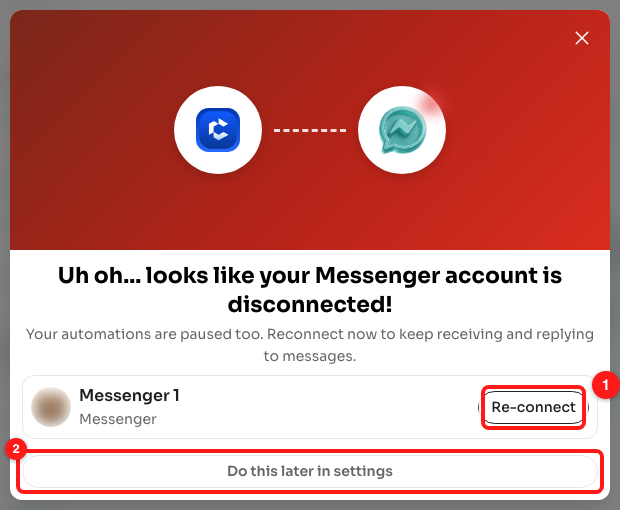
Step 1 — Re-connect starts the Meta sign-in for that channel (1); Do this later in settings dismisses the alert and opens Manage Channels (2).
⚠️ Closing the pop-up with the ✕ only hides it for now — it comes back next time you open the Inbox, which is deliberate. Do this later in settings is the one that stops it reappearing, so use that only if you plan to reconnect from Manage Channels yourself. If more than one channel is down, the heading reads “Uh oh… some of your channels are disconnected!” and every affected channel is listed with its own Re-connect button.
Step 2 — Or find the channel on Manage Channels
You can reconnect at any time from Manage Channels in the left sidebar. A channel that is down carries a red Disconnected chip in the Connection column. If the Quick Actions column offers Connect, click it — that reopens the channel using the permission ChatDaddy already holds, which is all that is needed when the connection simply dropped.

Step 2 — the red Disconnected chip marks a channel that is not live (1), and Connect reopens it (2).
ℹ️ If Connect does not bring the channel back, or the channel shows Relink with Meta or Connect with Instagram instead, the Meta permission itself has gone and has to be granted again. Continue with Step 3 or Step 4.
Step 3 — Relink a Messenger page with Meta
For a Messenger channel, click Relink with Meta on its row. A Facebook window opens and asks you to log in and confirm the permissions ChatDaddy needs to read and reply to that page's messages and comments. Approve them, and if your Meta account manages several pages, ChatDaddy shows Select Page to Connect — pick the page this channel belongs to.

Step 3 — Relink with Meta on the Messenger row (1) reopens the Facebook sign-in.
When it goes through you will see “Messenger channel successfully connected” and ChatDaddy takes you back to the Inbox.
Step 4 — Sign back in to Instagram
For an Instagram channel, click Connect with Instagram. This one leaves ChatDaddy and opens Instagram's own login page, where you sign in and allow ChatDaddy to manage messages and comments for the account. Instagram then sends you straight back to Manage Channels and the channel comes back on.

Step 4 — Connect with Instagram on the Instagram row (1) hands you over to Instagram to sign in.
📸 Instagram will only grant these permissions to an Instagram Business or Creator account, and you must be an admin of it. A personal Instagram account cannot be connected.
How to tell it worked
ChatDaddy shows a confirmation — “Messenger channel successfully connected” or “Instagram Connected!” — and returns you to the Inbox. Back on Manage Channels, the red Disconnected chip is gone and the channel is live again. New messages start arriving straight away and your automations for that channel resume on their own; you do not have to switch anything back on.
It is worth a quick look through that channel's conversations afterwards: anything a customer sent while it was down lands once the connection is back, and some of it may be waiting on a reply.
If it will not reconnect
The pop-up keeps coming back after I click Re-connect
The alert clears when the channel is actually back online, so it returns if the Meta sign-in was closed early, cancelled, or finished on an account that does not administer the page. Run through it again and make sure you approve every permission Facebook or Instagram asks for — declining one is enough to leave the channel disconnected.
Facebook says I have no pages, or the page I want is not listed
ChatDaddy can only see pages your Facebook user administers. Ask whoever owns the page in Meta Business Manager to give you an admin role on it, then run Relink with Meta again. If several pages are listed, the “Select Page to Connect” dialog lets you choose the right one.
Nothing happens when I click Relink with Meta
The Facebook step opens in a pop-up window, so a pop-up blocker or a privacy extension will stop it silently. Allow pop-ups for app.chatdaddy.tech, or try again in a private window with extensions off.
Can I do this on my phone?
Reconnect a Messenger or Instagram channel from a desktop browser. The Meta sign-in needs a full browser window, and the Connect Channel screen in the mobile app keeps Messenger and Instagram switched off for that reason.
Does reconnecting cost credits or create a new channel?
No. You are signing an existing channel back in, not adding one, so there is no new channel charge and nothing is deducted for the reconnection. Your chats, contacts, tags and automations for that channel all stay exactly as they were.
How do I get told the moment a channel drops?
Turn on the Channel Disconnected notification in Settings → Notifications. It alerts you when a channel disconnects because of an error. It stays quiet when someone on your team disconnects a channel on purpose, so it is not noisy.
It keeps disconnecting every few days
Repeated drops usually mean something on the Meta side keeps revoking access — a password change, a security check, or an admin being removed from the page or Instagram account. Reconnect once more, then contact ChatDaddy support with the channel name so we can look at what Meta is reporting for it.