
What Happens When Your Subscription Goes Inactive
If your ChatDaddy plan lapses, a "Subscription inactive" message appears the next time you try to send. Learn what still works, what happens to the credits in your wallet, and how to pick a plan and get your team going again.
Also searched as: What Happens When Your Subscription Goes Inactive, Read the message, Check what it asks you to do, Choose a Plan, or dismiss for now, Read your plan status on the Billing page, Pick a plan, Check your wallet, Happens, Subscription, Goes, Inactive
A ChatDaddy plan can lapse for a few ordinary reasons — someone cancelled it, a renewal payment did not go through, or the team never picked a plan after the trial. When that happens, the next time anyone on the team tries to send, ChatDaddy stops and shows a Subscription inactive message instead.
This article is for the person who sees that message and needs to know what it means, what it does not mean, and what to do next. Reactivating is something you do yourself from the Billing page — you do not need to contact support.
💰 Your credits are not lost. Everything in your wallet stays exactly where it is while the subscription is inactive, and becomes usable again the moment you are subscribed. Nothing is deleted and nothing expires because of the lapse.
When you will see this
The message is not a page you can browse to — it appears on top of whatever you were doing, the first time an action needs an active subscription. In practice that means it usually shows up when you or a teammate tries to send something.
You can still sign in, open the Inbox, read your conversations, look at your contacts and open Settings. It is sending that is paused, not your account.
Step-by-step
Step 1 — Read the message
The dialog is titled Subscription inactive and carries a BILLING label at the top, so you can tell at a glance that this is a billing matter and not a failed message or a channel problem. The line underneath explains it in one sentence: "Your team's subscription has lapsed, so sending is paused."
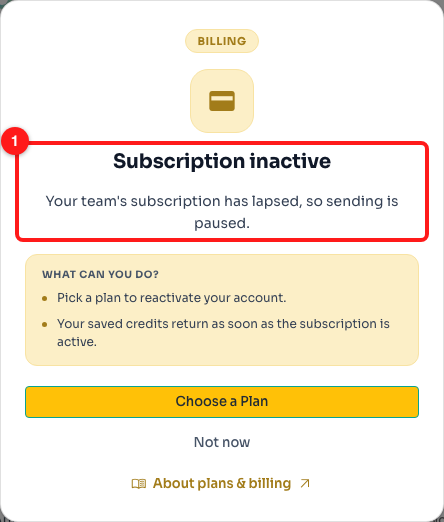
Step 1 — the title and the one-line summary (1). The BILLING label above it tells you which part of ChatDaddy the problem belongs to.
Step 2 — Check what it asks you to do
The shaded What can you do? box holds the two things worth knowing: pick a plan to reactivate the account, and your saved credits return as soon as the subscription is active again. Underneath, About plans & billing opens the plans and pricing article in a new tab if you want to read up before choosing.
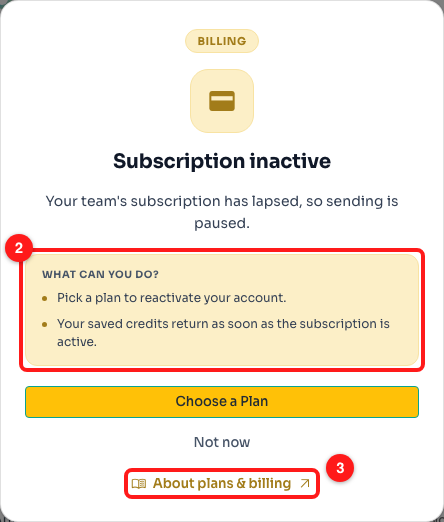
Step 2 — the "What can you do?" box (2) and the "About plans & billing" link (3).
Step 3 — Choose a Plan, or dismiss for now
The yellow Choose a Plan button takes you straight to Settings → Billing, where you reactivate. Not now simply closes the dialog — it changes nothing about your account and it does not cancel anything.
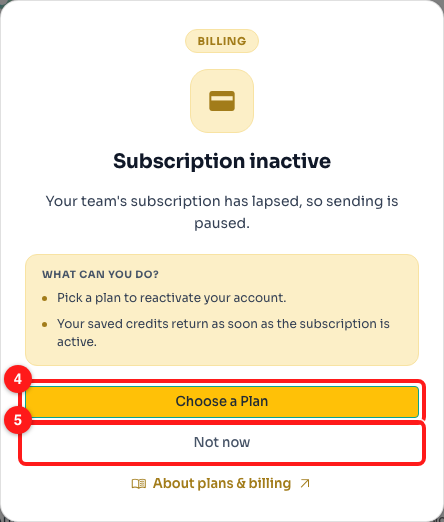
Step 3 — Choose a Plan (4) opens the Billing page; Not now (5) just closes the dialog.
ℹ️ After you click Not now, ChatDaddy holds the dialog back for about a minute even if more requests hit the same problem, so a single click really does close it. Once that minute has passed, the next blocked action brings it back.
Step 4 — Read your plan status on the Billing page
On Settings → Billing, the first section is Your plan. The dark card shows your Current Plan on the left with a status pill next to it, and the button on the right changes to match that status.
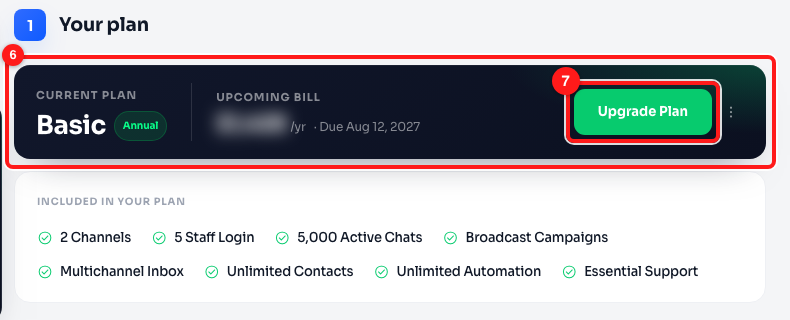
Step 4 — the Current Plan block with its status pill (6), and the action button for that status (7). This example is a healthy, auto-renewing plan.
These are the states you may see, and what each one means:
- Annual / Monthly (green) — the plan is active and will renew on its own. The button reads Upgrade Plan. Nothing to fix.
- Cancelled (amber) — auto-renew was switched off, but you are still paid up. The card reads "Auto-renew is off. Your plan stays active until
— then it ends." You get two buttons, Switch plan and Reactivate. - Expired (red) — the paid period has run out. The card reads "Expired on
. Your credits are safe — reactivate anytime." and the single button is Reactivate. - Payment Overdue (red) — a renewal invoice has not been paid. The card reads "Payment is overdue — pay your open invoice to keep your plan running.", and you get Switch plan plus Pay Now, which opens the secure payment portal.
- No Active Plan — the team has never subscribed. There is no upcoming bill and the button reads Subscribe Now →.
✅ If your plan shows Cancelled and the end date has not passed yet, Reactivate is the cheap route: it turns auto-renew back on with no charge today, and confirms the date and amount of your next renewal before you commit.
Step 5 — Pick a plan
Whichever button applies to you opens the Choose your plan window. It runs in three steps — Overview, Choose Plan, then Checkout — and you can see where you are from the tracker along the top.
Use the Monthly / Annual switch first, since annual billing is discounted, then click Select on the plan you want. The bar at the bottom keeps the plan name and the amount due in view. Only when you click Continue to Checkout → do you move on to payment.
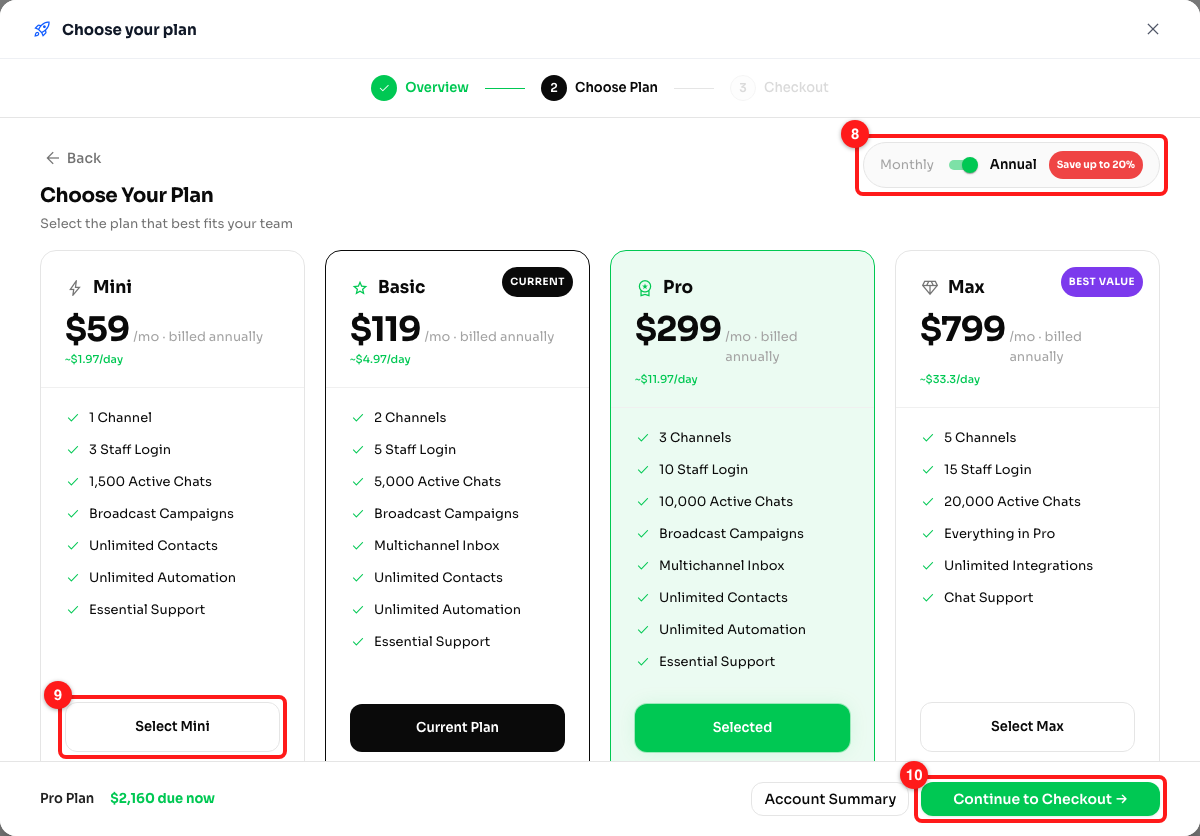
Step 5 — the Monthly/Annual switch (8), the Select button on each plan card (9), and Continue to Checkout (10). Nothing is charged until you pass this screen.
Step 6 — Check your wallet
Back on the Billing page, the Wallet card on the left shows your credit balance. It is the same balance you had before the lapse — the credits were held, not spent or cleared — and it is ready to use again now the plan is active.
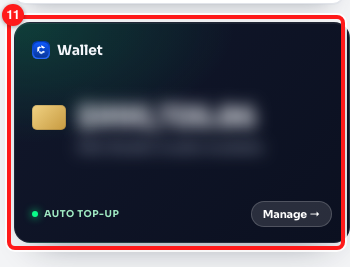
Step 6 — the Wallet card (11), with its balance blurred here. Yours will show the same figure you had before the subscription lapsed.
Frequently asked questions
Do I lose my credits when the subscription lapses?
No. Credits sit in your wallet and stay there. The dialog says so directly — "Your saved credits return as soon as the subscription is active" — and the Billing page repeats it on the plan card. Reactivating makes them spendable again; it does not top them up or take them away.
Is this the same as running out of credits?
No, they are two different things. Running out of credits means your wallet is empty and you need to top up. "Subscription inactive" means there is no plan on the team at all, so credits are not the issue — a plan is. You can have a full wallet and still see this message.
Is this the same as a failed payment?
Not quite. A failed renewal shows as Payment Overdue on the plan card, with a Pay Now button that opens the payment portal so you can settle the open invoice. "Subscription inactive" is what you get once there is no active plan left to charge against.
My teammate sees it but I do not. Why?
The subscription belongs to the whole team, so it affects everyone equally — but the dialog only appears when someone actually attempts an action that needs an active plan. A teammate who is only reading conversations will not trigger it.
I clicked "Not now" and it came back. Is something wrong?
No. Dismissing it does not fix the underlying problem, so the next blocked action after a short pause brings it back. It will keep appearing until a plan is active on the team.
Can any team member reactivate, or only the owner?
The subscription belongs to the whole team, and anyone who can open Settings → Billing can pick a plan there. Checkout charges the team's payment method, so in practice this is normally done by whoever owns the account. If you do not see a Billing tab under Settings at all, your workspace has been set up without it — speak to your ChatDaddy contact.
Will my automations and flows still run?
Sending is paused across the platform while the subscription is inactive, so anything that would send on your behalf is held up too. Nothing is deleted: your flows, keyword replies and settings are all still there and pick up again once the plan is active.