
What Changes in ChatDaddy When Your Credits Run Out
When your wallet reaches zero, ChatDaddy changes what you can reach: the left-hand menu disappears and every page is replaced by a single screen. This article shows exactly what you lose, what still works, and the two ways back in — plus why an account on an active plan is not affected.
Also searched as: What Changes in ChatDaddy When Your Credits Run Out, Check your wallet balance and your plan, Watch the credits warning in the top bar, What you see once the balance hits zero, Use Upgrade now to reach Billing, Or buy credits from the Credits page, Changes, ChatDaddy, Credits
ChatDaddy runs on credits, and when your wallet reaches zero the app visibly changes shape: the menu down the left-hand side disappears and whichever page you were on is replaced by a single screen. It looks like the app has broken. It has not — this is the credit block, and it clears the moment you have credits again.
This article is for anyone who has just hit that screen and wants to know what is still reachable and how to get out of it. It describes what you see in the app; for the rules about credit expiry and what a zero balance means for your account, see the credit pricing and expiry policy linked at the end.
⚠️ This block only applies to accounts without an active plan — trial accounts and accounts on credit-only billing. If you are on a live plan, running your wallet down to zero does not take your menu away: your plan allowance still covers everyday use, and you get a warning banner instead. See "I am on a plan — does this happen to me?" below.
Step-by-step
Step 1 — Check your wallet balance and your plan
Go to Settings → Billing. The Wallet card on the left shows your current balance and how many credits that comes to, and the dark Your plan panel on the right tells you whether a plan is attached to the account. Those two figures together decide what happens when the balance runs out.
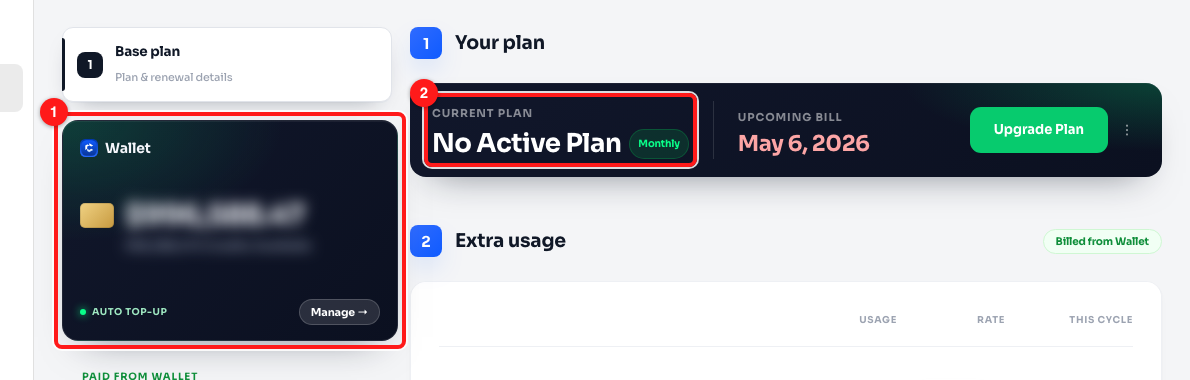
The Wallet card (1) holds your credit balance; the Current plan panel (2) shows whether you have an active plan. The balance is blurred here.
Step 2 — Watch the credits warning in the top bar
Well before you hit zero, ChatDaddy adds a credits left link to the top bar, next to Failed Messages — amber while you are merely running low, red once you are at zero. This is the earliest warning you get, and it doubles as a shortcut: clicking it takes you straight to the Credits page.

The credits warning (1) in the top bar. It stays visible even after the rest of the app is blocked.
Step 3 — What you see once the balance hits zero
At zero credits the whole left-hand navigation rail is removed — Inbox, Contacts, Message Flows, Analytics, CRM, Broadcasts, every one of them. The breadcrumb at the top of the page disappears too. Whichever page you try to open, you get the same screen: a thank-you message and a snapshot of what you have built, with Upgrade now and Need help? Talk to sales at the bottom.
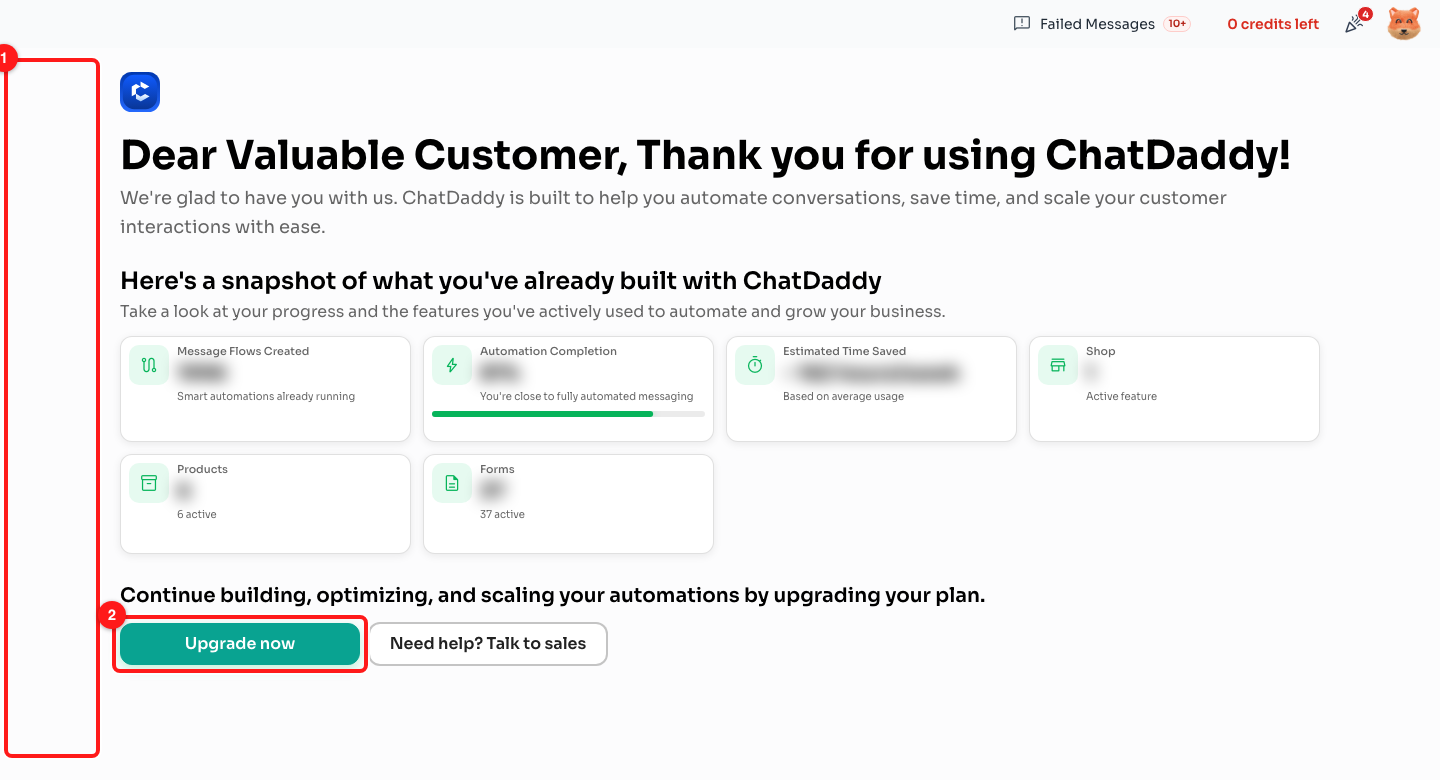
The left-hand menu is gone from the marked strip (1); Upgrade now (2) is the main way back. The usage figures on the cards are blurred here.
📋 Nothing on this screen deletes anything. Your flows, contacts, tags and settings are all still there — the block is on what you can open, not on your data.
Step 4 — Use Upgrade now to reach Billing
Upgrade now opens Settings → Billing, which keeps working even while everything else is blocked. The Settings menu down the left of that page is intact, so you can still reach Personal Profile, Team, Members, Notifications and Developer from here. On the plan panel the button now reads Subscribe Now instead of Upgrade Plan, because there is no active plan to upgrade.
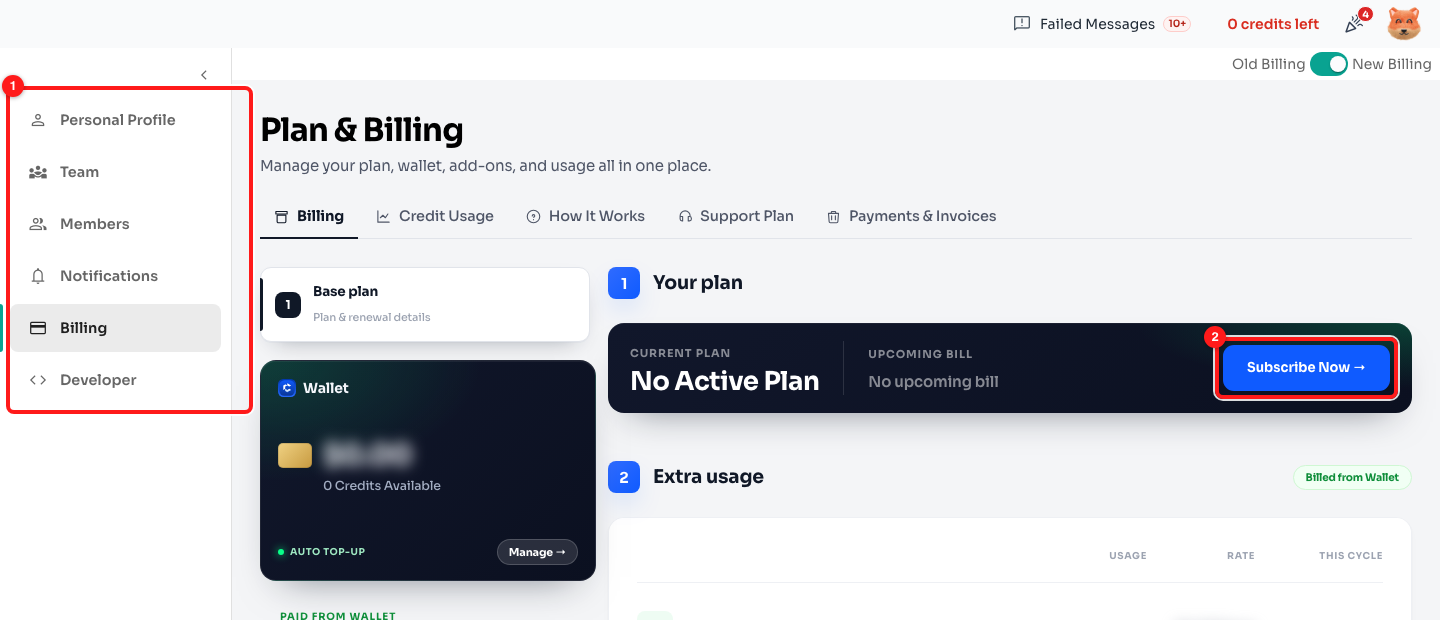
The Settings menu (1) still works while the app is blocked, and Subscribe Now (2) starts a plan. The wallet reads 0 Credits Available.
Step 5 — Or buy credits from the Credits page
The other page that stays open is the Credits page, which is where the red credits left link from Step 2 takes you. Pick the number of credits you need on the slider, tick I accept the Terms of Service, and pay — or use Copy Payment Link to send the payment to whoever handles your billing.
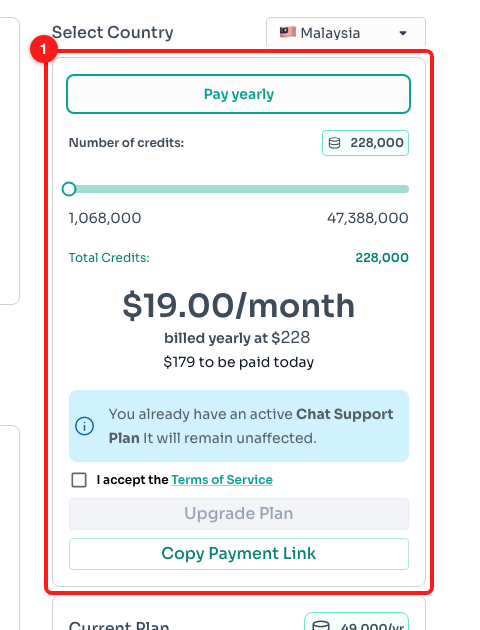
The credit purchase panel (1) on the Credits page. Prices vary by country, so yours may differ from this example.
As soon as the payment lands and your balance is above zero, the left-hand menu comes back on the next page load and every page opens as normal.
Frequently asked questions
I am on a plan — does this happen to me?
No. An account with an active plan keeps the full menu and every page, even at a zero wallet balance, because your plan allowance covers everyday use and the wallet only pays for add-ons and usage beyond your allowance.
What you get instead is an amber banner across the top of every page — "Your wallet balance is low. Add-ons and overage charges may fail until you top up." — with a Top up button. You can dismiss it for the session, and it comes back next time you sign in until you top up.
Why is Settings greyed out in my profile menu?
At zero credits the Settings entry in the profile menu (the avatar in the top-right) is deliberately disabled, even though the Settings pages themselves still work. Use Upgrade now on the block screen to get to Billing instead. Switch Team, Dark Mode, Help & Feedback and Logout all still work from that menu.
Which pages still open at zero credits?
Two: Settings (including Billing, Team, Members, Notifications and Developer) and the Credits page. Everything else — Inbox, Contacts, CRM, Message Flows, Broadcasts, Analytics, Shop and the rest — shows the block screen instead.
My screen says "Subscription paused" instead. Is that the same thing?
No, that is a different state. "Subscription paused" means you had a plan and it is no longer active, so the fix is to reactivate rather than top up. That screen has a Choose a plan button and a Talk to support button, and it reassures you that any wallet balance you had is safe and returns when you subscribe again.
I have paid but the menu has not come back.
Reload the page. The app reads your balance when it loads, so a payment that clears while you are sitting on the block screen will not appear until the next load. If the balance on Settings → Billing is still zero after a reload, the payment has not been credited yet — check Payments & Invoices and contact support if it does not appear.
Can I avoid hitting zero in the first place?
Yes. Click the Wallet card on Settings → Billing (the Manage button on it) and you get a top-up window with an Auto top-up section: set Top up when below and Add this amount, and your wallet refills itself before it empties. The credits warning in the top bar is the other early signal — it appears well before the balance reaches zero.