
Why a Message Flow Will Not Save
What to do when Save does nothing, when a red bar appears under the toolbar, or when ChatDaddy answers with "Some nodes have errors" — what each message means, how to jump straight to the step that caused it, and how to fix it.
Also searched as: Why a Message Flow Will Not Save, Know what a healthy save looks like, Read the red bar under the toolbar, Rename the step that clashes, Work through the “Some nodes have errors” window, Jump to the step and fill in what is missing, Give the flow a different name if the name is taken, Check for steps nothing leads to, Message, Flow, Will, Save
The flow builder saves your work for you every fifteen seconds, so most of the time you never think about saving at all. When something in the flow is not valid, though, that quiet autosave stops — and it is easy to keep building for ten minutes without noticing that nothing has been kept.
This article covers the three ways the builder tells you a flow cannot be saved, what each one means, and what to change. It is for anyone who edits message flows on Automation → Message Flows.
⚠️ If a red bar is showing under the toolbar, autosave is switched off and the Save button does nothing at all — no error, no spinner. Clear whatever the bar names first, then carry on. Nothing you have done since the bar appeared has been kept yet, so do not close the tab.
Step-by-step
Step 1 — Know what a healthy save looks like
Open any flow. Save sits at the top right of the canvas. Click it and the label changes to Saving… for a moment, then goes back to Save. You do not have to click it — the builder saves on its own every fifteen seconds while you work.
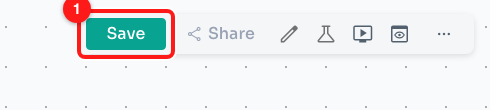
Step 1 — the Save button (1) in the flow builder toolbar. It reads "Saving…" while the save is in flight.
Autosave pauses in three situations: while an image or file you dropped into a step is still uploading, while the broadcast confirmation window is open, and whenever the flow has an error. Only the last one is a problem.
Step 2 — Read the red bar under the toolbar
The red bar is the builder checking your flow before it ever contacts the server. There are only two messages it shows, and both are about names:
- “Duplicate actions exist with names: … Action names must be unique” — two or more steps on the canvas are called the same thing. The bar lists the name that is repeated.
- “A unique name on your message flow is required” — the flow itself has no name. This usually only turns up on a flow that was imported from a file.
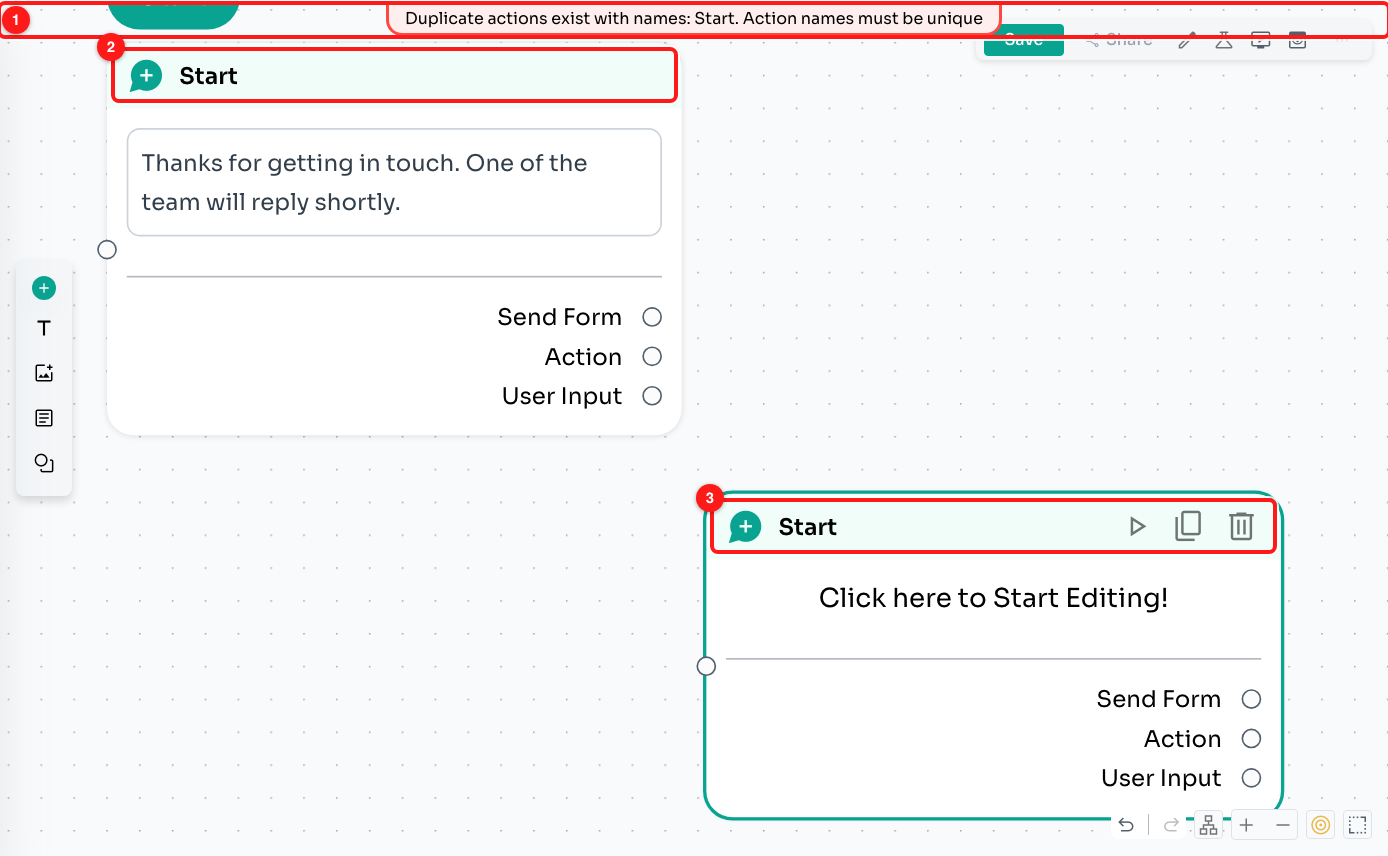
Step 2 — the red bar names the clash (1). Here both the starting step (2) and the second step (3) are called “Start”.
Step 3 — Rename the step that clashes
Hover the title in the coloured header of the step you want to rename and a small pencil appears next to it. Click the pencil, type a different name and press Enter. The red bar disappears as soon as the two names differ, and the next autosave goes through on its own.
✏️ Step names are how the rest of ChatDaddy refers to a step — in analytics, in reports and in the Start Flow node of other flows. Give them names you will recognise later, such as Ask for order number rather than Message 4.
Step 4 — Work through the “Some nodes have errors” window
If the flow passes the builder’s own checks, it is sent to ChatDaddy — and ChatDaddy can still refuse it. When it does, this window opens with one row for each step that was rejected. The title counts them: “Some nodes have errors” for one, “3 nodes have errors” for three.
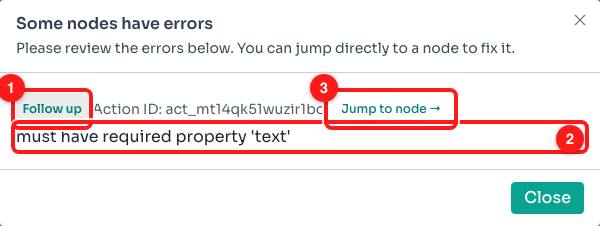
Step 4 — each row names the step (1), gives the reason (2) and offers a shortcut to it (3).
Read a row from left to right:
- The green tag is the name of the step the problem is in. If it says Flow, the problem is with the flow as a whole rather than one step.
- Action ID is the internal reference for that step. You will not normally need it, but quote it if you contact support.
- The line underneath is the reason, in ChatDaddy’s own words. “must have required property 'text'”, for example, means that step is a message with no message in it.
- Jump to node → closes the window and takes you straight to that step. It only appears when ChatDaddy could tell which step was at fault.
Step 5 — Jump to the step and fill in what is missing
Click Jump to node →. The canvas scrolls to that step, zooms in and opens its editor on the left. In the example below the reason was a missing text property, and sure enough the Body field is empty — an empty message step left over from an idea that was never finished.
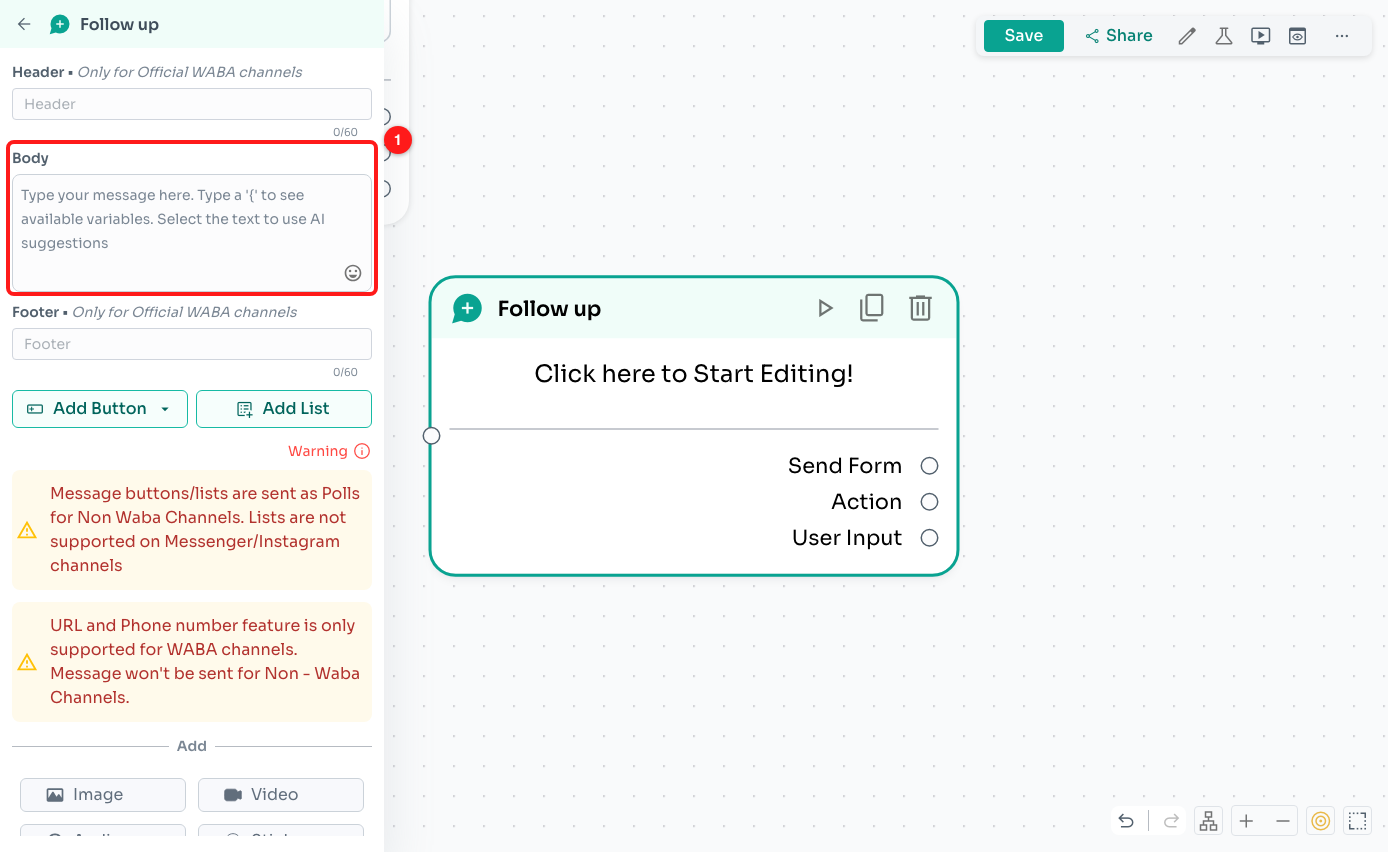
Step 5 — the step the window pointed at, with the empty Body field (1) that caused the rejection.
Fill the field in, or delete the step if you no longer want it, then click Save again. If there were several rows in the window, work through them one at a time — each save tells you what is still outstanding.
Step 6 — Give the flow a different name if the name is taken
A flow name has to be unique within your team. If it is not, the save is refused and a red message appears at the bottom of the screen instead of the errors window.

Step 6 — the message you get when another flow in the team already uses that name (1).
Click the pencil in the toolbar to open Update Message Flow Details, change the Name, and click Save. This happens most often just after you duplicate a flow, or when two people build something with the same obvious name on the same day.
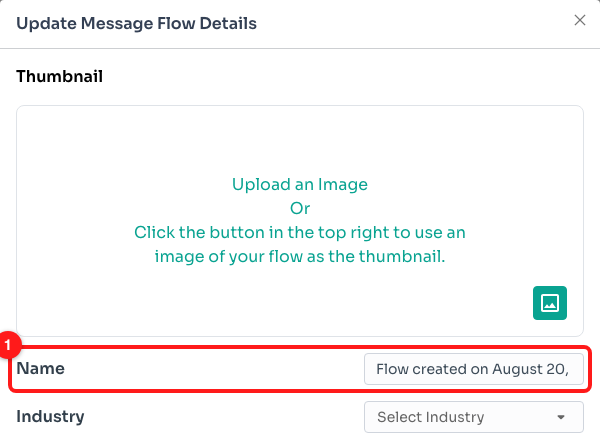
Step 6 — the Name field in Update Message Flow Details (1).
Step 7 — Check for steps nothing leads to
A step with no line coming into it will not stop a save — but it will never run either, which is the other half of “my flow will not work”. Click the target icon in the controls at the bottom right to find them. It turns amber on its own whenever the flow has any.
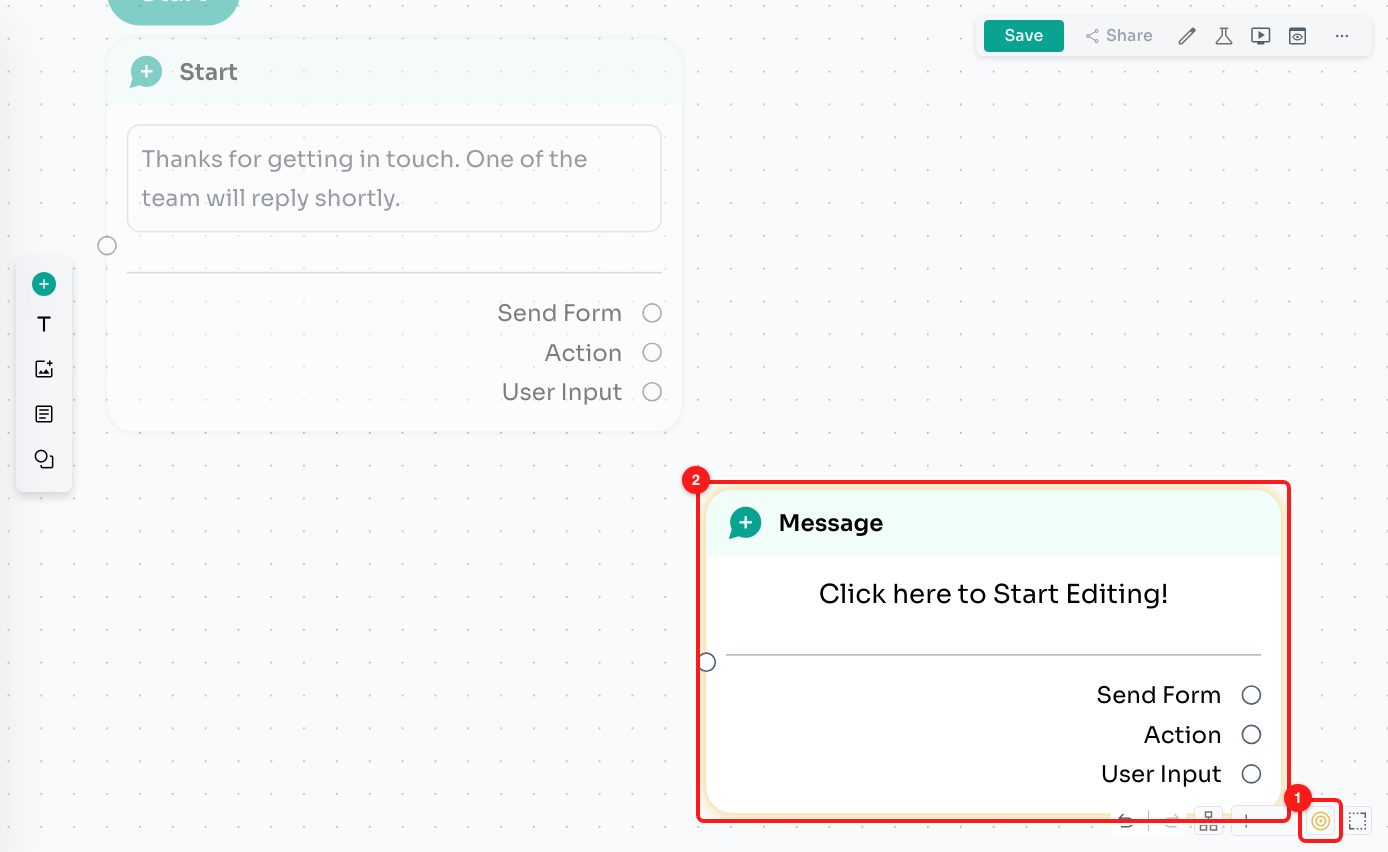
Step 7 — the Show Unconnected Nodes control (1) fades everything that is wired up and leaves the orphan step highlighted (2).
Drag a line from the step above into the highlighted one to connect it, or delete it if it was left over from an earlier version. Click the icon again to turn the view off.
Troubleshooting
I click Save and absolutely nothing happens.
That is the red bar case. Look at the very top of the canvas, just under the toolbar — there will be a red strip naming either a duplicate step name or a missing flow name. The builder stops before it sends anything, so there is no spinner and no error window. Fix what the bar names and the save will go through.
The errors window says “Flow” and “General” instead of naming a step.
That means ChatDaddy rejected the flow as a whole, or could not tell which step the problem belonged to, so there is no Jump to node shortcut. Read the reason on the row — it usually points at something flow-wide, such as the name or a trigger. If it is not clear, take a screenshot of the window and send it to support; the Action ID on the row is what they will ask for.
The reason is written in technical language I do not recognise.
The text on each row comes straight from ChatDaddy rather than being rewritten for the screen, so it can be blunt. A rough translation: “must have required property X” means a field was left empty; “must NOT have more than N” means you have added too many of something, usually buttons or list rows; “must match format” means a value such as a URL or a phone number is not in a shape ChatDaddy accepts. Jump to the step and look for the field the message names.
I lost work because the flow was not saving.
Anything still on the canvas is still there — the browser has it, it just has not been sent to ChatDaddy. Clear the error and save before you refresh or close the tab. If you refresh first, the flow comes back as it was at the last successful save and the work in between is gone.
Two of my steps have to have the same name.
They cannot. Names have to be unique inside a single flow, because that is how analytics and the Start Flow node identify a step. If you want two steps that do the same job, give them names that say where they sit — “Ask for order number (new customer)” and “Ask for order number (returning)”.
Save keeps failing and none of the above applies.
Check your connection first — a save that never reaches ChatDaddy reports a network or timeout error in the same window. If the connection is fine, reload the page, open the flow again and try one more save; a stale browser tab left open across a release can hold on to an old version of the app. If it still fails, send support the flow name and the exact wording of the error.