
Channel Not Activated and Authorization Failed
Some channels cannot send or receive even though nothing looks broken, and pressing Connect does nothing. Learn how to spot a channel whose setup was never finished, how to tell it from a channel Meta has stopped authorizing, and what to press to fix each one.
Also searched as: Channel Not Activated and Authorization Failed, Open Manage Channels and read the Connection column, Let the Quick Actions column tell you what is missing, Channel not activated: finish the step the button names, Channel authorization failed: relink with Meta, Rule out an ordinary disconnect first, Open Settings, or clear away a leftover channel, Start a fresh setup from Add Channel, Where else ChatDaddy tells you, Channel, Activated, Authorization, Failed
Most channel problems are a plain disconnect: the channel worked, it dropped, and pressing Connect brings it back. Two problems are not like that. In one, the channel was never fully set up in the first place — ChatDaddy calls this “Channel not activated”. In the other, the channel was set up, but Meta will no longer authorize it — “Channel authorization failed”.
This article is for anyone looking at a channel that will not send or receive and cannot see why. Both problems are diagnosed and fixed from the same place: the Manage Channels page.
🔎 The Connection column is the tell. A channel that finished setup always carries a chip there — Connected, Connecting or Disconnected. A channel whose setup was never finished has nothing in that column at all, and it never offers you a Connect button. That empty cell is what “not activated” looks like on screen.
Step-by-step
Step 1 — Open Manage Channels and read the Connection column
Click Manage Channels in the left sidebar. Every channel on your team is one row. Look only at the Connection column to begin with — it tells you whether the channel is finished, not whether it is working right now.
- A green Connected chip — setup is complete and the channel is live.
- A red Disconnected chip — setup is complete, but the channel is closed at the moment. This is the ordinary disconnect, and it is not what this article is about.
- An amber Connecting chip — the channel is in the middle of coming up. Give it a minute.
- Nothing at all — setup was never finished. This channel has never been authorized, so there is no connection to be up or down. This is “Channel not activated”.
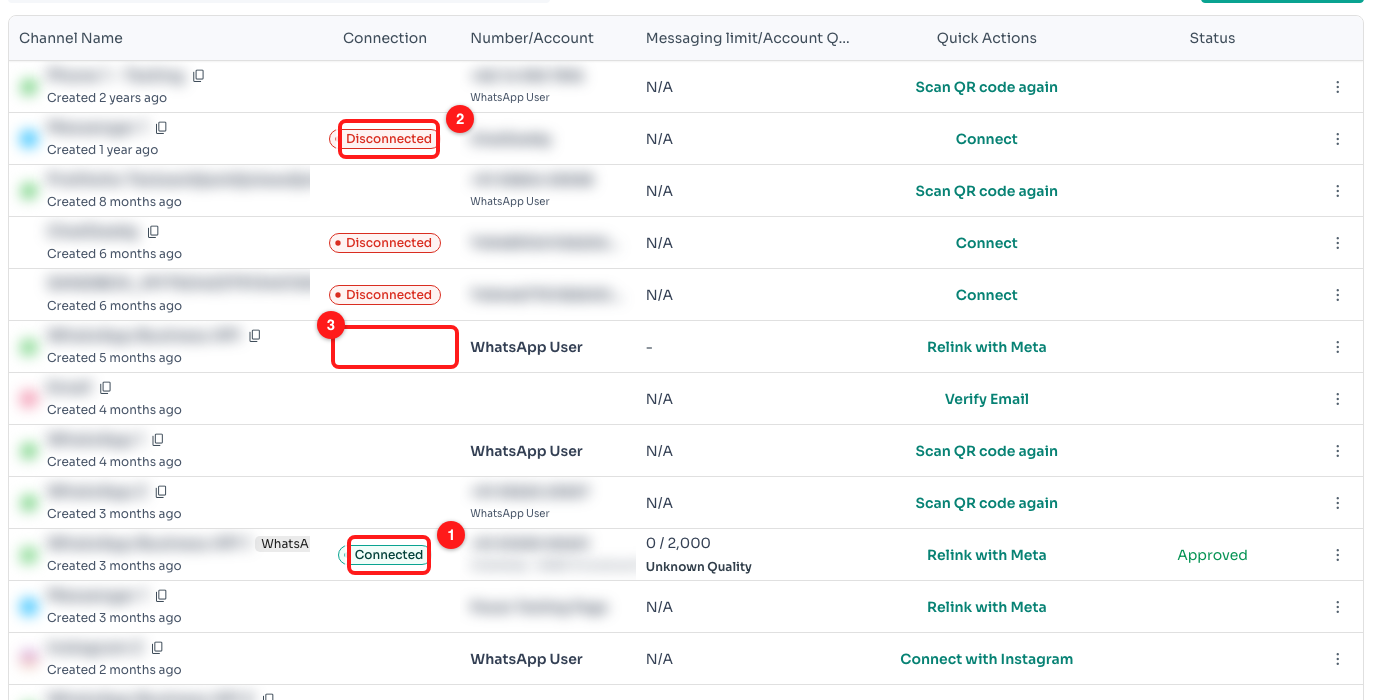
Step 1 — a Connected chip (1), a Disconnected chip (2), and an empty Connection cell (3) on a channel that was never activated.
Step 2 — Let the Quick Actions column tell you what is missing
Now read across to Quick Actions. ChatDaddy puts exactly one button there per row, and the wording is not decoration — it names the step that channel still needs. On a channel that never activated, that button is the setup step nobody ever completed.
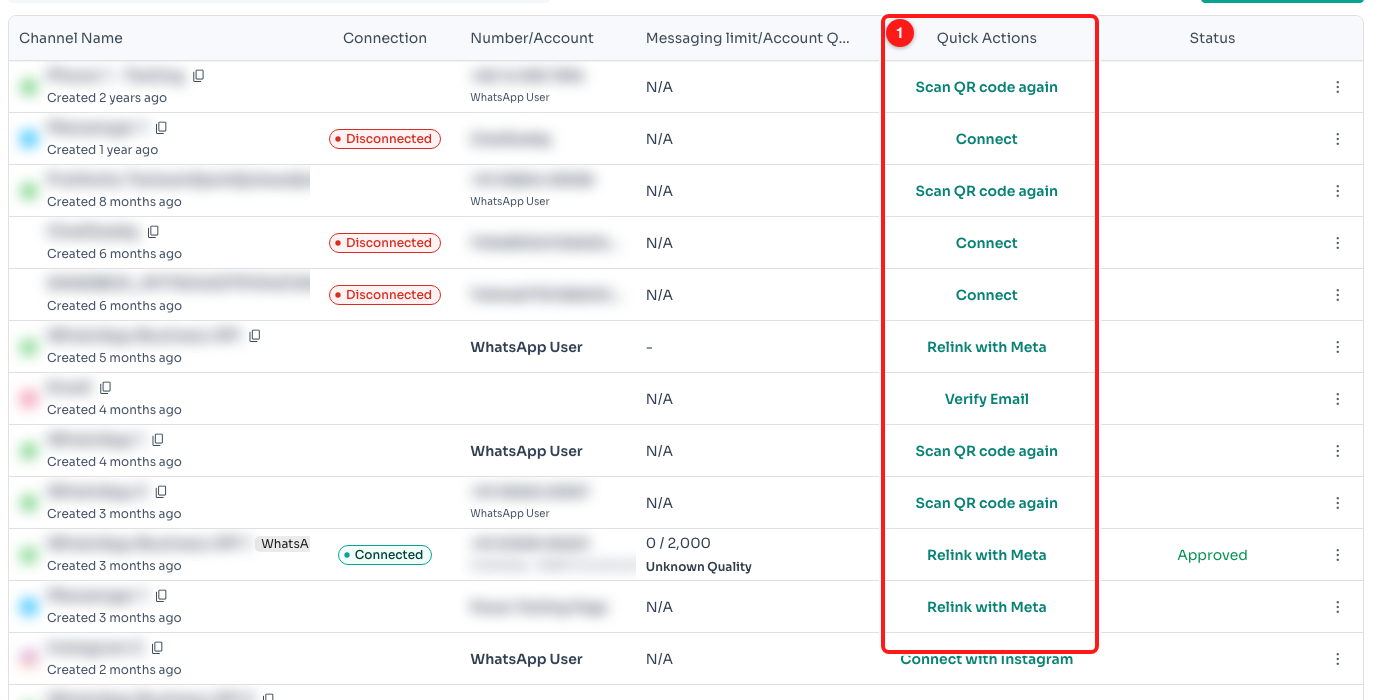
Step 2 — the Quick Actions column (1). Each button names the one step that row needs.
- Connect — the channel is set up and simply closed. Press it and you are done.
- Scan QR code again — a WhatsApp QR channel that needs a phone to scan its code.
- Relink with Meta — a WhatsApp Business API, Messenger or Instagram channel that needs to be authorized through Meta.
- Connect with Instagram — an Instagram channel connected directly rather than through a Facebook Page.
- Verify Email — an email channel whose sender address was never verified.
Step 3 — Channel not activated: finish the step the button names
If the Connection column is empty, do not go looking for a Connect button — there will not be one until the channel is activated. Press whatever the Quick Actions button says instead, and follow the flow it opens through to the end. Once the channel activates, a Connection chip appears on that row for the first time.
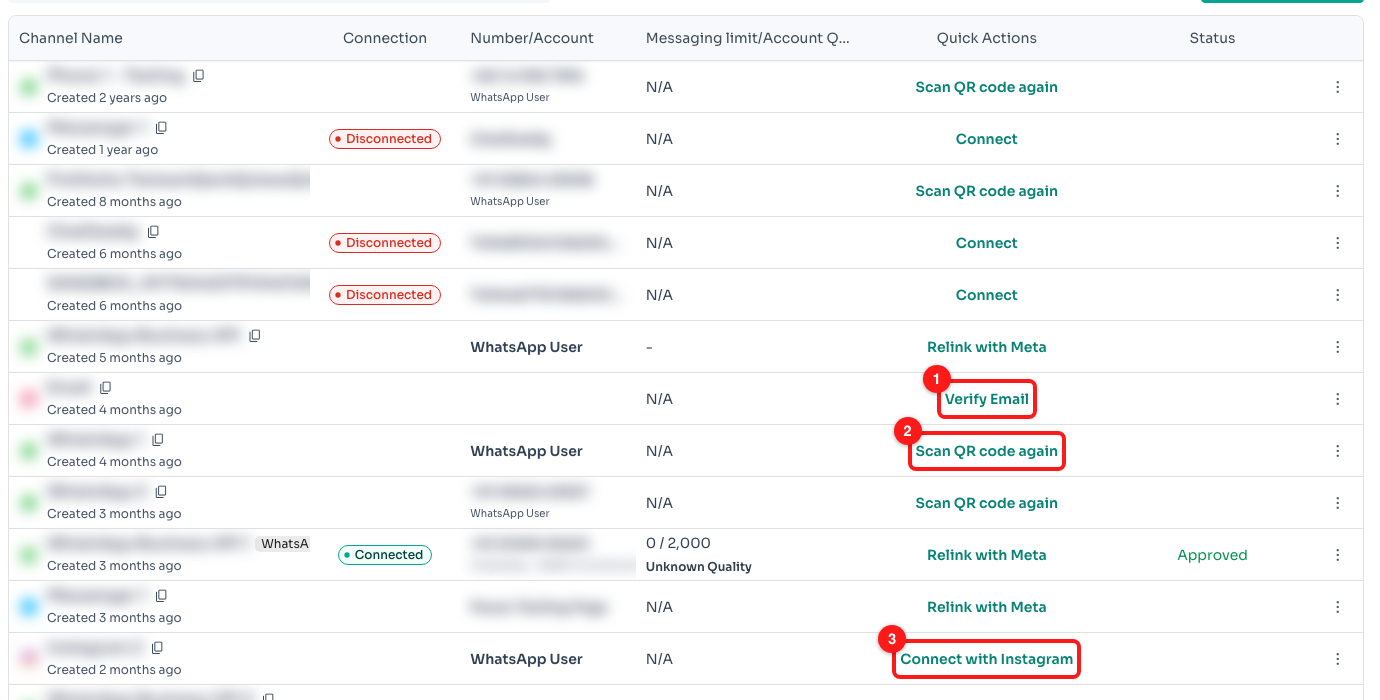
Step 3 — the three "setup was never finished" actions: Verify Email (1), Scan QR code again (2) and Connect with Instagram (3).
⏱️ Finish the flow in one sitting. Closing the Meta popup, the QR window or the email verification part-way through leaves the channel exactly where it was — activated is all-or-nothing, so a half-finished attempt looks identical to never having tried.
Step 4 — Channel authorization failed: relink with Meta
WhatsApp Business API, Messenger and Instagram channels do not hold a password. They hold an access token that Meta issues to ChatDaddy on your behalf. If that token expires, or somebody removes one of ChatDaddy's permissions in Meta Business, Meta stops authorizing the channel and sending stops — even though nothing changed on your side.
The fix is Relink with Meta. It re-runs the Meta authorization for the channel you already have; it does not create a second one. Sign in as a person who administers the business in Meta, and grant every permission the popup asks for — a single declined permission is enough to leave the channel unauthorized.
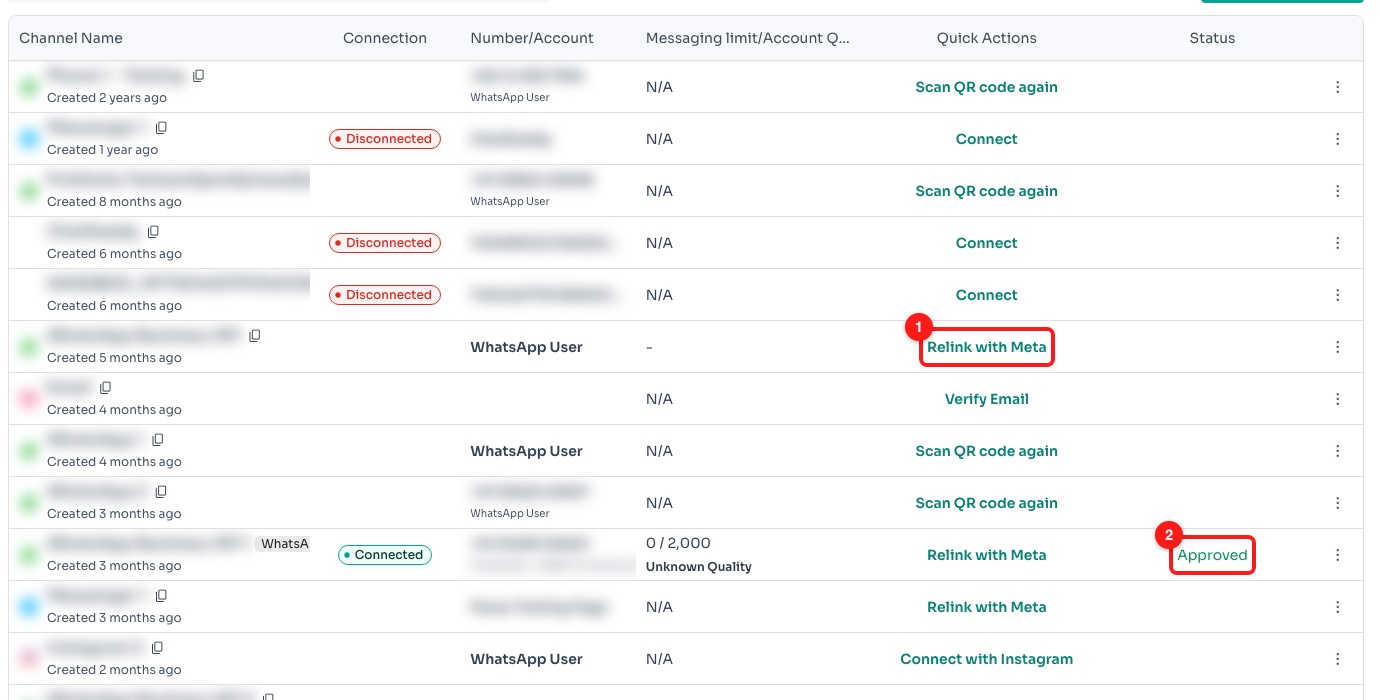
Step 4 — Relink with Meta (1) re-authorizes the channel. The Status column (2) carries the WhatsApp Business API approval state, separately from the connection.
🏷️ On a WhatsApp Business API channel the Status column is a different thing again: it shows Meta's approval state — Pending, Approved or Rejected — not the connection. A channel can be Approved and still fail to authorize, and it can be Connected while its number is still Pending.
Step 5 — Rule out an ordinary disconnect first
Before you relink anything, make sure you are not looking at a channel that is simply closed. A red Disconnected chip with a Connect button next to it is the everyday case, and pressing Connect is the whole fix. Neither of the problems in this article ever shows you that pair.
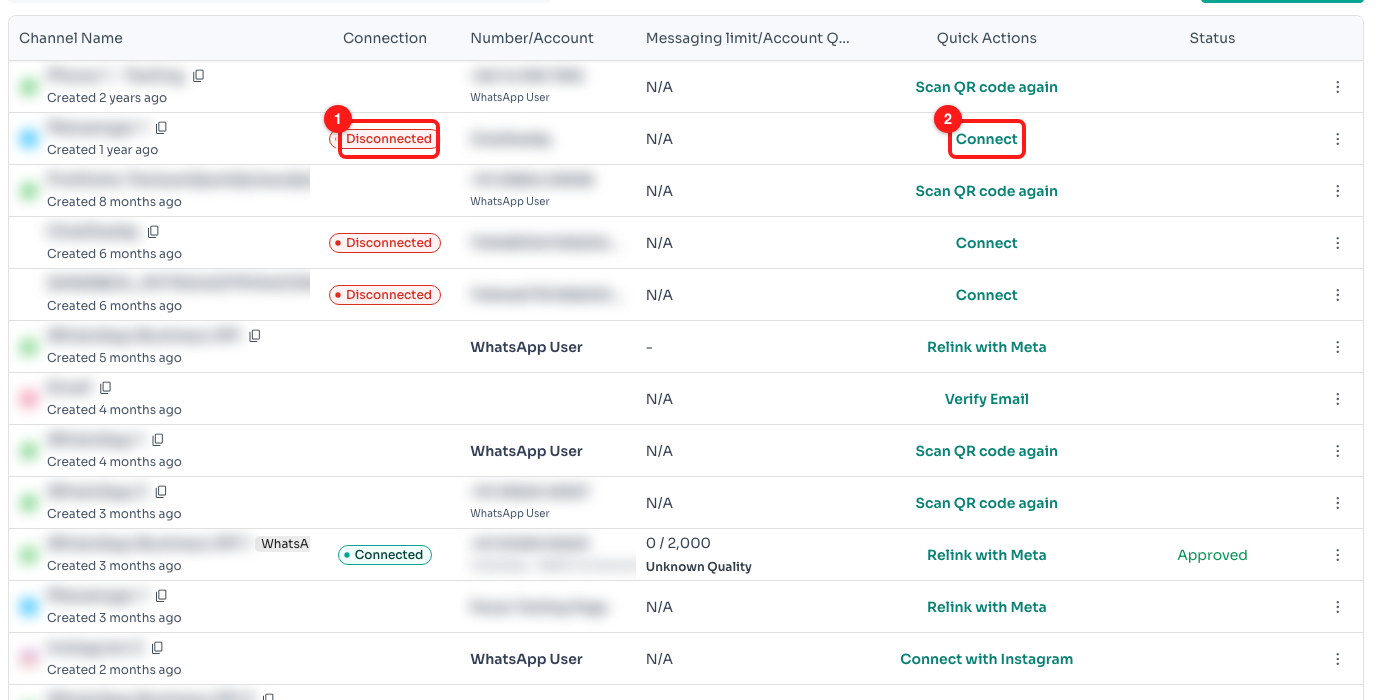
Step 5 — a Disconnected chip (1) together with a Connect button (2) is the ordinary disconnect, not an activation or authorization problem.
Step 6 — Open Settings, or clear away a leftover channel
The ⋮ menu at the end of each row opens Settings for that channel, where you can check its nickname and its channel ID before you contact us about it. The same menu holds Delete, which is the right answer for an abandoned shell — a row created by a setup attempt that was never completed and that you do not intend to finish.
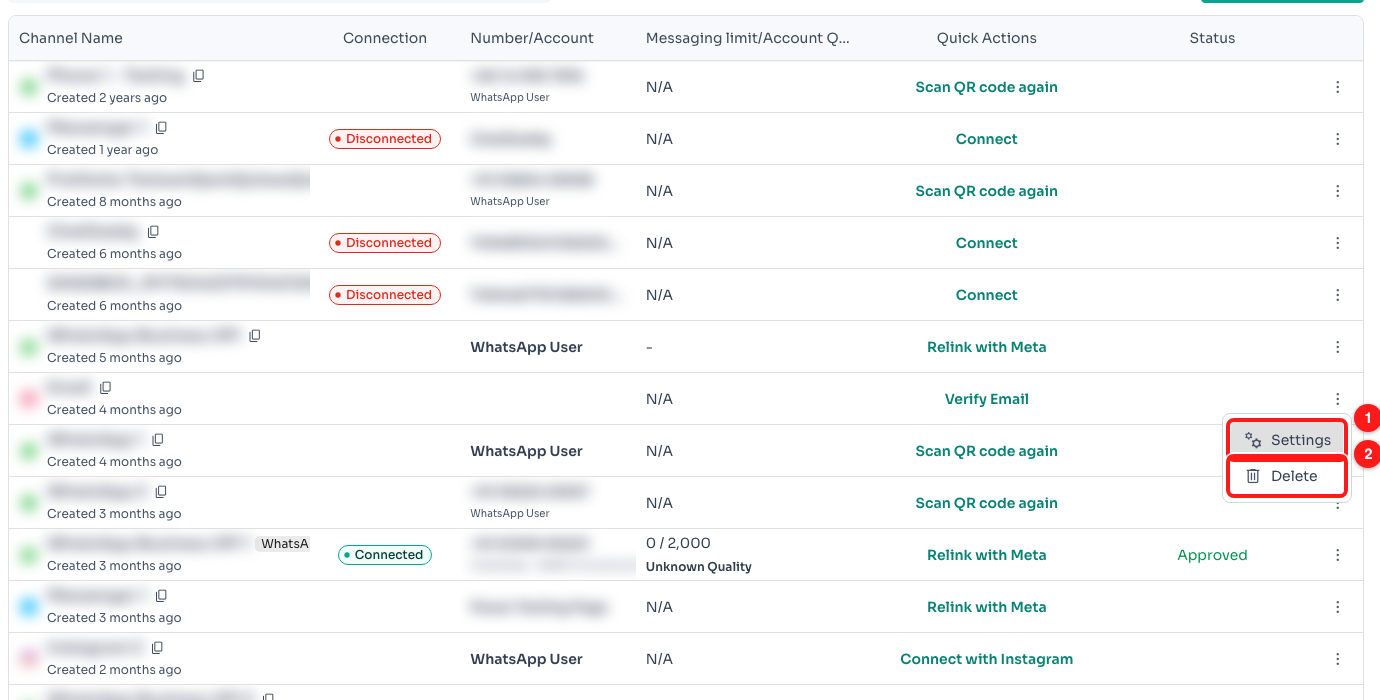
Step 6 — Settings (1) and Delete (2) in the row menu.
⚠️ Only delete a row you are certain is a leftover. Deleting a channel takes its chats and history with it. If Delete is greyed out you will see “Contact support to delete this channel.” — that channel needs our team, so send us a message rather than working around it.
Step 7 — Start a fresh setup from Add Channel
If the leftover row is gone and you still need the channel, press Add Channel to open the Connect Channel dialog and start over cleanly. Pick the tile that matches what you are connecting and press Connect Now!
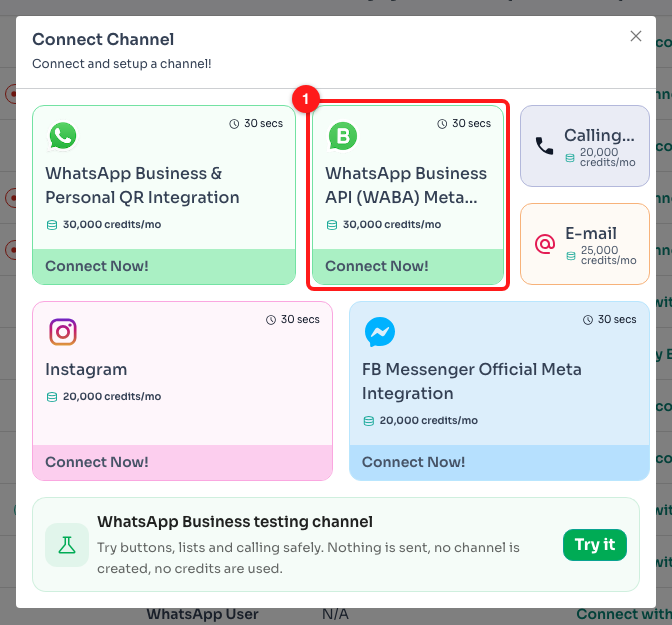
Step 7 — the WhatsApp Business API tile and its Connect Now! button (1) in the Connect Channel dialog.
Each tile prints what that channel type costs per month, so you can see before you begin whether you are repairing a channel you already pay for or adding a new one. If you only need to re-authorize an existing channel, go back and use Relink with Meta on its row instead — that costs you nothing new.
Where else ChatDaddy tells you
The Channels page is not the only place these problems surface. If you have landed here from somewhere else in the dashboard, this is what you were looking at:
- A thin strip above your conversation reading “This Channel is currently disconnected. Please Reconnect!”, with a small Why? link and a Connect button. Why? opens a short card laid out as Why this happens and What can you do?
- The same strip reading “This Channel is currently logged out.” instead. That wording is the activation problem: the channel has never been able to log in, so there is no Connect button beside it.
- A popup headed “Uh oh… looks like your WhatsApp Business API account is disconnected!”, warning that your automations are paused too. Its Re-connect button does the same job as Relink with Meta; Do this later in settings takes you to the Channels page.
- A Sync stalled - Needs reconnect button in the top bar, which is a shortcut to the Channels page when one of your channels needs attention.
- A grey Restricted chip beside a channel in a channel picker, when that channel cannot be used for what you are trying to do. Hover it and it names the reason and the fix.
Frequently asked questions
The Connection column is empty and there is no Connect button anywhere.
That is the activation problem, and it is working as intended. ChatDaddy only offers Connect once a channel has been authorized at least once — there is nothing to open or close before that. Use the Quick Actions button on that row instead; it names the setup step that was never finished.
I pressed Relink with Meta and the Facebook window closed immediately.
That is almost always a popup blocker. Meta's sign-in has to open in the same moment you click, so a blocked or delayed popup is dropped rather than queued. Allow popups for app.chatdaddy.tech in your browser, then press Relink with Meta again. Ad blockers and strict privacy extensions can do the same thing — try a private window with extensions off if allowing popups is not enough.
Will relinking lose my chats, flows or contacts?
No. Relinking re-authorizes the channel that is already there, so everything attached to it stays attached. It is deleting a channel that removes its history, which is why Delete sits behind the row menu and is restricted on some channels.
The Status column says Rejected, or the quality reads Low.
That is Meta's verdict on the account rather than a connection fault, and relinking will not clear it. ChatDaddy describes it as the account being restricted from a previous submission, and the honest advice is to wait a few days before trying again. In the meantime the channel may be blocked from sending even while it shows as connected.
There are two rows for the same number.
One of them is usually a shell left behind by a setup attempt that was abandoned part-way. Tell them apart by the Connection column: the working one carries a chip, the shell has an empty cell and a setup button. Delete the shell from its row menu once you are sure which is which.
It relinks, then stops authorizing again a few days later.
A relink that will not hold usually means the Meta side is being changed back — a permission removed, a person taken off the business, or the number moved to another provider. Ask whoever administers your Meta Business account to check that ChatDaddy still has access, then relink once more.
Nothing on the row helps and support is my next step.
Open Settings from the row menu and copy the channel ID shown in the header, then send it to us with what the Connection and Quick Actions columns say for that row. Those three details are enough for our team to see which channel you mean and how far its setup got.
Related articles
- How to Reconnect a Channel on ChatDaddy
- How to Fix WhatsApp Channel Disconnecting Frequently
- Troubleshooting QR Code Scan Issues on ChatDaddy - Couldn't Log In
- How to Create, Verify & Connect Your WhatsApp Business API to ChatDaddy
- Handle Pending Messages Before Reconnecting to ChatDaddy
- What Is a Channel