
How Auto Top-Up Works (and What Happens When It Fails)
Auto Top-Up refills your wallet automatically when the balance drops below a level you choose. Learn where to set the two amounts, what the minimums are, why there is no on/off switch, and what to do when a top-up payment fails.
Also searched as: How Auto Top-Up Works (and What Happens When It Fails), Why there is no off switch, Open the wallet from your Billing page, Find the Auto Top-Up card, Set the balance that triggers a refill, Set how much to add, then save, Mind the two minimums, When a top-up fails, Common questions, Auto, Top-Up, Works, Happens, Fails
Your wallet is the credit balance ChatDaddy draws on for anything charged per use — extra usage over your plan allowance, pay-as-you-go services, and your monthly add-ons. Auto Top-Up watches that balance and buys more credits for you the moment it falls below a level you set, so a broadcast or an automation never stops halfway because the wallet ran dry.
This article is for whoever looks after billing for the team. You need access to Settings → Billing to change these amounts.
⚡ Auto Top-Up is always on — there is no switch to turn it off. You choose the two amounts only: the balance that triggers a refill (minimum $10) and how much to add each time (minimum $50).
Why there is no off switch
Add-ons, extra channels and extra teammate seats are billed from the wallet on a recurring basis. If the wallet empties, those charges start failing partway through your billing cycle and features switch off with no warning. Keeping Auto Top-Up on means the wallet refills itself before that happens. You stay in control of the numbers — just not of whether it runs.
Step-by-step
Step 1 — Open the wallet from your Billing page
Go to Settings → Billing. On the Billing tab, the dark Wallet card on the left shows your current balance and credits. The green Auto top-up marker at the bottom of that card tells you it is running. Click the card (or the Manage → button on it) to open your wallet.
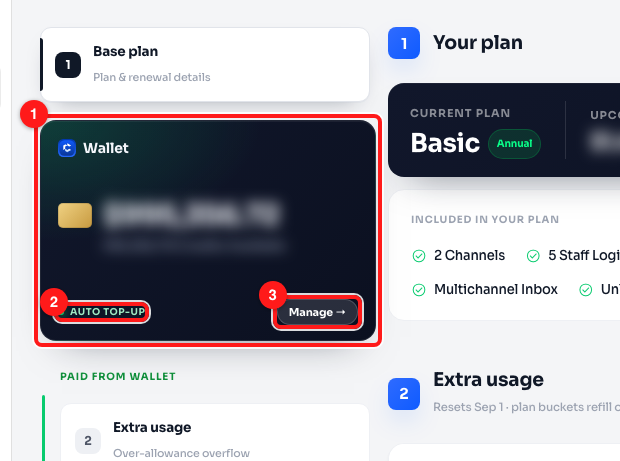
Step 1 — the Wallet card (1) with the Auto top-up indicator (2) and the Manage button (3). The balance is blurred here; yours will show a figure.
Step 2 — Find the Auto Top-Up card
A Top up credits popup opens. The top half — Top Up Credits — is for buying credits right now as a one-off. Ignore that for the moment: Auto Top-Up is the card underneath it, marked ON. It shows your two current amounts, each with the number of credits it works out to.
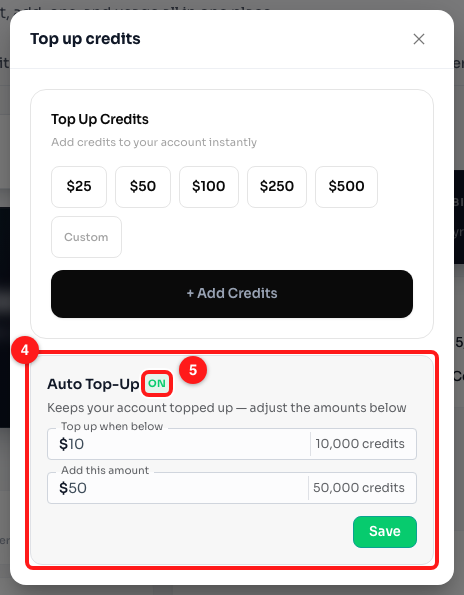
Step 2 — the Auto Top-Up card (4) sits below the manual top-up card. The ON badge (5) confirms it is active. Credits convert at 1,000 credits per $1.
Step 3 — Set the balance that triggers a refill
In Top up when below, enter the balance at which you want ChatDaddy to step in. As soon as your wallet drops under this figure, the refill is charged. The grey text on the right of the box converts your amount to credits as you type, so you can sanity-check it.
Set this high enough to cover a busy day. If you regularly spend $20 of credits in an afternoon, a $10 trigger leaves almost no headroom.
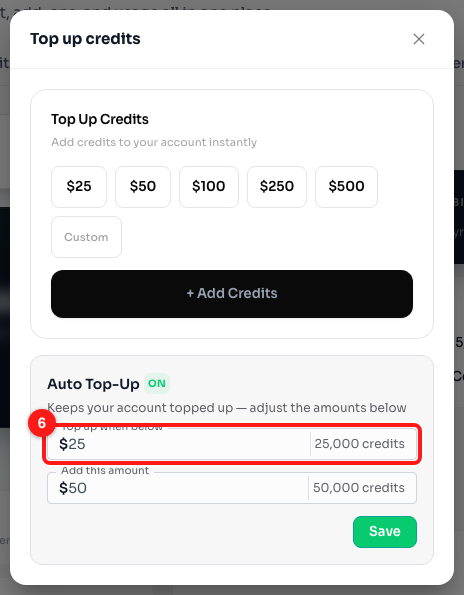
Step 3 — "Top up when below" (6), set to $25, which the card reads back as 25,000 credits.
Step 4 — Set how much to add, then save
In Add this amount, enter how much to buy each time the trigger fires. This is the amount your card is charged. A larger amount means fewer separate charges on your statement; a smaller one keeps less money sitting unused in the wallet.
Click Save. The new settings apply from the next time your balance crosses the trigger — saving does not charge your card there and then.
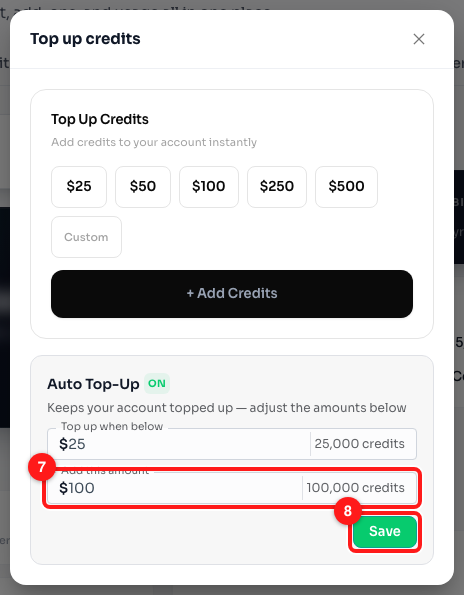
Step 4 — "Add this amount" (7) set to $100, and the Save button (8).
Step 5 — Mind the two minimums
Neither figure can go below its floor. Type less than $10 into the trigger or less than $50 into the amount and the box turns red, a Minimum note appears underneath, and Save greys out until you fix it. Leaving a box empty disables Save as well.
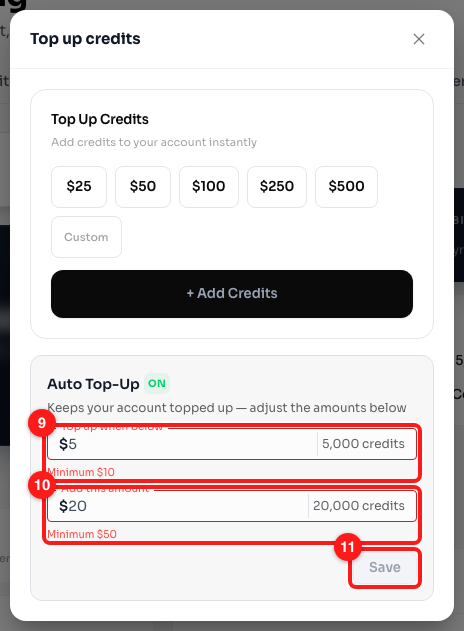
Step 5 — $5 is under the trigger minimum (9) and $20 is under the amount minimum (10), so Save is disabled (11).
When a top-up fails
If ChatDaddy tries to refill your wallet and the payment does not go through, you will see a “Auto top-up couldn’t process” notice the next time you open the app, and a low-wallet banner stays on screen until it is sorted. It is almost always the card rather than your account: expired, out of funds, or stopped by the bank’s fraud check.
✅ A failed top-up does not switch off your plan. Everything included in your plan keeps working normally — only add-ons and extra usage charged from the wallet are affected.
The notice gives you three choices. Update payment method takes you straight to the secure payment portal to change your card — this is the one that actually fixes it. Go to billing opens your Billing page so you can check the balance and top up by hand in the meantime. Remind me later just closes the notice for this session; nothing is fixed and it will come back.
Common questions
Can I turn Auto Top-Up off completely?
No. The on/off switch was deliberately removed, because an empty wallet quietly breaks recurring add-on, channel and teammate charges in the middle of a billing cycle. You can still control the spend by setting the trigger and the amount to their minimums — $10 and $50 — which is the smallest footprint available.
How do dollars turn into credits?
At a flat 1,000 credits per $1. So $10 is 10,000 credits, $50 is 50,000 and $100 is 100,000. The card does the sum for you next to each box as you type, so you never have to work in raw credit numbers.
Does clicking Save charge my card straight away?
No. Save only stores the two amounts. A charge happens later, when your wallet balance actually drops below the trigger you set. If you want credits immediately, use the Top Up Credits card at the top of the same popup — that one charges you now.
My wallet is empty but I was never charged. What happened?
That combination — a live Auto Top-Up setting and a wallet at zero — is exactly what the failure notice is looking for, and it means the payment was attempted and declined. Update your card through the payment portal, then top up manually once to get moving again. If the card is fine and it still fails, contact support with the date it happened.
Why can I not find the Auto Top-Up card on my Billing page?
It is not on the page itself — it lives inside the wallet popup. Click the dark Wallet card (or its Manage button) on the Billing tab first, and the Auto Top-Up card is the lower of the two cards in the popup that opens. If you are still on the old billing page, switch to New Billing using the toggle at the top.