
How to Filter and Sort Tickets on a CRM Board
Narrow a busy CRM board down to the tickets you care about and put them in the order you want: filter by stage, assignee, tag, custom field or contact, sort every stage at once, and clear it all again with Reset.
Also searched as: How to Filter and Sort Tickets on a CRM Board, Where to find it, Find the sort, filter and search controls, Sort every stage at once, Check what the sort changed, Open the filter menu and choose what to filter on, Read the chips, and clear them when you are done, Sort by a column on the Table layout, Act on what the filter left behind, Filter, Sort, Tickets, Board
Once a CRM board has more than a screenful of tickets, scrolling stops being a plan. Filtering hides the tickets you are not working on, and sorting puts the ones that are left in a useful order — newest first, oldest first, or alphabetically.
Both live on the same row of icons at the top of every board, next to the search box, and neither changes anything for your colleagues. This article covers what each control does, how to read the chips that show what is currently applied, and the two habits that catch people out.
✋ While a sort other than Default is switched on, you cannot drag cards between stages. The board is showing you a computed order, so dragging a card would have nowhere to put it. Set the sort back to Default and drag-and-drop comes straight back.
Where to find it
Open CRM from the left-hand menu and pick a board. The controls sit at the right-hand end of the row under the board tabs — the same row that holds your view tabs on the left.
Step-by-step
Step 1 — Find the sort, filter and search controls
Three controls sit side by side. The up-and-down arrows are sort, the sliders icon is filter, and the box next to them is search. Each one turns green while it is doing something, so you can tell at a glance whether the board you are looking at is the whole board or only part of it.
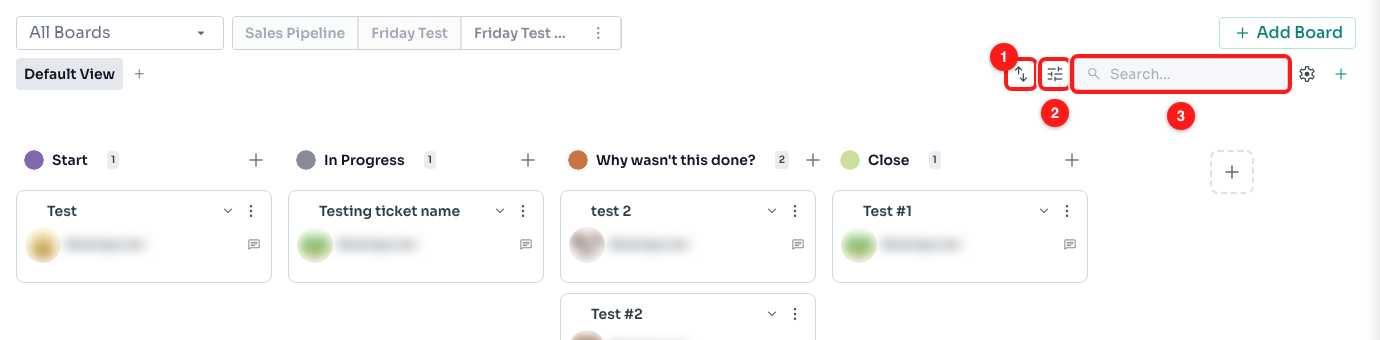
Step 1 — the sort icon (1), the filter icon (2) and the search box (3).
🔍 Search is separate from the filters and works alongside them. It matches the ticket name, the contact’s name, their WhatsApp display name and their phone number — and it ignores phone formatting, so
+60 12 345 6789and60123456789both find the same contact.
Step 2 — Sort every stage at once
Click the sort icon. Four options appear:
- Default — the order you arranged the cards in yourself, by dragging them.
- Latest — most recently created ticket at the top of each stage.
- Oldest — the other way round, so the ones that have been sitting there longest come first.
- A–Z — alphabetical by ticket name.
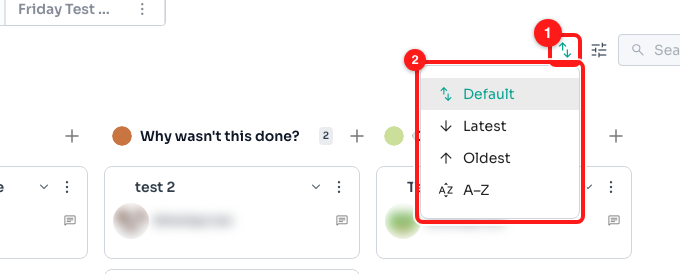
Step 2 — the sort icon (1) opens the four sort options (2).
The sort applies to every stage on the board at the same time, not just one column. It reorders the cards within each stage; it never moves a ticket from one stage to another.
Step 3 — Check what the sort changed
The sort icon turns green while anything other than Default is chosen. That is the only marker, so it is worth learning to spot: there is no chip for the board sort the way there is for a filter.
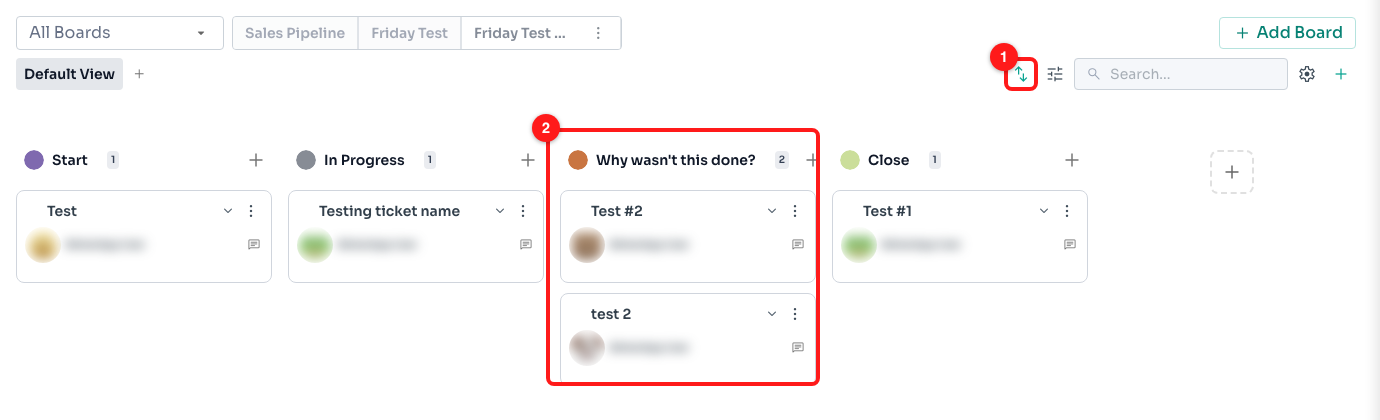
Step 3 — the sort icon is now green (1), and the cards in each stage have been reordered — here alphabetically (2).
↩️ The board sort lasts for as long as you stay on the page. Refreshing puts it back to Default, and so does closing the tab and coming back — it is a way of looking at the board, not a setting that is saved.
Step 4 — Open the filter menu and choose what to filter on
Click the filter icon. The left-hand column lists what you can filter on and the right-hand side shows the values for whichever one you have picked. Tick as many values as you like; the board updates as you go, so there is no Apply button.
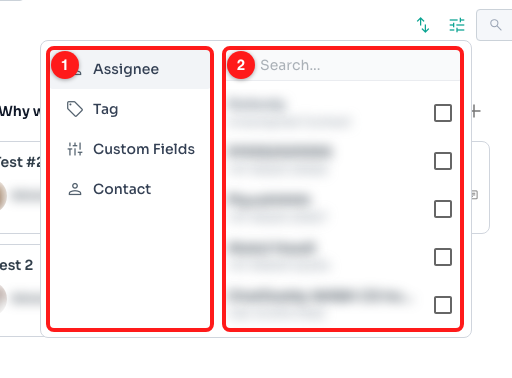
Step 4 — the list of things you can filter on (1) and the values for the one currently selected (2). Names and numbers are blurred here for privacy.
- Stage — only tickets sitting in one stage.
- Assignee — tickets whose contact is assigned to a particular colleague, or to nobody.
- Tag — tickets whose contact carries a tag.
- Custom Fields — tickets whose contact has a particular value in one of your board’s custom fields.
- Contact — every ticket belonging to one customer.
ℹ️ Stage only appears on the Table layout. On the drag-and-drop Board layout the stages are already the columns, so filtering by one would just hide the rest of the board — the option is left out on purpose.
Step 5 — Read the chips, and clear them when you are done
Everything you have switched on appears as a chip on the row just under the icons, so you can always see why the board looks emptier than usual. Click the × on a chip to drop that one filter, or Reset at the end of the row to clear them all at once.
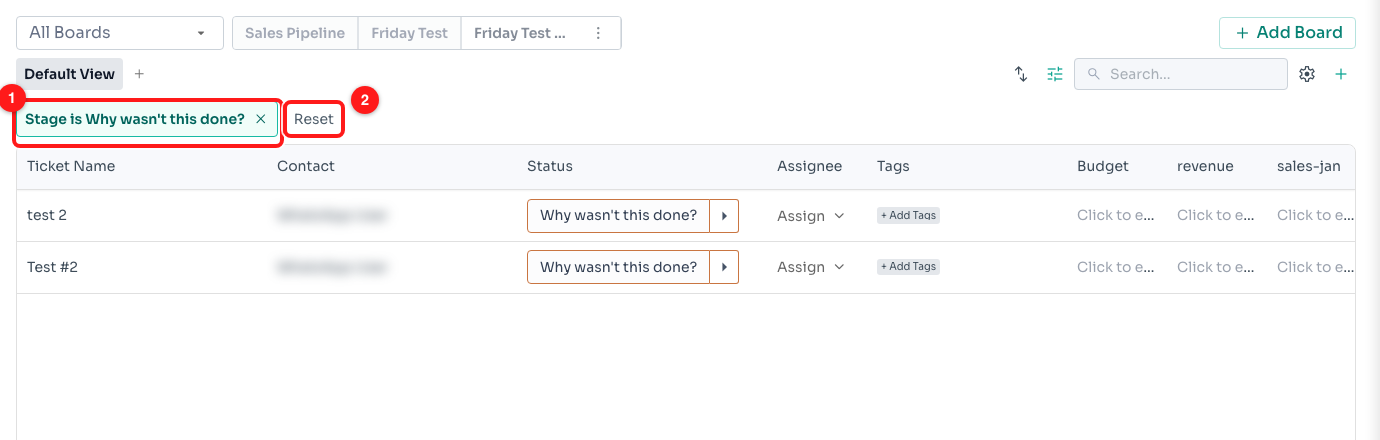
Step 5 — the chip naming the filter that is applied (1), and Reset, which clears the whole row (2).
⚠️ Reset does not clear the board sort, and it does not clear the search box. It clears the filter chips and the table column sort only. If the board still looks wrong after Reset, check the search box and set the sort icon back to Default.
Step 6 — Sort by a column on the Table layout
If your view is set to the Table layout, you get a second kind of sort: click any column heading — Ticket Name, Contact, Status, Assignee, Tags or one of your custom fields — to sort the whole table by it. Click again to reverse the direction.
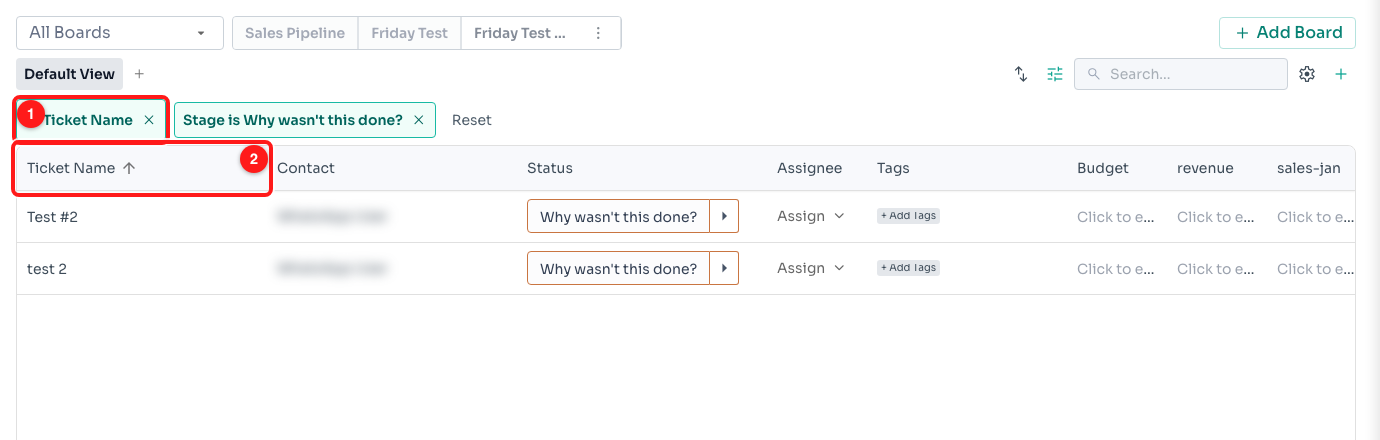
Step 6 — the column sort appears as a chip with an arrow for the direction (1), and the column heading it came from (2).
Unlike the board sort, a column sort is remembered — in the browser you set it in — so it is still there when you come back tomorrow. Remove it with the × on its chip, or with Reset.
⏳ Sorting a column loads the whole board rather than just the page you can see, so that the order is right from top to bottom. On a big board that takes a moment, and boards larger than 1,000 tickets are sorted up to that limit.
Step 7 — Act on what the filter left behind
On the Board layout, tick the checkbox on a card to select it. A bar appears along the bottom with the number you have picked and what you can do with them: Move to stage and Delete.
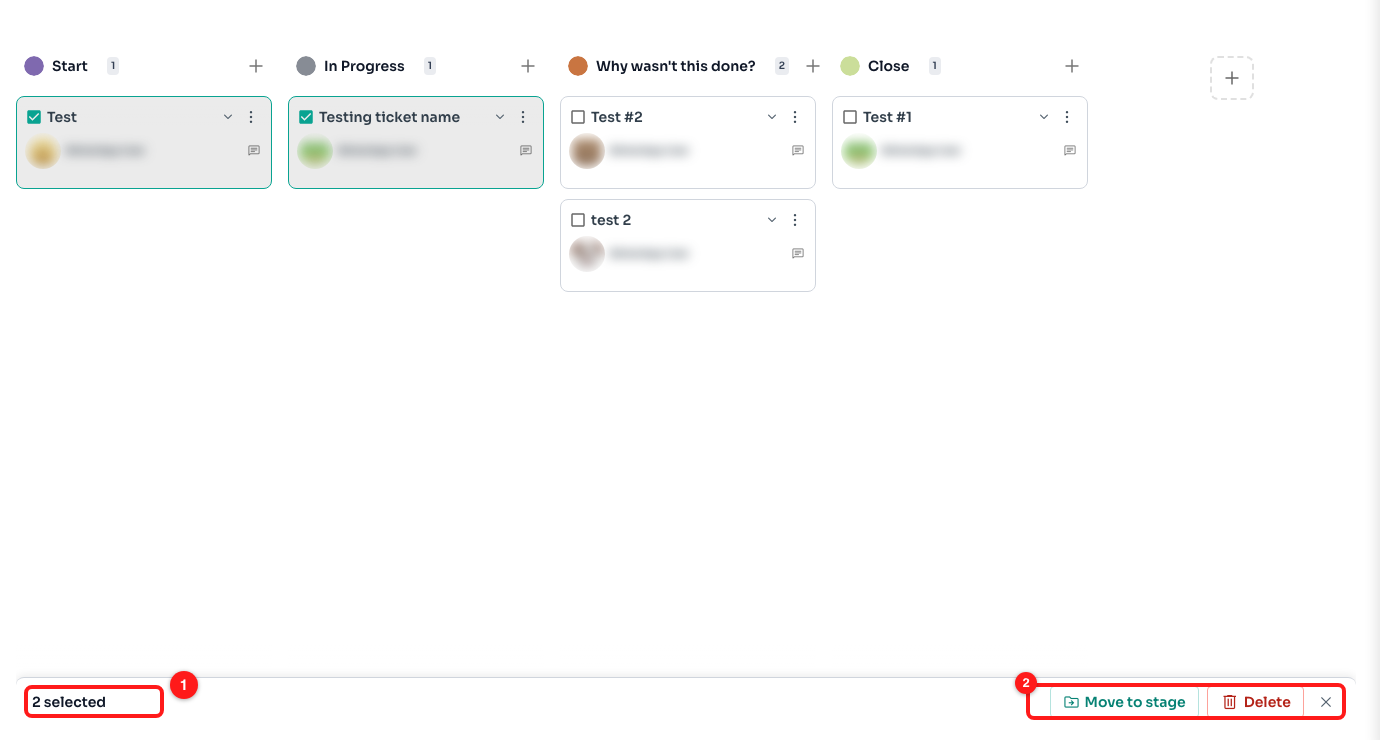
Step 7 — the count of selected tickets (1) and the actions that apply to them (2).
This is the point of filtering first: narrow the board to the tickets you want, then select and move them in one go. Selecting only ever covers tickets that are currently on screen, so anything the filter is hiding is safe from a bulk action — and so is anything further down a long stage that has not loaded yet.
🔒 While tickets are selected, drag-and-drop is switched off, the same as when a sort is on. Clear the selection with the × at the end of the bar to start dragging again.
Frequently asked questions
Why can I suddenly not drag cards between stages?
Two things switch dragging off: a sort other than Default, and having tickets selected. Set the sort icon back to Default and clear any selection, and dragging works again. Nothing is broken and no ticket has moved.
My sort disappeared when I refreshed the page.
That is expected for the board sort — Default, Latest, Oldest and A–Z last only while you are on the page. The table column sort is the one that is remembered, and it is remembered in the browser you set it in, so it will not follow you to another computer or to the mobile app.
I clicked Reset but the board still looks wrong.
Reset clears the filter chips and the table column sort. It deliberately leaves the search box alone — so a word still sitting in search will keep hiding tickets — and it does not touch the board sort. Clear the search box and set the sort back to Default.
My filter emptied the board completely.
The Tag, Assignee and Custom Fields filters look at the contact attached to each ticket, not at the ticket itself. If your tickets are not linked to contacts that carry that tag or assignee, nothing matches and the board comes back empty. Clear the chip and try filtering by Contact or Stage instead.
Can I combine filters?
Yes. Values ticked inside the same category are treated as "any of these" — pick three tags and you get tickets carrying any one of them. Different categories are combined, so an assignee plus a tag gives you tickets that match both. Search narrows whatever the filters left.
Will my colleagues see the filter I applied?
No. Filters, the board sort and the search box are yours alone and are not saved to the team account — a colleague opening the same board sees the whole of it. Changing boards clears your filters too.
Where has the Stage filter gone?
It is only offered on the Table layout. On the Board layout every stage is already its own column, so the filter is left out. Switch the view’s layout to Table in View settings if you want to work in one stage at a time.