
How to Filter Broadcast Recipients by Contact Health
Read the Audience Quality Summary before you send, and use the Contact Health Filter to drop contacts who will never open your message. Covers what each metric and each exclusion means, what the coloured summary band is telling you, and why a cleaner audience protects your WhatsApp quality rating.
Also searched as: How to Filter Broadcast Recipients by Contact Health, Where to find it, Check how many contacts you have selected, Open the Audience Quality Summary and read the metrics, Read the summary band and the suggested actions, Open the Contact Health Filter, Tick what you need and confirm the new count, Why a cleaner audience protects your WhatsApp channel, Filter, Broadcast, Recipients, Contact, Health
A broadcast costs the same whether a contact reads it or ignores it. The Audience Quality Summary tells you, before you send, how much of your selected audience is actually still engaged — and the Contact Health Filter lets you drop the rest in a couple of clicks.
Both panels sit in the Select Contacts section of the broadcast editor, and both are worth a look on any list you have not cleaned recently. They matter most on WhatsApp Business API (WABA) channels, where messaging people who never engage is the fastest way to collect blocks and reports — and blocks and reports are what drive your quality rating down and your messaging limit with it.
🛡️ Nothing in these two panels changes your contacts. Ticking an exclusion only narrows the recipient list for this one broadcast — no contact is deleted, unsubscribed or edited, and the next broadcast starts from your full audience again.
Where to find it
Go to Marketing → Broadcasts and click + Create, or open a broadcast you have not sent yet. In section 1 Select Contacts, under the Import Contacts (CSV) link, you will find two collapsed panels: Contact Health Filter and Audience Quality Summary. Click either heading to open it.
ℹ️ Pick your audience first. Everything in both panels is measured against the contacts your Filter By conditions currently select, so if the count at the top reads 0 Contacts selected, the quality panel will not appear at all.
Step-by-step
Step 1 — Check how many contacts you have selected
The green N Contacts selected figure at the top right of Select Contacts is your live recipient count. It updates as you add filter conditions, and again as you tick health exclusions. Both panels sit directly underneath it.
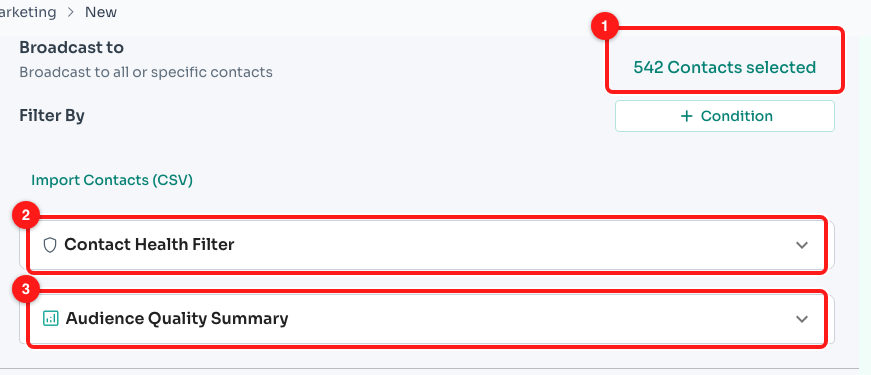
Step 1 — the live recipient count (1), the Contact Health Filter panel (2) and the Audience Quality Summary panel (3), both collapsed by default.
Step 2 — Open the Audience Quality Summary and read the metrics
Click Audience Quality Summary. It takes a few seconds to count, then shows eight figures for the audience you have selected. In the example below, only 7 of 542 contacts have messaged in the last month — an audience worth cleaning before spending anything on it.
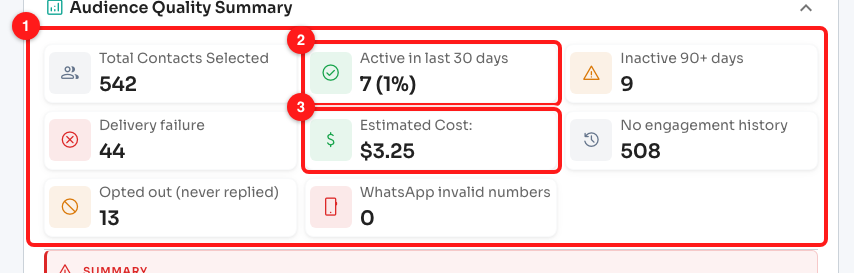
Step 2 — the eight metric tiles (1), with Active in last 30 days (2) and Estimated Cost (3) as the two most useful.
- Total Contacts Selected — the recipients your filters currently select.
- Active in last 30 days — how many have exchanged a message with you in the last 30 days, and what share of the audience that is. This is the headline number.
- Inactive 90+ days — no message either way for 90 days or more.
- Delivery failure — contacts in this audience whose chat already contains a message that failed to deliver. A strong sign the number is dead or has blocked you.
- Estimated Cost — what sending to the current recipient count would cost, priced at your WhatsApp per-message rate and shown in US dollars.
- No engagement history — contacts you have never sent a message to at all.
- Opted out (never replied) — contacts who have received your messages but have never sent one back.
- WhatsApp invalid numbers — how many numbers do not exist on WhatsApp. This one shows — until you switch on the matching filter in Step 4.
Step 3 — Read the summary band and the suggested actions
Under the tiles, a coloured SUMMARY card turns those figures into a verdict, followed by Actions to make broadcast effective — a short list tailored to what is actually wrong with this audience.
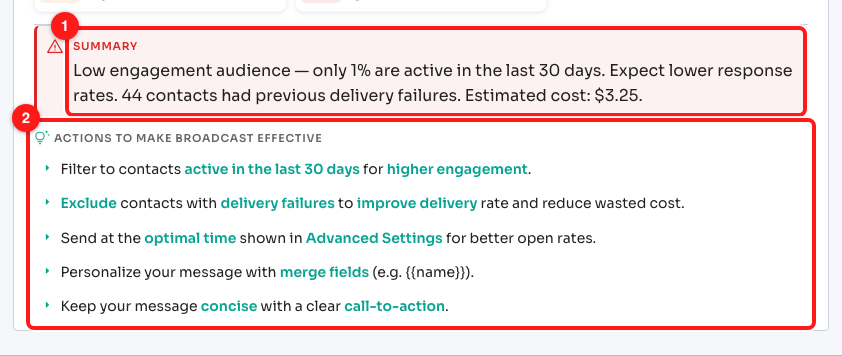
Step 3 — the summary verdict (1) and the suggested actions underneath it (2). This audience is red: 1% active.
The colour of the card is set by one number — the share of contacts active in the last 30 days:
- 🟢 30% or more — “Good engagement potential.” Send away.
- 🟡 10% to 29% — “Moderate engagement… consider refining your audience for better results.” Worth tightening before a large send.
- 🔴 Below 10% — “Low engagement audience… expect lower response rates.” Clean this list first.
The card then adds a sentence for each specific problem it found — a large block of 90-day-inactive contacts, any previous delivery failures, or a big share of contacts who never reply — and closes with the estimated cost.
Step 4 — Open the Contact Health Filter
Click Contact Health Filter. There are four exclusions, and the number in brackets after each one is exactly how many contacts that box on its own would remove from your current selection.
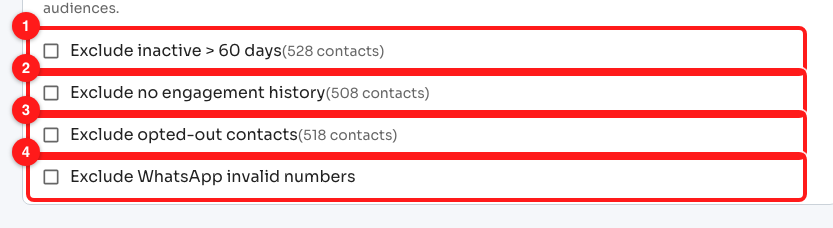
Step 4 — Exclude inactive > 60 days (1), no engagement history (2), opted-out contacts (3) and WhatsApp invalid numbers (4).
- Exclude inactive > 60 days — drops anyone whose last message is older than 60 days.
- Exclude no engagement history — drops contacts you have never messaged, so the broadcast only reaches people who already know you.
- Exclude opted-out contacts — drops contacts who have never replied to you. They have not formally unsubscribed, but they have never once answered.
- Exclude WhatsApp invalid numbers — checks each number against WhatsApp and drops the ones that do not have an account. No count is shown until you tick it, because the check only runs on demand.
⏳ The WhatsApp check is the slow one. It verifies contacts one at a time and shows its progress as “checking 40/542…” — a few minutes on a large audience — and it stops after the first 5,000 contacts. Tick it early and let it finish while you write the message.
Step 5 — Tick what you need and confirm the new count
You can combine as many exclusions as you like. As soon as one is ticked, a grey line appears under the checkboxes summarising the effect — “Excluding no-engagement contacts can reduce cost by 94%” — and the recipient count at the top of the section drops to match.
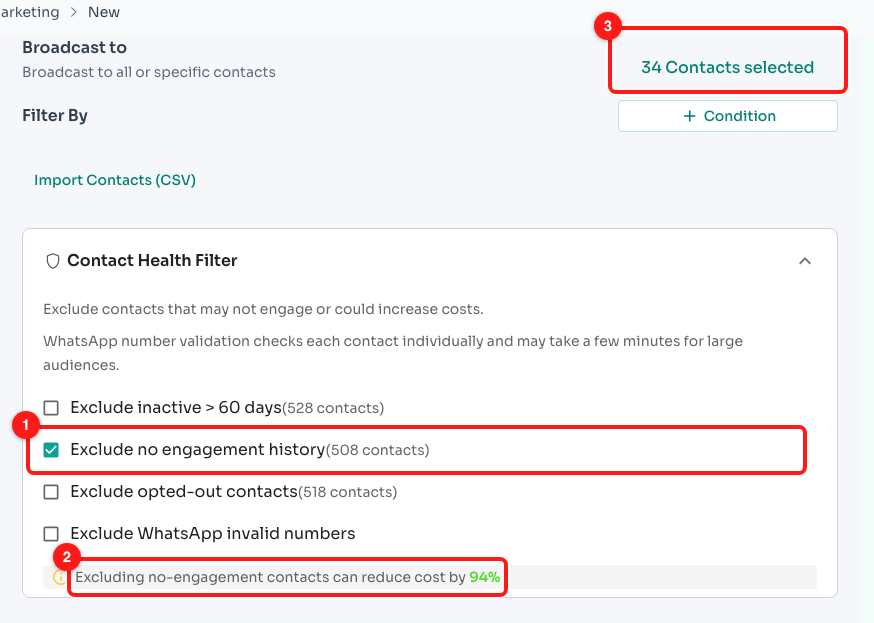
Step 5 — one exclusion ticked (1), the cost-reduction line it produced (2), and the recipient count now down from 542 to 34 (3).
Treat the recipient count as the truth and the percentage as a guide. When you are happy with it, carry on to 2 Settings and finish the broadcast as usual — the exclusions are saved with it.
Why a cleaner audience protects your WhatsApp channel
On a WABA channel, Meta scores every number on how recipients react to it. People who never asked to hear from you, or who stopped caring months ago, are the ones most likely to hit Block or Report — and enough of those drop your quality rating from green to amber to red. A red rating cuts your daily messaging limit, and a number that keeps collecting reports can be restricted outright.
Excluding poor-health contacts is therefore not only about the credits you save on the send. It is the cheapest way to keep the number you send from healthy enough to keep sending at all.
Frequently asked questions
The counts beside the checkboxes do not add up when I tick two of them.
They are not meant to. Each bracketed number is measured on its own against the full audience, and the same contact is often caught by more than one exclusion — someone who has never replied is usually also inactive. The percentage on the grey summary line adds them together, so with two or more boxes ticked read it as an upper bound. The N Contacts selected figure at the top of the section is always the real number.
The WhatsApp invalid numbers tile just shows a dash.
That is expected until you tick Exclude WhatsApp invalid numbers. Validating numbers means one live lookup per contact, so it only runs when you ask for it. Once ticked, the tile shows Checking… and then the count.
Does excluding a contact delete or unsubscribe them?
No. The exclusions only shape this broadcast's recipient list. Your contacts, their tags and their chat history are untouched, and the same contacts are available to the next broadcast.
I filtered too hard and the Save button is greyed out.
A broadcast needs at least one recipient. Hover the disabled Save button and it will tell you what is missing — “Select at least one contact” when the count has reached zero. Untick an exclusion, or widen your Filter By conditions.
How accurate is the estimated cost?
It is your current recipient count priced at the standard WhatsApp per-message rate for your account, so it moves whenever the count does. It is a planning figure, not an invoice: what you are finally charged depends on the channel you send from, the template category, and Meta's own per-conversation charges.
Why is "Opted out" not the same as unsubscribed?
It is our best available signal, not a formal opt-out. It counts contacts who have received at least one message from you and have never sent one back. Someone who explicitly asked to be removed should be handled with a tag or by removing the contact, not left to this filter.
My whole audience is flagged inactive — is the list worth using at all?
Usually yes, but not as one big send. Start with the contacts who are still active, prove the message works, and only then decide whether the dormant portion is worth the credits and the quality-rating risk. Sending to everyone at once on a red audience is the pattern that gets numbers restricted.